Introduction
Hiring requisitions help organizations plan recruitment effectively. They make sure hiring aligns with business goals, budgets, and compliance needs while improving communication and resource allocation.
This guide explains how to view and manage requisitions in Keka Hire, including starting the hiring process and archiving requisitions.
View Approved Requisitions
Go to the Jobs section.
At the top of the page, you’ll see all Approved Requisitions.
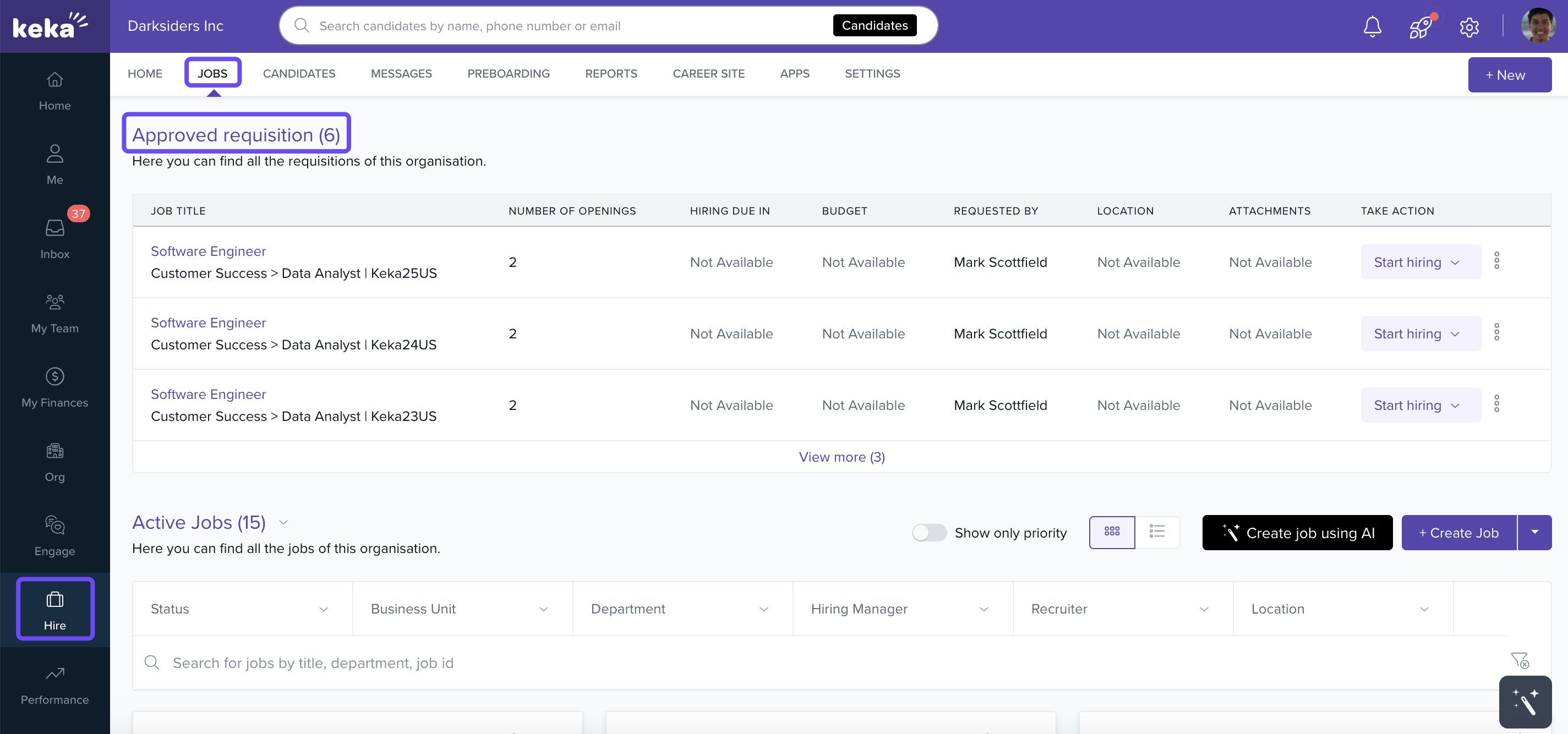
Here, you can:
Click a job title to view details and activity history.
Use the three-dot menu (⋯) on the right to customize the displayed columns.
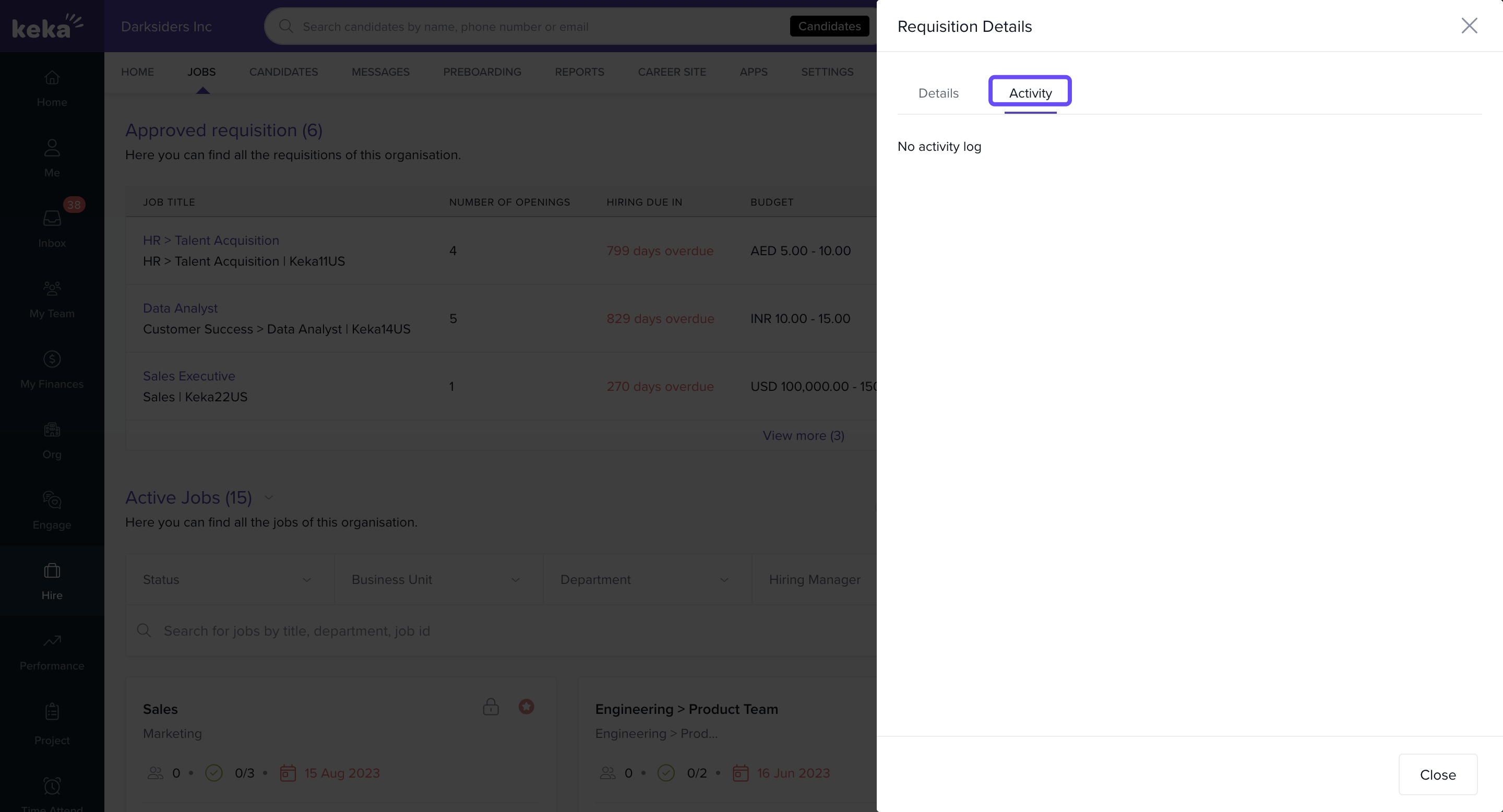
Explore Requisition Details
Each requisition has two tabs:
Details: Shows requisition parameters, job description, required skills, experience, and other key information.
Activity: Displays a timeline of all actions taken on the requisition.
Actions on Approved Requisitions
For any approved requisition, you can:
Start Hiring
Archive Requisition
Start Hiring
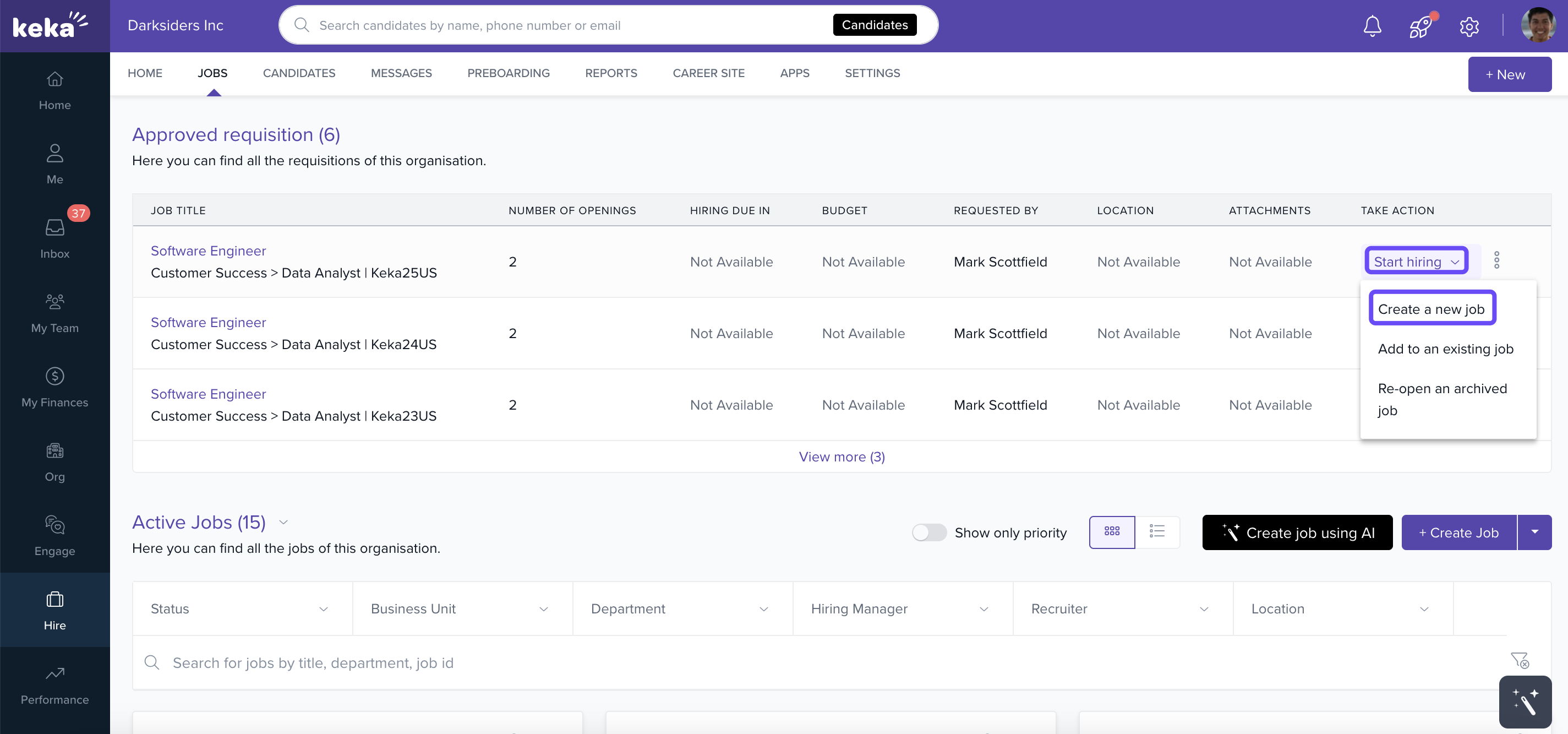
Click Start Hiring to begin recruitment for a requisition. You’ll see three options:
Option 1: Create a New Job
Click Create a new job.
You’ll be taken to the job creation page where you can set job details and create a new job.
Learn how to create a job
Option 2: Add to an Existing Job
Click Add to an existing job.
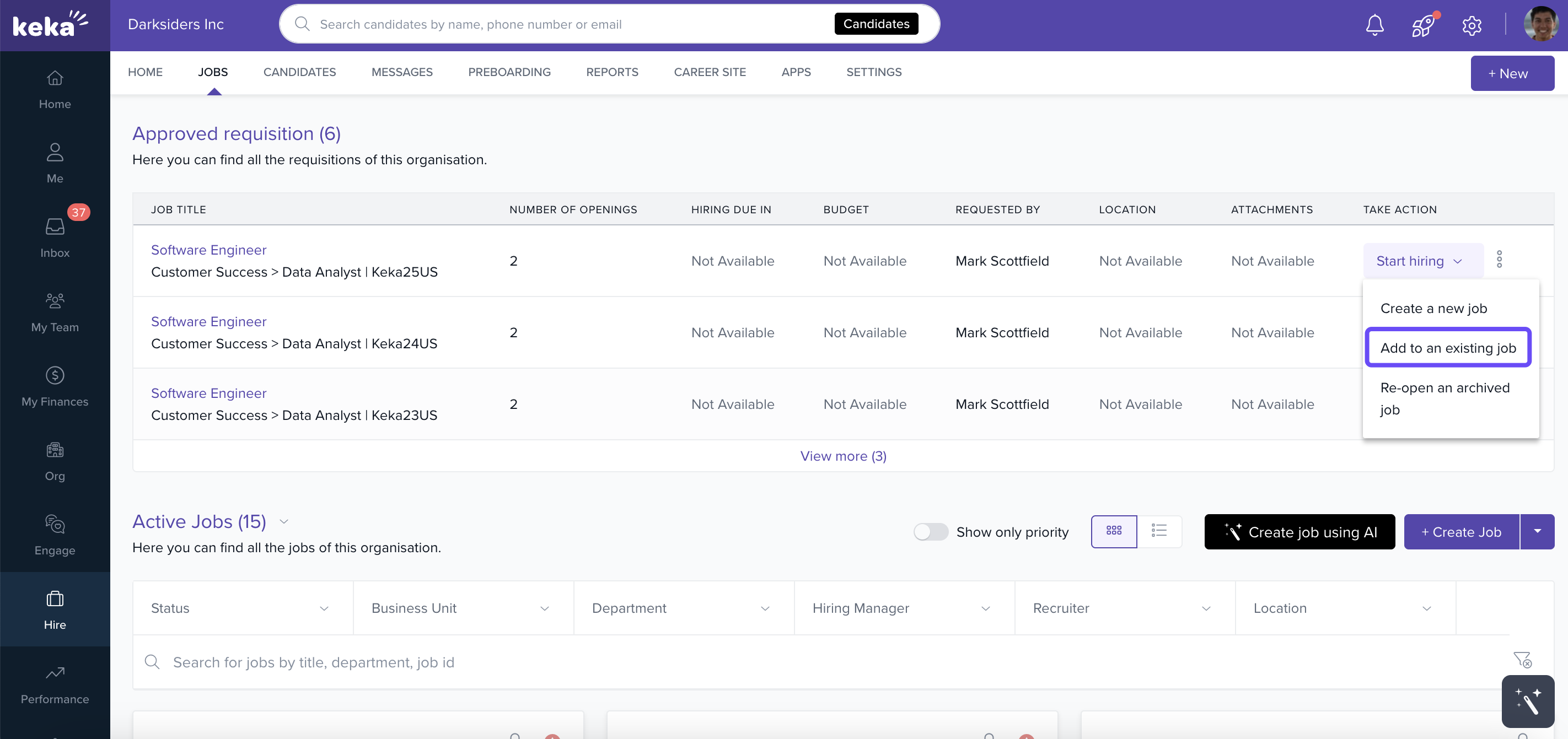
An overlay window opens where you can select the job to merge this requisition into.
Enter additional details such as the number of openings, then click Add to job.
When linked, the job’s number of positions, target hiring date, and location are automatically updated. You can edit other job details afterward if needed.
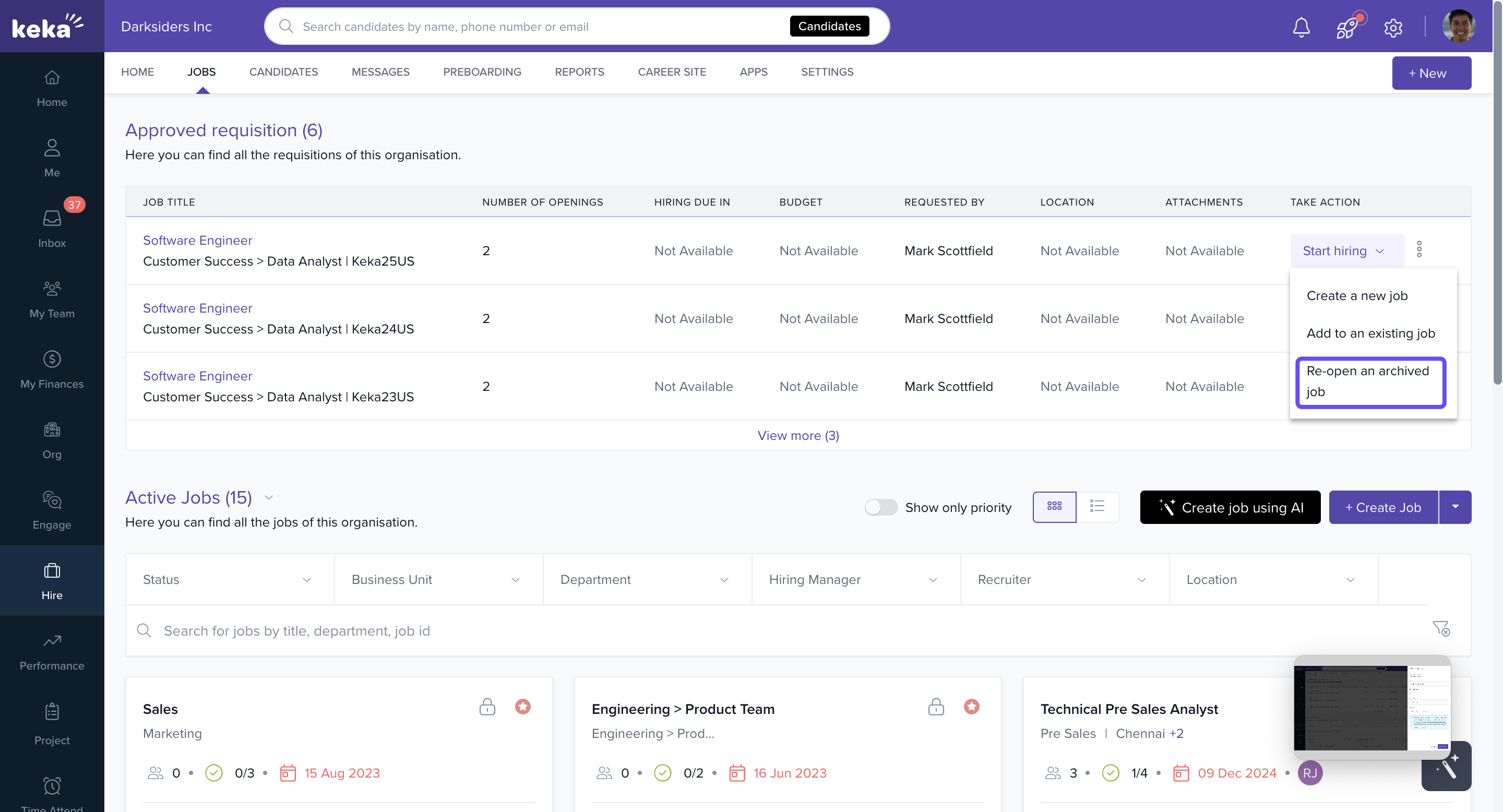
Option 3: Re-open an Archived Job
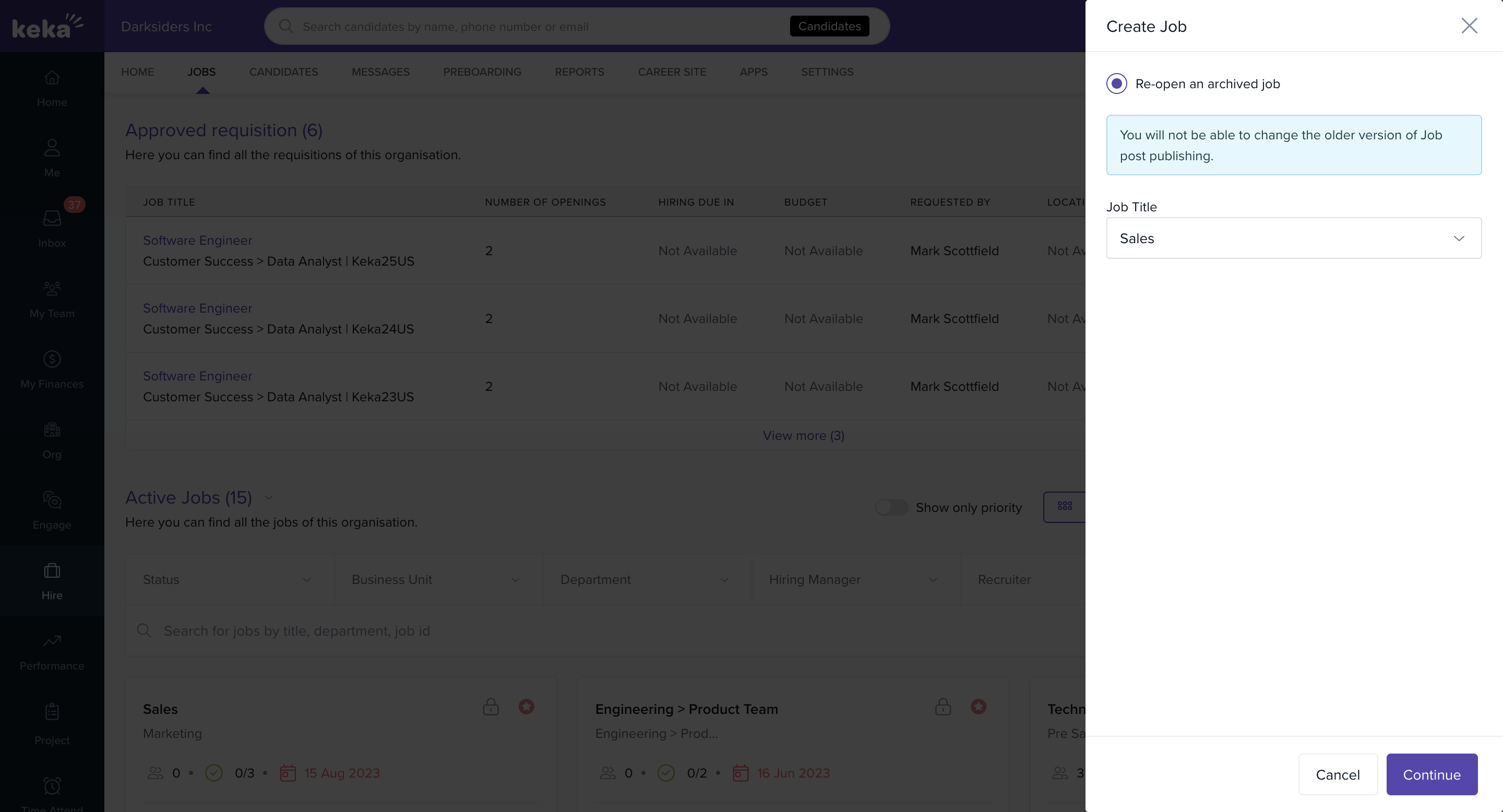
Click Re-open an archived job.
Select a job from the dropdown, then click Continue.
Follow the re-opening process (similar to job creation). Most details will already be filled in, but you can adjust them as needed.
Archive a Requisition
If a requisition is no longer needed, you can archive it:
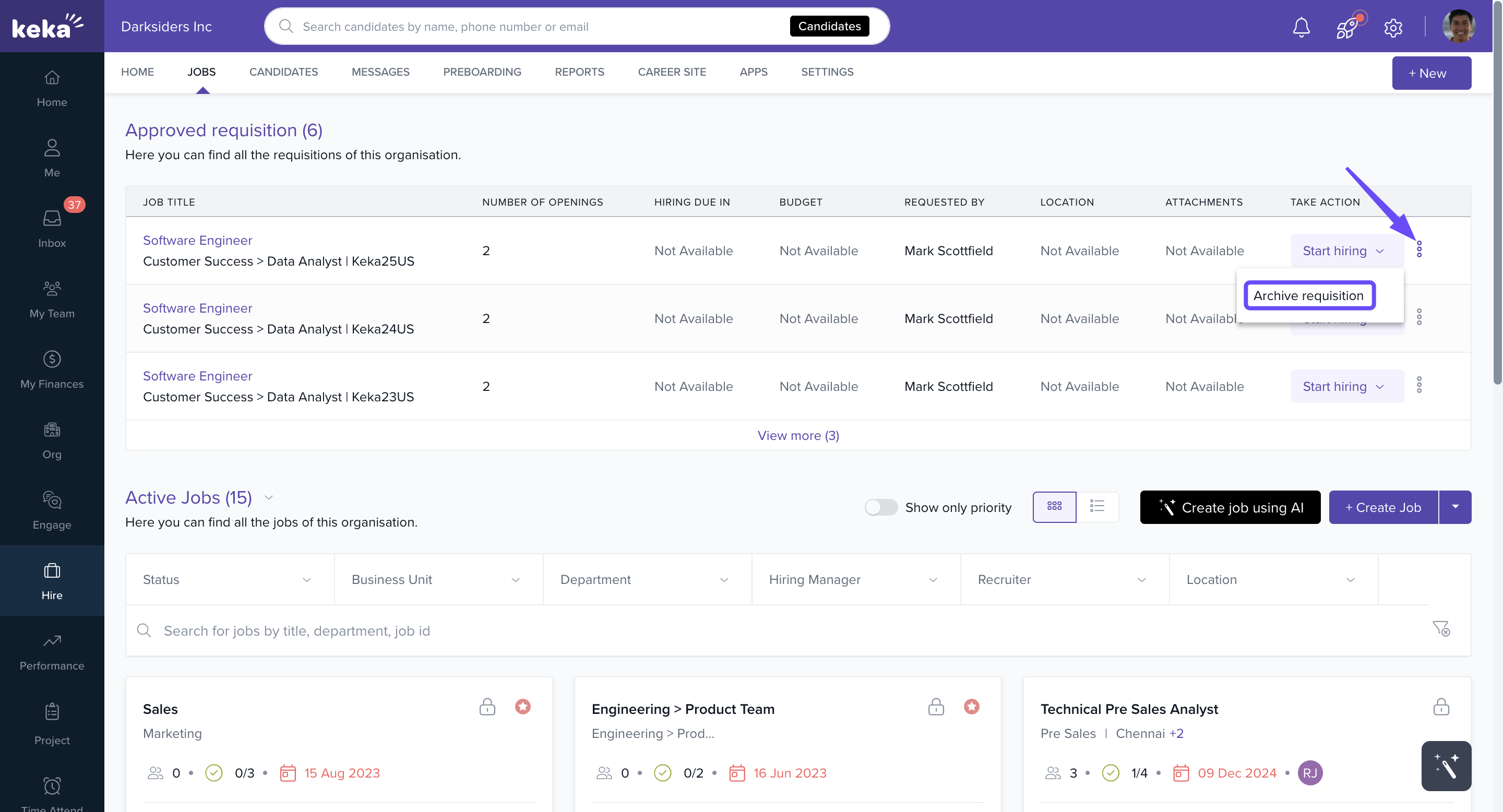
Click the three-dot menu (⋯) next to the requisition.
Select Archive Requisition.
-
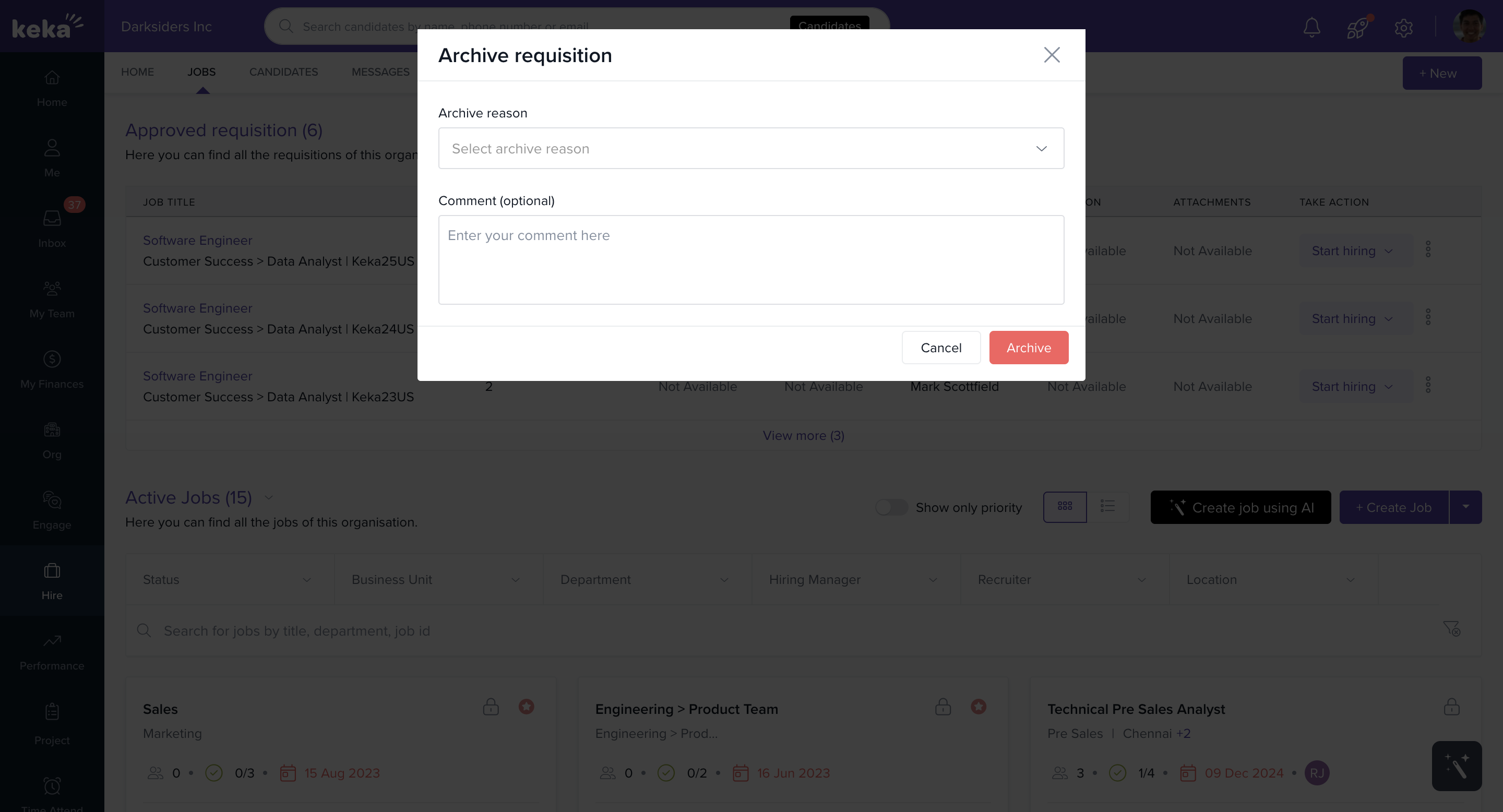
In the pop-up window:
Select an Archive Reason from the dropdown.
(Optional) Add a comment.
Click Archive.
Learn how to add or customize archive reasons
Notes & Tips
Tip: Use the requisition’s Activity tab to quickly track who approved, updated, or modified details.
Important: Once archived, a requisition can only be reactivated by re-opening an associated job.
We hope you now have a good understanding of how to manage job requisitions on Keka Hire.
Please feel free to get in touch with one of our product experts in case of further queries!
Comments
0 comments
Please sign in to leave a comment.