Introduction
Keka Hire's Scorecard Enhancement feature lets you customize how interviewers rate candidates during the hiring process. You can tailor rating scales, feedback labels, and scoring formats to better suit your evaluation methods. This helps teams make informed decisions with consistent, structured feedback.
This feature is available to Global Admins, Super Recruiters, Interviewers, and Recruiters.
Customize Scorecard Settings
Go to the Hire module from the left navigation pane.
Click Settings.
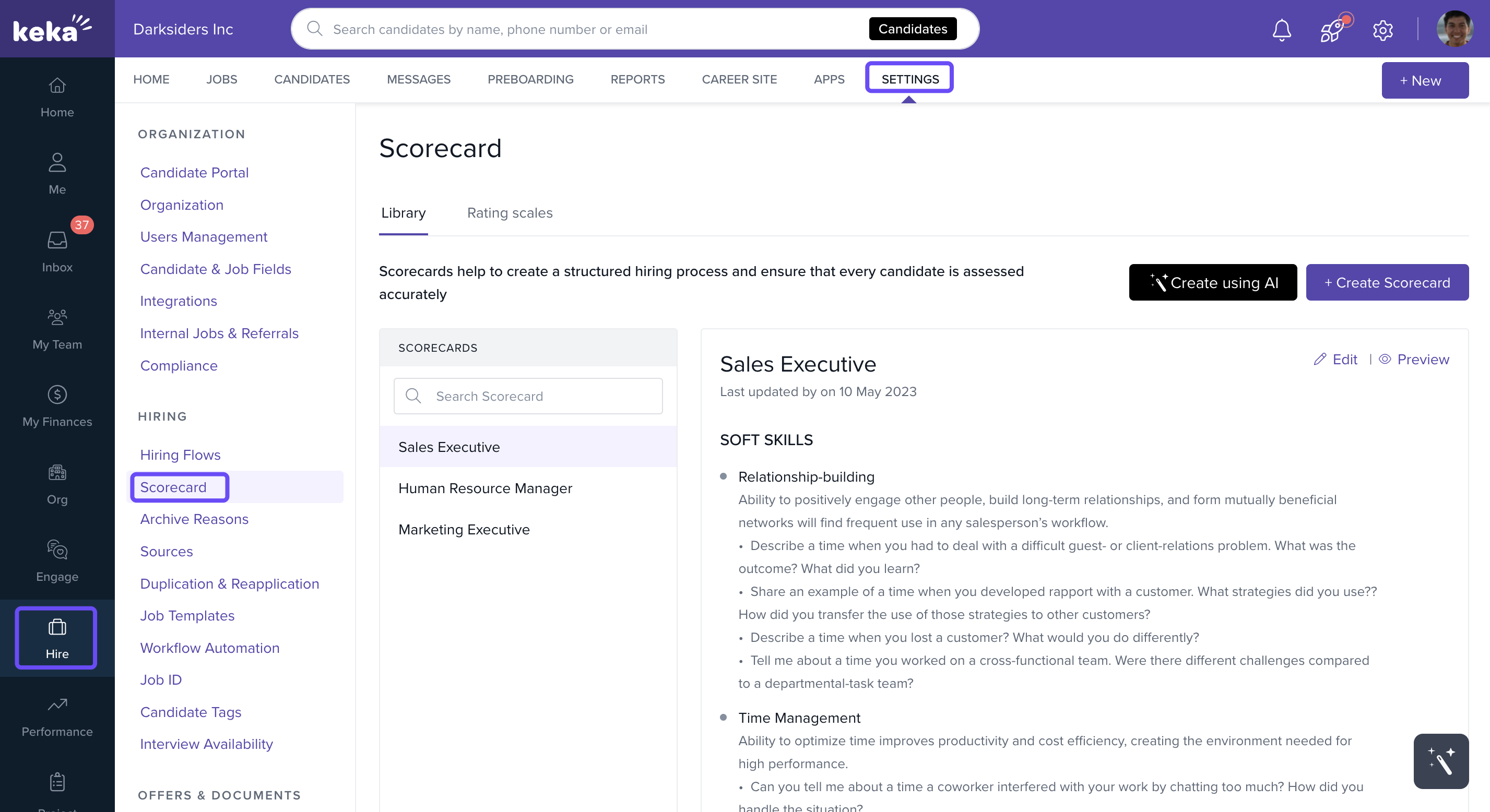
Under the Hiring section, select Scorecard.
Here, you can configure two key elements:
-
Overall Feedback Decision: This lets interviewers share a final opinion on a candidate.
-
Rating Scale: Define how skills and questions are rated in the scorecard.
By default:
Overall feedback options are: Must Hire, Hire, Not Sure, No Hire.
Rating scale is set to 5-point.
You can:
Adjust the number of overall feedback options (2 to 5).
Rename the labels.
Choose different icons.
Switch the rating scale to 3-point if needed and rename those values too.
Select a Scorecard for Interviews
After configuring the rating scales and creating scorecards:
-
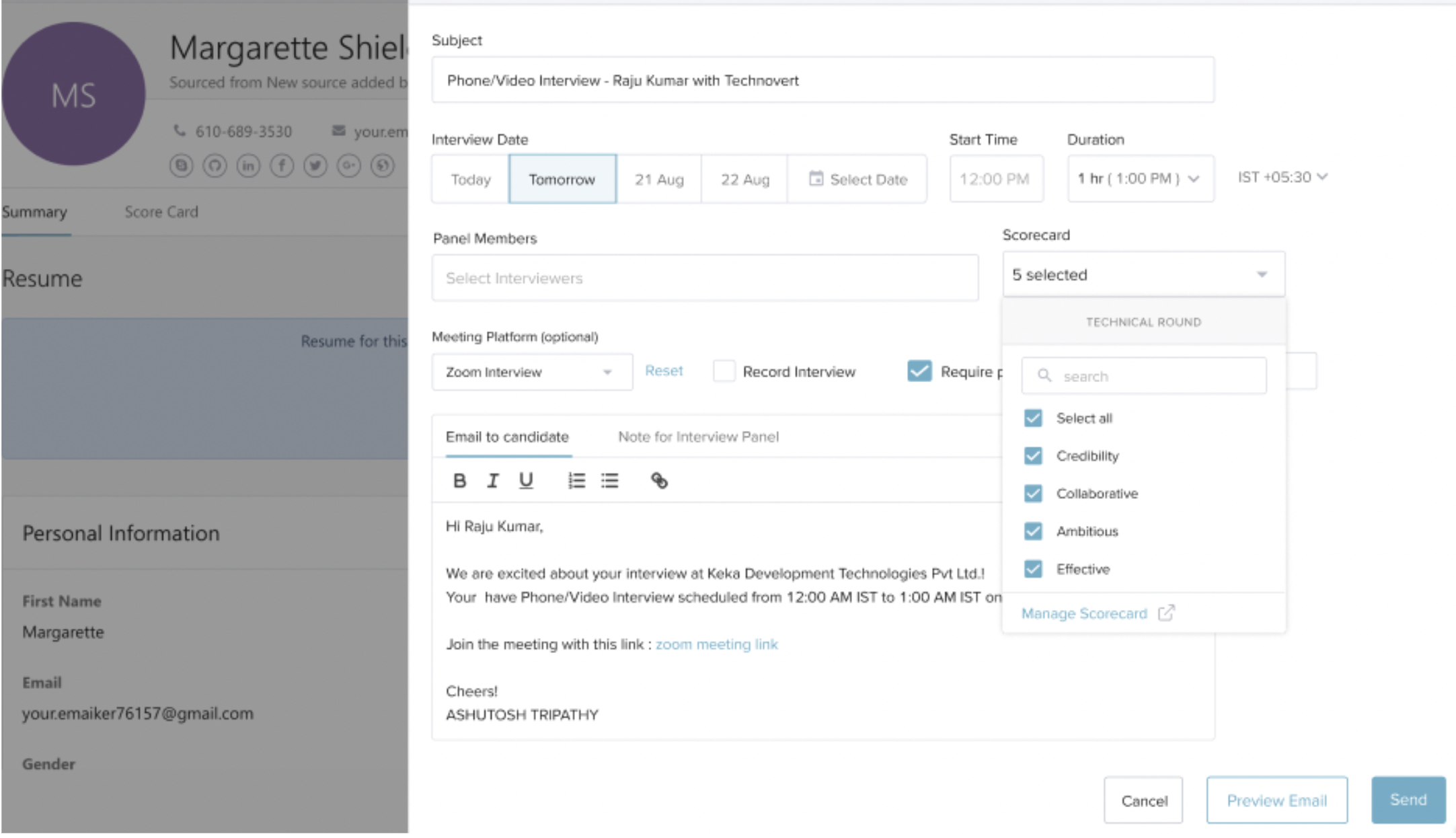
Recruiters can assign a scorecard while scheduling an interview.
-
The selected scorecard is shared with interviewers via email.
-
Interviewers can click the email link to access the Candidate Profile > Scorecard section and submit their feedback.
Submit a Scorecard
When submitting a scorecard:
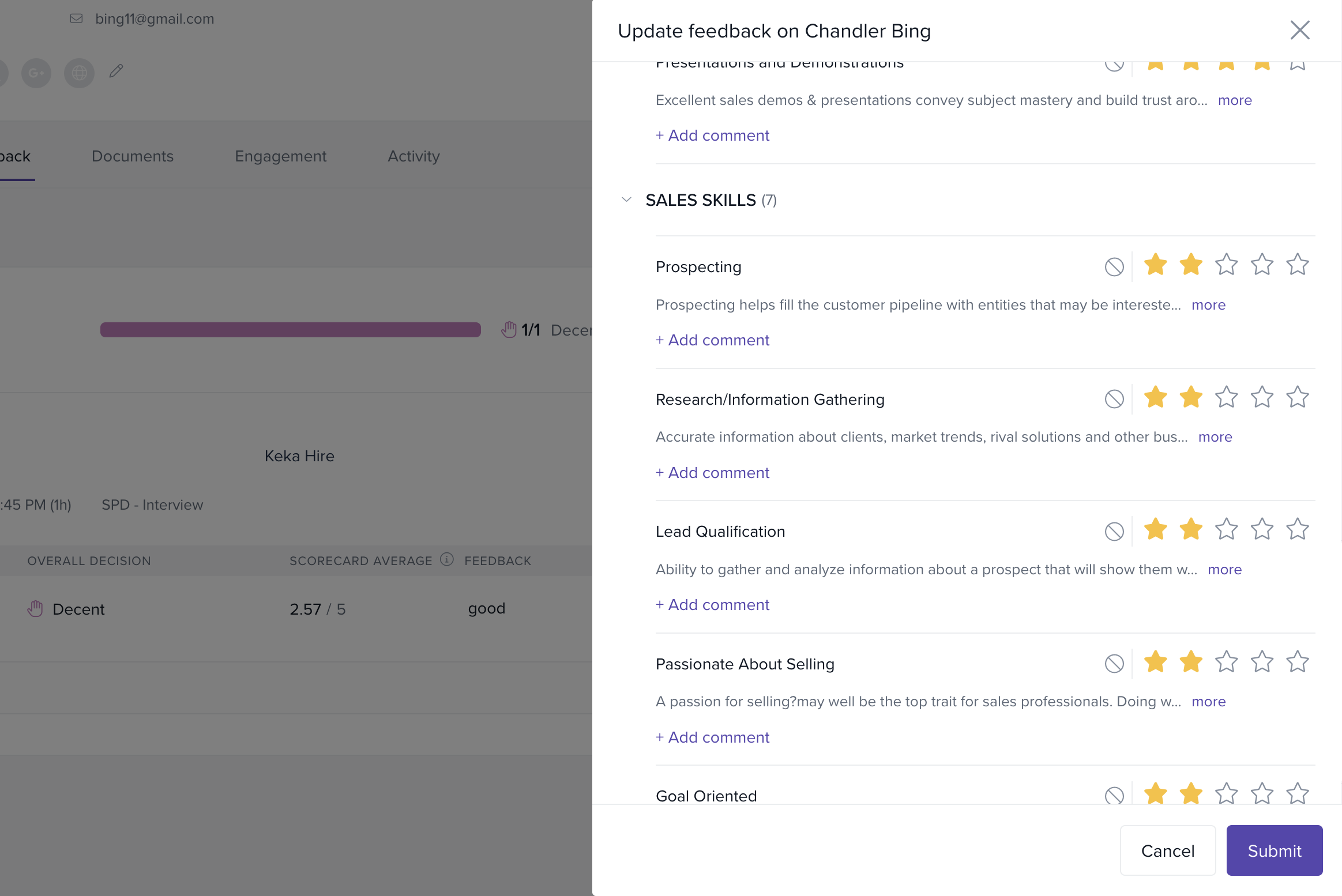
Interviewers see the configured rating scale and overall feedback decision.
They can also mark specific questions or skills as Not Applicable.
Once submitted, the recruiter can view the responses in the candidate’s profile.
View Submitted Scorecards
To access submitted scorecards:
Open the candidate's profile.
Scroll to the Scorecard section.
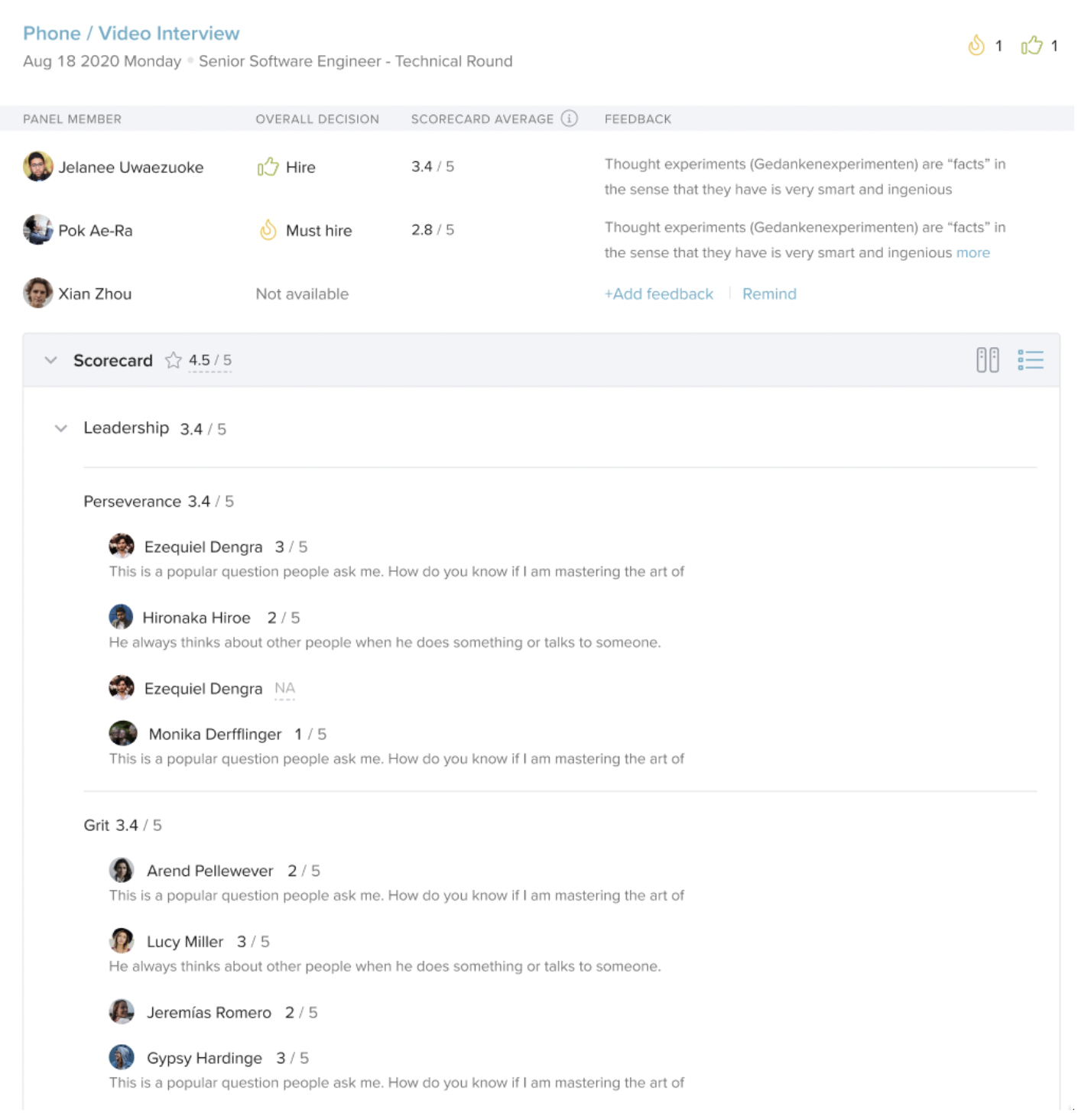
Keka automatically calculates average ratings:
-
For each section of the scorecard
-
Per panel member
-
Per interview stage
You can choose between two views:
Grid View
-
Displays only the numeric ratings given by each panel member for each skill or question.
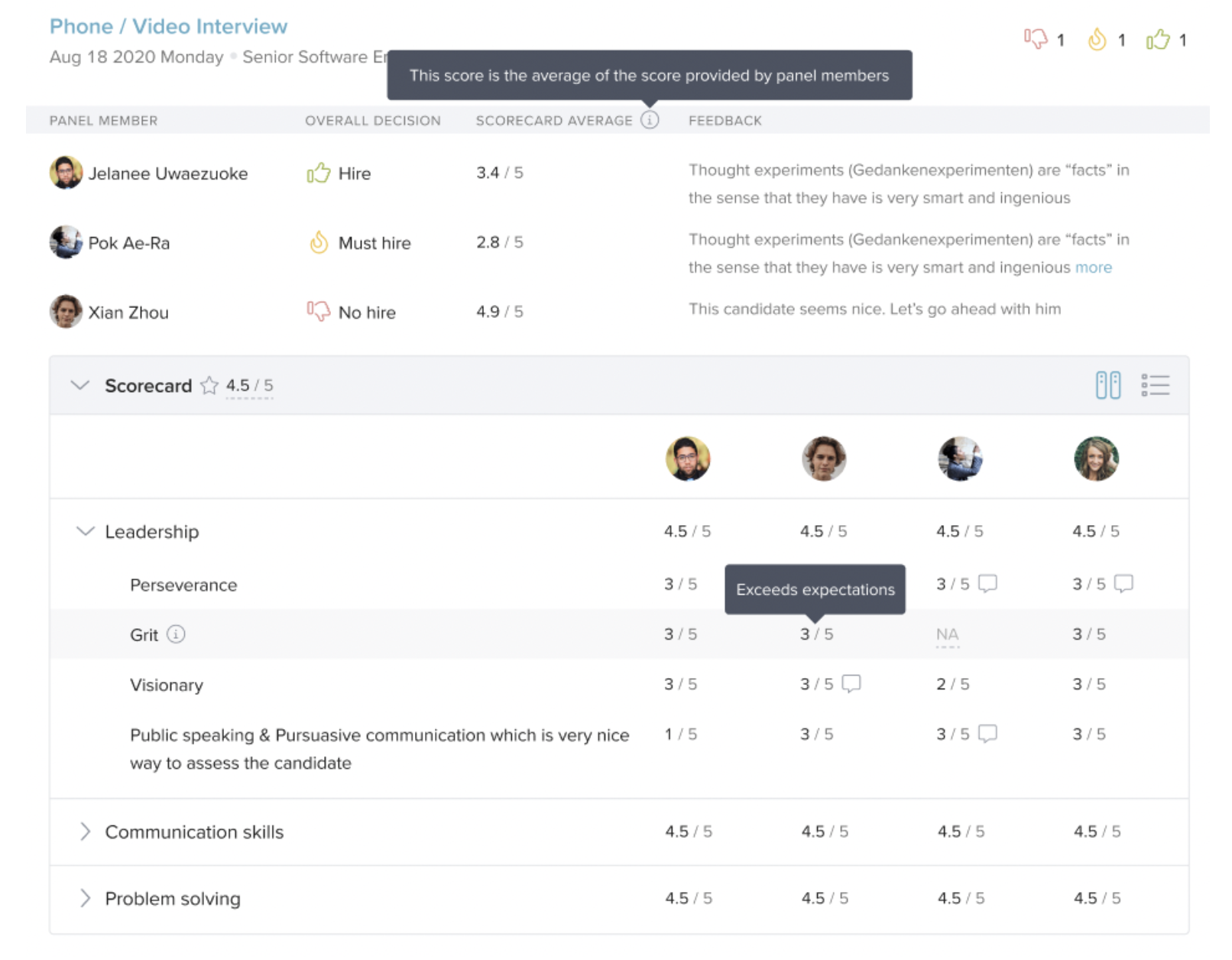
Detailed View
-
Shows both the rating and any notes added by panel members for each skill or question.
Use the New Interview Feedback Column
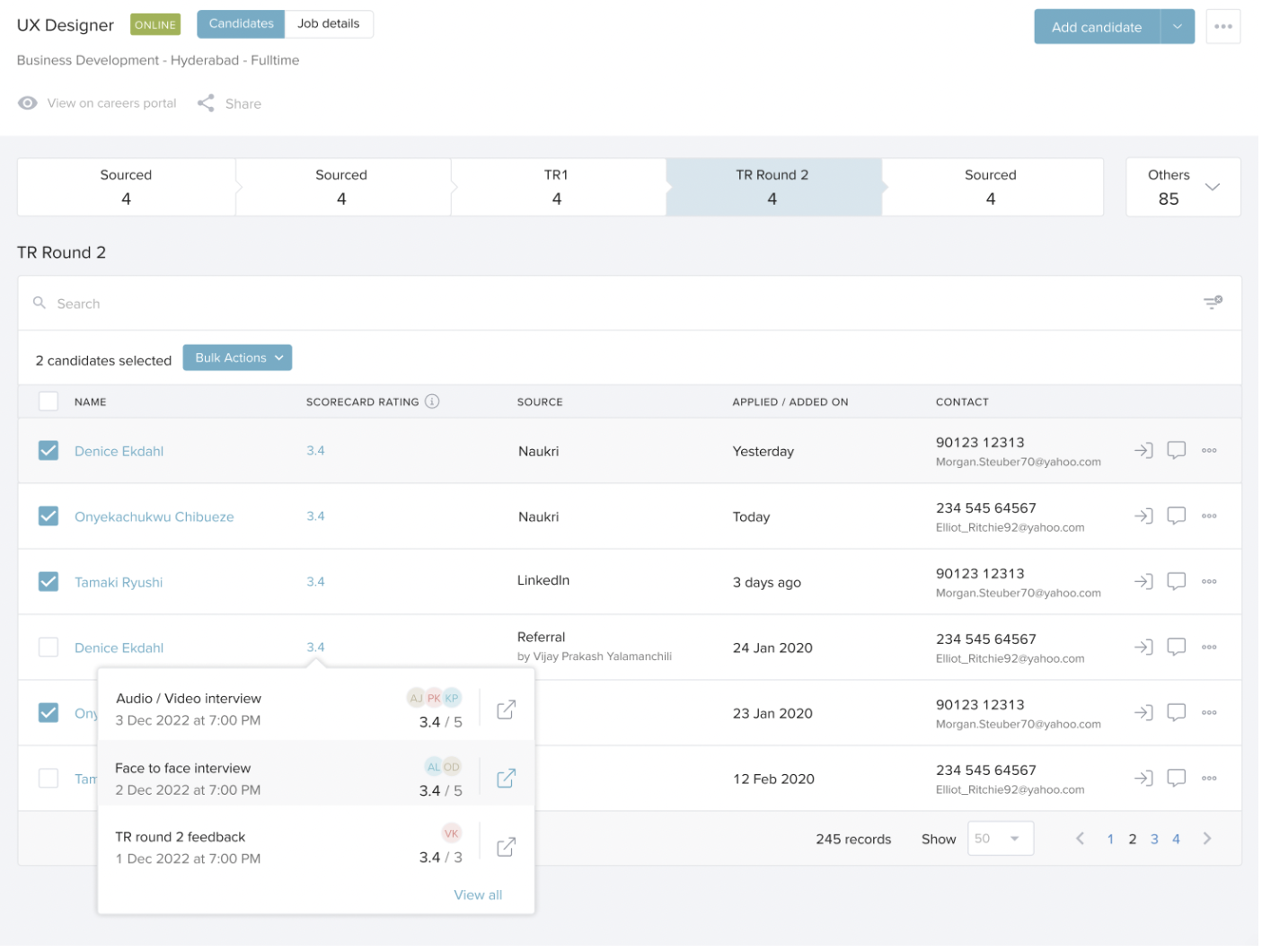
A new column called Interview Feedback appears under Interview Stages within a job posting. It shows a quick snapshot of a candidate’s average overall feedback.
-
Click the rating to open a pop-up with the last three feedback entries.
-
To view all historical feedback, click View All. This redirects you to the candidate’s full scorecard view.
Contact Keka Support if you need help setting up custom rating scales.
Comments
0 comments
Please sign in to leave a comment.