Introduction
Clear and consistent communication with candidates is critical in recruitment. Keka Hire’s Messages section and Email Templates help recruiters manage conversations efficiently, maintain consistency, and save time.
This guide explains how the Messages section works and how to create or edit email templates to improve candidate communication.
Why Use the Messages Section?
The Messages section centralizes all candidate communication inside Keka Hire. This helps you:
Keep all conversations in one place, linked to the relevant job profile.
Avoid missed follow-ups by viewing messages directly on candidate profiles.
Respond faster since you don’t need to switch between tools.
How the Messages Section Works
Recruiters often need to message candidates to:
Schedule interviews
Share job offers
Provide application updates
In Keka Hire, every message is tied to a specific job profile, so all interactions are organized and easy to track.
Templates for consistency
Instead of typing the same email repeatedly, you can use templates to keep a consistent tone and structure.
Attach relevant documents (like an offer letter) or include the job description directly in the message.
Once everything looks good, send the message immediately
Creating and Editing Email Templates
Create a new template
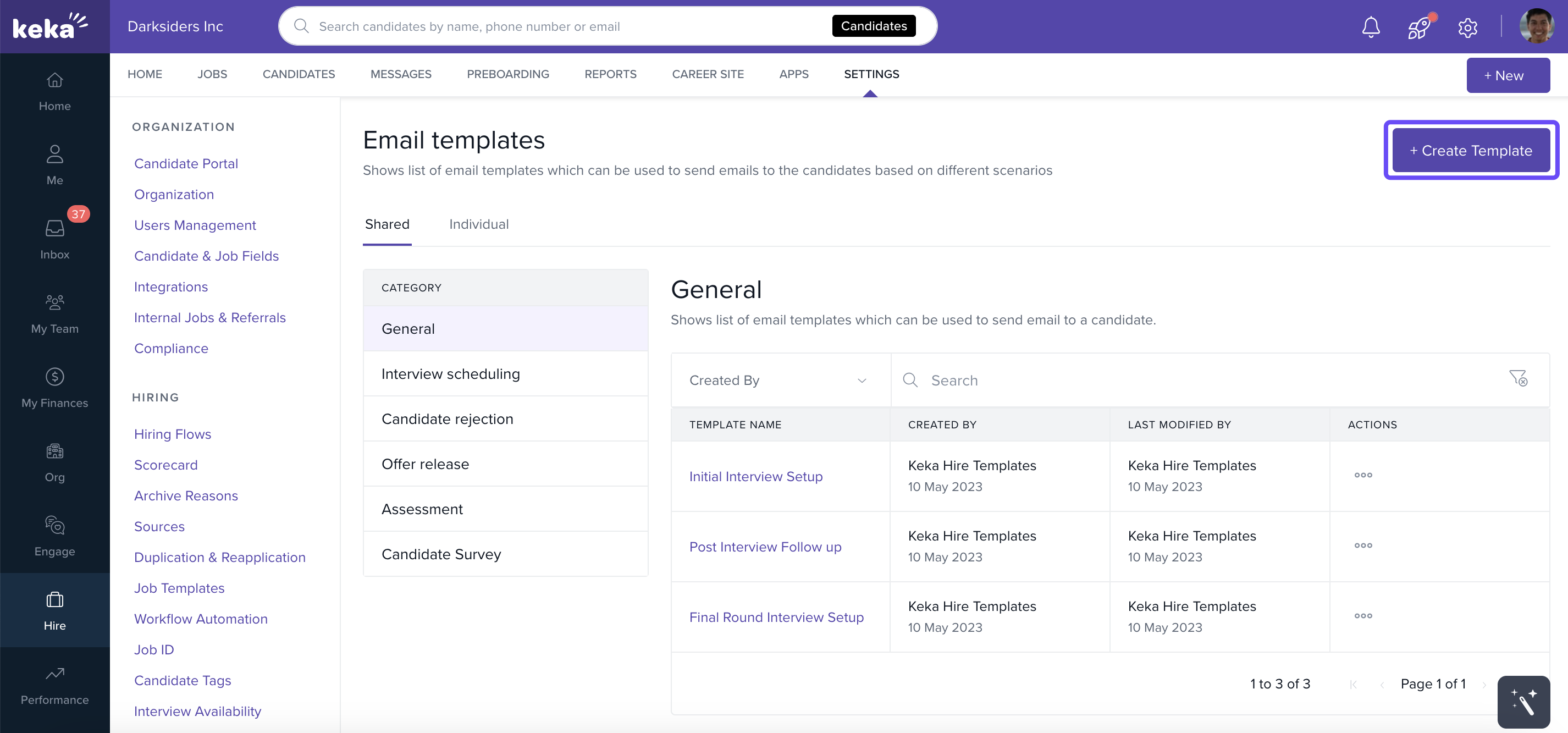
Go to Hire → Settings → Email Templates.
Click +Create Template.
-
Fill in the required details:
Category (e.g., Interview, Offer, General)
Visibility (who can use the template)
Template Name
Subject line
Message body
Add any necessary attachments.
Click Create.
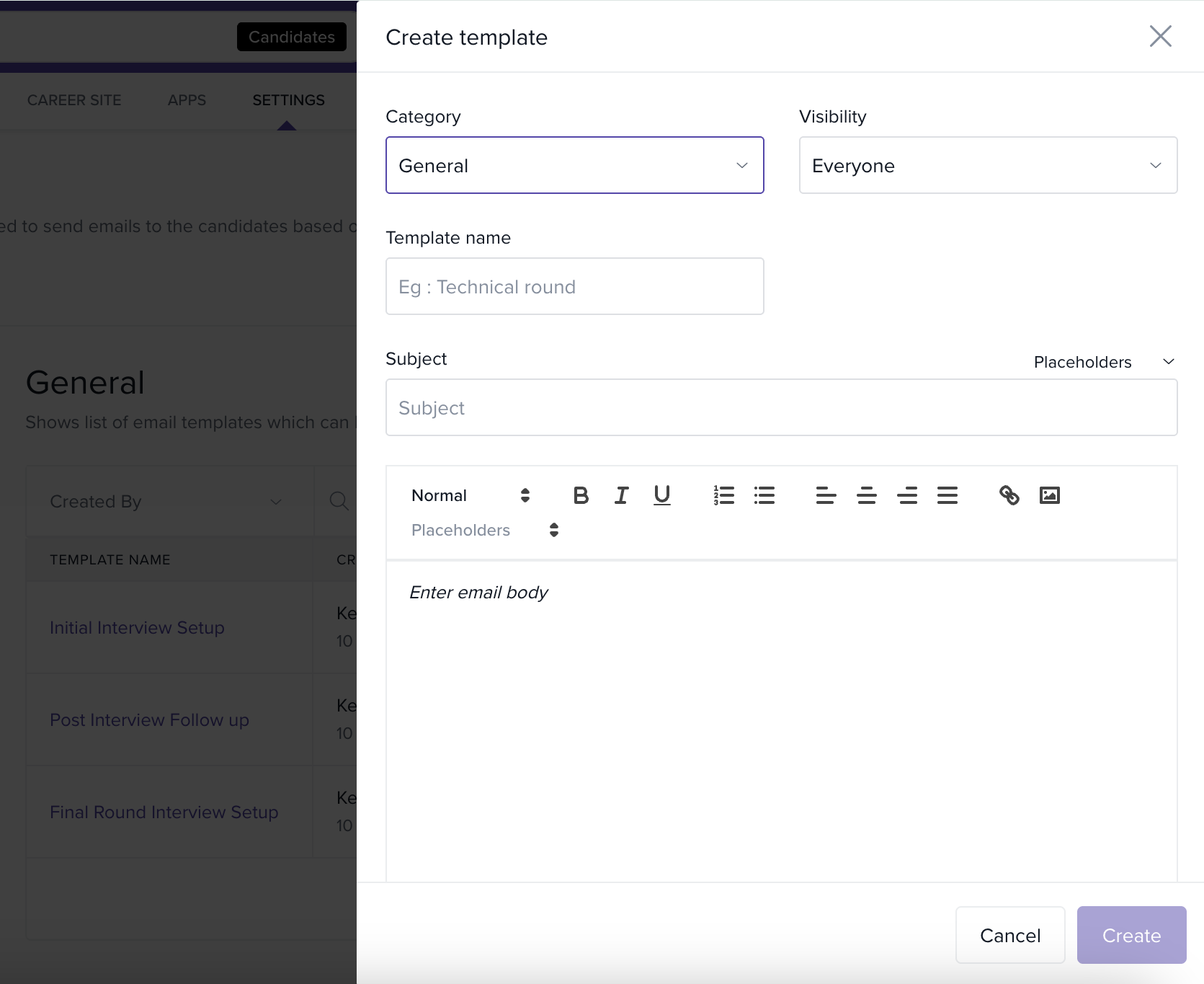
Your template is now saved under the selected category.
View and edit templates
In Email Templates, select a category from the sidebar to see saved templates.
Click on any template to open it.
-
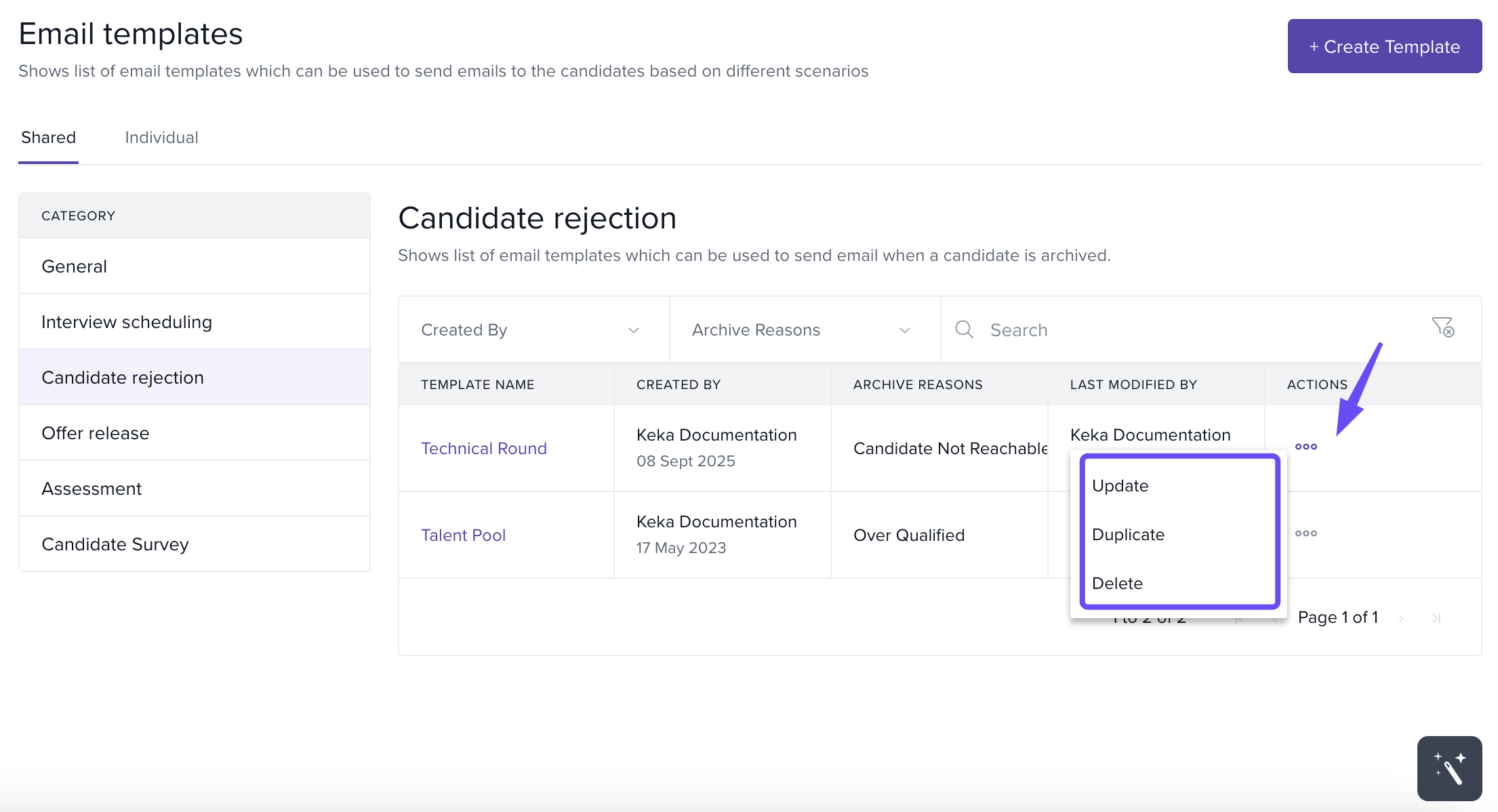
Use the three dots in the Actions column to manage the template:
Update → Make changes in the edit window, then click Update to save.
Duplicate → Create a copy of the template for reuse.
Delete → Remove the template if no longer needed.
Notes & Best Practices
Tip: Use categories to keep templates organized (e.g., Interview, Rejection, Offer).
Tip: Standardize subject lines for clarity, such as “Interview Invitation – [Job Title]”.
Important: Review your message body and attachments before sending to avoid errors.
Need help? Contact our product experts for personalized guidance.
Comments
0 comments
Please sign in to leave a comment.