Introduction
Creating a job is one of the primary tasks in Keka Hire. You can start a job from different places in the system, but all paths lead to the same job creation page.
This guide walks you through creating a job, selecting templates, filling in job details, publishing options, and assigning a hiring team.
Start Job Creation
Go to Hire from the left menu.
Click Jobs.
Select + New at the top of the screen, then choose Job from the dropdown.
Alternatively, click + Create Job next to Active Jobs.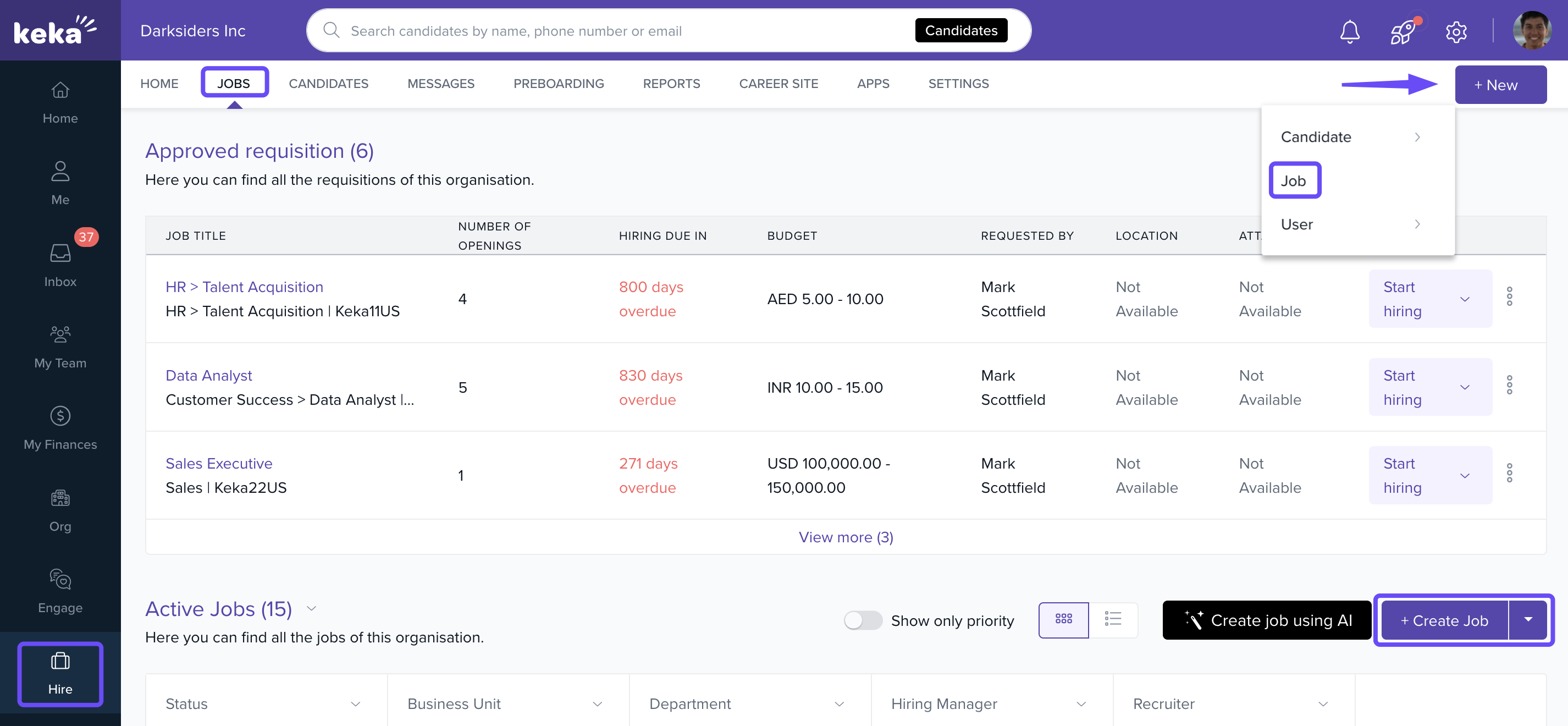
Add Basic Details
On the job creation page, enter:
Job Title
Department
Job Description
You can either type a new description or pick one from an existing template:
Click Pick from Template.
The system will auto-select the department you chose. It shows all job descriptions linked to that department.
To see templates from other departments, use the dropdown to select a department or choose All Departments.
Click a template to preview it, then click Select Template.
The template will appear in the description box. You can edit it further before continuing.
When ready, click Continue.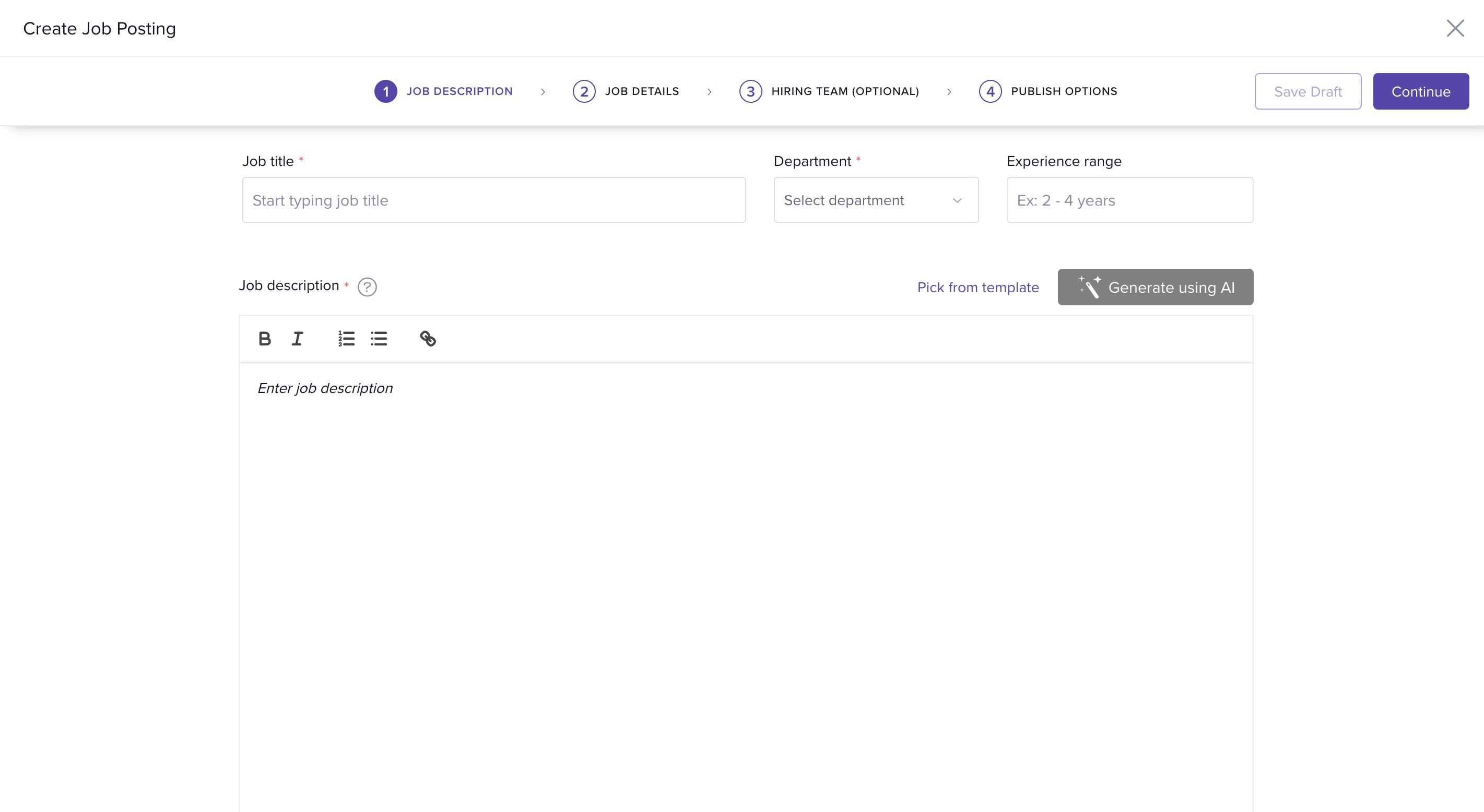
Enter Job Details
For each position row, enter:
- Location
- Start hire date (when you intend to start hiring)
- Target hire date (when you intend to close hiring)
- Enter number of positions
- To add more positions for the same job, click Add again and enter unique details for each row.
You can also add custom job fields to capture extra information.
Learn how to add job fields here.
Assign a Hiring Team
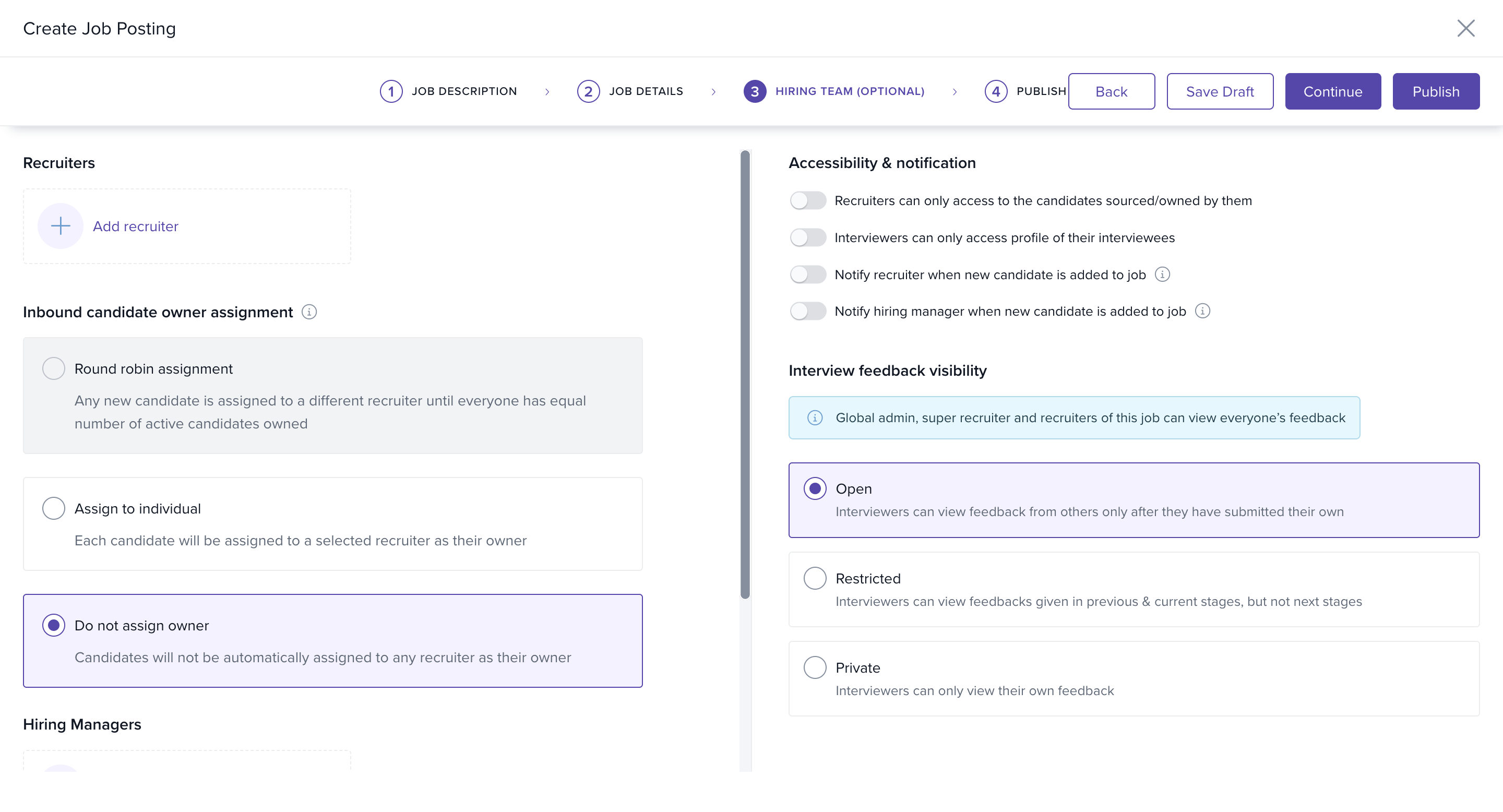
Add Recruiters, Hiring Managers, and Interview Panel members.
-
Choose a candidate owner assignment method:
Round robin assignment
Assign to individual
Do not assign owner
On the right side of the screen:
Configure Hiring Team Accessibility.
-
Set Interview Feedback Visibility to one of:
Open
Restricted
Private
Learn more about interview feedback visibility here.
When finished, click Publish.
Configure Publish Options
Toggle Publish on career portal to make the job visible on your company’s career site.
Select the site where the job should be posted.
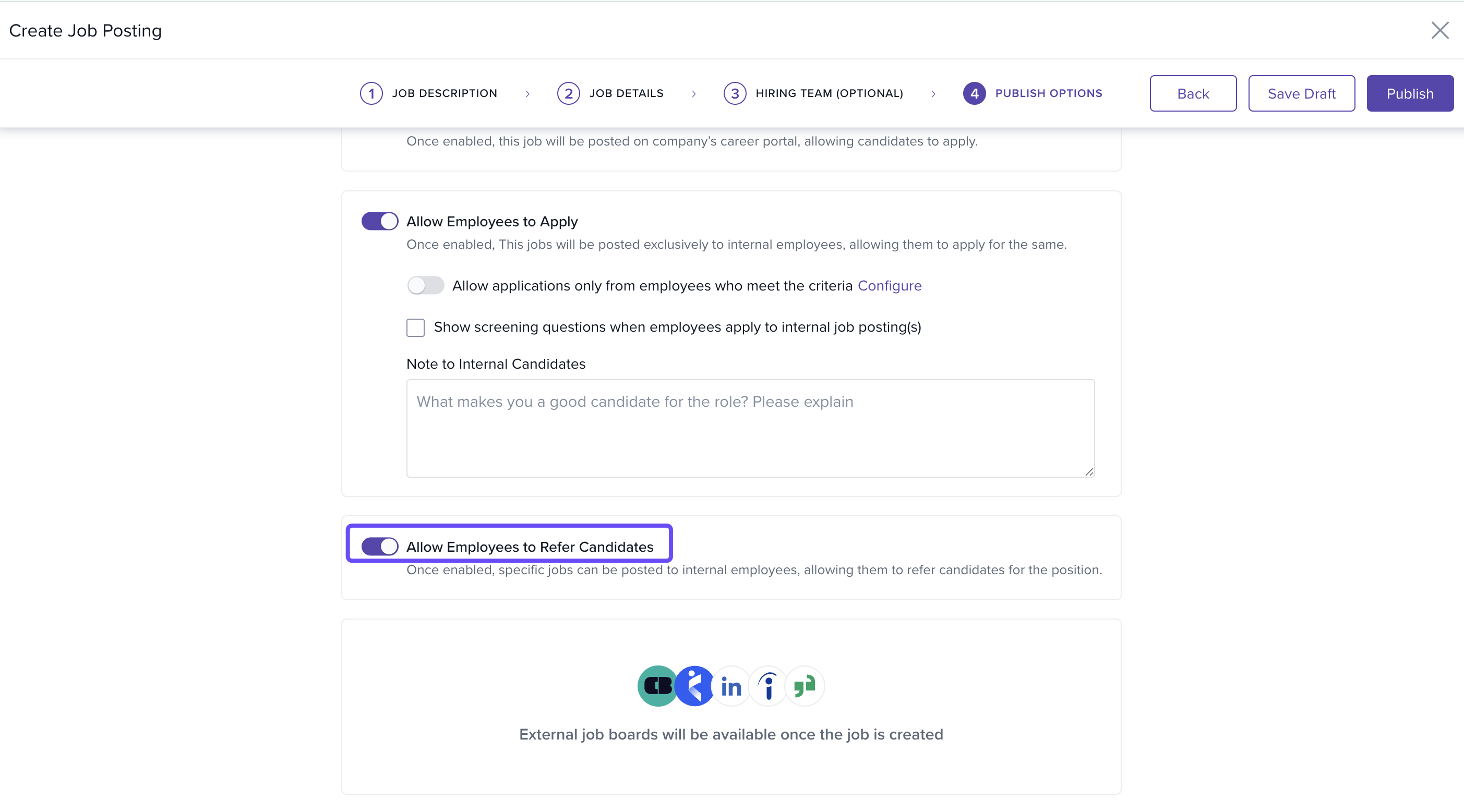
Internal Applications
Toggle Allow Employees to Apply.
-
Click Configure to set conditions employees must meet, such as:
Department
Job type
Location
Business unit
Legal entity

Example: To allow only the Customer Success team to apply:
Select Department.
Choose is.
Pick Customer Success.
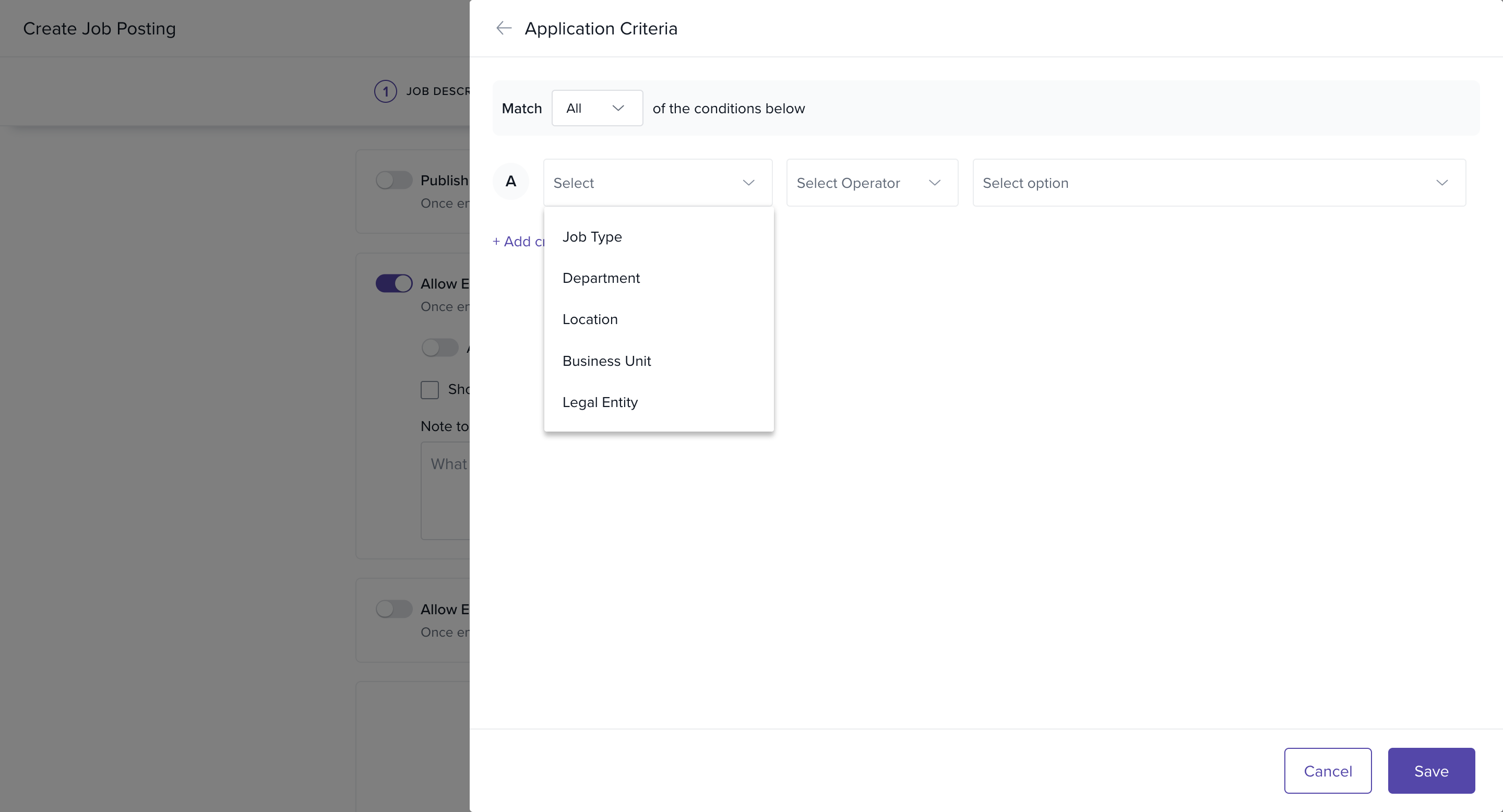
You can add multiple criteria if needed.
Enable Restrict employees to apply within to set a date limit (e.g., until July 19, 2024).
Toggle Show screening questions to display specific questions for internal applicants.
Add a note or question asking employees why they are a good fit.
Referrals
Toggle Allow Employees to Refer Candidates to enable referrals.
Job Preview Image
The preview image will appear when posting the job on external sites.
You can upload your own image.
Important: The image should be 1200x627 px and no larger than 2MB.
You can now keep confidential hiring private in Keka Hire. Only authorized users can access confidential jobs, candidates, hiring pipelines, interviews, and related activities.

Ideal for leadership roles, backfills, and other sensitive positions.
Publishing the Job
Once you click Publish, you’ll see a success notification.
You’ll then be taken to the Publish Options page where you can configure external platforms for the job posting.
You should now have a clear overview of the job creation process in Keka Hire. If you have any questions or need further assistance, our product experts are here to help.
Comments
0 comments
Please sign in to leave a comment.