Introduction
Once a job is created in Keka Hire, the next step is to add candidates. Linking candidates to jobs keeps your recruitment process organized and efficient.
It allows you to:
Focus on specific job requirements
Track candidate progress accurately
Improve collaboration and communication with applicants
Build performance analytics and compliance reports
Maintain a strong candidate database for future hiring
In short, associating candidates with jobs ensures a transparent and effective hiring process.
Access the Job
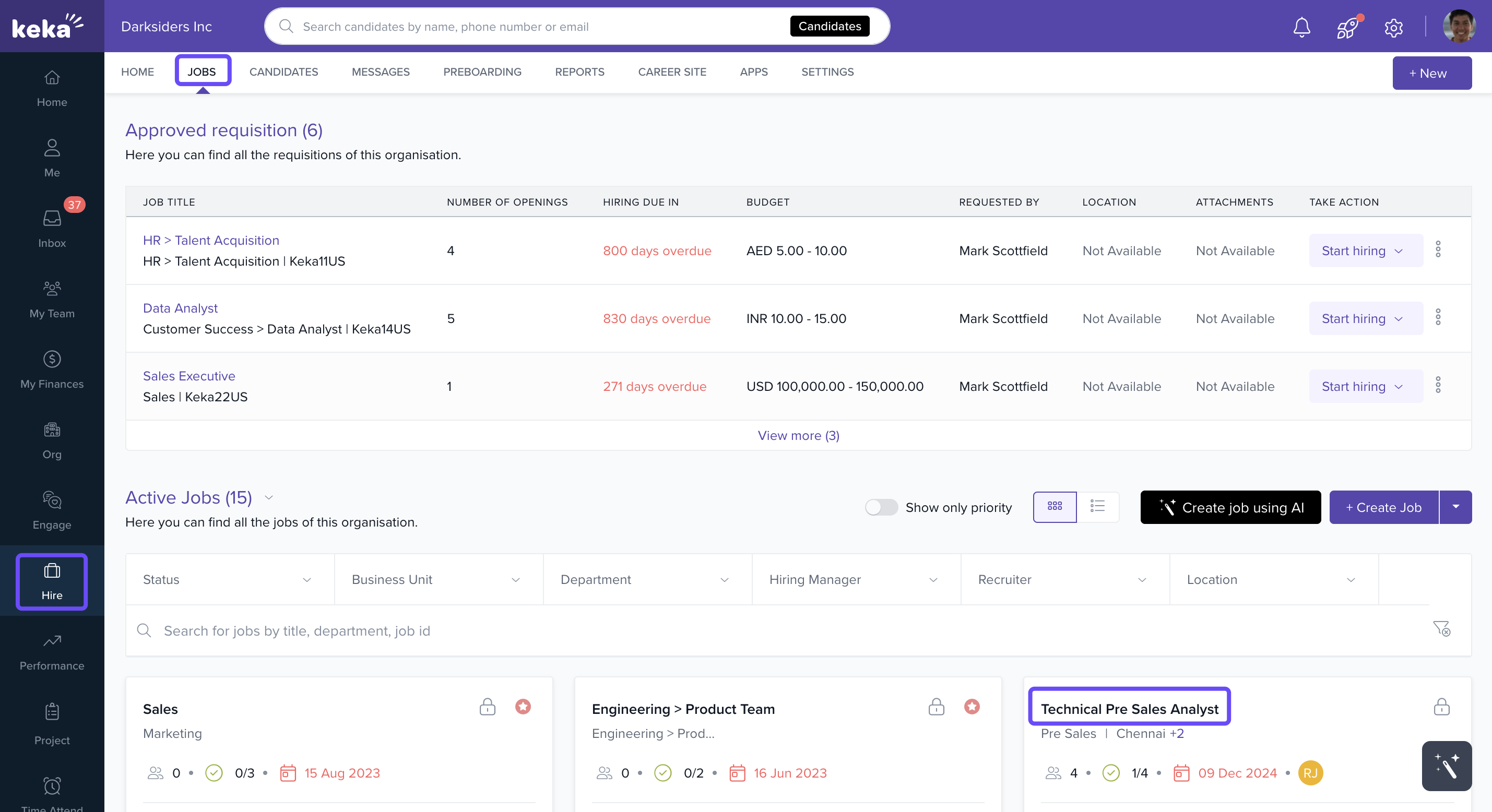
Go to Hire from the left menu.
Click Jobs.
-
Under Active Jobs, select the job where you want to add candidates.
-
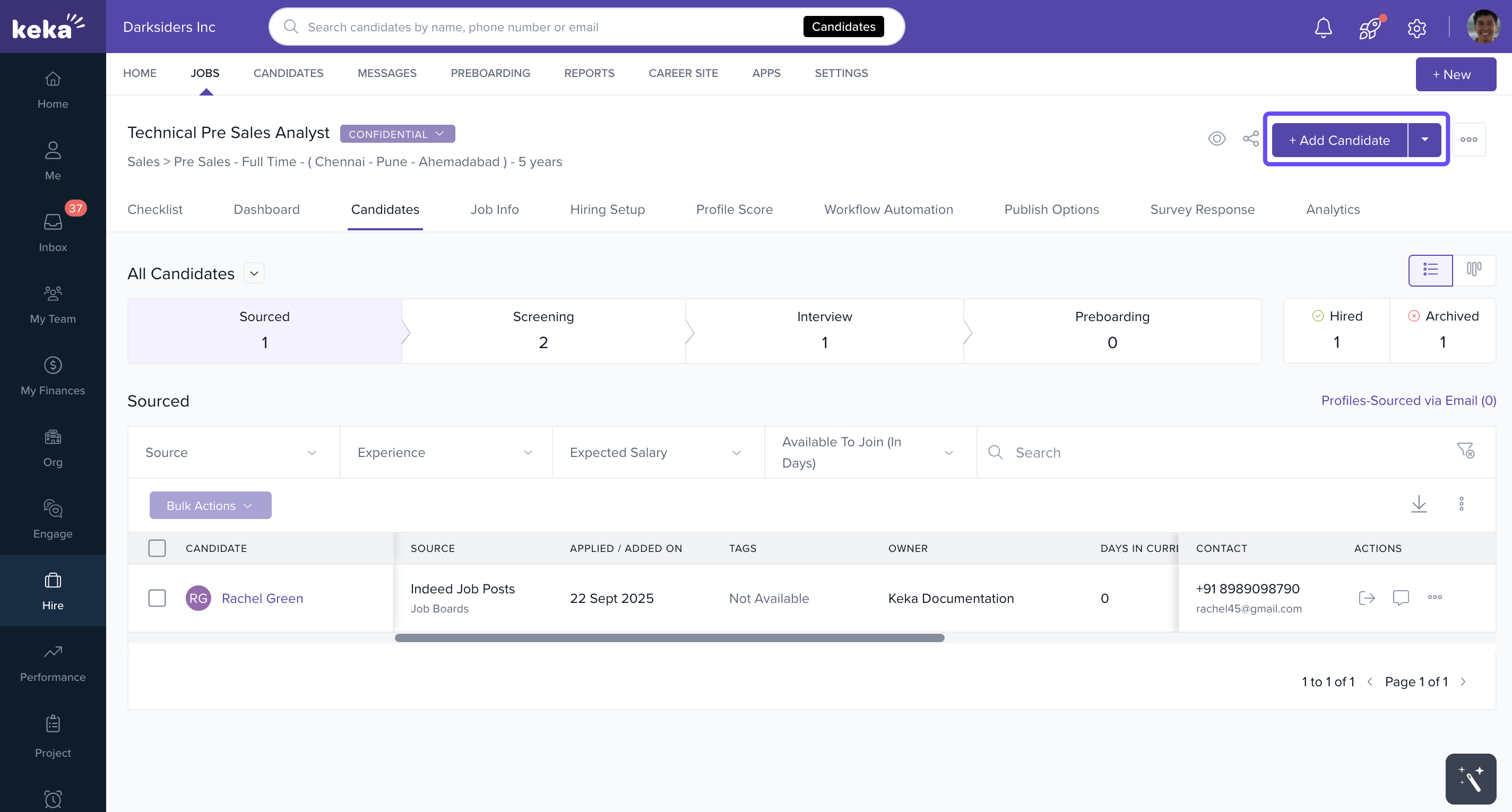
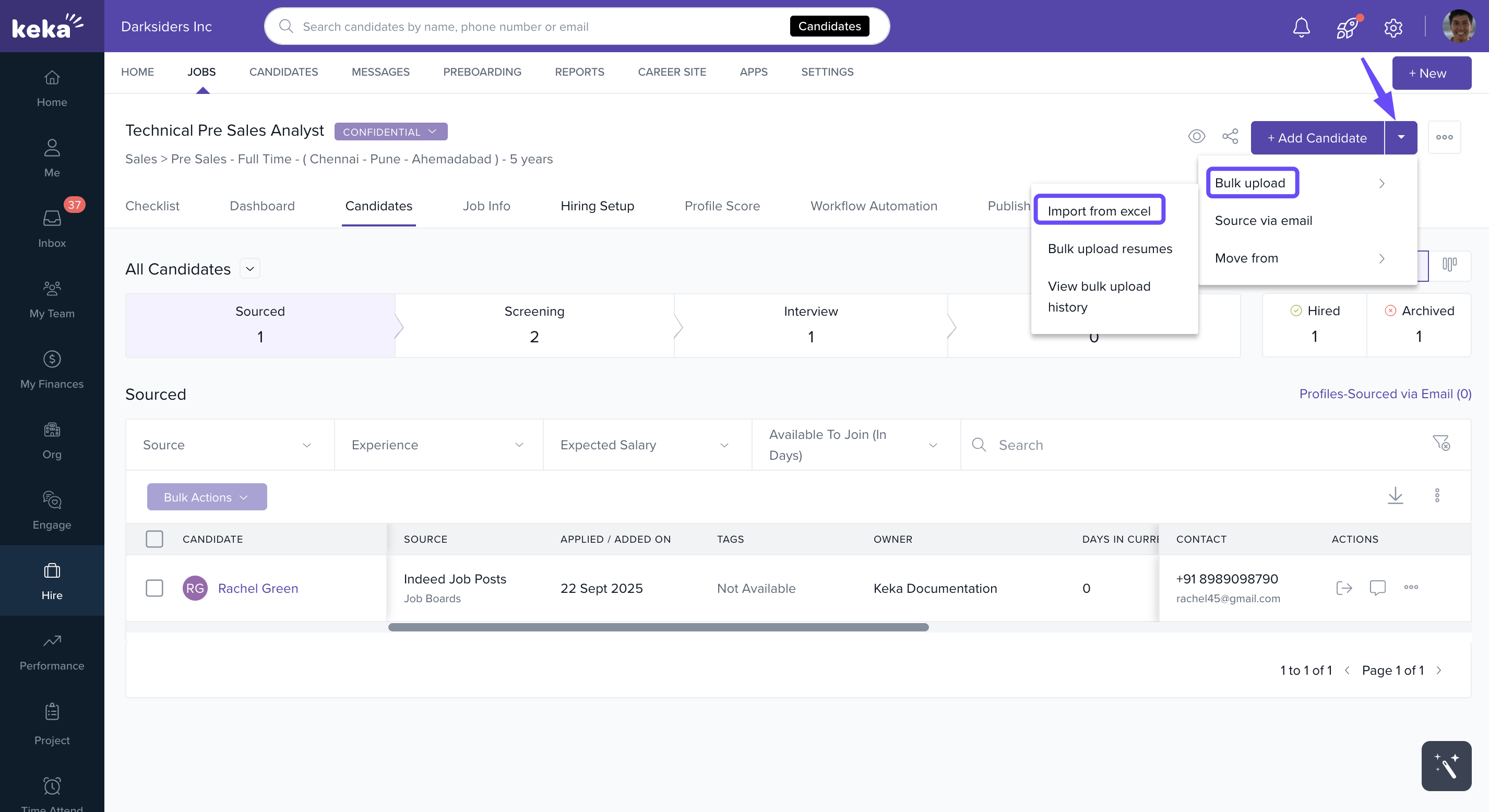
On the job page, click Add Candidate. Use the dropdown to see all available methods.
Options & Variants
You can add candidates in four different ways:
Option 1: Import from Excel
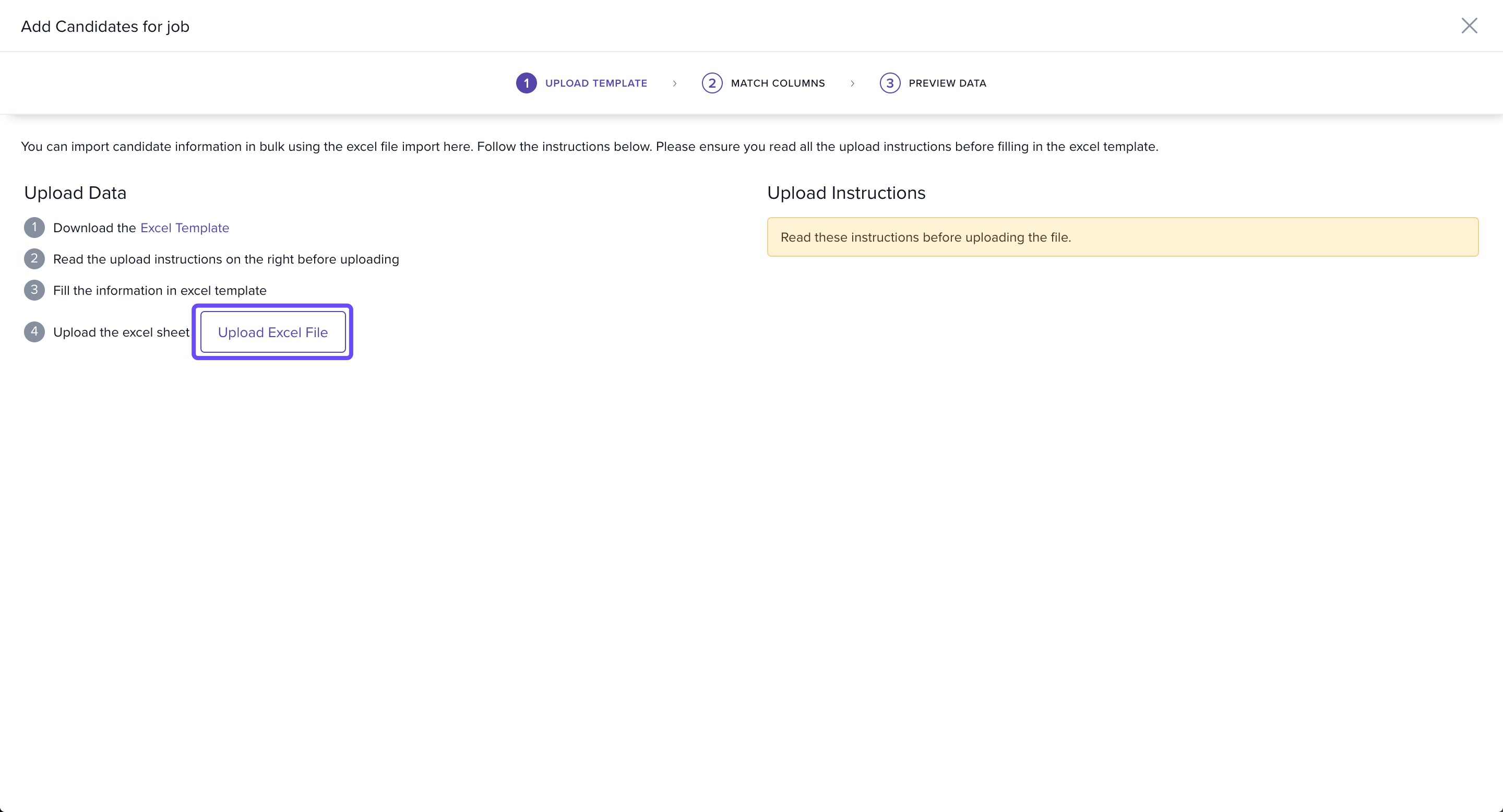
Select Import from Excel.
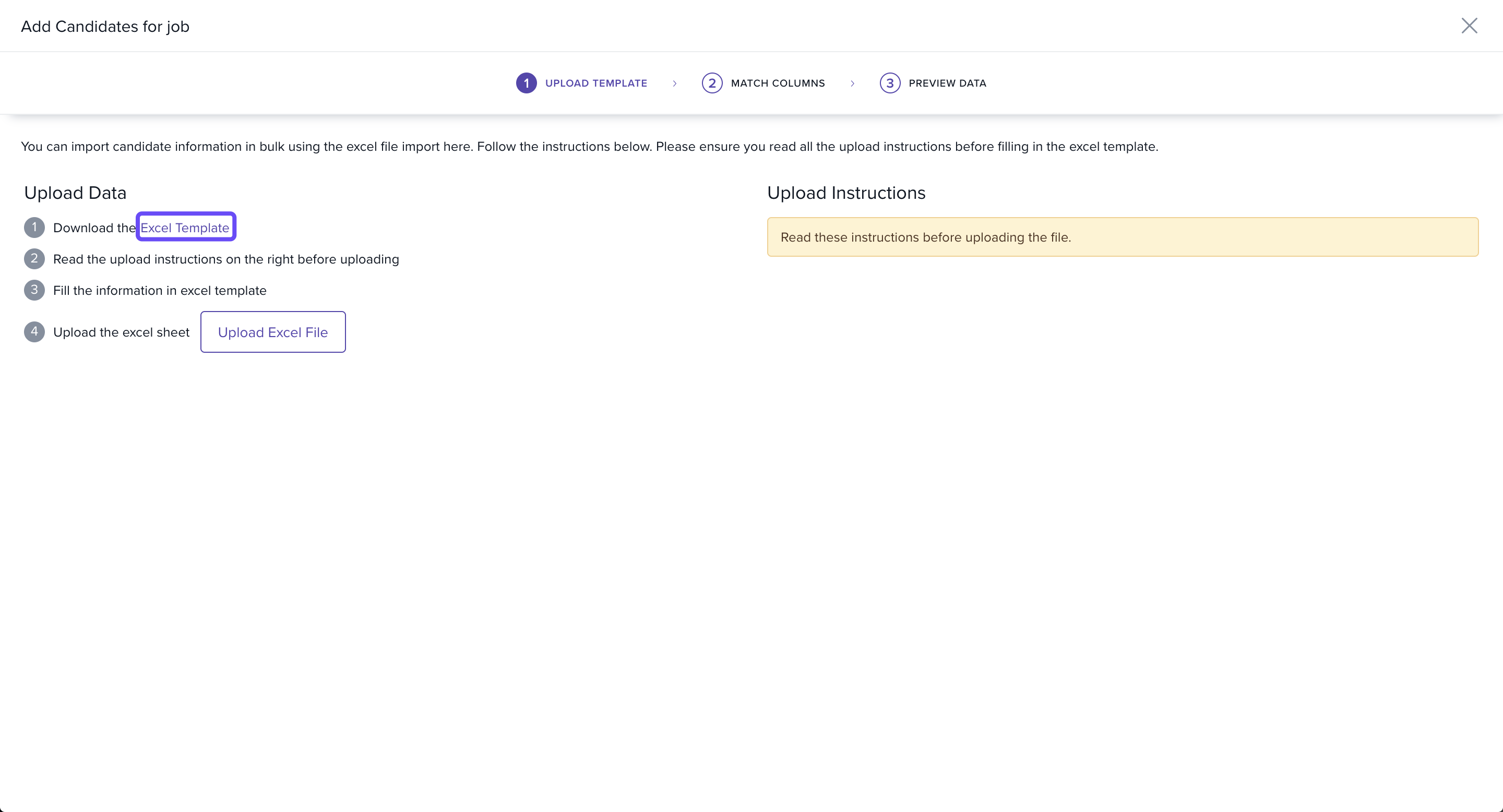
On the next page, download the Excel Template.
-
Fill in candidate details in the sheet.
You can customize required fields in the Application Form tab of the job’s Job Details section.
Save the file and upload it back into Keka.
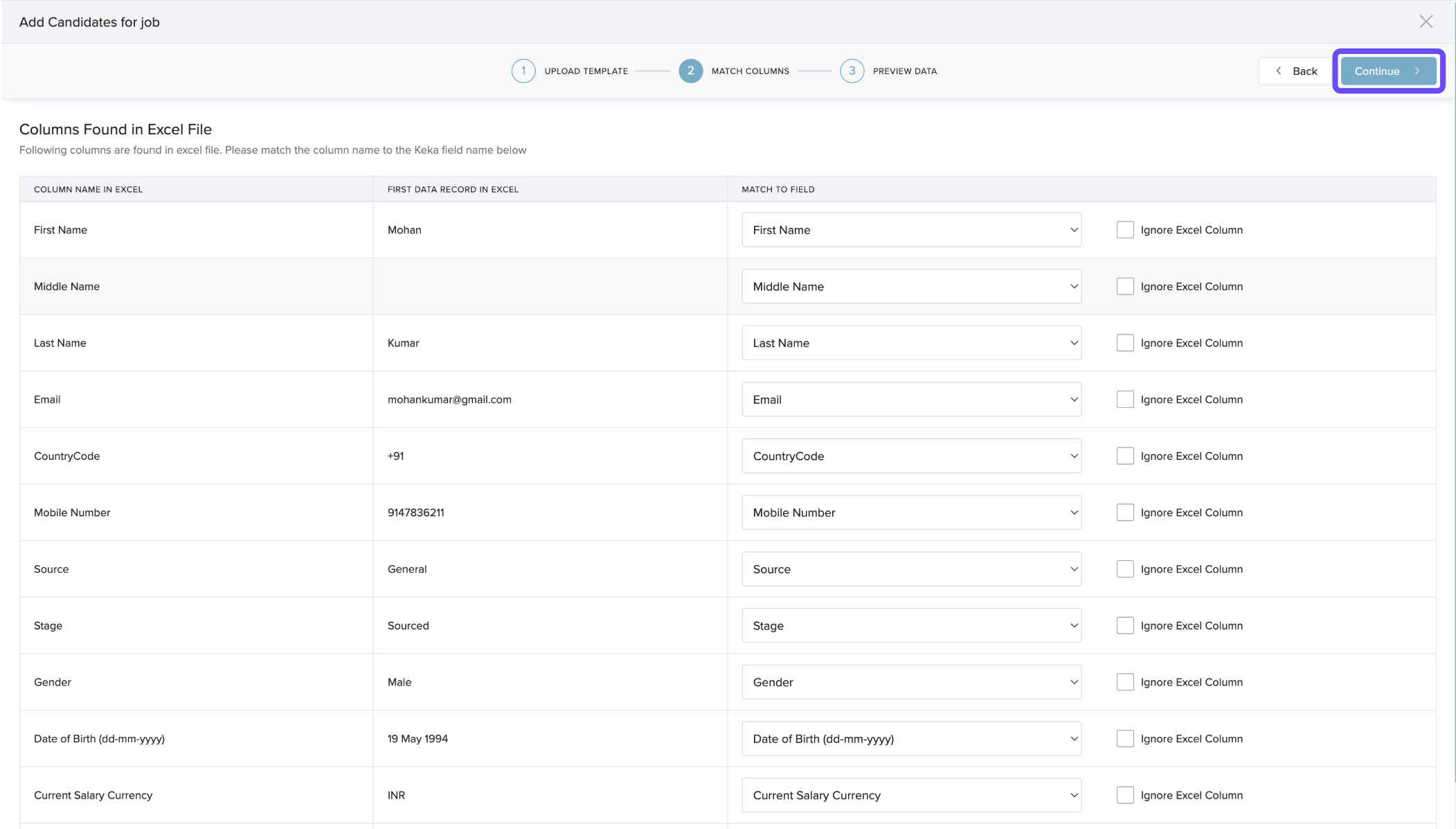
In the Matching Columns step, verify that fields map correctly.
In the Preview step, review candidate data and click Complete.
Confirm in the pop-up.
You’ll see a success notification once candidates are added.
Option 2: Source via Email
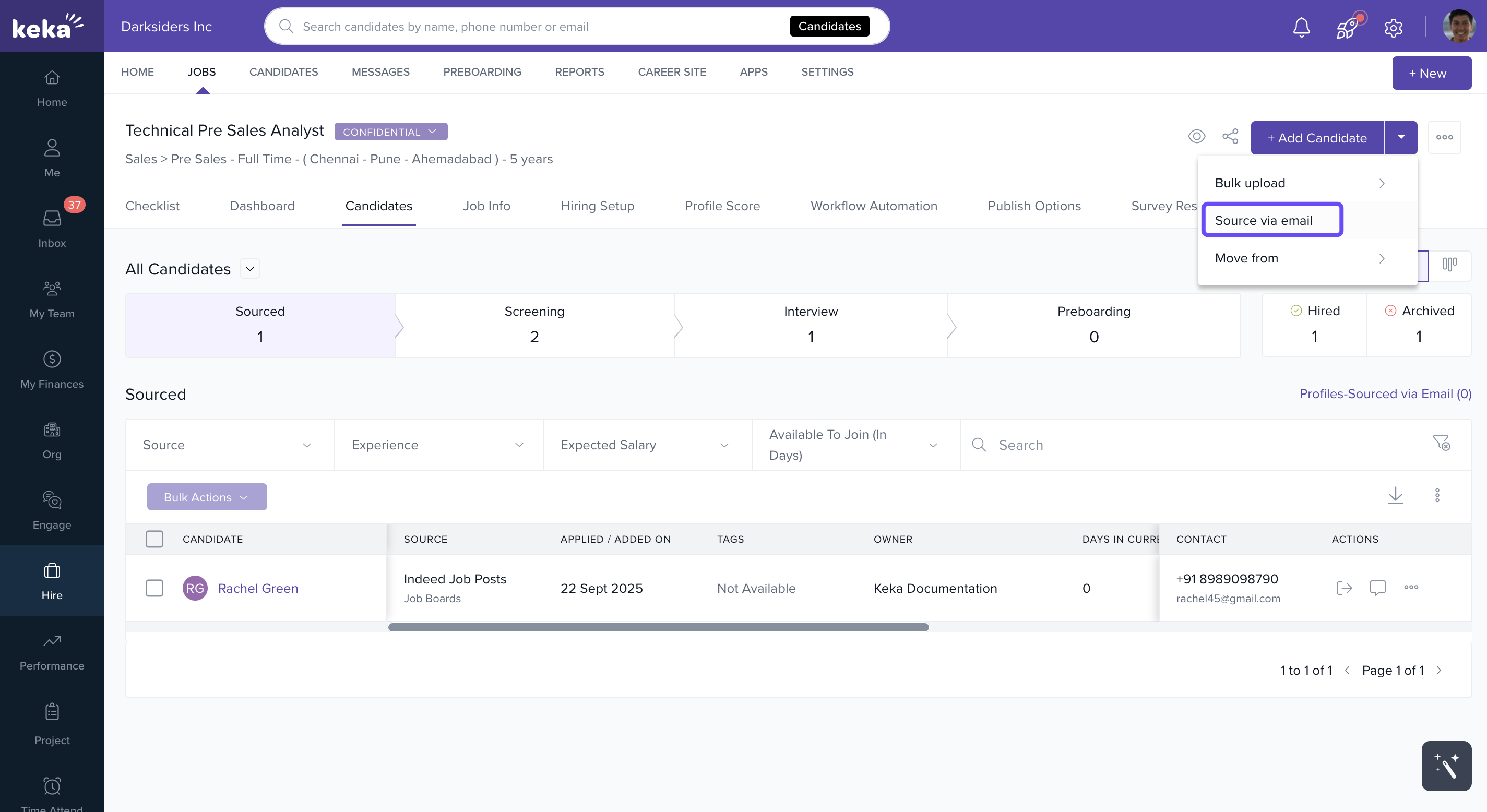
Select Source via Email from the Add Candidate dropdown.
Copy the email address displayed in the overlay.
Forward candidate resumes to that address.
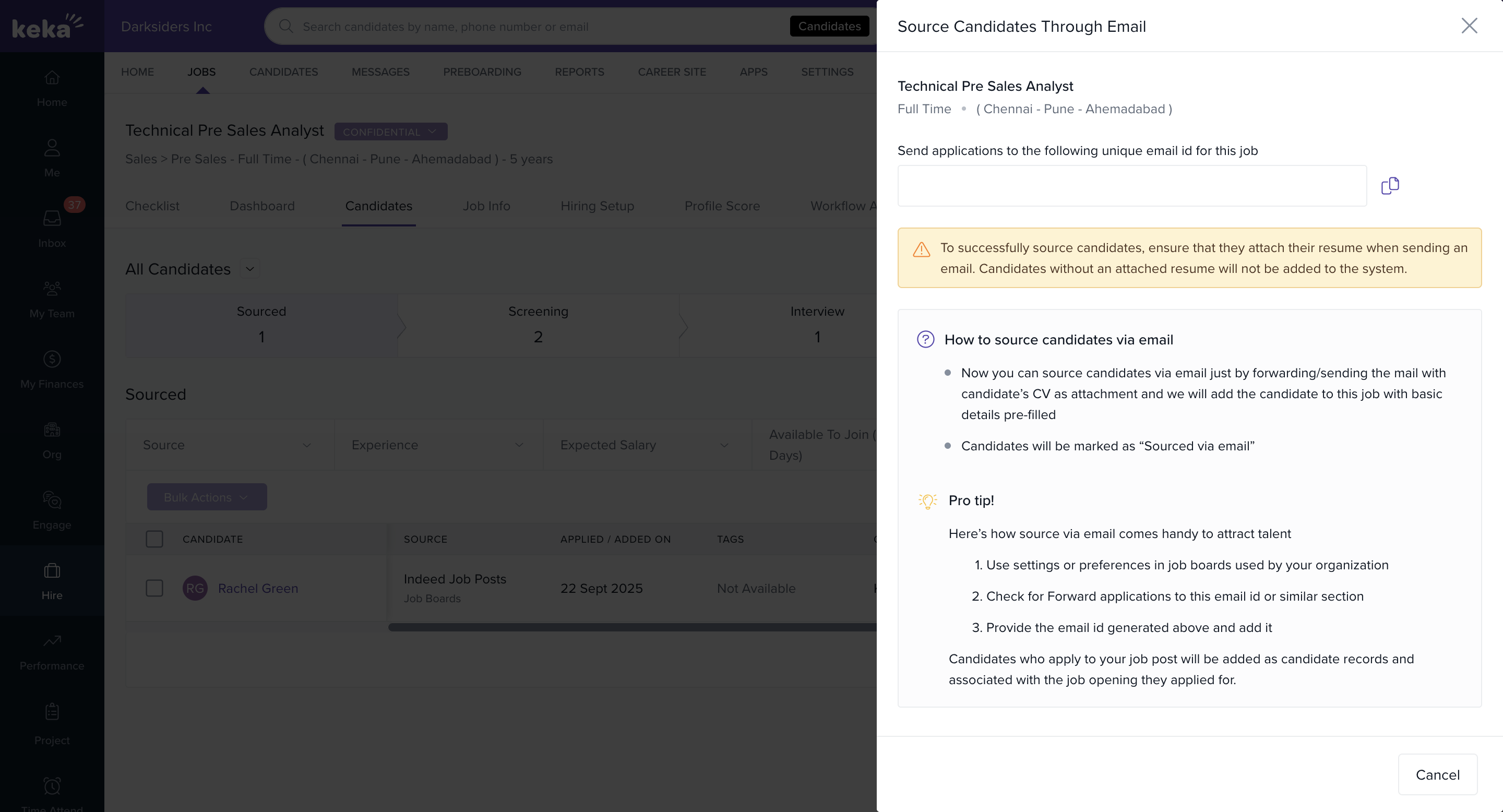
Resumes will be parsed, and candidates will be tagged as Sourced via email.
Option 3: Bulk Upload Resumes
Select Bulk Upload Resumes from the dropdown.
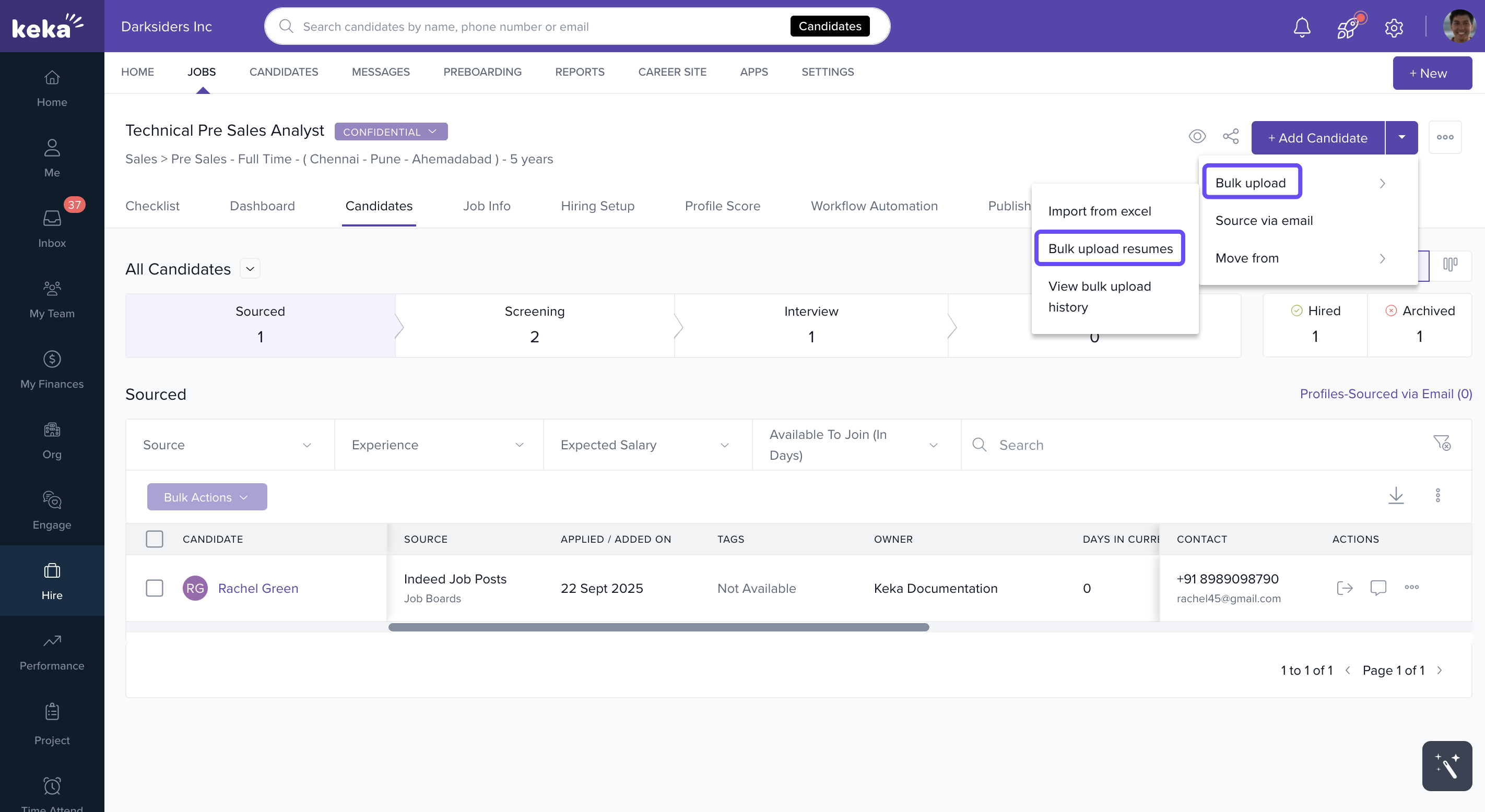
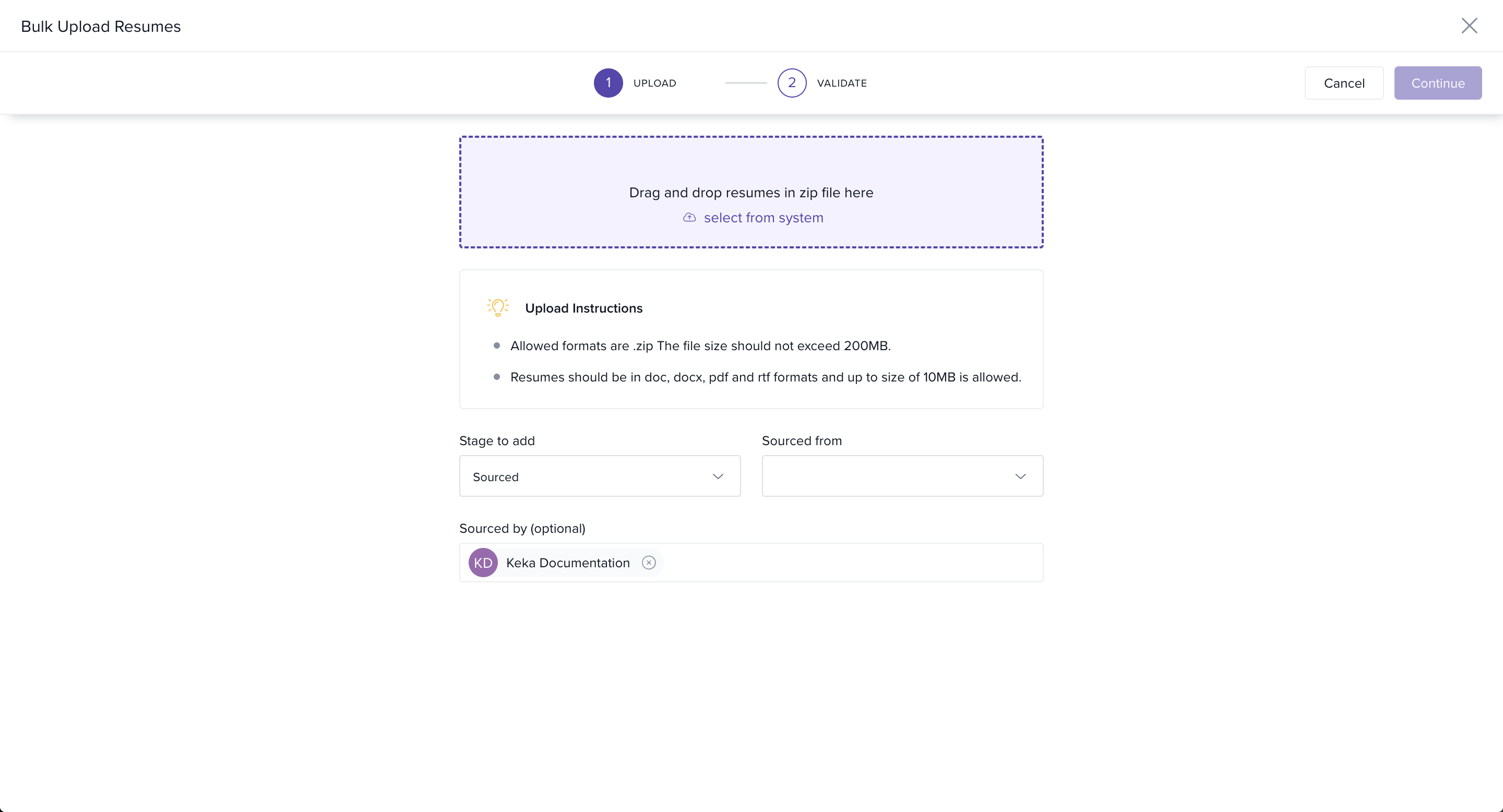
Prepare a zip file containing multiple resumes.
Upload the file by dragging it into the upload area or selecting it from your computer.
-
Once parsing is complete, move to the Validate step.
Review candidate details
Edit or delete entries if needed
Click Add Candidates.
A success notification will confirm that the candidates were added.
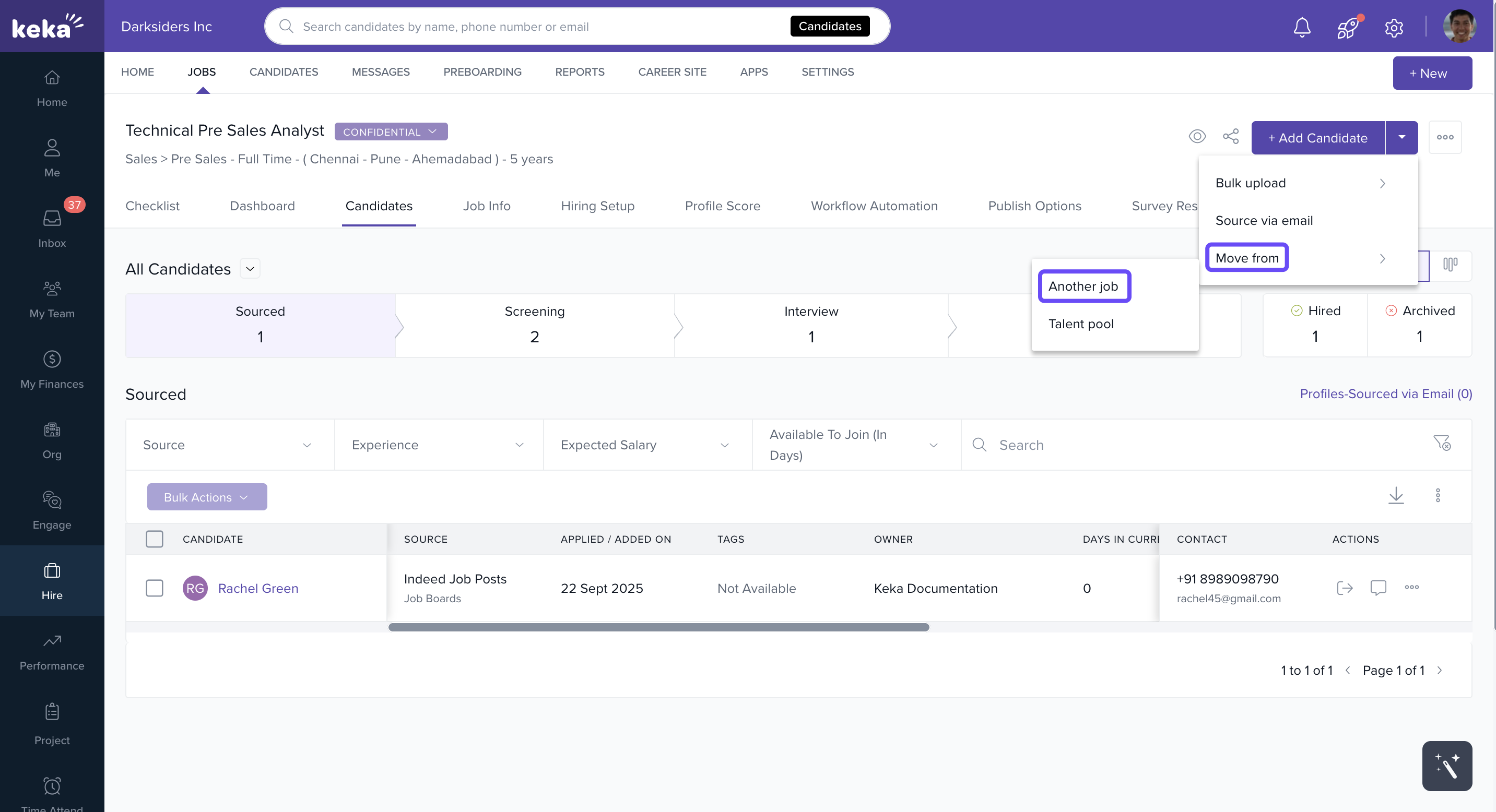
Option 4: Move from Another Job
Select Move from Another Job from the dropdown.
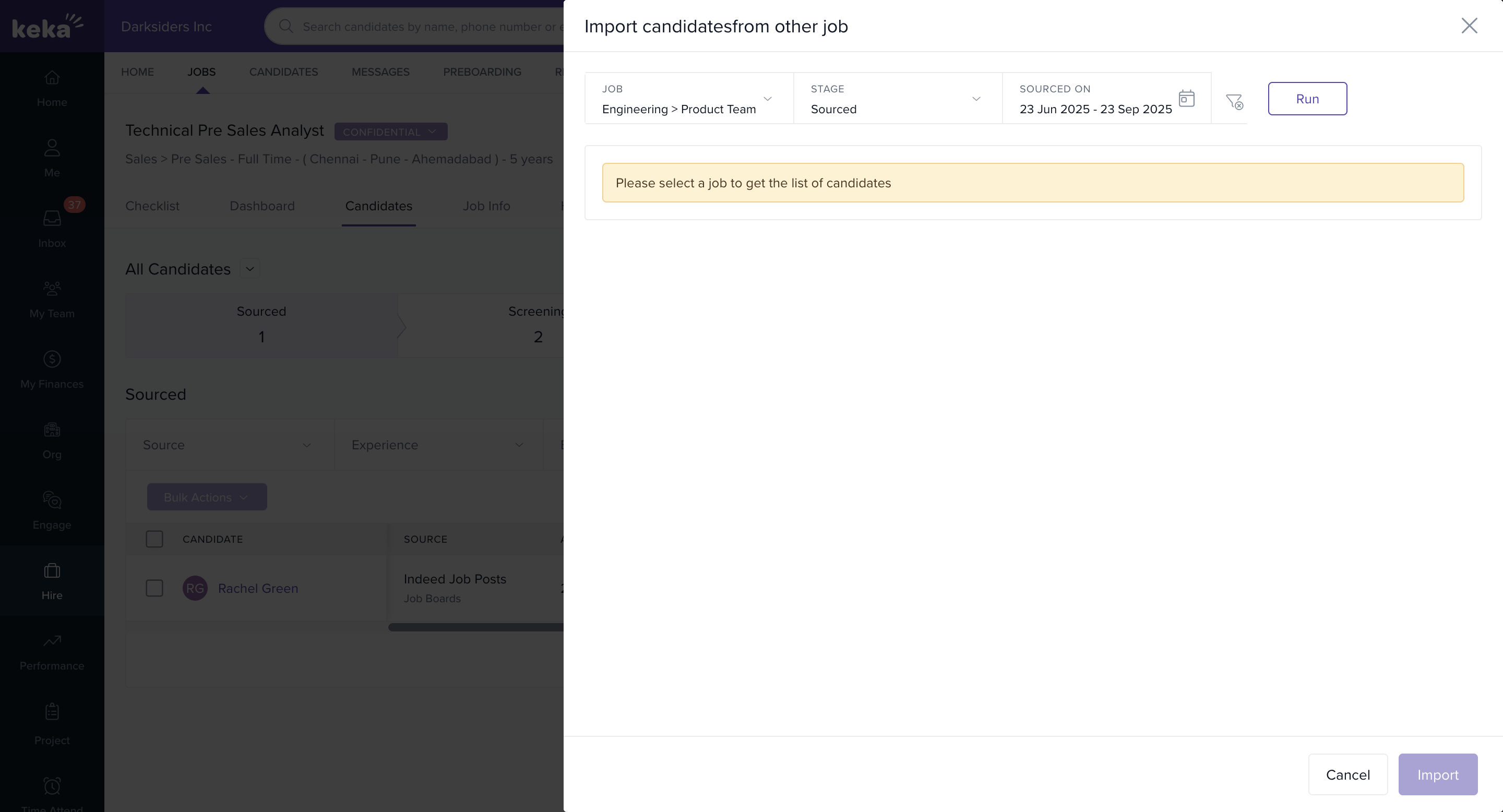
Use filters to search for candidates, then click Run.
Check the boxes next to the candidates you want.
Click Import.
Choose the stage you want them moved into, then click Confirm.
The selected candidates will be moved to the new job and removed from the old one.
Explore more guides in this portal, or reach out to our product experts if you need assistance.
Comments
0 comments
Please sign in to leave a comment.