Introduction
This guide walks you through how to manage the candidate selection process using Keka Hire, from sourcing to preboarding. Whether you're a recruiter, hiring manager, or part of the Talent Acquisition team, this step-by-step overview will help you efficiently track and advance candidates through each stage of your hiring pipeline.
You'll learn how to move candidates between stages, schedule interviews, send assessments, archive candidates, and complete preboarding.
Applies to: Keka Hire platform, all user roles with access to job workflows and candidate management.
Access the Active Job
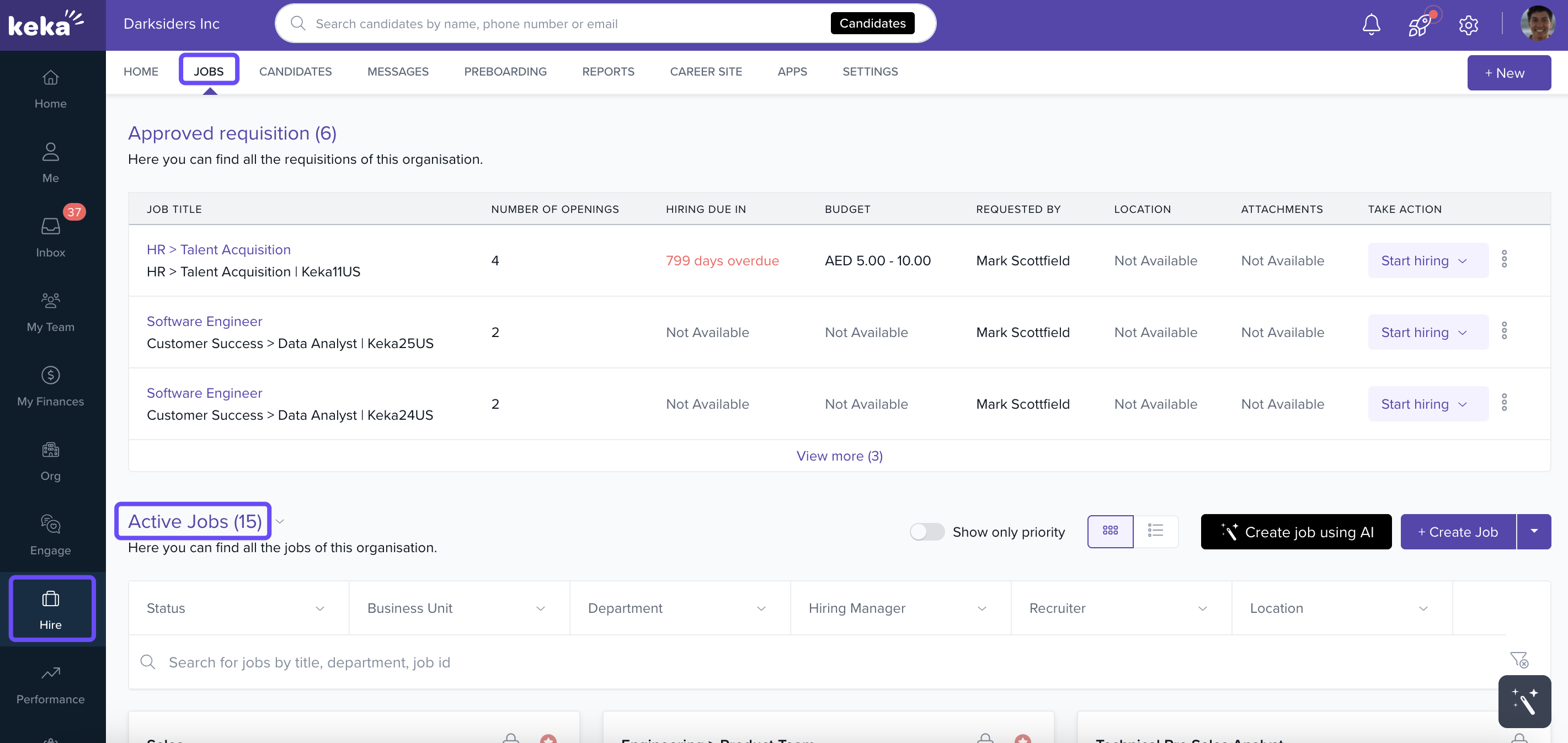
Go to Hire from the main navigation.
Click Jobs.
Select an active job listing from the Active Jobs tab.
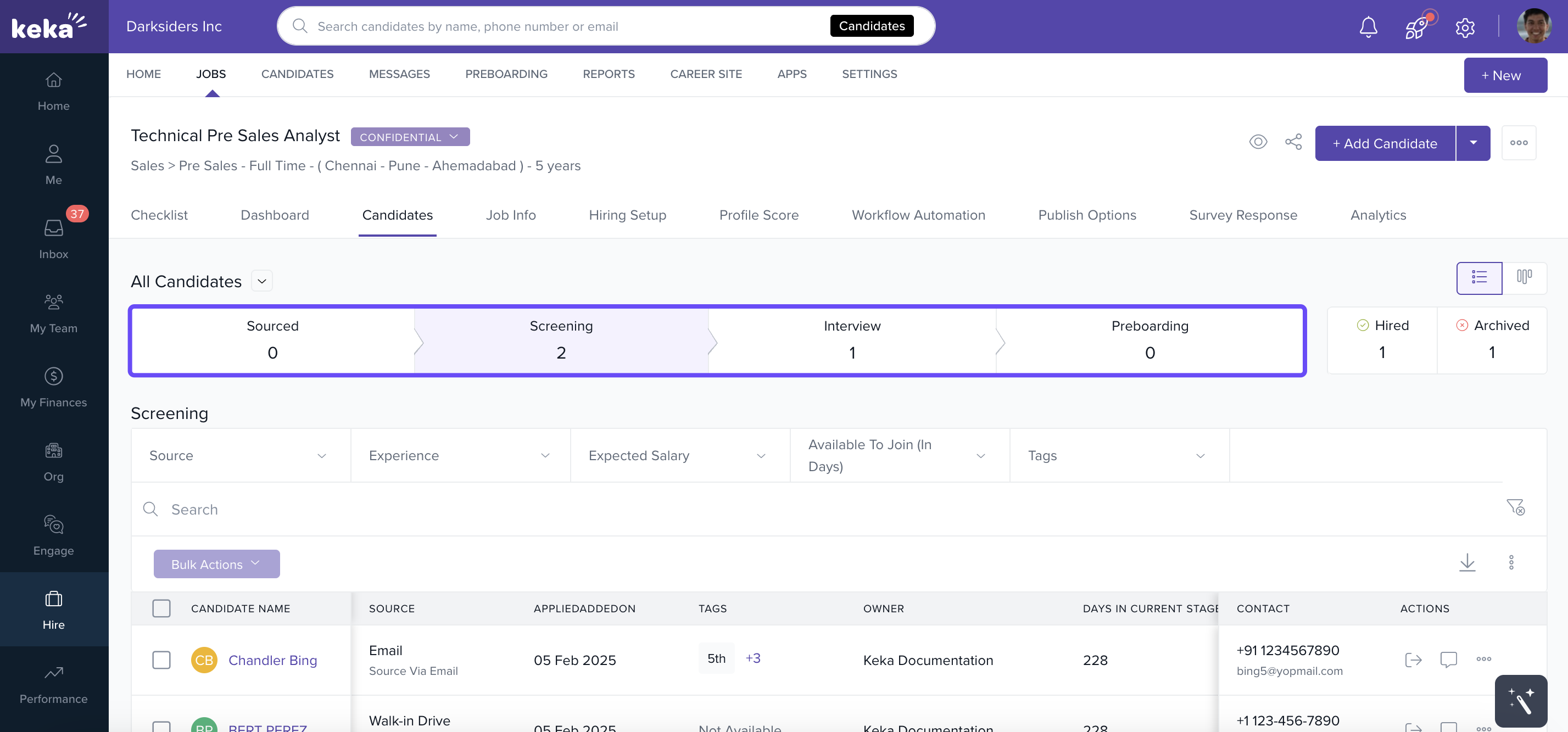
- You’ll now see the job’s Hiring Flow displayed at the top of the page. This shows all stages configured for that job.
- For example, your flow might include: Sourced → Screening → Assessment → Interview → Preboarding → Hired.
Select a Candidate
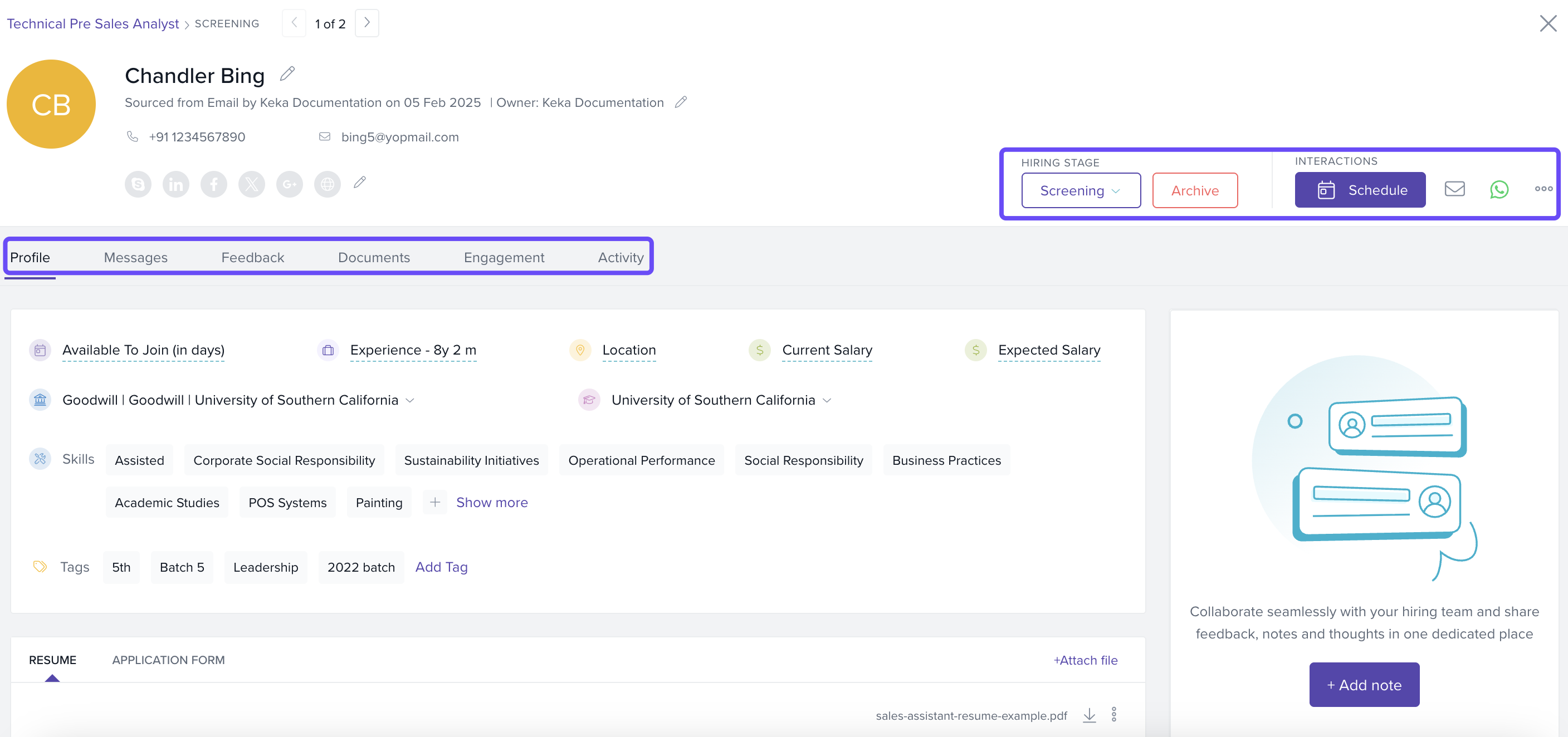
Click on the name of a candidate (e.g., Chandler Bing) to view their details.
You’ll be taken to the Candidate Profile page.
On this page, you’ll find:
Tabs: Profile, Messages, Feedback, and more.
Right-side panel with actions: Move Stage, Archive, Schedule Interview, etc.
Take Action on a Candidate
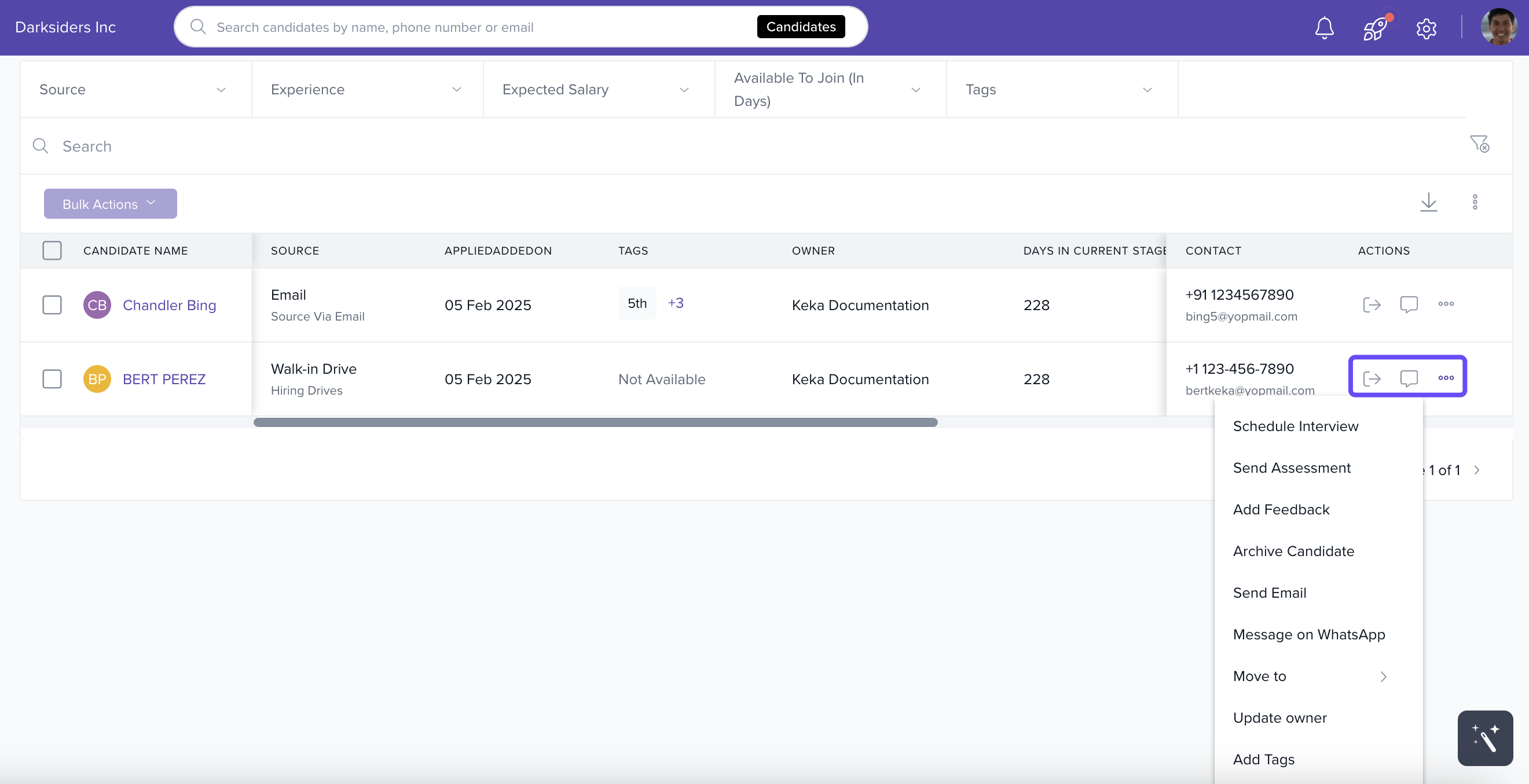
In the Actions column, you’ll see:
Move Stage: Advance a candidate to the next hiring step
Add Note: Record internal notes
-
Three-dot menu (⋯): More actions like:
Schedule Interview
Send Assessment
Add Feedback
Archive Candidate and more
Move Multiple Candidates to a New Stage
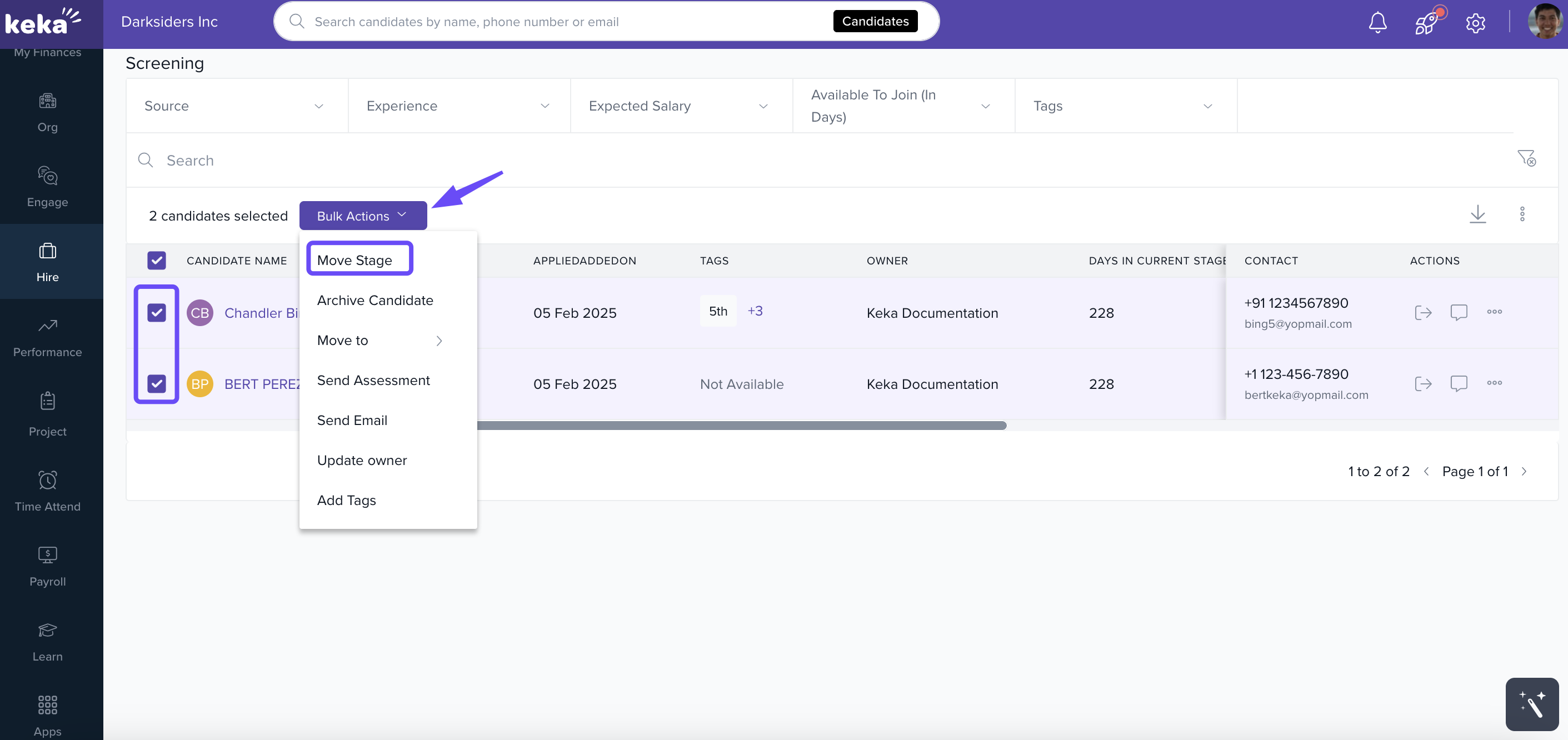
Tick the checkbox next to each candidate’s name.
Click Bulk Actions.
Select Move Stage from the dropdown.
In the overlay window:
Choose the target stage (e.g., Interview).
Click Move.
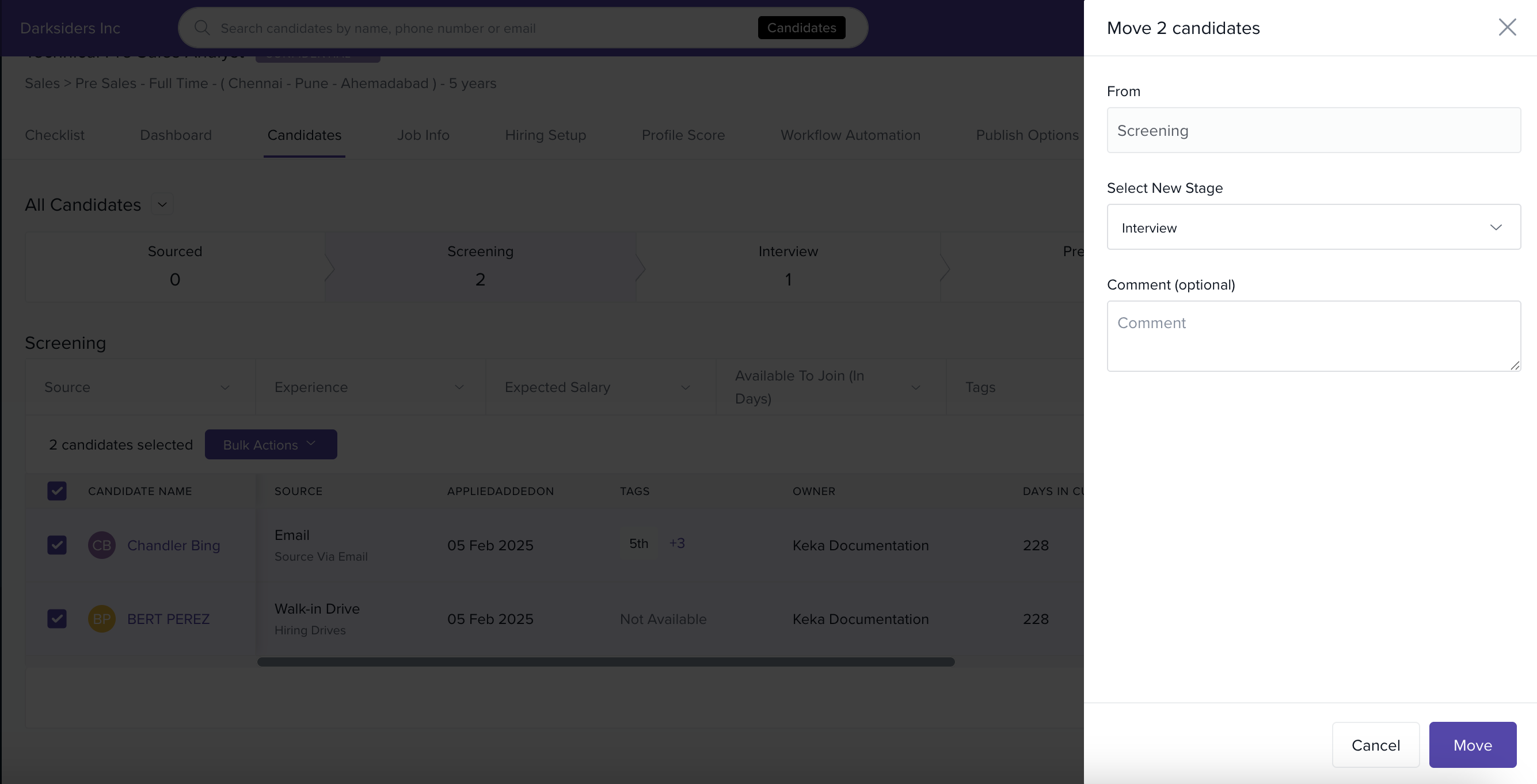
Candidates will now appear in the selected stage of the hiring flow.
Archive Candidates
For candidates who don’t move forward:
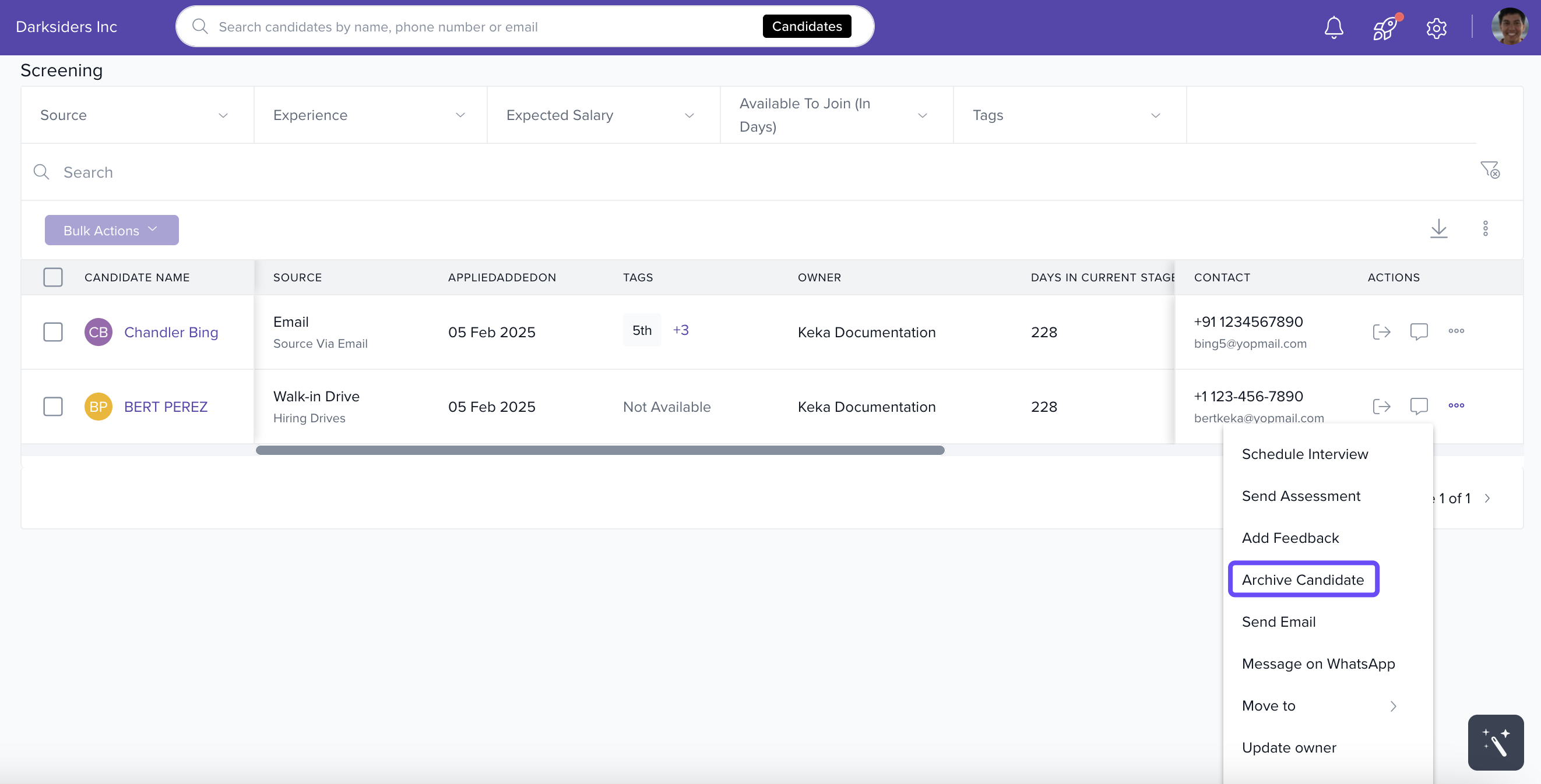
Click the three-dot menu beside the candidate.
Select Archive Candidate.
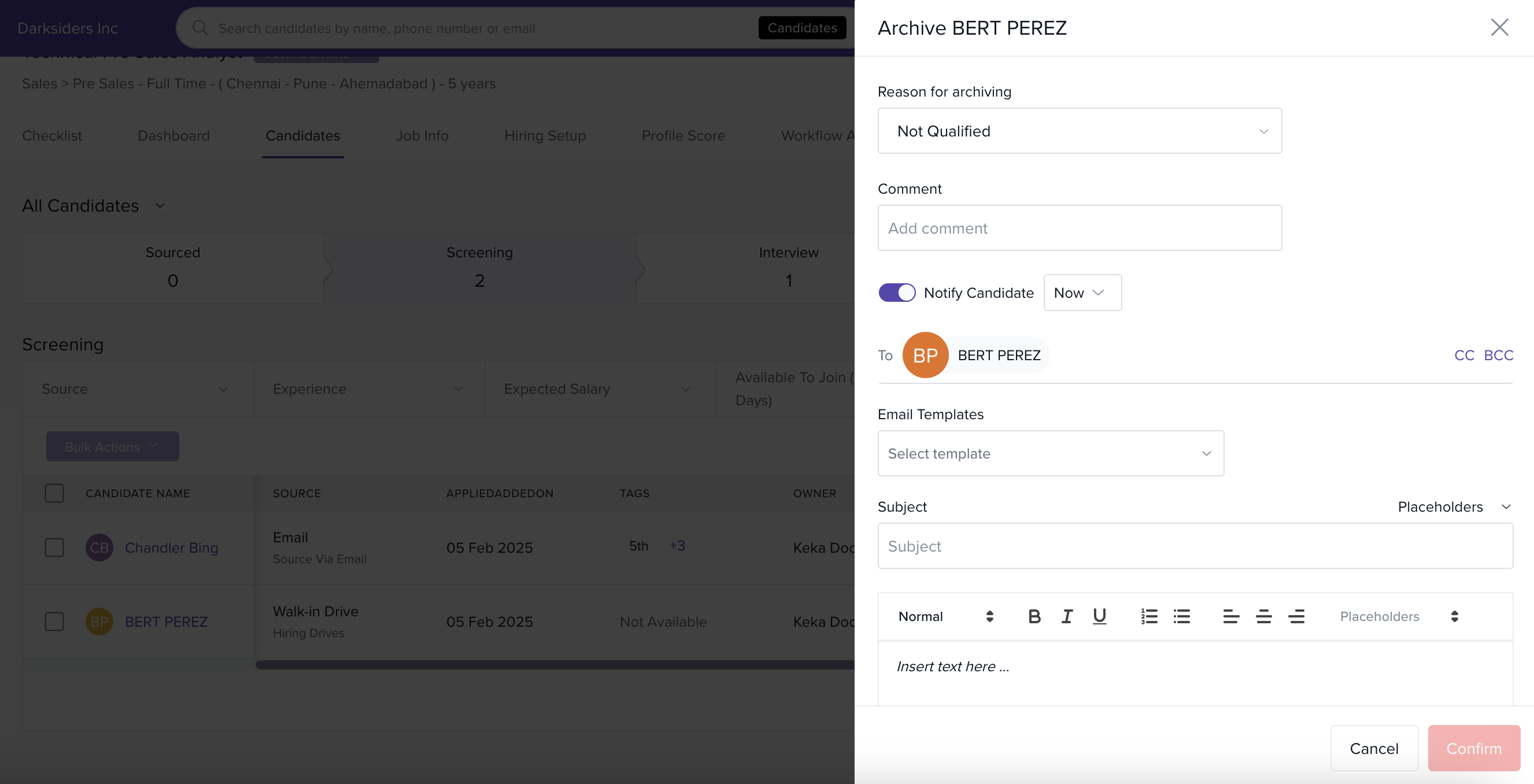
In the overlay:
Choose the reason for archiving.
(Optional) Add a comment.
Choose whether and when to notify the candidate.
Select an email template.
Click Confirm.
Send an Assessment
When a candidate reaches the Assessment stage:
Click the three-dot menu beside their name.
Select Send Assessment.
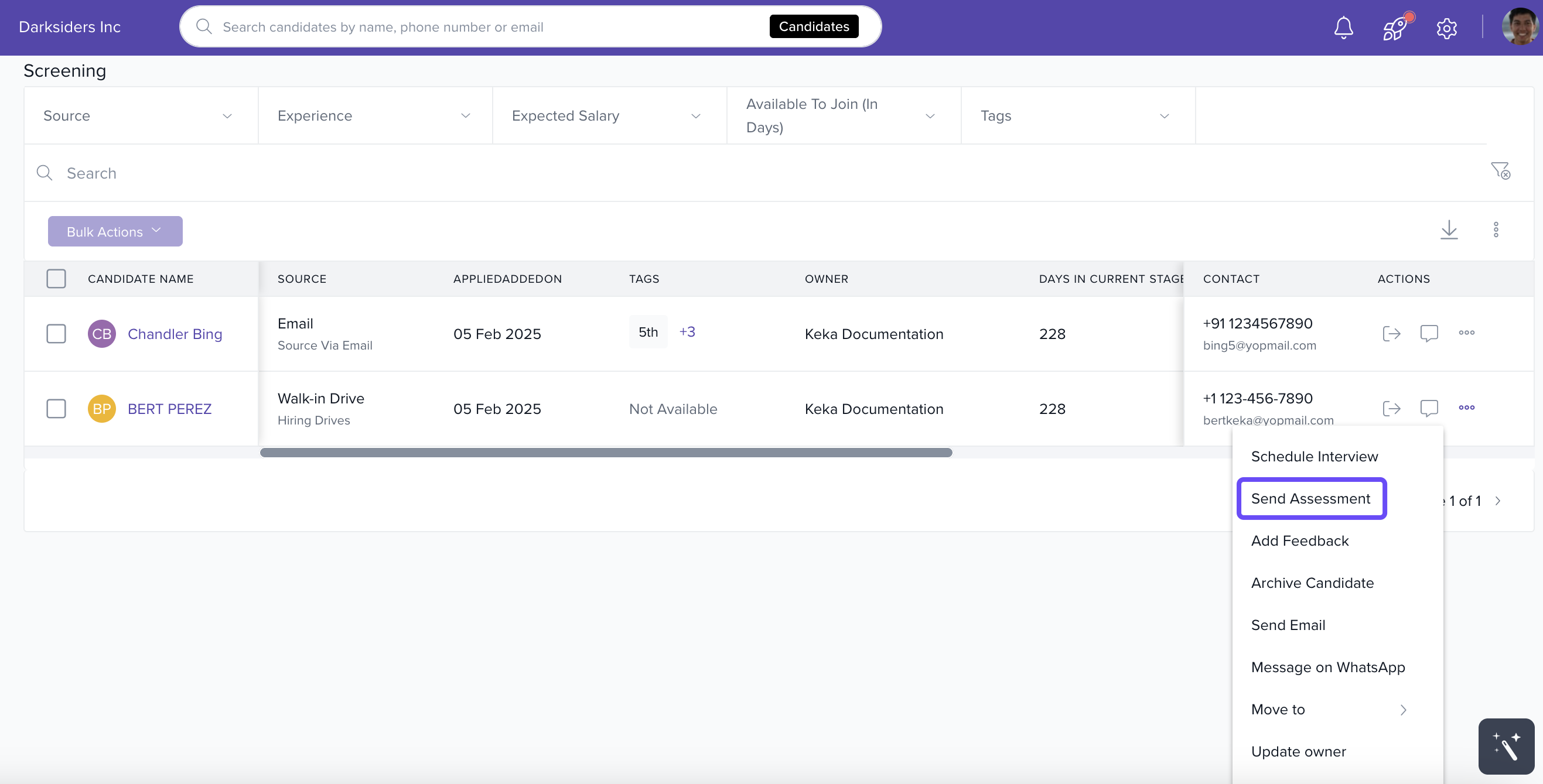
In the overlay:
Choose the Assessment Platform (e.g., Mercer | Mettl, HackerEarth).
Select the type of assessment.
Set an expiration window for the test link.
Choose an email template.
Click Send.
Learn more: Integrate Mercer | Mettl or HackerEarth with Keka Hire
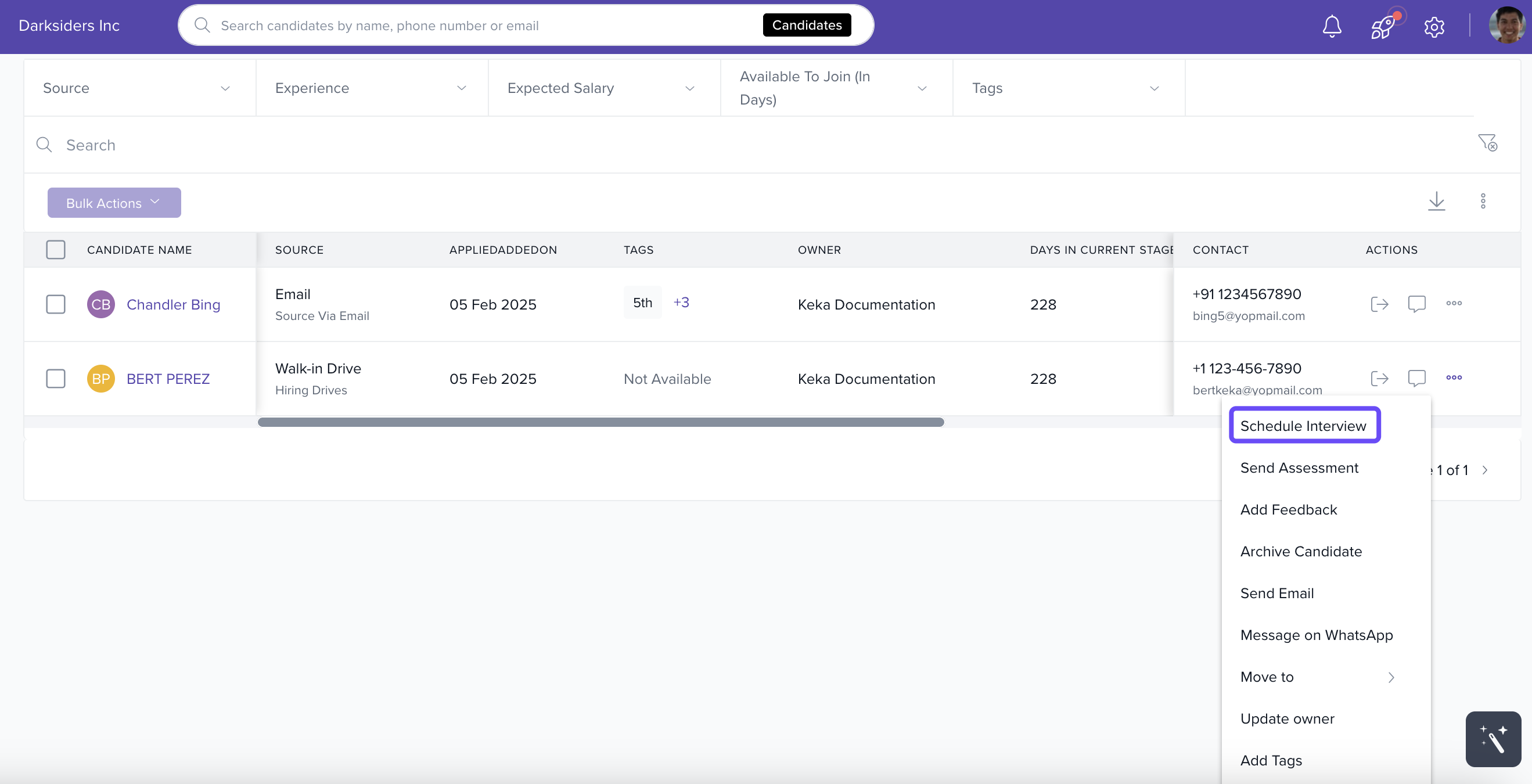
Schedule an Interview
When a candidate moves to the Interview stage:
Click the three-dot menu.
Select Schedule Interview.
Move a Candidate to Preboarding
Once a candidate has cleared all interview rounds:
Click the three-dot menu.
Select Move to → Preboarding.
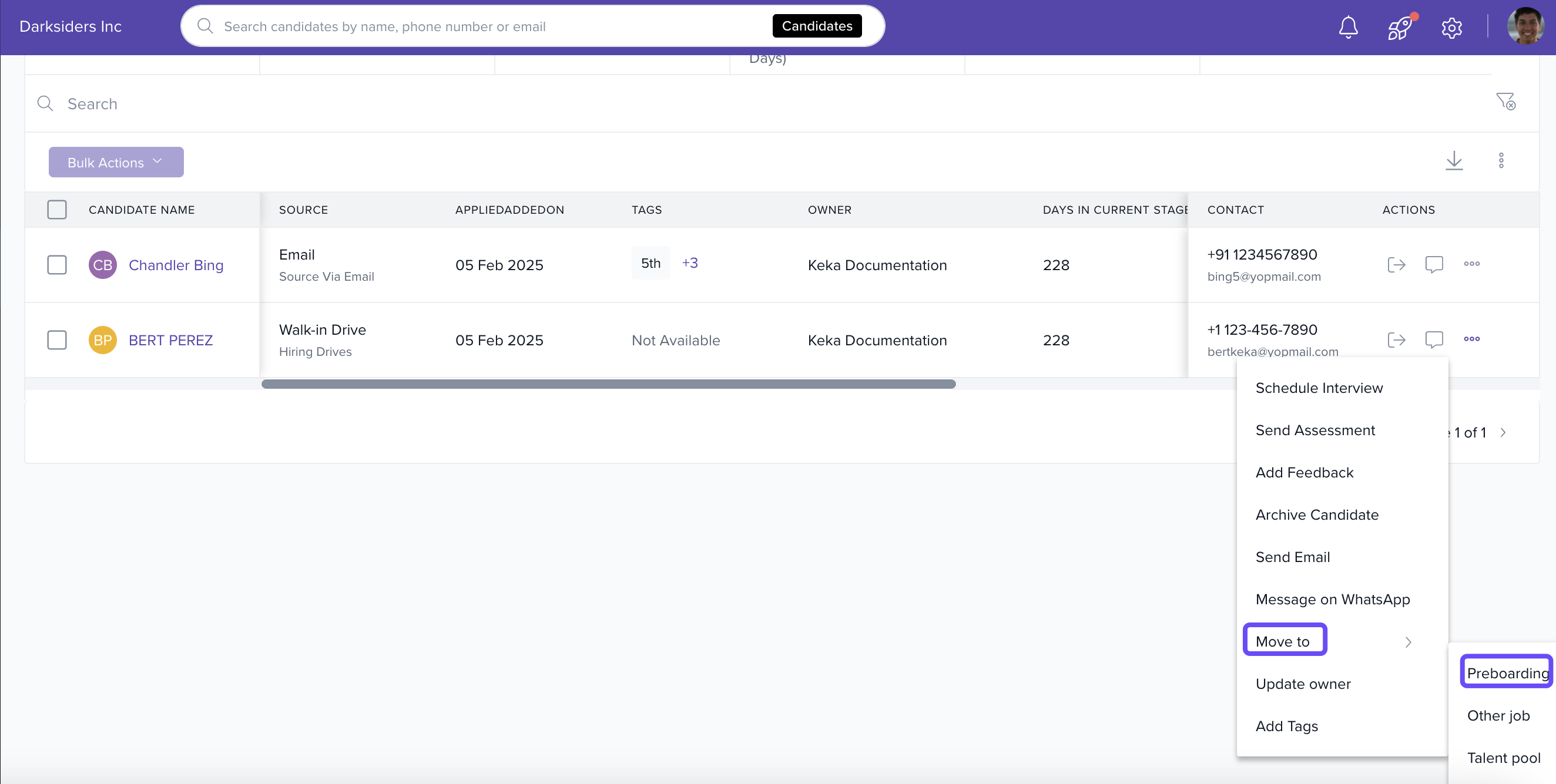
In the popup:
Enter the Work Location.
Click Confirm.
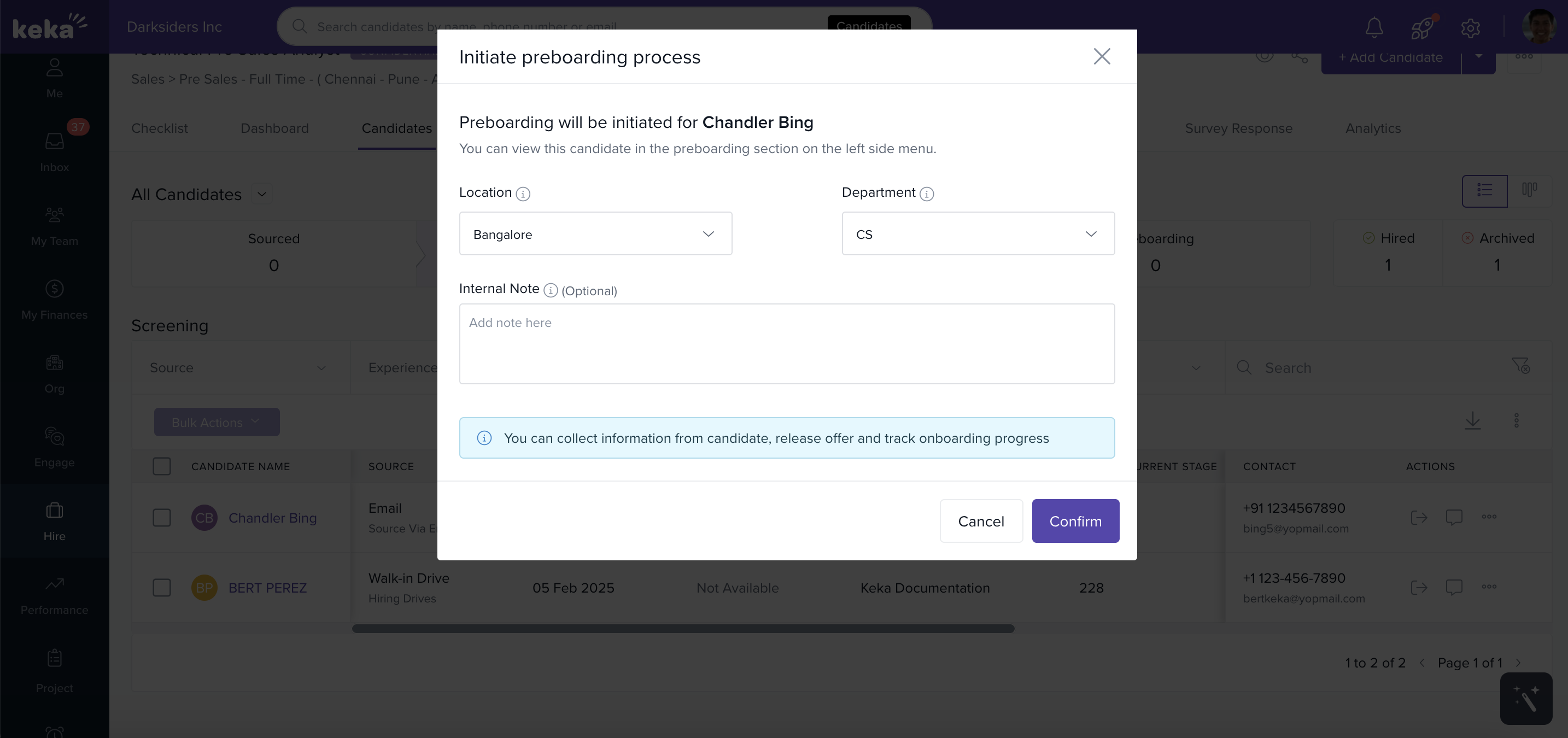
A success notification will confirm that the candidate has been moved.
Track Preboarding
Go to the Preboarding section to view candidates who have entered this phase. Once preboarding is complete, the candidate becomes a full-time employee in the system.
Notes, Tips & Important
Tip: You can manage multiple candidates in bulk to save time—especially useful for progressing groups through initial stages like Screening or Assessment.
Important: Only users with the right access roles will be able to archive candidates or send assessments.
Note: All actions such as archiving and assessments can be customized with templates and notifications to maintain a consistent candidate experience.
You should now have a clear understanding of how to navigate the hiring process with Keka Hire.
For additional guidance, explore our other help articles or connect with a Keka product expert for dedicated support.
Comments
0 comments
Please sign in to leave a comment.