The video will be updated shortly with new UI — meanwhile, explore the article for the latest updates.As a manager, giving regular feedback is key to supporting your team’s development. Keka’s Continuous Feedback feature helps you share recognition, provide coaching input, keep internal notes, and even request feedback from others.
This article explains the actions available in Continuous Feedback and how to use them effectively.
In this article, we will discuss all the features available in this section. Please note that not all features may be visible to you as their visibility depends on your organisation's policies.
Accessing Continuous Feedback
Go to My Team.
Select Performance.
Click on the Continuous Feedback tab.
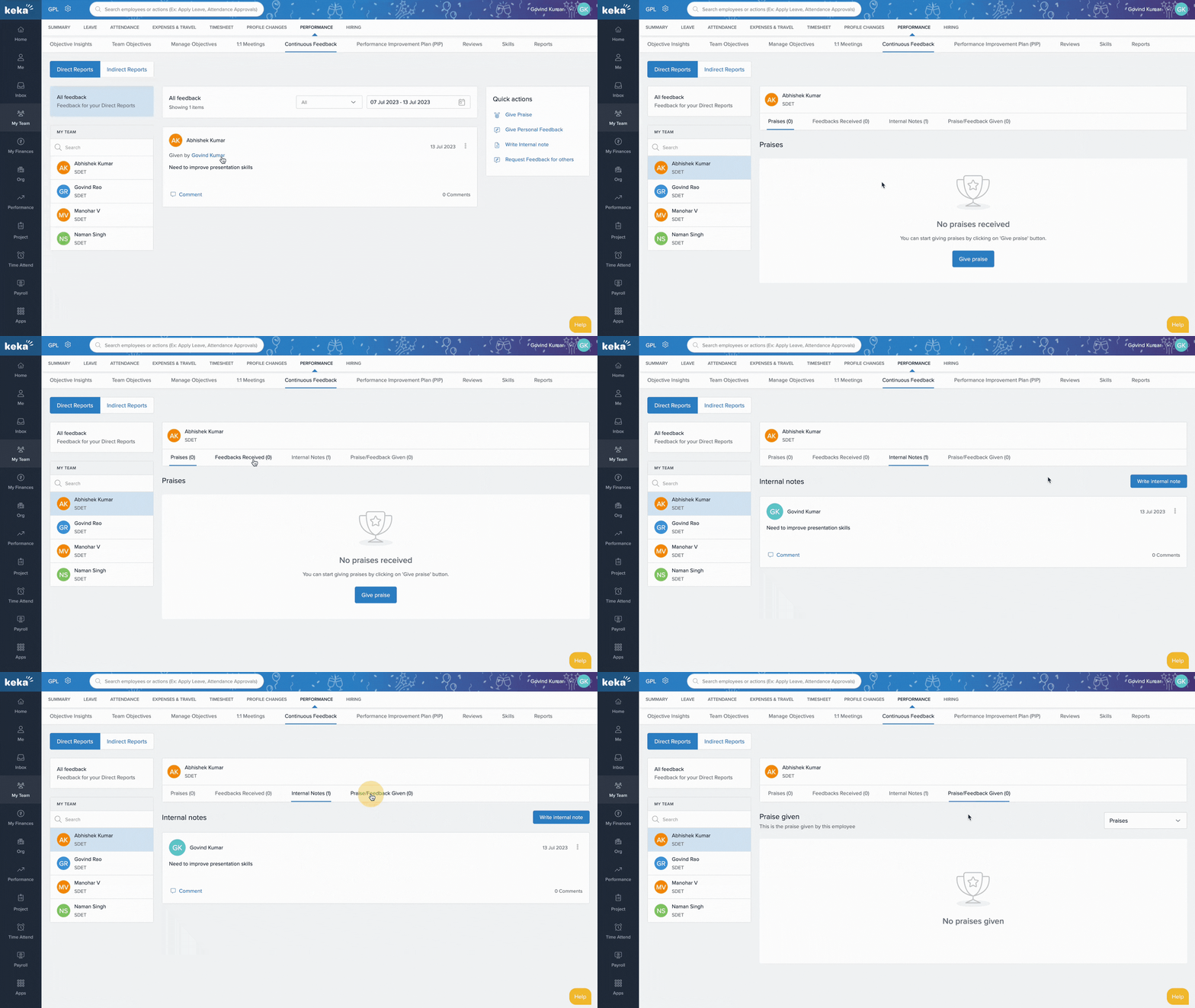
Here you’ll see:
All Feedback card (on the left): View all praises, notes, and feedback given to your team members.
Quick Actions card (on the right): Perform actions like giving praise, feedback, or requesting input.
You may see separate sections for Direct Reports and Indirect Reports depending on your role.
Giving Praise
From Quick Actions, select Give Praise.
Search and select the employee you want to recognise.
Write your praise in the text box.
Choose a badge that matches the achievement.
- Add any keka points if rewards are enabled for your organisation.
- Add any projects if available.
Select whether to post it on the organisation wall or department wall.
(Optional) Add attachments, such as images or documents.
Click Submit to post the praise.
Giving Personal Feedback
Select Give Personal Feedback.
Search and select the employee.
Write your feedback.
Add any projects if available.
(Optional) Link it to one of your organisation’s core values.
(Optional) Attach supporting files.
Click Submit to share the feedback privately.
Writing an Internal Note
Select Write Internal Note.
Search and select the employee.
Enter your note in the text field.
Click Submit.
Note: Internal notes are visible only to managers and admins. They are not shared with the employee.
Requesting Feedback for a Team Member
Select Request Feedback.
Search and select the team member you want feedback about.
Choose the employee you want to request feedback from.
Add any projects if available.
(Optional) Select a core value to guide the feedback.
(Optional) Add a note with specific instructions.
Click Send Request.
Alternative Method
You can also perform these actions directly from an employee’s card in your team list, instead of starting from Quick Actions.
Need help exploring more features? Our product experts are always here to support you—just reach out!
Comments
0 comments
Please sign in to leave a comment.