The video will be updated shortly with new UI — meanwhile, explore the article for the latest updates.
As a reporting manager, you can view, assign, update, and monitor skills across your direct and indirect reports from a single workspace. The revamped My Team's Skills page provides greater visibility into team capabilities, skill coverage, pending approvals, and employee development needs.
Note: The video will be updated shortly with the new UI. Meanwhile, refer to this article for the latest skills management experience.
Access My Team's Skills
- Navigate to My Team.
- Click Performance, and then select Skills under the Performance section.
- You will be redirected to the My Team's Skills page.
The page displays skill information for employees within your reporting hierarchy.
Understanding Team Views
You can switch between different reporting views based on the employees you want to manage and filter the view by department.
Direct Reports
View and manage skills for employees who report directly to you.
Indirect Reports
View and manage skills for employees within your extended reporting hierarchy.
Once you've selected the required department, you can easily switch between these tabs to review and analyse skills across different levels of your team.
Department-Based Analysis
Use the department selector available at the top of the page to focus on a specific department.
This allows you to:
- Analyse department-specific skill coverage.
- Review skill strengths and gaps within a team.
- Identify development opportunities.
- Perform targeted skill assignments and updates.
- Compare skill distribution across reporting groups.
The selected department remains applicable across both Direct Reports and Indirect Reports views.
Analyse Team Capabilities
The revamped Skills experience provides managers with richer visibility into team capabilities through both employee-level and skill-level views.
Managers can use Team Skills to:
- Identify experts within a specific skill area.
- Understand skill distribution across departments.
- Review team strengths and development areas.
- Compare skill coverage between reporting groups.
- Support learning and development initiatives using actual skill data.
Review Team Skill Insights
At the top of the page, you'll find a summary of your team's skills.
Total Skills
Displays the total number of skills available across the selected team.
Total Category Count
Shows the number of unique skill categories represented in the team.
Average Team Rating
Displays the average proficiency rating across all team skills.
Pending Approvals
Shows the number of skill updates awaiting your approval.
Click View Requests to review pending skill requests submitted by team members.
View Skills by Employee
By default, employees are displayed in an employee-centric view.
Each employee row displays:
- Employee name
- Job title
- Department
- Number of assigned skills
- Average skill rating
- Actions column with Assign Skills options
Expand an employee record to view detailed skill information, including:
- Skill name
- Category
- Rating
- Skill Gap
- Experience
- Certifications
- Available actions
This view helps you understand the complete skill profile of each team member.
Available Skill Actions
Managers can perform the following actions on individual employee skills.
Edit Skill Details
Click the Edit icon beside a skill to update information such as:
- Experience
- Certificate.
Under Certifications, click +Add Certificate to add a certificate.
After making the necessary changes, click Save Details to apply the updates.
This option is useful when modifying a specific skill without affecting the employee's other skills.
Unassign a Skill
Click the More Actions (three-dot menu) beside a skill and select the unassign option.
A confirmation message appears before the skill is removed.
Click Confirm to complete the action.
Important: Unassigning a skill removes all associated information, including ratings, experience, certifications, and skill-related details recorded against that skill.
Filter and Search Team Members
Use the available filters to locate employees quickly.
Location Filter
Filter employees based on their work location.
Job Title Filter
View employees belonging to specific job roles.
Search
Search employees directly using the search bar.
These filters help managers focus on relevant groups when working with larger teams.
Understanding the Skills Repository
The Skills module now uses a centralised Skills Repository that serves as the organisation's master library of skills.
All skills available for assignment are maintained within this repository and organised using a structured hierarchy. Depending on your organisation's setup, skills may be grouped under:
- Domain
- Category
- Subcategory
- Practice Area
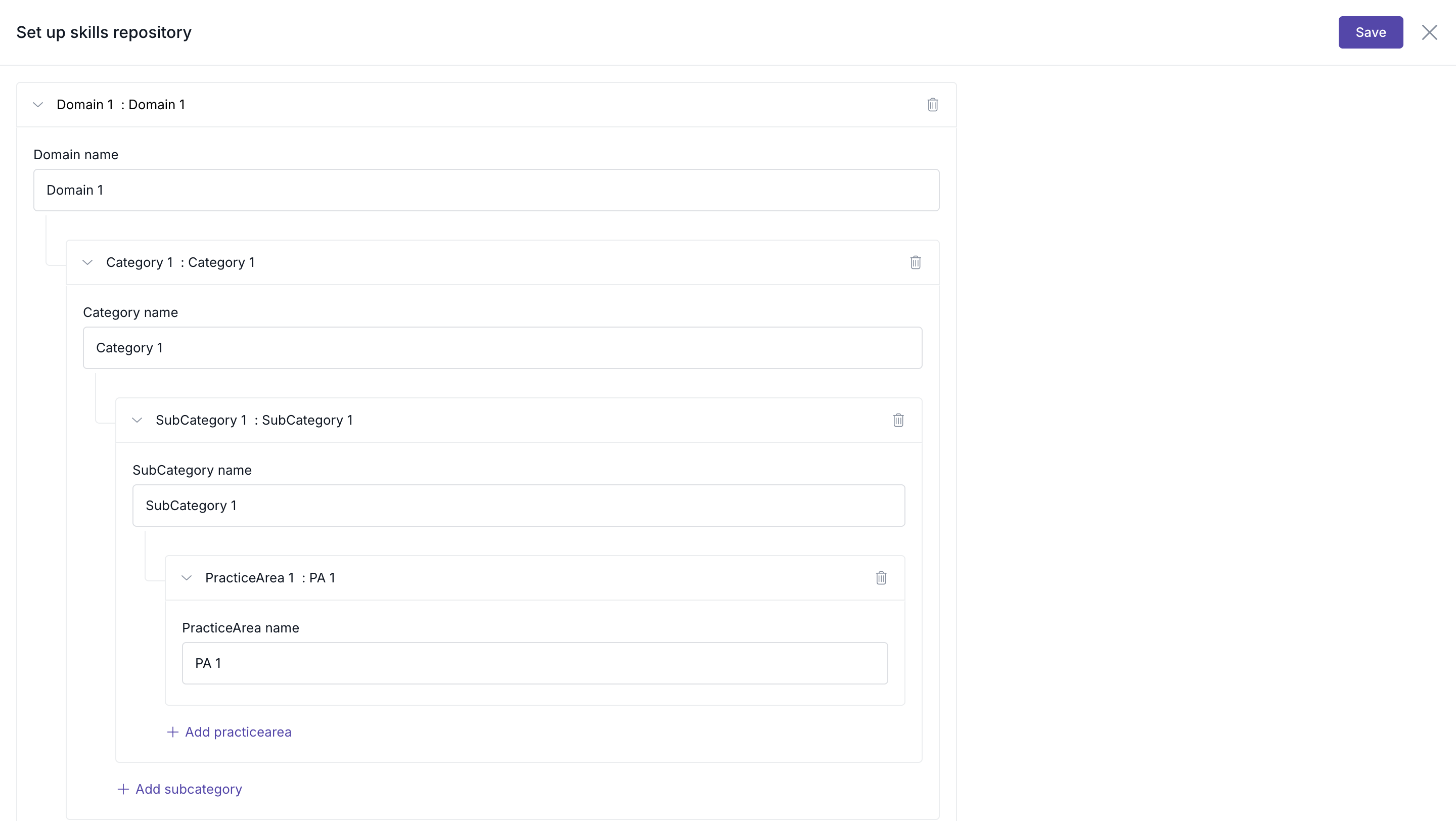
This structured approach helps managers:
- Assign standardised skills across the organisation.
- Find relevant skills more easily.
- Avoid duplicate skill creation.
- Maintain consistency in employee skill profiles.
- Gain better visibility into team capabilities.
Note: Repository structure and skill availability are managed by authorised administrators and may vary across organisations.
Assign Skills Using the Skills Repository
Managers can assign skills to employees directly from the centralised Skills Repository.
When assigning skills, you can:
- Browse skills available in the repository.
- Search for specific skills.
- Filter skills by category
- View the category associated with each skill.
- Select multiple skills simultaneously.
- Create a new skill if it is not available in the repository (subject to permissions).
The repository ensures that all assigned skills follow a standardised organisational framework.
Assign Skills to Employees
Managers can assign one or more skills directly to an employee from the employee list.
To assign skills:
- Locate the employee.
- Click Assign Skills.
- In the Select Skills step:
- Browse available skills from the repository.
- Search for a specific skill.
- Filter skills by hierarchical skill classification.
- Select one or more skills to assign.
Click Continue.
- In the Add Details step, provide:
- Experience in years.
- Certificate (optional).
- To upload a certificate:
Click +Add Certificate.
Fill in the certificate details, including the Certificate Name, Issuing Organisation, Issue Date, Expiration Date, Certificate ID, and Certificate URL. Click Add Attachment to attach the certificate, and then click Add to save the details.
- Once done, click on Assign Skills.
The selected skills are added to the employee's profile.
Create a New Skill While Assigning
If the required skill is not available in the repository, click +Create New Skill during the skill assignment process and create the skill before assigning it.
Assign Skills in Bulk
You can assign skills to multiple employees at the same time.
- Select one or more employees using the checkboxes.
- Click Select All if you want to choose everyone in the current view.
Click Assign Skills.
- Select one or more skills from the repository.
- Click Continue.
- Configure:
- Experience
- Rating
- Certifications (optional)
- Click Assign Skills.
The selected skills will be assigned to all chosen employees simultaneously.
Bulk assignment helps managers manage skills efficiently across larger teams.
Update Employee Ratings
Managers can update skill ratings for multiple employees simultaneously.
- Select the required employees.
Click Update Ratings.
- Update the proficiency ratings as needed.
- Save your changes.
This helps keep skill profiles accurate and current.
Actions Available in Employee View
Click on Assign Skills option.
- After clicking Assign Skills, the skill assignment workflow opens.
- Select Skills from the Repository
- In the Select Skills screen, managers can:
- Search for skills using the search bar.
- Filter skills by category.
- Select one or more skills from the repository.
- View the category associated with each skill.
- View the number of employees already assigned to a skill.
- Use Select All to choose multiple skills at once.
Once you have selected the required skills, click Continue.
If the required skill is not available, click +Create New Skill to add a new skill to the repository before proceeding.
Add Skill Details
After selecting skills, the Add Details page opens.
For each selected skill, specify:
- Experience in years.
- Certifications (optional).
To upload a certificate, click on +Add Certificate.
Review the details entered for each skill and click Assign Skills to complete the assignment.
The selected skills will be assigned to the employee along with the configured ratings, experience, and certifications.
Update Skills in Bulk
Managers can update skill information for all skills assigned to an employee.
To update all skills for an employee:
- Locate the employee.
- Click the More Actions (three-dot menu) in the employee row.
Select Update All Skills.
- The Update Skill Details window displays all assigned skills.
- Update information such as:
- Experience
- Rating
- Certifications
- Click Save Details.
This enables managers to maintain complete skill profiles without editing each skill individually.
Analyse Skills Using Group by Skills
The Group by Skills toggle changes the view from employee-based analysis to skill-based analysis.
When enabled, skills become the primary grouping.
For each skill, you can view:
- Skill name.
- Category.
- Number of employees with that skill.
- Average rating for the skill.
Understand Skill Coverage
The Group by Skills view helps managers understand how skills are distributed across the team.
For each skill, managers can:
- View the total number of employees with the skill.
- Review average proficiency ratings.
- Identify highly skilled employees.
- Detect skills that are concentrated within a small number of employees.
- Identify opportunities for cross-training and skill development.
This analysis helps managers make informed decisions about workforce planning and employee development.
Search and Filter Skills
While using Group by Skills, managers can:
- Filter skills by category.
- Search for a specific skill.
- Search for employees associated with a skill.
This helps quickly identify expertise and skill distribution across the team.
Expanding a skill displays employees associated with it, including:
- Employee name
- Job title
- Rating
- Skill Gap
- Experience
- Certifications
This view helps you:
- Identify subject matter experts.
- Understand team skill coverage.
- Find employees with specific competencies.
- Spot areas requiring skill development.
Manage Skill Approvals
If employee skill updates require approval, managers can review requests directly from the Pending Approvals section.
To review requests:
- Navigate to Performance > Skills > My Team's Skills.
- Click View Requests under Pending Approvals.
Here clicking on View requests will redirect you to Manage update requests tab.
You can:
- Review submitted skill updates.
- Approve requests.
- Reject requests when necessary.
- Track previously processed requests.
This approval workflow helps maintain accurate and verified skill profiles.
Best Practices for Managers
- Regularly review team skill coverage.
- Keep employee skill ratings updated.
- Encourage employees to maintain their skill profiles and certifications.
- Use the Group by Skills view to identify expertise within the team.
- Review pending requests promptly to avoid delays in skill updates.
- Use bulk actions when assigning skills across multiple employees.
- Periodically review skill gaps and development opportunities within teams.
- Ensure newly acquired skills and certifications are updated promptly.
Use the Repository as the Source of Truth
When assigning skills, always select skills from the repository whenever possible.
Using repository skills helps:
- Standardise skill data across the organisation.
- Improve reporting accuracy.
- Reduce duplicate or overlapping skills.
- Ensure consistent skill classifications.
Frequently Asked Questions
1. Can I view both direct and indirect reports?
Yes. The Direct Reports and Indirect Reports tabs allow you to switch between reporting hierarchies.
2. Can I assign skills to multiple employees at once?
Yes. Select multiple employees and use Assign Skills to perform bulk assignments.
3. Can I update skills for an employee in one go?
Yes. Use the Update All Skills option available under the employee's More Actions menu to update all assigned skills from a single screen.
4. Can I update ratings for multiple employees?
Yes. Use the Update Ratings option after selecting the required employees.
5. What does Group by Skills do?
It reorganises the data by skill instead of employee, allowing you to see all employees associated with a particular skill and its overall team coverage.
6. Can I unassign a skill from an employee?
Yes. Use the skill-level More Actions menu and select the unassign option. A confirmation will be required before the skill is removed.
7. How do I review pending skill requests?
Click View Requests under the Pending Approvals section to review and act on submitted updates.
8. Can I search for employees with a specific skill?
Yes. Enable Group by Skills and use the search option to find specific skills and the employees associated with them.
9. Can I create a new skill while assigning skills?
Yes. If the required skill does not exist in the repository, use the Create New Skill option available during the skill assignment process.
10. What is the Skills Repository?
The Skills Repository is the centralized library of organizational skills. All skills available for assignment are sourced from this repository and organized using a structured hierarchy.
11. Can I create a new skill while assigning skills?
Yes. If the required skill is not available in the repository and you have the necessary permissions, you can create a new skill during the assignment process.
12. Why do skills appear under categories?
The Skills Repository uses a hierarchical structure that groups skills into categories and other levels. This helps managers locate skills easily and maintain consistency across employee profiles.
13. How does the Group by Skills view help managers?
The Group by Skills view provides visibility into skill coverage across the team, helping managers identify experts, assess distribution, and support development planning.
Conclusion
The revamped My Team's Skills experience gives managers a comprehensive view of team capabilities, making it easier to assign skills, update ratings, review approvals, and identify expertise across the organisation. With employee-level and skill-level views, bulk management capabilities, advanced filtering, and approval workflows, managers can effectively support employee development and build stronger, skill-driven teams.
Comments
0 comments
Please sign in to leave a comment.