A Performance Improvement Plan (PIP) is a structured process used to support employees whose performance is not meeting expectations. It acts as a roadmap that:
Highlights specific performance gaps.
Identifies skill or training needs.
Sets clear goals and timelines for improvement.
Enables regular feedback, coaching, and support from managers.
Keka’s PIP module helps you manage this entire process in a consistent, transparent, and trackable way.
The options and features you see may vary based on your organisation’s policies, permissions, and role.
Adding a Team Member to PIP
To place an employee under a Performance Improvement Plan:
Go to My Team from the left navigation panel.
Click the Performance tab.
Open the Performance Improvement Plan (PIP) section.
Here you’ll see sections like:
Direct Reports
Indirect Reports
These may be further split into In Process and Completed, depending on your role and responsibilities.
Click + Add an employee to PIP.
A new window will open where you can configure the PIP.
Steps to Configure a New PIP
In the Add employee to PIP window:
Use the search bar to find and select the employee you want to place under a PIP.
Enter a clear Reason for initiating the Performance Improvement Plan for this employee.
Open the dropdown to view available PIP templates and select one that best matches the employee’s improvement areas.
Click Add Attachments to upload any supporting documents such as performance reports, feedback summaries, or incident records.
Select from the predefined templates available.
If no predefined tasks are available or if you need to tailor the plan:
Click Create Custom Tasks for Employee.
Add specific action items, expectations, or milestones as part of the improvement plan.
Select the Start Date and the End Date for the PIP period.
Once all details are filled in, click Start.
The employee will be officially added to the PIP from the chosen start date.
Taking Action on an Employee in PIP
Once the PIP duration is over (or reaching its end), a decision must be made about the employee’s future:
If the employee has met expectations, the PIP can be closed, and they continue in their role.
If they’ve shown partial improvement, you may decide to extend the PIP and give more time to meet the goals.
If performance remains unsatisfactory and it’s clear the role is not a good fit, HR can be notified to initiate an exit process.
All these actions can be managed directly from the PIP section in Keka.
How to Make a Decision on a PIP
Go to the In Process section under Performance Improvement Plan (PIP).
Locate the employee whose PIP outcome needs to be decided.
Click the three dots (⋮) under the Actions column.
Choose Make Decision (you’ll also see Reinitiate PIP as another option).
In the Make Decision window:
Review the details of the employee’s PIP.
Choose whether to end the PIP or extend it.
Add a note explaining your decision.
In the Activity section, you can add additional comments or context related to the outcome.
Click Submit to finalise the decision.
Reinitiating a PIP in Keka
If you want to extend the PIP or restart it with added structure and clarity:
Click the three-dot (⋮) menu next to the employee in the In Process section.
Select Reinitiate PIP.
In the confirmation popup, click Confirm to proceed.
Next, you can:
Edit existing tasks by clicking Edit task.
Add new tasks using + Add task.
Adjust start dates, durations, and validators as required.
After making changes:
Review the updated timeline and improvement plan details.
Add any final notes if needed.
Click Update to save and reinitiate the PIP.
See Actual PIP Outcomes (Not Just “Completed”)
To review the final results of PIPs:
Go to the Completed section under the Performance Improvement Plan (PIP) tab.
Find the relevant employee and click View under the Actions column.
Here, instead of just seeing a generic “Completed” status, you will now see:
The actual outcome of the PIP (for example: Successfully Improved, Extended, Exit Initiated, etc.).
This makes it easier to:
Filter by outcomes.
Run meaningful reports.
Track long-term patterns and resolutions.
Within the detailed view, you can see:
All PIP details.
Tasks and timelines.
Comments and notes recorded throughout the process.
Support for Custom Roles in PIP Validators
Keka also supports more flexible validation workflows.
Admins can assign custom roles (created under Roles & Permissions) as PIP Task Validators.
This allows organisations to involve specific stakeholders (like HRBPs, functional heads, or senior leaders) in approving or validating certain tasks or milestones within the PIP.
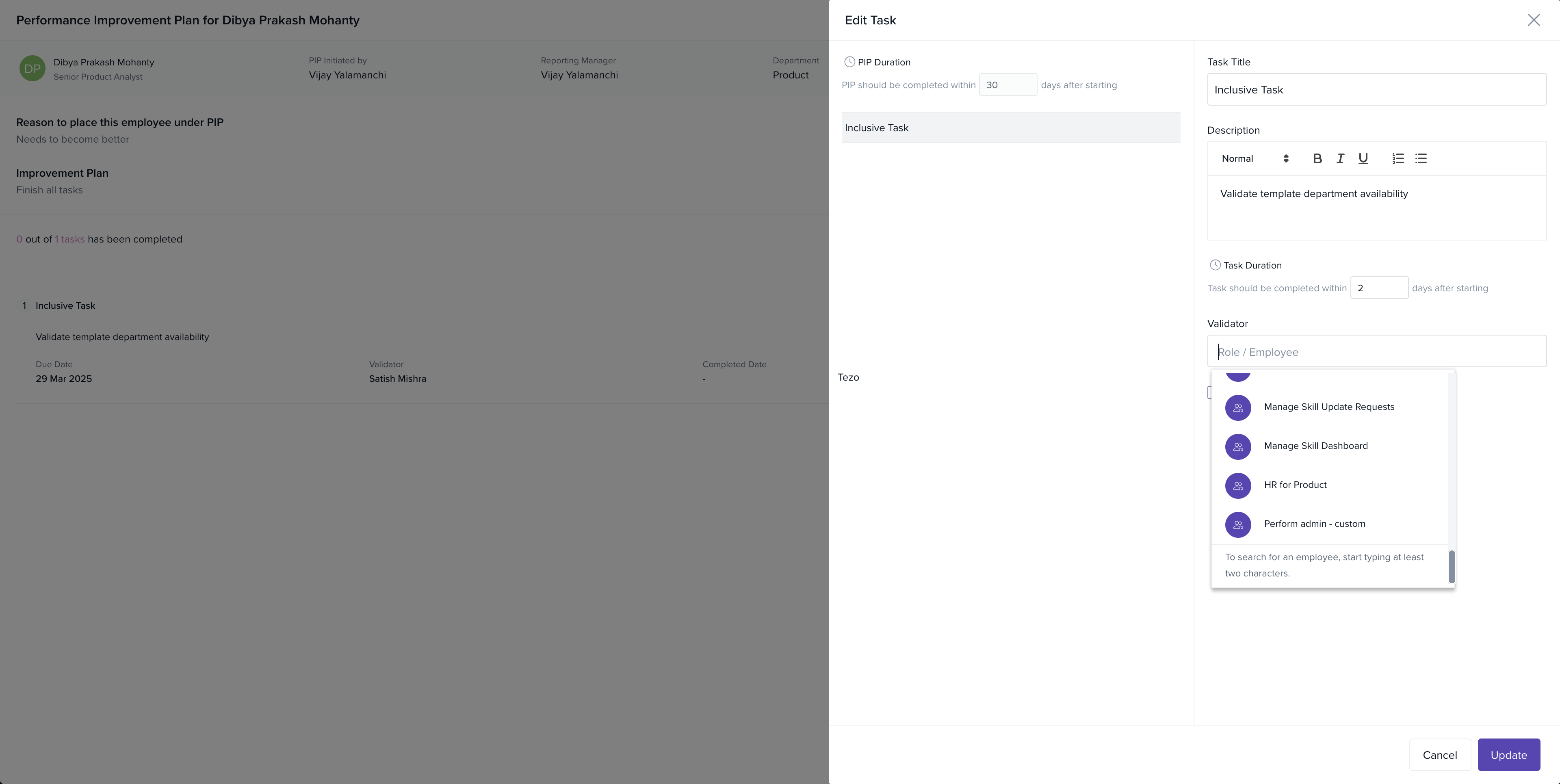
This ensures that the right people are involved in the process, based on your internal structure and policies.
Keka’s Performance Improvement Plan (PIP) module provides a complete, structured framework to manage underperformance fairly and transparently. From:
Initiating and customising improvement plans.
Tracking task-level progress.
Reinitiating plans when needed.
Recording outcome-based decisions.
Involving the right validators through custom roles.
By using Keka to manage PIPs, organisations can promote accountability, support employee development, and make consistent, well-documented decisions around performance improvement.
If you need more help with PIPs or performance workflows, feel free to reach out to our product support team — we’re here to help.
Comments
0 comments
Please sign in to leave a comment.