Overview
The Manage Goals section in Keka’s Performance module helps HR teams and managers oversee employee goals, manage approvals, and maintain alignment across the organisation.
From tracking all goals to assigning objectives to employees, this section ensures smooth workflows and accountability in the goal-setting process.
Accessing the Manage Goals Section
Log in to Keka.
Go to Performance in the left menu.
Select Goals.
-
Click on Manage Goals.
You’ll see two main tabs: Goals and Employees.
Accessing the Goals Tab
The Goals tab gives you a full view of all organisational goals. You can filter, track progress, manage approvals, add goals individually, or import multiple goals in bulk.
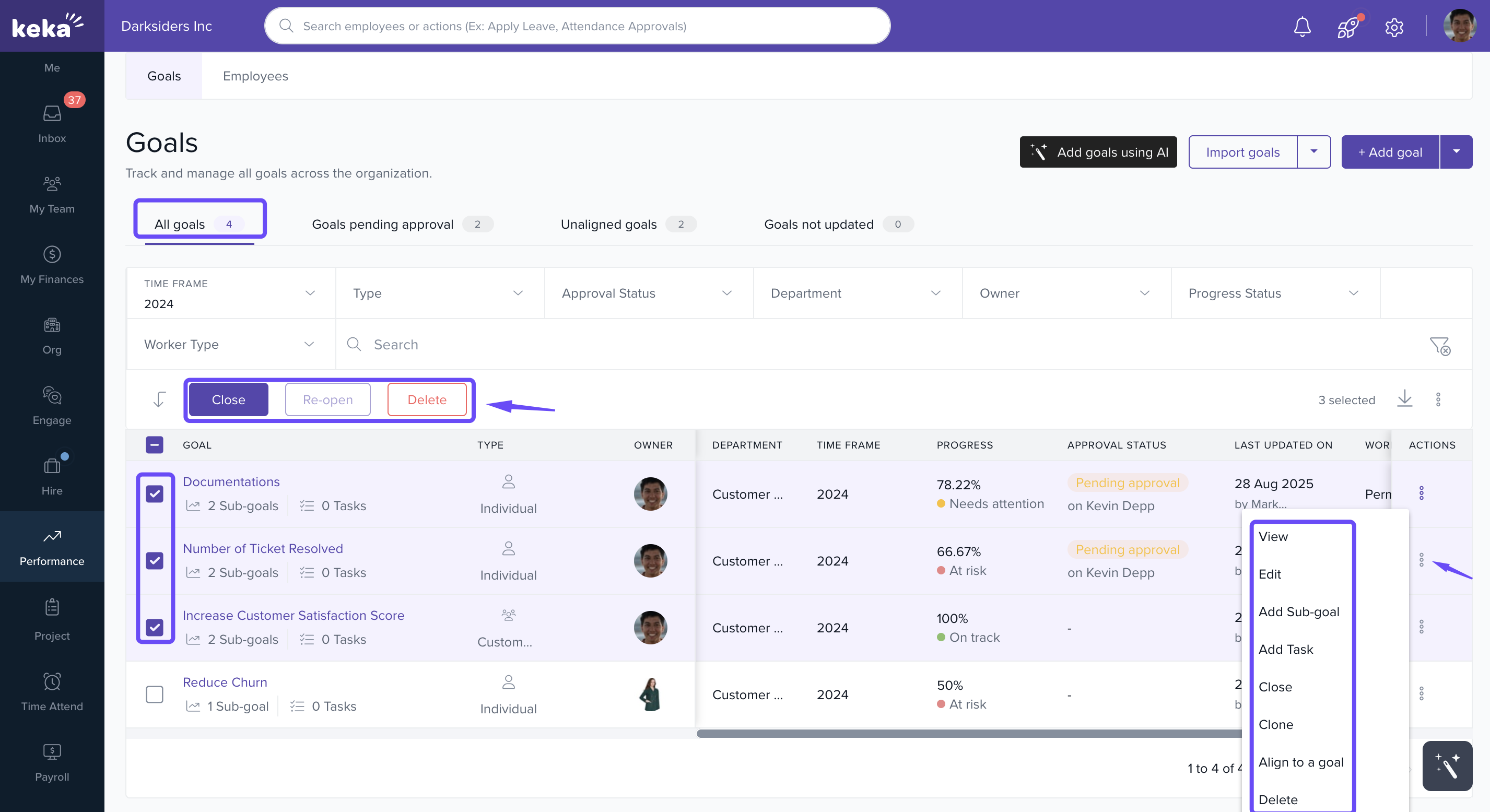
All Goals
Displays all goals in the system.
Filter by timeframe, type, approval status, department, or progress.
To manage a goal, click the three-dot menu next to it to view, edit, add a sub-goal, add a task, clone, close, align to a KRA, or delete the goal.
-
Select multiple goals to perform bulk actions like open, close, or delete.
To know more about adding goals please refer to our article: Creating a new goal.
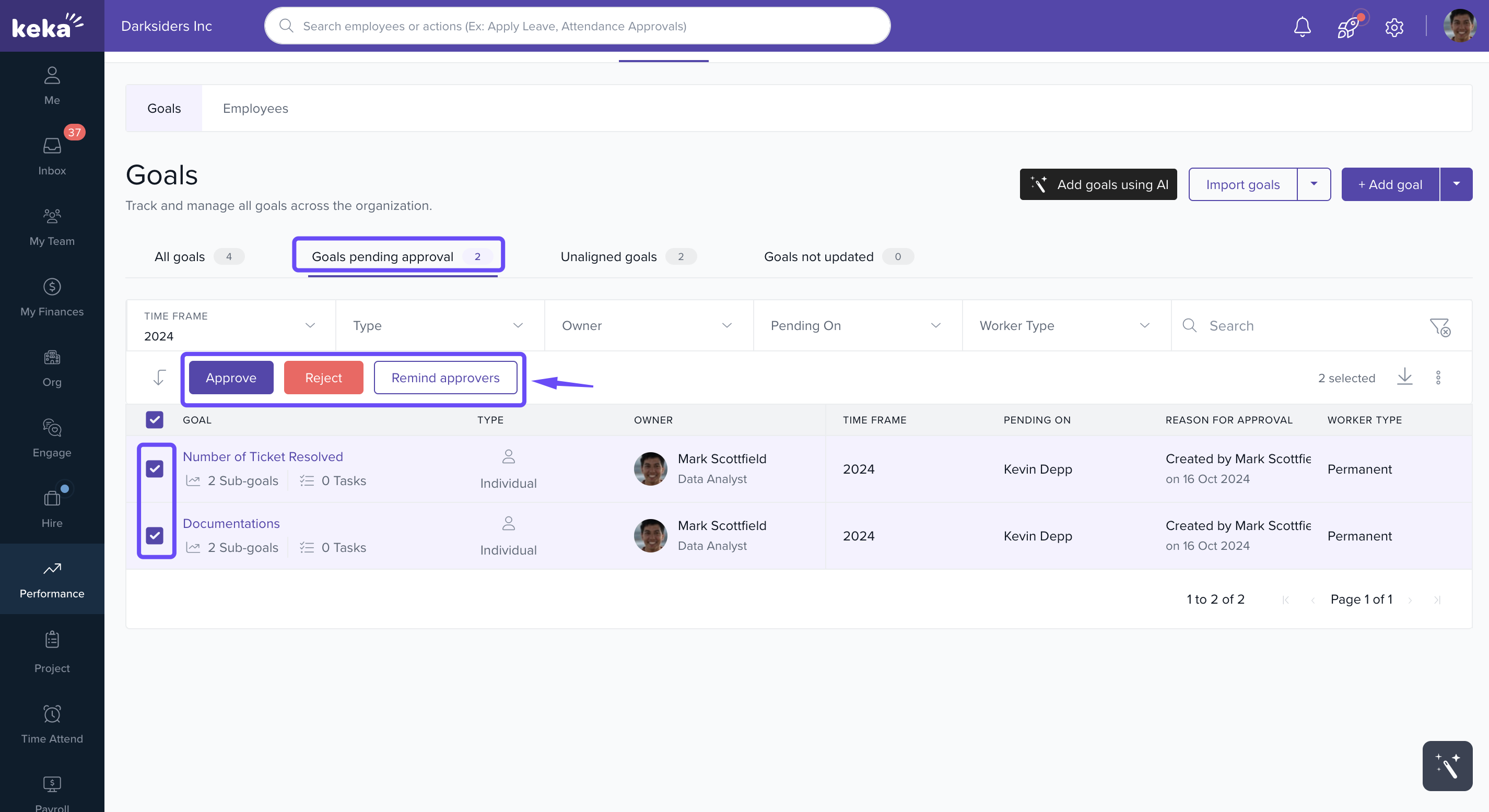
Goals Pending Approval
Shows goals that need approval from managers or HR.
View details like goal owner, time frame, goal type, goal approver and worker type.
Use the Remind Approvers button to nudge pending approvers.
Review, approve, or reject goals directly.
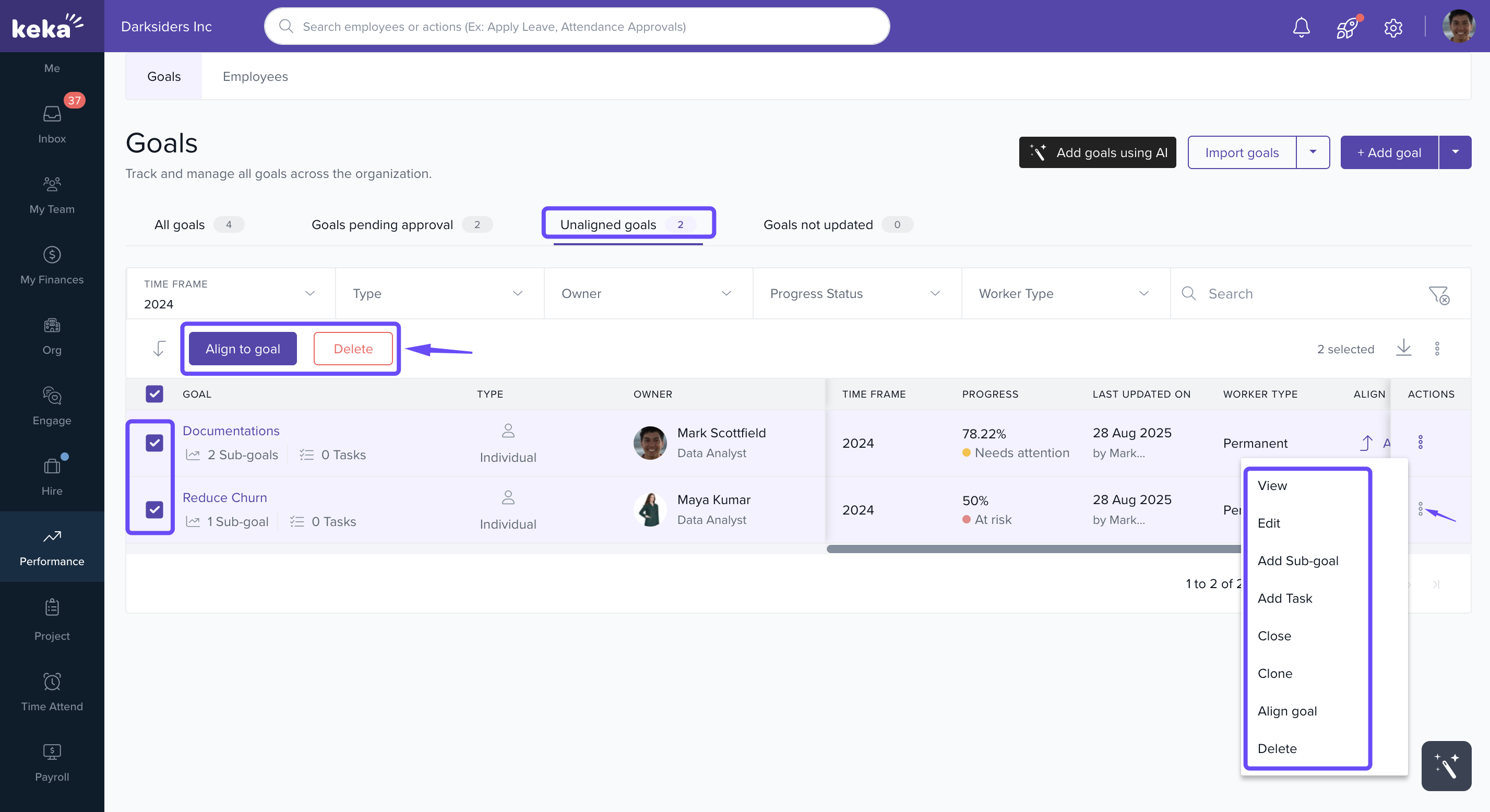
Unaligned Goals
Displays goals not linked to a department, team, or company objective.
View details like goal title, goal type, owner, time frame, progress, last update and worker type.
Use the Actions menu to view, edit, add a sub-goal, add a task, clone, close, align to a KRA, or delete the goal.
Select multiple goals to align to a KRA or delete in bulk.
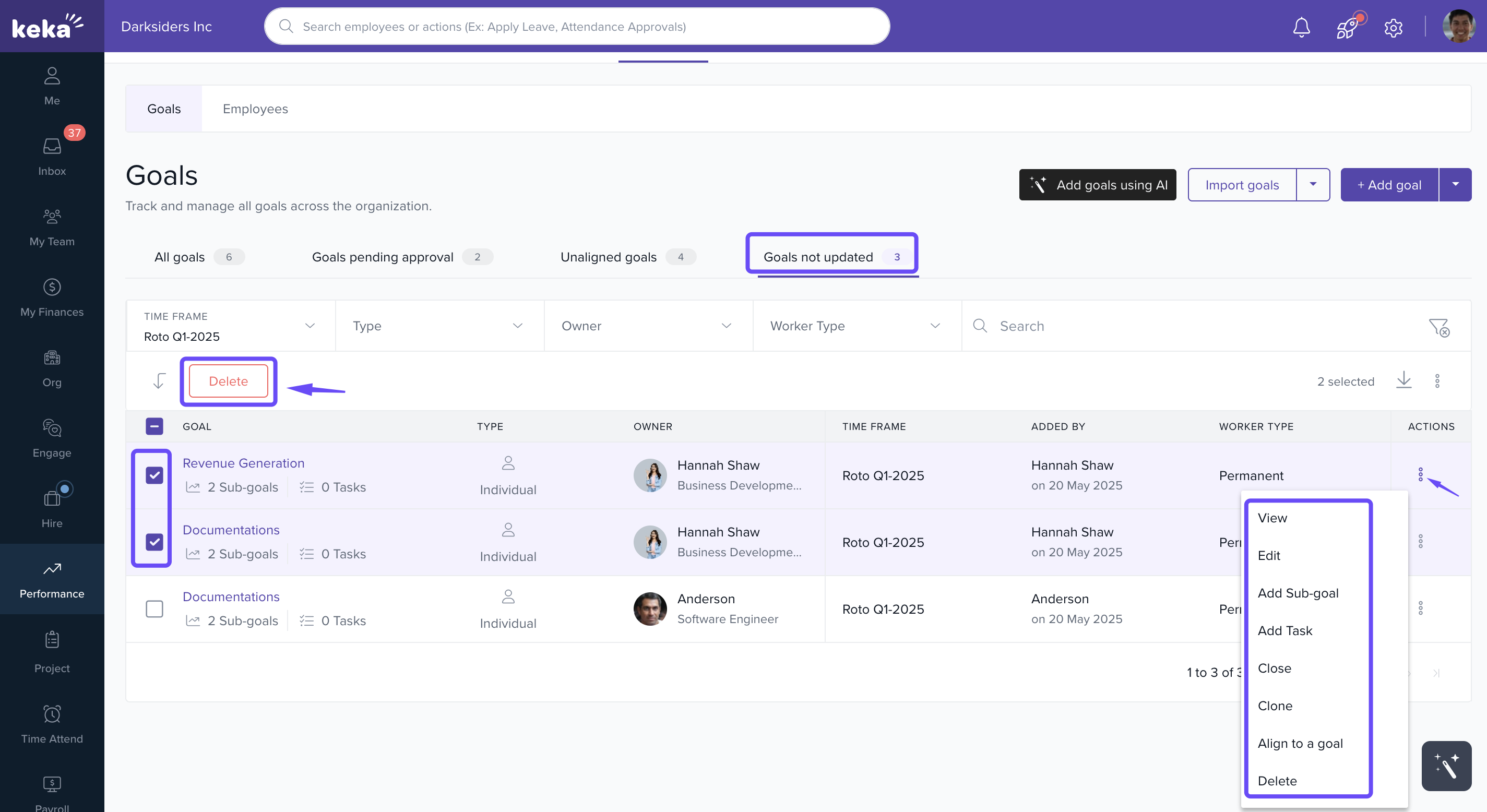
Goals Not Updated
Highlights goals with no progress updates.
Use the Actions menu to view, edit, add a sub-goal, add a task, clone, close, align to a KRA, or delete the goal.
Bulk select multiple goals for deletion if required.
Accessing the Employees Tab
The Employees tab helps managers assign, monitor, and evaluate employee goals. It ensures every team member has clear objectives.
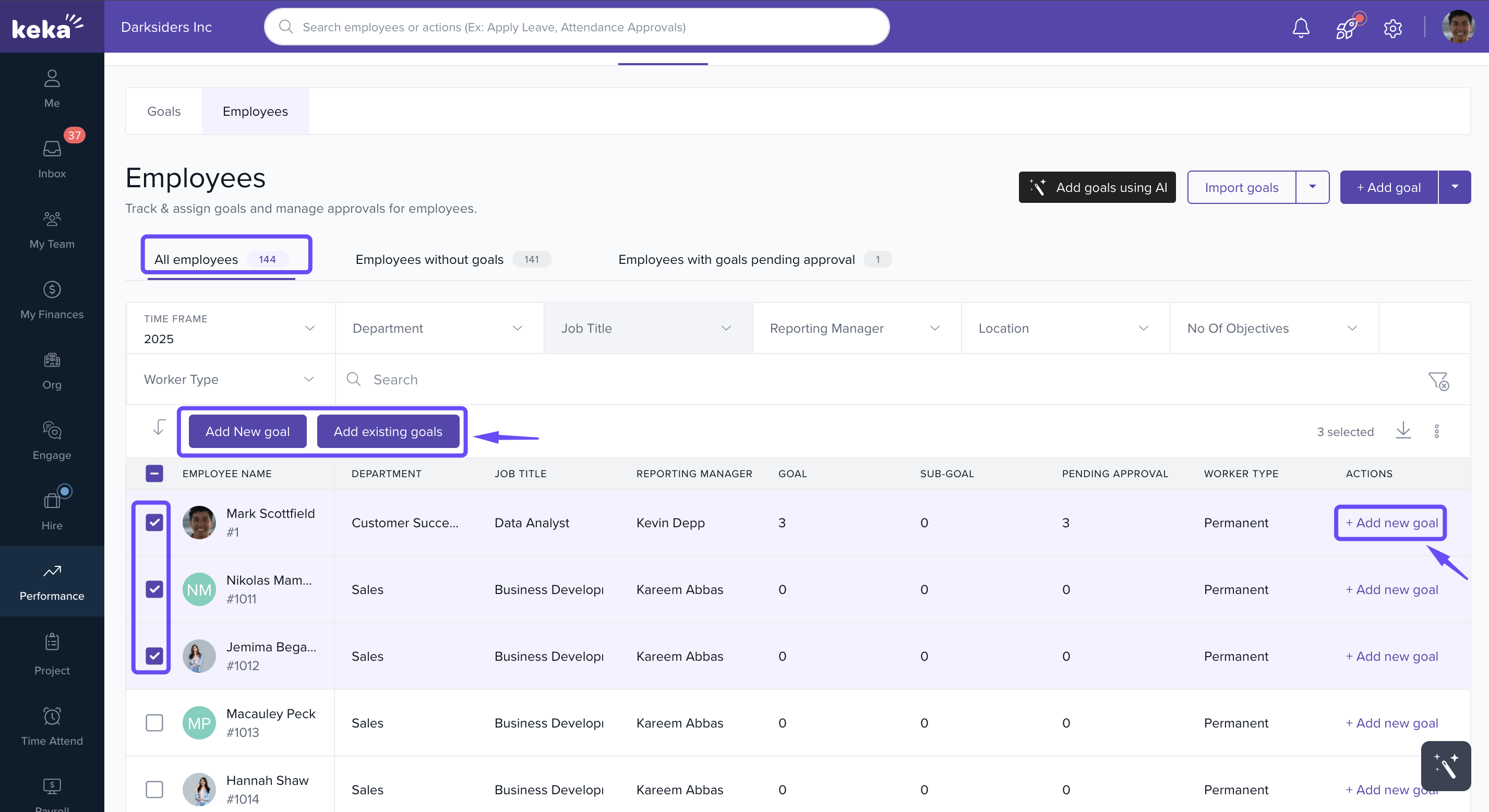
All Employees
Lists all employees with their assigned goals and progress.
Add goals individually using + Add new goal.
Assign goals in bulk using Add new goal or Add existing goals.
Employees Without Goals
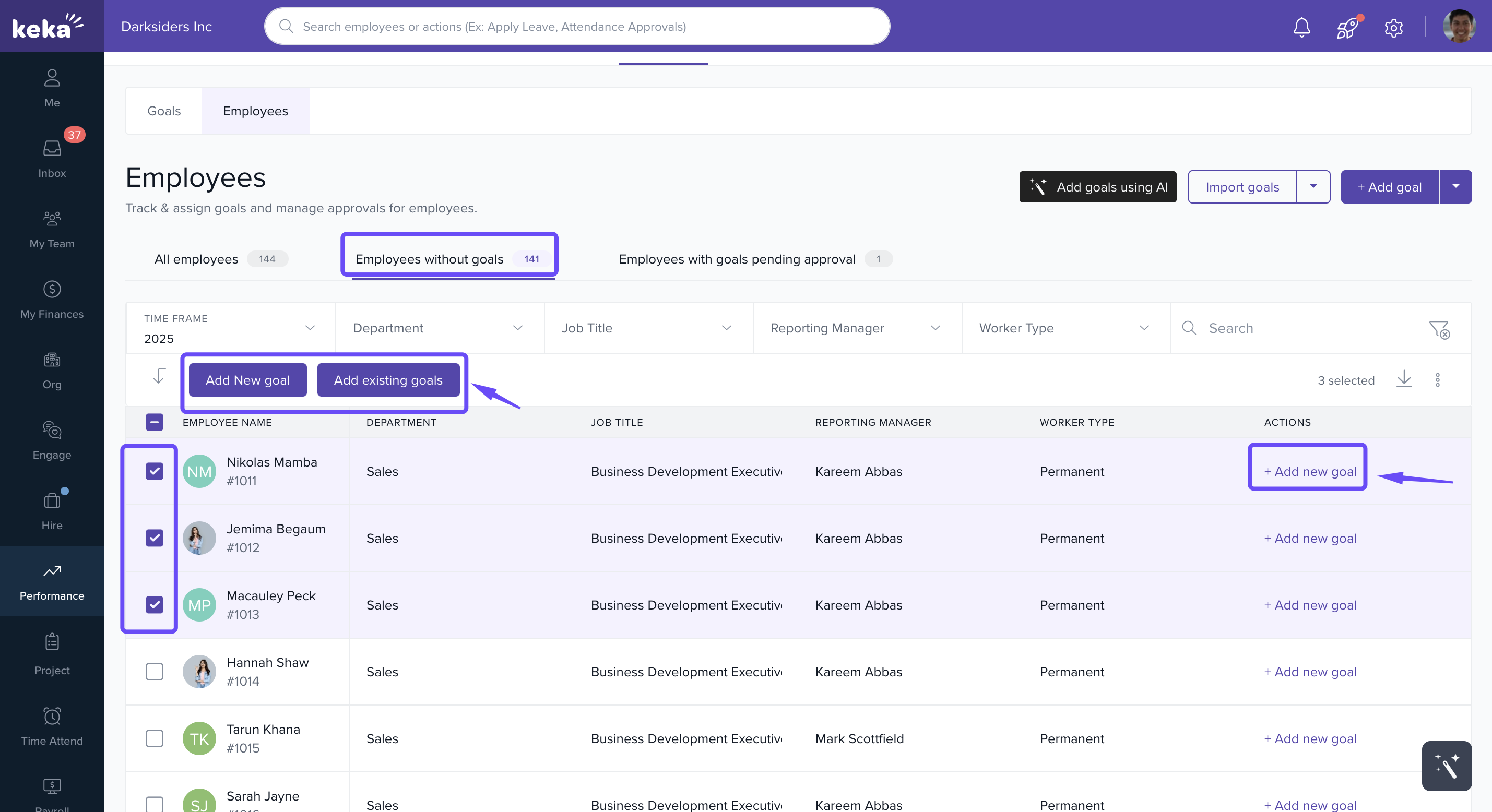
Displays employees who don’t have any goals assigned.
Add goals individually using + Add new goal.
Assign goals in bulk using Add new goal or Add existing goals.
Employees With Goals Pending Approval
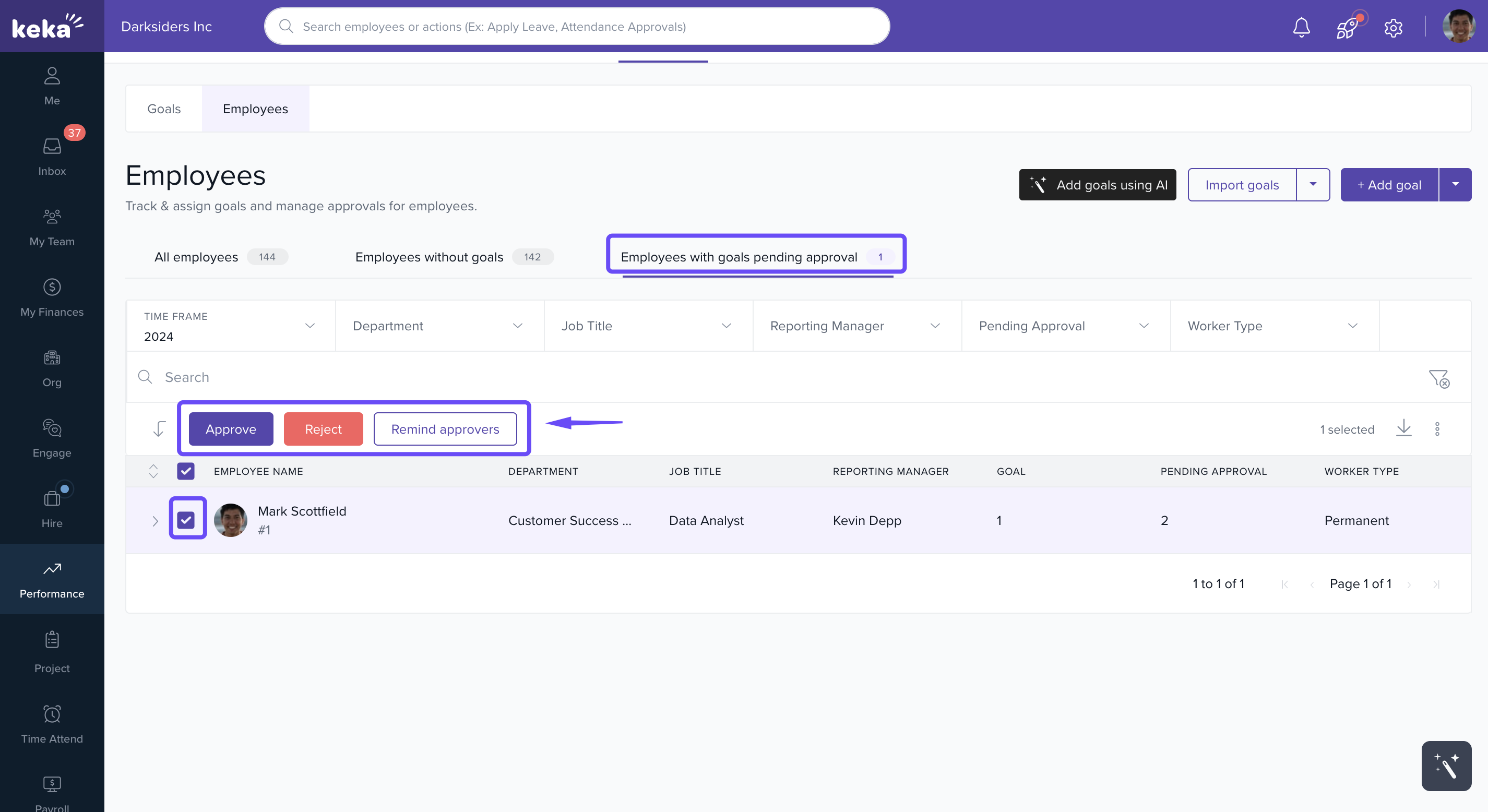
Shows employees with goals waiting for approval.
Use Remind Approvers to follow up on pending actions.
Review, approve, or reject goals as needed.
Notes & Tips
Tip: Use the Unaligned Goals report regularly to ensure all objectives support organisational strategy.
Important: Remind approvers frequently to avoid delays in the goal-setting process.
Note: Bulk actions save time when managing a large number of goals.
Examples & Use Cases
Performance Tracking: Use Goals Not Updated to identify employees who may need nudges to stay on track.
Onboarding: Assign predefined goals in bulk to new hires for consistency.
Strategic Alignment: Review Unaligned Goals to ensure every goal ties back to team or company objectives.
Next Steps
Learn more about Creating a new goal.
Explore Managing goal settings in Keka.
Contact Keka Support if you face access or permissions issues.
The Manage Goals section in Keka gives HR teams and managers complete visibility and control over employee objectives. By actively using its feature like tracking unaligned or pending goals, assigning objectives in bulk, and monitoring employee progress, you can keep your workforce aligned, improve accountability, and ensure organisational goals are met efficiently.
Comments
0 comments
Please sign in to leave a comment.