Introduction
In Keka HR's Performance module, the Tags section under Administration enhances goal management by helping HR professionals and managers categorise and track goals effectively. By leveraging tags and metric units, you can ensure clear organisation, better tracking, and alignment with your team’s objectives.
Accessing Goal Settings
To view and manage goals:
Go to the Performance section.
Click on Goals.
Select Settings.
-
Choose the Tags section to configure your goal categories.
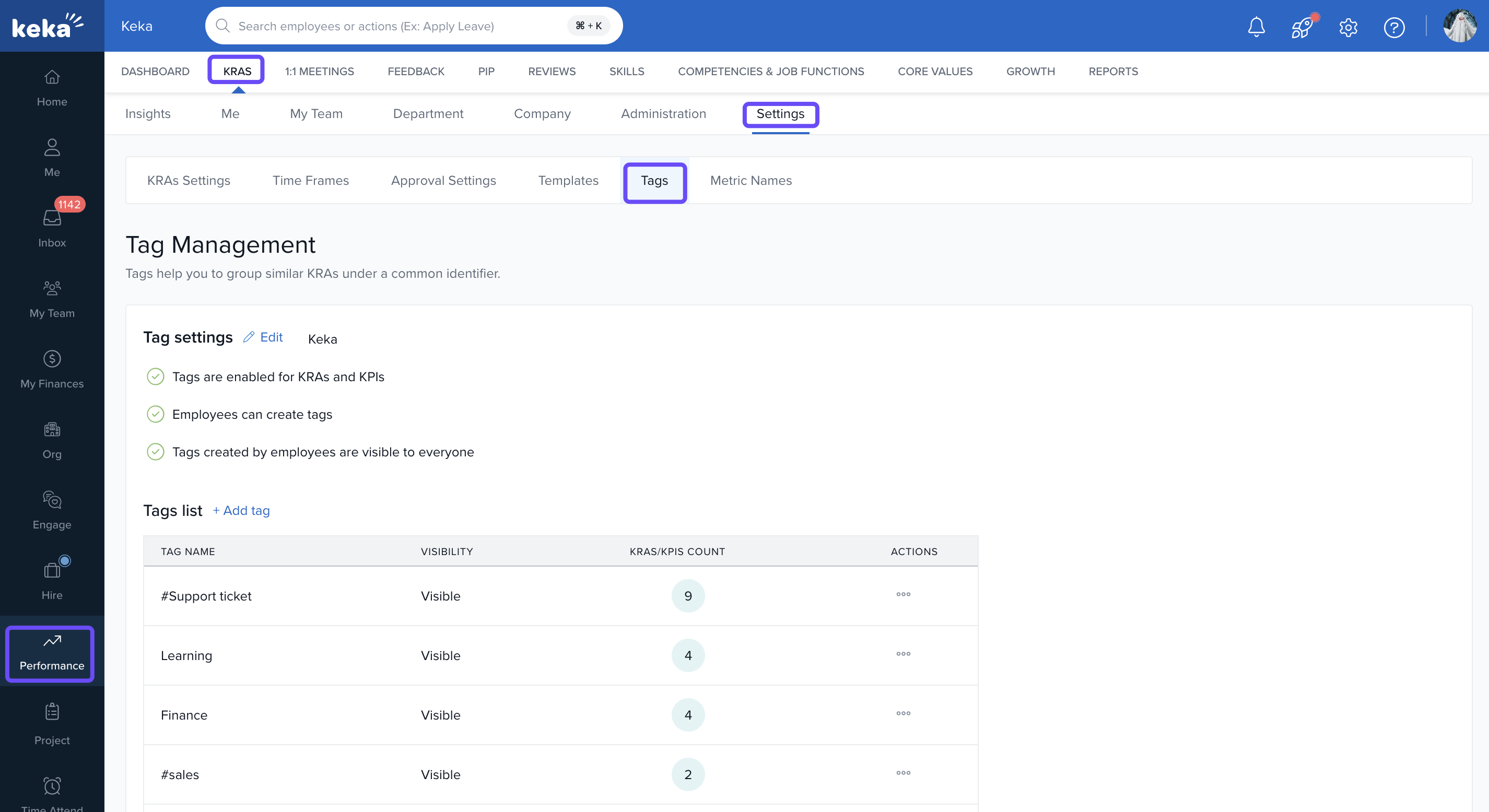
Tags are used to group similar goals and sub-goals, helping to streamline the tracking process and ensuring that goals are easily accessible and well-organised.
Managing Tag Settings
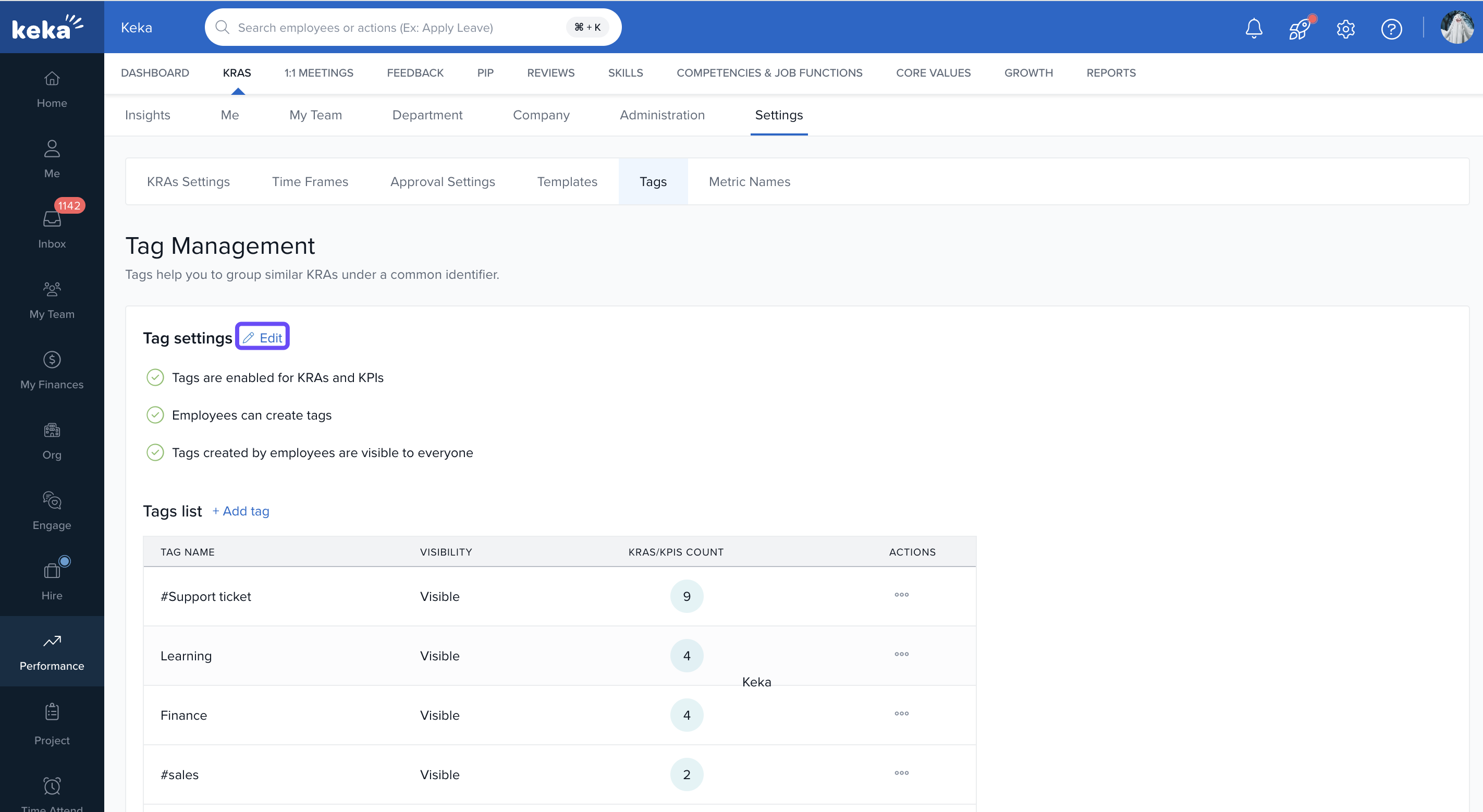
To manage tags:
-
Click the Edit icon next to the tag settings.
-
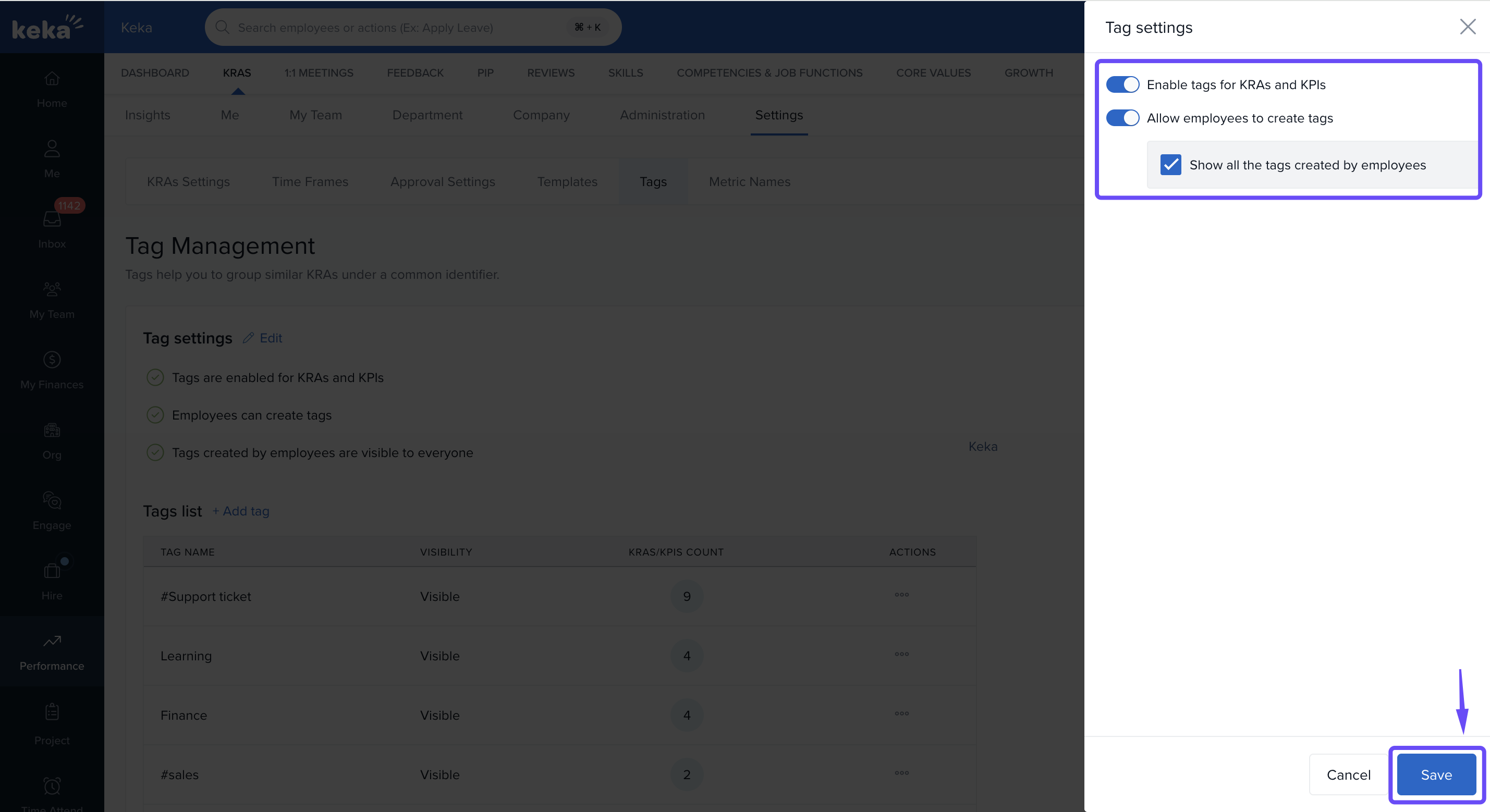
In the Tag Settings section, you can:
Enable tags for goals and sub-goals.
Allow employees to create their own tags.
Make tags visible to everyone in the organization for transparency.
- You can add new tags to accommodate evolving goals and initiatives, ensuring flexibility in your goal management process.
Tag List and Actions
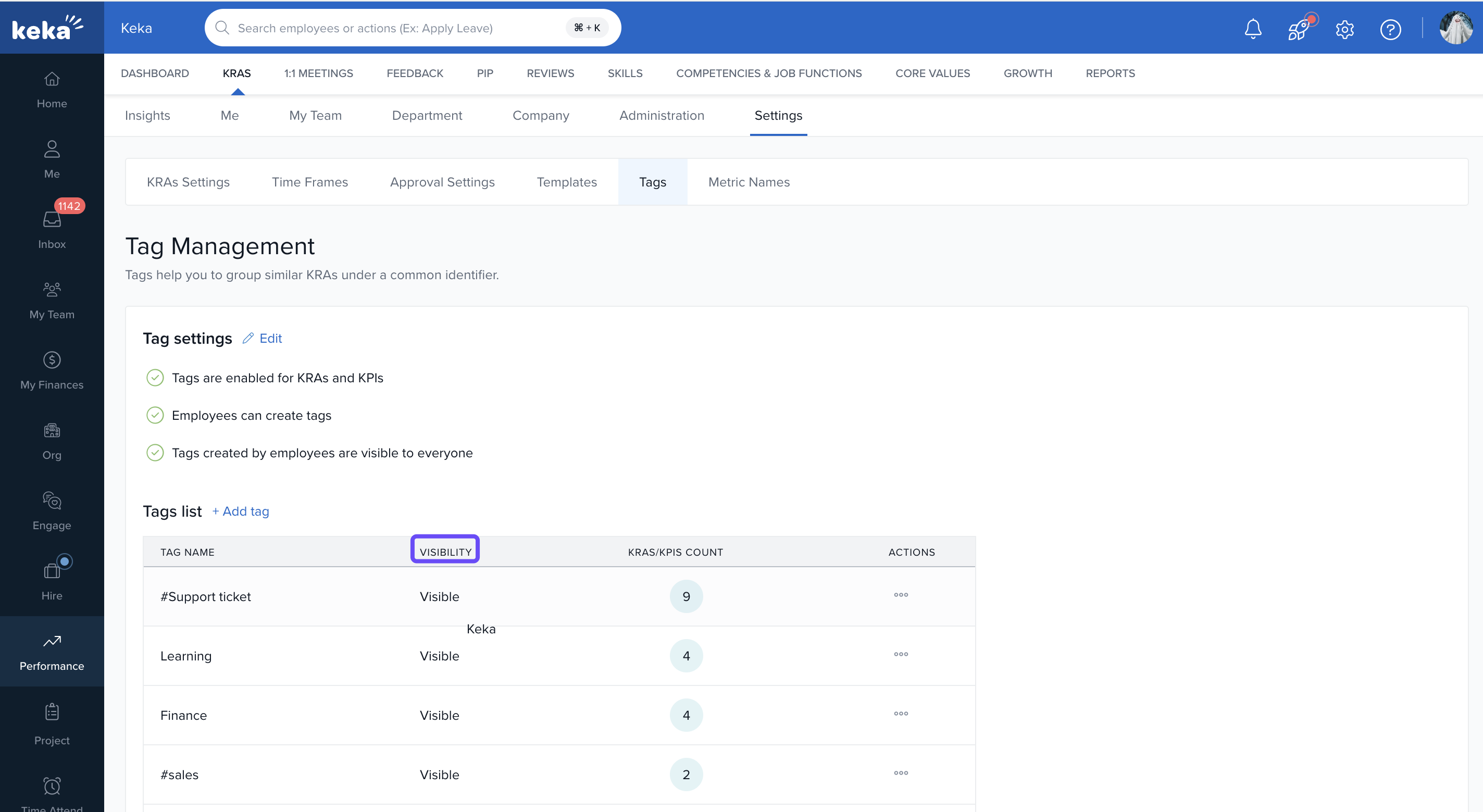
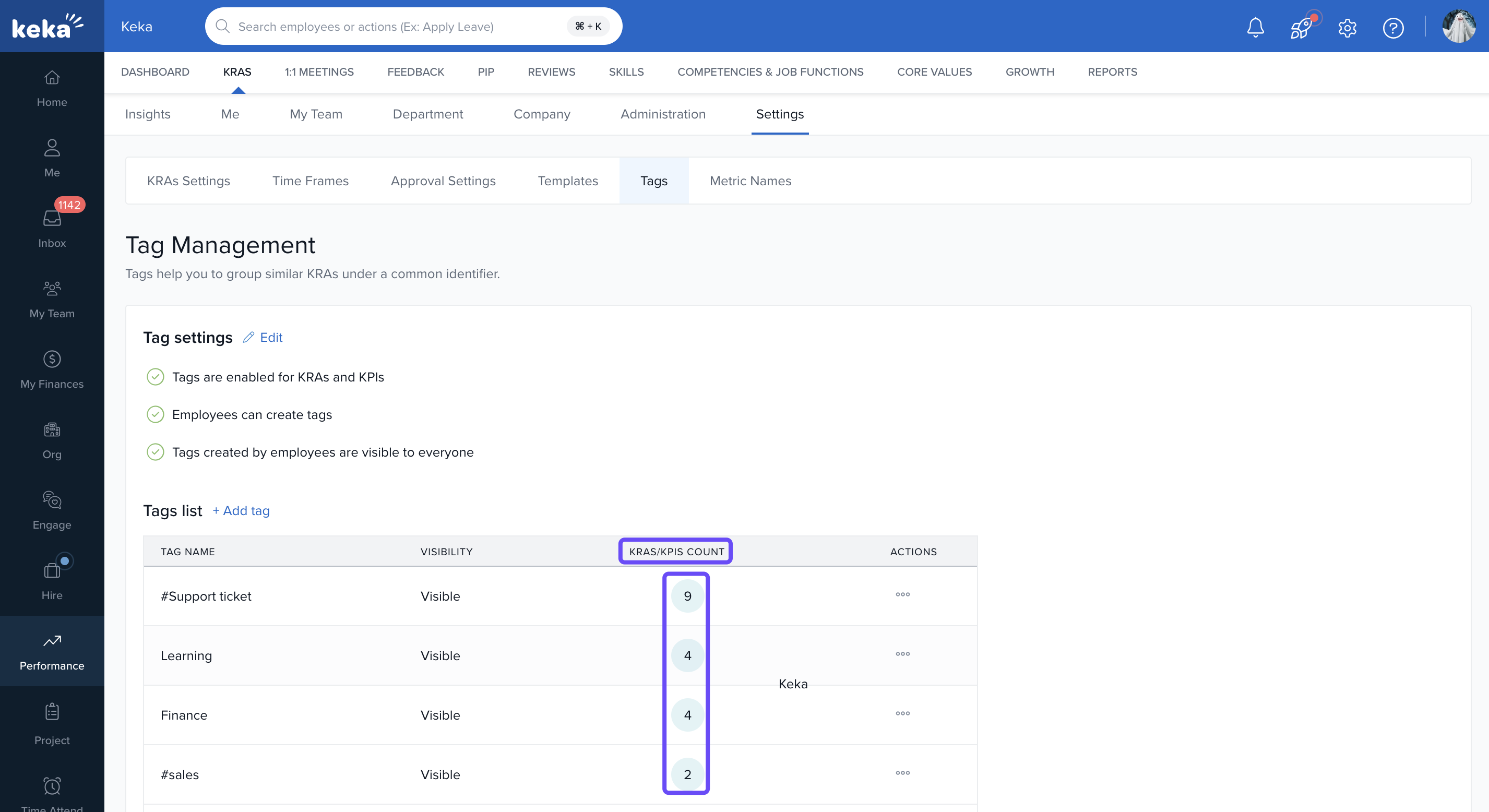
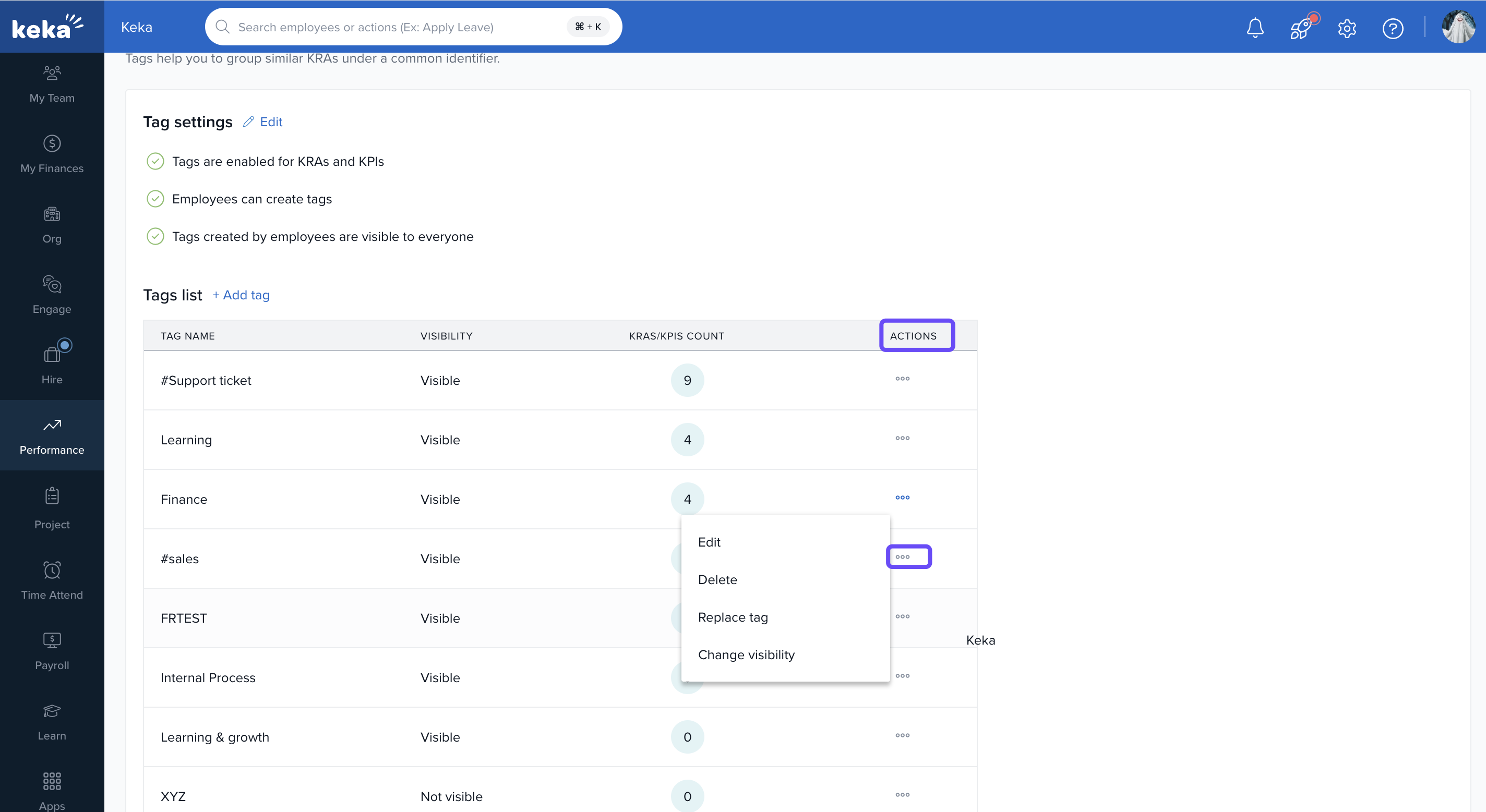
In the Tag List table, you can:
-
View whether tags are visible to everyone in the organisation (ensuring transparency).
-
Check the Goals/Sub-Goals count to see how many goals are linked to each tag, giving you insights into focus areas.
-
Perform actions such as changing visibility, editing, replacing, or deleting tags to keep goal management up-to-date with organisational changes.
Managing Metric Names
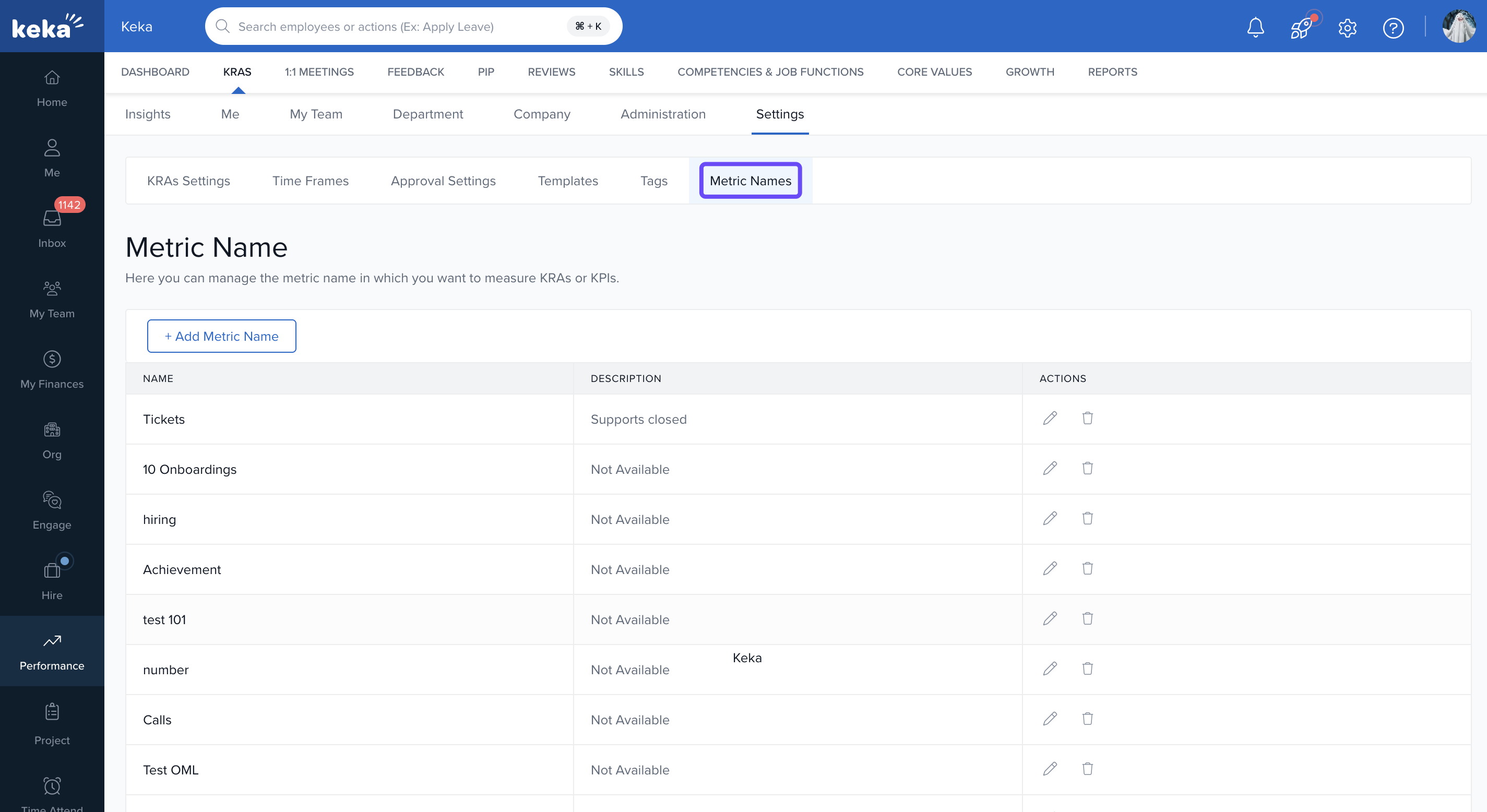
The Metric Names section gives you a centralised place to manage all your KRA and KPI metrics, ensuring alignment and consistency in tracking employee progress.
To manage metric names:
- Go to the Metric Names section in the Settings.
-
Click + Add Metric Name.
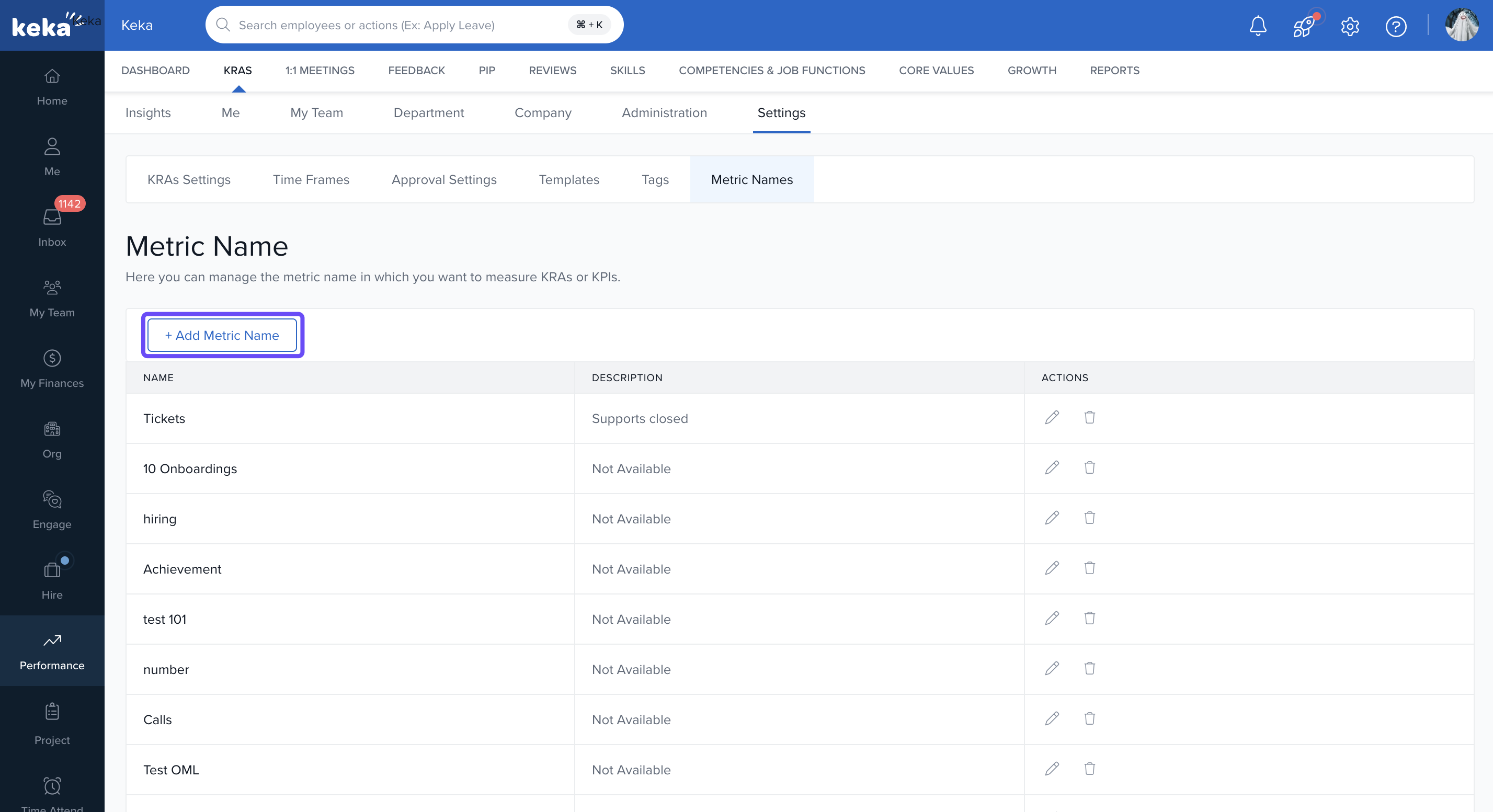
- Enter the metric name (e.g., "Goal Completion rate").
-
Provide a description for the metric (e.g., "Aligning Individual and team goals with company goals"). Finally, click on Add.
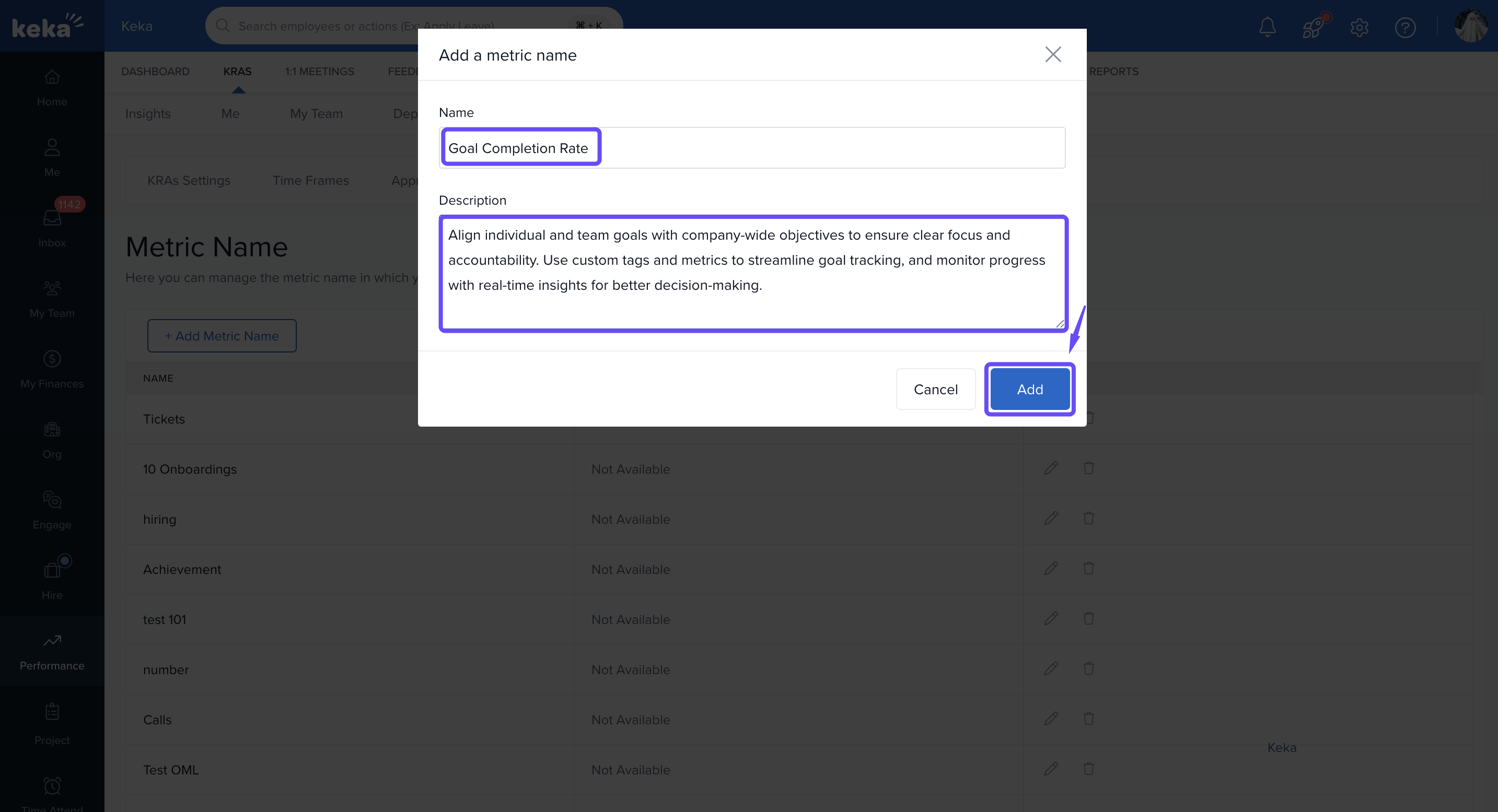
- You can also edit or delete metrics as needed using the options provided in the Actions column.
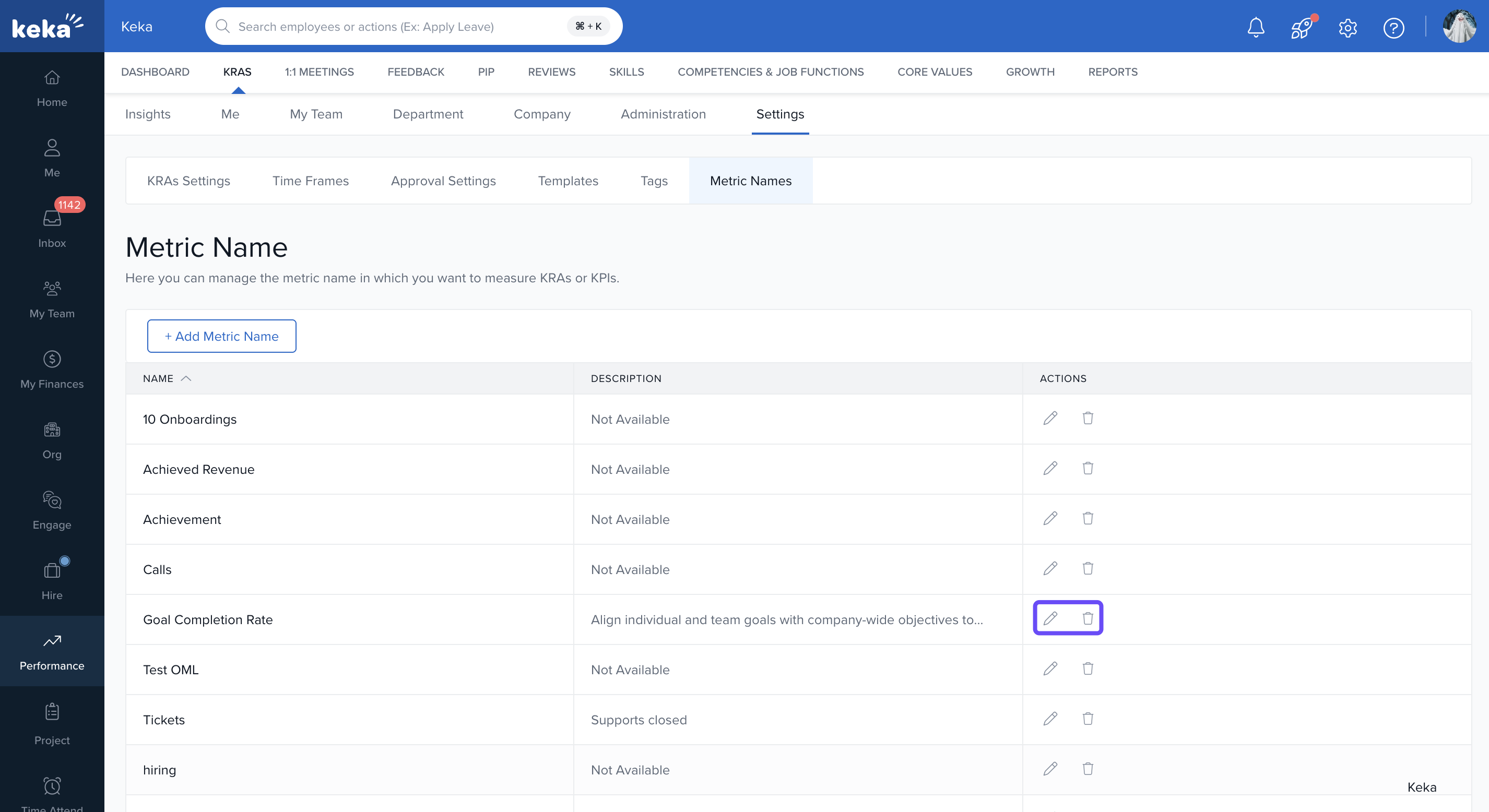
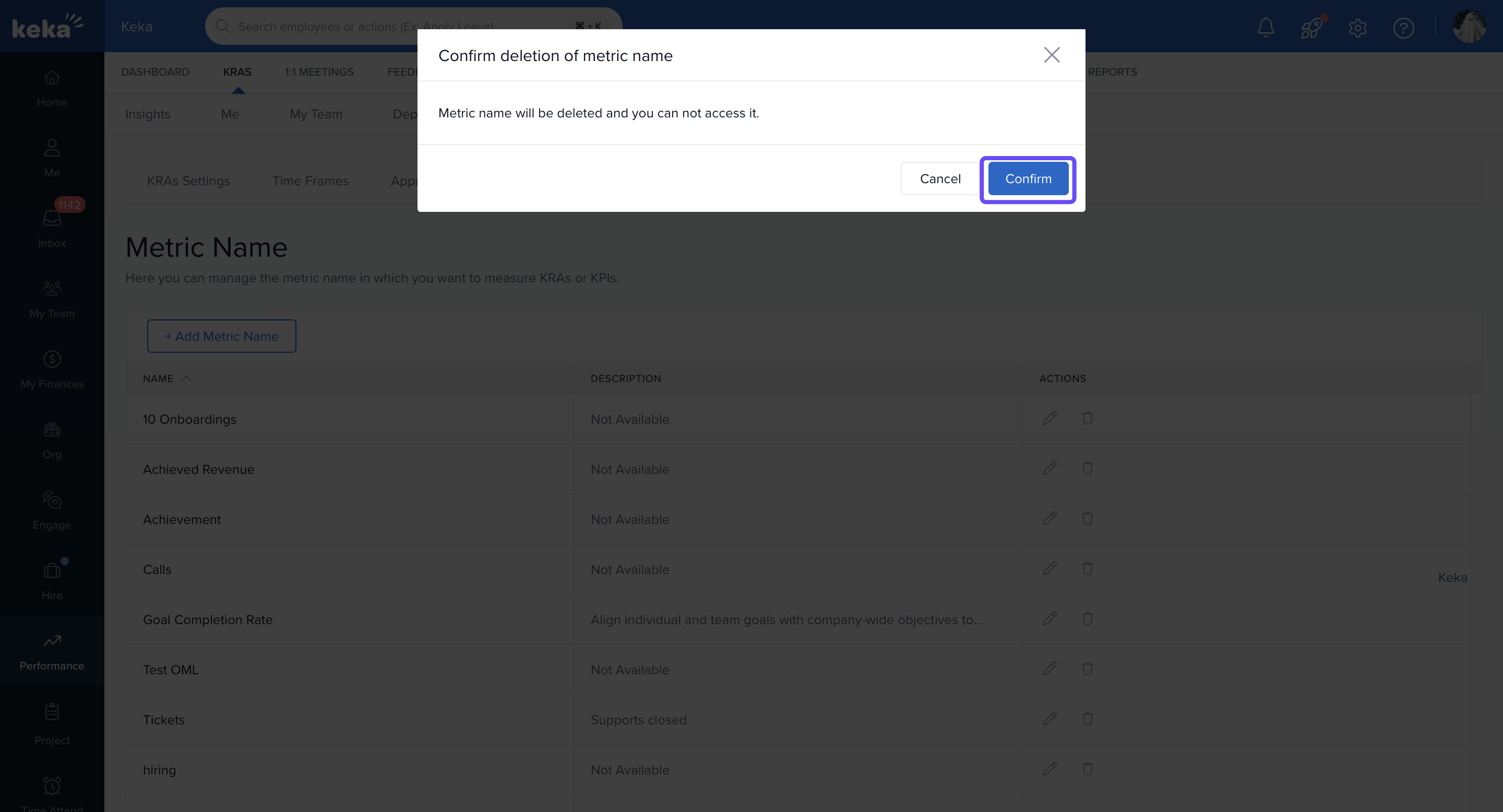
- To delete a metric name, click the Delete icon next to the metric name you wish to remove.
-
A confirmation pop-up will appear:
The pop-up will prompt you with a message: "Metric name will be deleted and you can not access it."
Click Confirm to proceed.
-
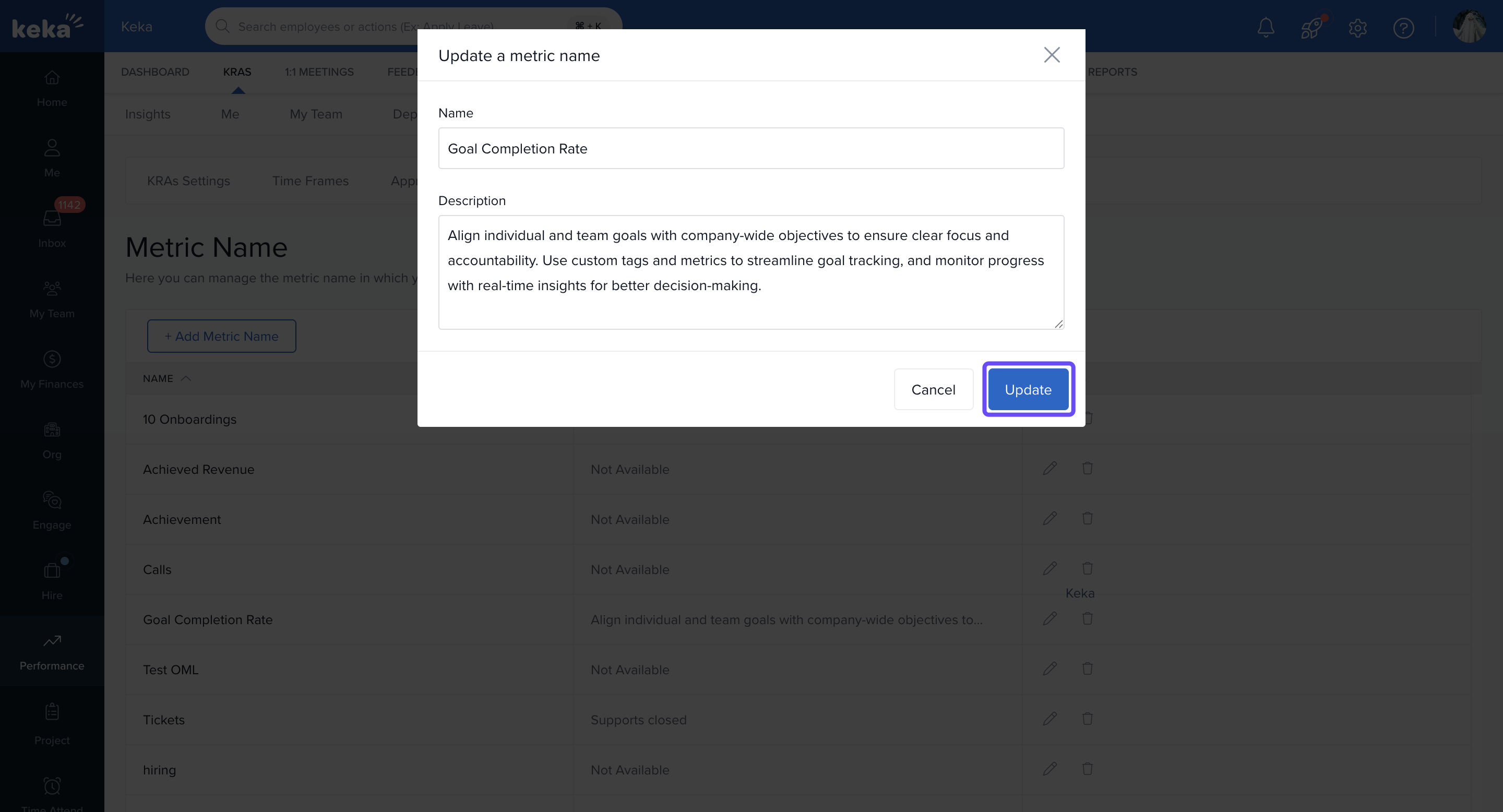
To update a metric name:
- Click the pencil icon next to the metric name.
Modify the Name and Description as needed.
- Click Update to save the changes.
Notes & Tips
- Be cautious, as deleting a metric is permanent and will remove it from the system.
- Updating metric names ensures they remain aligned with evolving goals and company objectives.
Use tags to group goals by themes (e.g. “Productivity”, “Customer Satisfaction”, “Growth”) so filtering and reports are more meaningful.
To maximise the effectiveness of tags and metrics:
Regularly review and update tags to reflect evolving goals.
Ensure consistency in metric units across similar goals.
Encourage employees to utilize tags for personal goal tracking.
Integrate metric units with performance reviews for comprehensive evaluation.
Options & Variants
Visibility: You can choose whether a tag is visible to all employees or restricted.
Employee‑created tags: Decide if only admins create tags, or allow employees to define their own.
Tag application: Use tags with both goals and sub‑goals for finer categorisation.
Next Steps
Review the process of creating new goals within the Performance module.
Understand how to manage goal settings, including alignment, weights, and permissions.
Learn how to bulk assign goals to streamline planning, cut manual work, and maintain team consistency.
Please let us know if you find this article helpful.
Comments
0 comments
Please sign in to leave a comment.