Introduction
Keka’s Goal Templates make it easy to set consistent and structured goals across your organisation. With predefined goals that can be tailored to roles or departments, you can ensure alignment, save time, and provide clarity for employees.
Accessing Goal Templates
Log in to Keka.
From the left menu, go to Performance.
Click Goals, then select Settings.
-
Under Settings, select Templates.
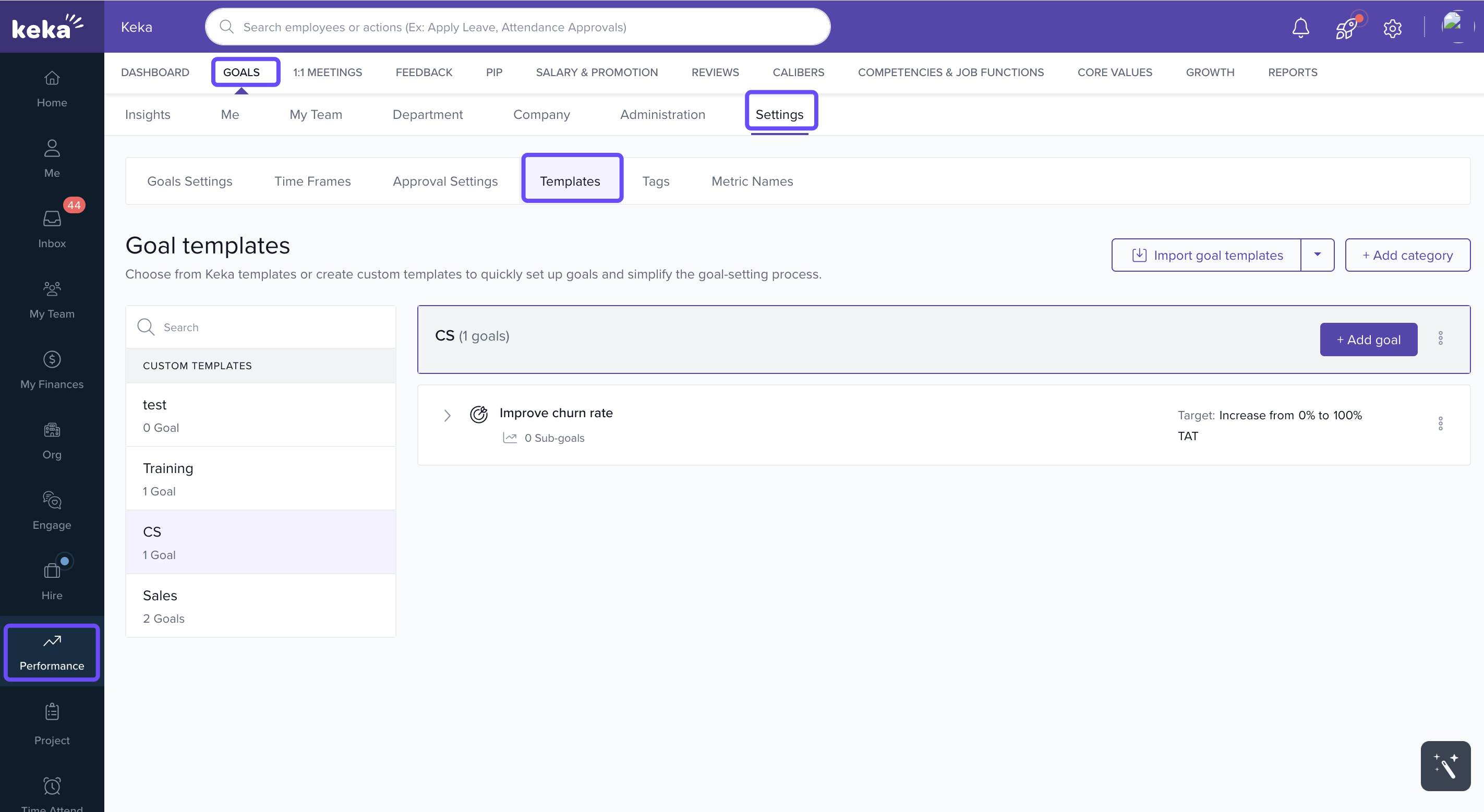
This section shows available goal templates categorised for different roles or groups.
Creating a Category
-
Click + Add Category.

-
In the pop-up window, enter:
Category name
Description
-
Click Add to save.
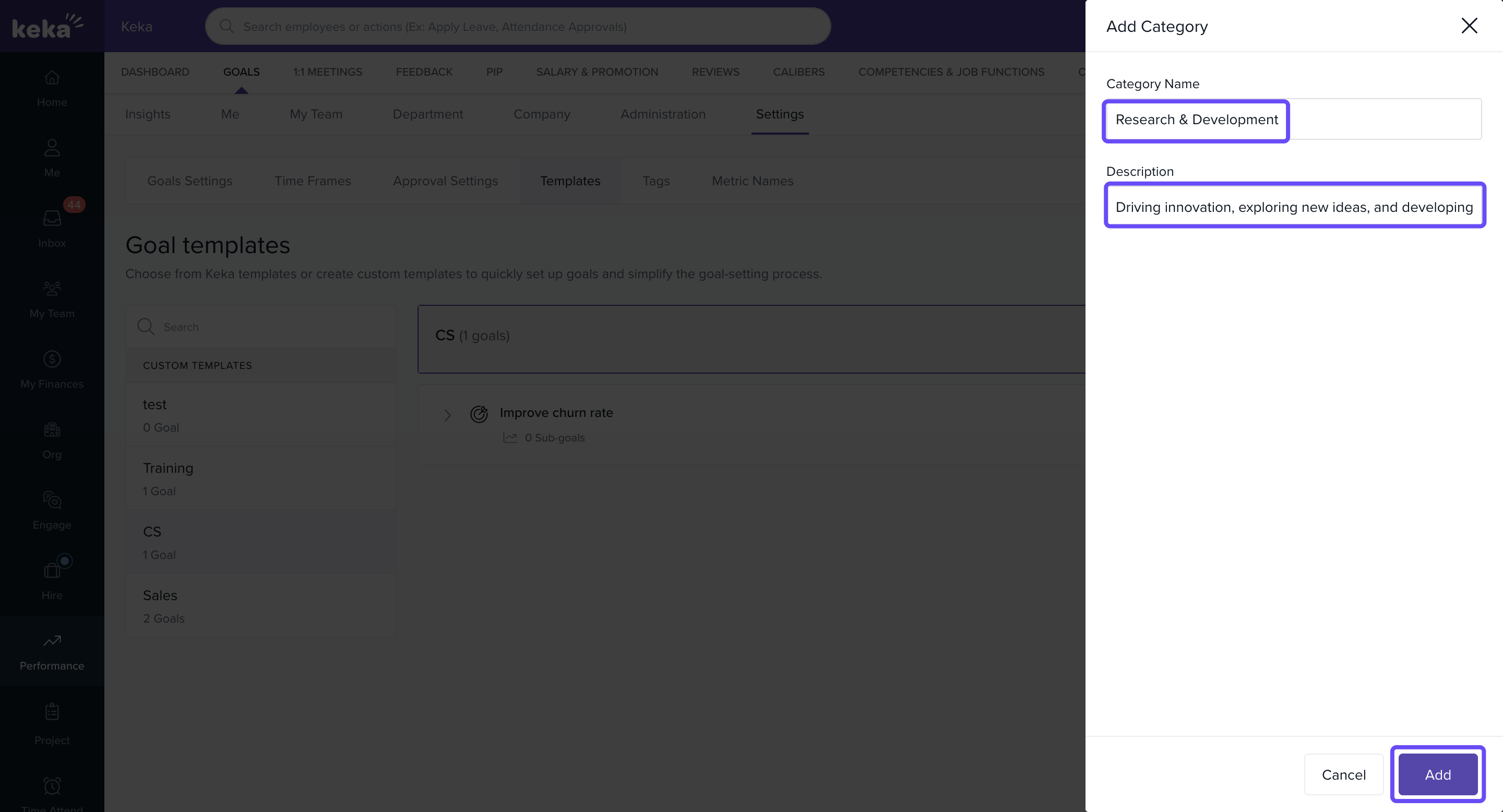
For example, you might create a category for Interns with a goal like Increase Sales. Categories help organise templates for easier goal assignment.
Adding a Goal to a Template
-
Go to the Add Goal section within Goal Templates.
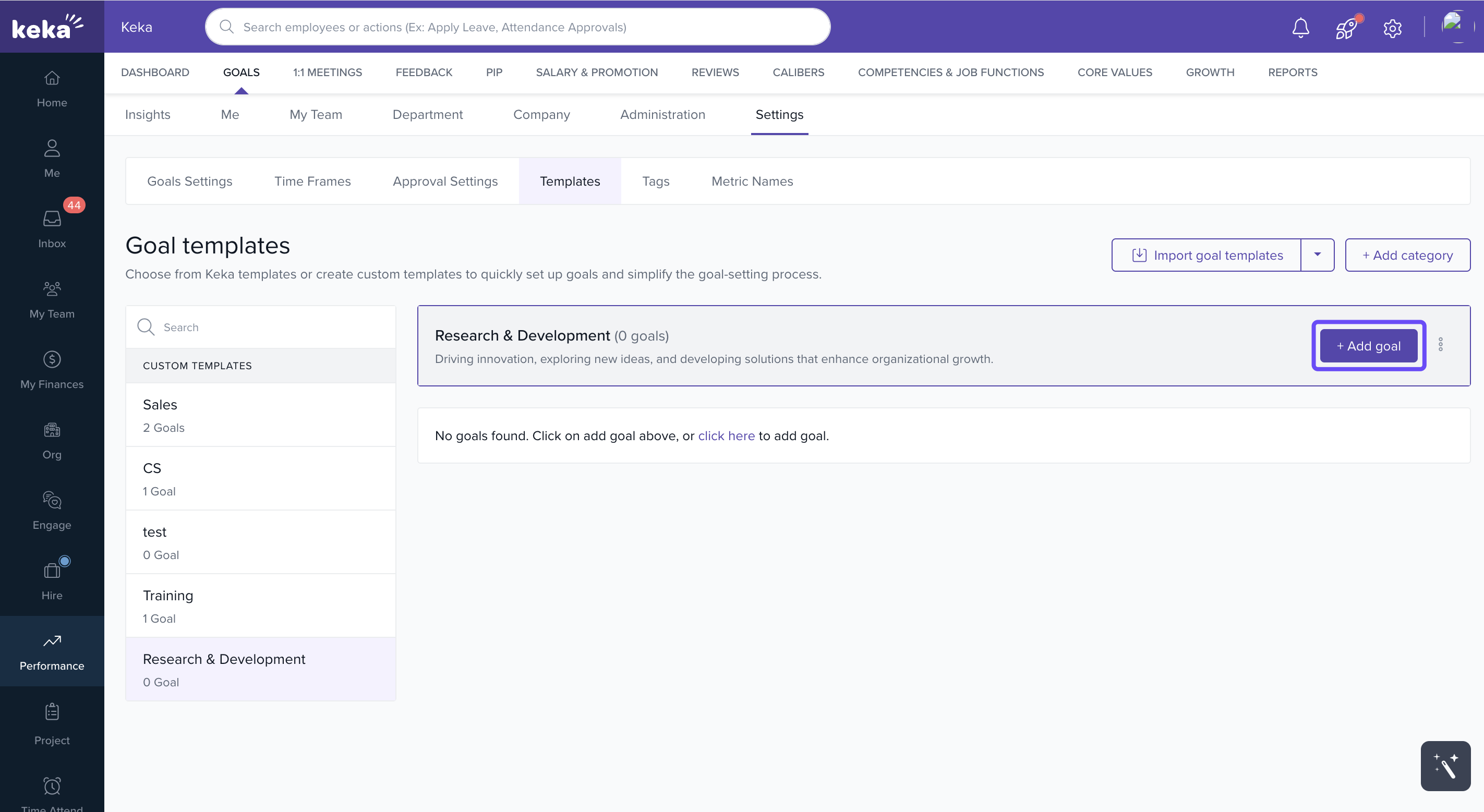
Enter the goal details.
-
Choose one of the options:
Save → finalises the goal.
Save & Add Sub-goal → creates a related sub-goal immediately.
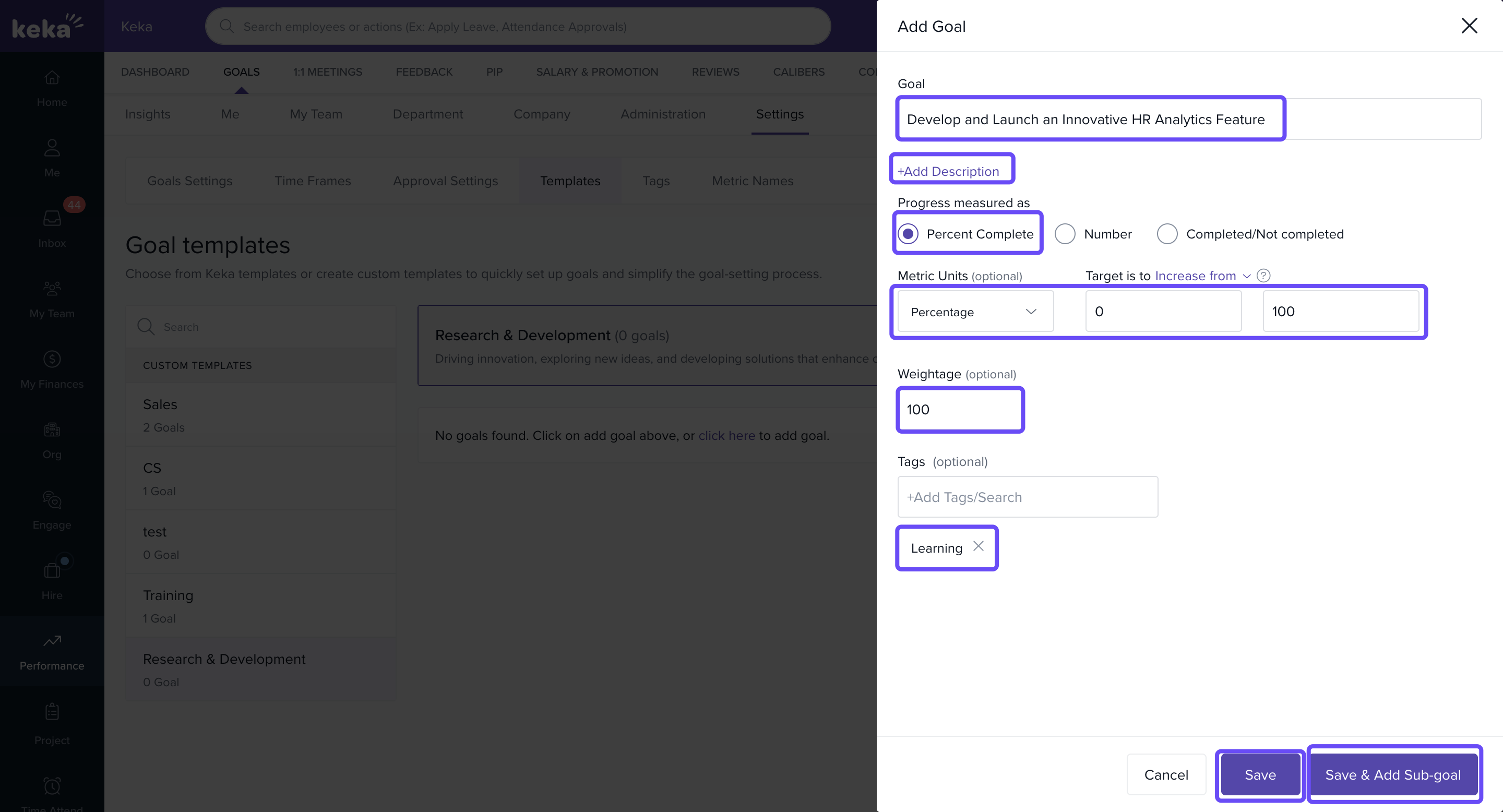
Sub-goals allow you to break down large objectives into manageable tasks, supporting a top-down structure for performance management.
Notes & Tips
Tip: Use sub-goals to break down complex objectives into actionable steps for employees.
Important: Always review categories before assigning goals to ensure relevance.
Next Steps
Learn how to bulk assign goals to streamline planning, cut manual work, and maintain team consistency.
For additional support, contact the Keka Support Team.
Comments
0 comments
Please sign in to leave a comment.