Introduction
Keka’s Goals module helps employees, managers, and admins set, track, and align goals at every level—company, department, and individual. This guide walks you through creating goals, sub-goals, and tasks, using templates, quick setup options, and tracking progress effectively.
Difference Between Goals and Sub-Goals
-
Goals: The main outcomes an organisation, team, or individual wants to achieve within a set timeframe.
Example: Boost website traffic by 20%.
-
Sub-Goals: Smaller steps that contribute to a larger goal.
Example: Increase organic search traffic by 25%.
Sub-goals make big goals more measurable and easier to track.
Where Goals Can Be Created
Employees → Me > Performance > Goals
Managers → My Team > Performance > Team Goals
Admins → Performance > Goals > Administration
Creating a Goal
-
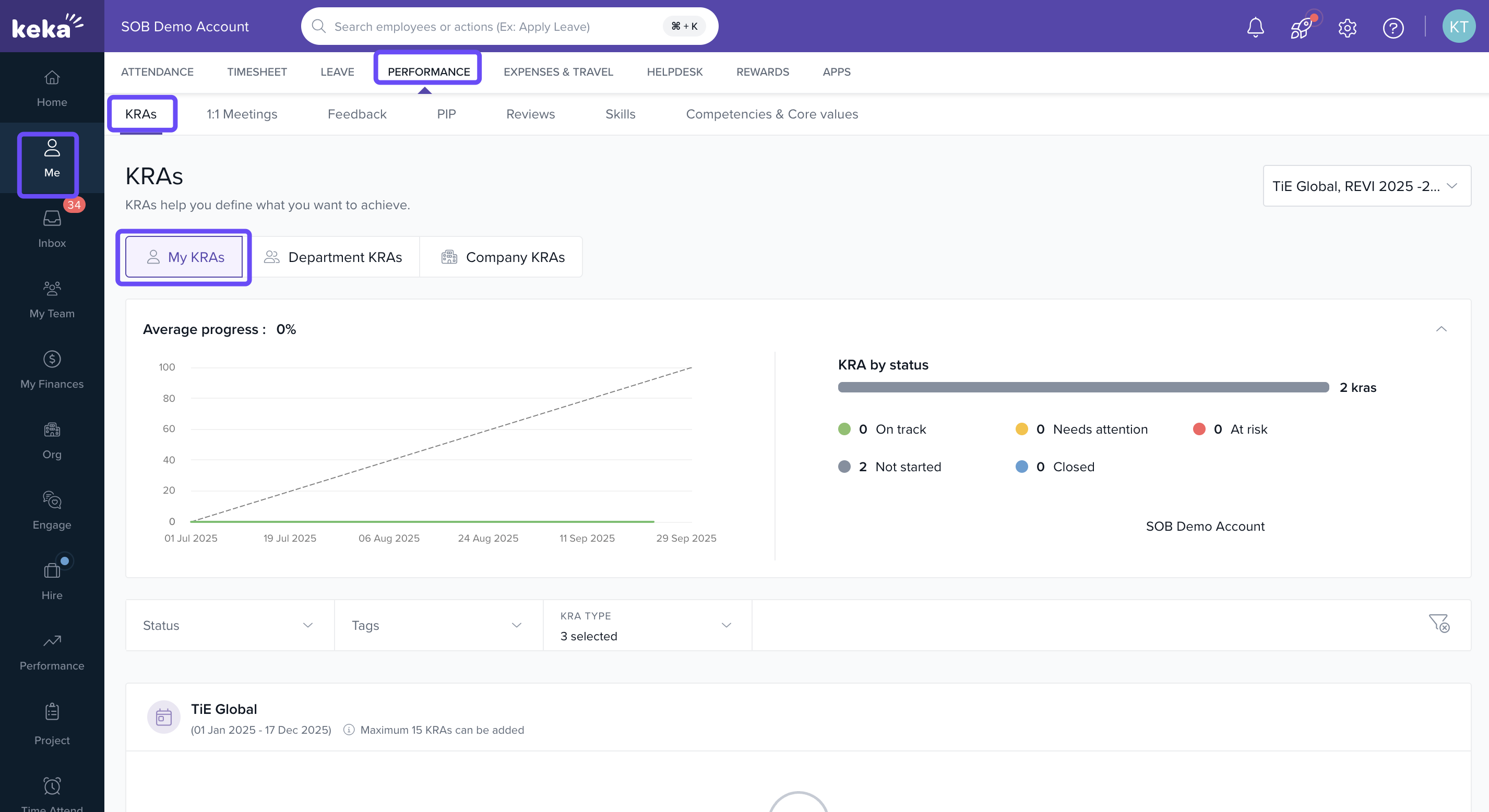
Go to Me > Performance > Goals > My Goals.
-
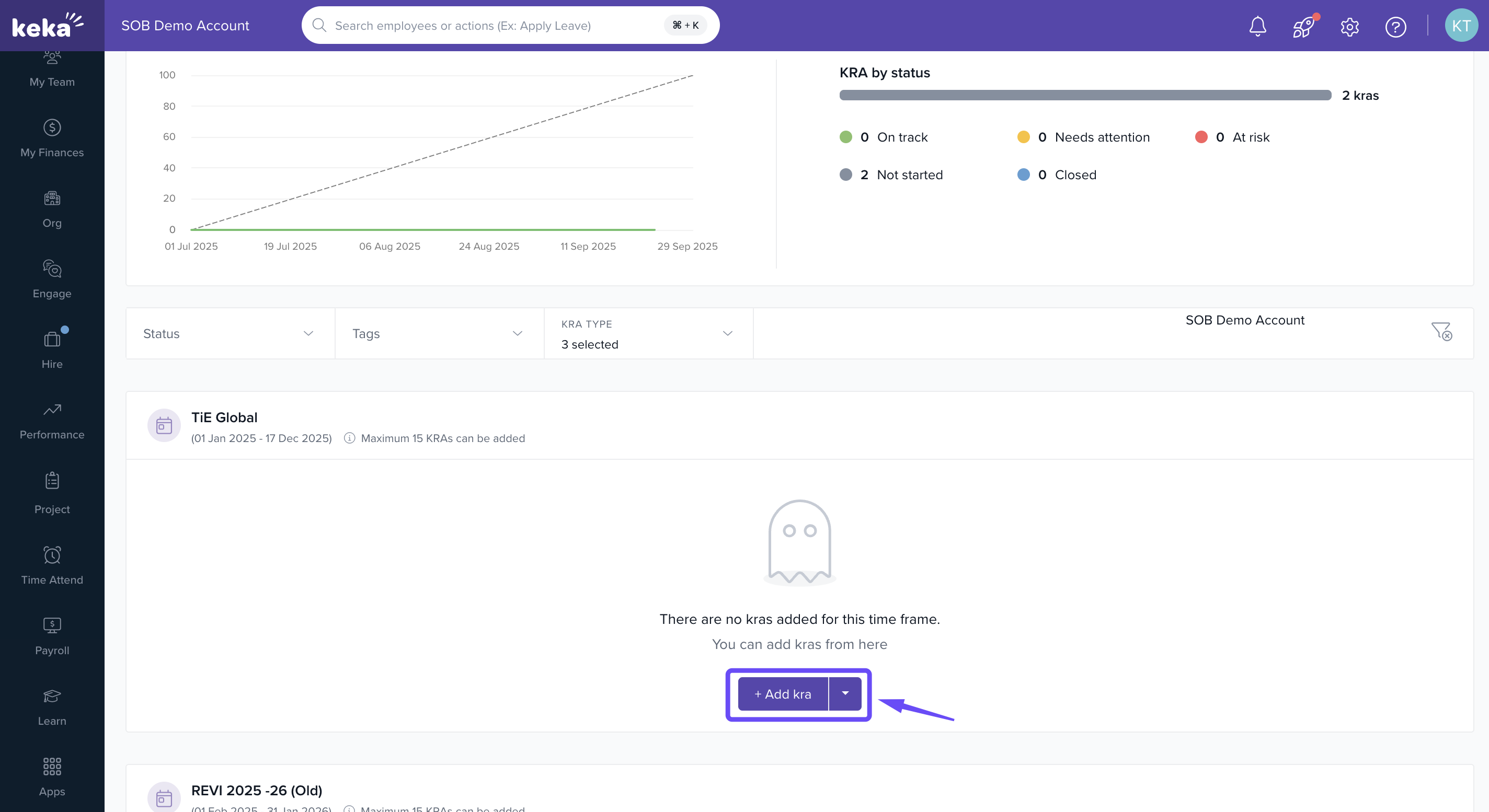
Click + Add Goals.
-
Fill in details:
Goal Name → Short title of the objective.
Description → (Optional) Add context or details.
Tags → Group similar goals (e.g., “Learning”).
-
Metric Type:
Percentage → Track progress from 0–100%.
Completed/Not Completed → Simple binary completion.
Number → Set numeric targets with “Increase from” or “Decrease from.” Add a Metric Name for clarity (e.g., “Support Ticket Reduction”).
-
Progress Calculation:
Average of Sub-Goals → Uses the average progress of sub-goals.
Sum of Sub-Goals → Adds numeric progress from all sub-goals.
Goal Type → Individual, Department, or Company.
Time Frame → e.g., Q2 2023.
Start & End Dates → Customise dates if needed.
Automatic Updates → Integrate with apps like Jira for real-time updates.
Include in Review → Decide if the goal should be part of performance reviews.
Click Publish to save.
Creating a Goal with Sub-Goals
Follow the steps above to create a goal.
-
In the Add Goal window, click + Add Sub-Goal under Sub-goals section.
-
Enter sub-goal details:
Sub-goal name
Tags
Metric type
Owner
Dates
Auto-progress updates (optional)
Calculate to parent Goal's progress.
- You can also click on +Add KPI to add more sub-goals.
-
Click Publish when finished.
You can add multiple sub-goals under one goal.
Aligning a Goal with a Parent Goal
-
Expand the alignment section to link this goal to a parent goal.
-
In the Alignment section, choose a parent goal to link your individual goal to a higher-level goal. Recommendations are based on your login history and goals aligned with your team and hierarchy.
-
Click Publish to make the goal visible in your organisation.
-
To filter by timeframe, goal type, and owner, click on Timeframe or Apply Filter to select.
-
Filter and check the box for the appropriate goals, then click Select Parent Goal.
-
Once done, click on Publish.
-
Set weightage for all goals, then click Assign to finalise.
Note: If your organisation uses an approval workflow, the goal will go through the approval process after publishing. As an admin, you can manage these approvals.
Creating a Goal Using a Template
From My Goals
- Go to Me from the left navigation pane.
- Select the Performance tab.
- Click on the Goals section.
- Open the My Goals tab.
- Click + Add Goals.
- Choose Select from Templates.
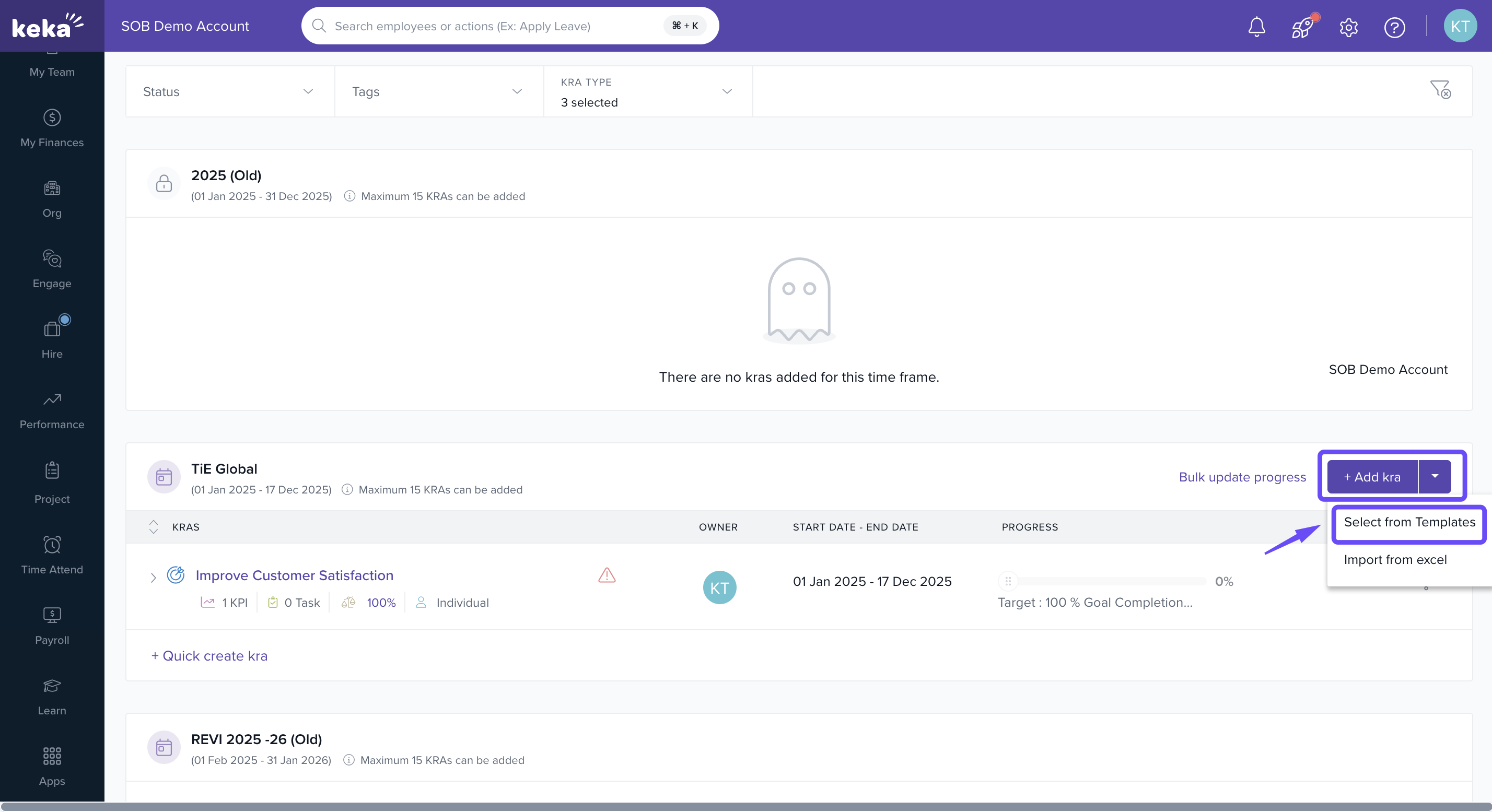
- In the Choose Template window, you’ll have two options:
- Custom Template → Created by your organisation.
- Sample Keka Template → Predefined sample goals available in Keka.
- Select a template and click Add.
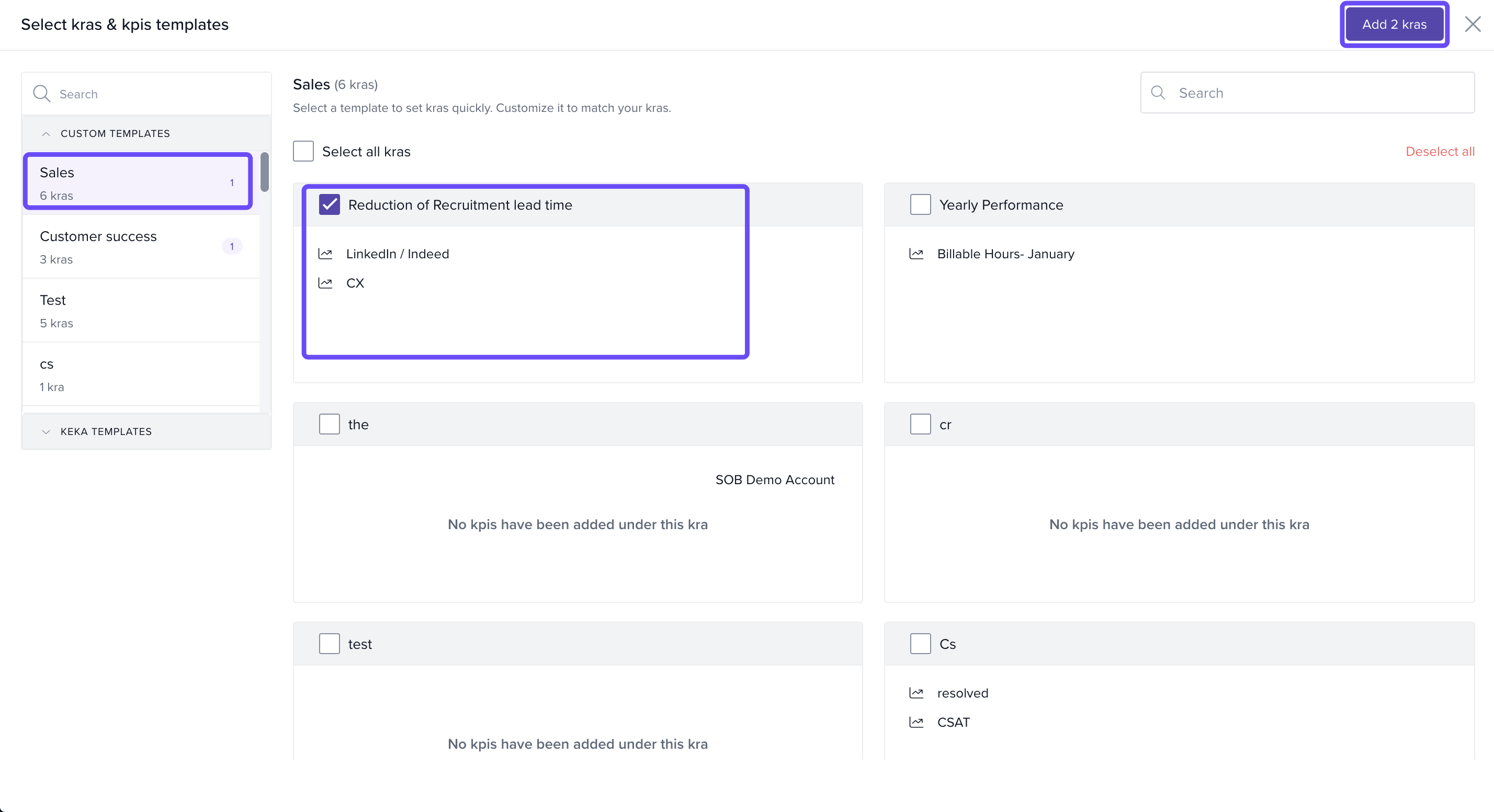
- Edit the template details if needed.
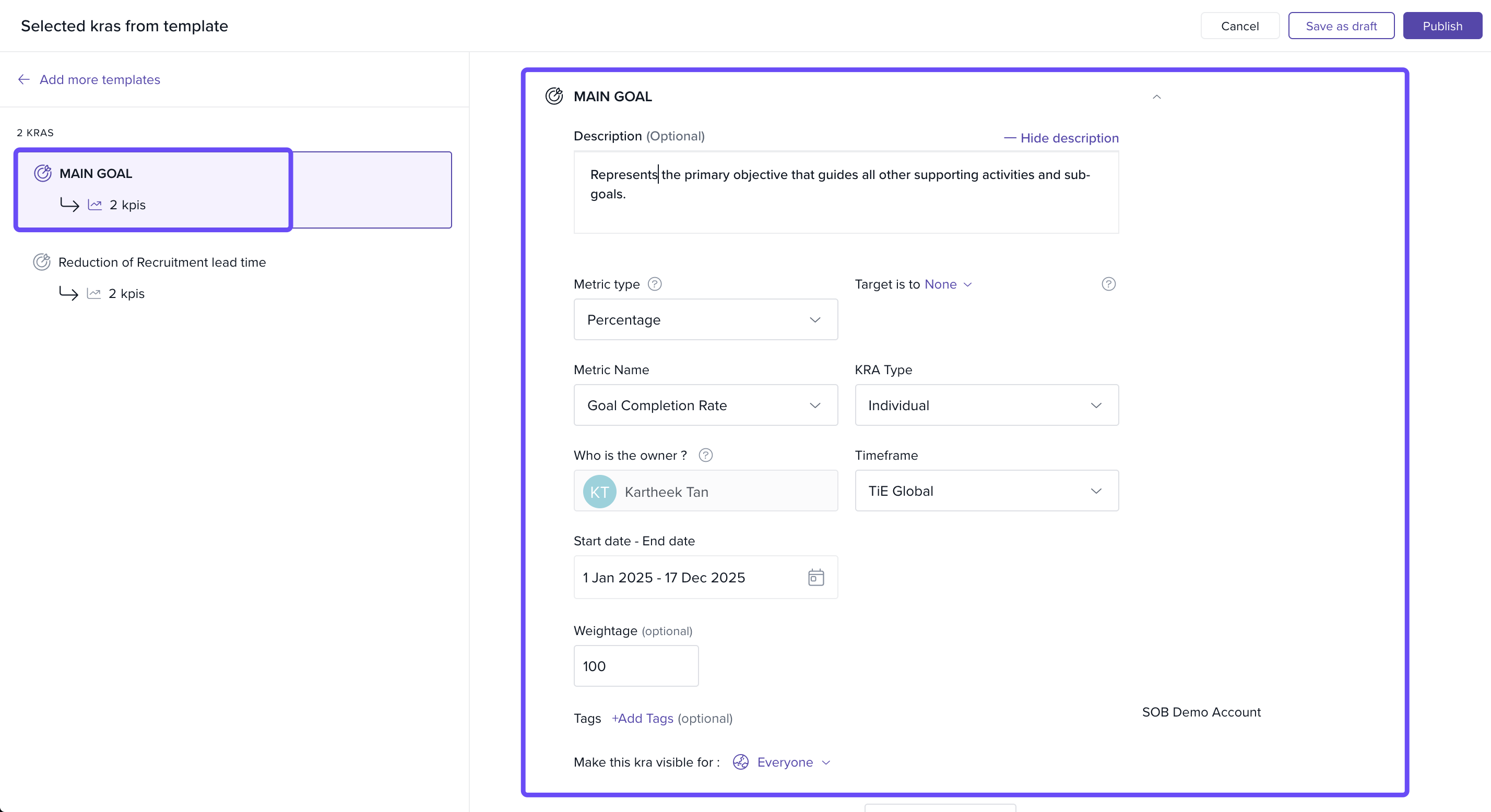
- To add a sub-goal, click Create custom goal. To remove an existing sub-goal, click the Delete icon.
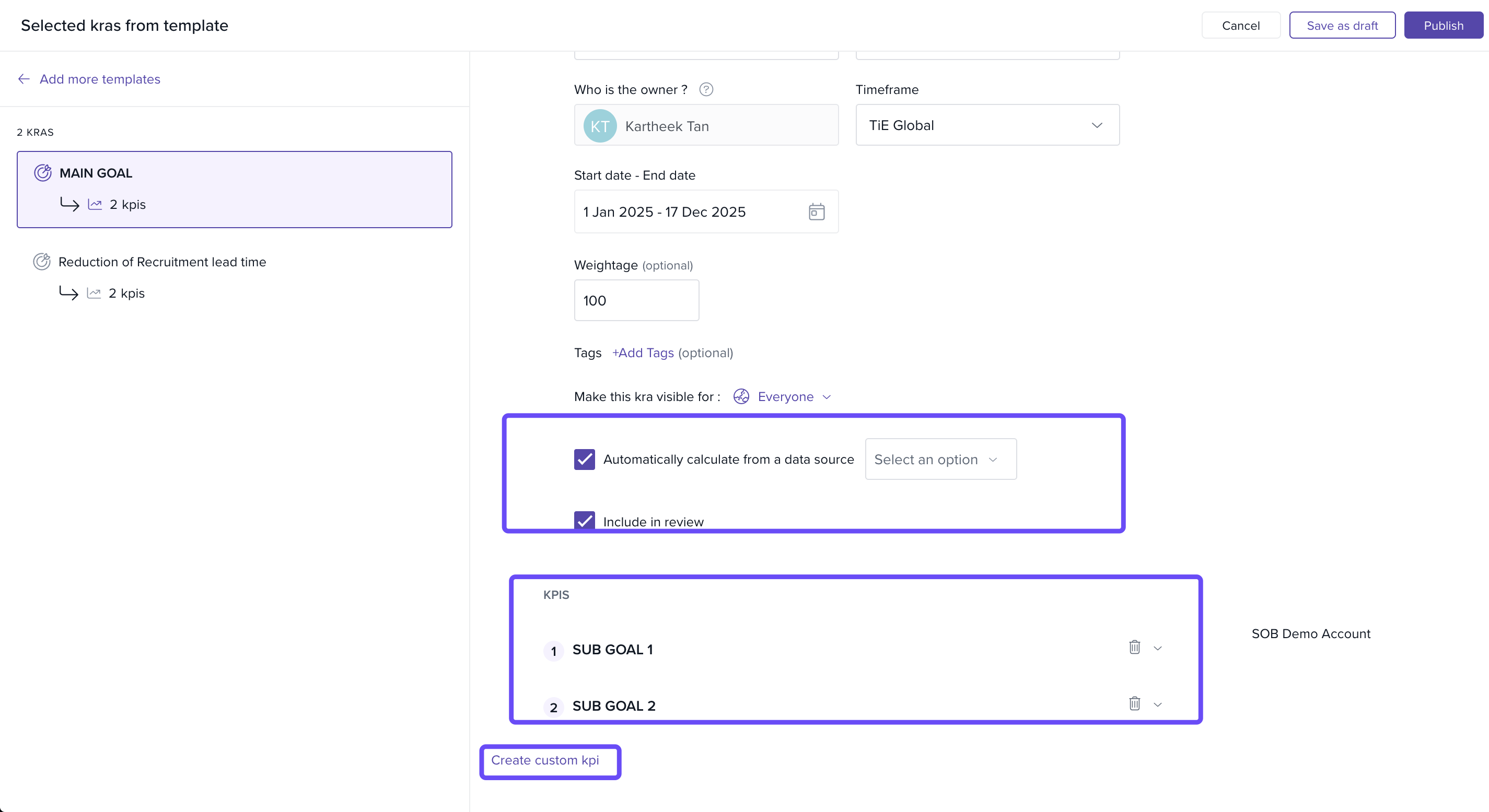
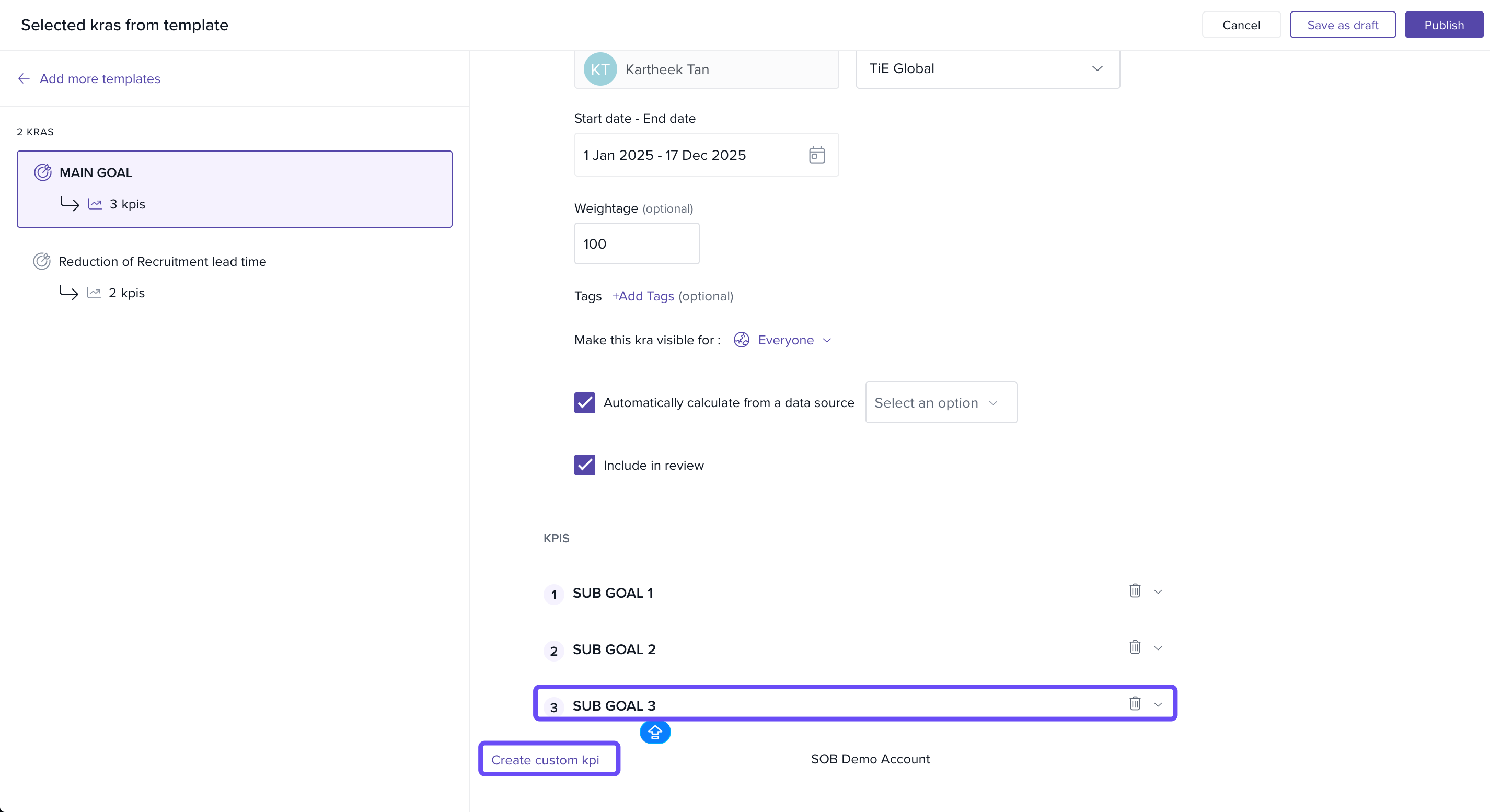
- After you’ve added a sub-goal, you can click Create custom goal again to include additional sub-goals as needed. And then, click on Publish.
-
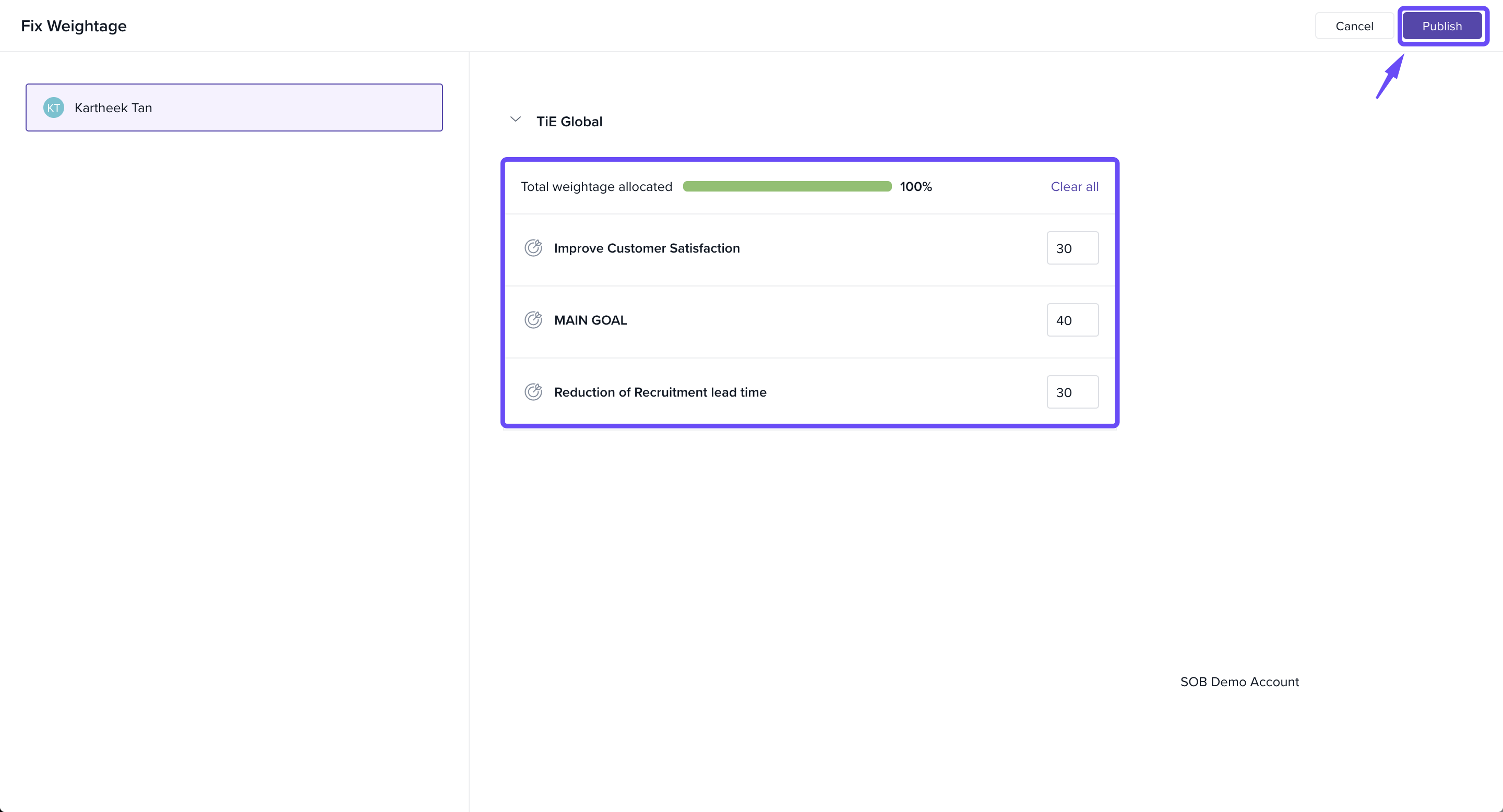
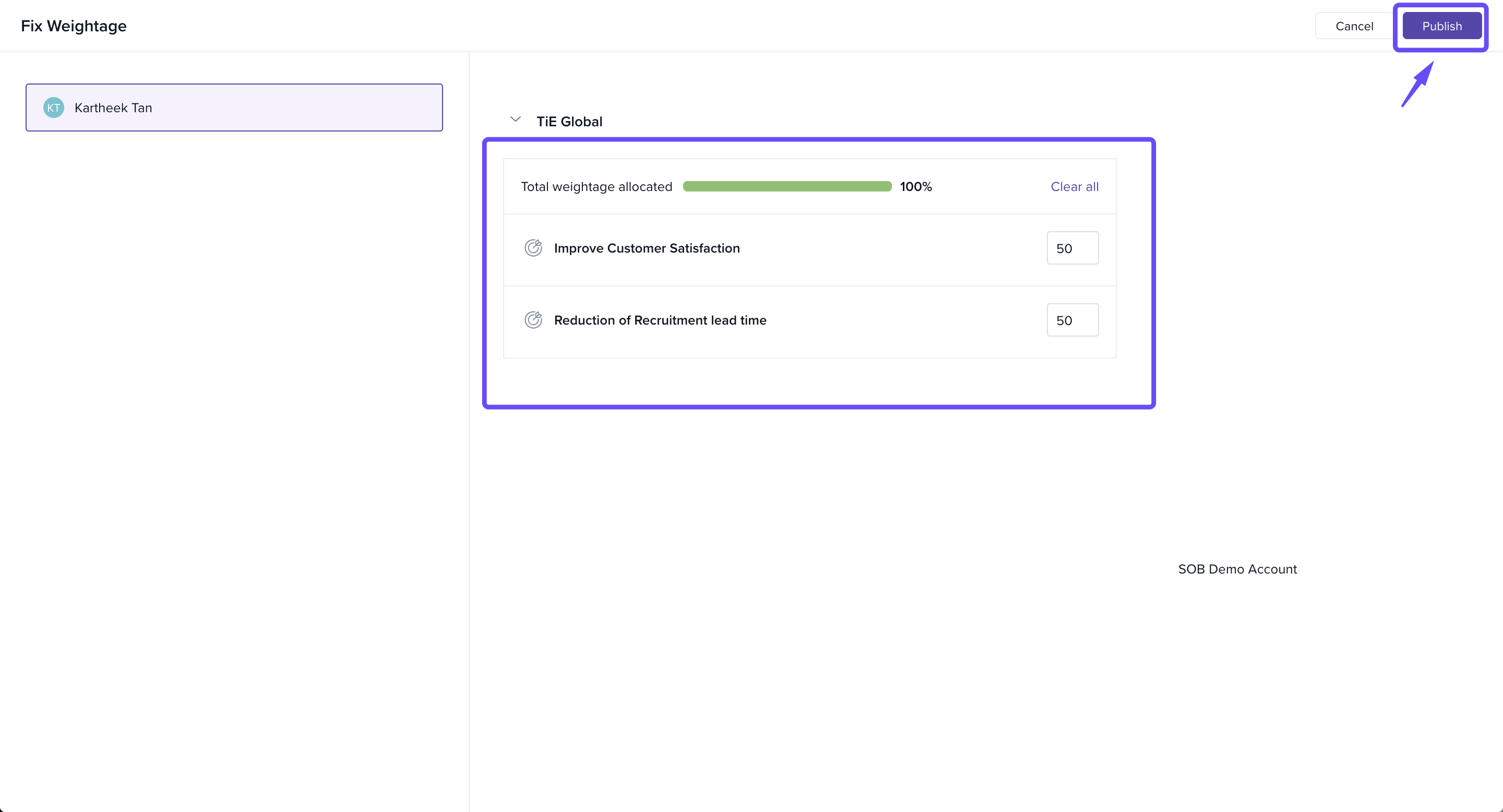
After you click Publish, you’ll be prompted to set the weightage for each goal within the selected timeframe. Ensure the total equals 100, then click Publish again to save your goals.
From the Add Goals Window
- Click on the Add Goal option.
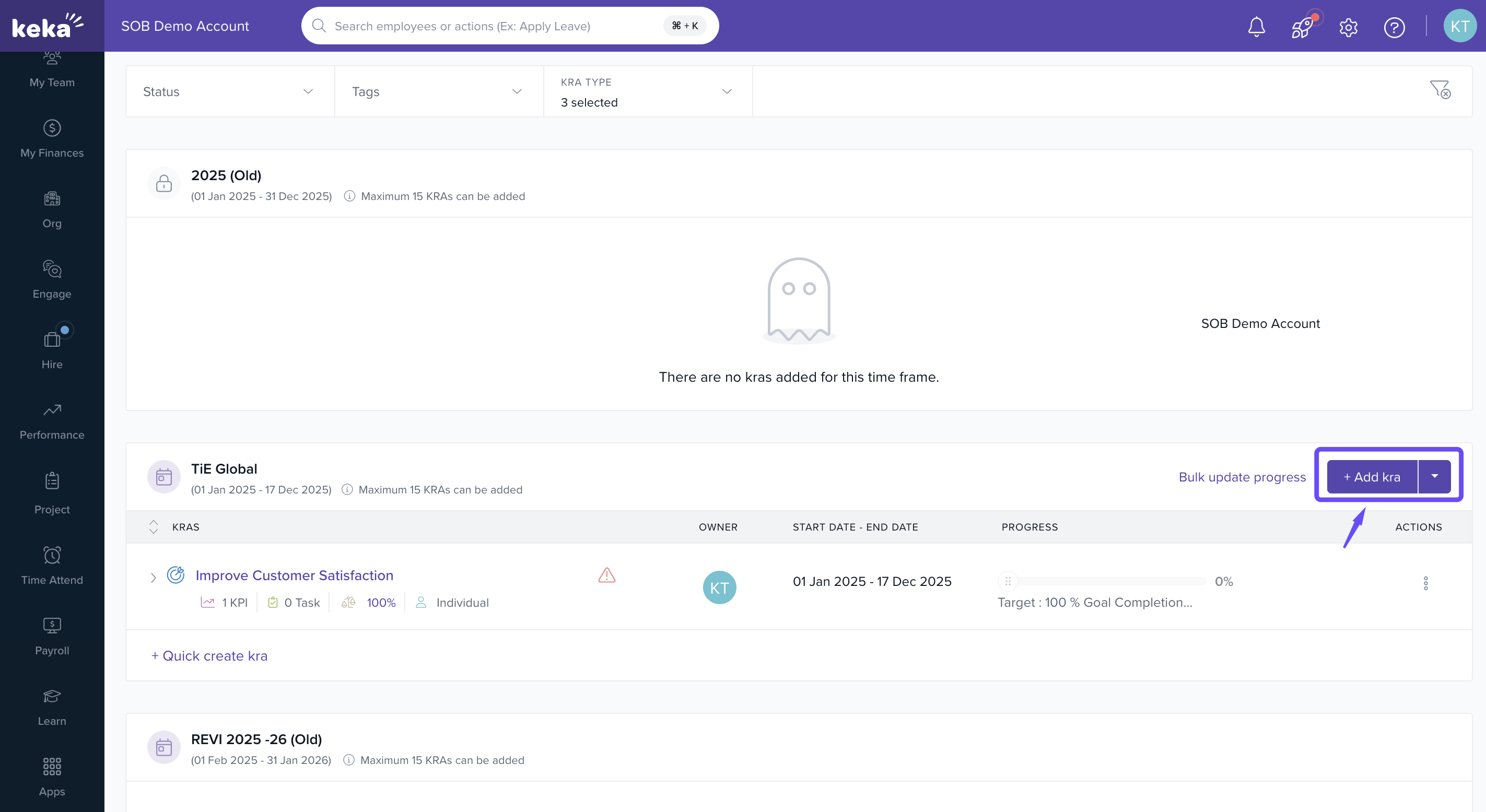
- In the Add Goal window, select Choose Template.
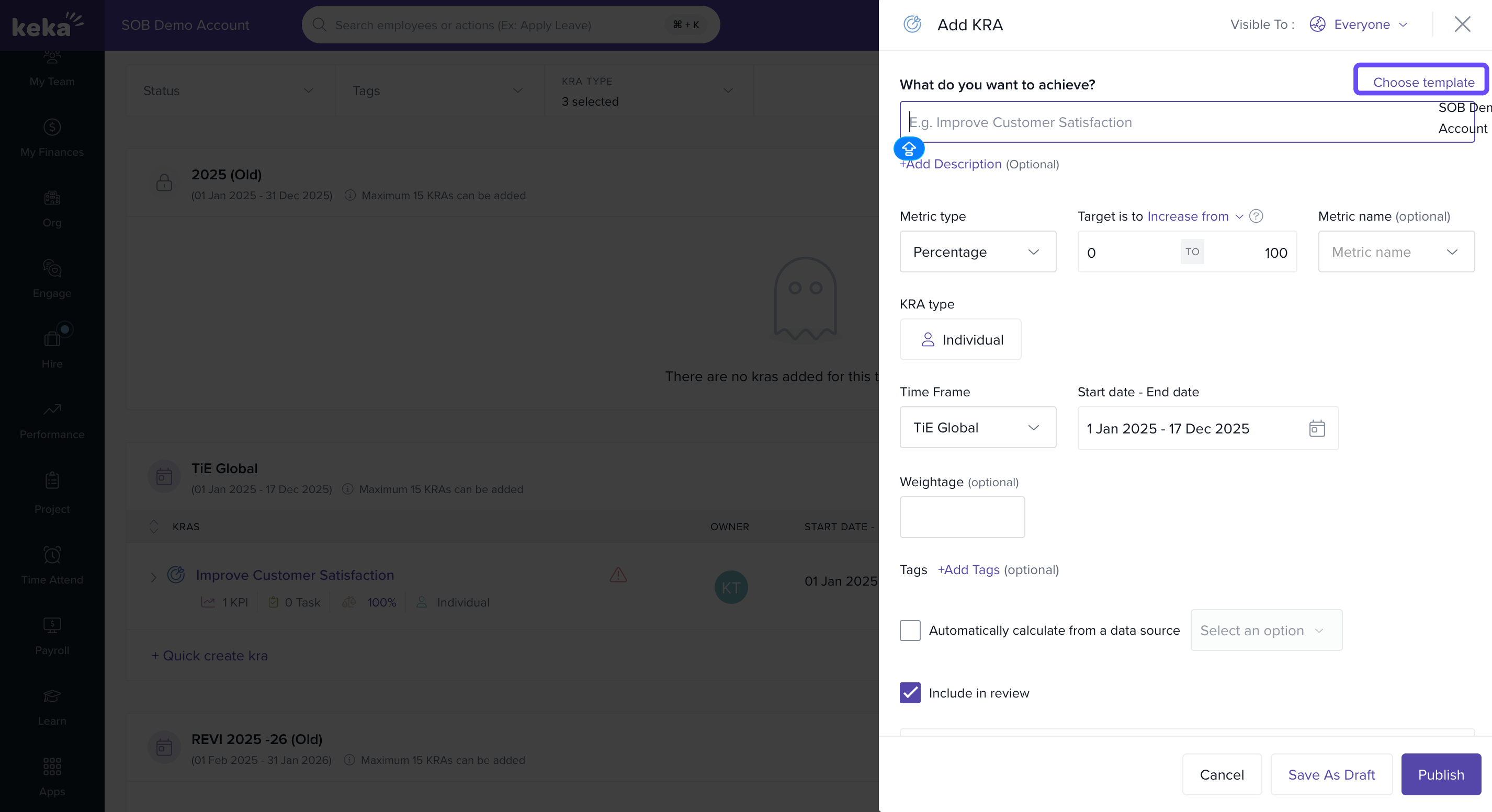
- Pick one and click on Add Kra.
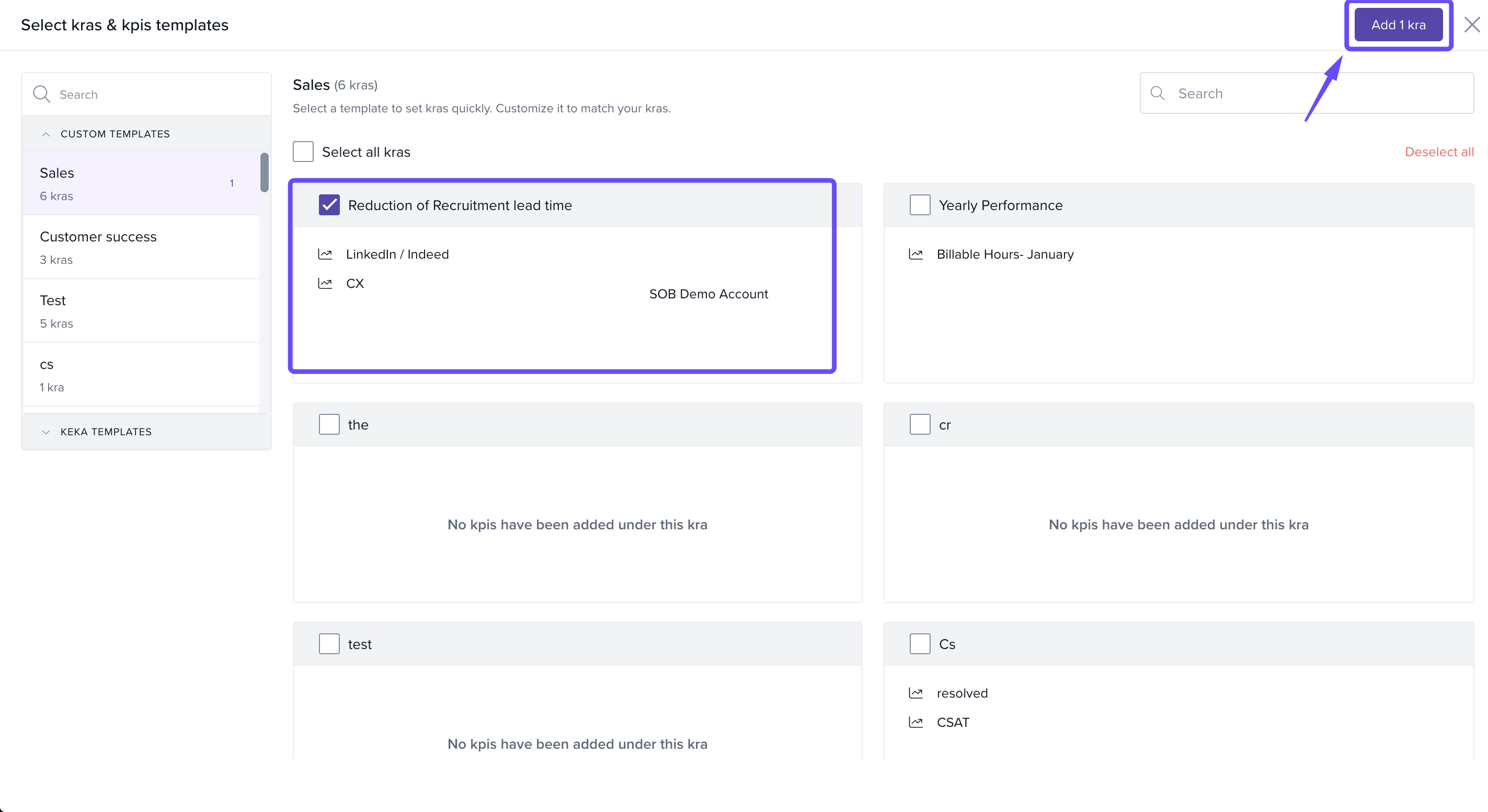
- Edit the template details if needed.
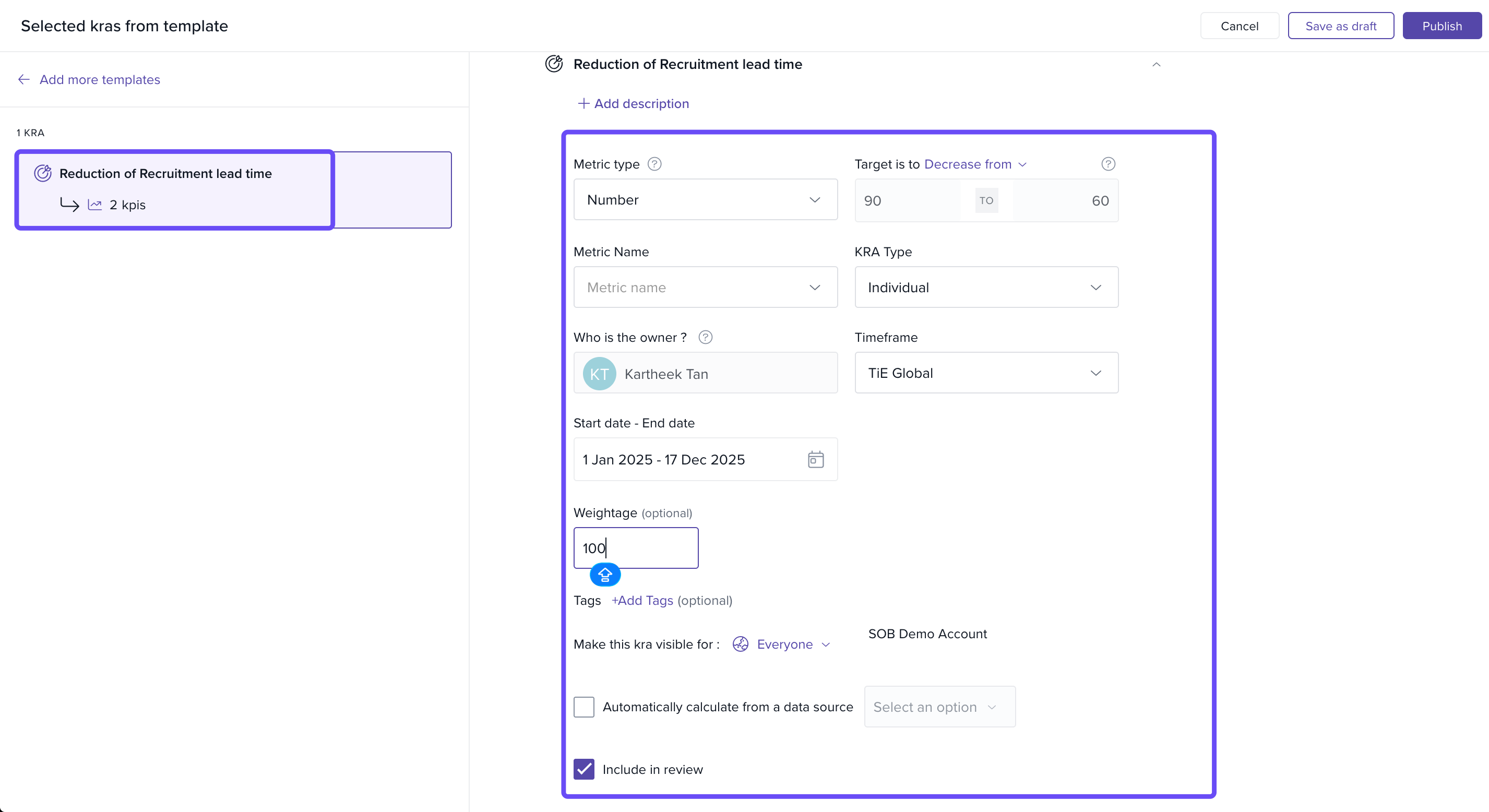
- To add a sub-goal, click Create custom goal. To remove an existing sub-goal, click the Delete icon.
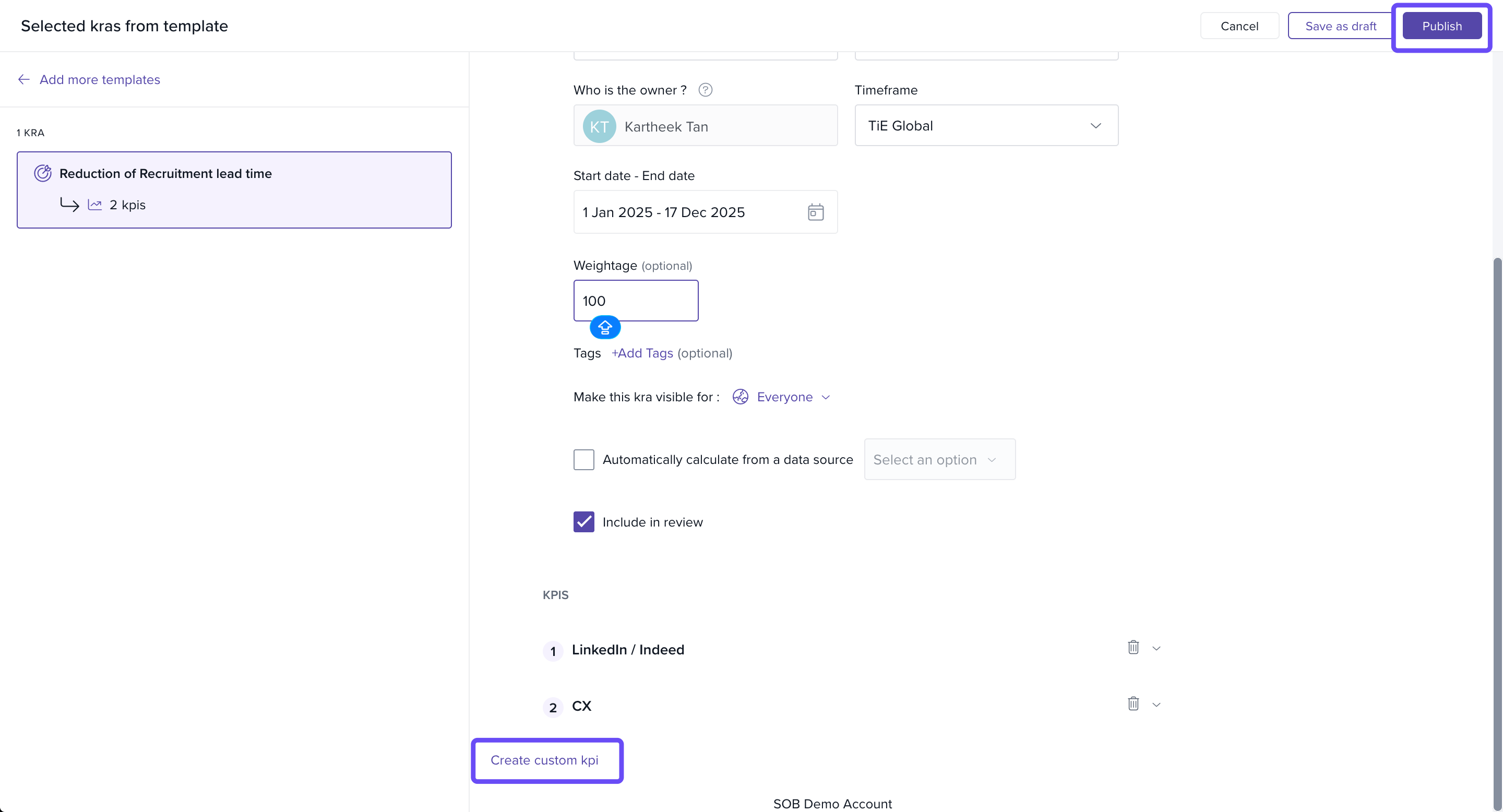
- And then, click on Publish.
-
After you click Publish, you’ll be prompted to set the weightage for each goal within the selected timeframe. Ensure the total equals 100, then click Publish again to save your goals.
Creating Quick Goals, Sub-Goals, and Tasks
Quick Goal
-
In the Goals section, click + Quick Create Goal.
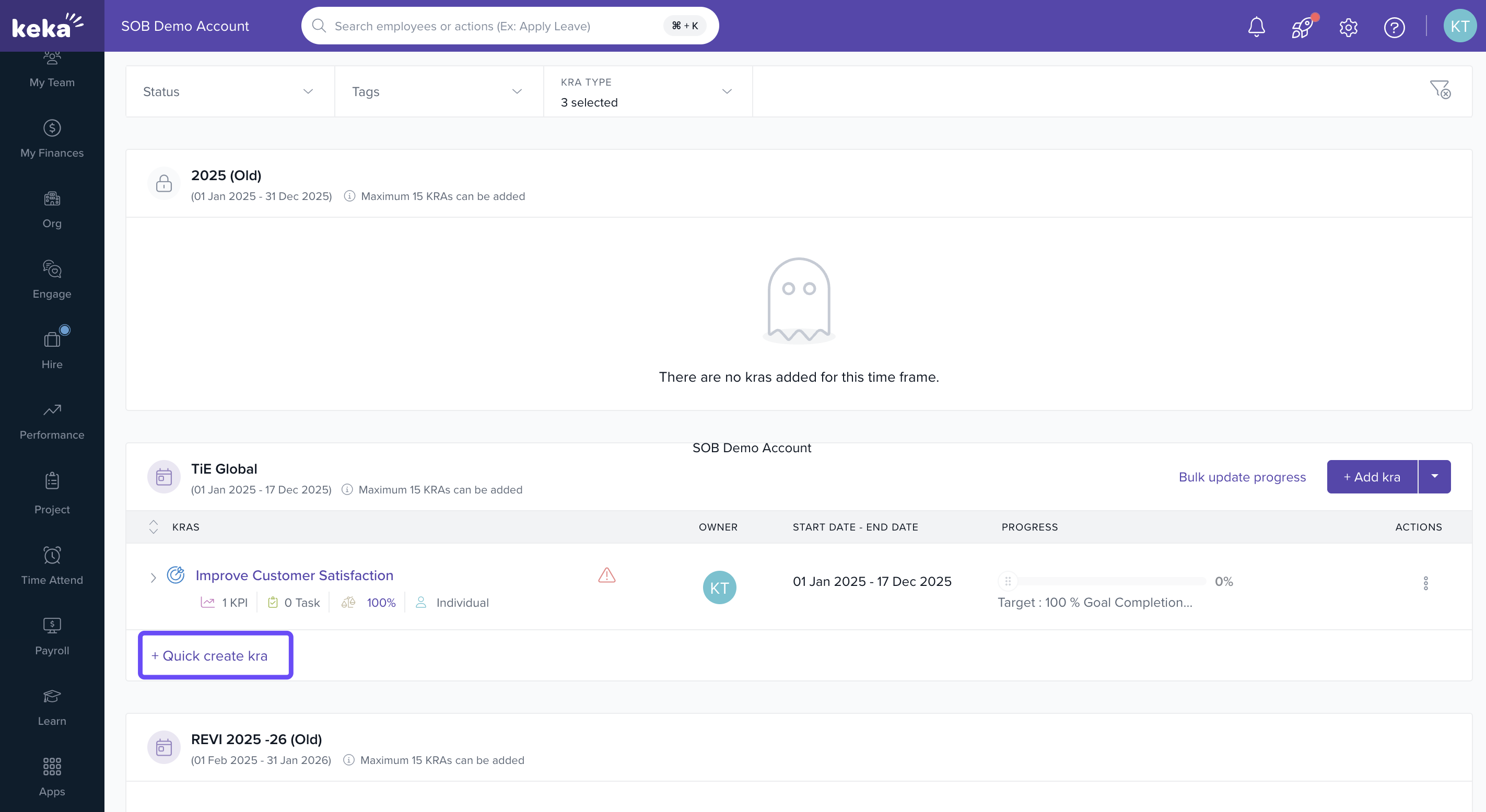
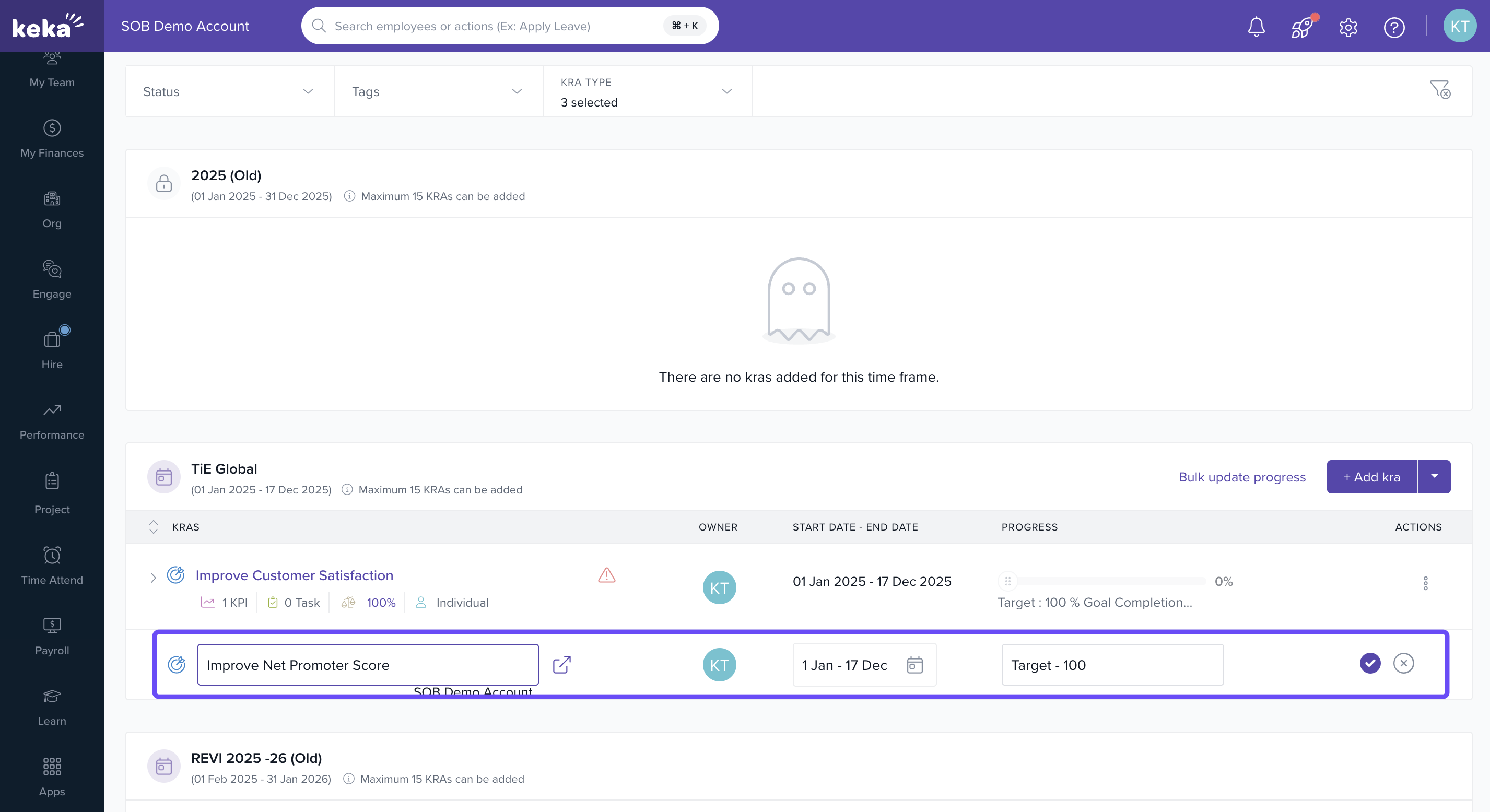
Enter: Goal name, start & end dates, metric type.
-
Click on the check mark to publish.
Quick Sub-Goal
-
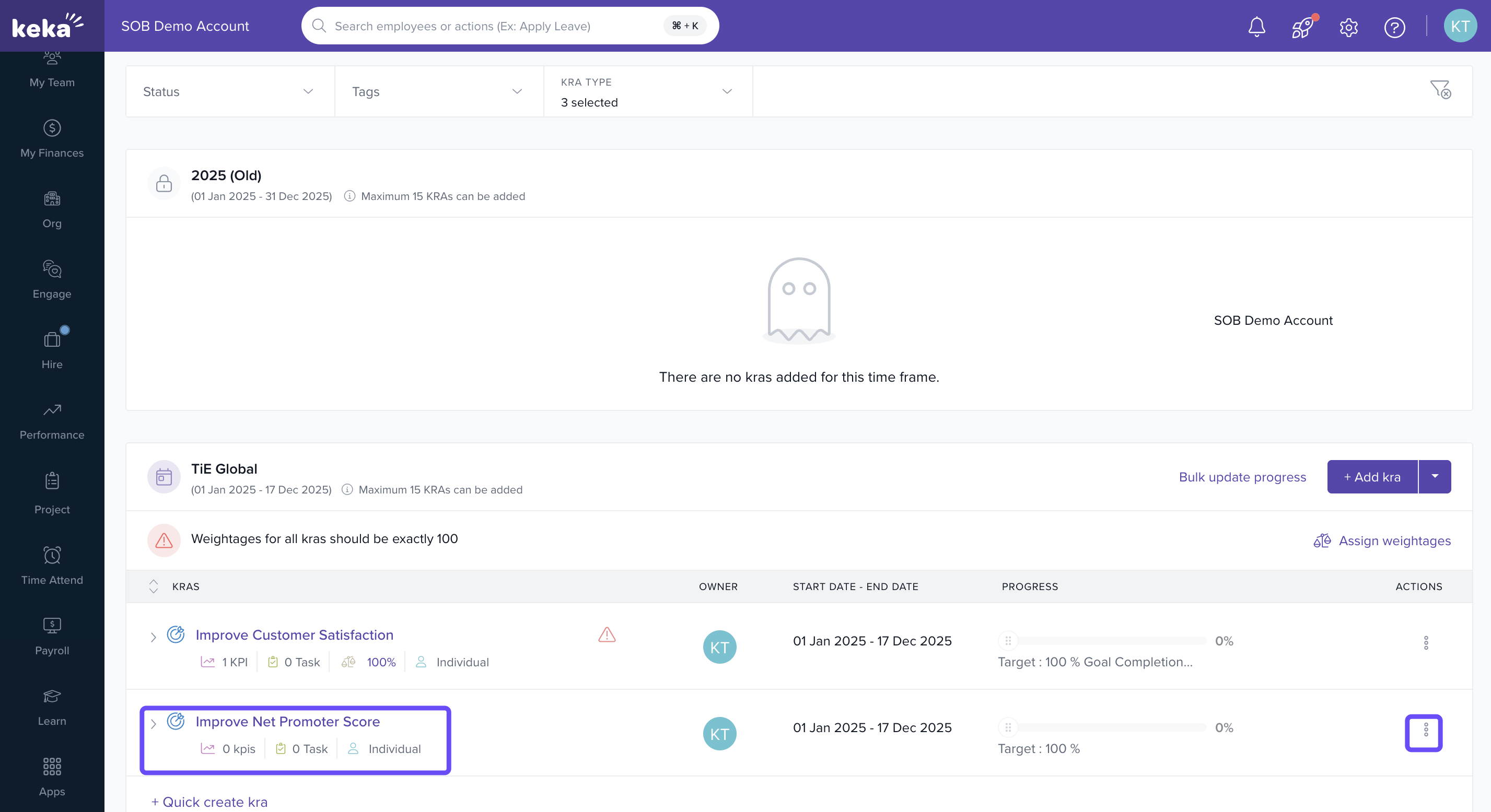
Go to My Goals, select a goal, and click the three-dot menu.
-
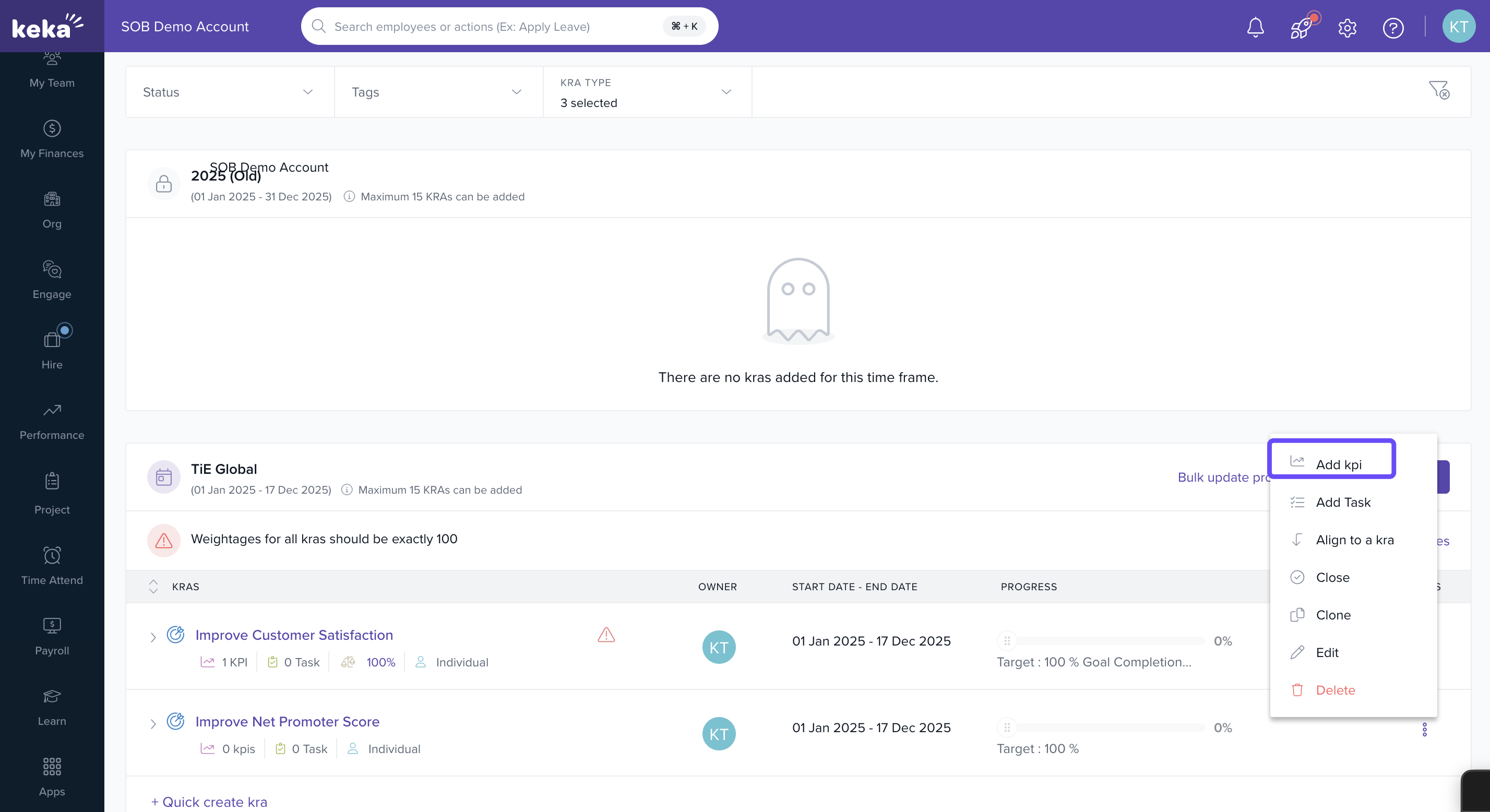
Choose + Add Sub-Goal.
-
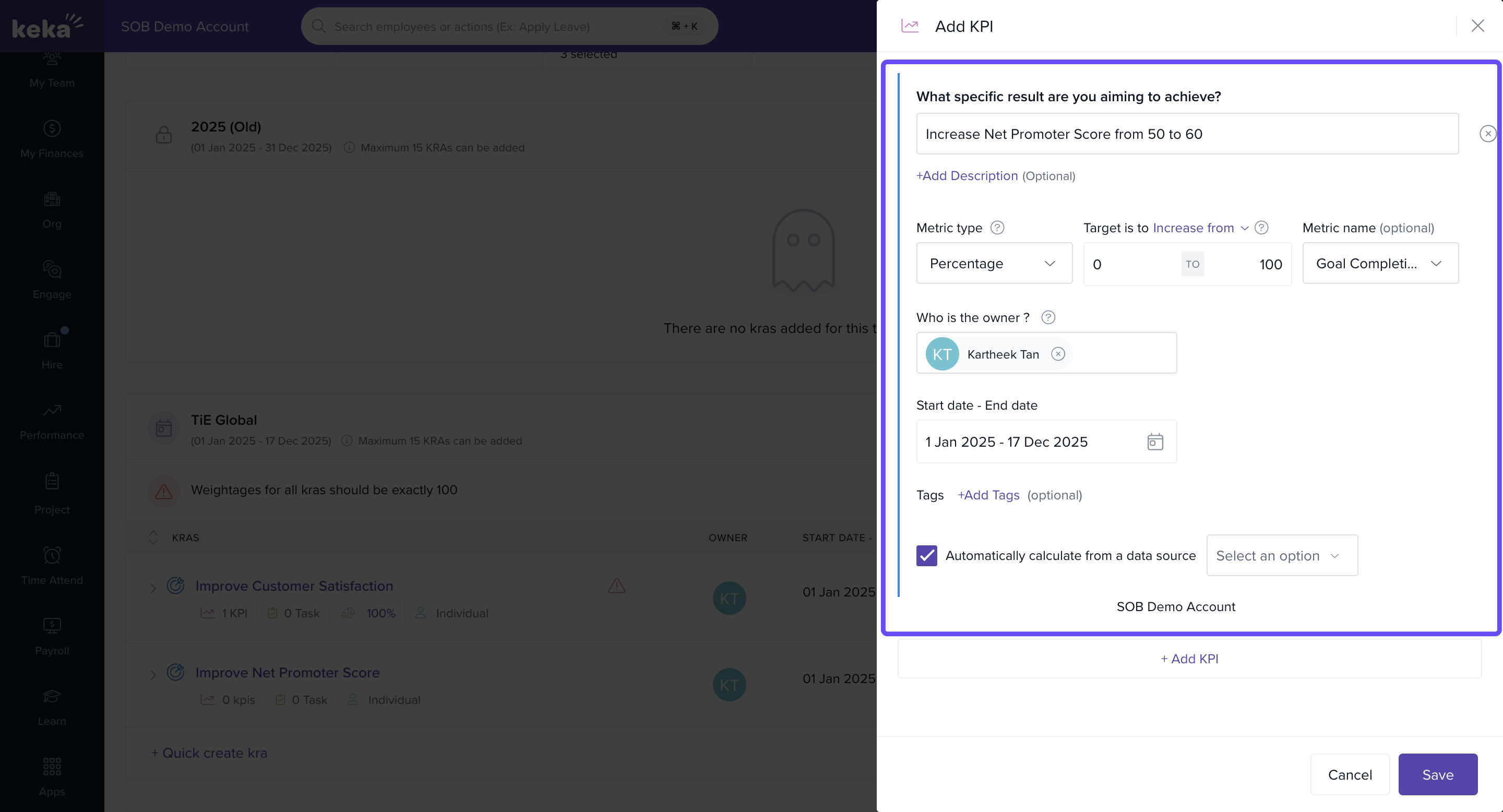
Fill in sub-goal details (name, dates, metric type, owner, tags).
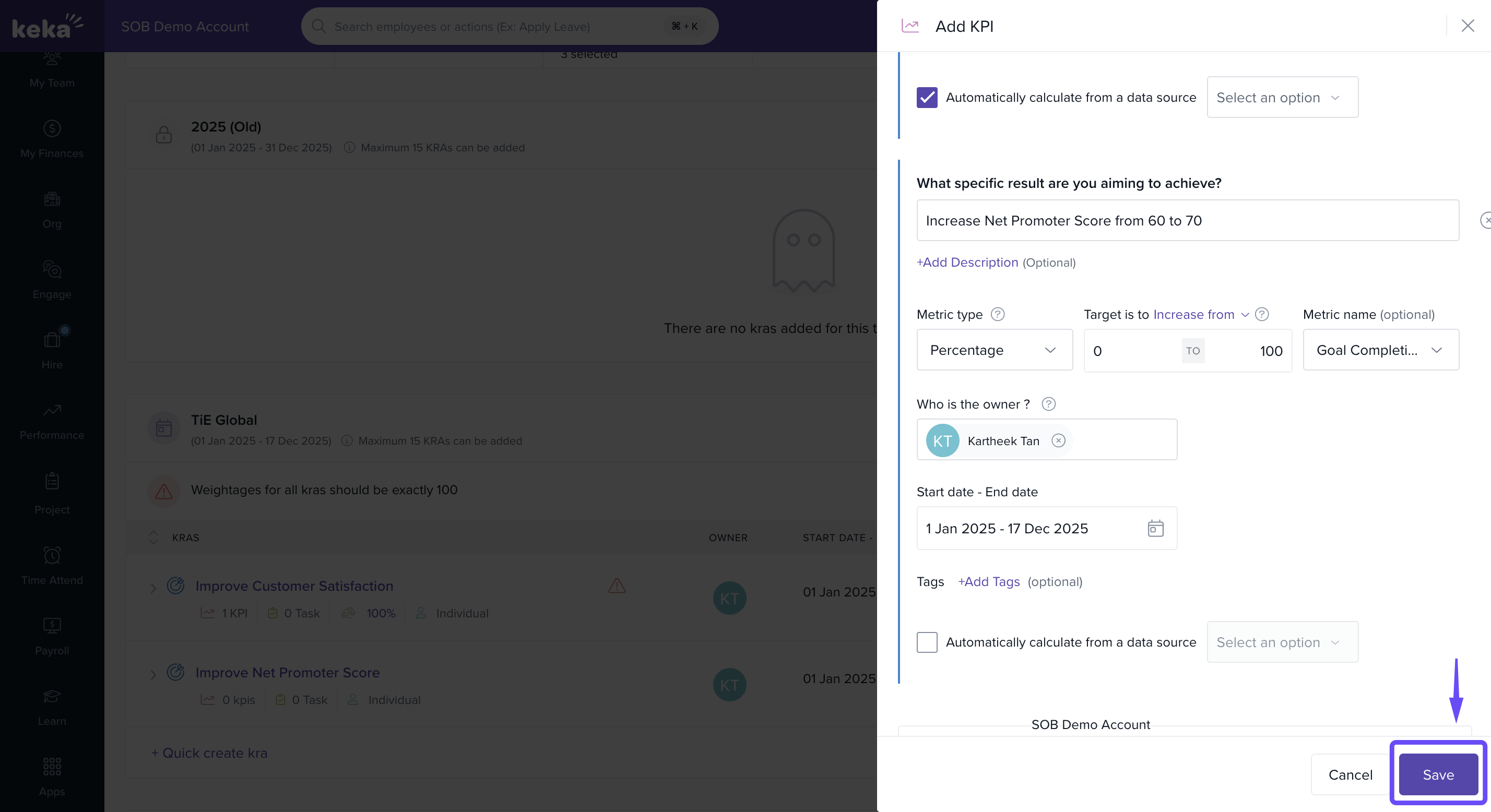
- Click Save.
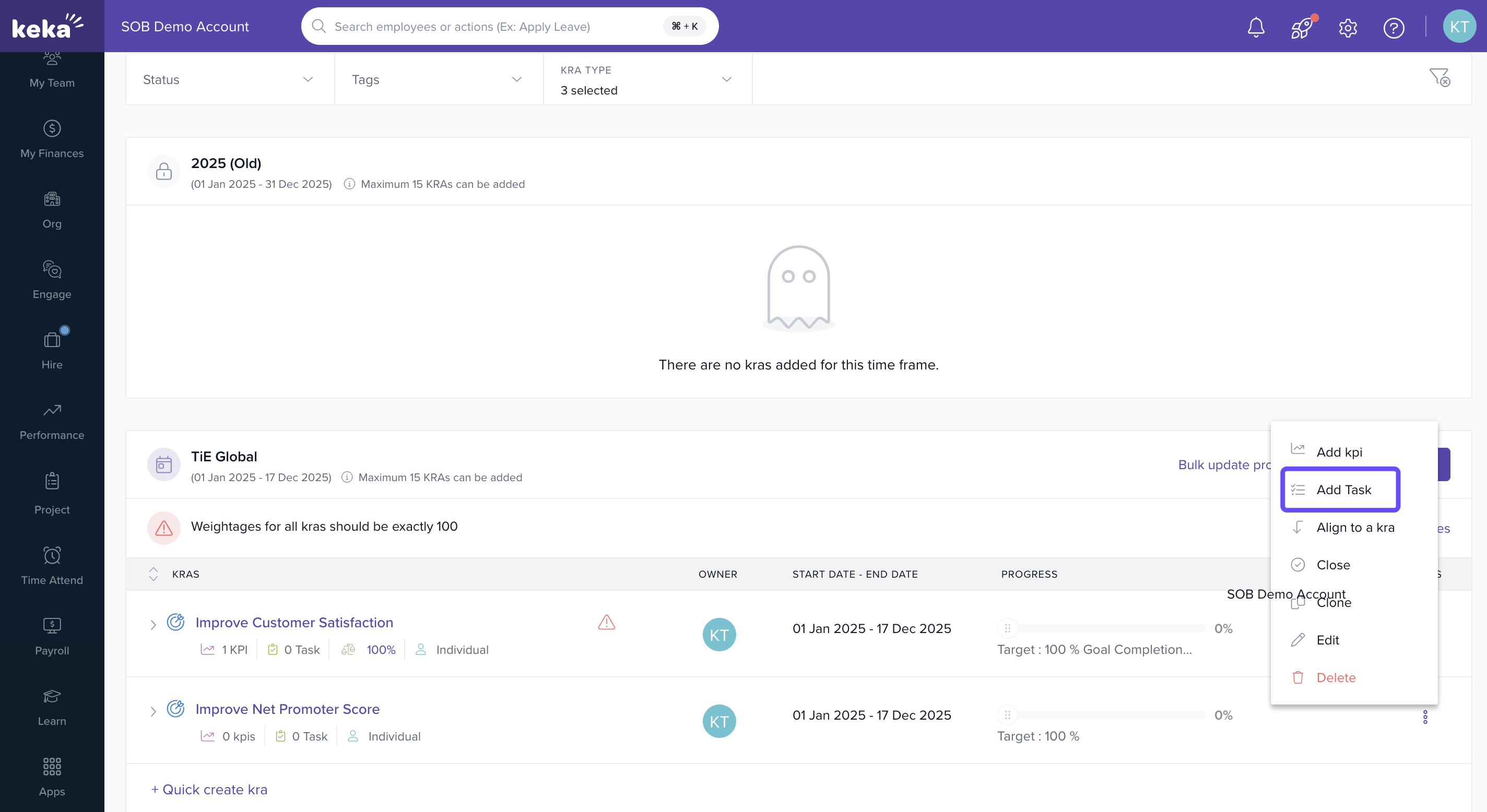
Quick Task
Go to My Goals, select a goal, and click the three-dot menu.
-
Choose + Add Task.
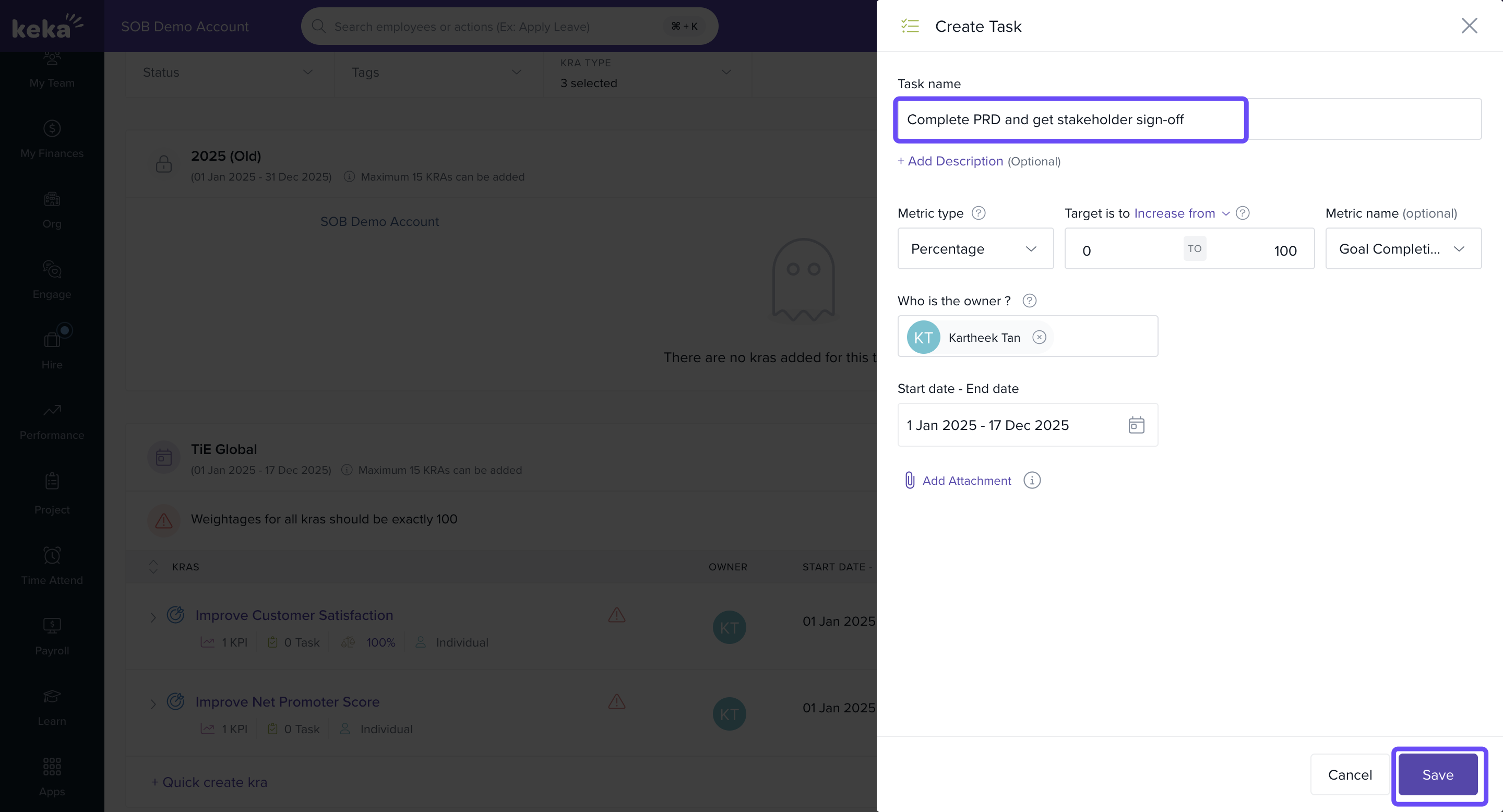
Enter task details (name, due date, metric type, progress state).
Attach supporting documents if needed.
-
Click Save.
Tracking Progress
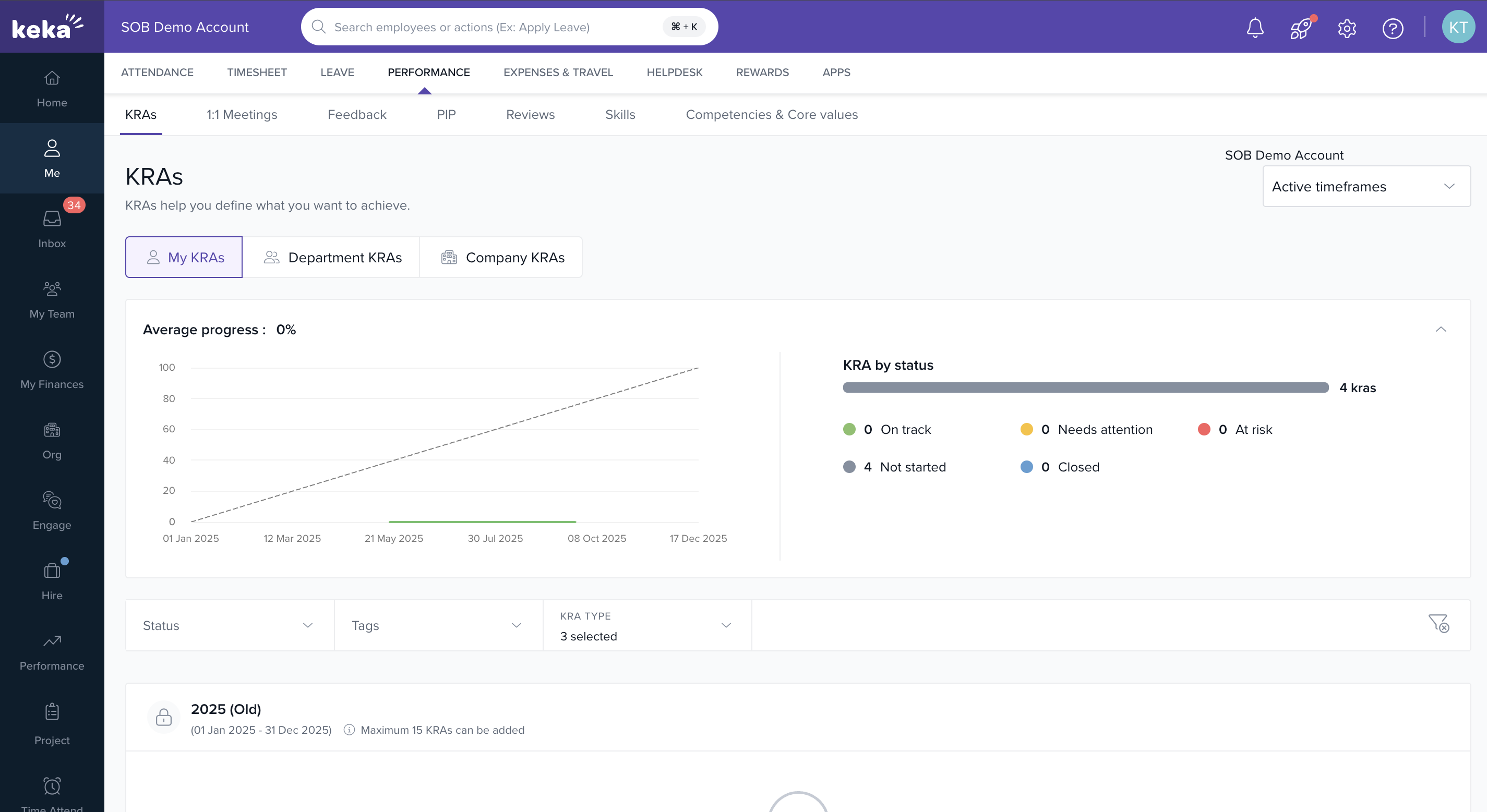
Average Progress Graph
- Shows the average progress of all goals in a timeframe (e.g., quarterly). Progress is plotted over time so you can see performance trends.
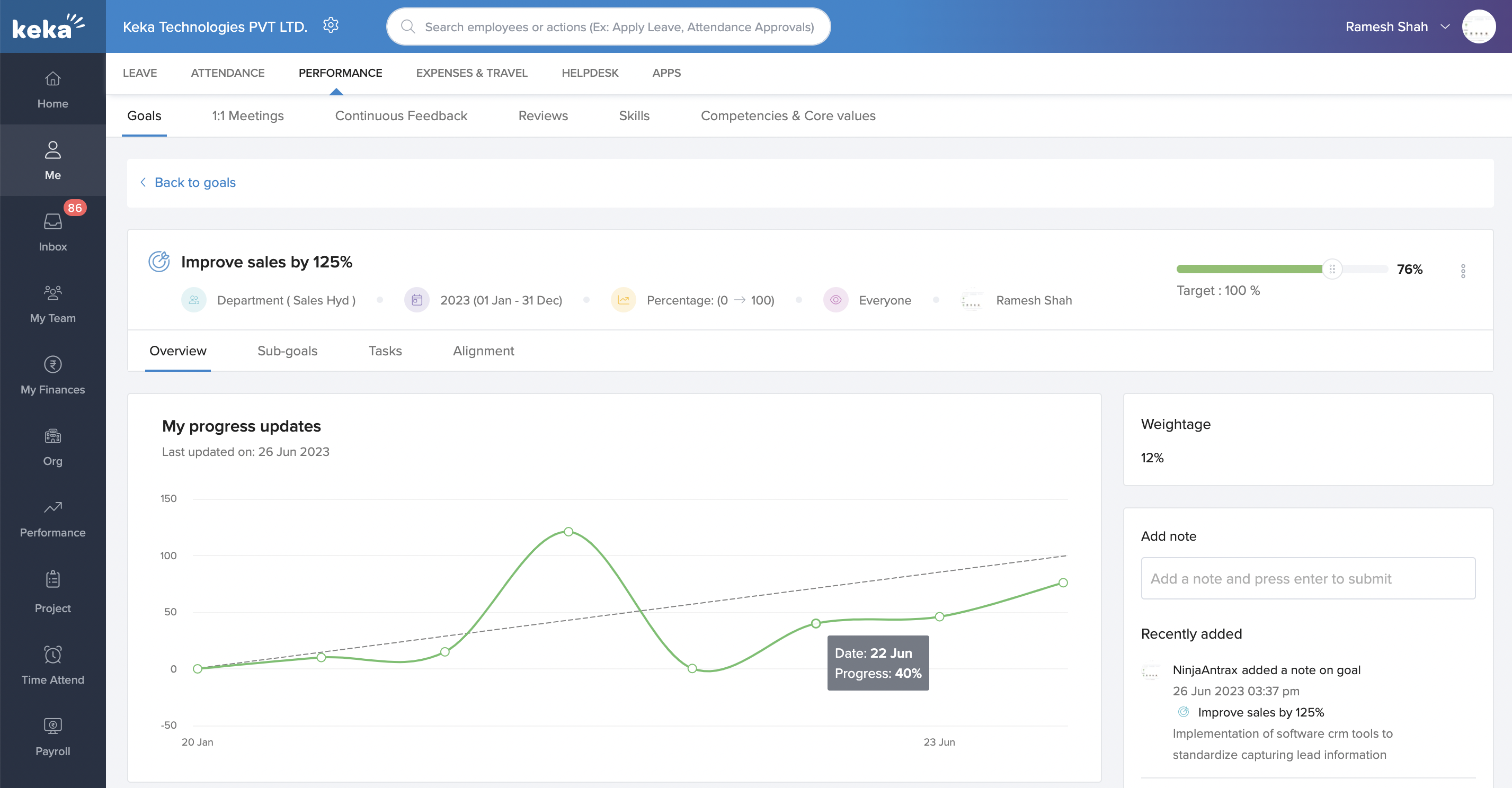
My Progress Updates
- Displays your personal progress updates for goals and sub-goals as a time-series chart.
Automatic Status Updates
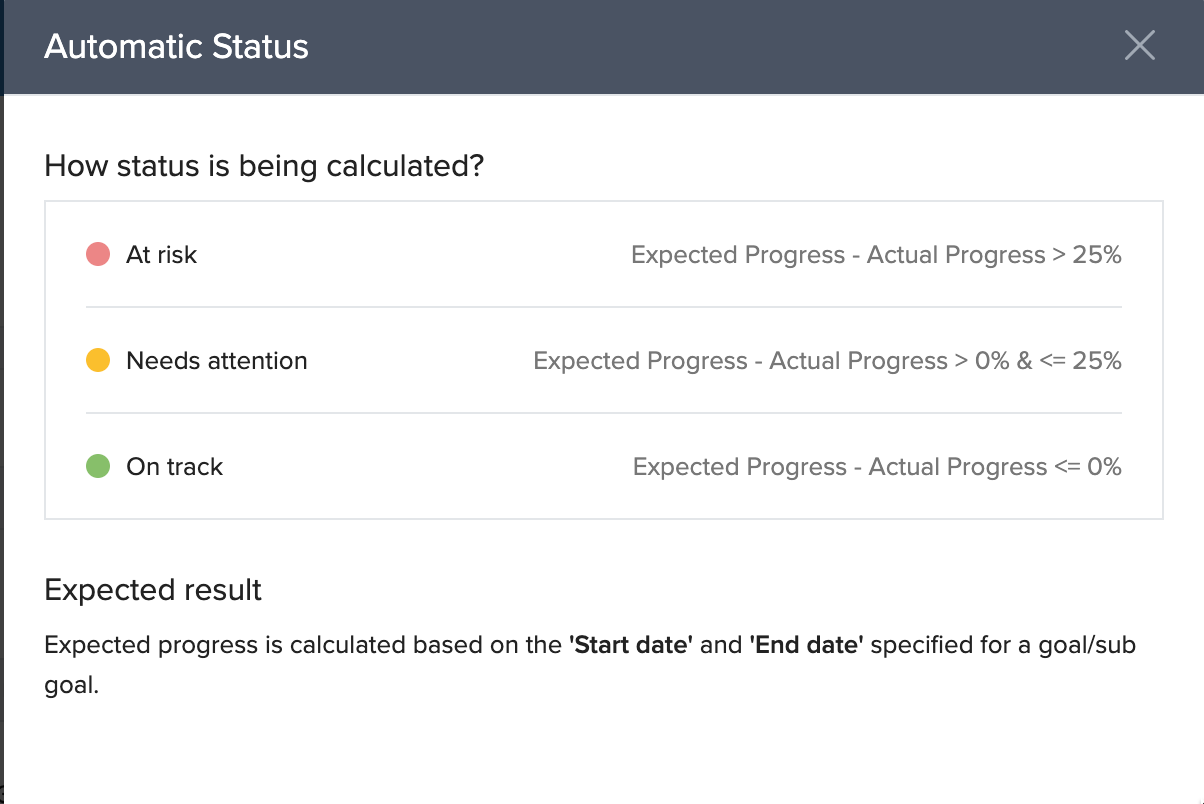
Keka updates goal and sub-goal statuses automatically based on progress:
On Track → Progress aligns with targets.
Needs Attention → Progress is falling behind.
-
At Risk → Goal is facing significant challenges.
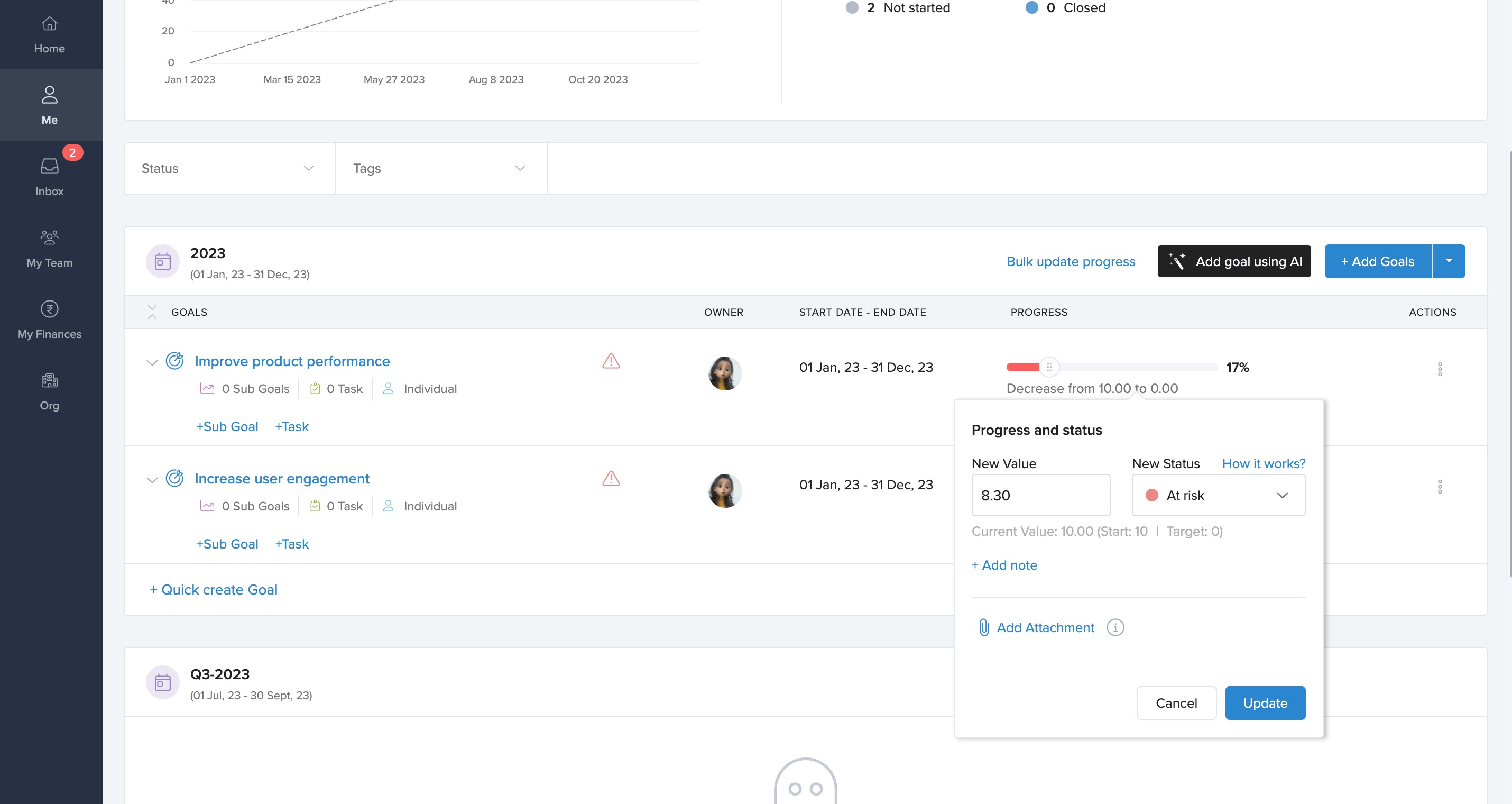
- Statuses update whether you enter progress manually or via integrations. You can still override them manually if needed.
Notes & Tips
Tip: Use tags for easy filtering and reporting later.
Important: Always assign a clear owner to ensure accountability.
Note: Automations like Jira save time but need admin setup.
Next Steps
Learn how to Manage Goal Settings to configure terminology, visibility, and approval workflows.
Explore Team Goals to align objectives across departments.
Use Goal Templates for faster and consistent goal creation.
Understand how to Add or Assign Competencies & Job Functions to support performance tracking.
Review Goals Administration to manage permissions, pending approvals, and unaligned goals.
Keka’s Goals module gives employees and managers a structured way to set, track, and align goals. With options for templates, sub-goals, and automated tracking, you can ensure objectives are clear, measurable, and connected to business success.
Comments
0 comments
Please sign in to leave a comment.