Introduction
Keka’s Team Goals feature helps managers align team objectives with organisational priorities. You can add, track, and manage goals easily, ensuring progress is visible and collaboration is effective.
This article explains how to access, create, and manage team goals.
How to Access Team Goals
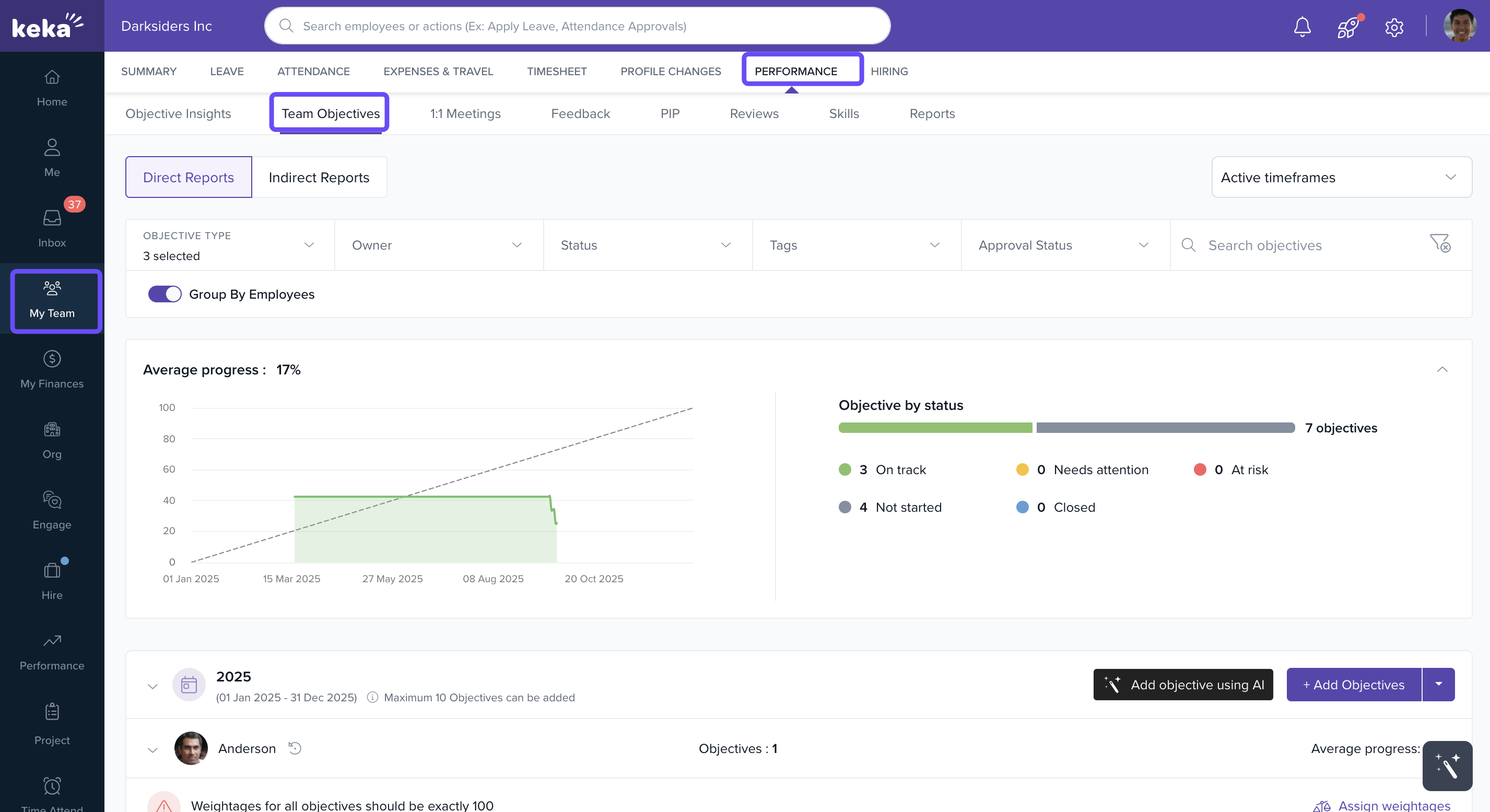
In the left menu, click My Team.
Go to Performance.
-
Select Team Goals.
Sorting and Viewing Goals
At the top of the Team Goals page, you’ll see filters. Use them to refine results by:
Time frames
Reports
Departments
-
Employees
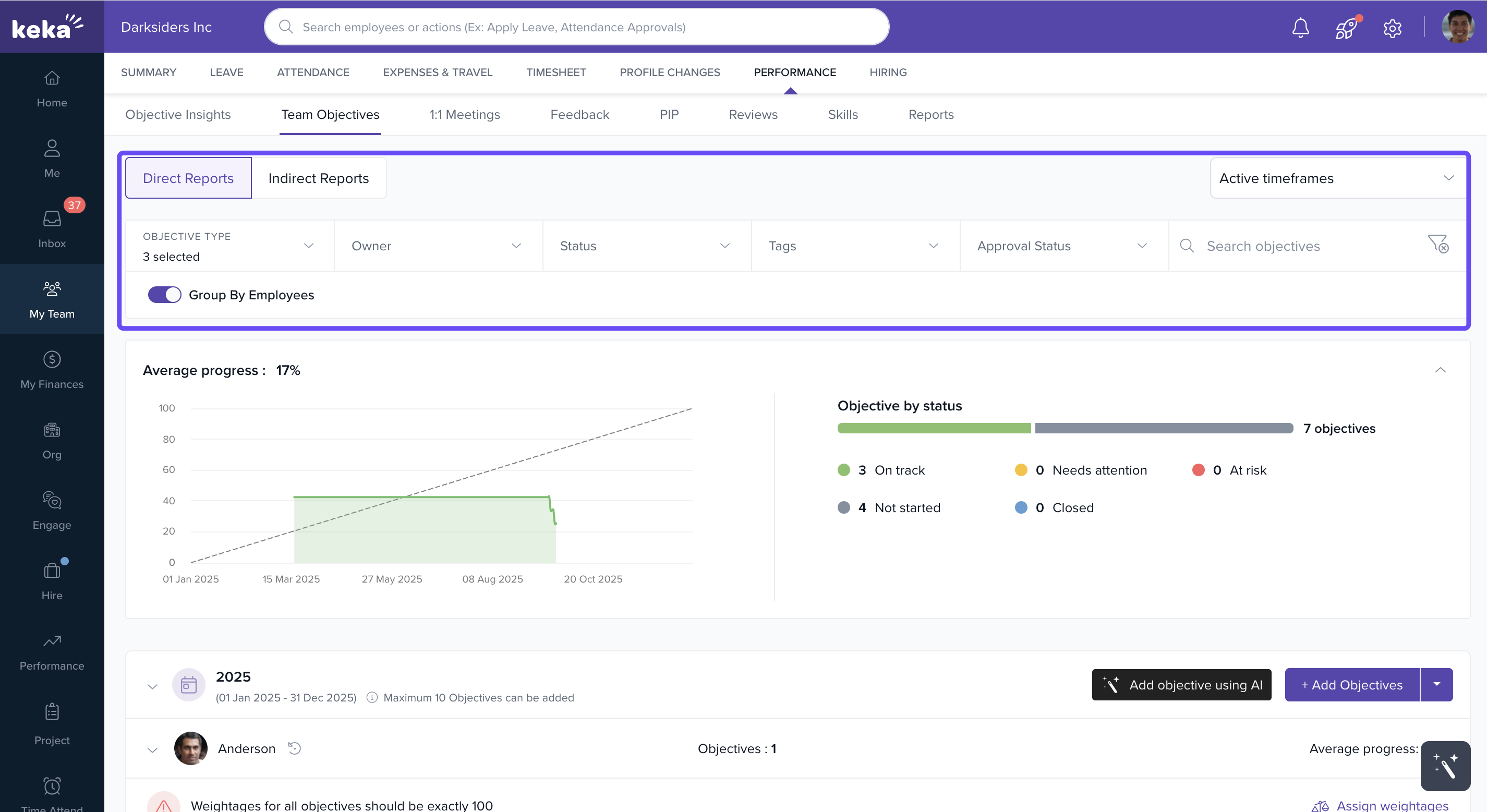
You can also group goals by employee, showing which goals are assigned to each person.
Below the filters, goal progress is displayed in a graph view. The Goals by Status chart highlights how many goals are in progress, completed, or pending.
Adding a Goal
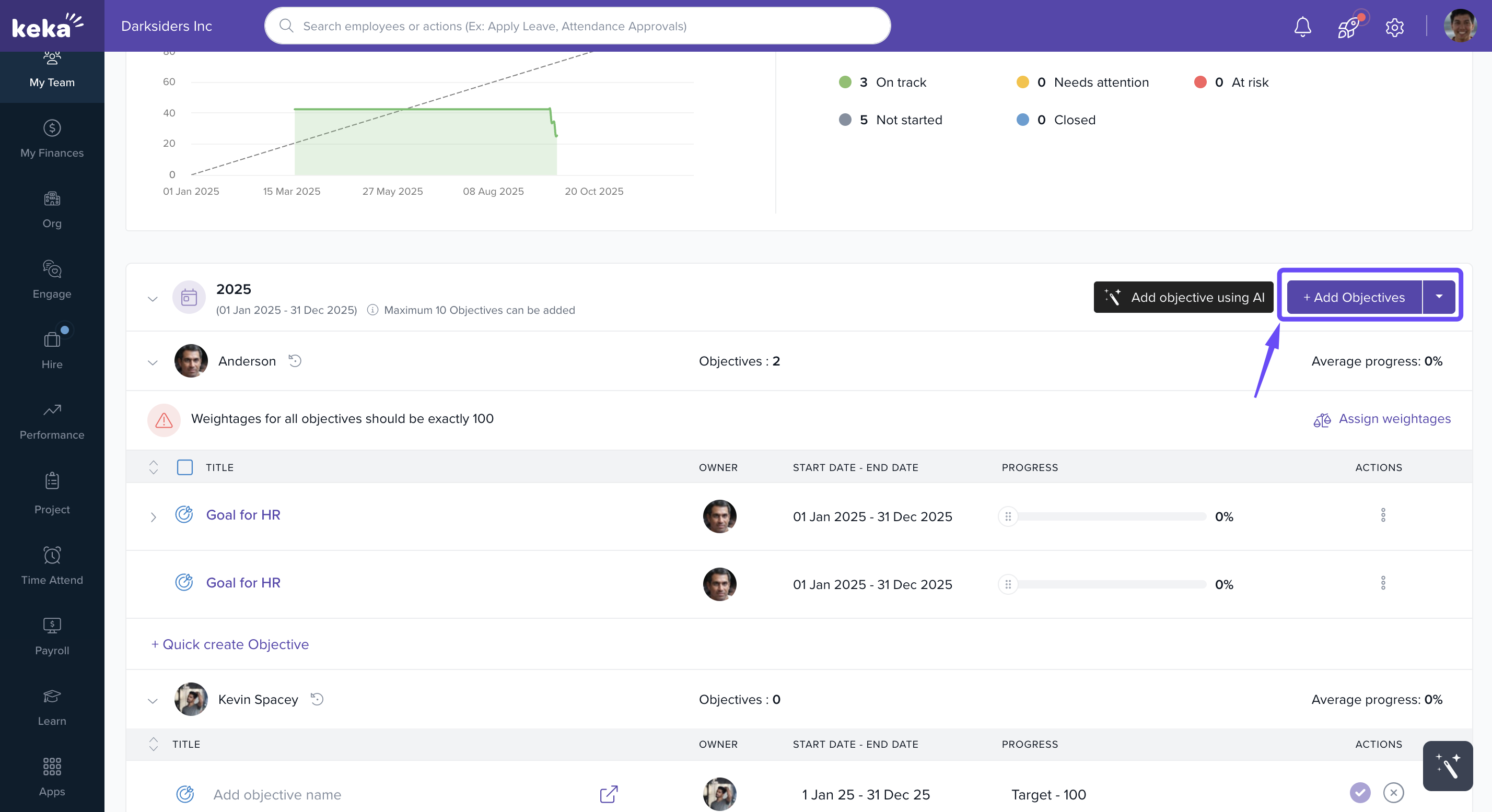
Select the financial year.
-
Click Add Goal.
-
On the Create Goal screen, enter details such as:
Goal name, tags, description
Metric type (percentage, completion, numerical value)
Start value and target value
Goal type (e.g., team, department, organizational)
Owner
Time frame, start date, and end date
- Weightage
Optionally, integrate with apps like Jira to auto-update progress.
- In the More Details section, add the weightage, visibility, tags and check mark the box Include the objective in performance reviews in case you need.
-
Check the box Include the objective in performance reviews if you want the goal to be considered during performance evaluations.
Under the Alignment section, select a parent goal if you want to align your individual goal to a higher-level goal.
Click Publish to make the goal visible in your organisation.
-
You can choose to:
Save as Draft → edit later
Publish → make the goal live
-
Set weightage for all goals, then click Assign to finalise.
-
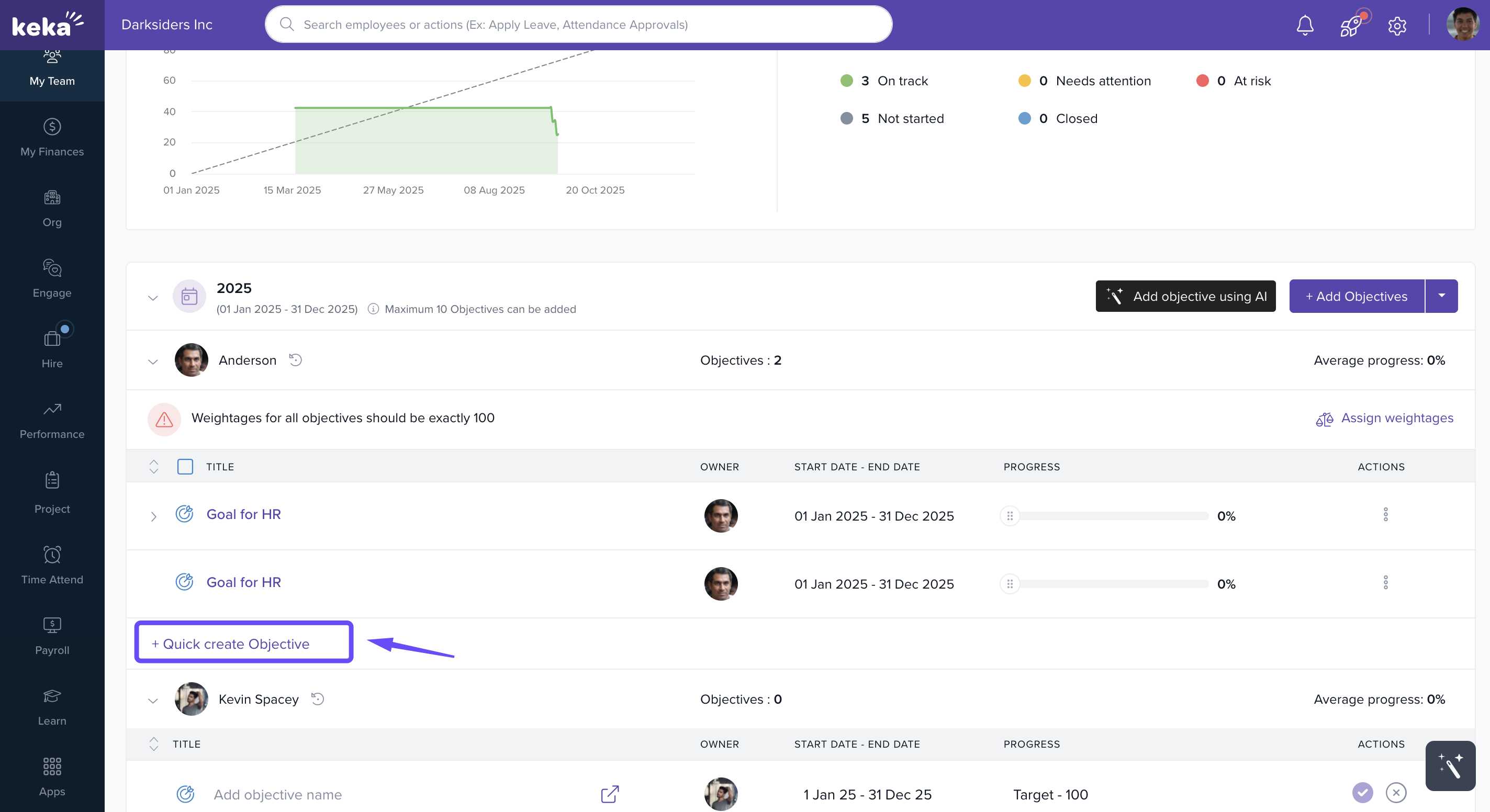
For a faster setup, use Quick Create Goal.
-
Add the goal name, set start and end dates, enter the target, and click the check mark to create the goal.
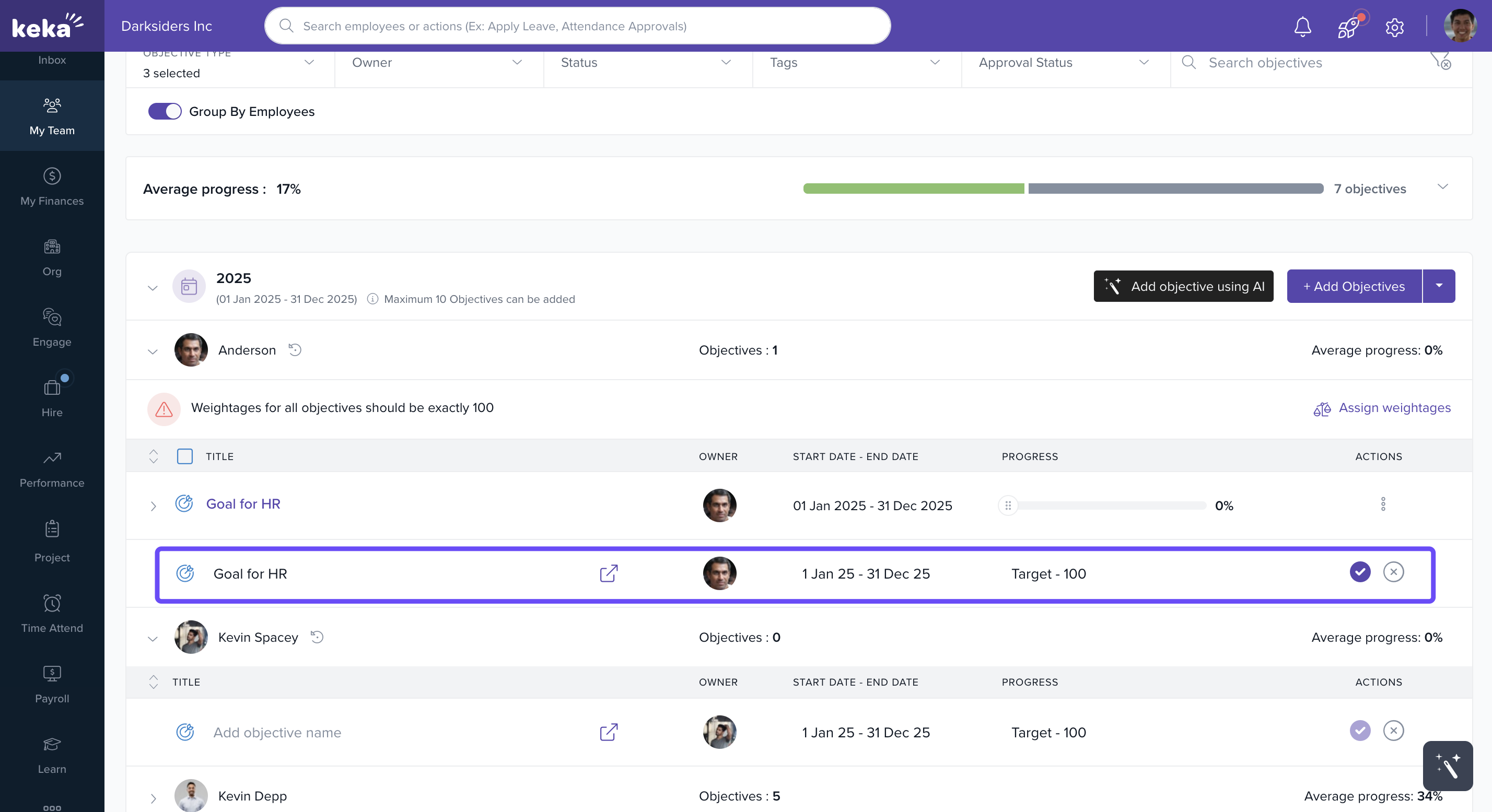
Note: If your organisation uses an approval workflow, the goal will go through the approval process after publishing. As an admin, you can manage these approvals.
Managing Goals
Bulk Actions
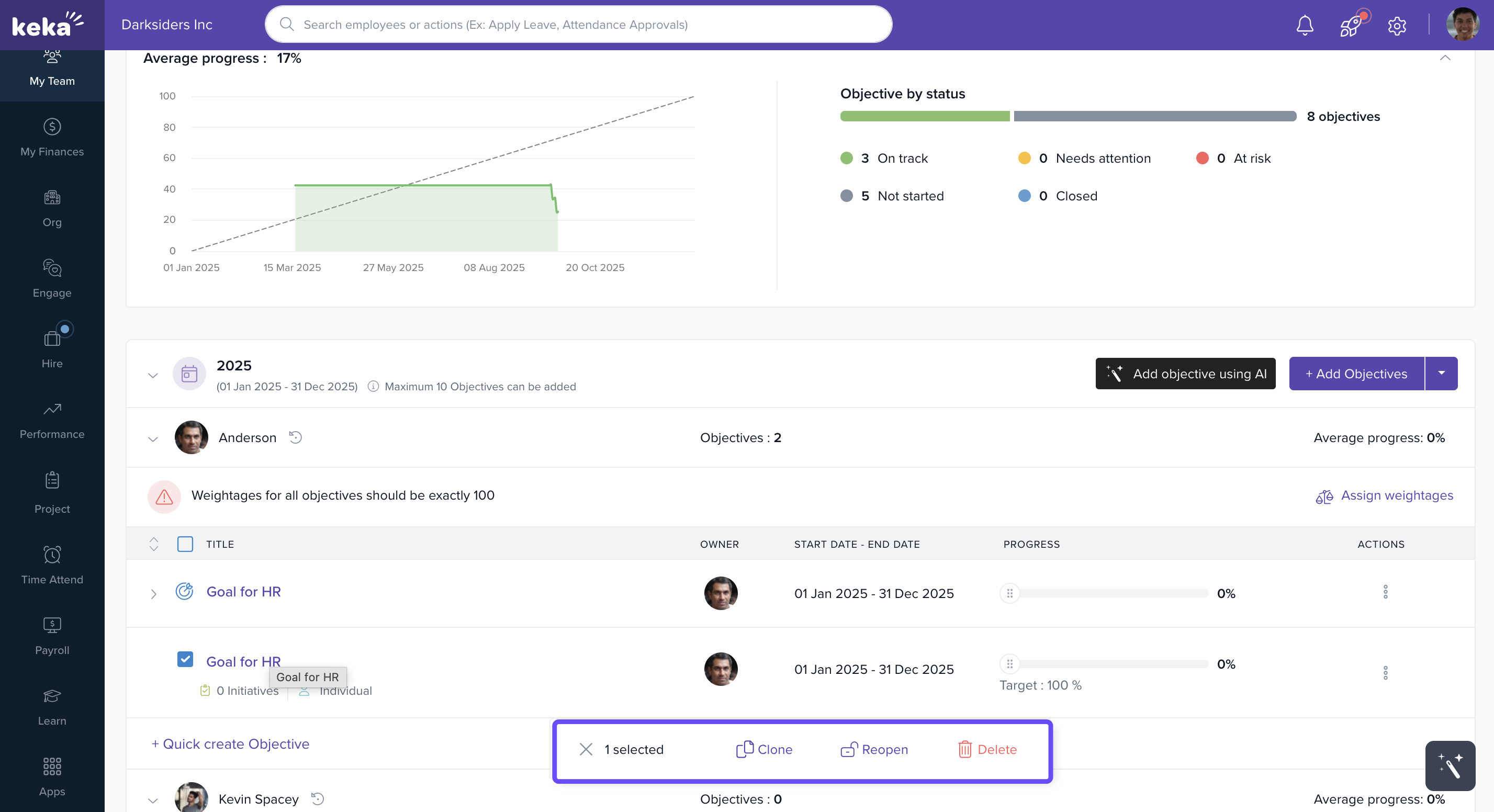
Select multiple goals with the checkbox to apply bulk actions:
Clone
Reopen
-
Delete
Goal-Specific Actions
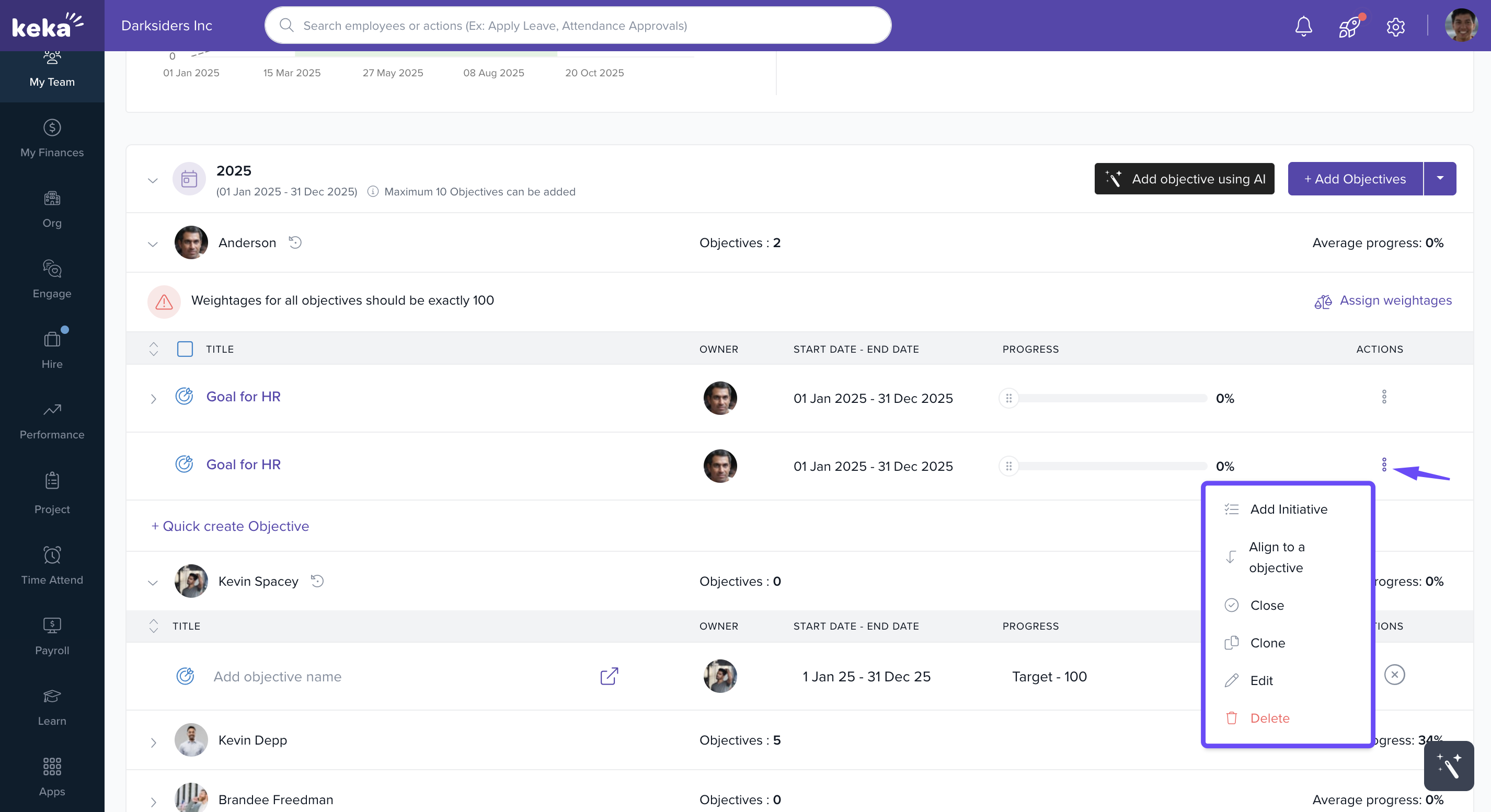
Use the three-dot menu next to a goal to:
Add sub-goals and tasks
Align with other goals
Close
- Clone
Edit
-
Delete
Adjusting Progress
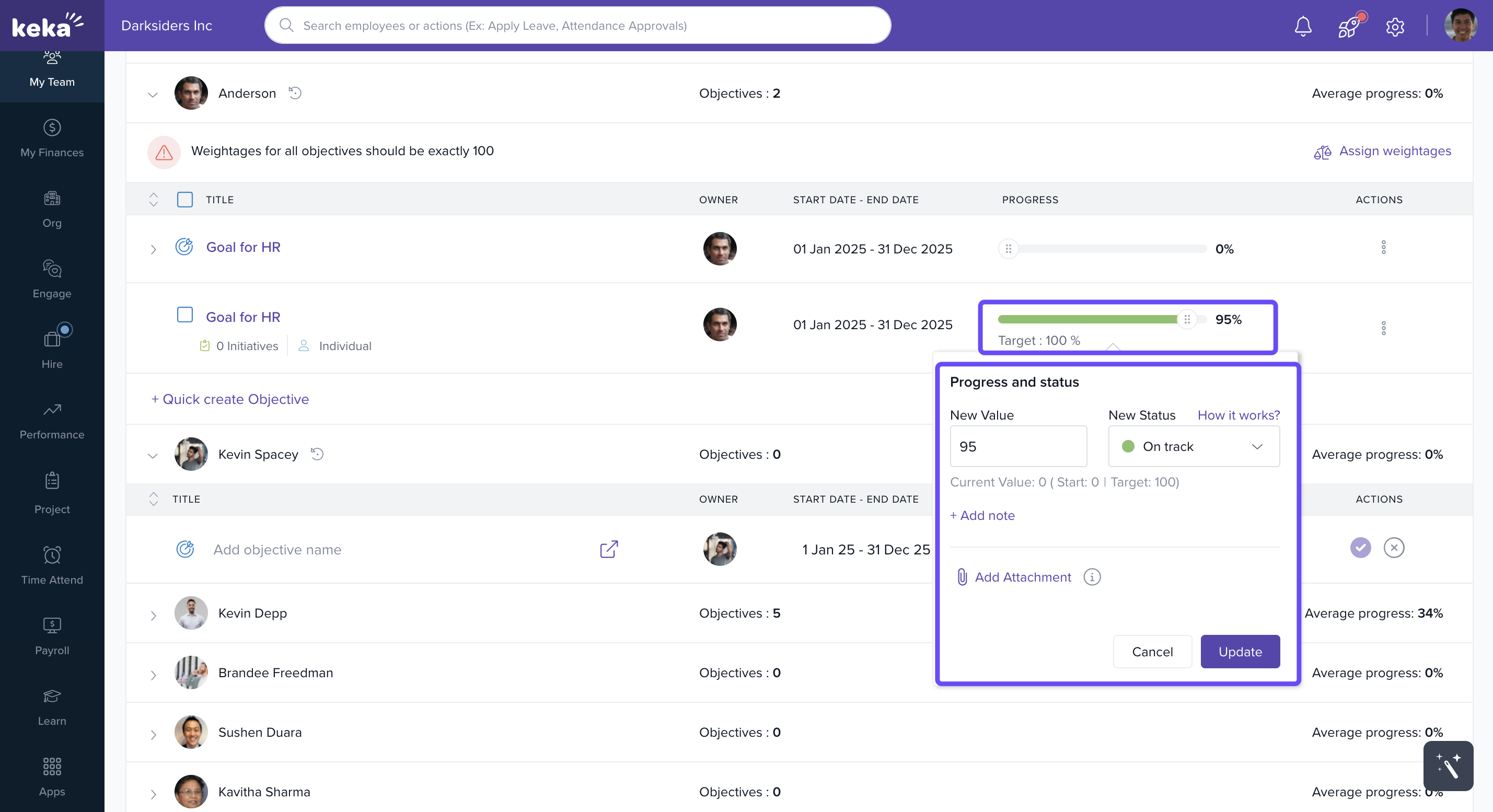
- You can manually update the progress percentage for each goal.
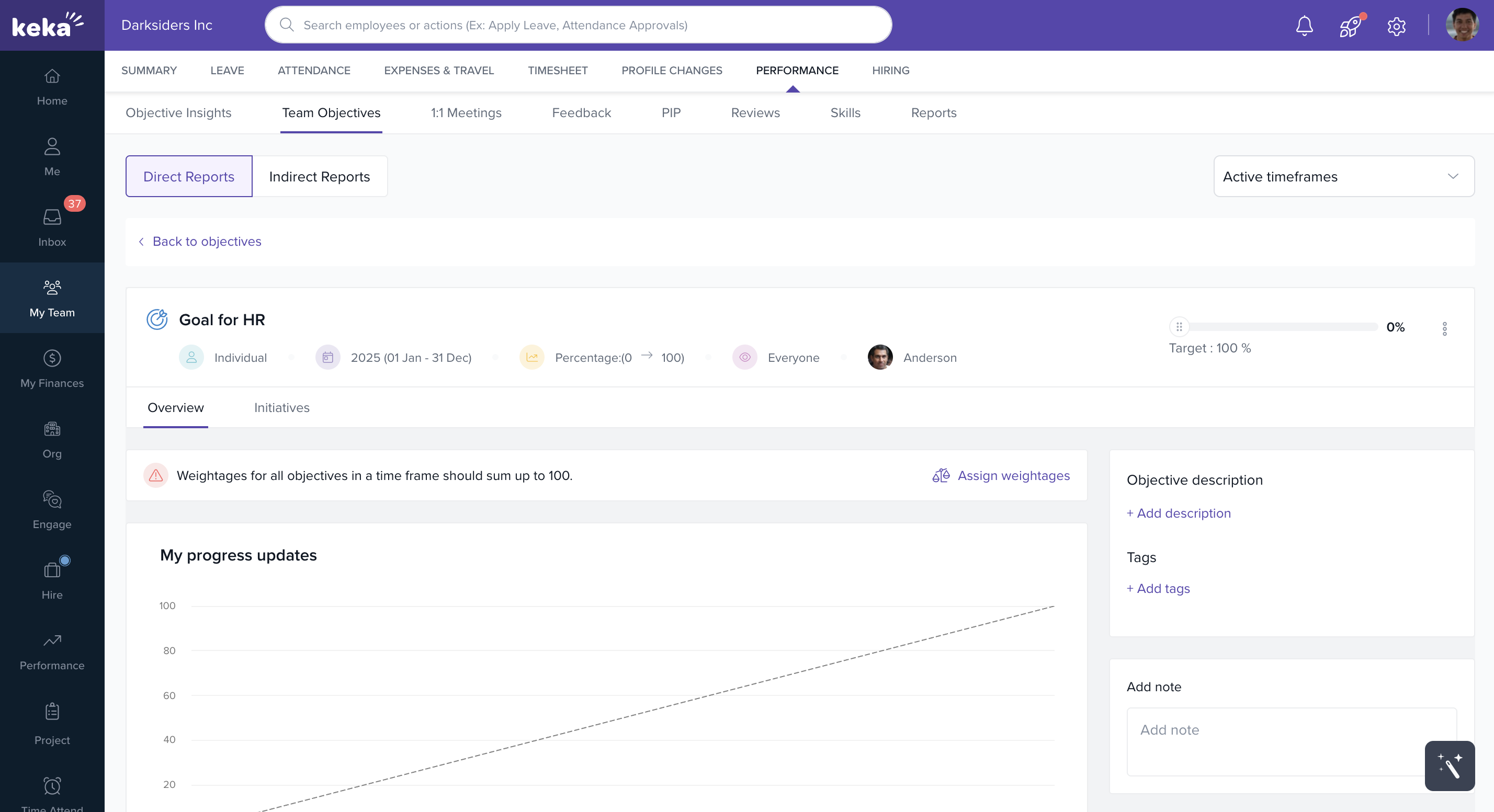
Goal Details View
Click on any goal to open its detail page. Here you can:
Add descriptions, subtasks, and notes
Assign weightage
-
Monitor updates more closely
Notes & Tips
Tip: Use tags when creating goals to make filtering easier later.
Note: Integrations like Jira can save time by automatically updating progress.
Important: Always assign a clear owner to each goal to ensure accountability.
Examples & Use Cases
Department Goals: Set quarterly sales targets for the sales team.
Cross-Team Collaboration: Create a shared goal for product and marketing to align on launch deliverables.
Project Goals: Track progress of a specific project using milestones and sub-goals.
Next Steps
Learn how to Create Individual Goals.
Explore Goal Templates for quick setup.
Learn how to bulk assign goals to streamline planning, cut manual work, and maintain team consistency.
Keka’s Team Goals feature makes it easier for managers to align objectives, track progress, and foster accountability across teams. By using goal creation, tracking tools, and integrations, organisations can ensure that every team works toward shared outcomes while staying transparent and efficient.
Comments
0 comments
Please sign in to leave a comment.