Overview
The Goals Summary page within Keka HR's Performance module is a strategic tool designed to facilitate an organisation's goal-setting process and progress tracking. This intuitive interface offers a comprehensive overview of all goals across various departments, enabling managers and employees to stay aligned and focused on their targets.
Accessing the Goals Summary
To view the Goals Summary:
Navigate to the Performance section.
Click on Goals.
- Under Goals, select Insights.
-
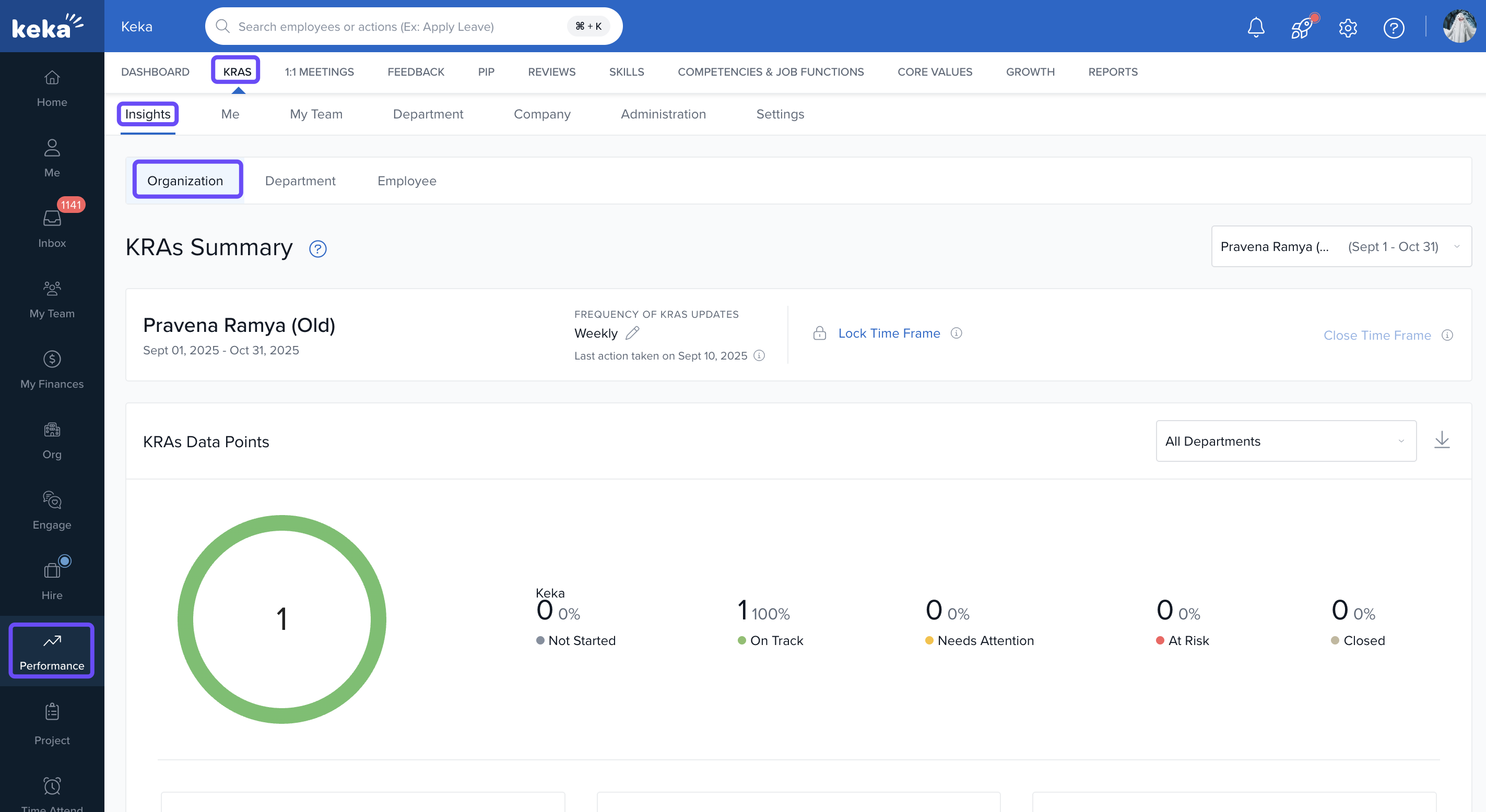
Now under Organisation, you'll land on the Summary section, providing a comprehensive overview of goal statuses.
Features of the Goals Summary Page
The Goals Summary page provides a detailed snapshot of the goal statuses within a specific timeframe, such as Q4-2023:
Goals Data Points
Illustrated by a donut chart, it gives an immediate visual representation of the status of all goals, color-coded for quick reference.
Not Started: Percentage of goals awaiting initiation.
On Track: Percentage of goals progressing according to plan.
Needs Attention: Percentage of goals that are not progressing as expected.
At Risk: Percentage of goals that are significantly behind.
-
Closed: Percentage of goals that have been completed or concluded for the period.
Weekly/Monthly/Fortnightly Goals Updates and Reminders
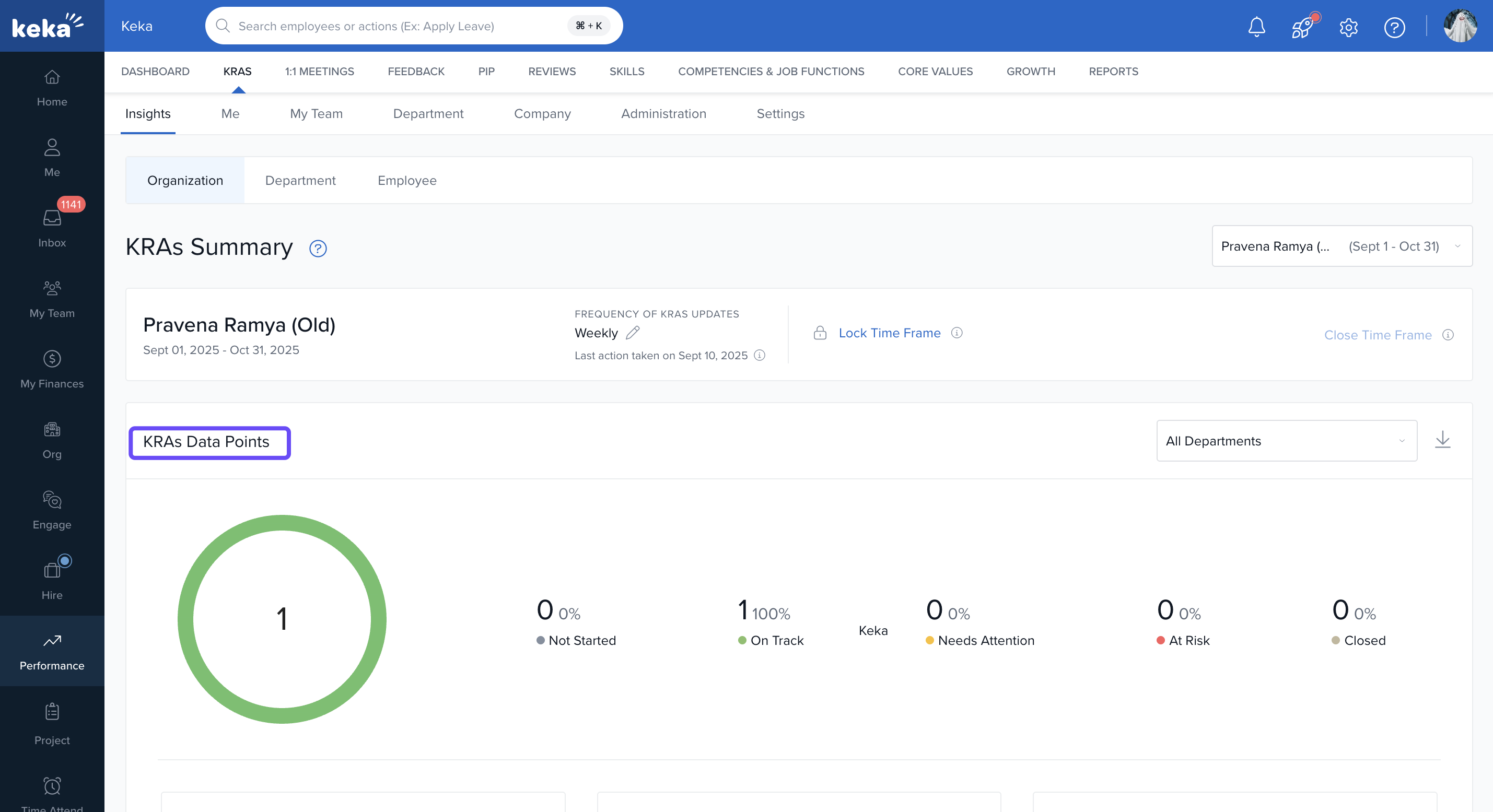
- The summary page allows for monitoring the frequency of goal updates on a weekly, monthly or fortnightly basis. Managers can issue reminders to encourage employees to commence or update their goals, fostering a culture of accountability and continuous progress. Click on Remind option.
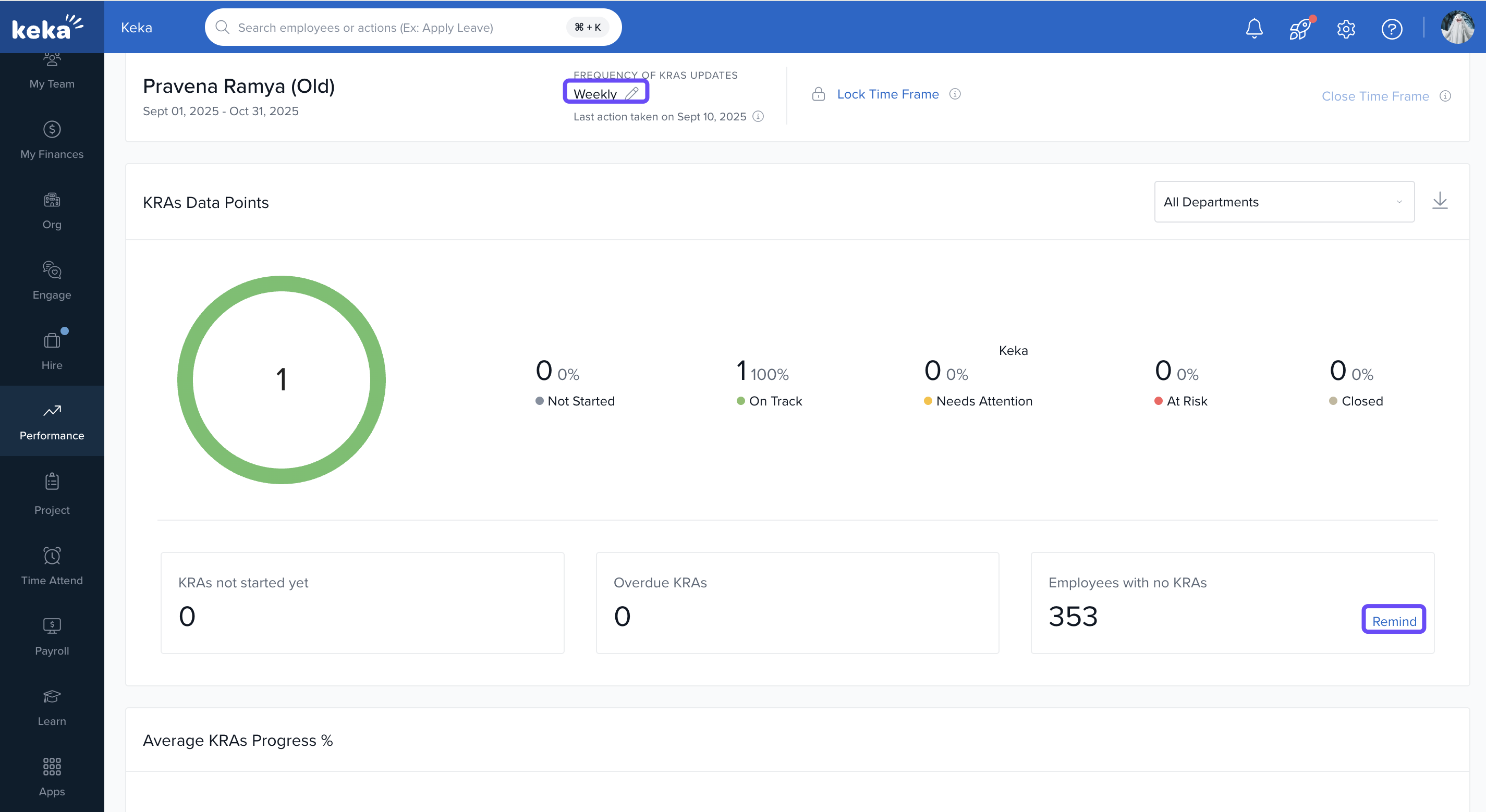
- Upon clicking the "Remind" button on the Goals Summary page, a pop-up window titled "KRAs not started yet- Remind" appears. With the ability to filter by department, you can tailor your reminders to specific employees, fostering a targeted approach to goal management.
- The Keka platform also offers a reminder feature for employees with fewer than one set goal. As an admin, you have the convenience of reminding either the employees directly or their reporting managers, ensuring that all team members are actively engaged in setting and achieving their goals.
Analysing Departmental Goal Progress
- The page also breaks down the average progress of goals by departments through a bar graph, providing insights into departmental performance.
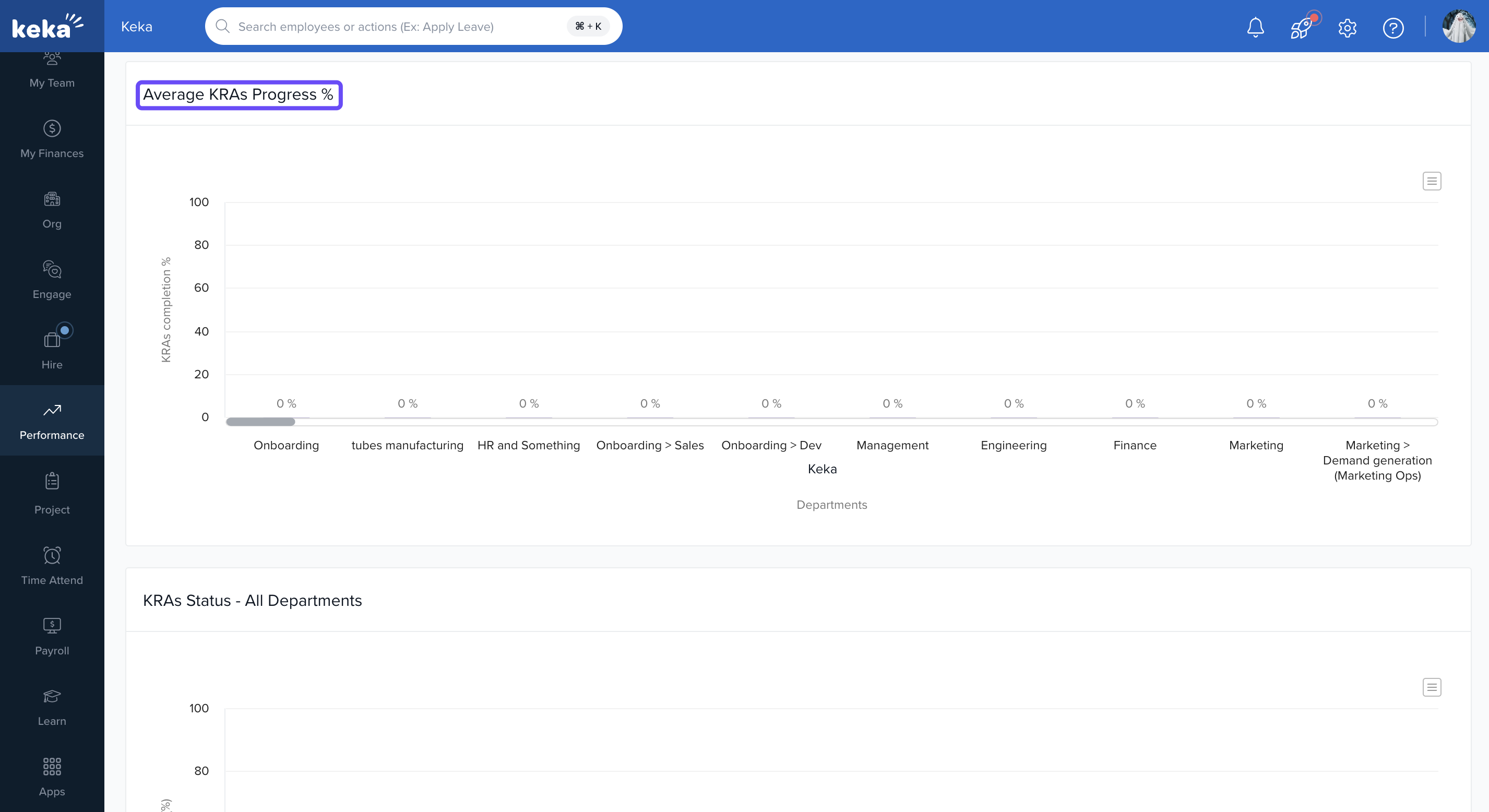
- The "Goals Status - All Departments" chart offers a comprehensive overview of the progress across different departments within the organisation. It visually displays the goals' status categories—Not Started, On Track, Needs Attention, At Risk, and Closed—allowing for a quick assessment of each department's progress and performance. This feature is crucial for identifying areas that require more focus or resources to meet the organisational objectives efficiently.
To maximise the effectiveness of the Goals Summary:
Regularly review the Goals Summary to stay informed about team progress.
Use the reminder feature strategically—filter by department or role to avoid overwhelming people with notifications.
Analyse departmental progress to identify trends and areas for improvement.
Customise timeframes to align with organisational planning cycles.
Options & Features
The Goals Summary page includes several useful tools and views:
- Goal Status Data Points : View goals by status: Not Started, On Track, Needs Attention, At Risk, Closed. A donut chart gives a quick visual snapshot.
- Update Frequencies & Reminders : Set and monitor how often goals are updated (weekly, fortnightly, monthly). Send reminders to employees or managers for goals that are not started or not updated. You can filter reminders by department.
- Departmental Progress Charts: Use a bar chart to compare how different departments are performing. See which departments are excelling and which ones may need help
Next Steps
Try adjusting the time frame (quarter, month, etc.) to match your planning cycle.
Explore filtering by department or role to get more granular insights.
Train managers on using the reminder features effectively to boost engagement.
Comments
0 comments
Please sign in to leave a comment.