You can use Keka’s performance management features to set personal objectives (goals), break them down into measurable key results, and track progress over time. This helps you stay focused and aligned with team or company goals.
This article explains how to:
Add objectives (from scratch or using templates)
Align your objectives to team or organisational goals
Update performance and progress
Close or re-open objectives and key results
Roll up key result progress
Edit or delete objectives
If you see options differently than described, your organisation might have customised settings. In that case, check with your admin.
Note: The terminology used for goals, objectives, or KRAs may vary based on your organisation’s settings. In this article, we’ll refer to them as objectives.
Navigating to Objectives
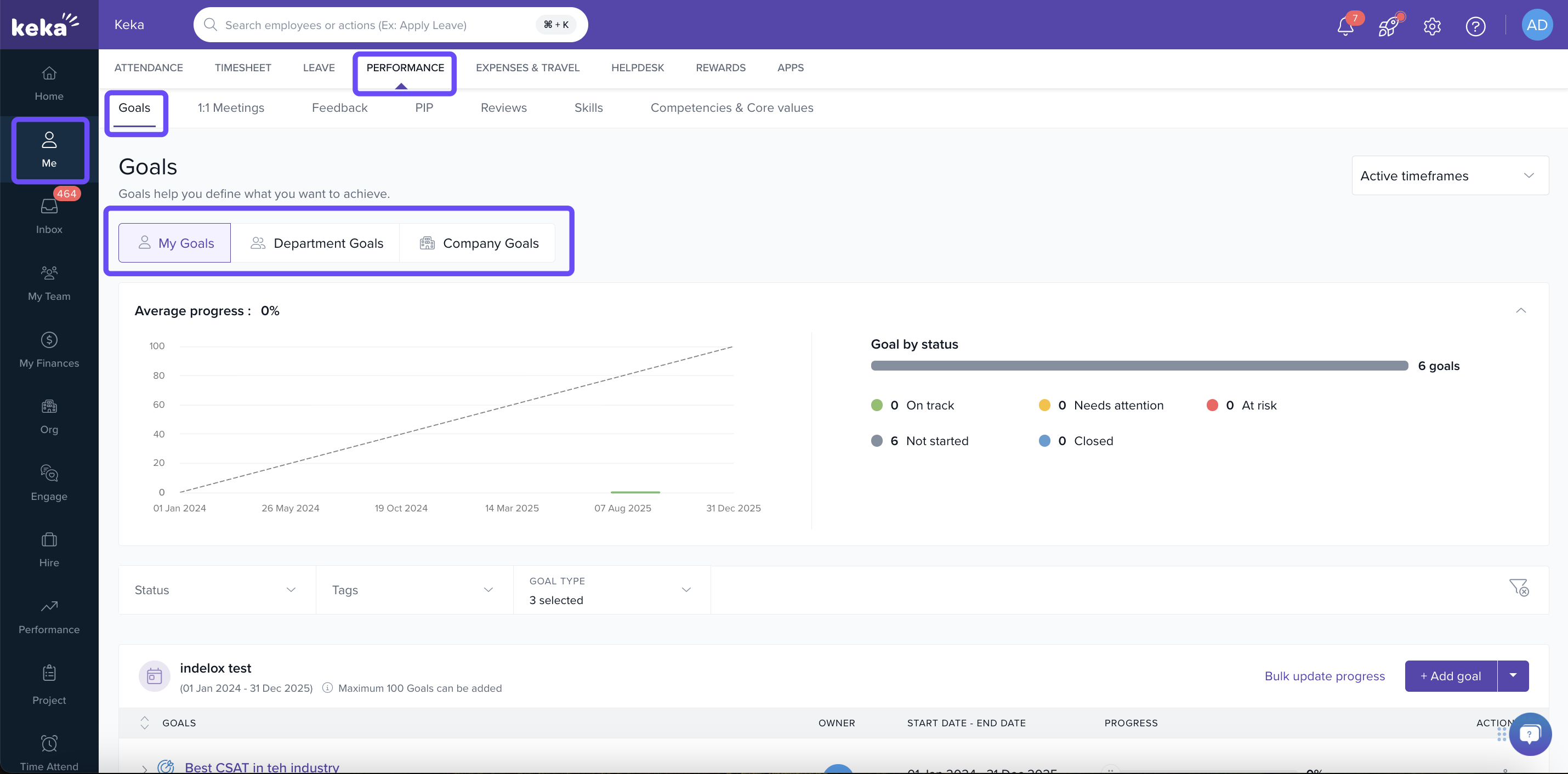
Go to the Me section in Keka.
Click Performance.
In Performance, open the Objectives tab.
-
You’ll find three sections: My Objectives, Department Objectives, and Company Objectives.
Adding my Objectives
There are two methods to add a new objective: you can start from scratch or from adding templates.
Method 1: Starting from scratch
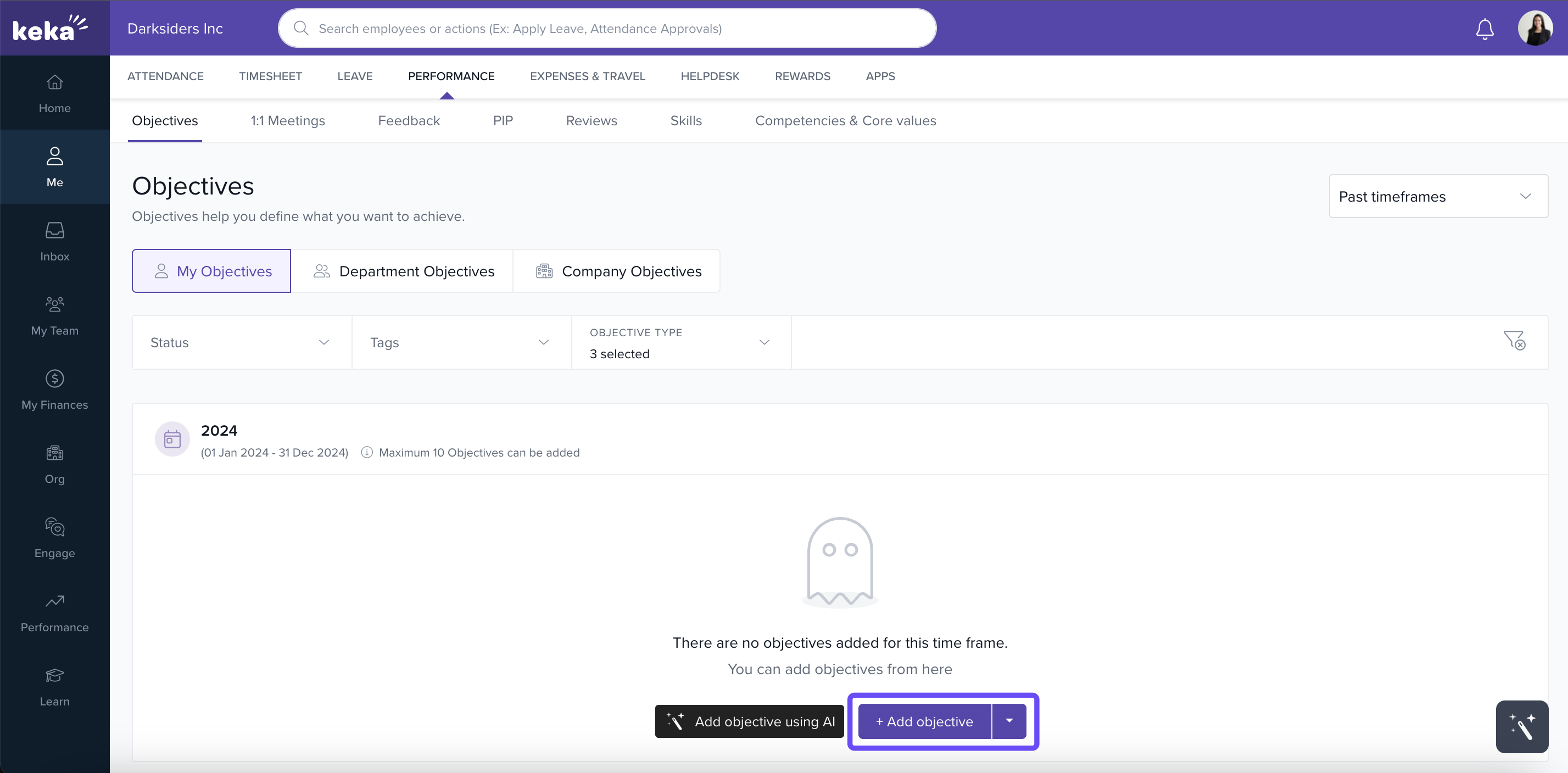
Under My Objectives, pick a time frame from the “Select time frames” drop‑down.
Click + Add objectives.
-
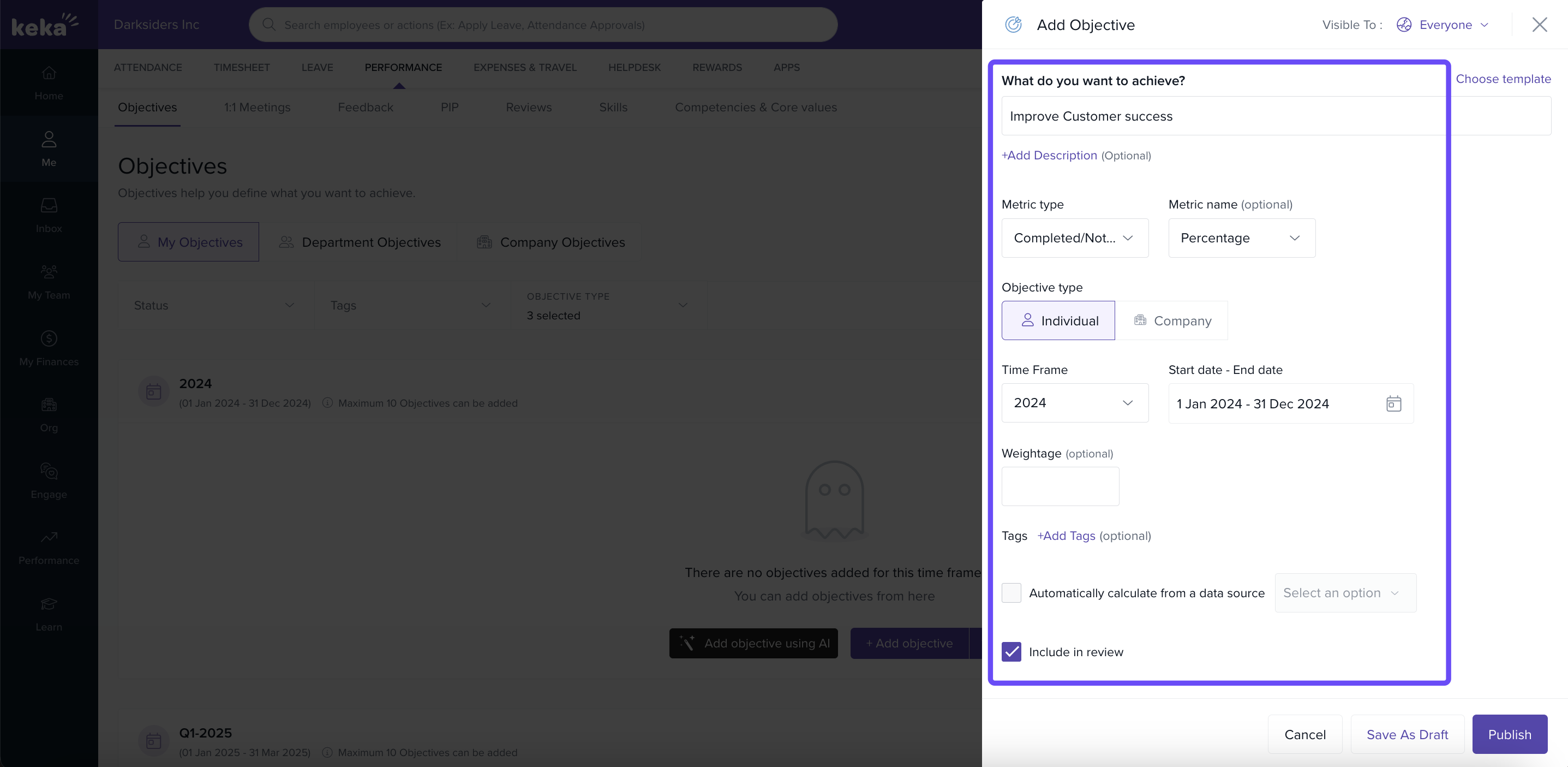
In the pop‑up:
Enter your objective under What do you want to achieve?
Optionally, add tags to categorize it.
In + Add description, you can add more context.
Choose a Metric type (e.g. percentage, completed/not completed, user defined).
Specify a Start Value and Target Value.
Decide whether to Include in review (for managers to review).
Under Visible To, choose who sees it (Everyone or Only Managers).
Click + Add Key‑result to create one or more key results under this objective.
-
For each key result or sub goal, similarly:
Name it
Add description, metric, start/target values
Set timeframe (inherits the objective’s timeframe by default)
-
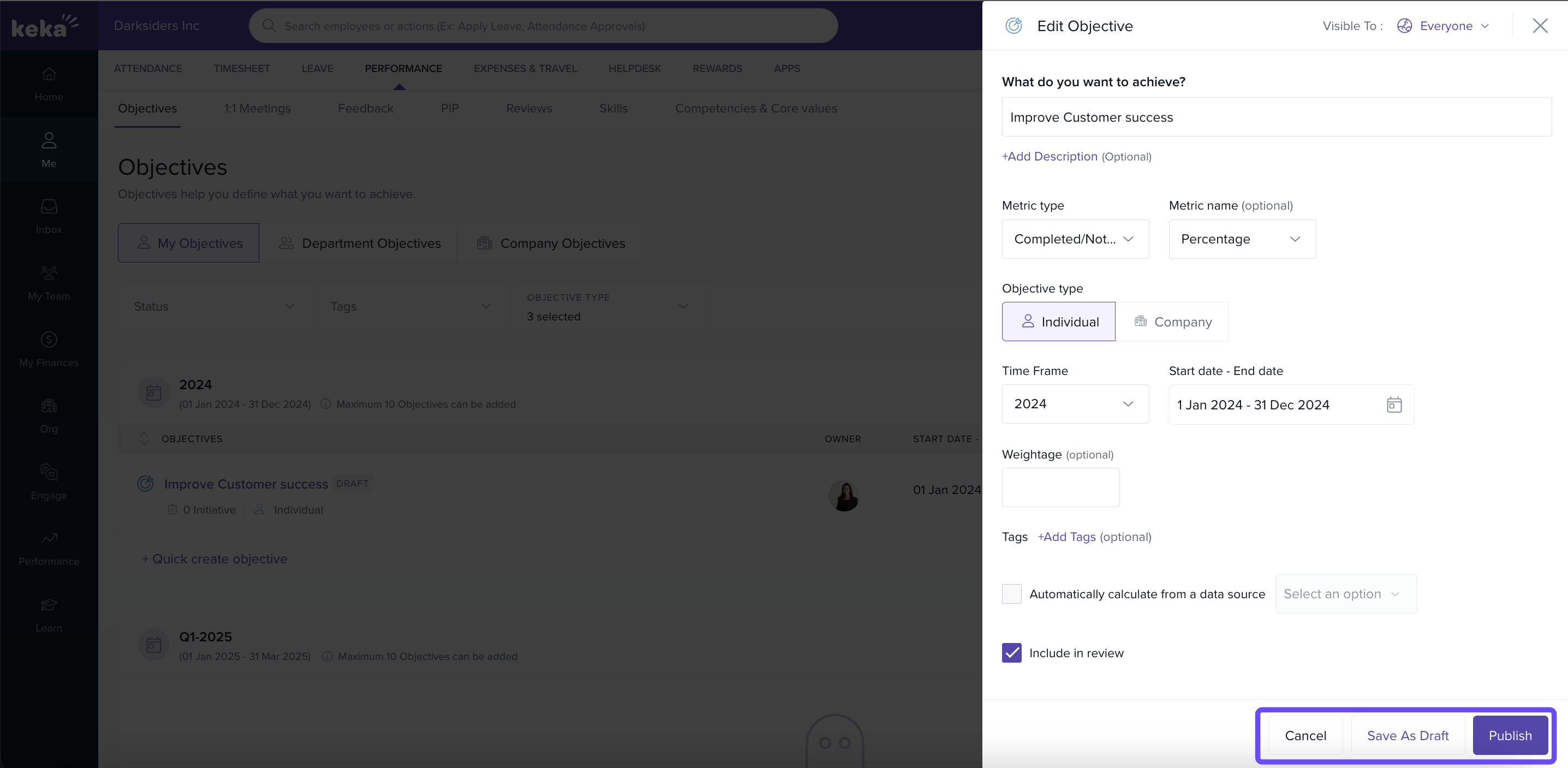
After setup, either Save As Draft (to continue later) or Publish (to submit for review).
Method 2: Using a Template
In the Objectives tab, choose the active time frame.
Click Select from Templates.
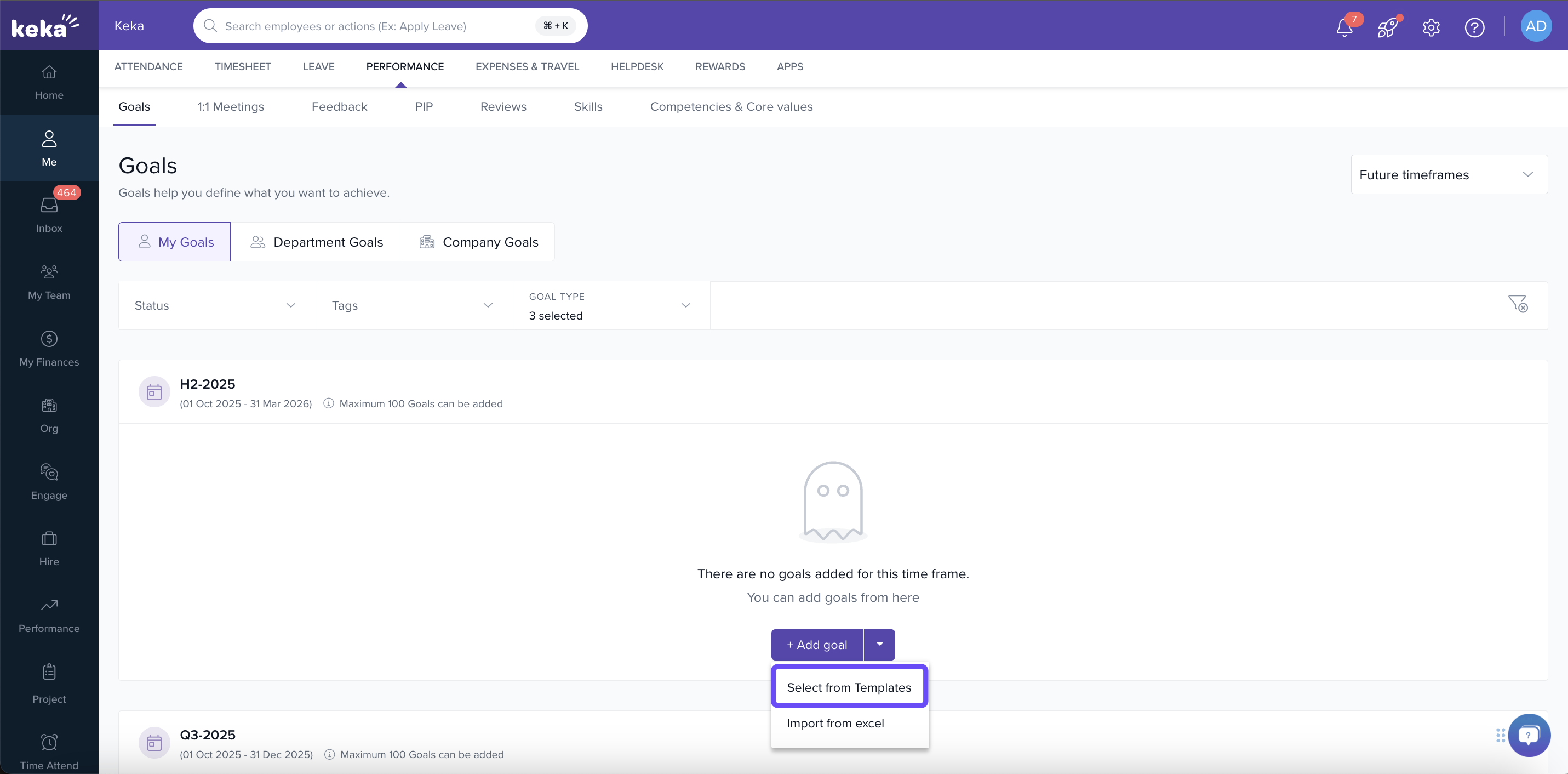
Choose a template under KEKA Templates, and click Add.
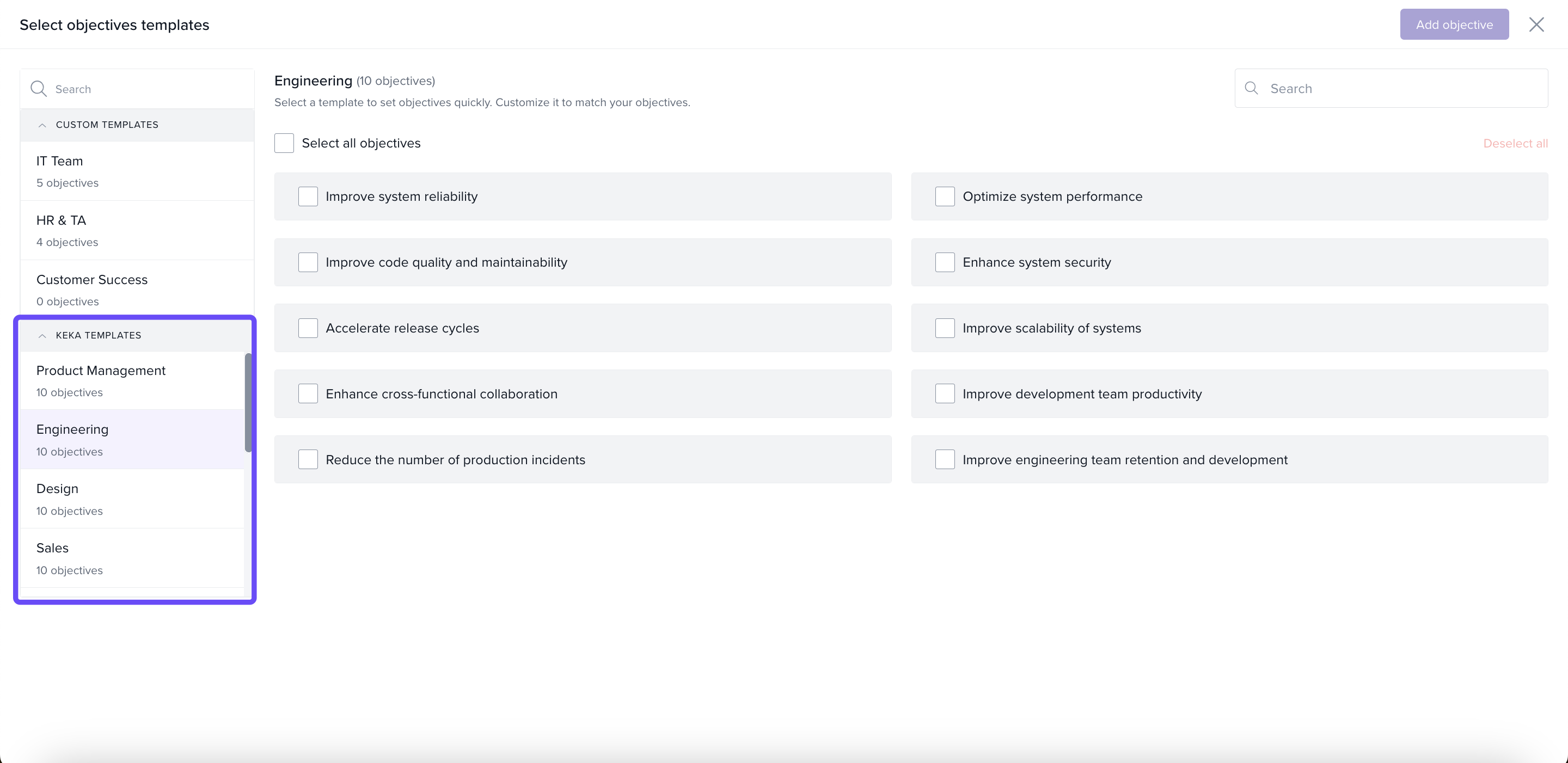
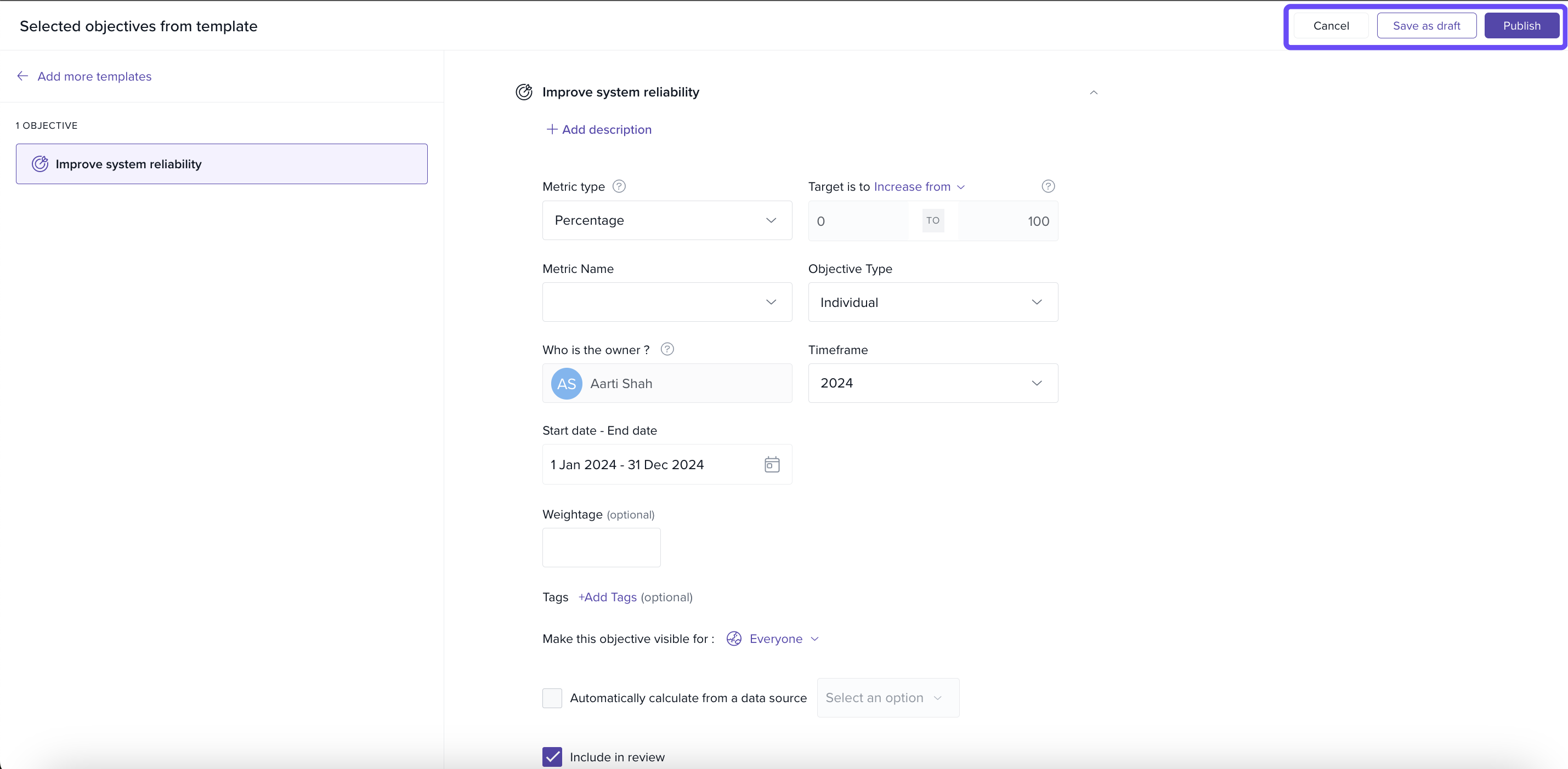
The template will populate fields (including key results).
-
You may edit any part as needed, then either Save As Draft or Publish.
Aligning Objectives
On the Objectives page, click the three dots next to the objective, and choose Align Objective.
In the alignment window, see existing objectives at team or organizational level, and pick which one(s) your objective should be linked to.
Click Save.
When aligned, progress in your objective can contribute toward the parent (team/org) objective as configured.
Updating Performance
After your objective is approved, under My Objectives you’ll see a summary view of progress and status.
Use Goal Type, Status and Tags filters to narrow down objectives.
You can bulk update multiple objectives.
-
To view an objective in detail, click it.
-
Inside, you’ll see its key results, a progress graph, and possibly tasks under key results.
To update a key result:Use the slider or enter a value directly.
Add a note or attachment if needed.
Click Update.
-
In the Key Result Detail screen, you can also:
Closing / Re-opening Key Results or Objectives
-
To close a key result, click the three dots next to it and choose Close. That prevents further updates.
-
Enter a closing note and click on Close Sub-Goal.
-
To re‑open a key-result, use the three dots menu and select Re‑open.
-
Enter a note and enter the progress percentage and click on Re-Open Sub-Goal.
-
To close an objective, similarly use the three dots menu and select Close.
-
Enter a closing note and click on Close Goal.
-
You can re‑open objectives too via the same menu.
-
Enter a note and enter the progress percentage and click on Re-Open Goal.
Rolling‑up Key Result Progress
For each key result, via the three dots menu, choose Rollup.
In Progress Rollup, select whether this key result Contributes to Parent Objective Progress or Doesn’t Contribute.
-
Click Update.
If you choose to contribute, the key result’s progress will reflect in the overall objective’s progress.
Editing or Deleting an Objective
On the Objectives screen, click the three dots next to the objective you want to modify.
Choose Edit or Delete from the menu.
That's the end of this article on how to set objectives for yourself and update the progress.
Comments
0 comments
Please sign in to leave a comment.