Scheduling and managing 1:1 meetings in Keka is simple and effective, ensuring clear communication and easy follow-up. This article will walk you through the steps to schedule and manage your 1:1 meetings, define the agenda, and document action items for better performance tracking.
Steps to Schedule and Manage 1:1 Meetings as an employee in Keka
Access the 1:1 Meetings Module
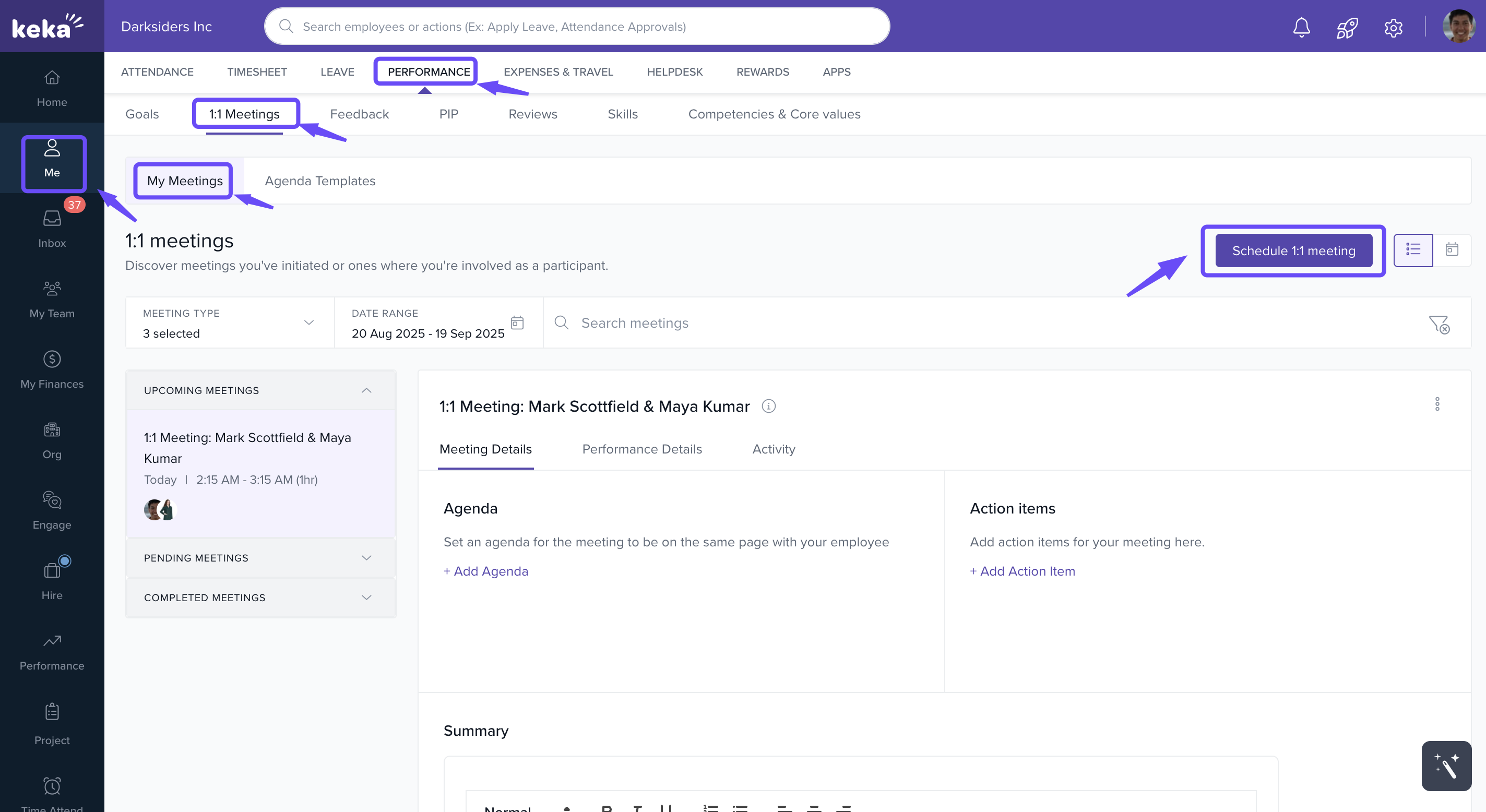
Navigate to the Me section and select 1:1 Meetings under the Performance tab.
Click on My Meetings to view and manage your upcoming meetings.
Schedule a New 1:1 Meeting
-
Click the Schedule 1:1 Meeting button in the top-right corner of the 1:1 Meetings page.
-
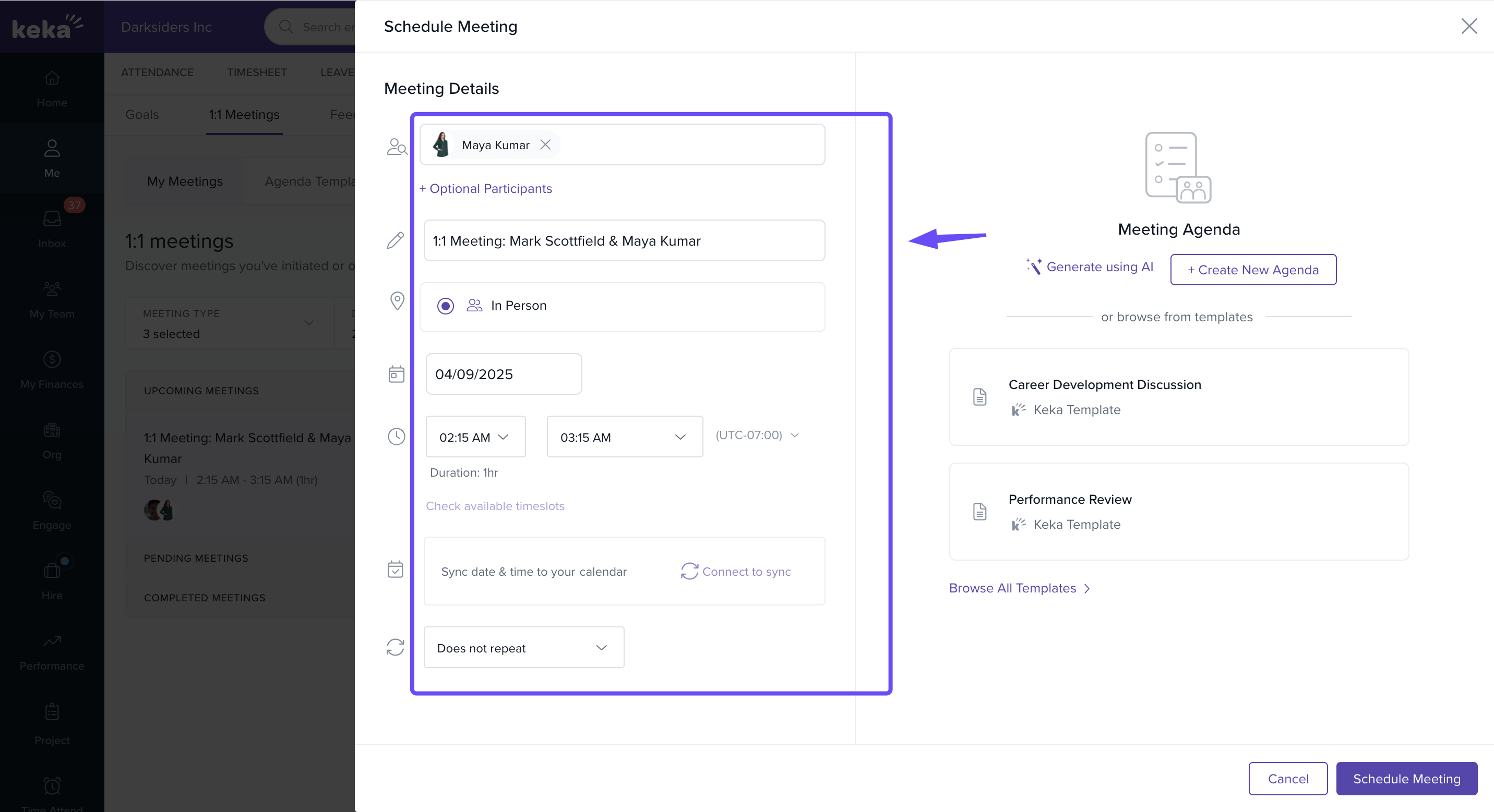
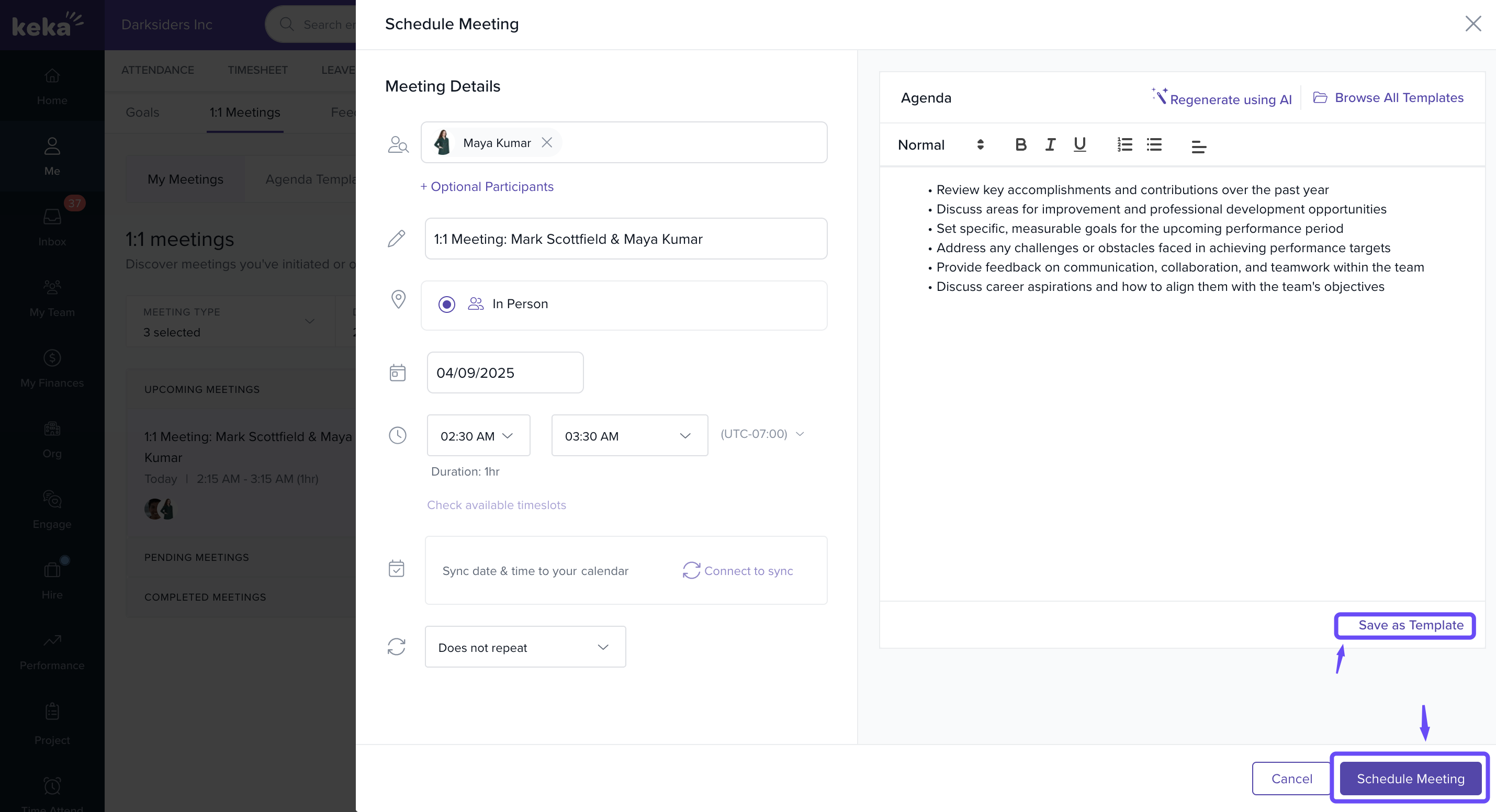
Fill in the Schedule Meeting form with the following details:
Add participants by typing their names or email addresses and include optional participants if needed.
Enter a meaningful meeting title (e.g., 1:1 Meeting: Mark Scottfield & Maya Kumar).
Choose the meeting location (e.g., In-Person, Zoom, Microsoft Teams, or Google Meet).
Set the date, start time, and end time, and use the Check available timeslots option to avoid conflicts.
-
Choose if the meeting will repeat (e.g., weekly, monthly) or if it's a one-time event.
Define the Agenda
-
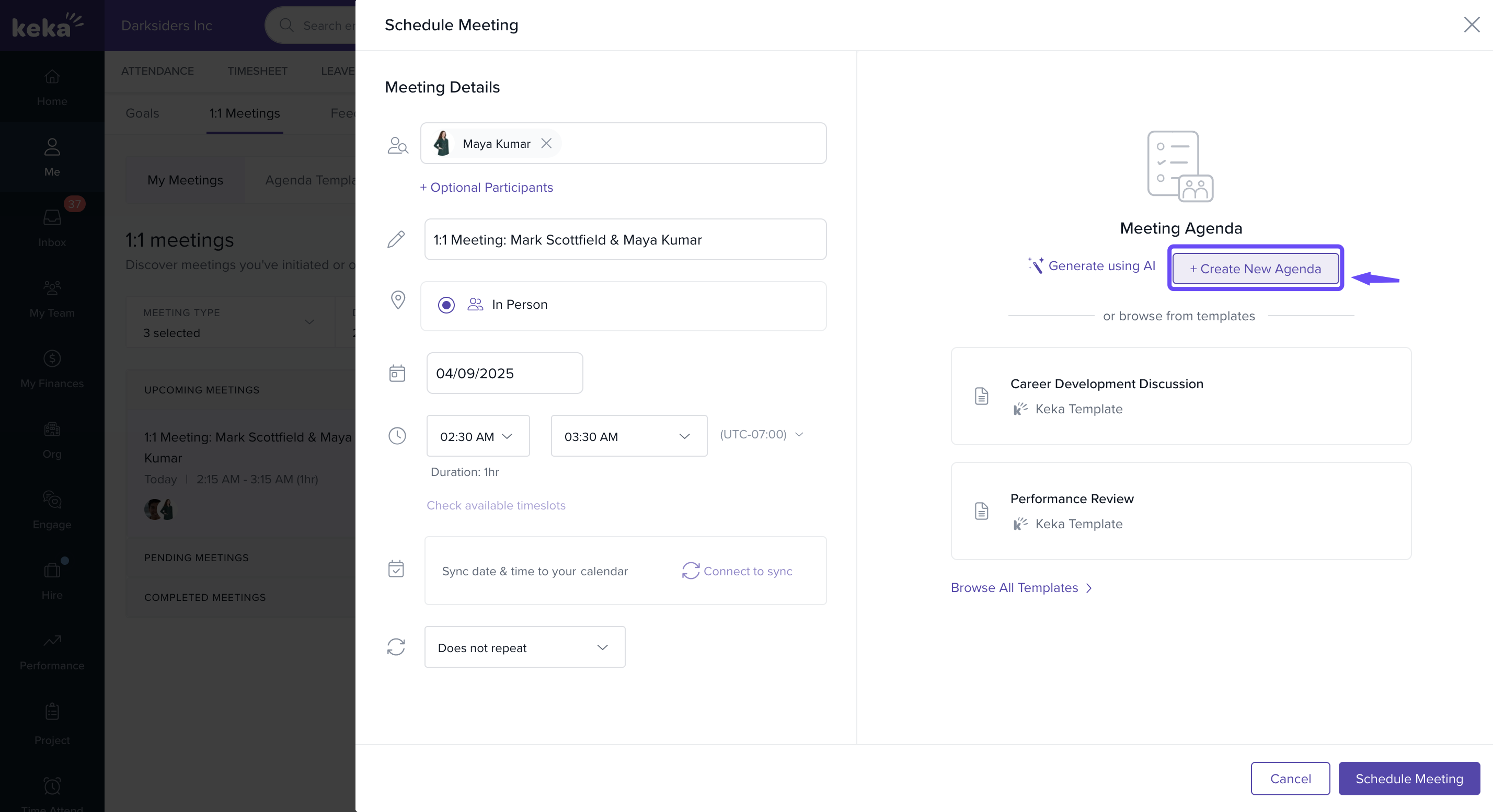
Click on + Create New Agenda to create a custom agenda.
-
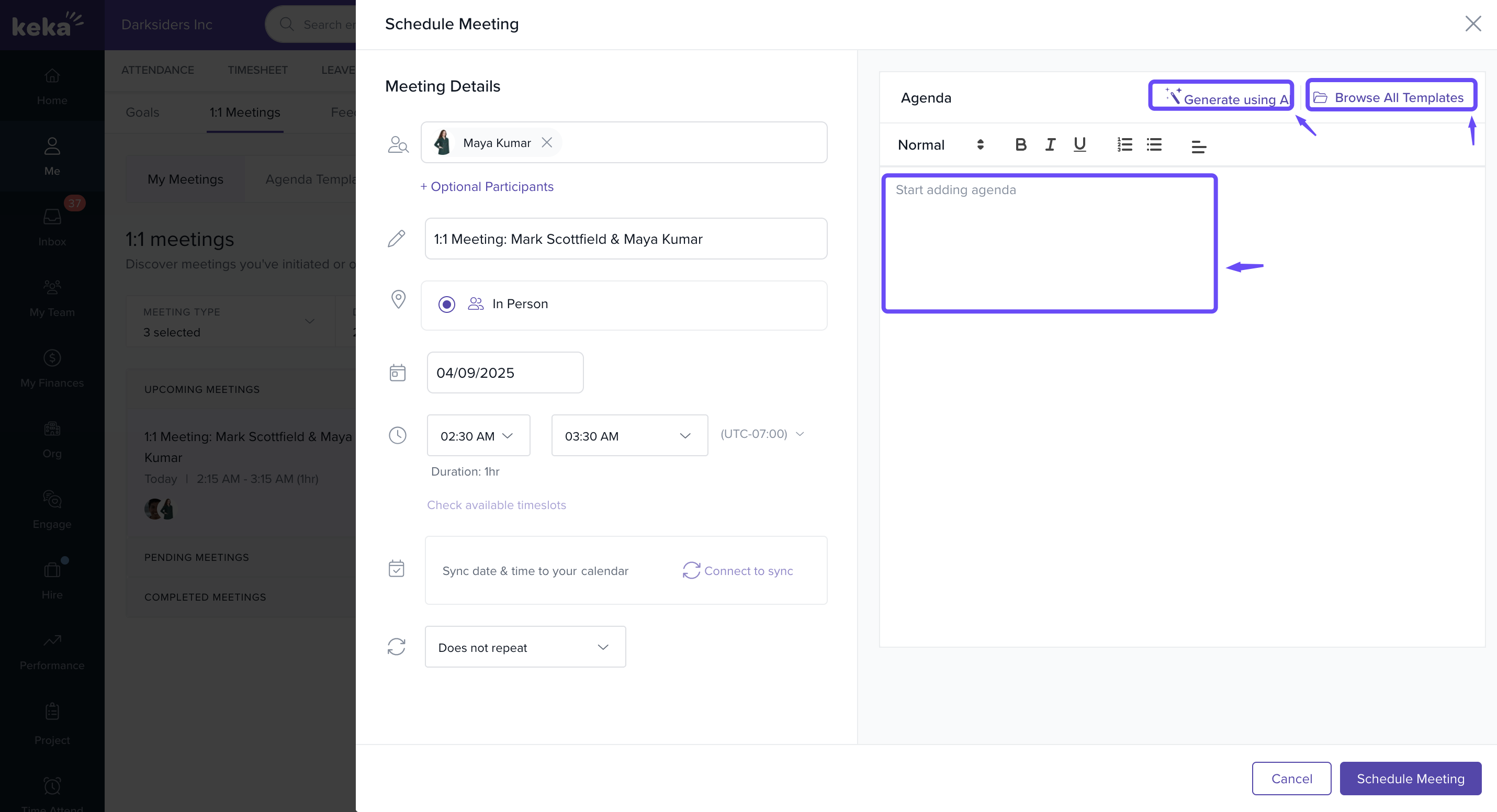
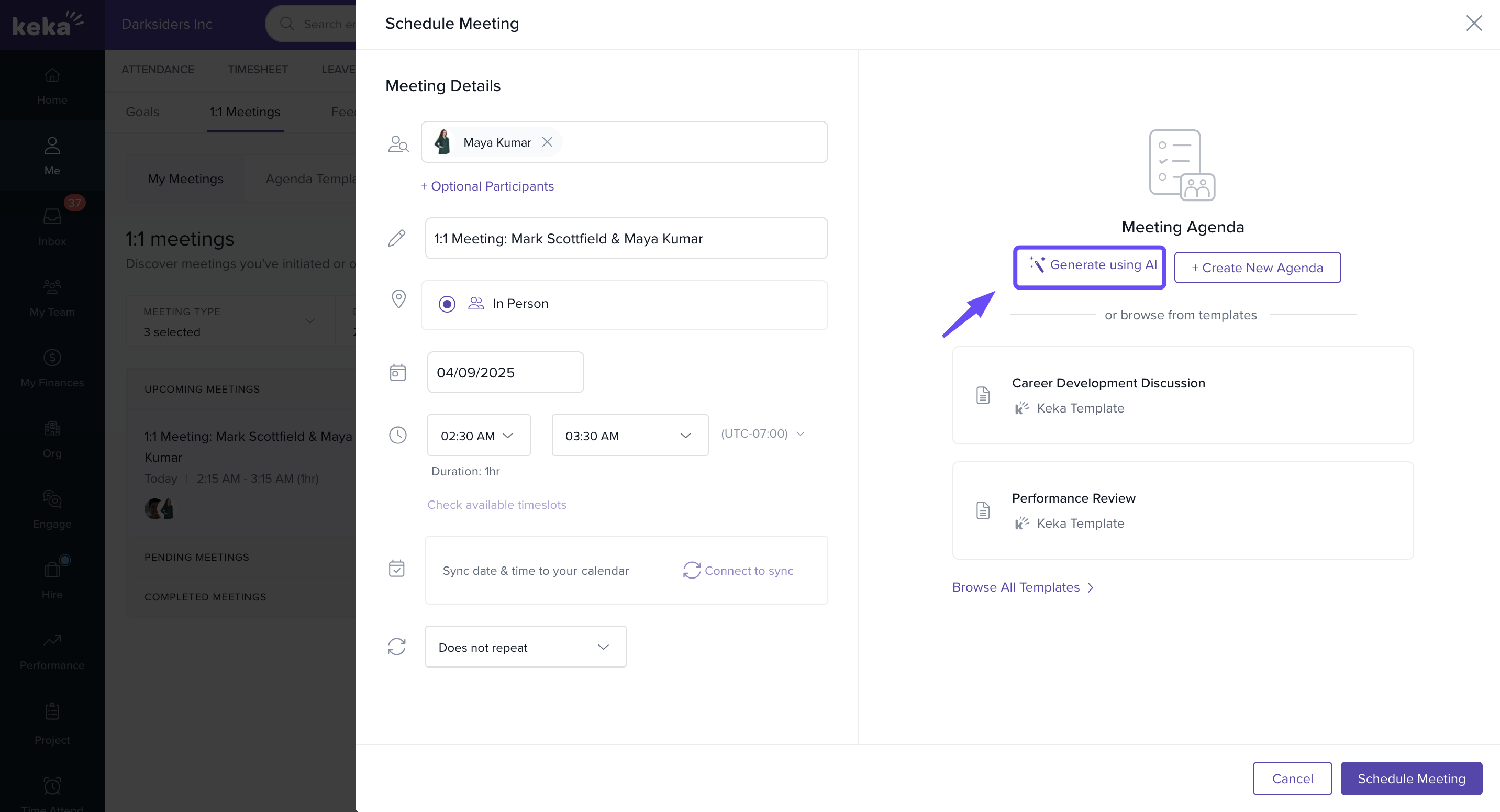
You can create your own meeting agenda, use the Generate using AI option to automatically generate agenda points, or browse all templates to select a predefined agenda.
-
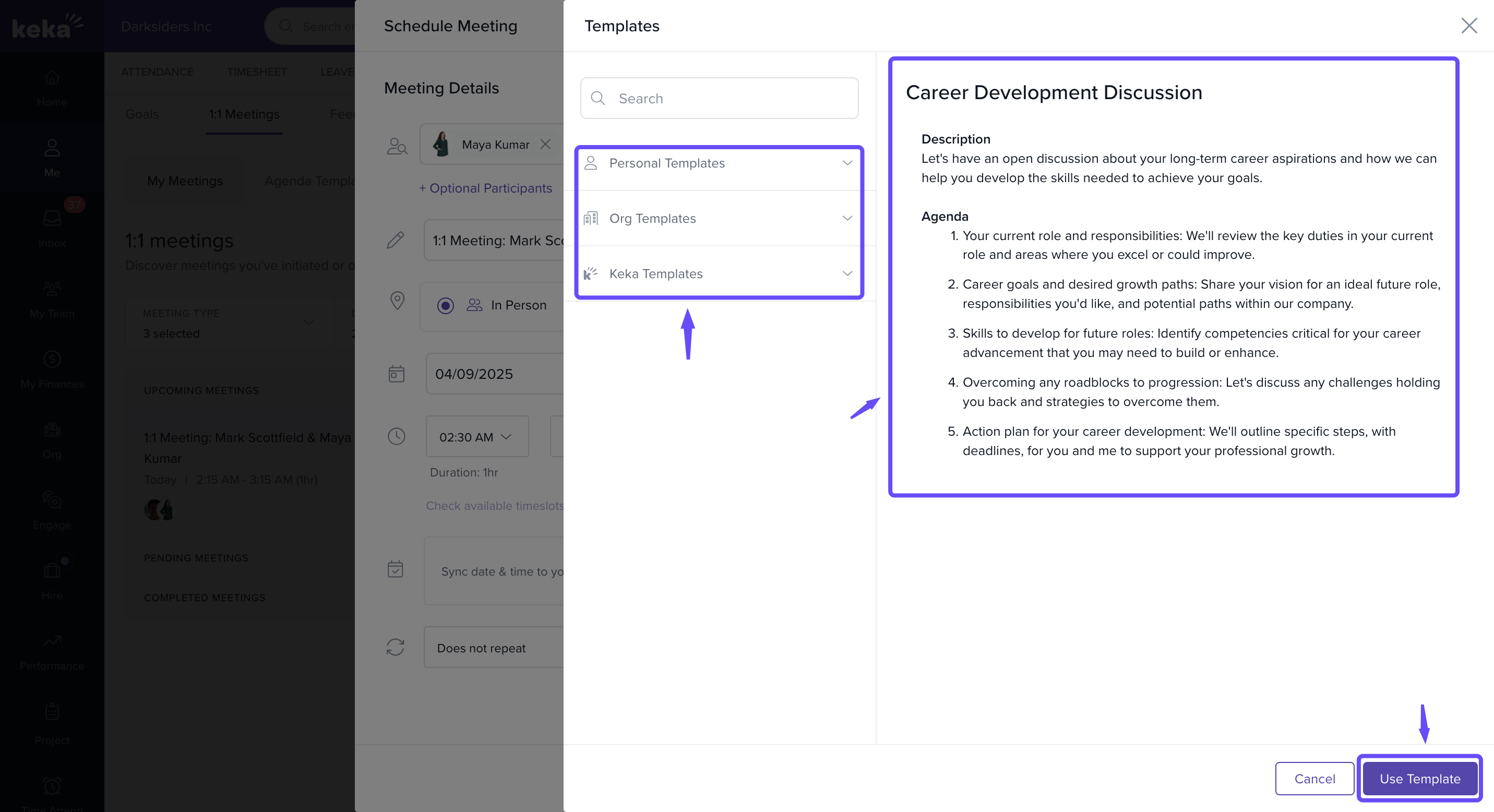
When you use Browse All Templates, you can choose from predefined agenda templates categorised as personal, organisation, or Keka templates—such as Performance Review or Career Development Discussion—which will automatically fill your agenda. Once you’ve made your selection, click Use Template to apply it.
Create Agenda Using AI
- If you prefer an automated approach, Keka provides the option to Generate Agenda Using AI. This feature uses artificial intelligence to create a comprehensive agenda based on your meeting title and purpose.
-
Simply click on the Generate using AI button, and Keka will suggest a tailored agenda for your meeting.
-
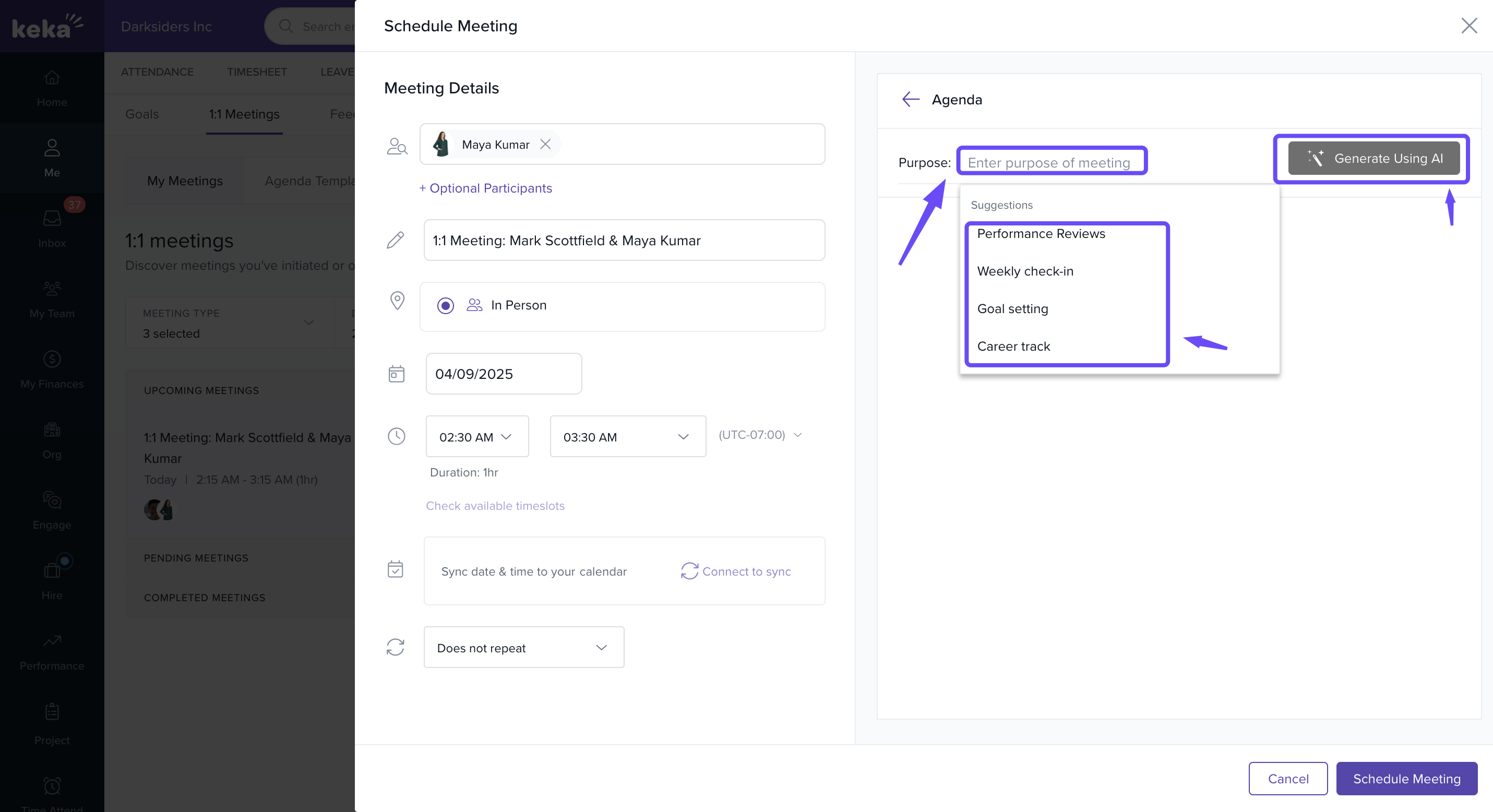
The AI-generated agenda will provide recommended discussion points tailored to your meeting’s purpose (such as Performance Review, Goal Setting, or Career Development). Choose the relevant purpose and click Generate Using AI again to update your agenda.
-
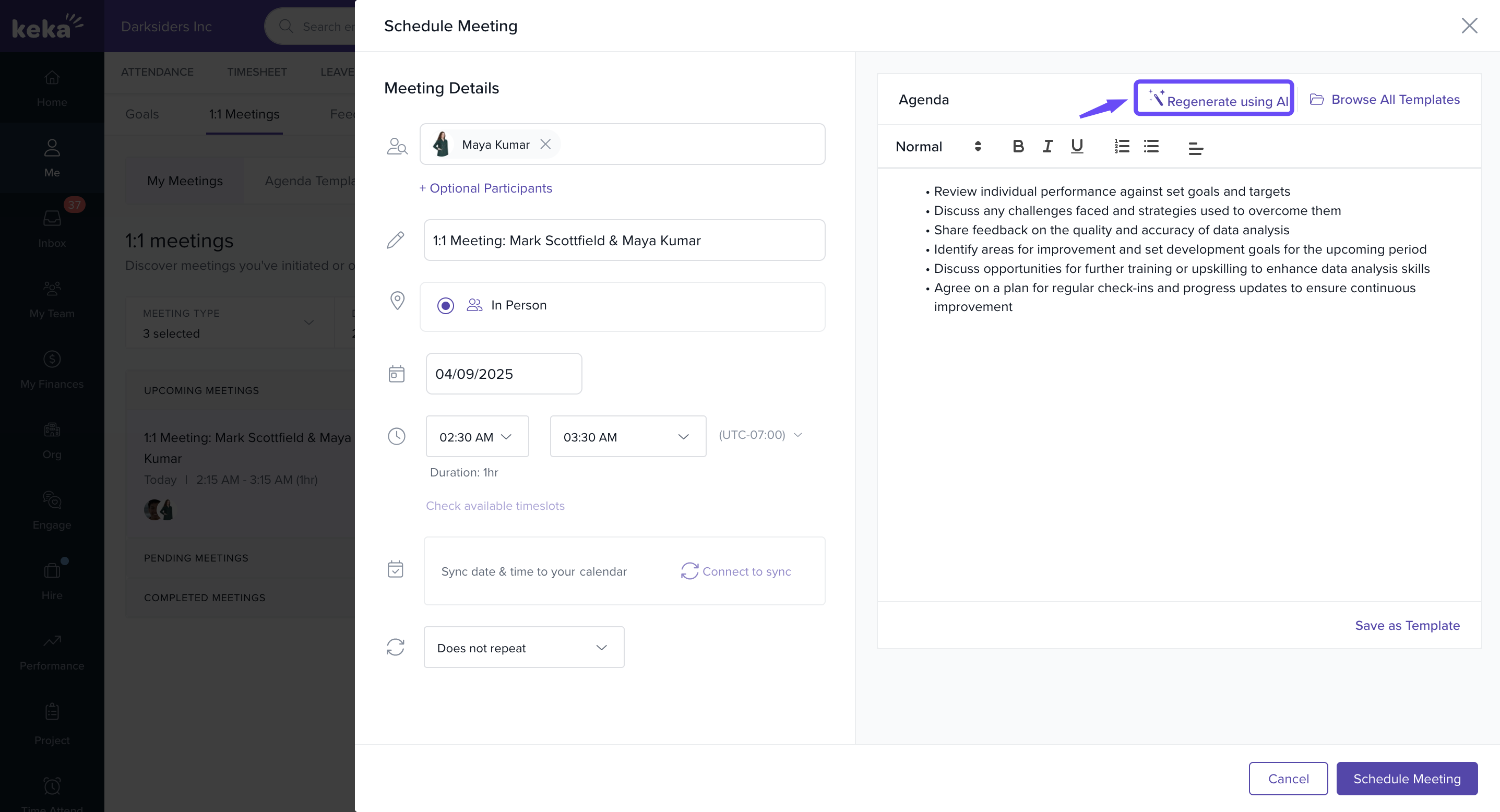
After your agenda is generated, you can customise it by adding, removing, or editing items to fit your meeting’s requirements. If you’re not satisfied with the suggestions, click Regenerate Using AI to create a new set of agenda points.
Add Action Items and Notes
-
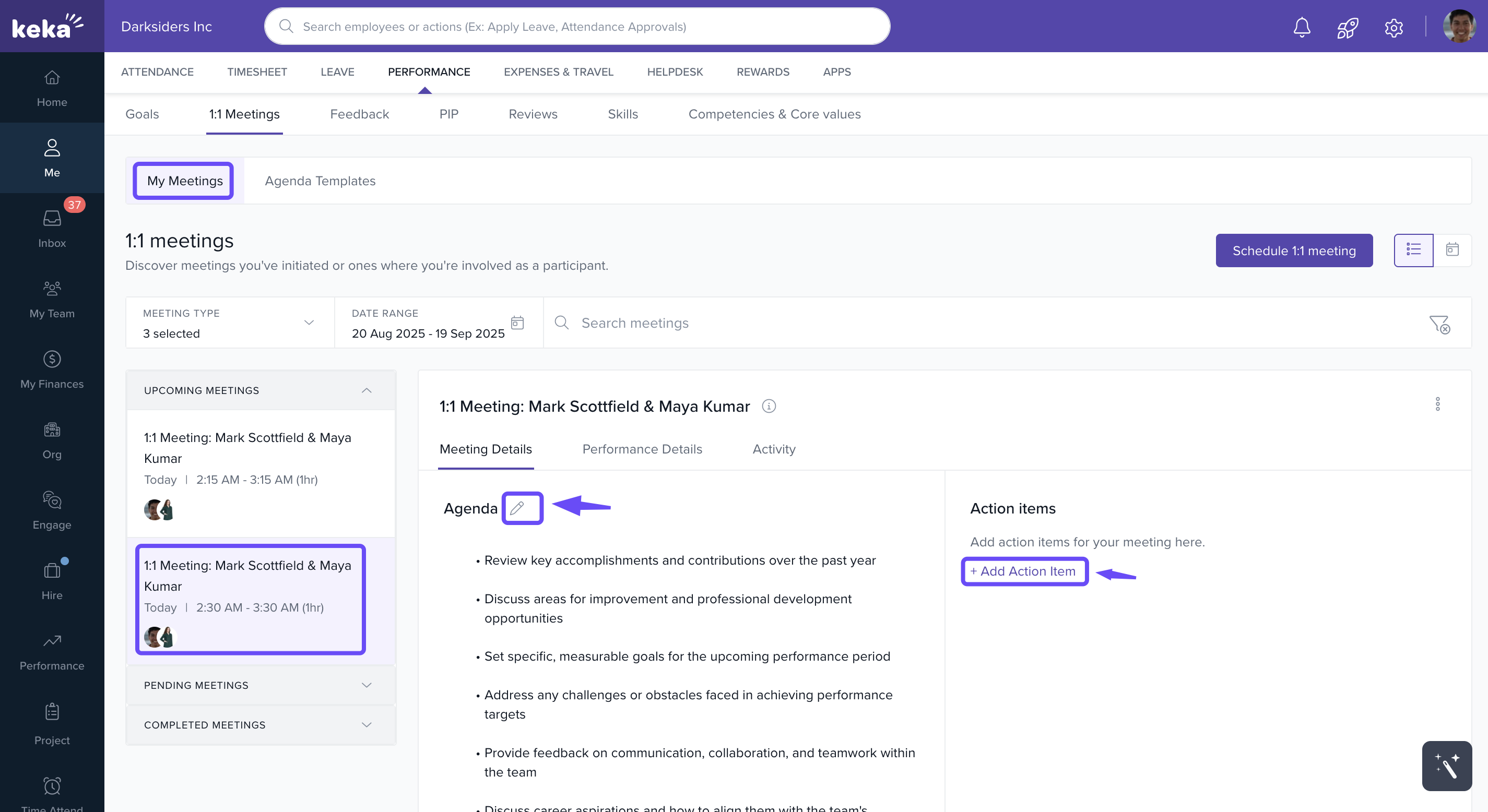
During or after the meeting, you can visit your scheduled meeting under My Meetings and click the pencil icon next to the agenda to make edits. You can also select + Add Action Item to document tasks or follow-up actions.
-
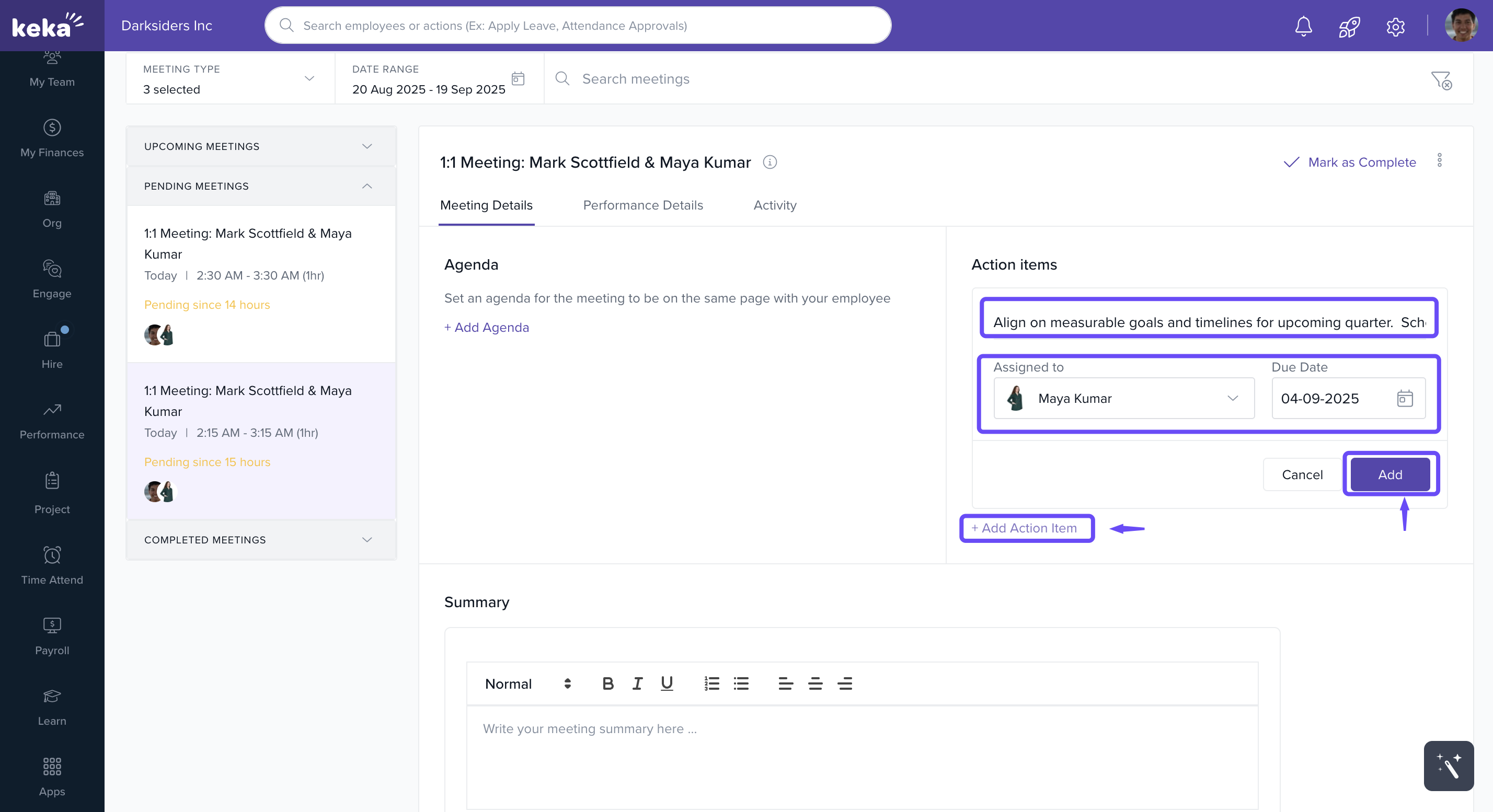
Add the necessary action items, assign them to the appropriate participants, and set a due date. Click Add to save each item. To include additional action items, click + Add Action Item as needed.
-
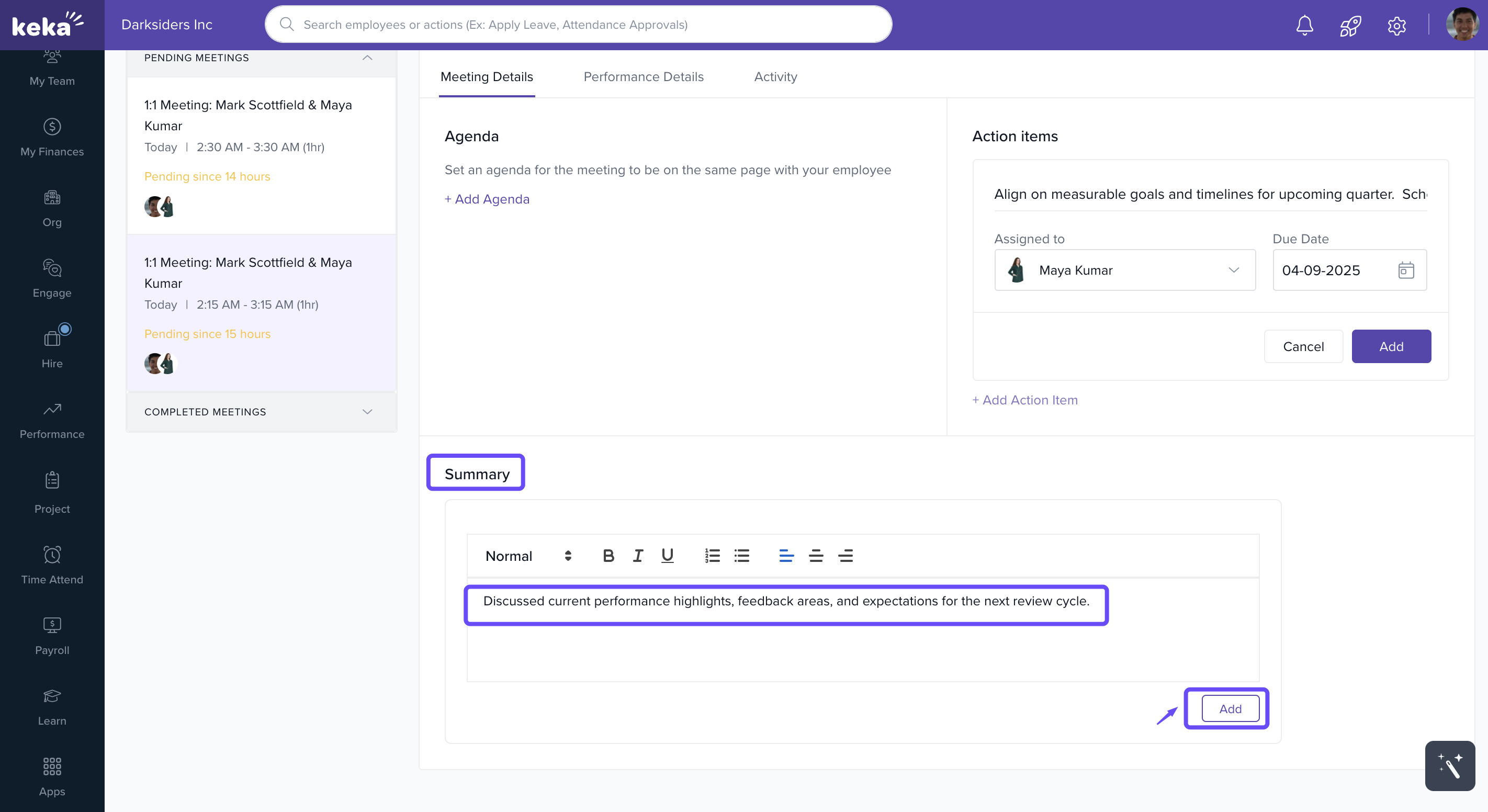
In the Summary section, capture key discussion points or outcomes from the meeting (for example, "Discussed current performance highlights, feedback areas, and next steps for the review cycle") and click Add to save your notes.
Save and Finalise the Meeting
After completing all the details, click Schedule Meeting to save and finalise the meeting.
Optionally, click Save as Template to store the meeting setup for future use.
Notes & Tips
Use predefined agenda templates to save time and ensure your meeting remains structured and on track.
Ensure each action item has a clear owner and due date for accountability and effective follow-up.
The AI-generated agenda feature helps you create a structured agenda quickly when unsure about the meeting’s structure.
Set recurring meetings to automate regular 1:1 sessions and avoid setting them up manually each time.
How This Helps
Streamlines the scheduling process, making 1:1 meetings quick and efficient to set up.
Improves communication and follow-ups by documenting agendas, action items, and meeting summaries.
Saves time by using templates and AI-generated agendas for faster meeting setup.
Supports employee growth and goal alignment through regular, structured 1:1 meetings.
By following this article, you’ll be able to seamlessly schedule and manage 1:1 meetings in Keka, ensuring consistent communication and goal tracking within your team.
Comments
0 comments
Please sign in to leave a comment.