Overview
In Keka, goals help organisations align employee objectives with department and company outcomes. The new AI Goal Generation feature allows you to create smart goals tailored to roles and departments without starting from scratch.
Using AI to generate role-based and department-specific goals.
Editing AI-suggested goals with metrics and details.
Publishing or saving goals as draft.
Regenerating new goal suggestions when needed.
Steps to generate goals using AI
Navigating to Goals Tab
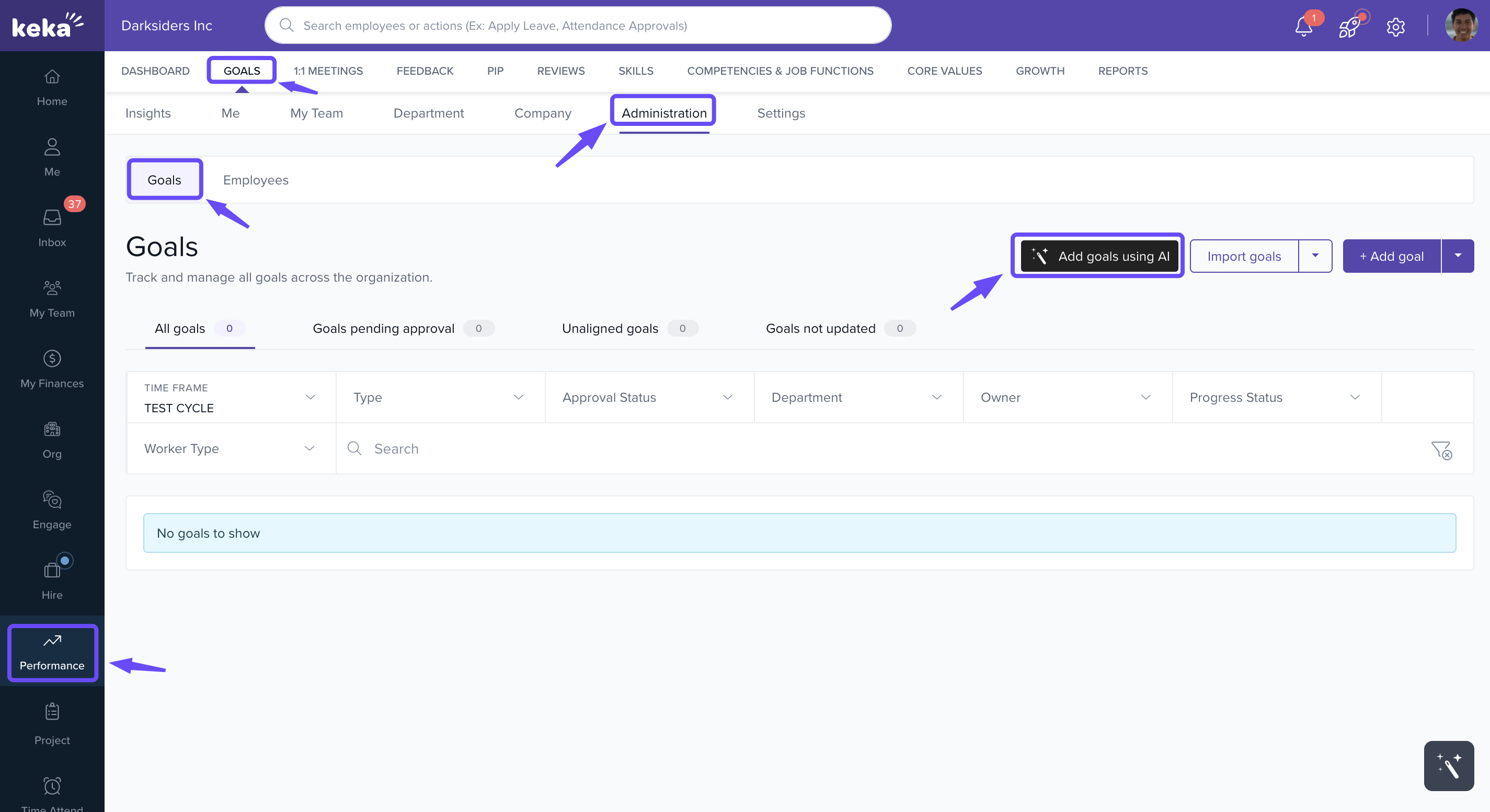
Go to Performance in the left menu.
Click Goals, then select Administration.
-
Go to Goals and click Add goals using AI.
Setting the Context
-
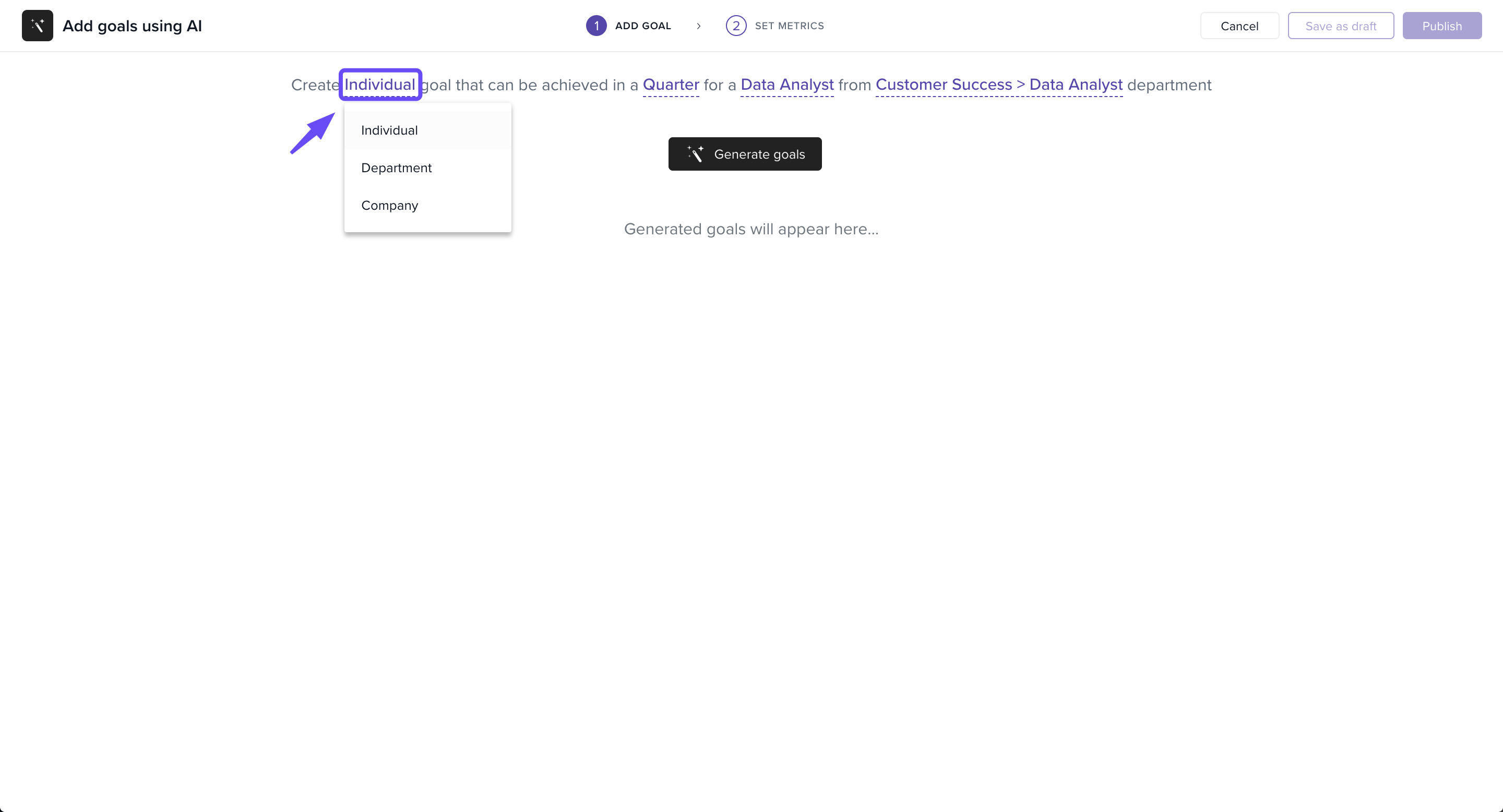
Select the type of the goal: Individual, Department, or Company.
-
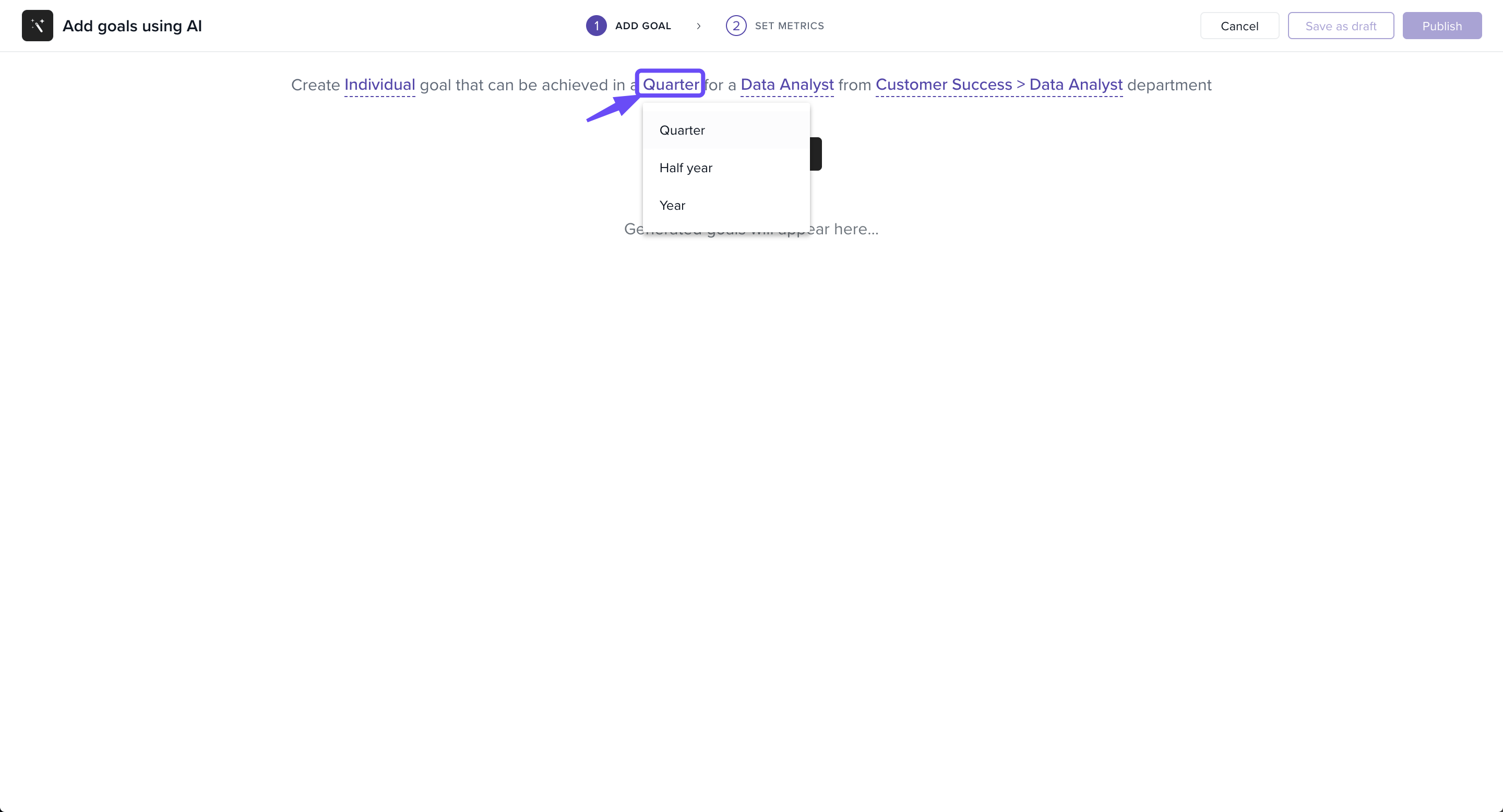
Choose the timeframe: Quarter, Half Year, or Year.
-
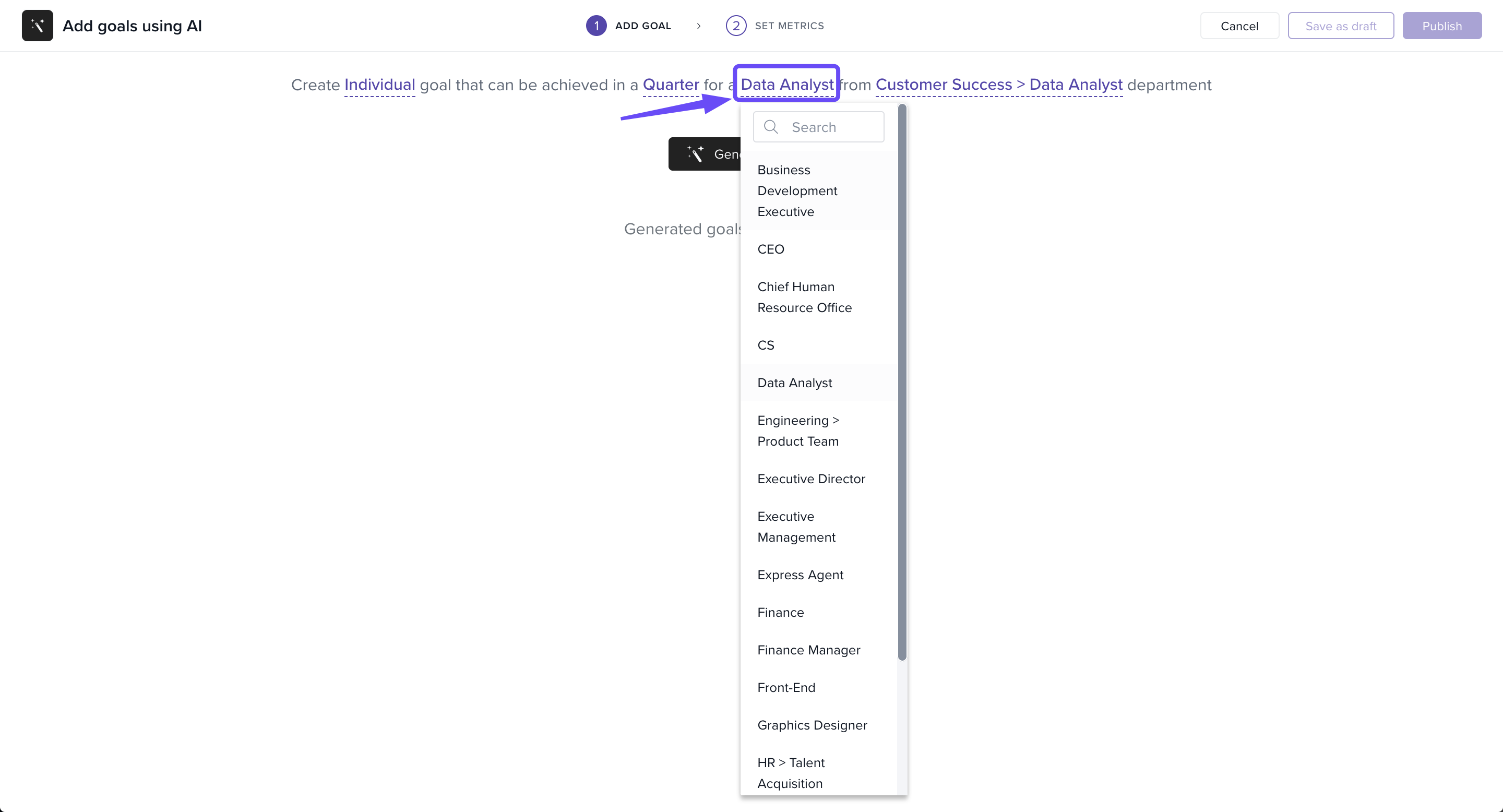
Select the role (e.g., Data Analyst, Finance Manager).
-
Pick the department (e.g., Customer Success, Engineering, HR ).
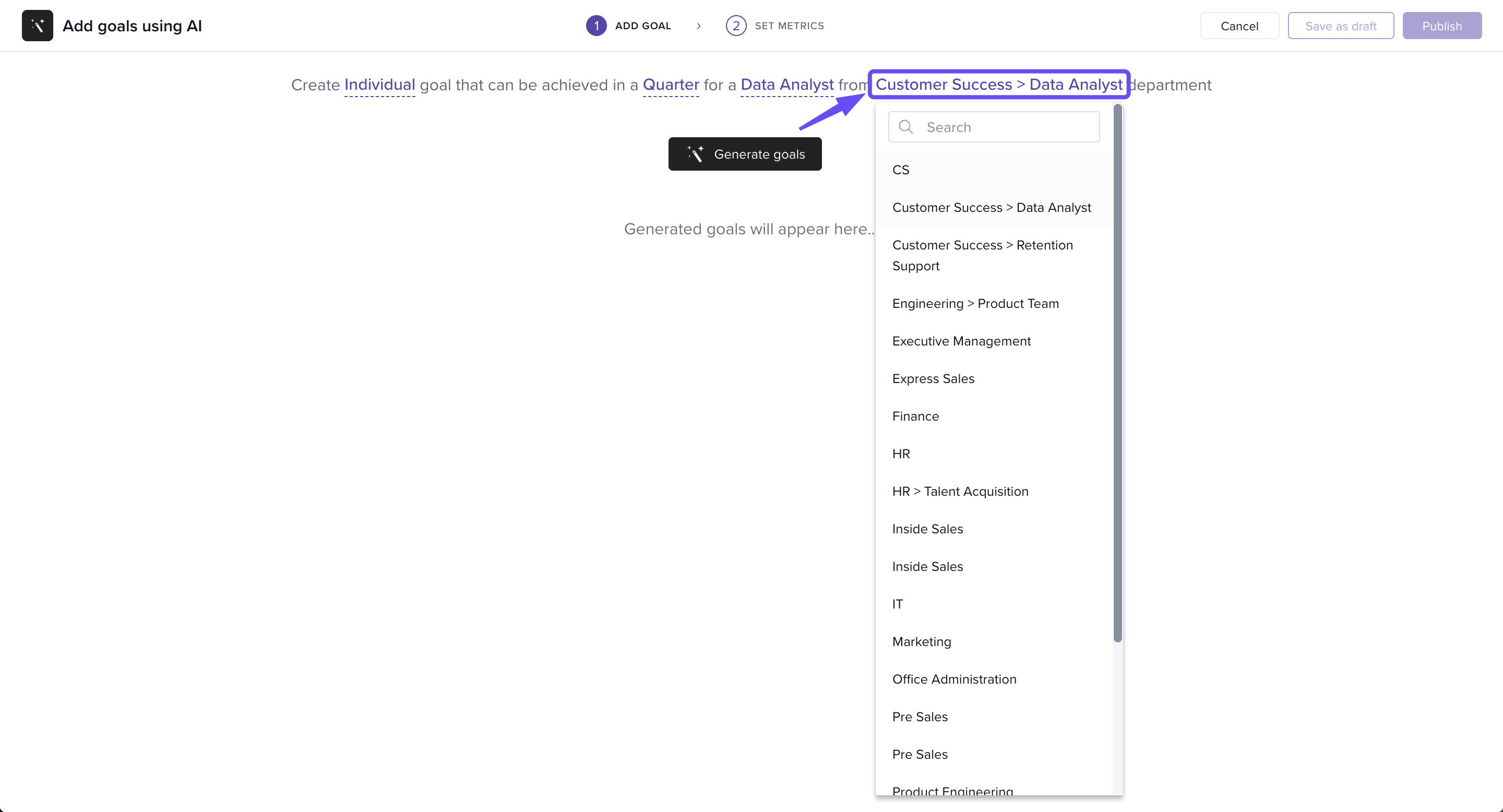
Generating AI Goals
-
Click Generate goals.
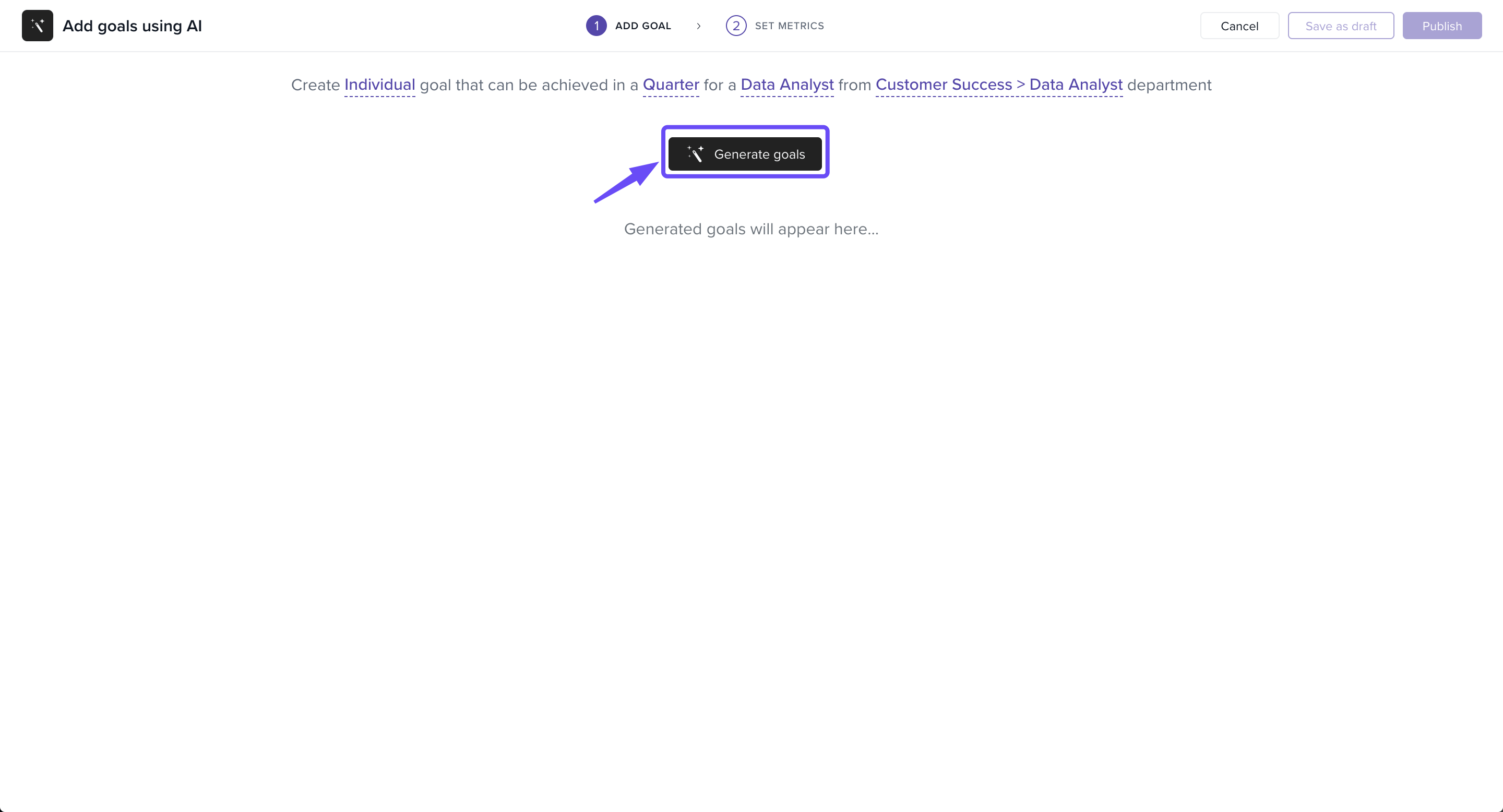
The system will display AI-suggested goals based on your selections.
-
Example suggestions:
Increase customer satisfaction score
Reduce response time for data analysis requests
Improve data accuracy
Selecting and Adding Goals
Check the boxes for the goals you want to use.
-
Click Add selected goal.
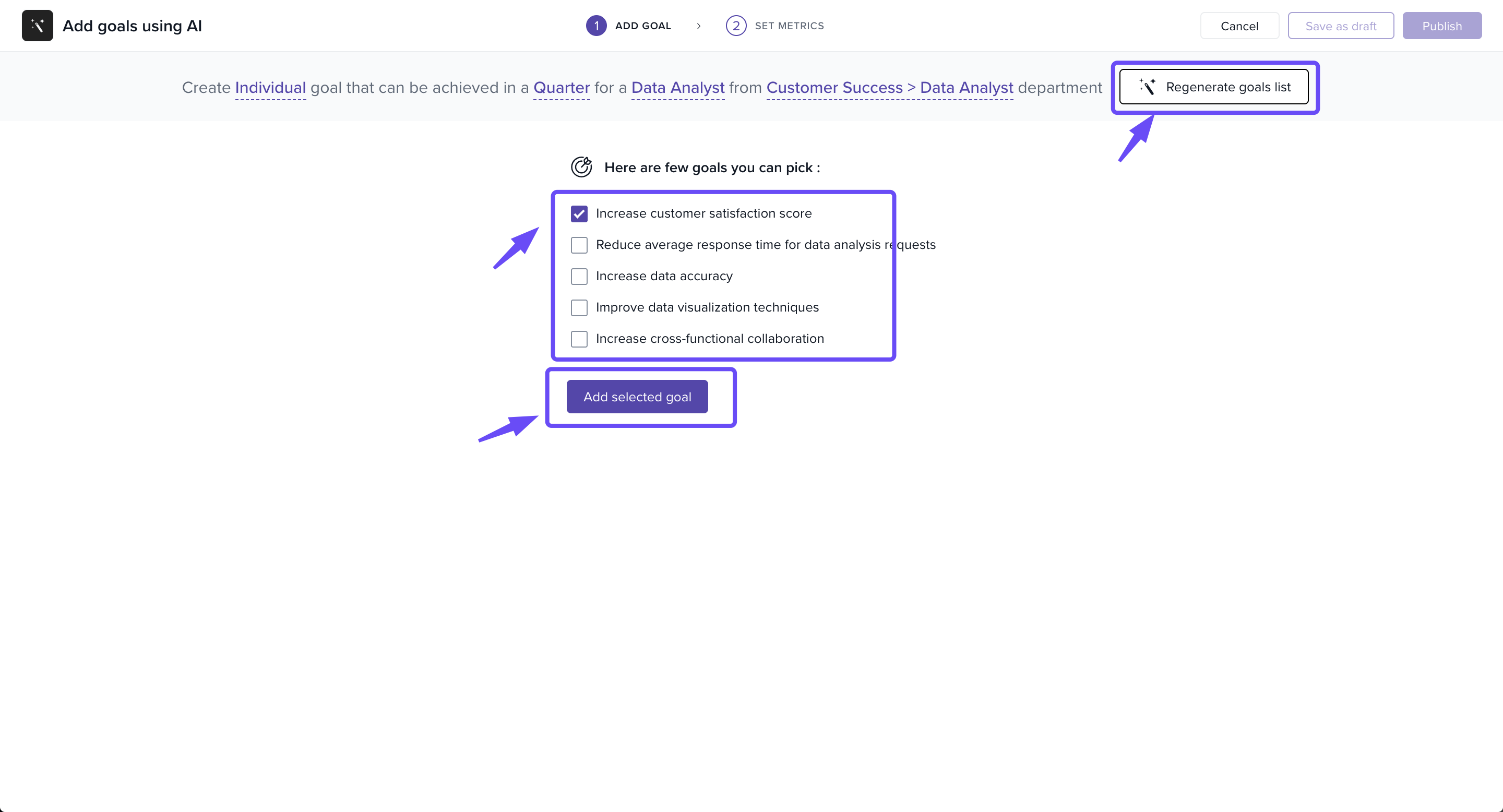
(Optional) Use Regenerate goals list to refresh with new ideas.
Defining Metrics and Details
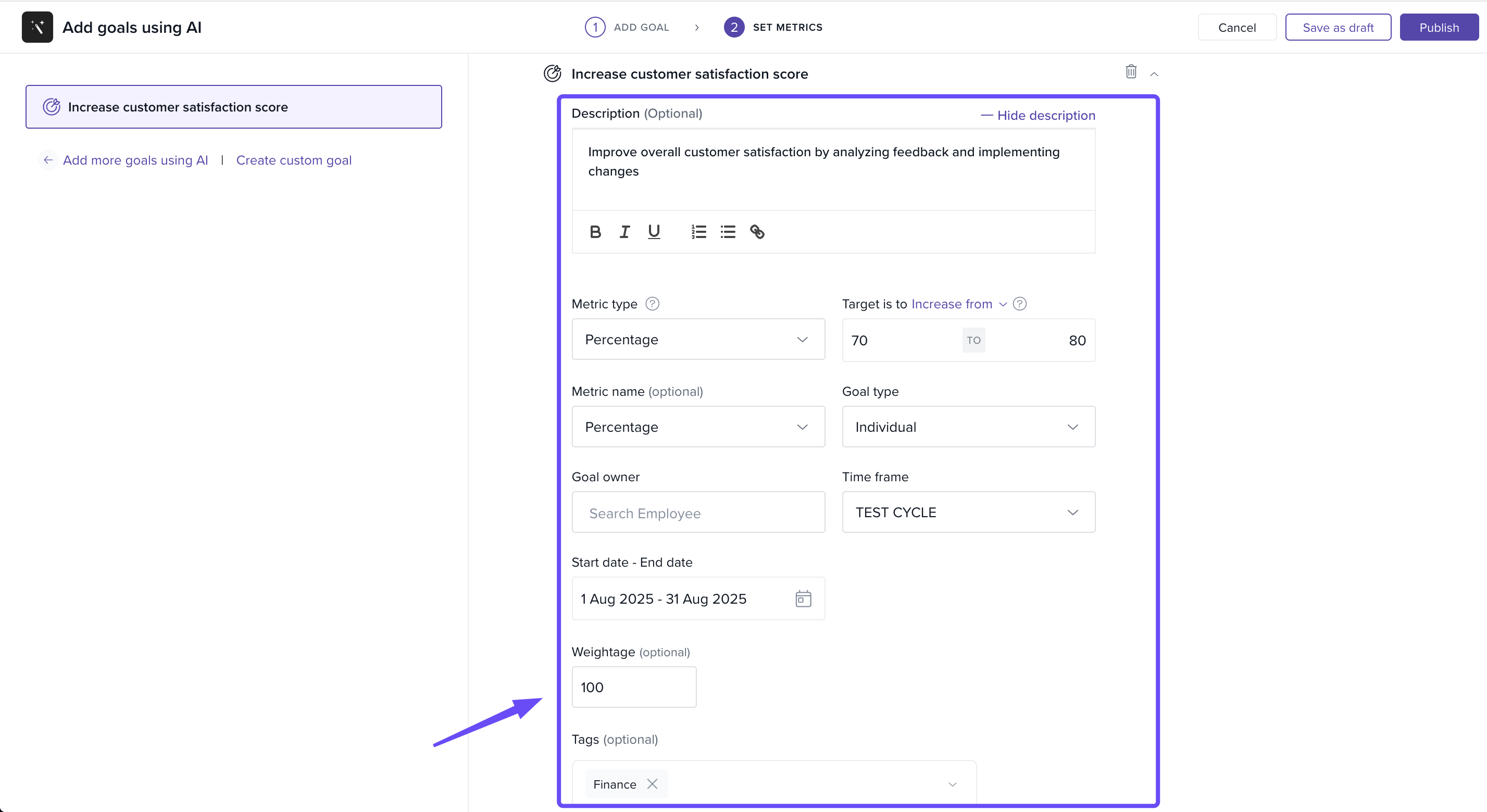
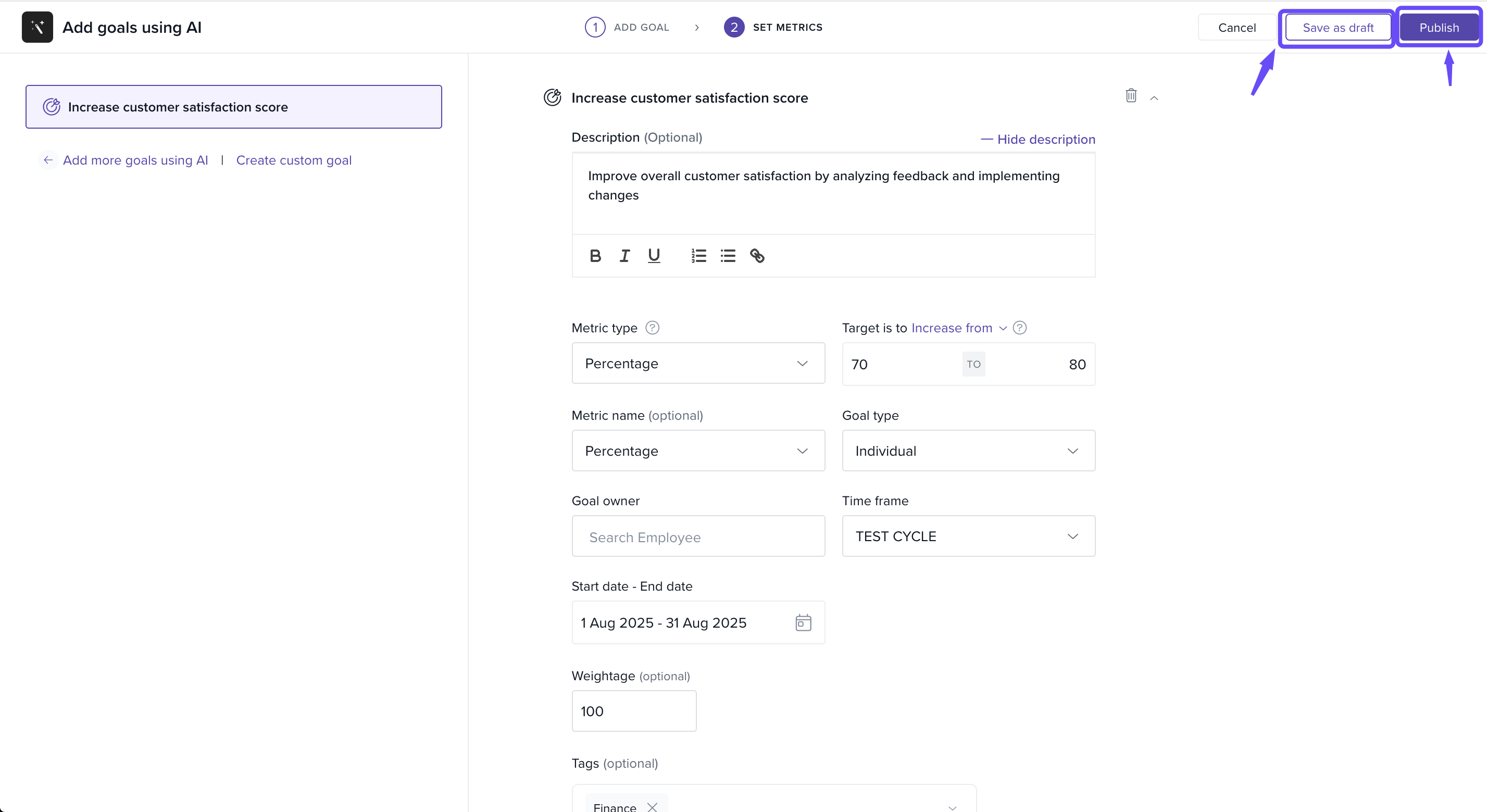
You can modify the goal to align with your preferences:
Add a goal description (optional).
Select a metric type (Percentage, Number, etc.).
Define the target range (e.g., 75% → 85%).
Choose the goal type: Individual or Team.
Assign a goal owner.
Set the timeframe and start/end dates.
-
Adjust weightage or add tags if required.
Setting Goal Visibility, Data Source, and Review Options
-
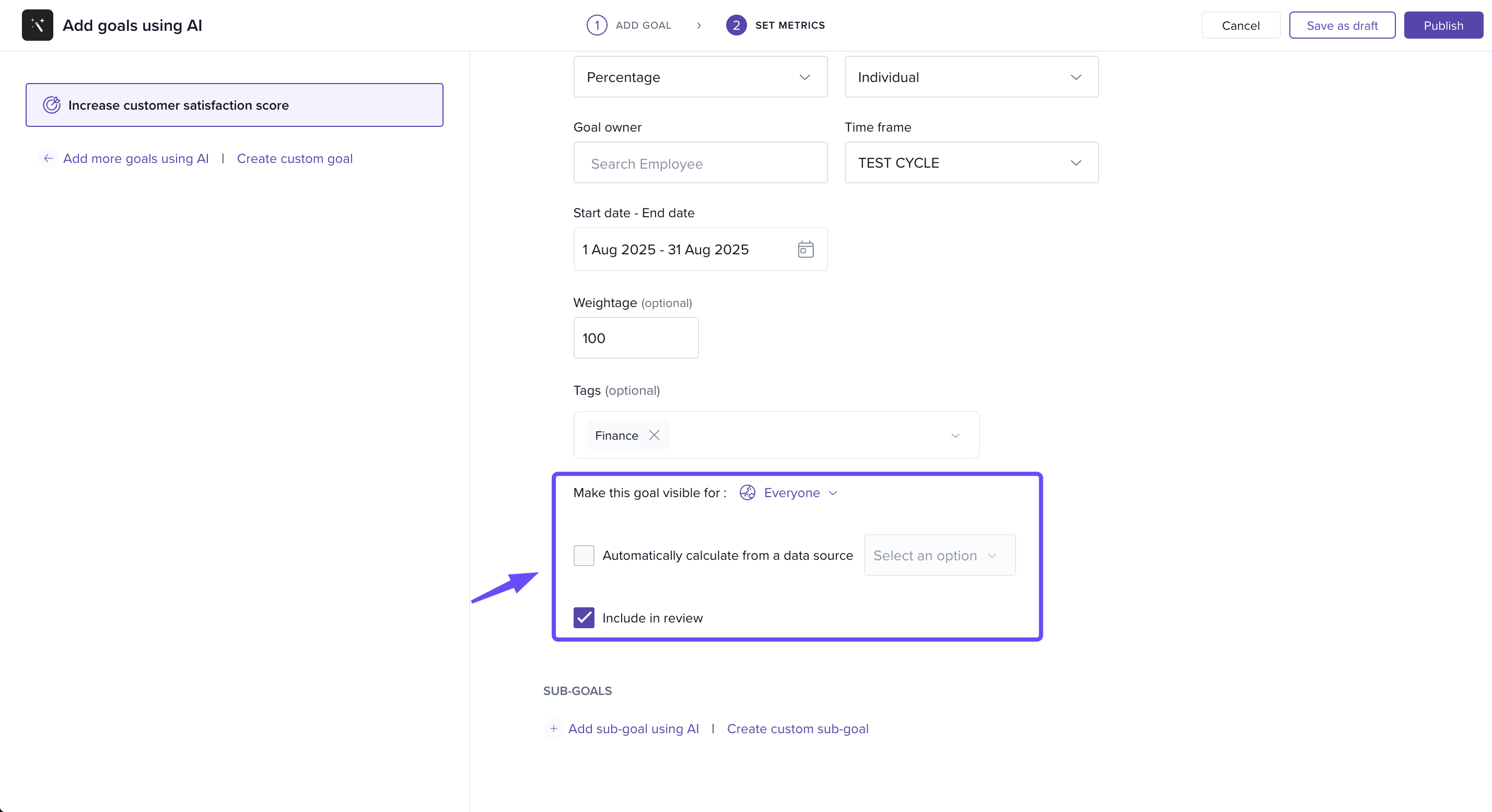
Make this goal visible for:
Select Everyone if you want the goal to be visible to all employees.
Choose specific visibility options if needed.
-
Automatically calculate from a data source:
Select this option if the goal needs to be automatically calculated based on data from a source (e.g., system or integration).
Choose Select an option to define the data source.
-
Include in review:
-
Tick this box if you want this goal to be included in performance reviews.
-
Adding Sub-Goals
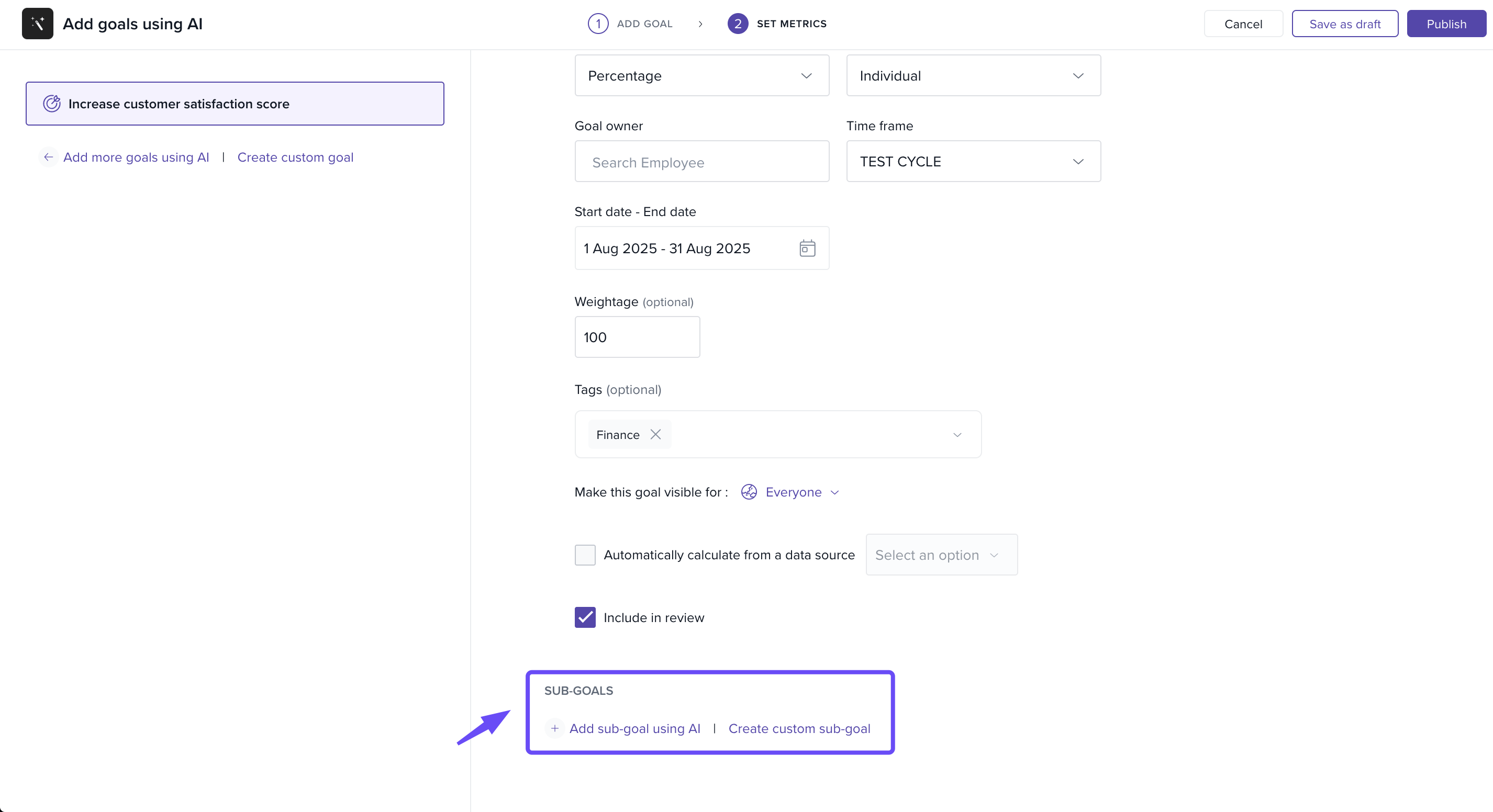
Scroll down to the Sub-Goals section.
Click Add sub-goal using AI or Create custom sub-goal to create sub-goals that are aligned with the parent goal.
Select the sub-goal type (e.g., Percentage, Number) and set metrics similar to the parent goal.
Define the goal description and timeframe for the sub-goal.
-
Adjust weightages and assign to the relevant employee.
Tip: You can regenerate AI goals multiple times until you find the right fit.
Important: Always review AI-suggested goals before publishing to ensure alignment with business priorities.
Creating Custom Goals
-
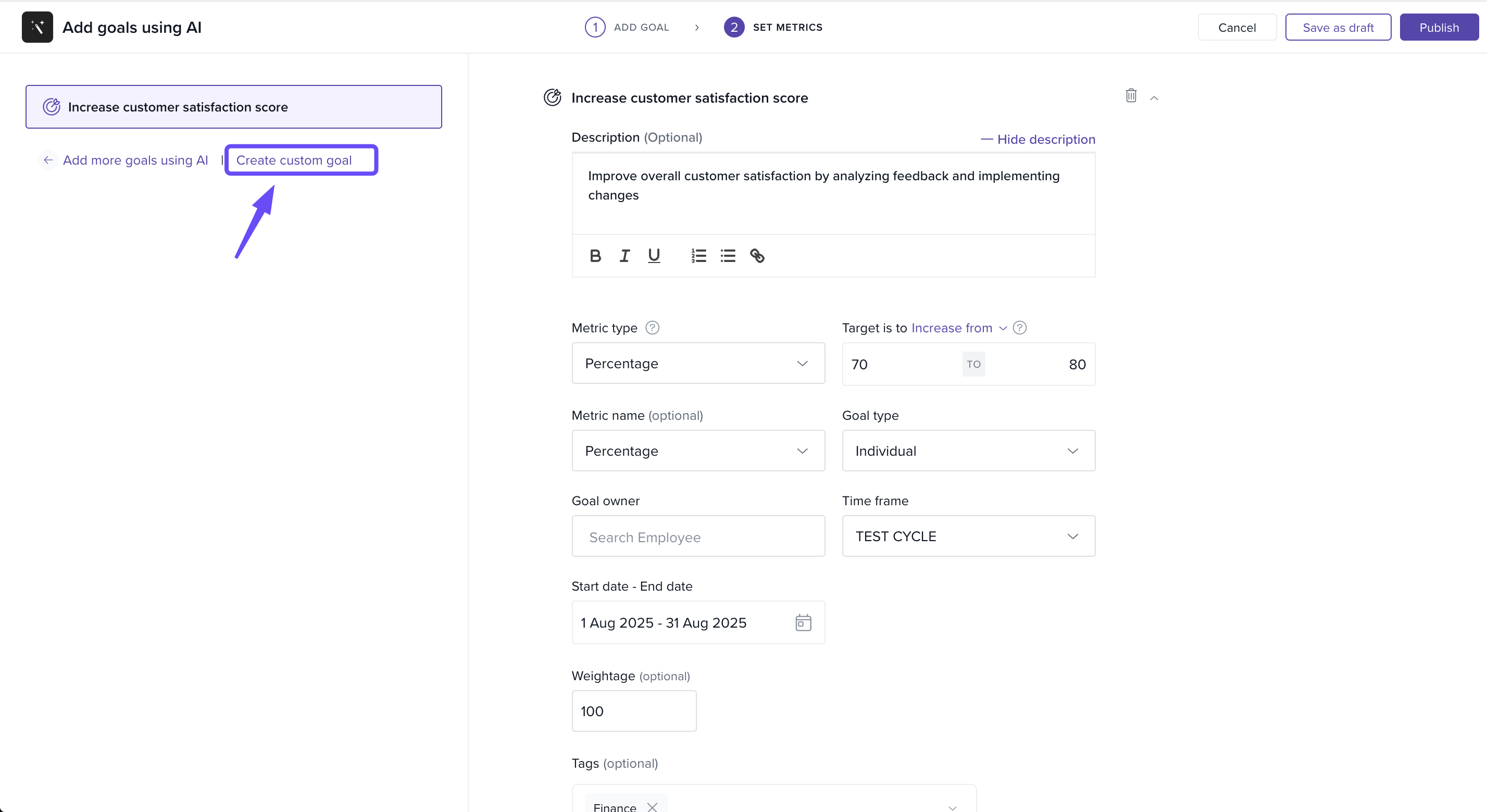
You can manually create a custom goal by adding a description, setting metrics, and defining target ranges, goal type, and owner. This option lets you fully tailor your goals beyond AI suggestions.
Adding More Goals Using AI
-
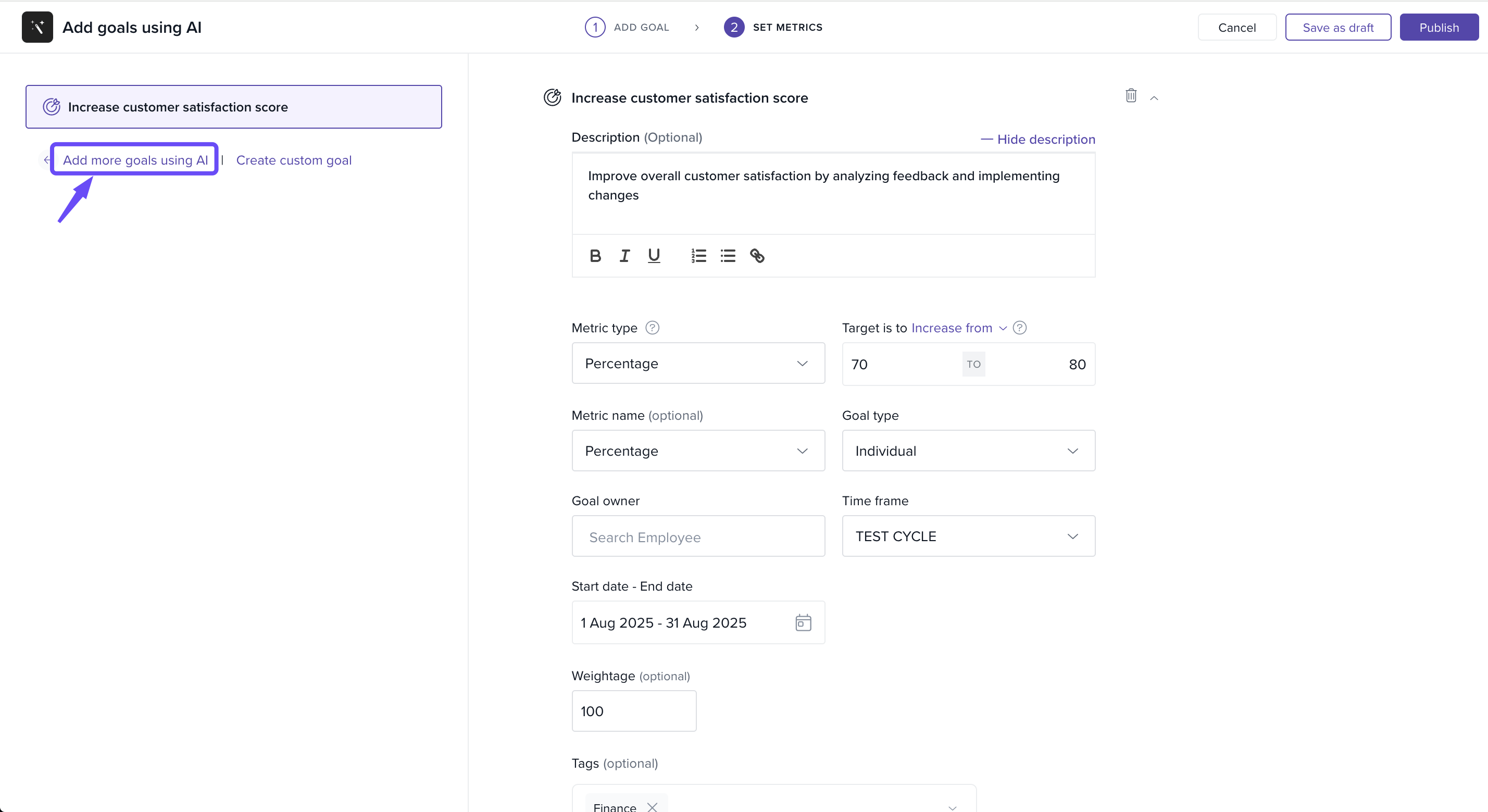
Click Add more goals using AI to go back to the Add Goal page and generate new AI-powered goal suggestions based on selected roles and departments, offering more flexibility in goal creation.
Publishing or Saving Draft
Click Publish to activate the goal.
-
Or select Save as draft to finalise later.
Troubleshooting
-
Symptom: No goals appear after clicking Generate
Cause: Role or department not selected
Fix: Select both fields before generating goals
-
Symptom: Goals look repetitive
Cause: AI generated similar suggestions for the role
Fix: Click Regenerate goals list for a fresh set
This feature ensures employee goals are smarter, measurable, and aligned with organisational priorities.
Comments
0 comments
Please sign in to leave a comment.