When an employee leaves your organization, it’s important to close out all dues and deductions accurately to prevent pending payments on either side. The Full and Final Settlement (F&F) feature in Keka HR simplifies this process, ensuring every financial aspect of an employee’s exit is handled smoothly.
This guide walks you through the F&F process step by step — from accessing the exit record to finalising and confirming settlements.
1. Access the Exit Process
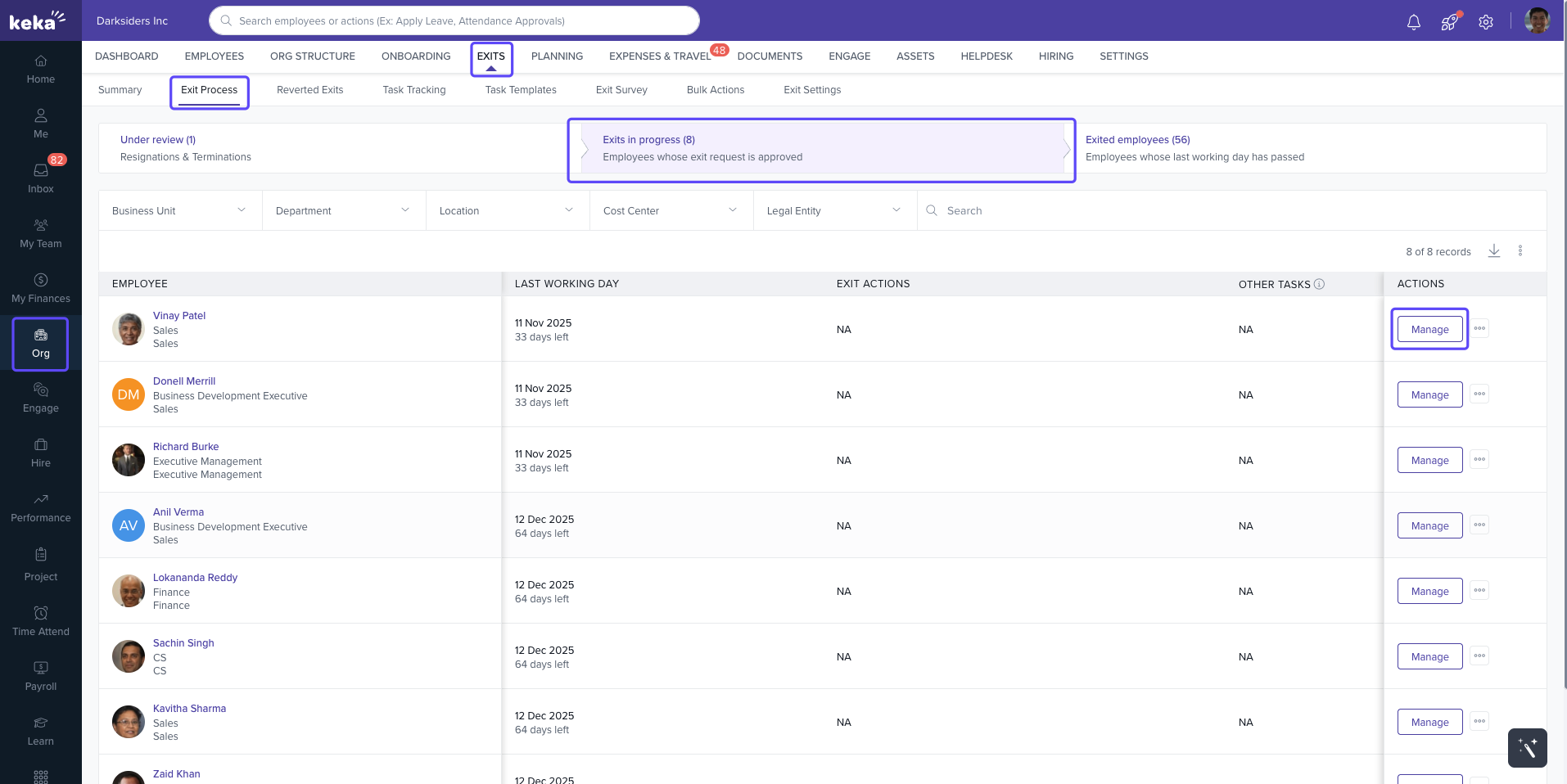
Navigate to Org from the left menu.
Select the Exits tab.
Go to Exit Process, and then open Exits in Progress.
Here, you’ll see a list of all employees whose resignations have been accepted.
In the Actions column next to the employee’s name, click Manage.
2. Open the Finances Section
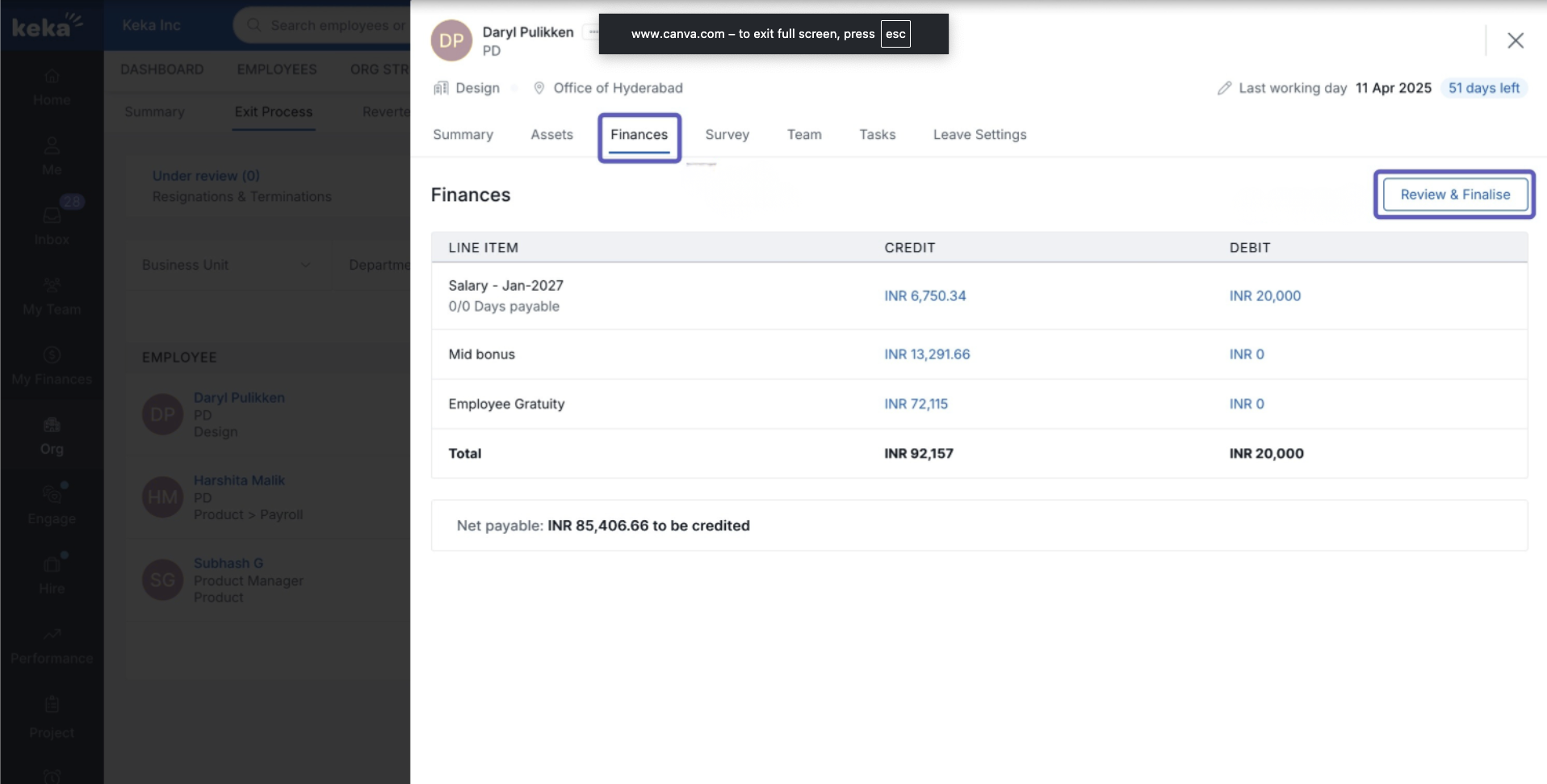
In the side panel, select Finances.
Before you continue:
Ensure all other exit sections are complete and no pending tasks remain.
-
Confirm that the employee’s Payroll has been processed and locked.
Important: Payroll must be locked for the settlement to proceed smoothly.
Once verified, click Review & Finalise to begin.
3. Review Payable Components
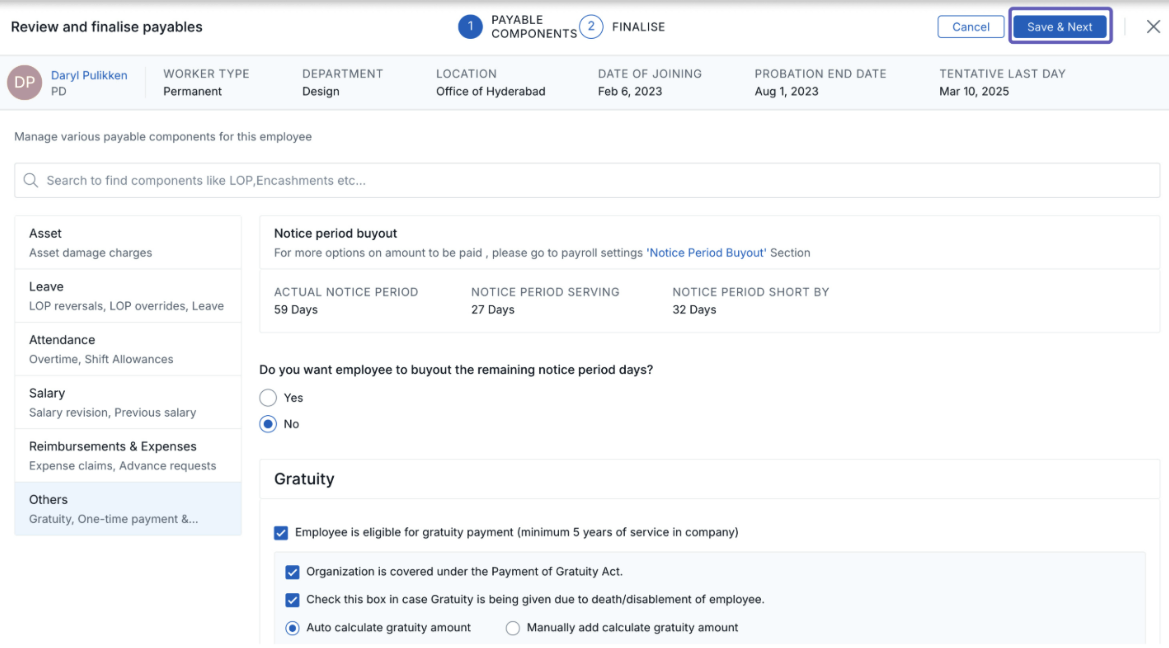
The Review & Finalise Payables window lists all financial components included in the settlement. Each section helps you verify or adjust amounts before finalisation.
| Category | Description |
|---|---|
| Asset | Review any asset damage charges and their status. |
| Leave | Review LOP reversals, Overrides, Arrear LOP, and Leave Encashments. Choose an Encashment Policy or override the system calculation. Use the Pay Action dropdown to select Pay or Void. |
| Attendance | Shows Overtime and Shift Allowances due. |
| Salary | Includes Salary Arrears, Revisions, and Bonuses (earned or due). |
| Reimbursements & Expenses | Displays Component Claims, Expense Claims, Advance Requests, Pending Receipts, and Advance Settlements. |
| Others | Covers Notice Period Buyouts, Gratuity, Loans, One-Time Payments, and Tax or Contribution Overrides. |
After verifying all details, click Save & Next.
4. Finalise the Settlement
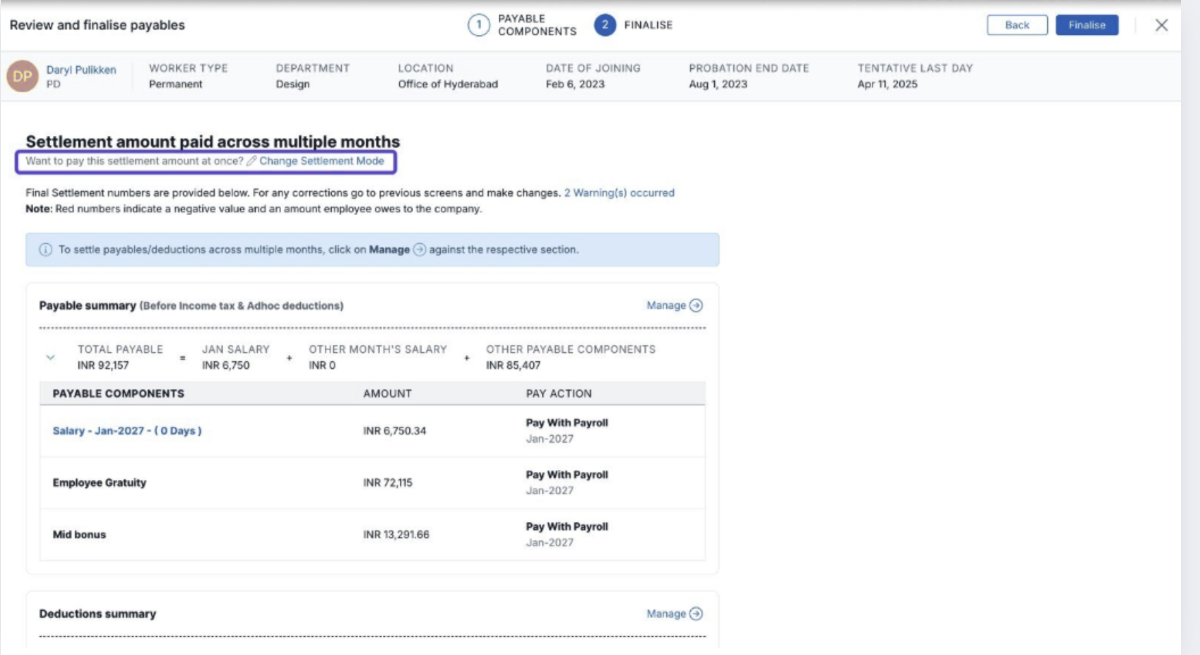
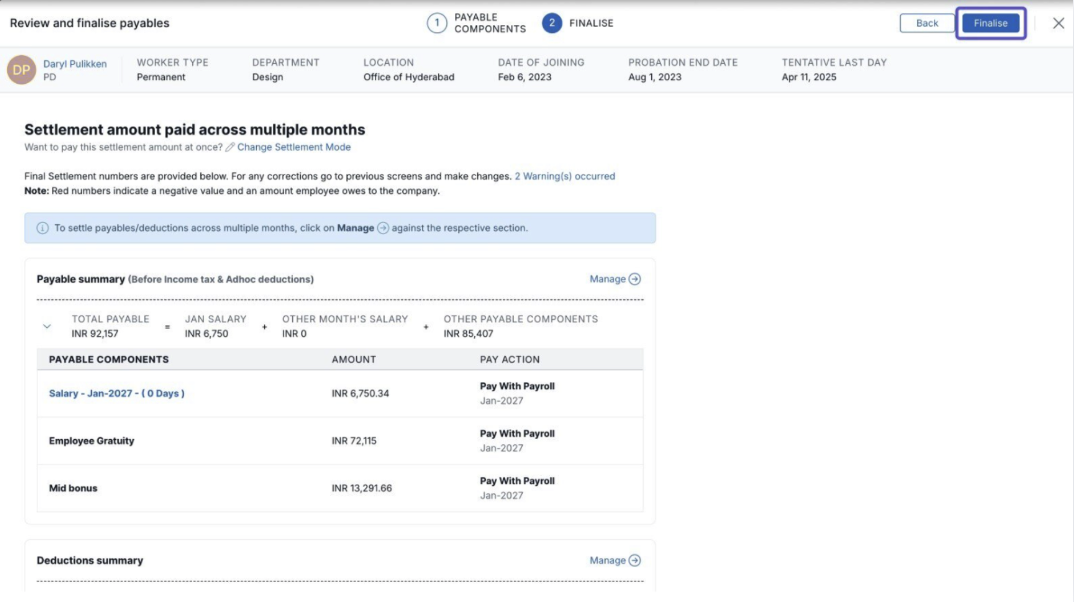
The Finalise step allows you to choose between a One-Time Complete Settlement or a Periodic Partial Settlement.
Option 1: One-Time Complete Settlement
-
Click Change Settlement Mode → choose One-Time Complete Settlement.
-
Confirm your choice by clicking Yes, Continue.
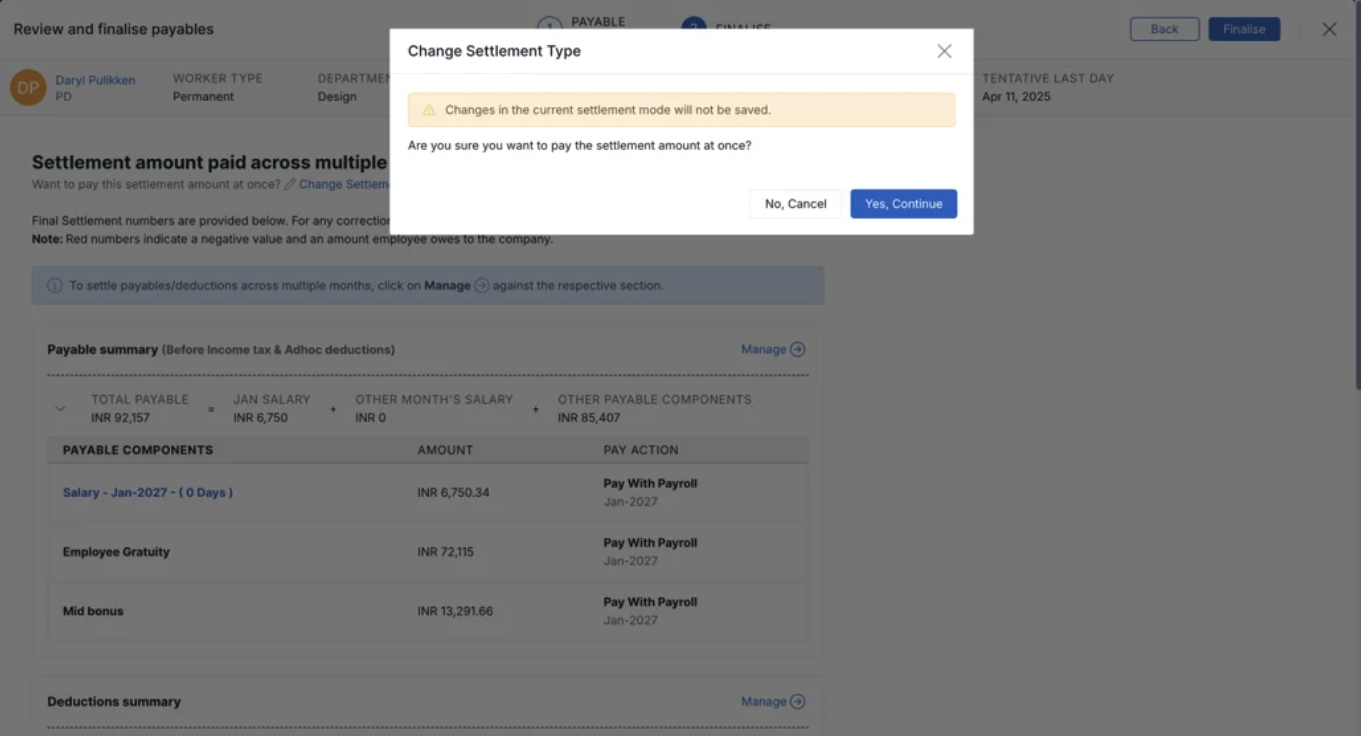
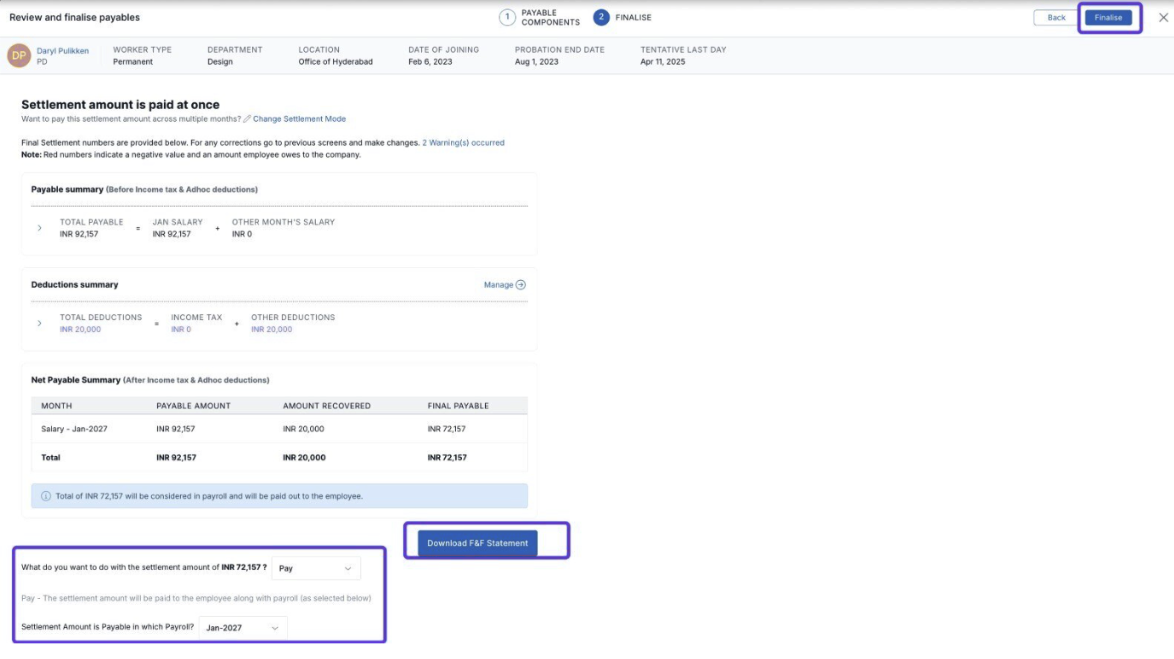
Review the settlement summary.
Click Download F&F Statement to get the full calculation.
-
From the Settlement Status dropdown, select one of the following:
Pay it
Void it
Already Paid
If you choose Pay it, select the Settlement Month.
Click Finalise, then Confirm to complete the settlement.
Option 2: Periodic Partial Settlement
If you prefer to distribute settlements over multiple months:
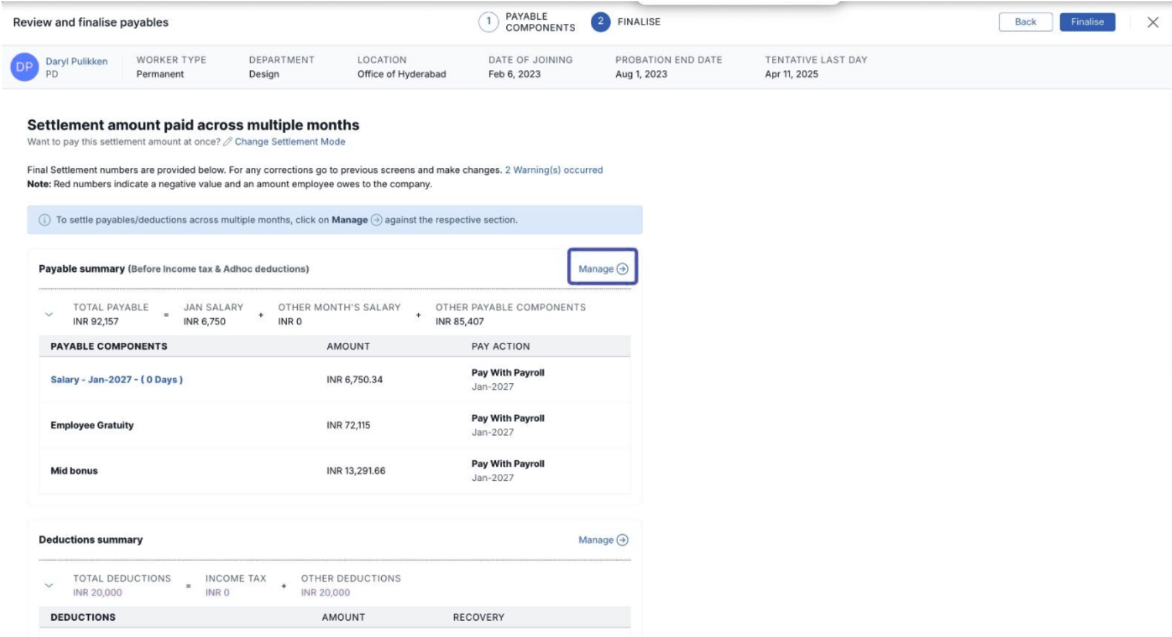
Click Change Settlement Mode → select Periodic Partial Settlement.
-
Click Manage next to each section to handle separately.
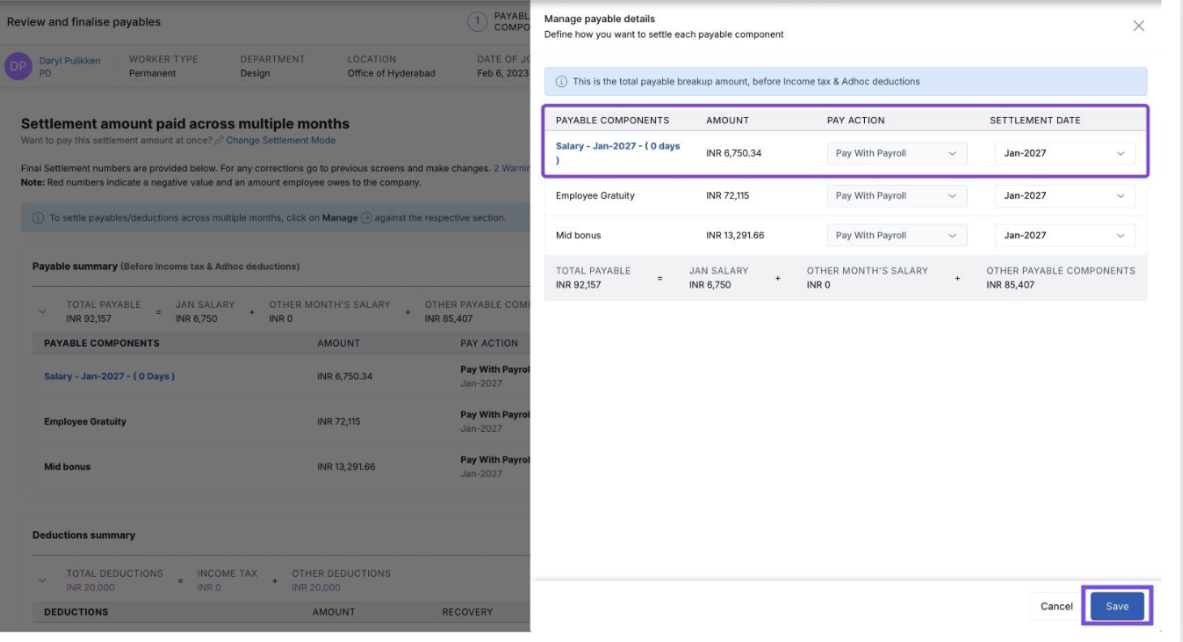
Choose a Settlement Status — Pay it, Void it, or Already Paid.
-
If paying, select the Settlement Month, then click Save.
-
After reviewing all sections, click Finalise, then Confirm.
Notes & Tips
Changes will be updated only after clicking Save.
Always ensure payroll is processed and locked before starting the F&F process.
You can return to the F&F section later to modify any details or change the settlement month after finalisation.
Next Steps
Once you’ve finalised the settlement:
Download and store the F&F Statement for your records.
If adjustments are required later, revisit the Finances tab to edit or reprocess the settlement.
Comments
0 comments
Please sign in to leave a comment.