Resignations and terminations are the two primary ways in which employees exit an organization. In Keka HR, you can configure various settings to streamline and automate these exit processes. By setting up policies and rules for resignation and termination, you ensure that the process aligns with your organization’s needs and compliance requirements.
This article covers how to manage resignation and termination settings, as well as configure exit reasons and review procedures to ensure smooth employee exits.
Managing resignation settings
Resignation settings determine how employees can resign from the organization and what the approval process will look like when a resignation request is raised. To manage the resignation settings, follow these steps:
Navigate to Org from the left navigation pane.
Select the Exits tab.
Go to the Exit Settings tab.
-
In the Resignation & Termination section, you can view the currently configured settings. To modify the resignation settings, click on the Edit Settings button.
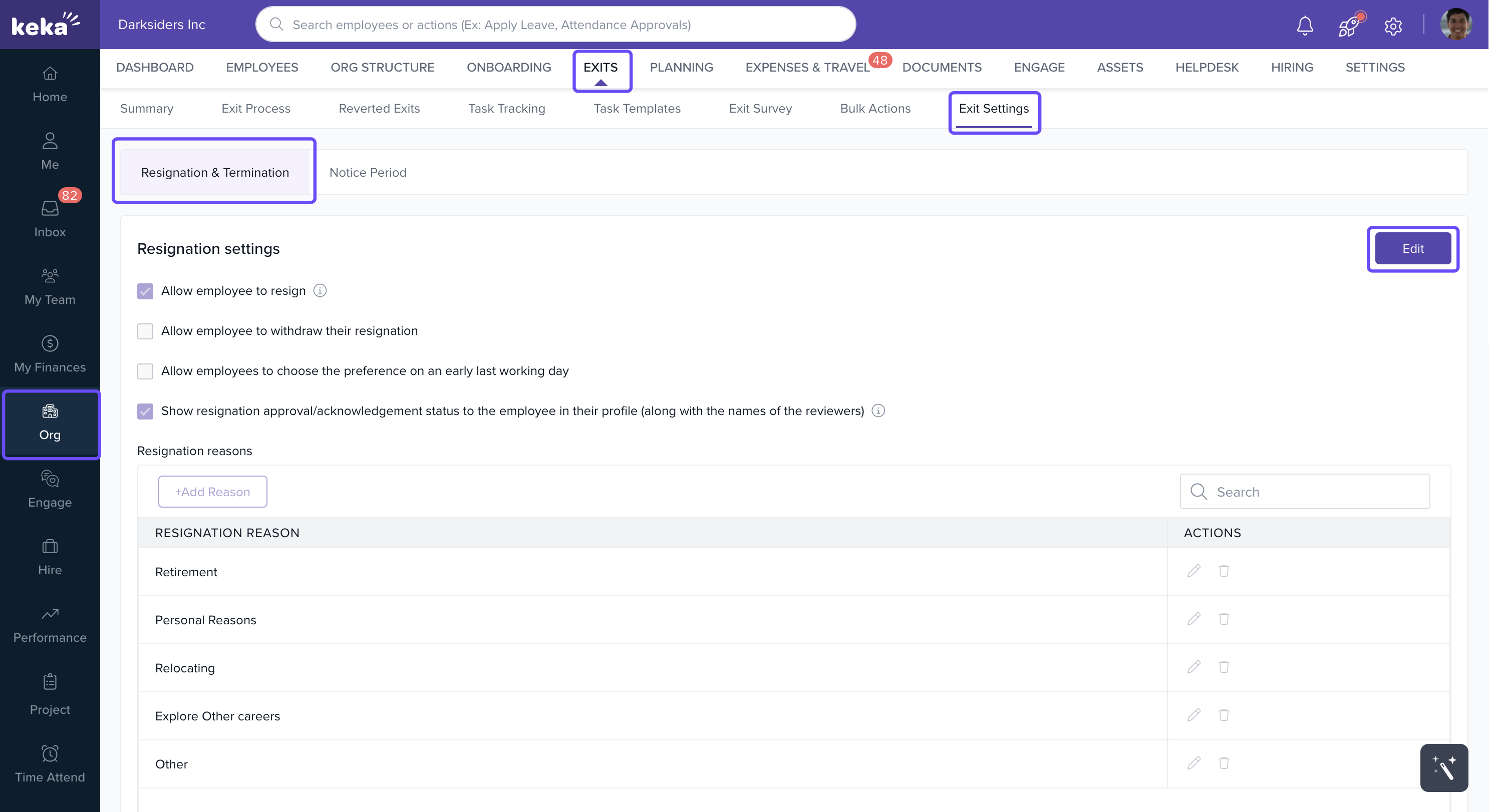
Here, HR admins can configure the following resignation options:
Allow employees to resign: Allows employees to initiate the resignation process from their dashboard.
Allow withdrawal of resignation: Enables employees to cancel their resignation request before approval.
Allow preference on early last working day: Lets employees request an earlier last working day than the standard notice period.
Show approval status to employees: Displays the resignation status and reviewer names in the employee’s profile.
These settings help HR teams manage resignation requests efficiently and ensure that the process aligns with the organization's policies.
Resignation reasons and review settings
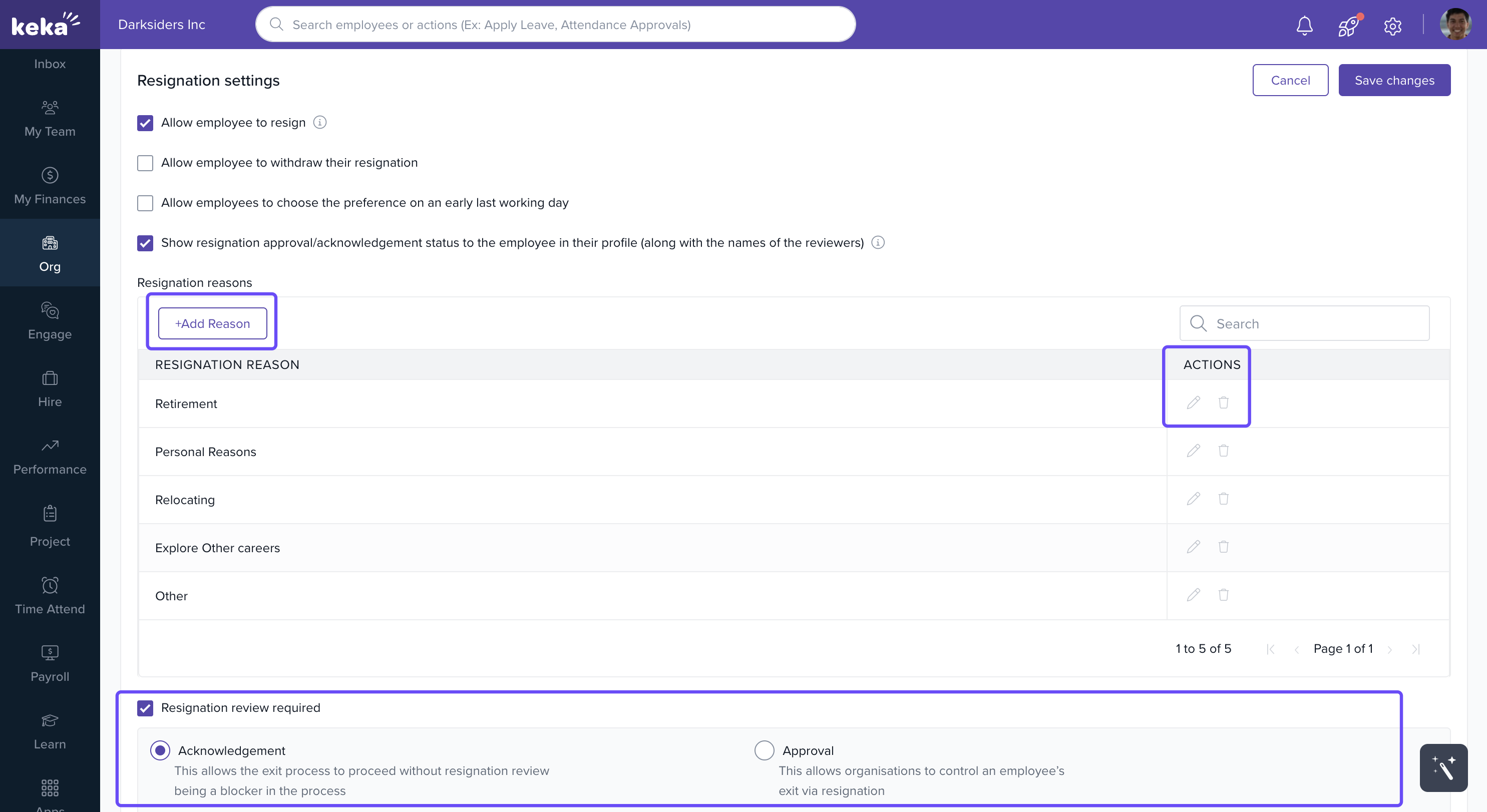
In addition to general resignation settings, you can configure the reasons for resignation and review processes. Here’s how to manage them:
Manage Resignation Reasons
Add a Reason: Click on the + Add Reason button to add a new resignation reason.
Edit a Reason: Click the pencil icon next to an existing reason to modify it.
Delete a Reason: Click the bin icon to delete an existing reason.
Resignation Review Required
Acknowledgement: If enabled, the resignation will proceed without requiring approval from the manager or any other stakeholder.
Approval: If enabled, the resignation requires manager approval before the exit process is initiated.
These settings allow you to control whether a resignation requires managerial approval and ensure that the exit process follows the appropriate review procedures.
Managing termination settings
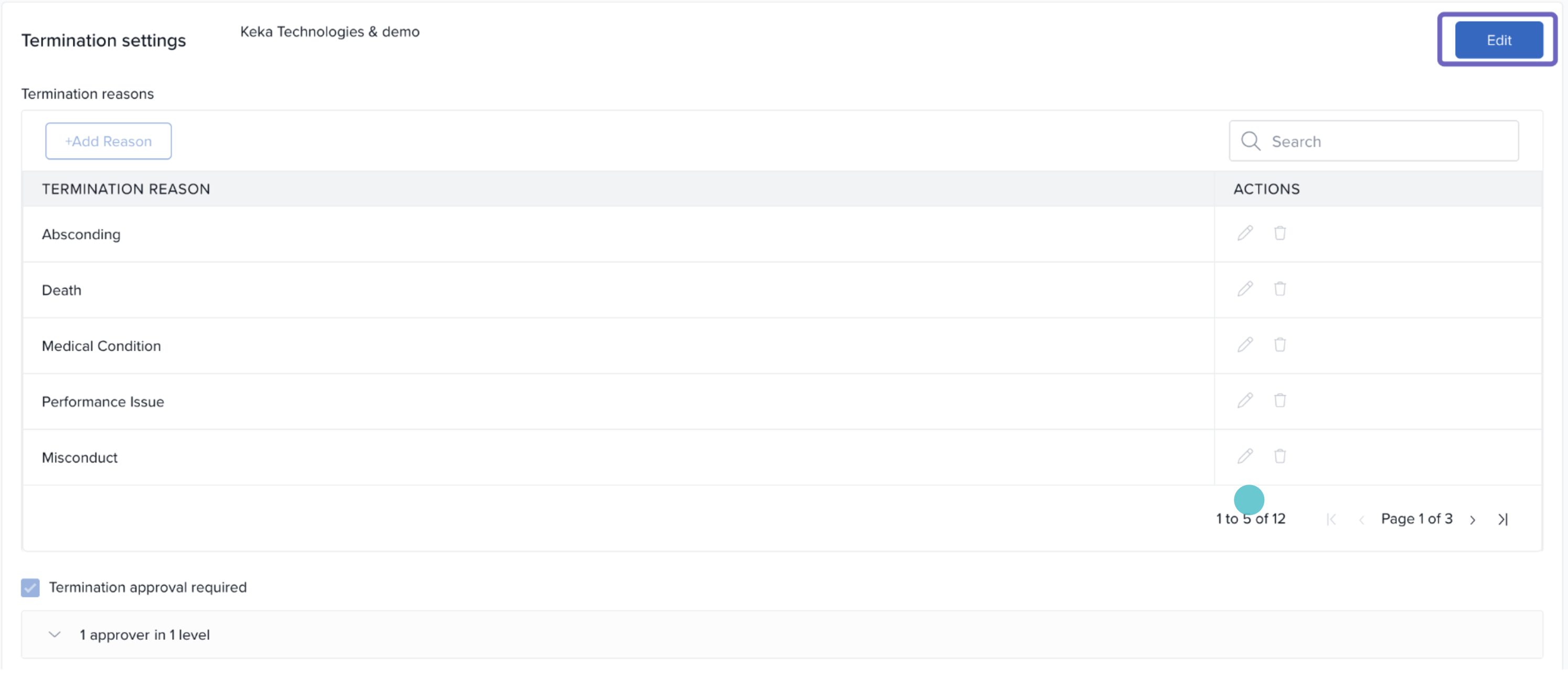
Termination settings determine how the organization can initiate employee terminations. In Keka, the termination process can be initiated by the employee's reporting manager or any other administrator with the necessary permissions. These settings help manage approval workflows and ensure that the termination process follows company policies.
To modify termination settings:
Navigate to the Resignation & Termination section in Exit Settings.
Click on the Edit button to make changes to the termination settings.
Resignation and termination settings
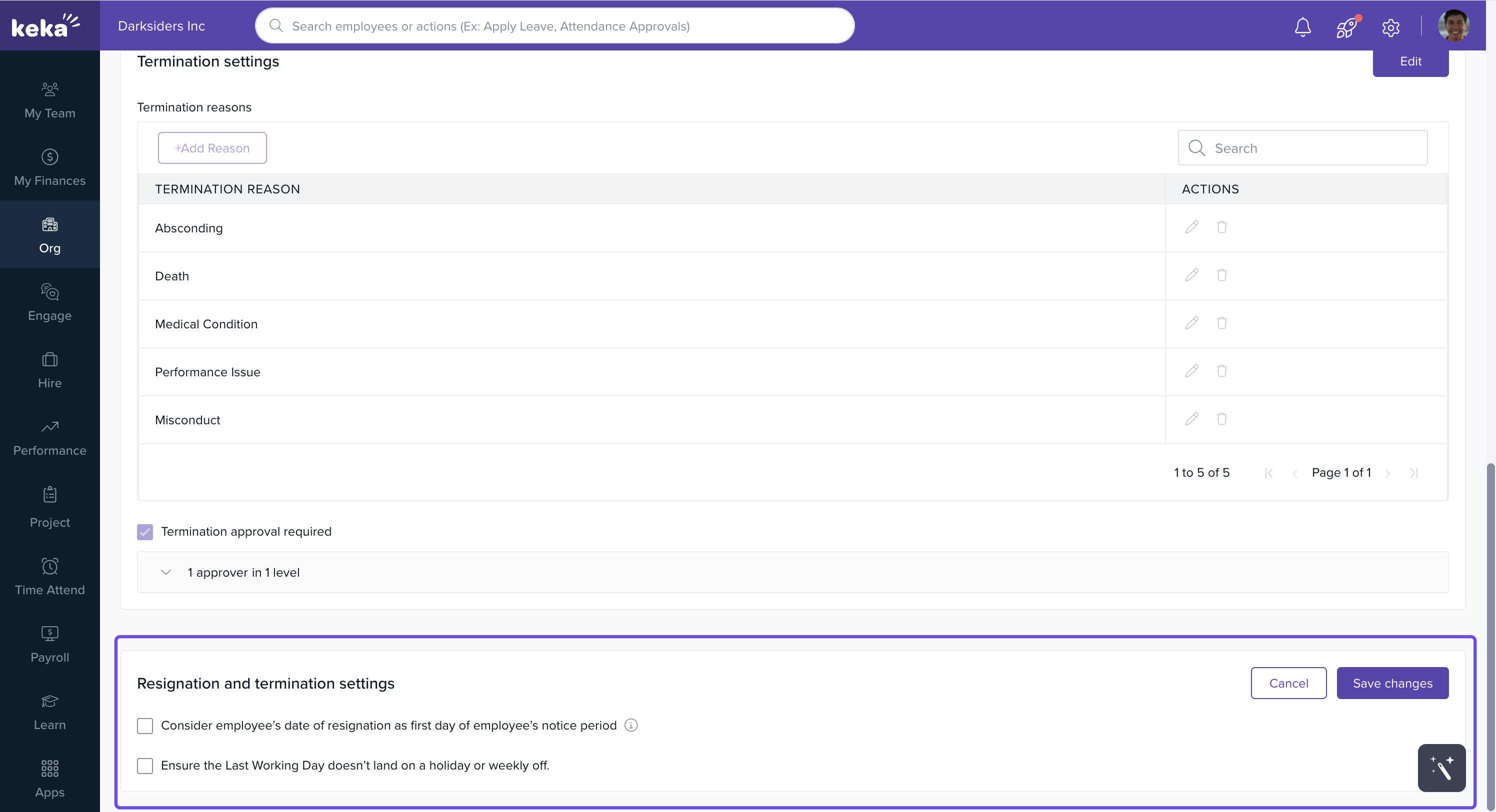
Keka allows you to configure settings that apply to both resignations and terminations. Key settings include:
Consider resignation date as the start of the notice period: When enabled, the employee's resignation date will be treated as the first day of their notice period. This ensures that the notice period starts immediately from the resignation date.
-
Ensure the last working day doesn’t land on a holiday or weekly off: When enabled, Keka provides two options:
Set the last working day before the holiday.
Set the last working day to the next working day after the holiday.
These settings help ensure that the exit process is managed correctly and that the employee’s last working day aligns with the company’s operational requirements.
By customizing resignation and termination settings in Keka, HR teams can streamline the exit process, improve transparency, and ensure compliance with company policies. These settings help ensure that exits are handled efficiently, minimizing disruption and maintaining a smooth transition for both the employee and the organization.
Comments
0 comments
Please sign in to leave a comment.