When an employee resigns, their resignation request is visible in the Inbox or the Exit Process tab for Managers, HR, or Global Admins. This guide explains the steps to handle the request in the Exit Process tab. The new exit process is divided into three tabs under review, exits in progress, and exited employees The first tab is under review.
Under-Review
When an employee submits a resignation, the request will first appear in the Under-Review phase. In this tab, managers, HR, or global admins can review and process the resignation.
Under the Actions column, you'll find:
Review Button: To initiate the review process.
-
Three-Dot Menu: Here, you can view details, send a reminder to the approver, or update the exit details.
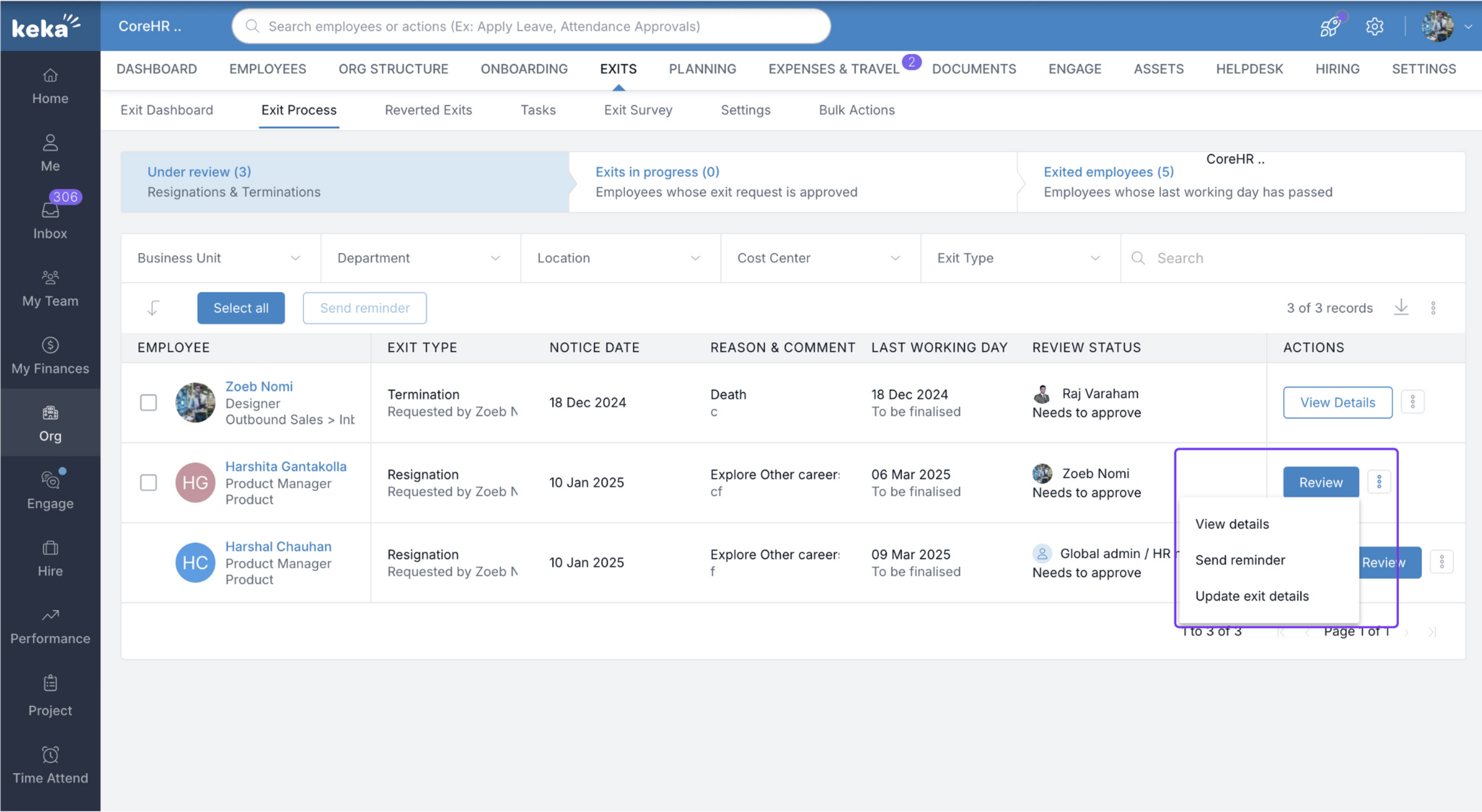
Reviewing and Completing Resignation Requests
-
To initiate the review process, click the Review button. This opens a window where you can review the employee's exit request.
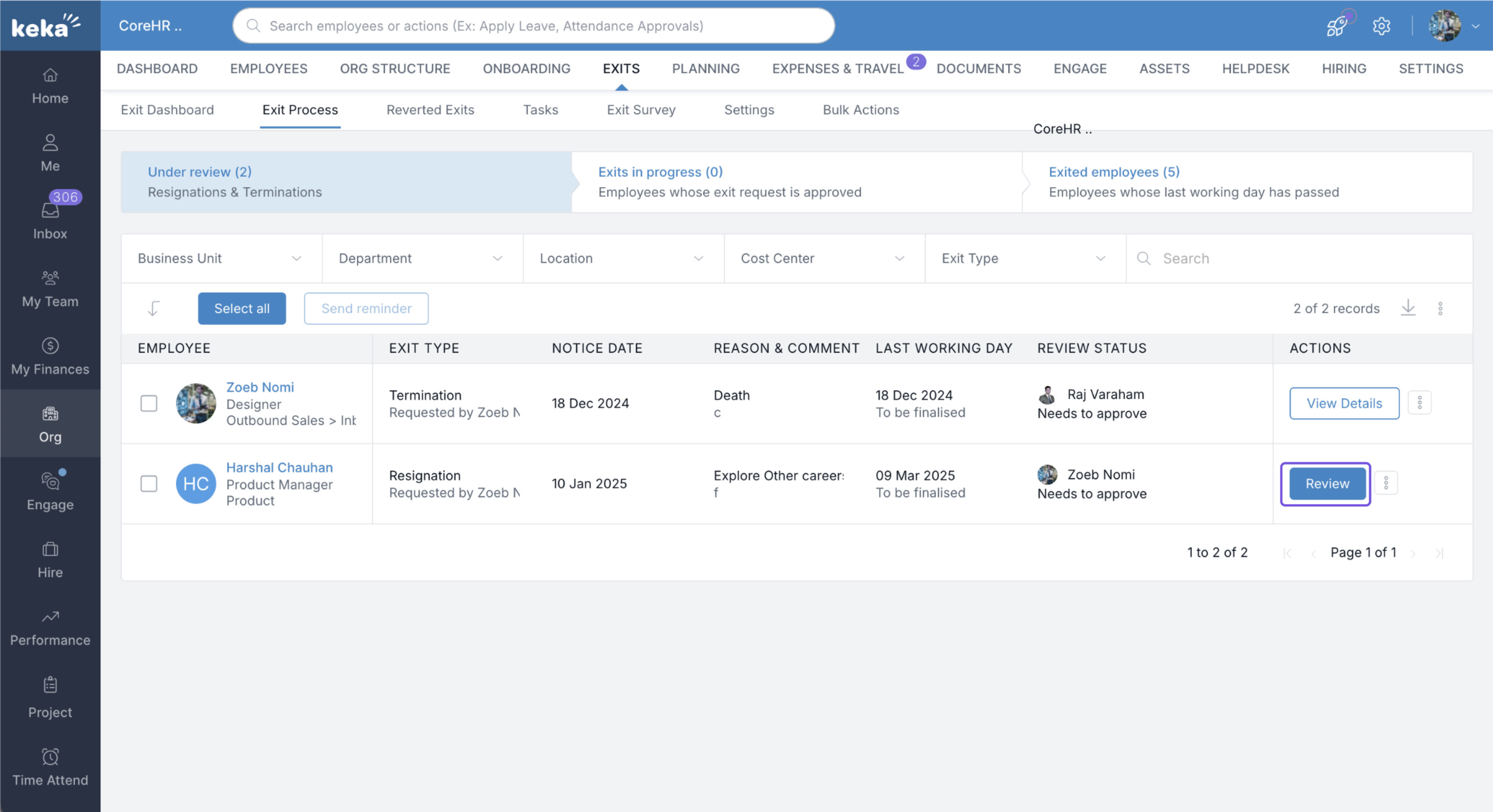
-
If necessary, click on Edit to modify exit details.
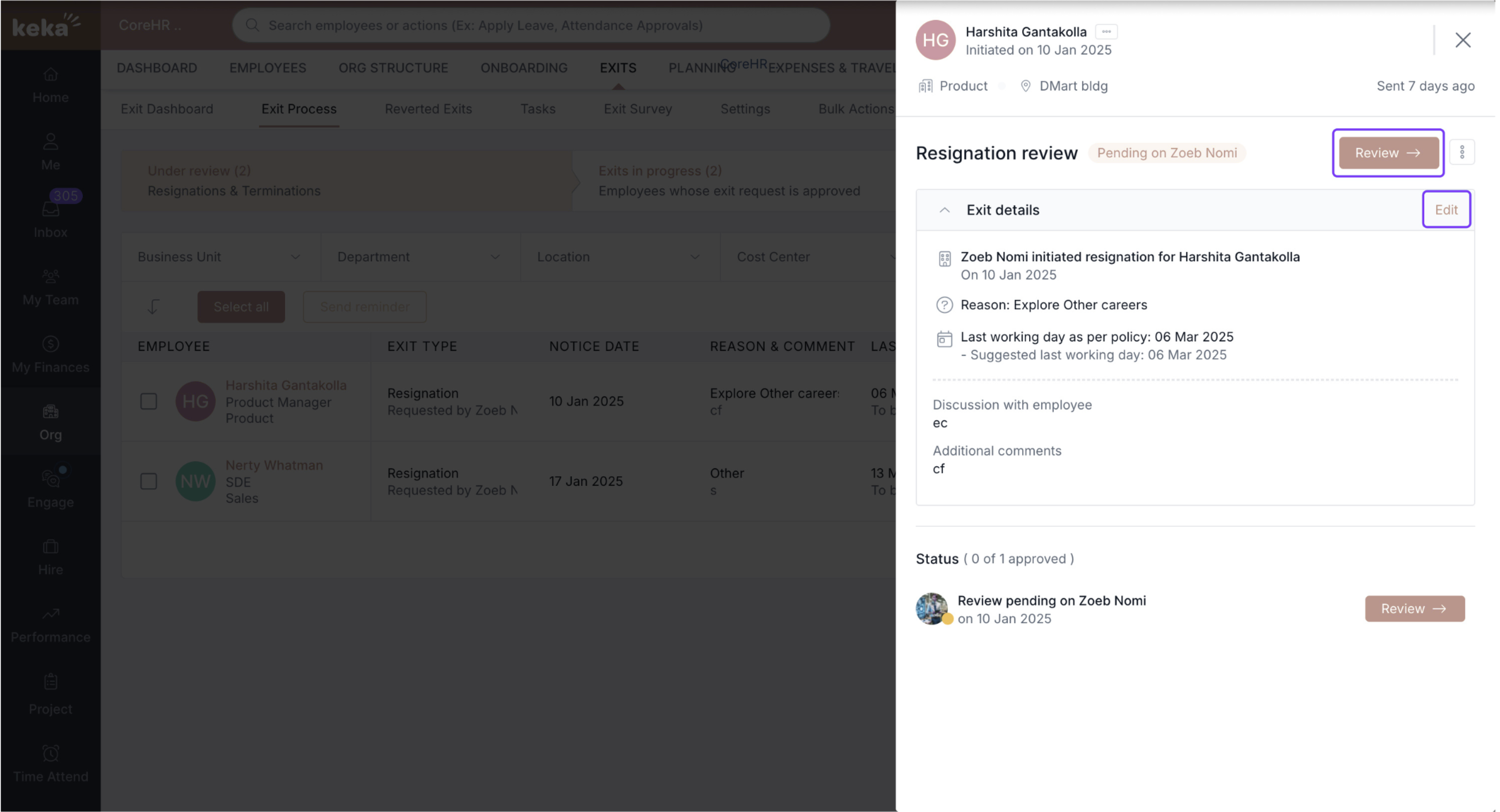
-
After reviewing, you will be presented with the following options:
Accept the resignation.
Reject the resignation.
Retain the employee, or set their last working day and mark them as eligible for rehire.
-
Provide a mandatory comment before submitting the changes.
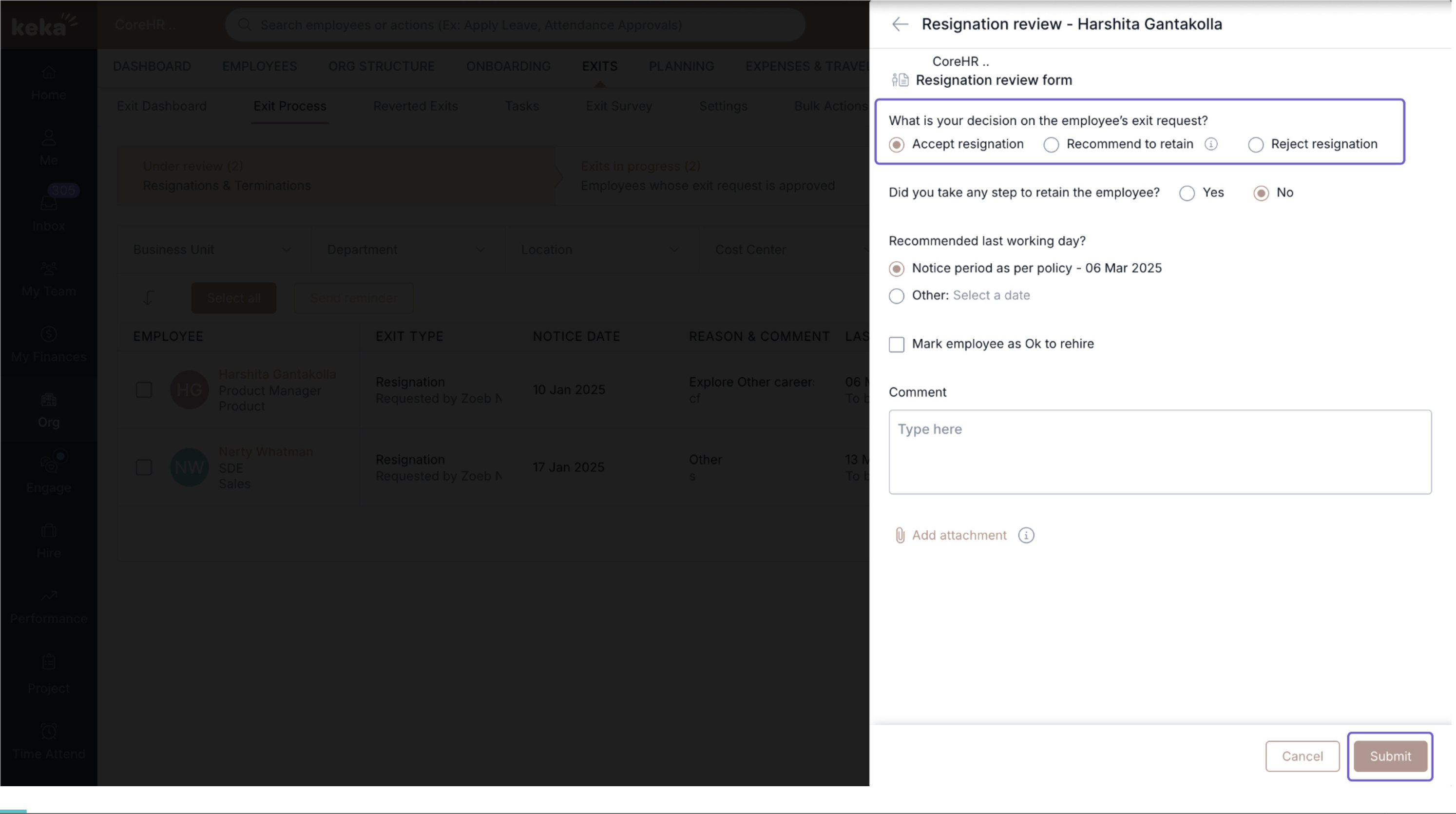
Once the review is completed, the resignation request will move to the Exit in Progress phase.
Exit in progress
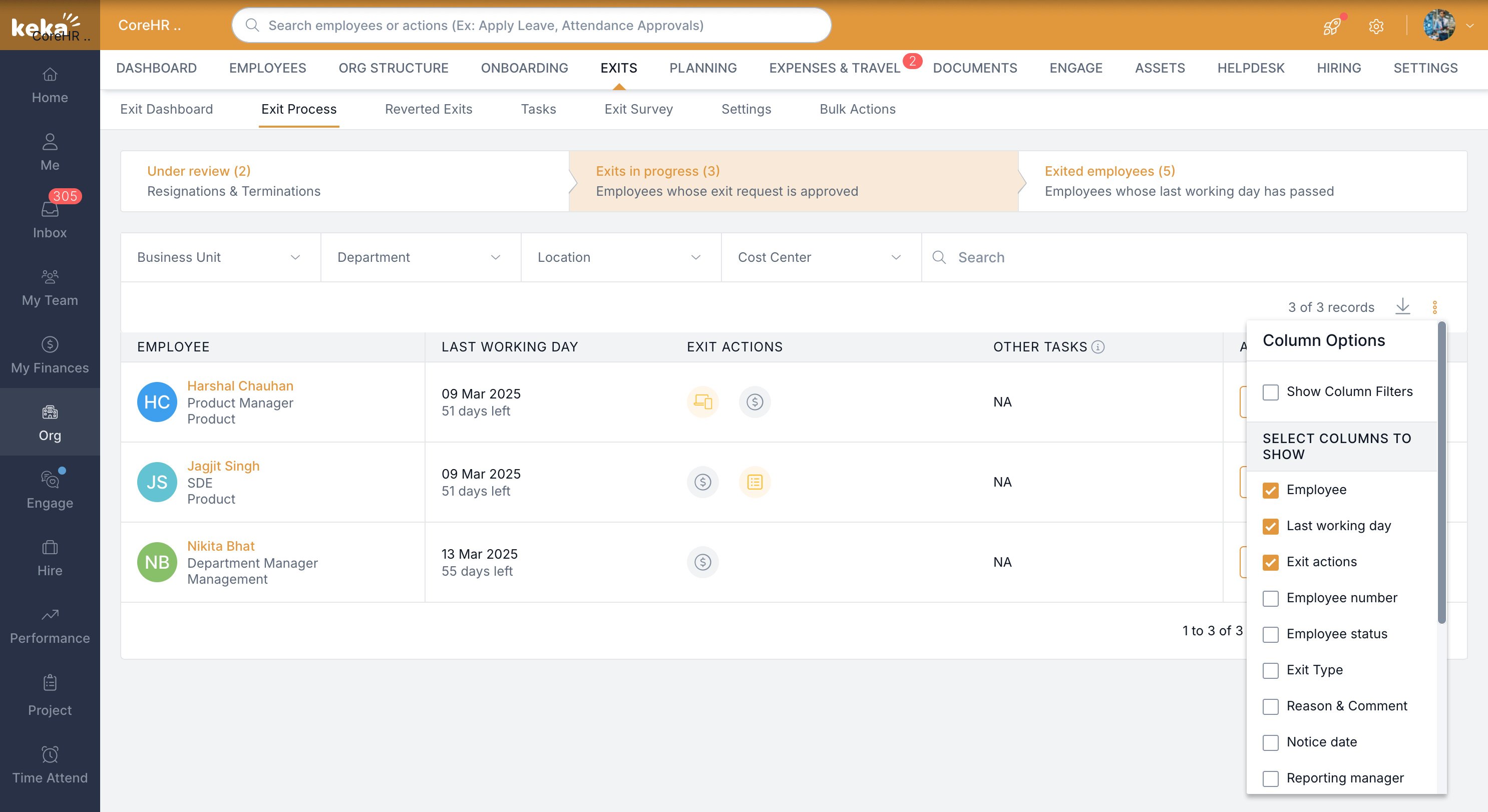
Once the resignation is accepted, the employee's exit process moves to the Exit in Progress phase. This section is organized into several parts that help manage the exit process effectively. Here, you can view the employee details and manage exit actions through icons, with statuses indicated by colours:
- Grey: Action not started.
- Yellow: Action in progress.
- Green: Action completed.
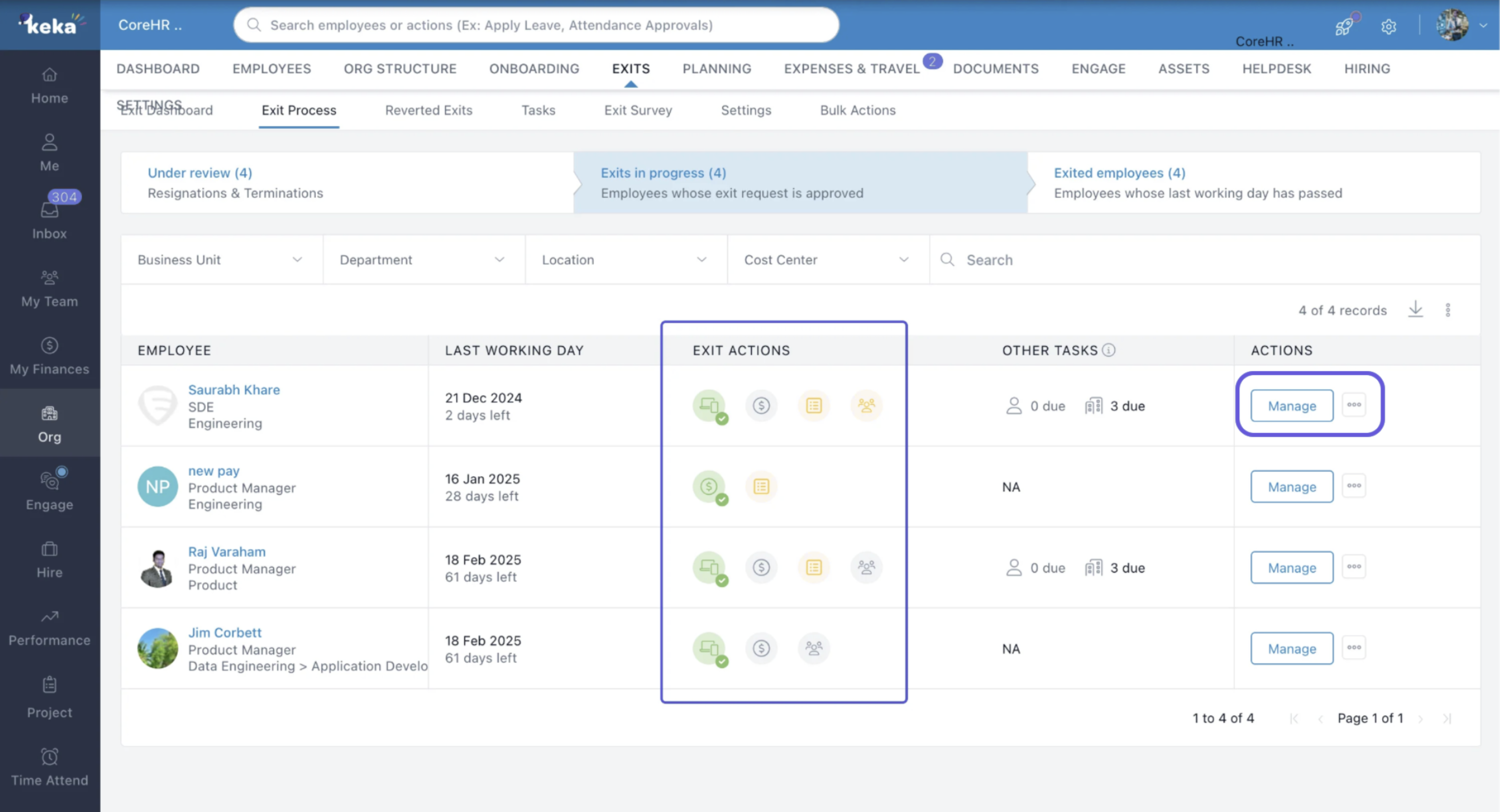
You can click on the manage button to view the Exit actions in detail.
This page is organised into several key sections that relate to the employee exit process. Let’s explore each section in detail.
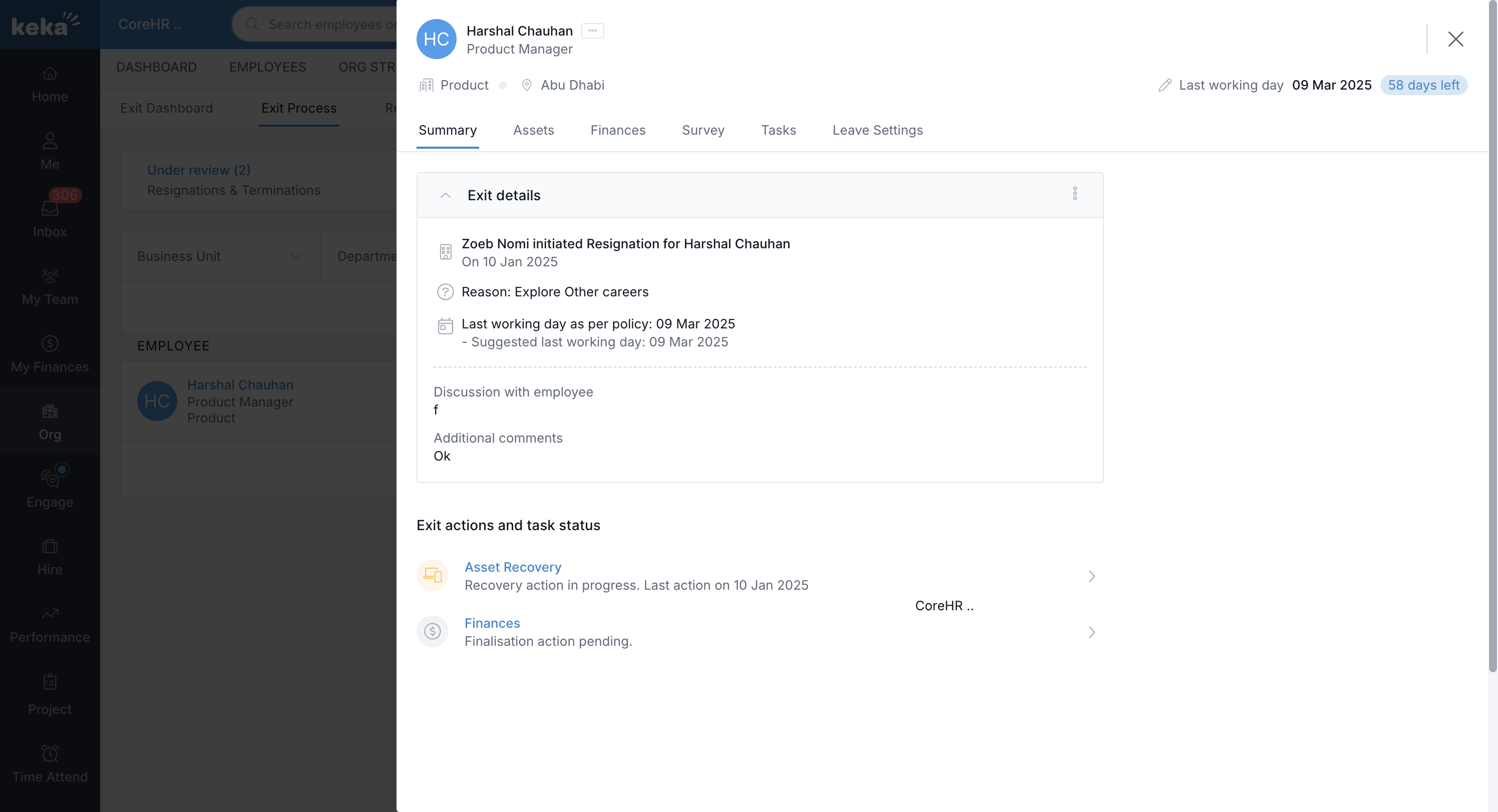
The Summary section
This section provides a quick summary of all the exit actions.
You can click on the pencil icon to update the last working day.
The asset section
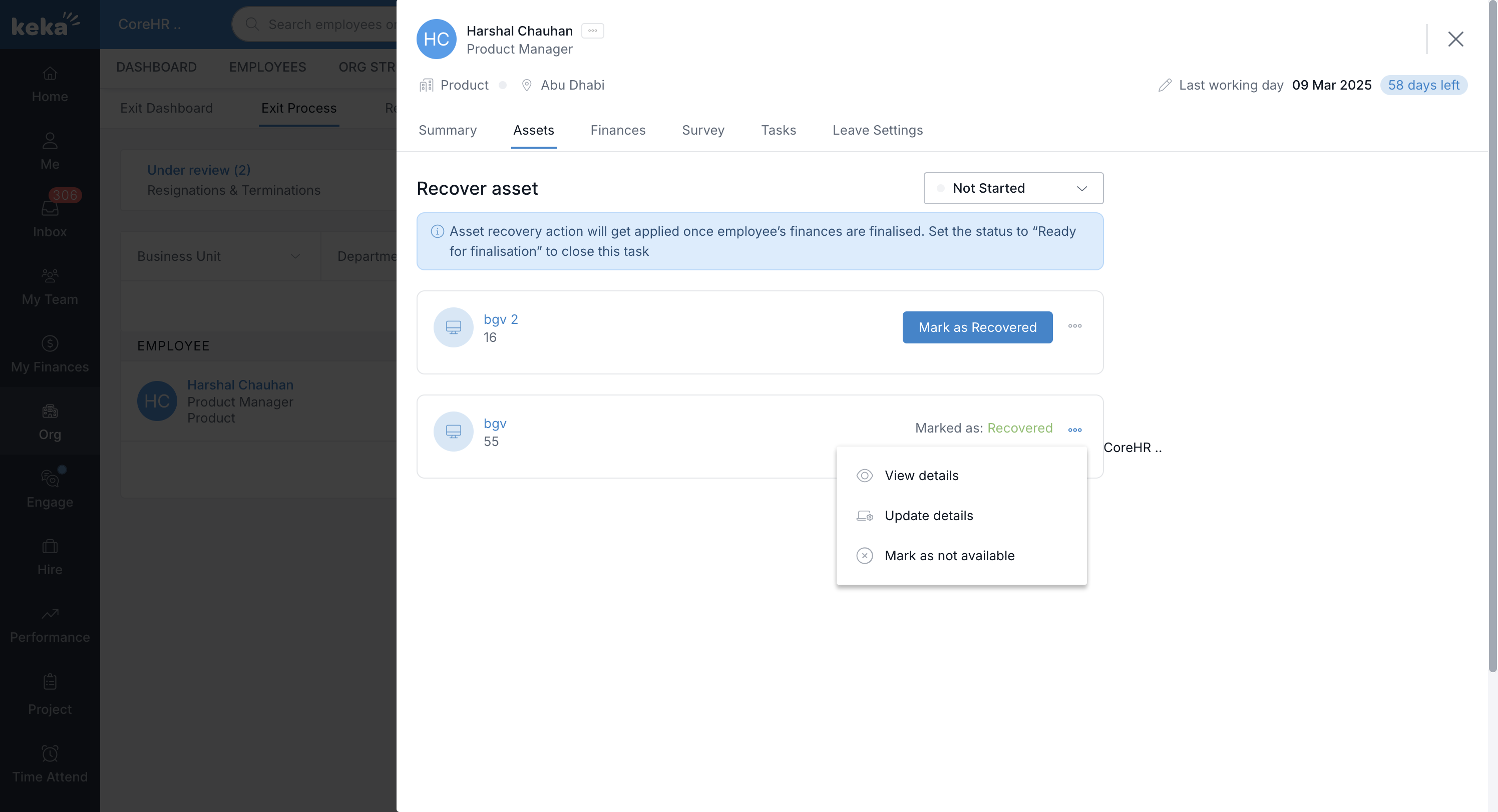
Here, you’ll see a list of assets that need to be returned by the employee.
To begin the recovery process, click Mark as Recovered. This will change the asset status from "Not Started" to "In Progress."
Once all assets have been recovered, mark the status as "Ready for Finalization."
If there are any charges for asset damage, they will be displayed here.
Finances Section
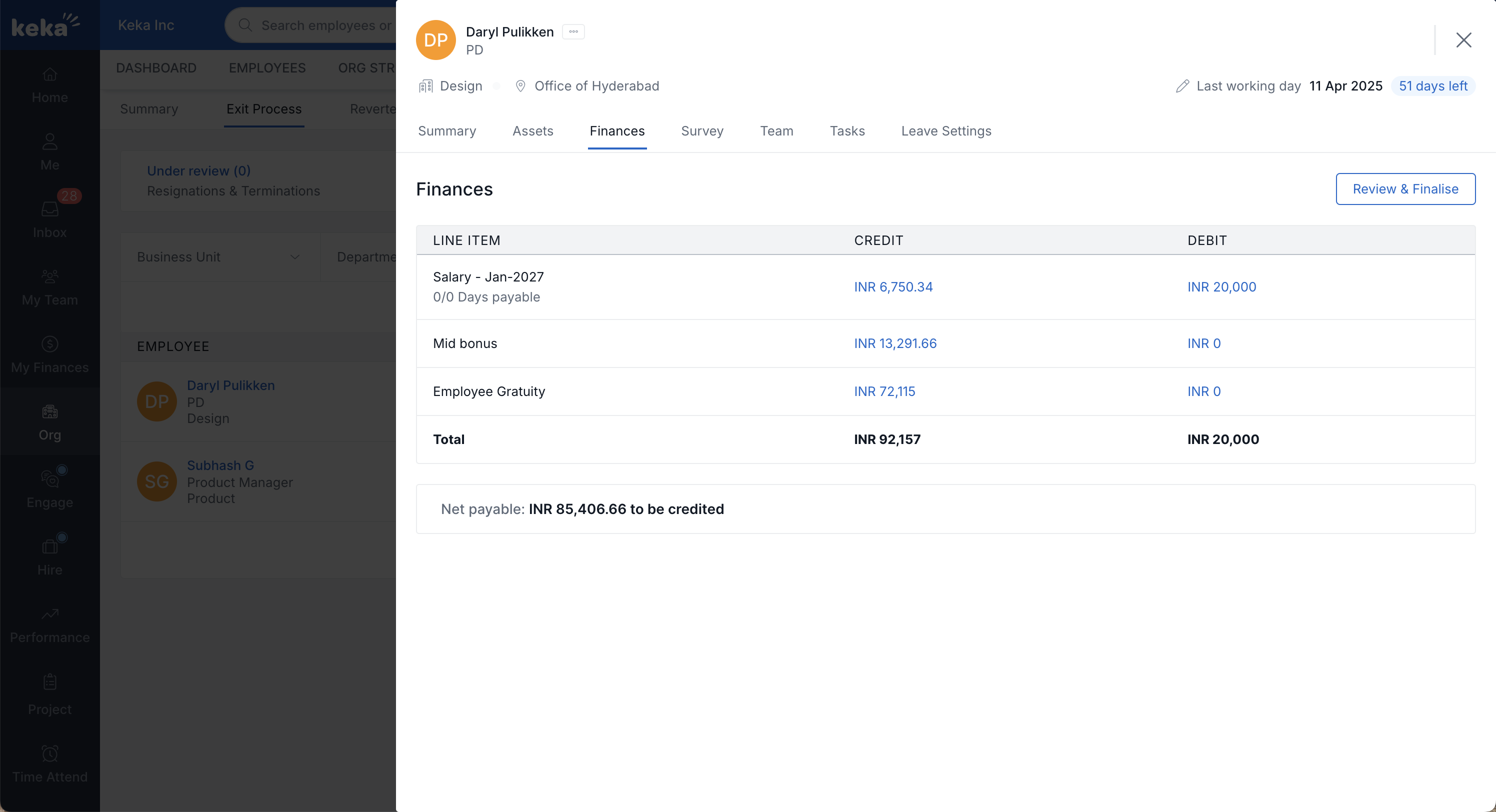
Review and finalize the employee's payroll.
-
If any asset damages are incurred, you can process the charges in this section. For more information on Full & Final Settlement, refer to the dedicated article on Full & Final Settlement.
Survey section
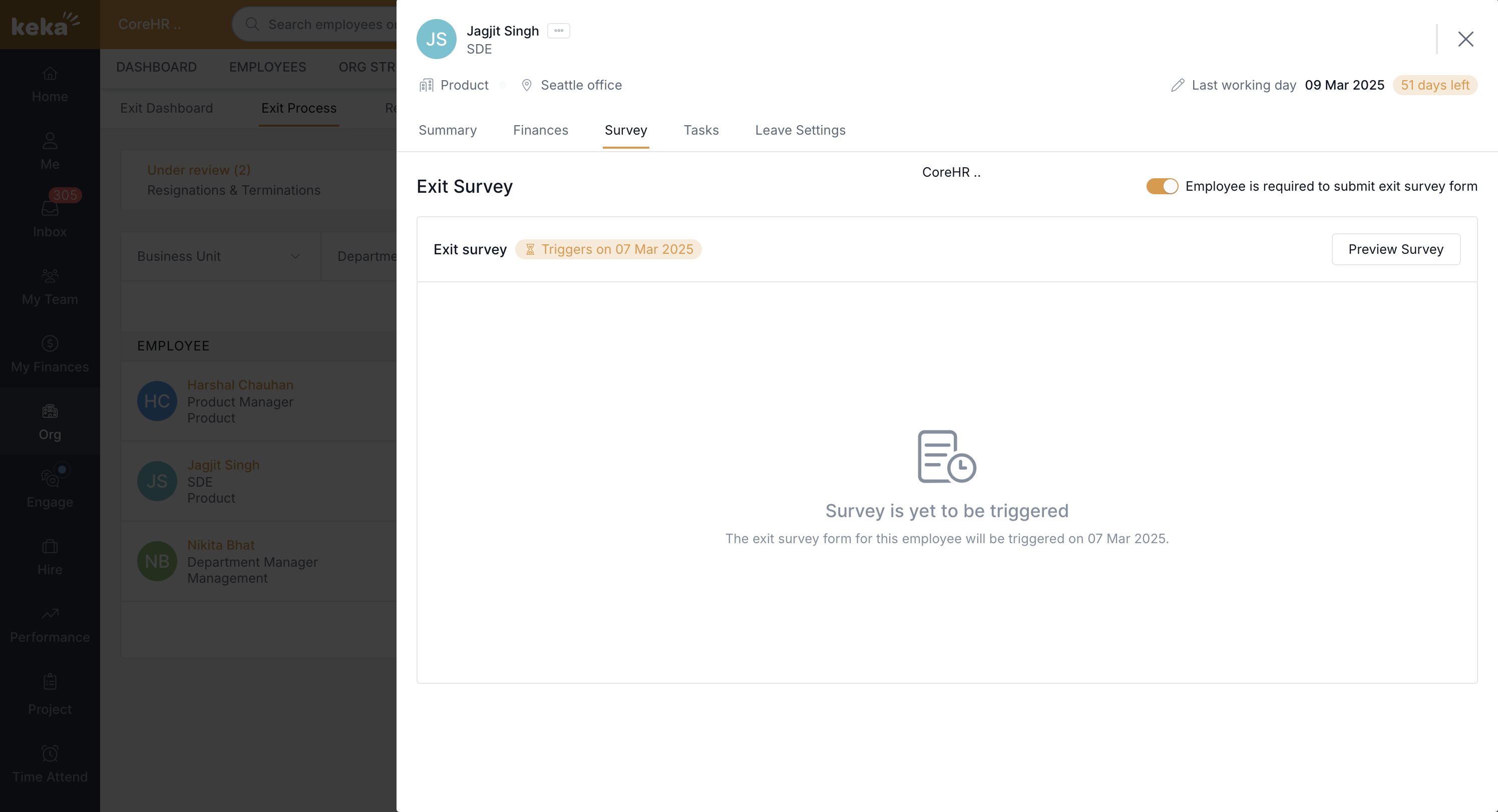
Keka provides a pre-configured Exit Survey. Managers or admins need to enable this survey for it to be used.
You can preview the survey to see how it will appear to employees before they complete it.
Tasks section
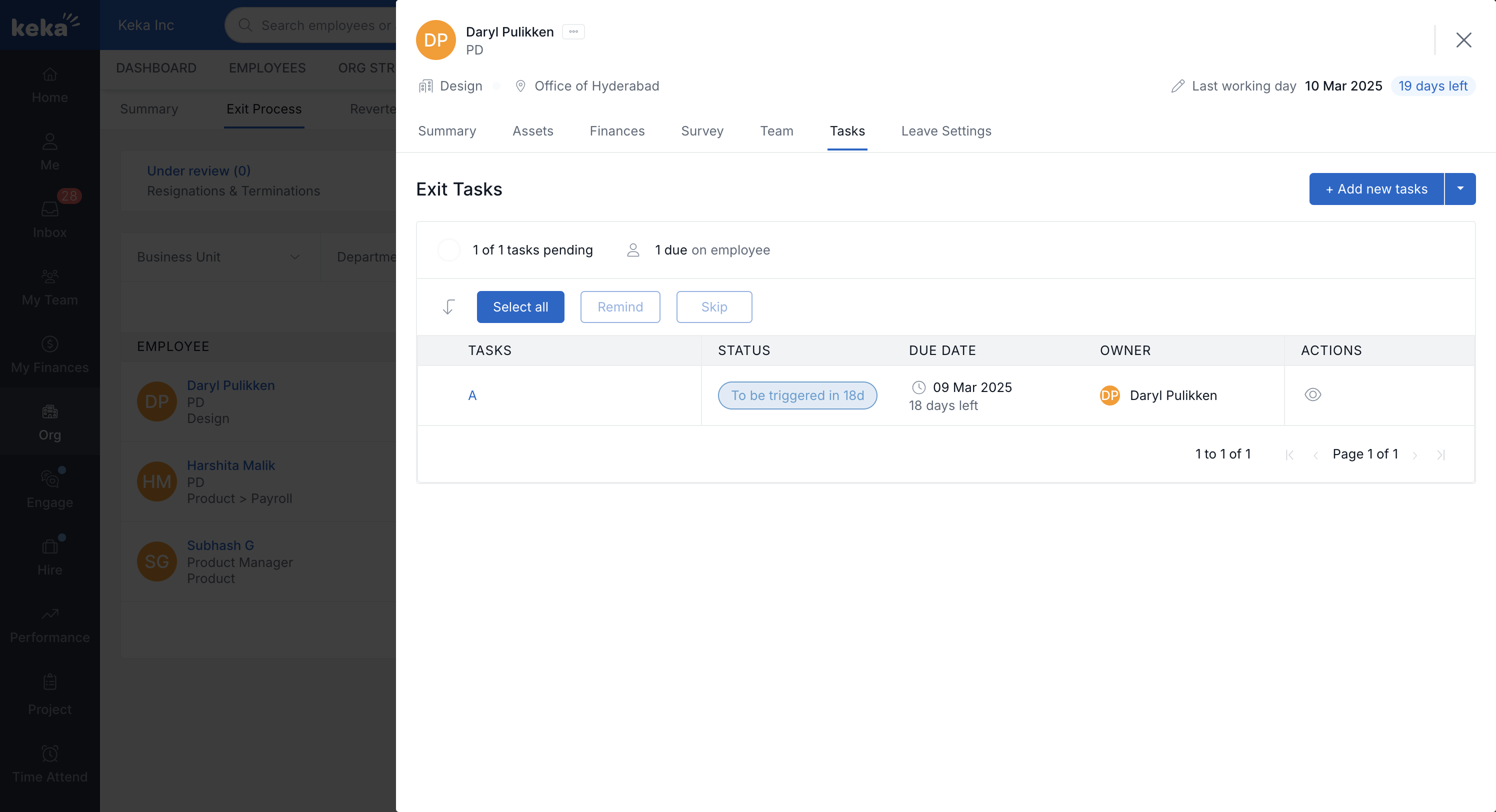
From this section, you can manage exit tasks.
You can create new tasks by clicking on + Add new task or import tasks from an existing task list.
Leave settings section
In this section, you can manage how leave balances are handled during the notice period.
You can decide whether the notice period will be extended based on the employee’s leave application.
-gif.gif)
Apart from these, managers/admins have other section
Teams
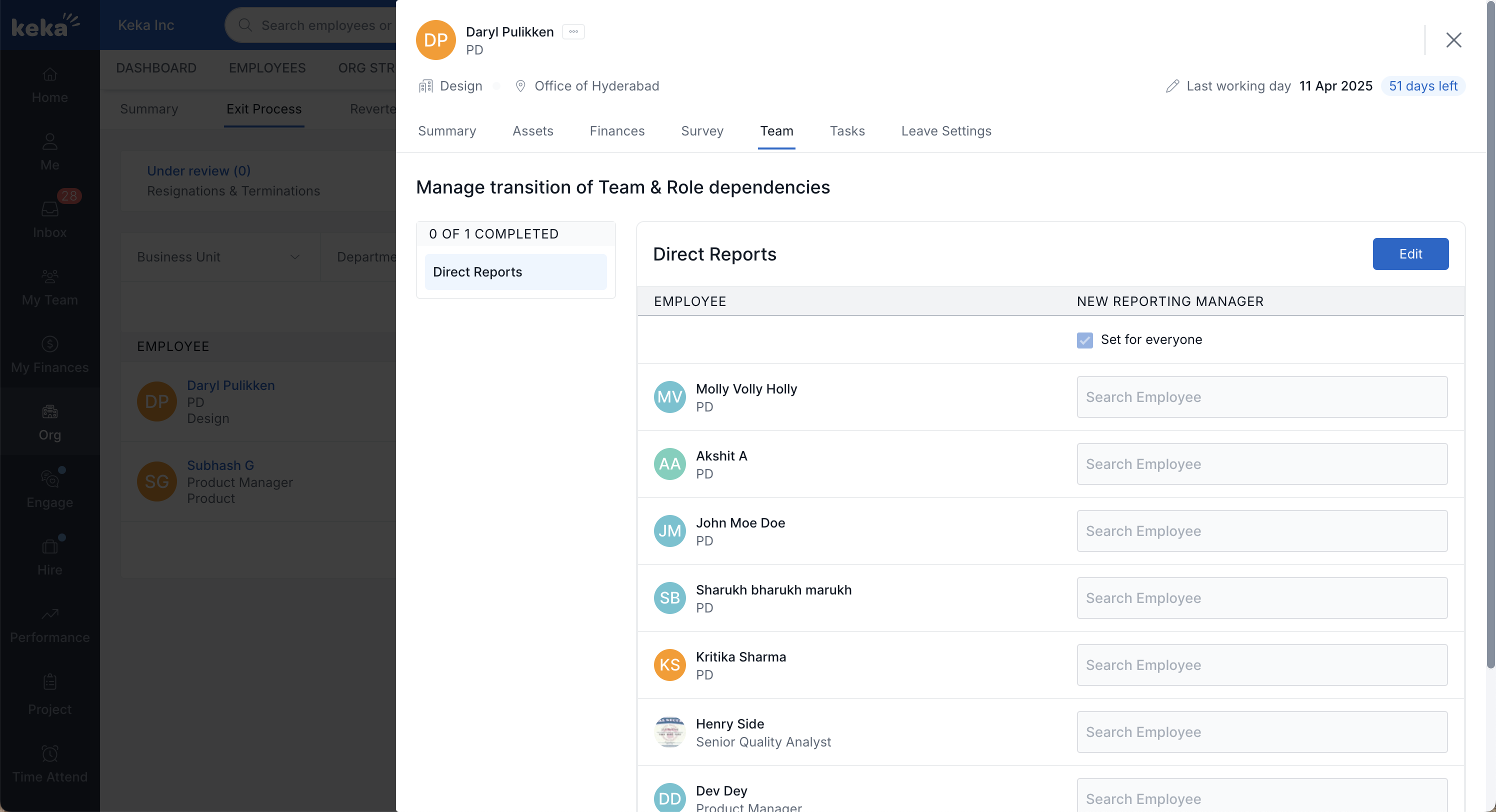
If a manager or admin is leaving, the Teams section allows the reassignment of their team members to other managers.
You can modify these assignments by clicking the Edit button and saving the changes.
Also, You can add various filters for searchability by clicking on 3 dots and also down the reports.
Exited employees
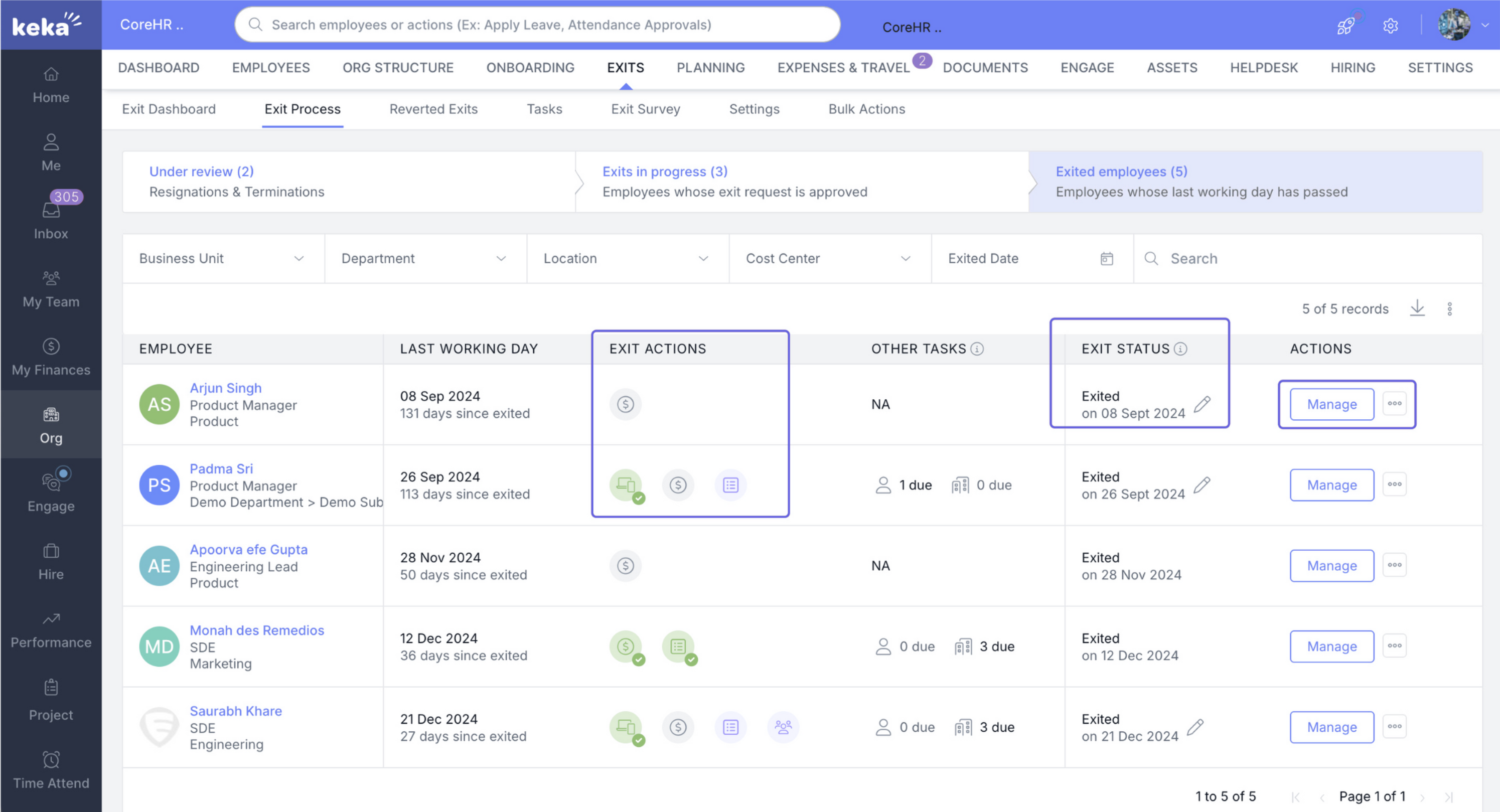
Once the employee's notice period is complete, they will be moved to the Exited Employees tab.
In this section, you can view:
A list of employees who have completed the exit process.
Their exit status and exit actions.
Managing the Exit Status
-
You can modify the exit status by clicking the pencil icon next to the employee's details.
Cancelling the Exit Request
-
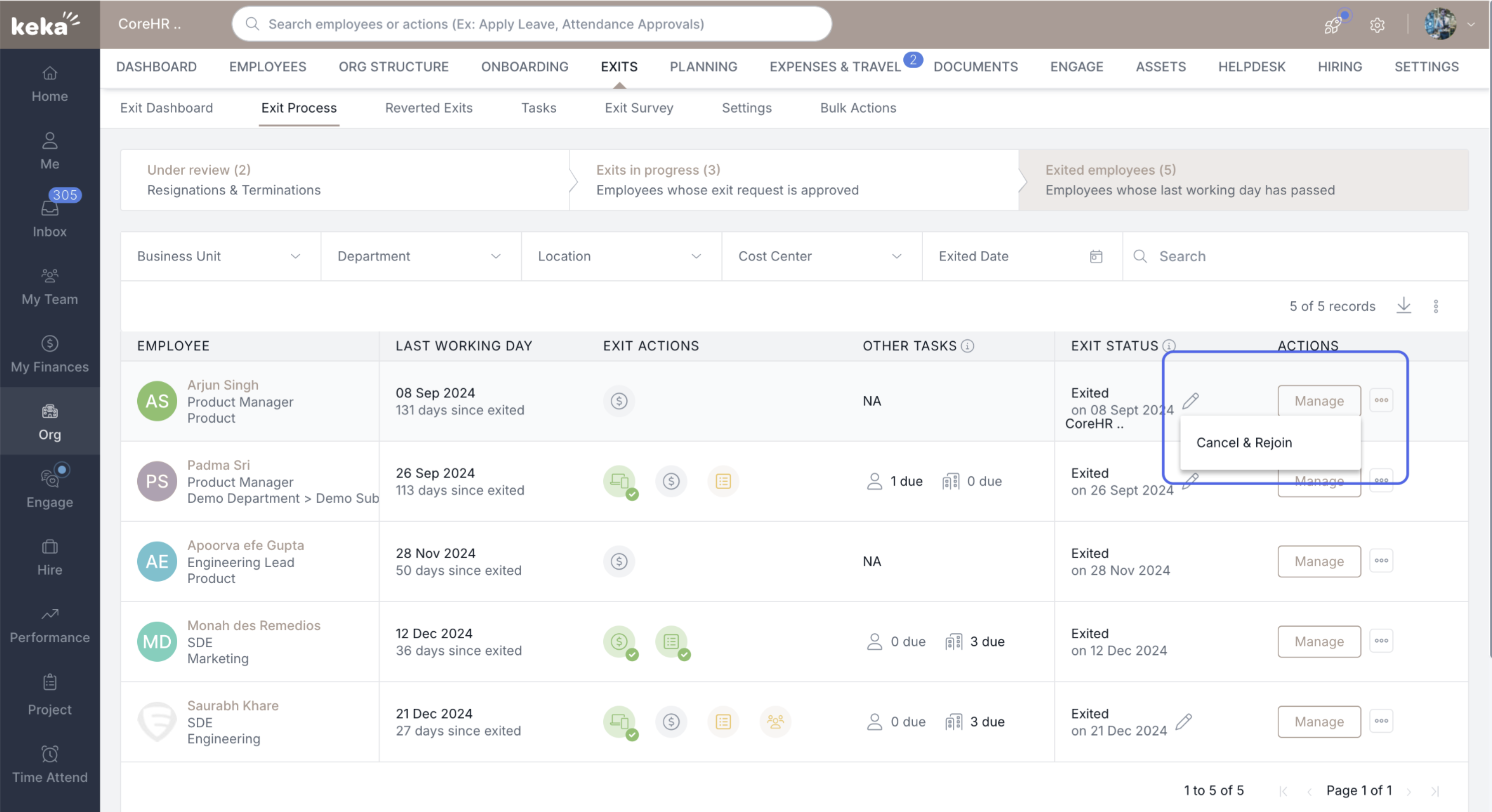
If necessary, you can cancel the exit request and reinstate the employee by using the three-dot options next to their name.
With these features in Keka HR, you can manage the exit process efficiently, ensuring that every step is completed and tracked. From reviewing resignation requests to finalizing settlements, Keka makes the exit process simple and organized.
Let us know if you found this article helpful!
Comments
0 comments
Please sign in to leave a comment.