In Keka, the process of relieving an employee—whether due to resignation or termination—can be initiated by the employee themselves, their reporting manager, L2 manager, HR admins, or other authorized roles with relevant permissions. This feature streamlines the exit process by ensuring that the organization’s policies are applied consistently across all exits.
Once the exit process is initiated, the employee enters the notice period as specified by the organization's notice period policy, unless a specific last working day is manually assigned by an authorized user. This ensures the process follows the company’s exit procedures.
You can initiate the exit individually for an employee or for multiple employees at once. This article will focus on initiating the exit for an individual employee.
For bulk exit and settlement processes, please refer to the bulk exit guide
Initiating exit for an employee
Navigate to the Employee's Profile
Go to the employee's profile in Keka. In the top right corner of their profile page, click on the three dots (the options menu).Select 'Initiate Exit'
From the dropdown menu, choose the Initiate Exit option.-
Exit Initiation Window
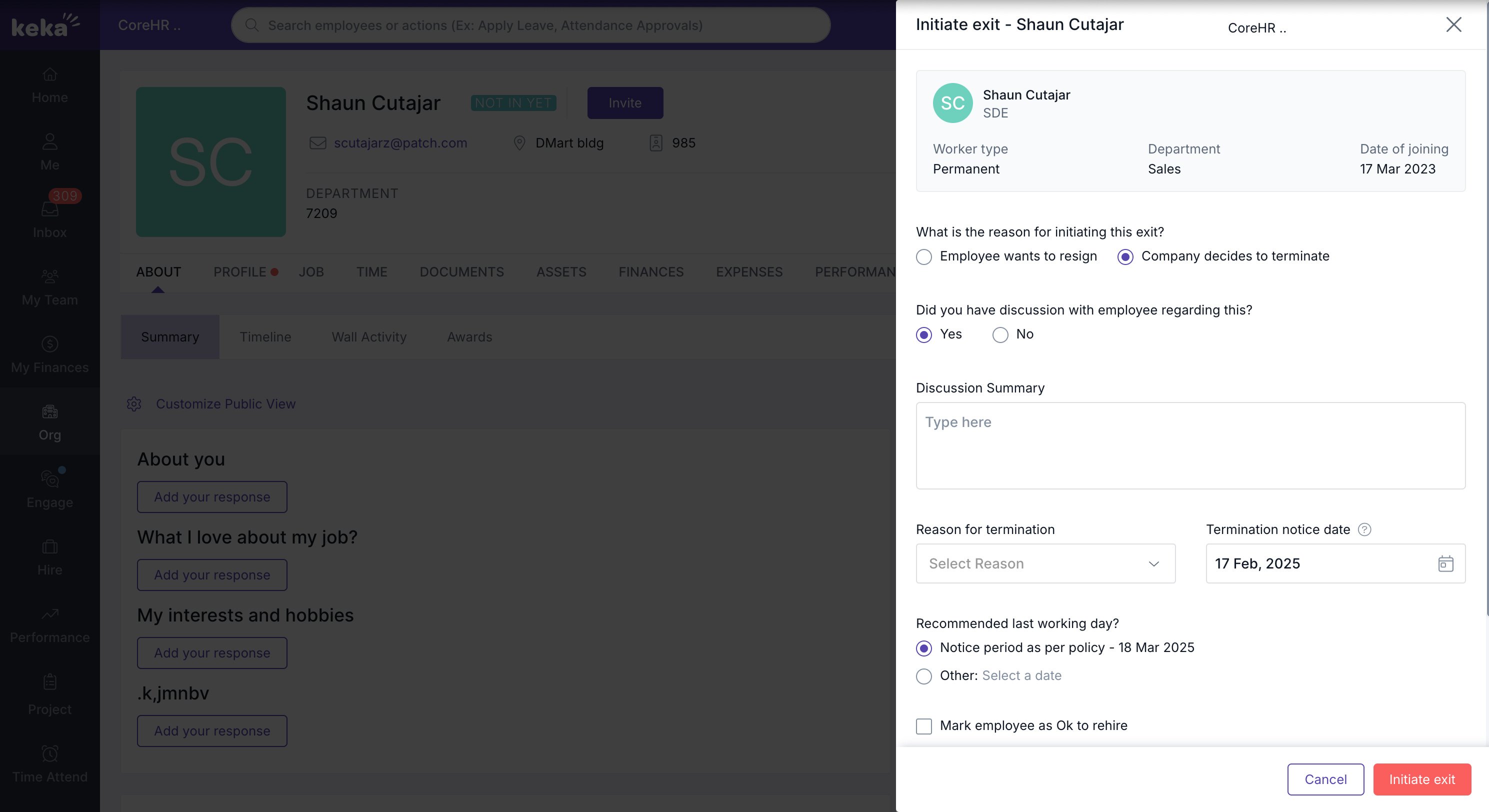
This will open the Initiate Exit window. Here, you will be required to fill in several fields to begin the exit process.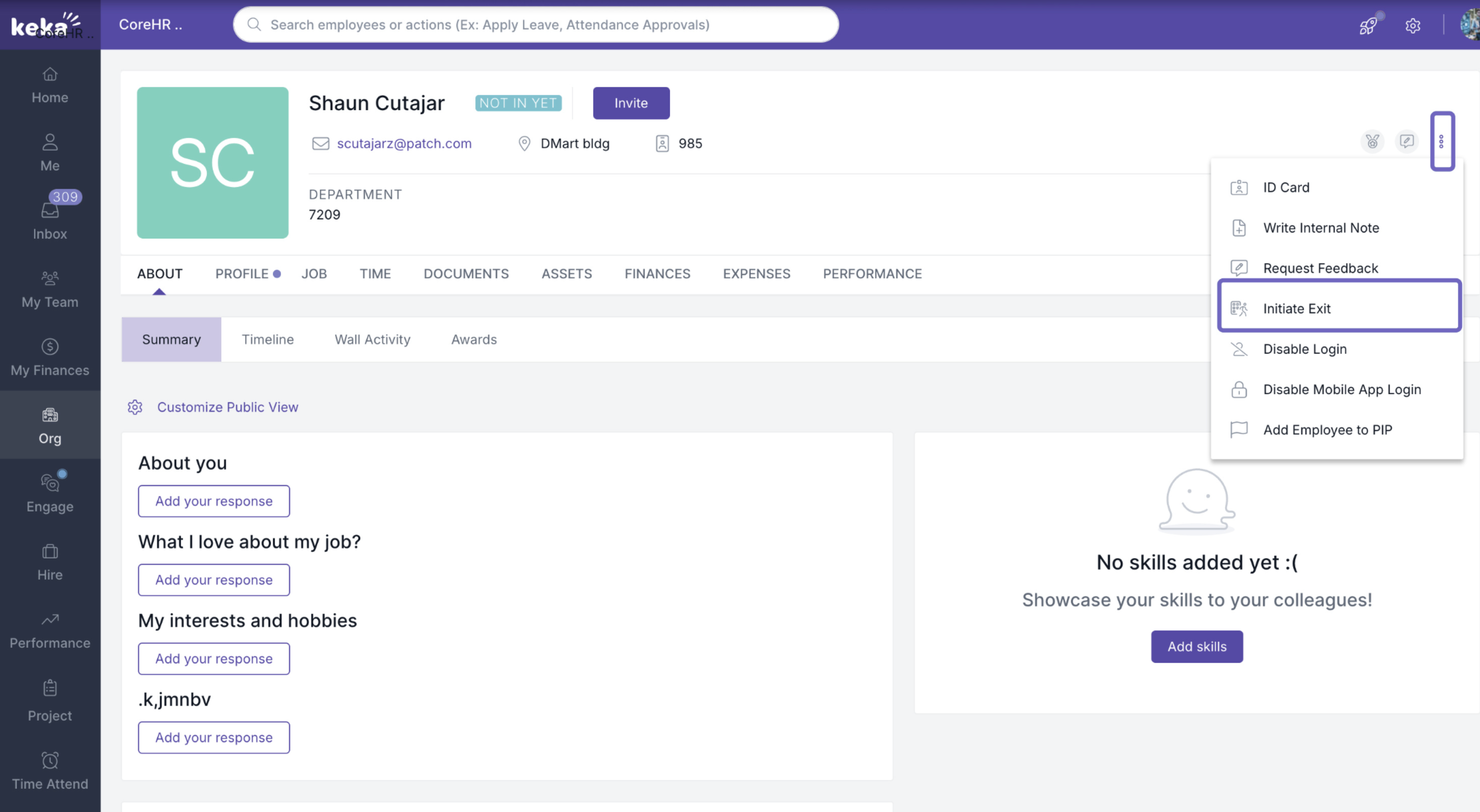
Required Information During Exit Initiation
-
Reason for Exit
Select the reason for initiating the exit for this employee. Choose whether it's due to resignation or termination, and whether a discussion has taken place with the employee regarding their departure. If the answer is yes, you will need to provide a summary of the discussion. -
Resignation or Termination
Based on the reason for initiating the exit, choose the appropriate reason for either resignation or termination. This could be voluntary resignation, forced termination, or another exit-related reason. - Notice and Last Working Day
- Notice Date: Choose the date the resignation or termination notice was provided by the employee.
- Last Working Day: Select the employee's last working day. You can either go with the default last working day as per the company’s notice period policy or manually set a specific date if needed.
-
Rehire Eligibility
Decide whether the employee is eligible for rehire. If needed, you can add any relevant comments about this decision. You also have the option to attach relevant files related to the employee’s exit (e.g., exit interviews, documentation).
Finalising the Exit Process
After completing the above steps, click Initiate Exit to proceed. The employee's resignation or termination request will move into the approval stage, if necessary. An admin will review the request and decide whether to accept or reject the resignation or termination.
Once the decision is made and confirmed, the employee will enter the exit process and move on to the next steps such as asset recovery, full and final settlement, and more.
This streamlined exit process ensures that everything is documented, and the organization’s policies are applied uniformly. By following these steps, you can manage employee exits effectively.
Comments
0 comments
Please sign in to leave a comment.