Overview
In today’s fast-paced business landscape, focusing on employee growth and performance is more important than ever. Organisations rely on structured review cycles to assess progress, align goals, and promote effective teamwork. This article will walk you through setting up your first review cycle on Keka.
Getting Started
-
To begin, go to the Performance section in Keka and click the Reviews tab. Then, select the Review Cycle tab and click +Create Review Cycle to start a new review cycle.
You’ll be given two options:
Quick Setup: A simplified process ideal for small and medium-sized companies.
-
Advanced Setup: Provides greater customisation, best suited for larger companies with multiple review cycles.
Quick Setup Review Cycle
The Quick Setup process simplifies the review cycle setup into four main steps, which are visible on the left side of your screen:
Review Cycle
Reviewers
Review Forms
-
Map Employees
If you later decide you need more customisation, you can always switch to Advanced Setup.
Adding Reviewers
-
In this step, you'll decide who will provide feedback on employees. By default, Self and Reporting Managers are selected, but you can add additional roles or specific individuals by clicking +Add More Reviewers.
-
Once you’ve selected your reviewers, click Save. You can also assign permissions for who can nominate reviewers and set the minimum and maximum number of reviewers allowed for each employee.
Creating Review Forms
In this step, you’ll define the Rating Scale you want to use.
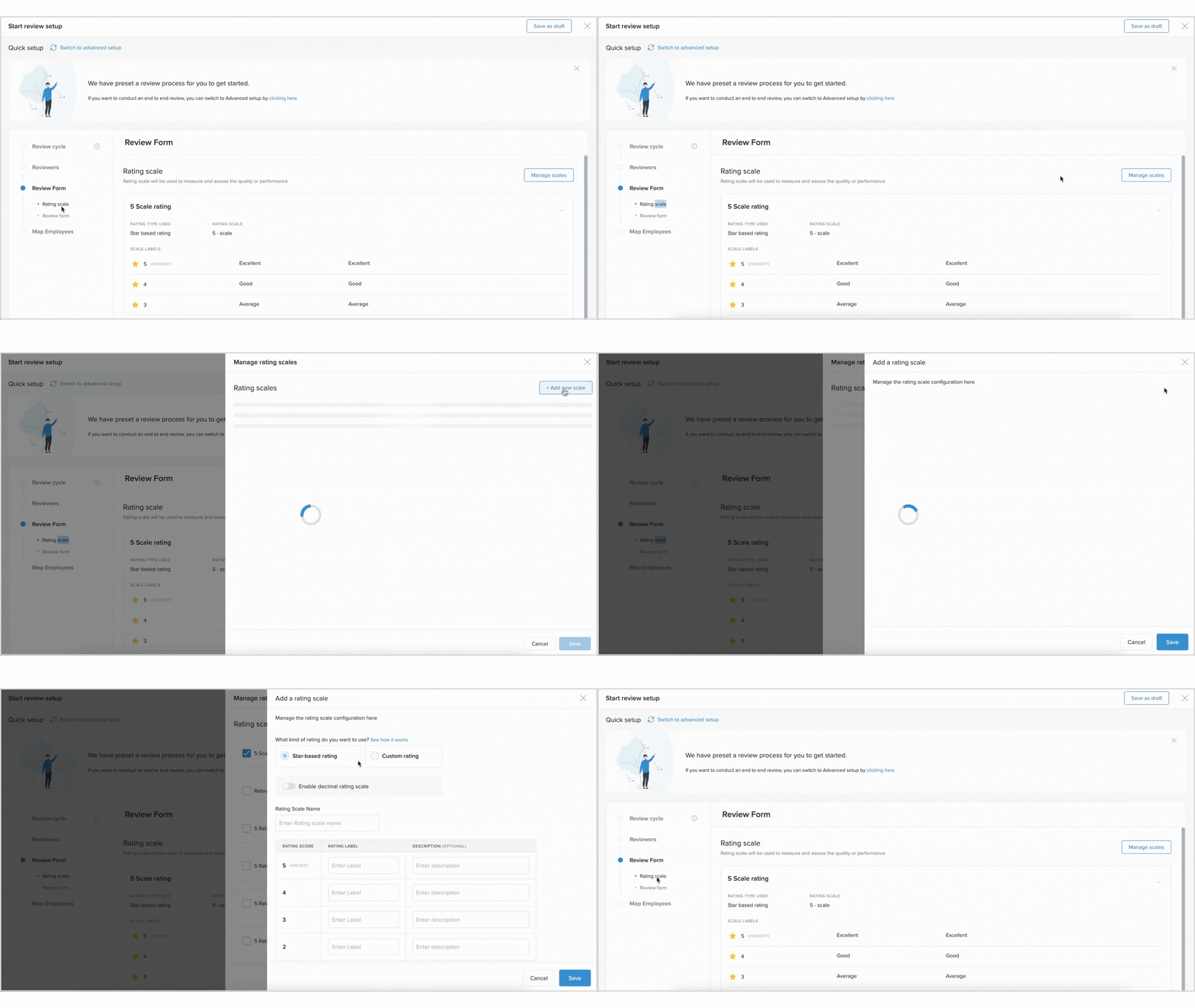
Navigate to the Review Form section. Click on Rating Scale to view the current scale.
-
To make changes, click Manage Scales in the top-right corner.
In this step, you’ll configure the review forms. This process consists of two parts:
Select Rating Scale: Choose between Star-based or Custom rating. You can enable decimal ratings (e.g., 0.5) or use custom values like 3.27 in the Custom scale.
Configure Review Settings:
-
Once the rating type is decided, you proceed to configure the settings of the review forms. You can determine which of the selected reviewers must fill out the form and edit the questions for each reviewer. Customise the questions for each reviewer.
For more details on adding questions, refer to our article on Adding Questions.
You can enable reviewers to evaluate an employee's performance in key areas of the organisation, such as Goals, Core Values Projects, Competencies & Skills. Moreover, you can configure the order in which these review aspects will appear on the reviewer's form.
-
In the Goals section, you can specify which time period's objectives should be reviewed. You also get to select the reviewers and the types of responses they can offer.
-
Additionally, the system can auto-fill the ratings based on the progress made towards these goals. You can include sub-goals in the review, but this is generally not advised.
Review Goals Progress Override
-
Keka allows you to auto-fill ratings based on goal progress, but you can also allow reviewers to override these auto-generated ratings if necessary. This option helps maintain flexibility and accuracy in the review process.
Calculating Pre-filled Ratings
Pre-filled ratings are calculated as follows:
-
Objective/Goal/KRA Rating: The highest value on the rating scale is multiplied by the goal’s progress percentage and divided by 100.
Without Decimal Ratings: Rounded to the nearest whole number.
With Decimal Ratings: Rounded to the nearest 0.5 increment.
-
For Key-Results/Sub-Goals/KPIs, ratings are calculated individually based on progress and are aggregated into the overall rating for the objective/goal/KRA.
-
For the Competencies segment, you can determine who will provide feedback and what kind of responses they can give. You can also specify which competencies each reviewer should focus on.
-
The settings for Core Values & Projects are similar. You choose the reviewers and define the response types, customising the review to fit your organisation's needs.
-
For Skills you choose the reviewers and define the response types and also you can choose which category each reviewer should focus on.
Potential Rating
-
Along with performance, you can assess an employee’s potential by enabling Potential Ratings. Reviewers can assess the potential in Questions, Goals, Competencies, Core Values, Projects, and Skills.
-
To enable potential ratings, toggle the option Allow reviewers to provide potential ratings, and select Potential in the ratings dropdown for each review section.
Additional Settings
Under additional settings, you will find options to allocate different weights for each reviewer and for each parameter if you have enabled ratings. You can also provide a personal message to guide the reviewers through the review process.
-
If you want the reviewers to suggest a rating different from the auto-calculated one, you can turn on the Proposed Rating feature. This feature enables a reviewer to offer a different overall rating for the employee. After that, you can choose who has the authority to finaliSe this proposed rating.
-
Lastly, you can set additional rules for reviewers under Additional Options. These rules include requiring comments, allowing attachments, or permitting them to skip ratings.
Mapping Employees to Review Cycle
Now, assign the employees who will be part of this review cycle. You can also assign managers to oversee the cycle. As in Quick Setup, you have the option to divide employees into different groups, each with their own set of managers and questions. You can add employees to these groups through Condition-Based Selection, Manual Selection, or by importing data from an Excel/CSV file.
- You can filter employees based on department, job title, location, business unit, pay grade, or legal entity.
-
Once all these steps are completed, you have the choice to either launch the review cycle immediately or save it to make changes later.
-
You can select all employees or choose specific ones from the list, then click Launch.
Managing Review Groups and Cycles
-
After setting up the review cycle, you can still make adjustments to each group, such as changing questions or other settings.
Notes & Tips
Note: Any modifications made to the questions or any other aspect of reviews will not automatically update for employees for whom the review has already been launched. To apply these changes, you will need to cancel and restart the reviews.
With Keka’s Quick Setup, setting up a review cycle becomes a straightforward process while allowing for customisation as needed. Whether you're conducting reviews for a small team or a large organisation, this guide ensures that your performance reviews are structured, efficient, and aligned with your organisational goals. Always remember, you can save your settings and come back later for adjustments as necessary.
And there you go! That's how you set up a review cycle using Quick Setup. Remember, you can always save your settings and come back later if you need to make adjustments.
Comments
0 comments
Please sign in to leave a comment.