Overview
Keka’s In-Flight Review Stats offer HR teams real-time visibility into every stage of the performance review cycle. With dedicated views for nominations, form filling, review meetings, publishing, and post-review adjustments, this module simplifies tracking and helps identify bottlenecks—leading to improved completion rates and more efficient review cycles.
This article explains each section and how to use it to monitor progress and take action.
Launching Reviews: Tracking Initiation Status
This section tracks how many reviews have been launched, are pending, or were canceled.
Key Metrics:
- Reviews Yet to Be Launched: Lists employees whose review cycles haven’t started.
- Employee Reviews Cancelled: Shows canceled reviews—helpful for spotting patterns or departmental gaps.
-
Employee Reviews Launched: Displays employees whose reviews have been successfully initiated.
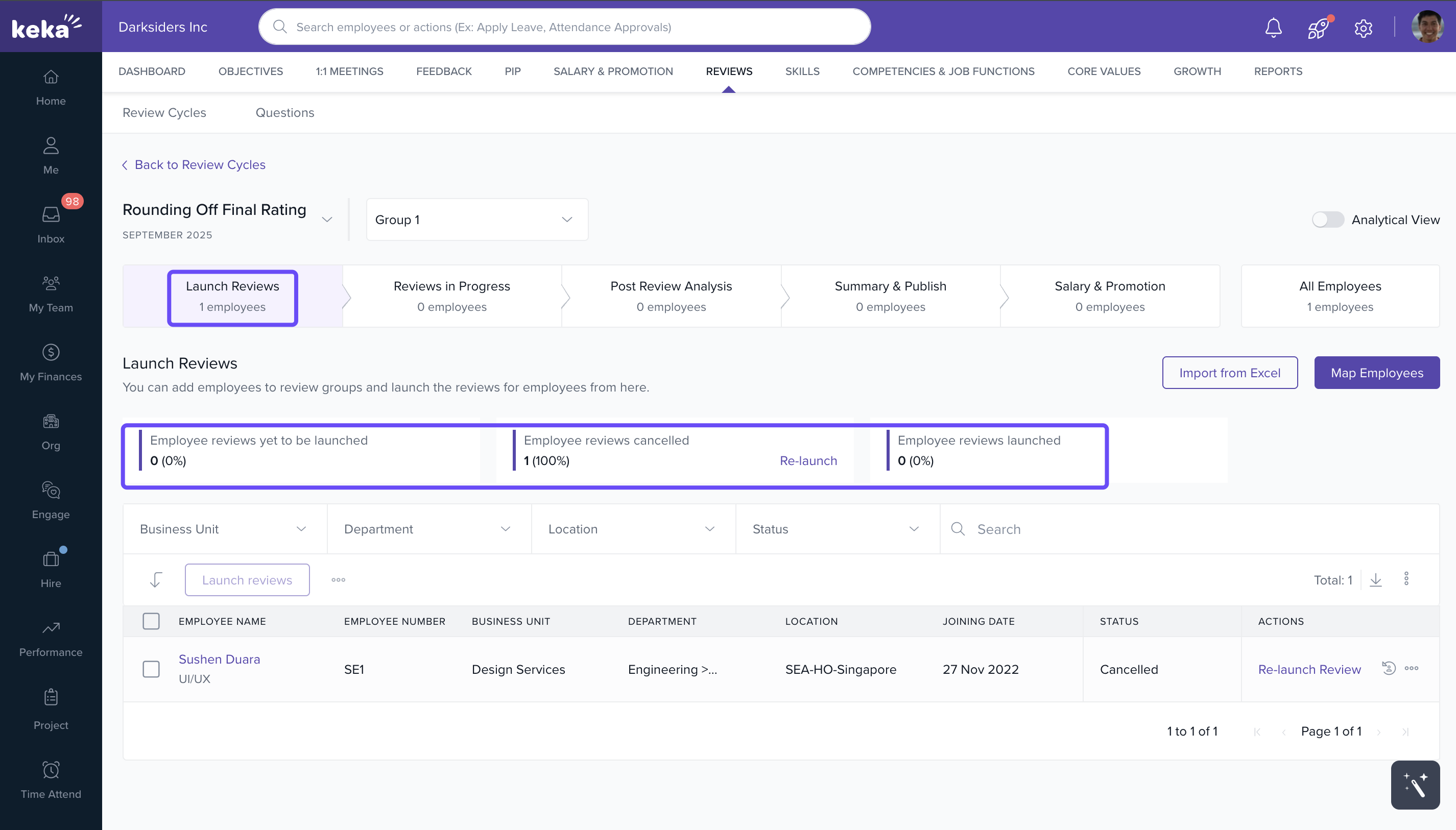
- Select and click Launch Reviews (individually or in bulk).
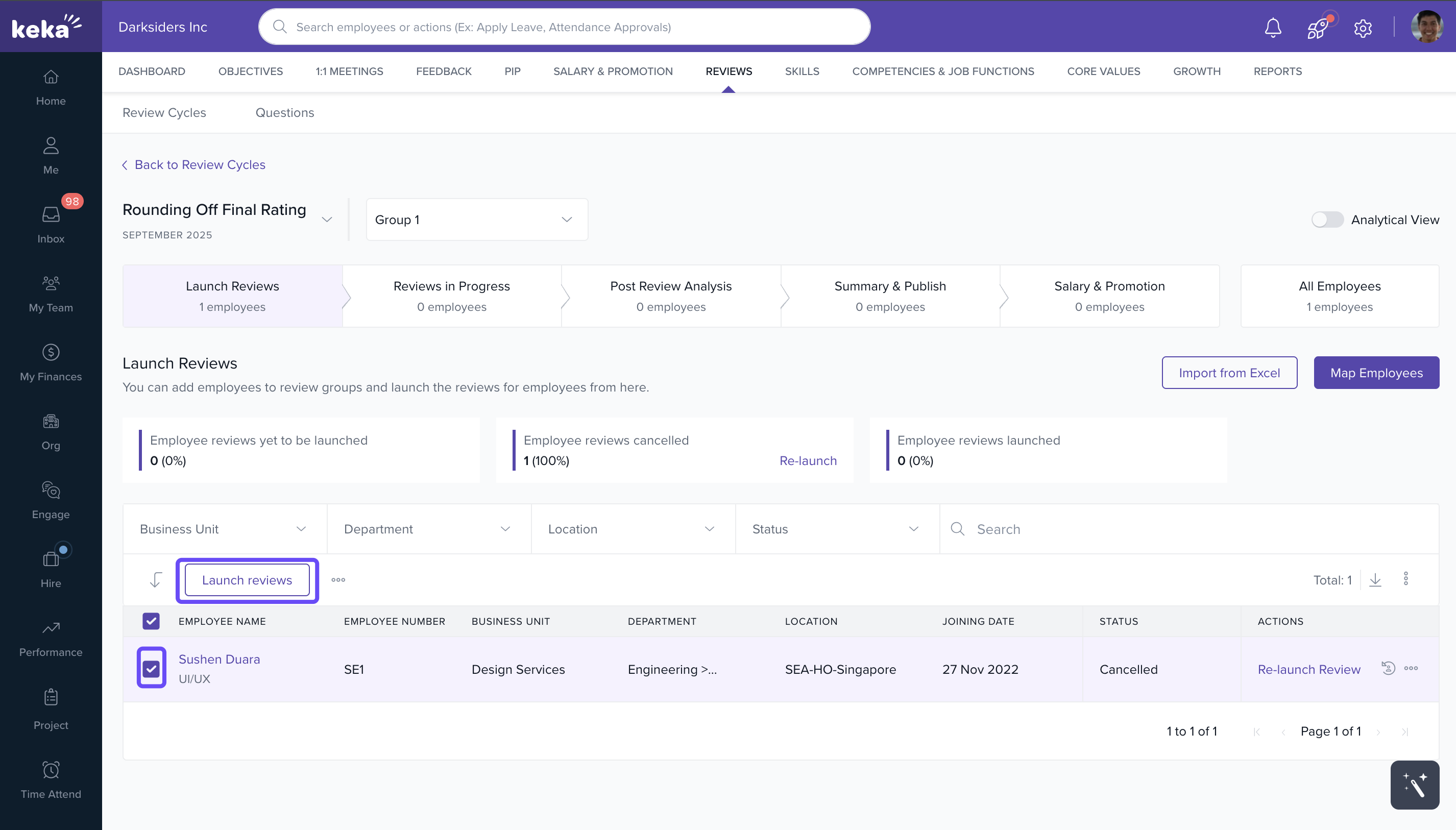
This view helps ensure that every eligible employee is covered in the cycle.
Reviews in Progress: Live Analytics by Stage
This area breaks down each stage of the review process, helping HR teams track participation and send reminders.
Nomination Stage
- Nomination Waiting on Self: Employees yet to submit nominations.
- Pending for Approval: Nominations awaiting manager or admin approval.
- Nominations Completed: Tracks successful nomination submissions.
Ongoing Form Filling
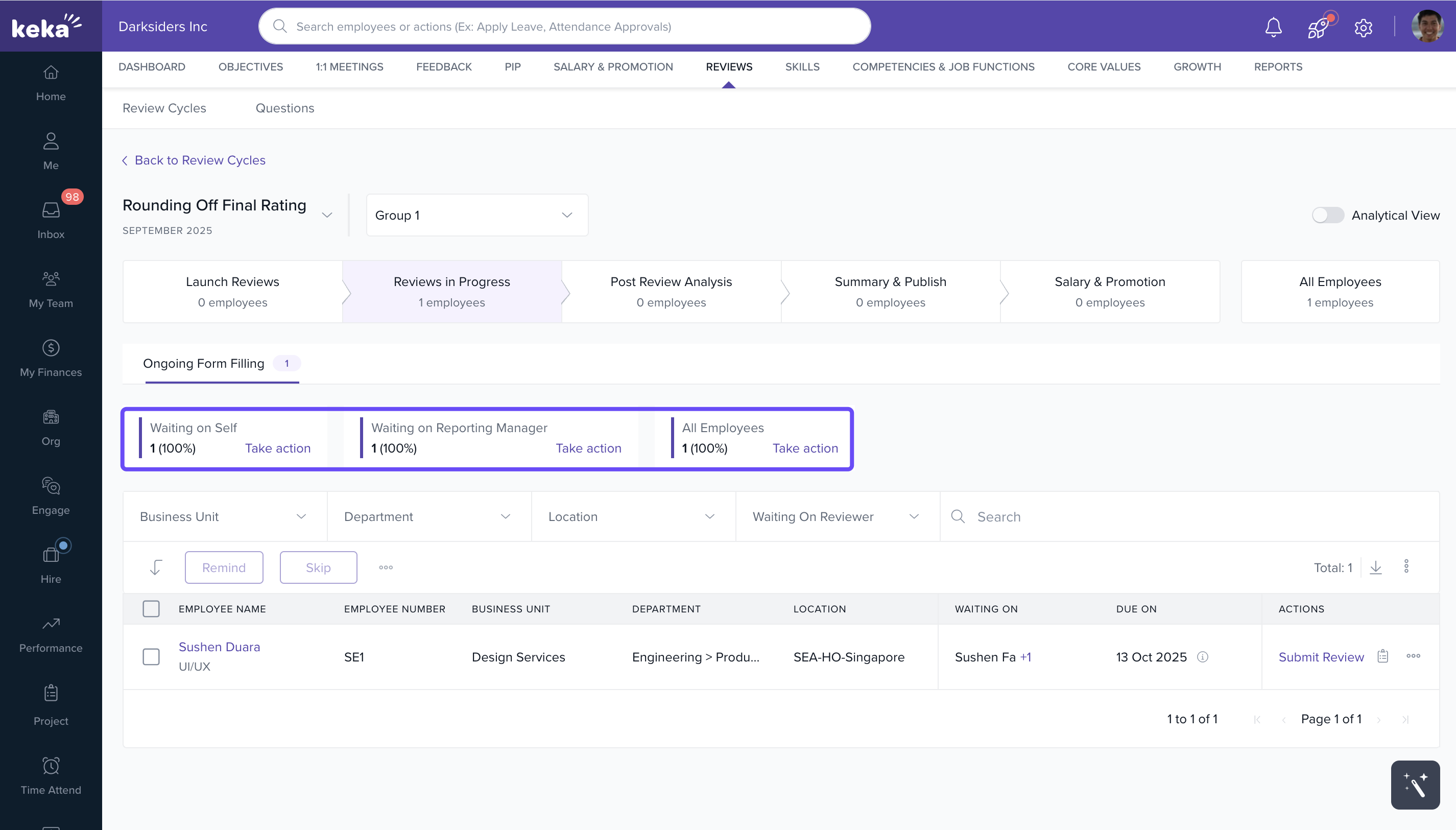
- Monitor the completion status of review forms by employees, managers, or peers.
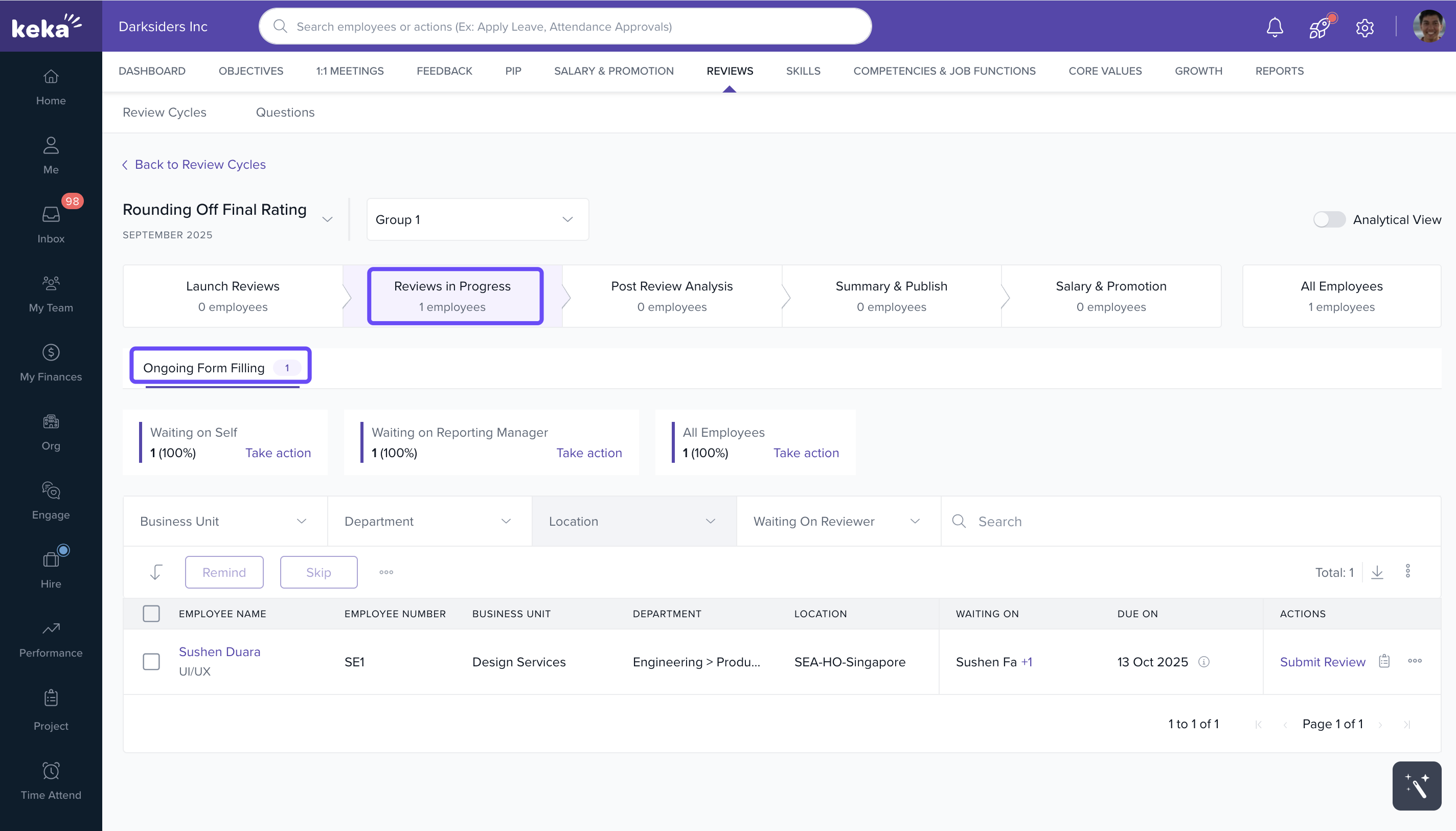
- Use Remind to nudge participants.
- Use Skip to bypass a delayed step for selected employees.
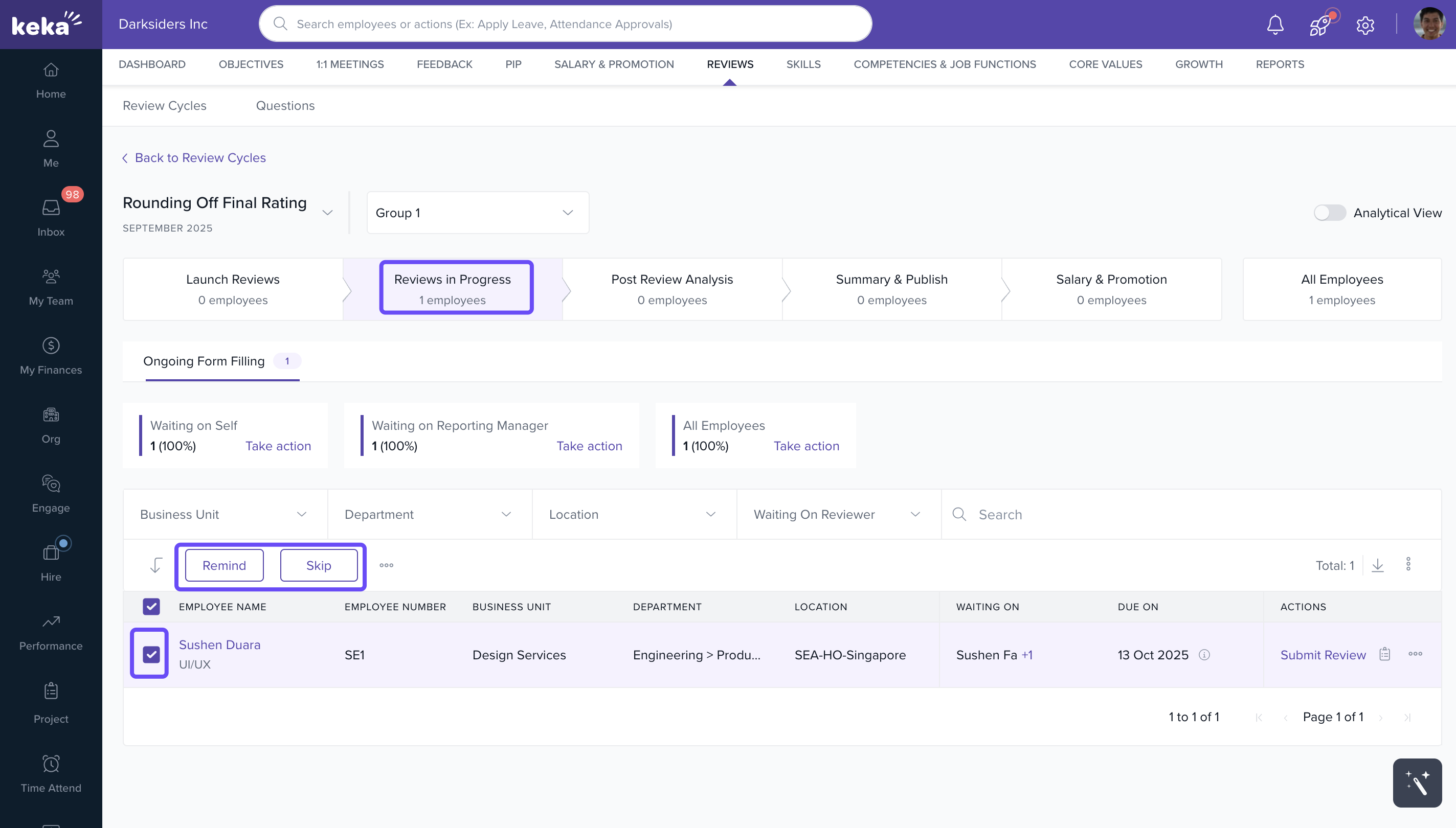
- Actions can also be performed in bulk.
- You can also click on the "Take Action" button for any specific review status within a section, allowing you to select the employees and perform the actions defined for that stage.
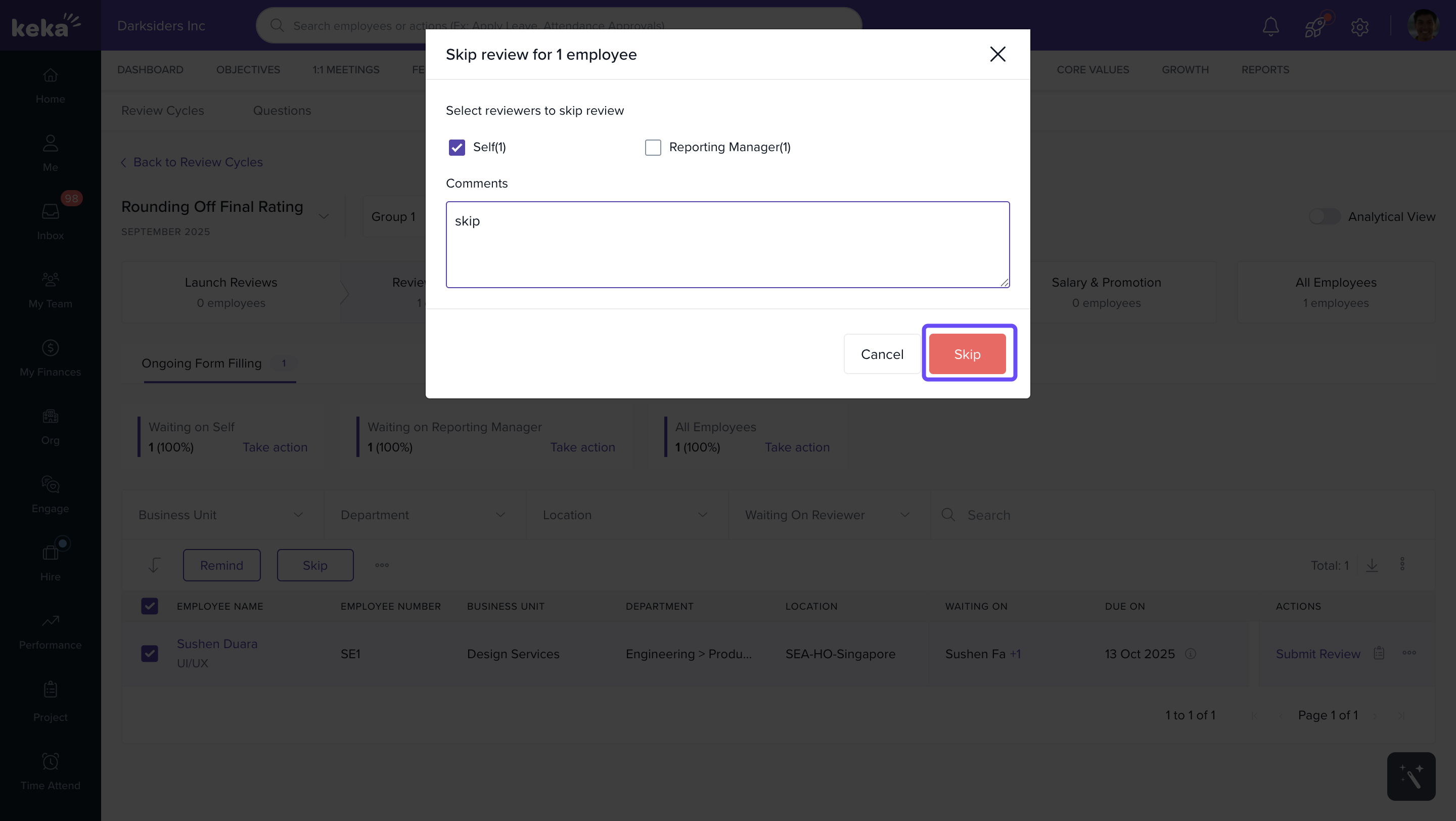
- After choosing Skip, you’ll be asked to add a comment before confirming.
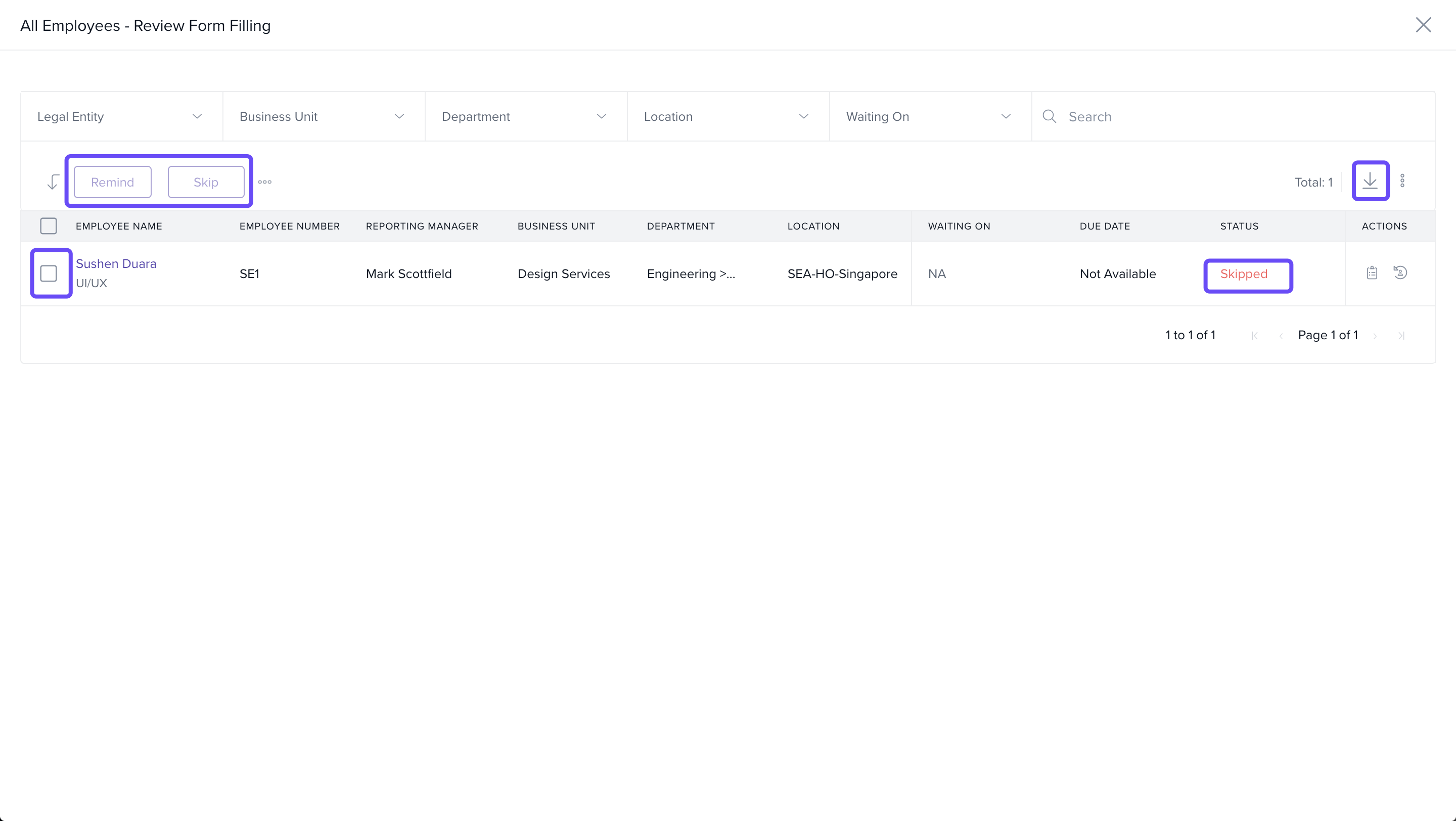
7. For each stage, there is an option to download the entire report in one go.
8. Each stage you see in the review cycle is determined by your settings configuration. Based on these settings, different sections—such as ongoing form filling, review meetings, and nominations—will appear, tailored to your review process.
Review Meeting
Track meeting outcomes across all review groups:
- Pending
- Missed
- Completed
Use this section to follow up with managers or reschedule missed discussions.
Summary & Publish: Finalising the Cycle
This tab helps HR wrap up the cycle by reviewing and publishing completed performance summaries.
Key Metrics:
- Review Summary: Total number of finalised reviews.
- Yet to Publish: Reviews ready for publishing but not yet released.
-
Pending for Acknowledgement: Published reviews waiting for employee acknowledgment.
Click View for a list of impacted employees. -
Published: Number (and percentage) of reviews published and acknowledged.
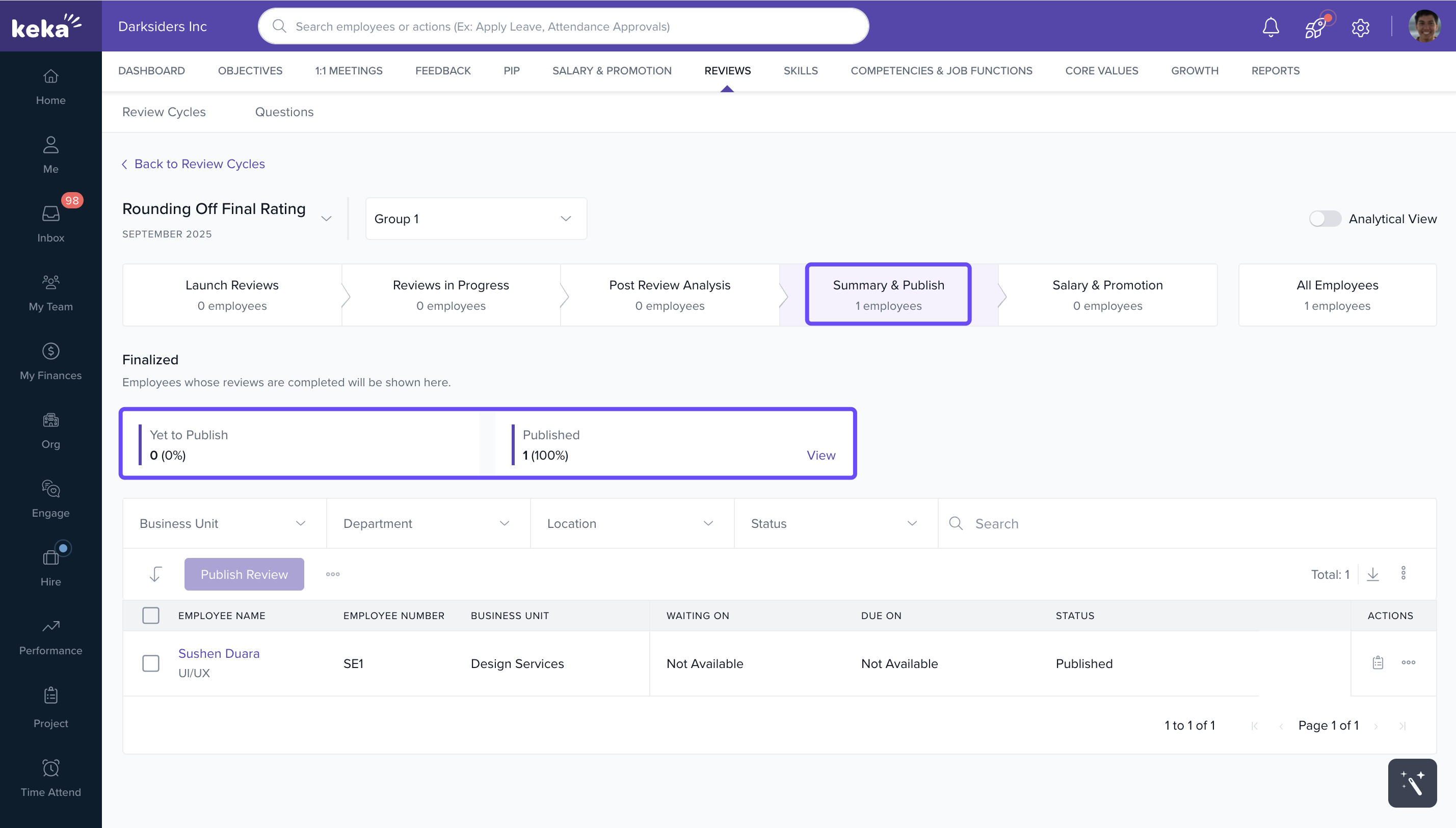
Use this view to close the loop on outstanding tasks before ending the cycle.
Salary & Promotion: Managing Post-Review Changes
This tab supports performance-based compensation and role updates, enabling HR to review and confirm proposals efficiently.
Key Metrics:
- Pending Revisions & Promotions: Lists employees whose updates are under review.
-
Finalised: Shows employees with confirmed changes to salary or role.
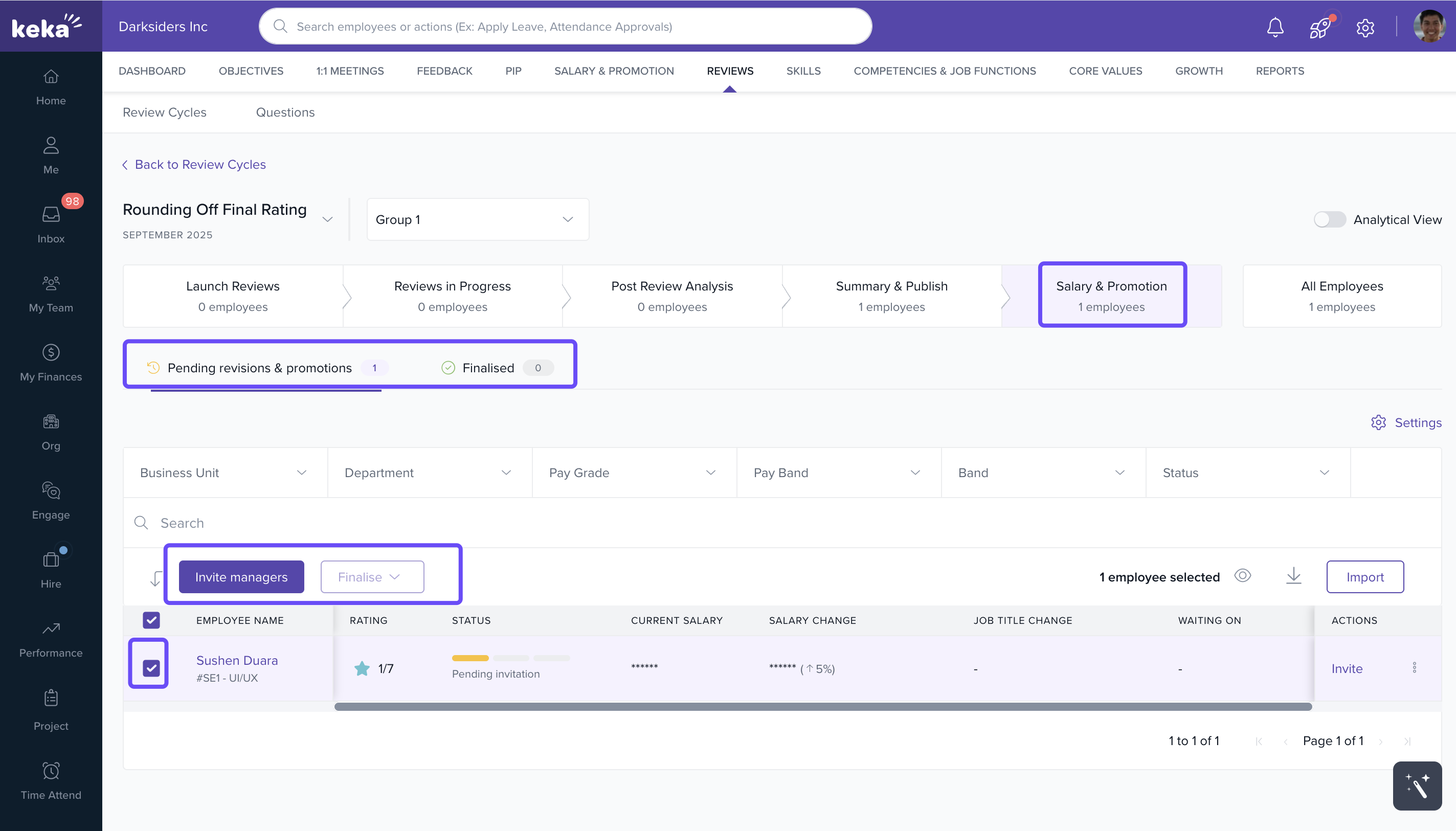
You’ll also see current salary, proposed changes, pay bands, and approval statuses—centralizing decision-making in one place.
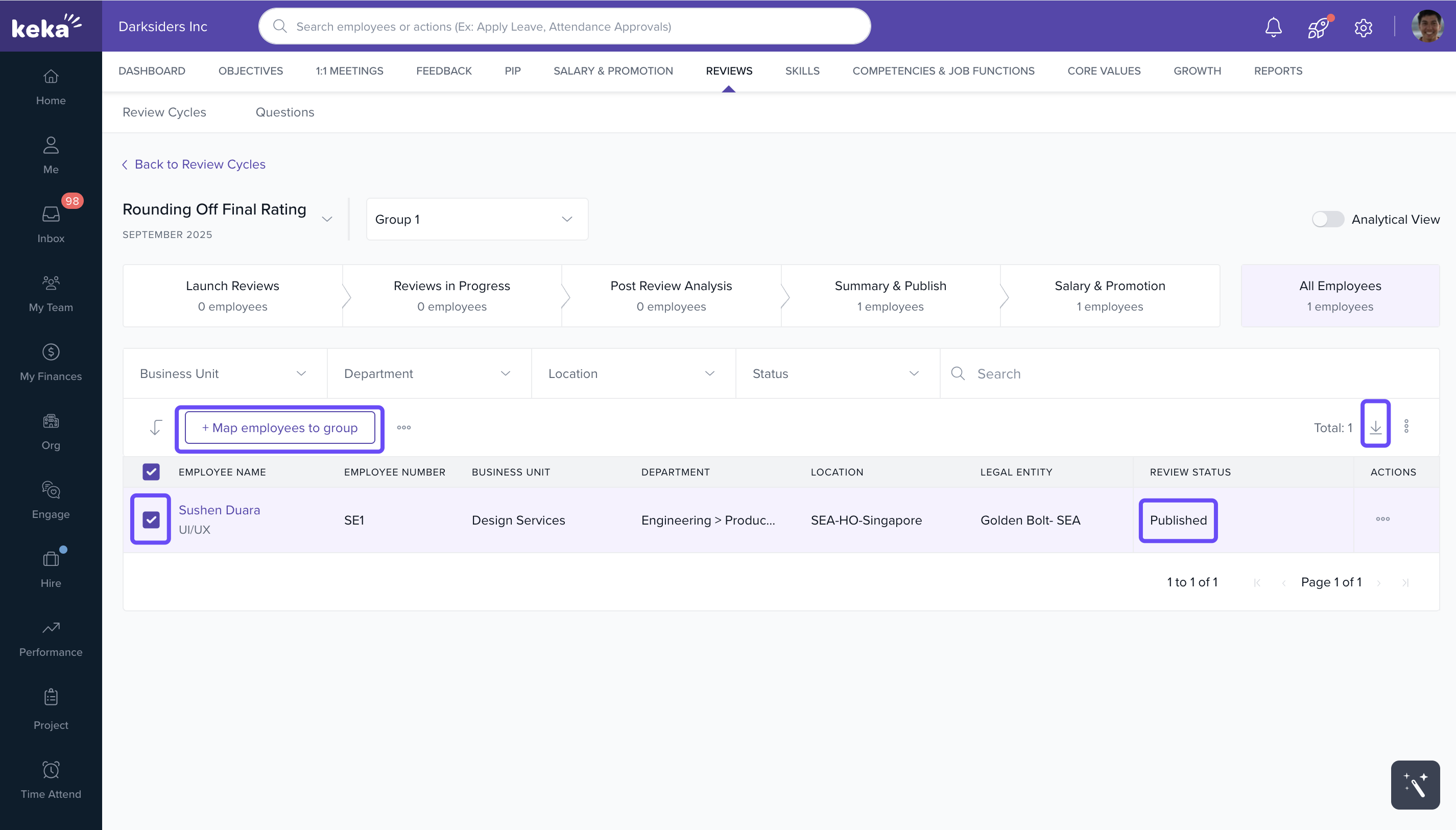
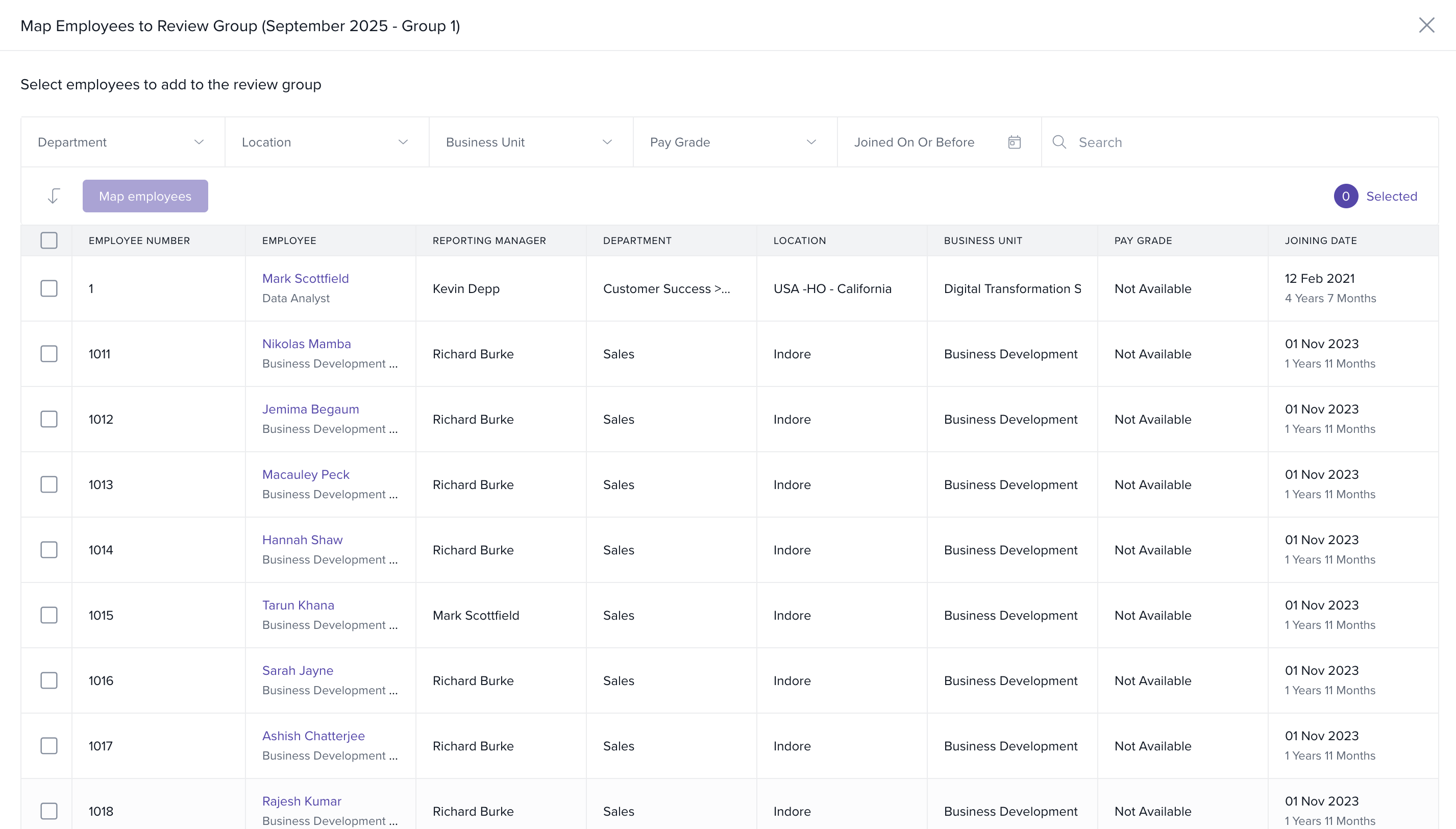
All Employees: Bulk Mapping & Group Assignment
This section lets HR teams assign employees to review groups in bulk.
Filters include:
- Department
- Business Unit
- Location
-
Status
-
Use this to map employees quickly and ensure proper grouping for the review process.
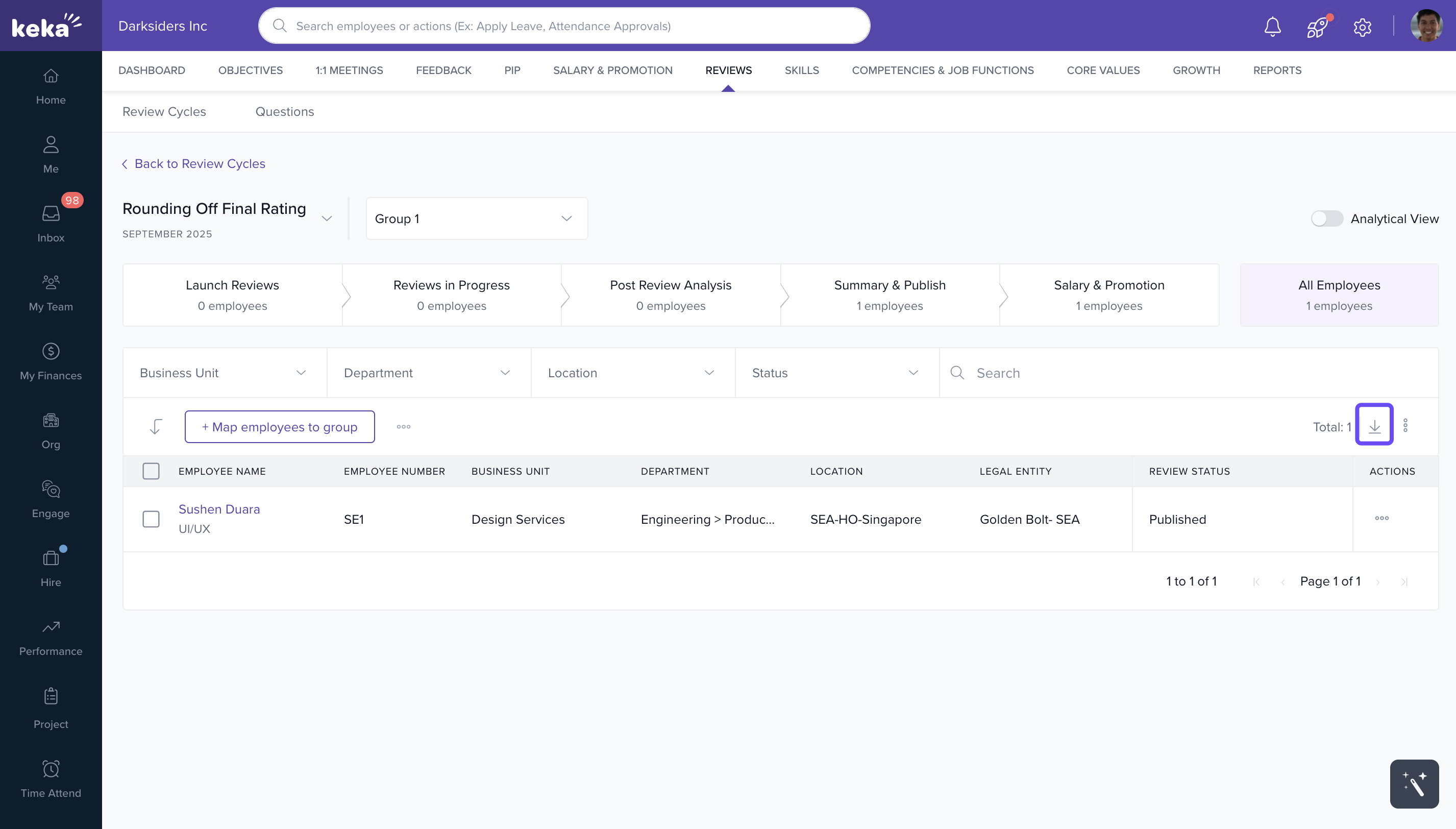
Bulk Report Downloads
At every review stage, reports can be downloaded to support:
- Audit requirements
- Status reporting
- Leadership reviews
- Internal documentation
Click the Download option in any section to get the full data set for that stage.
Notes & Tips
- Tip: Use filters strategically (e.g., by department or status) to prioritise follow-ups.
- Important: Use bulk actions to reduce manual effort in large organisations.
- Note: Completed reviews can’t be edited after publishing. Confirm data accuracy before finalisation.
FAQs
-
Can I launch reviews for multiple employees at once?
Yes, use bulk select in the “Launch Reviews” tab. -
What happens if someone skips form filling?
The review moves to the next applicable stage, and the skipped form is marked accordingly. -
Can I re-open a published review?
No, published reviews are locked. Ensure all data is verified before publishing.
Comments
0 comments
Please sign in to leave a comment.