Overview
You can now let employees view submitted feedback from reviewers, such as managers or peers, as soon as it's submitted, even before the review cycle is officially published.This is useful if you want feedback to reach employees sooner for faster growth conversations.
Previously, employees could only view their feedback after the review cycle was published. Now, there are two visibility options for review forms:
After Form Filling (New): Employees can view their review form immediately after a reviewer submits it—even before the review cycle is published.
After Publishing (Default): Employees gain access only once the full review cycle is released.
This enhancement provides HR admins with more control over when and how review feedback is shared with employees.
How to Enable Early Access
To enable early access to feedback during a review cycle:
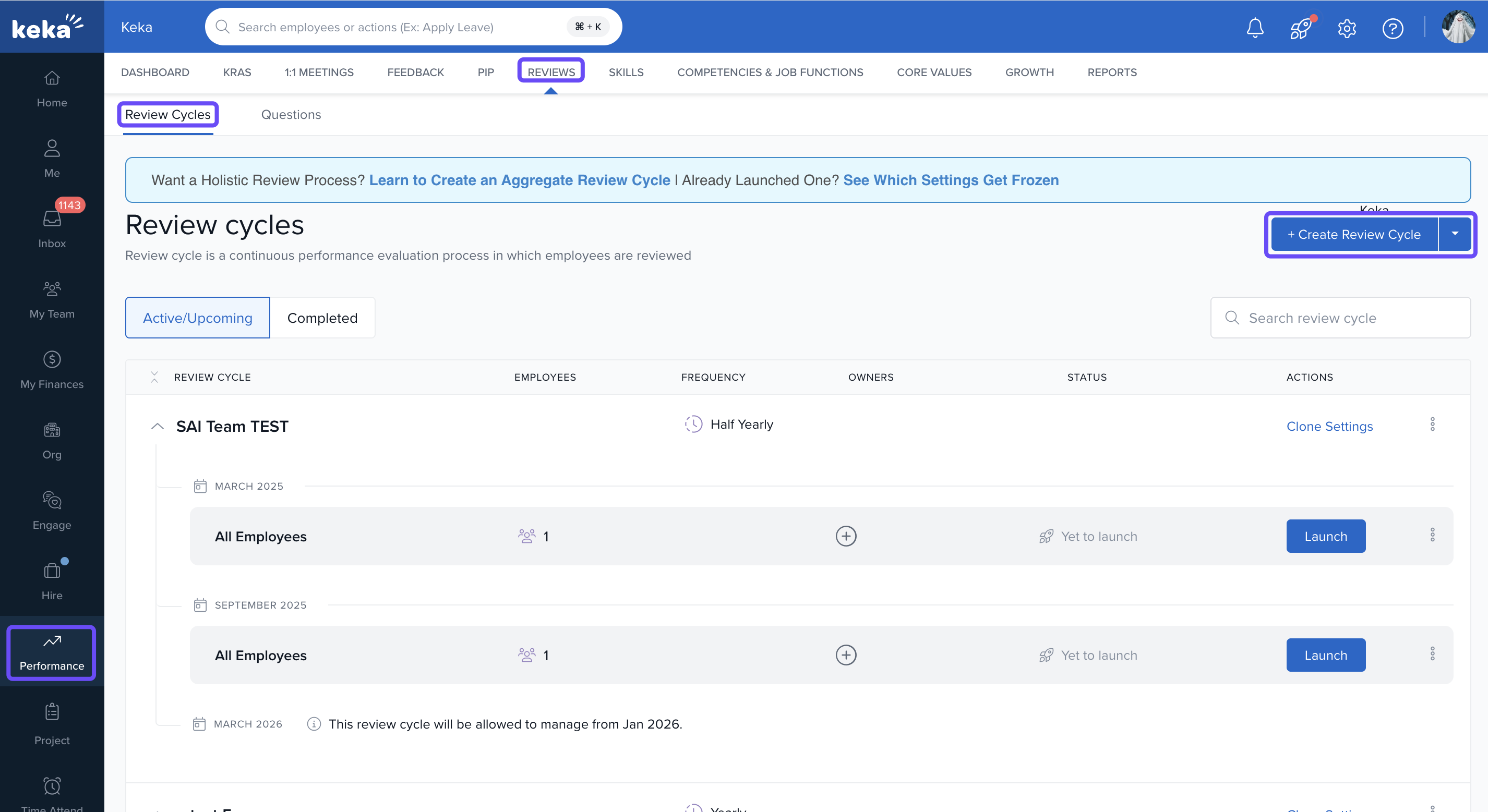
Go to Performance > Reviews.
-
Click Create Review Cycle or open an existing one to edit.
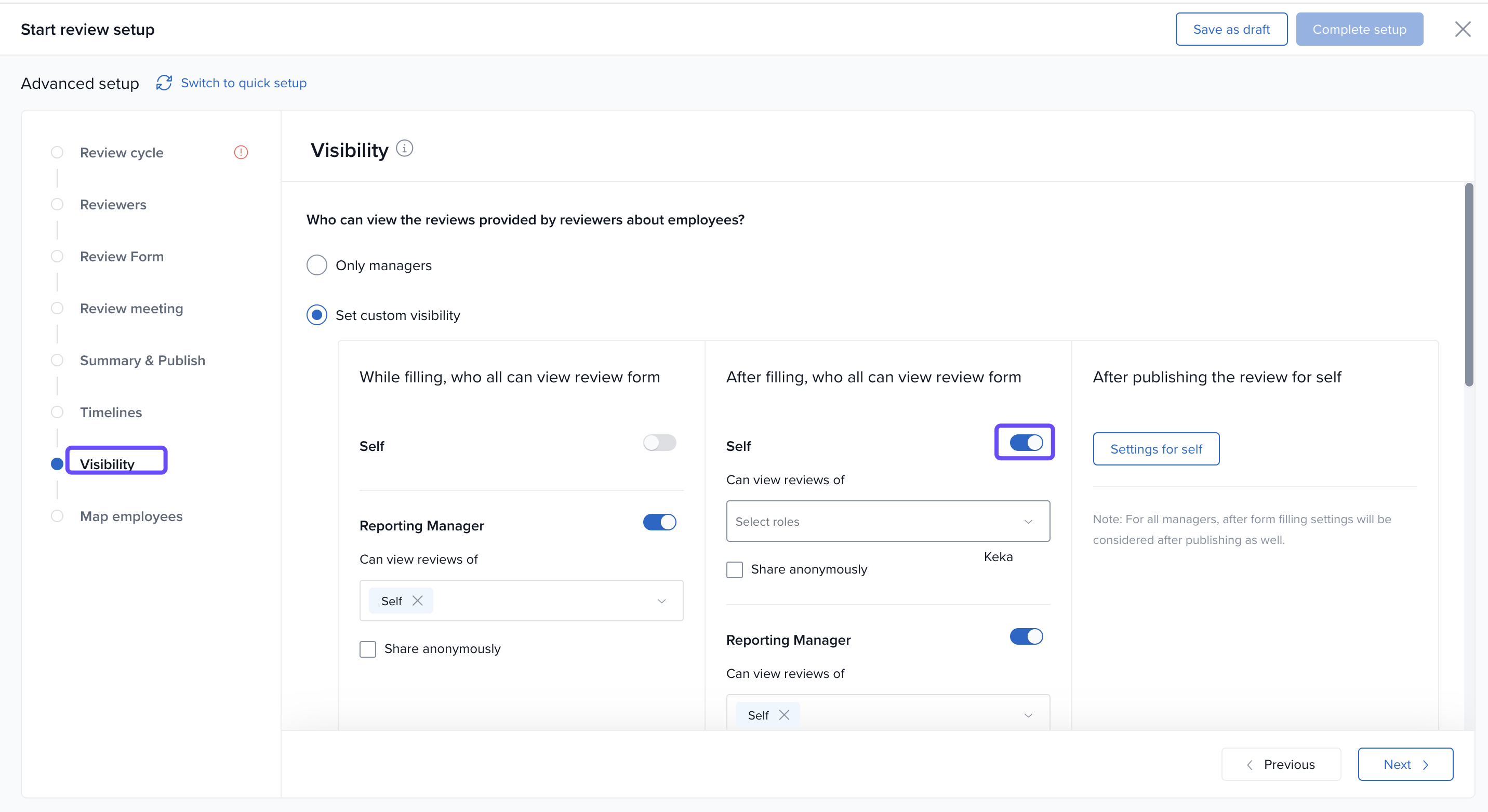
Navigate to the Visibility tab.
-
Under Self, select one of the following:
Before Form Filling: No access to the review form.
After Form Filling: Grants early access to submitted feedback.
After Publishing: Default option; feedback is shown only after the cycle is published.
- Select After Form Filling to grant early access.
-
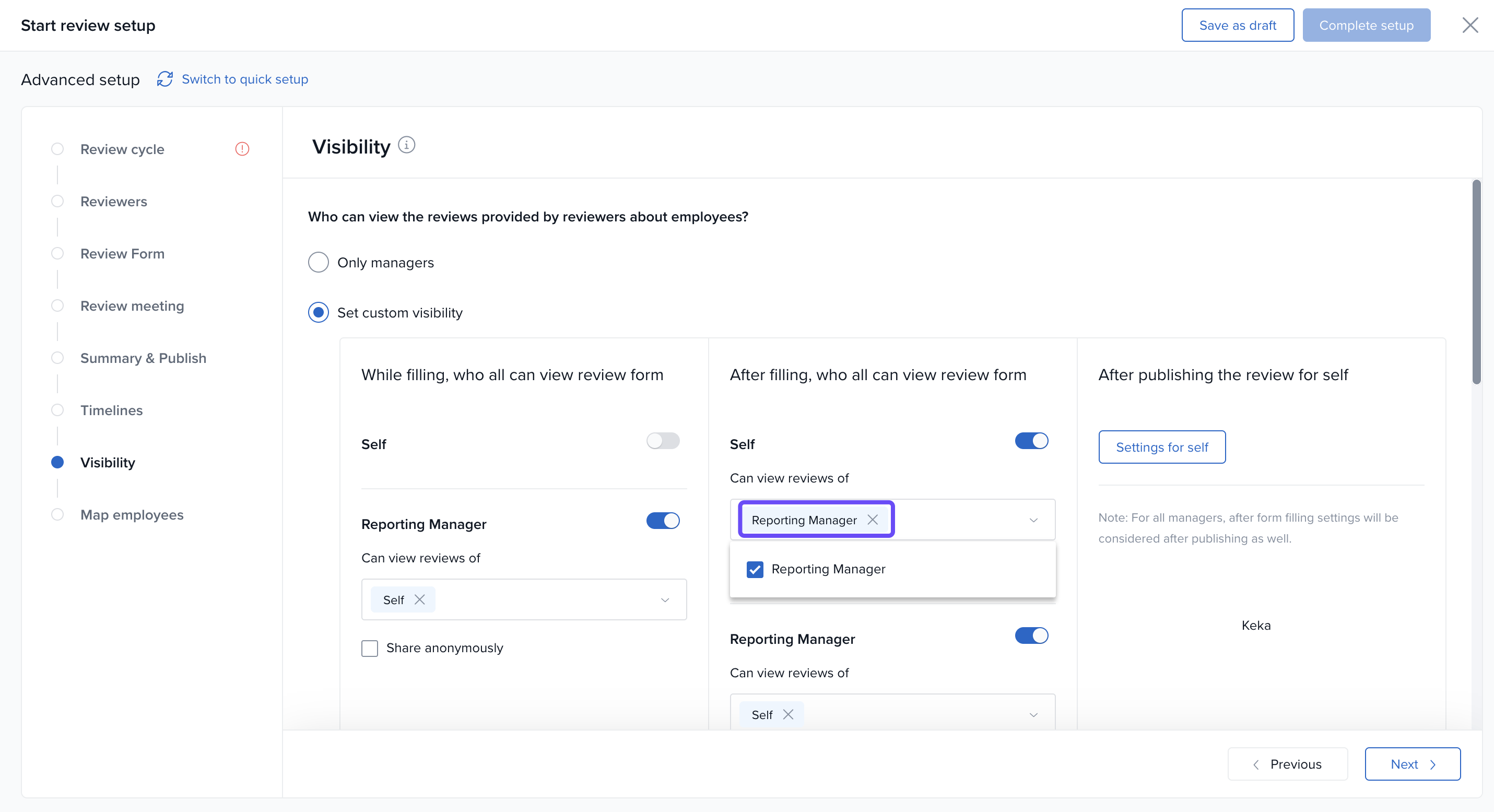
Select the roles (like Employee) who should see the feedback early.
Complete the setup and publish the review cycle.
For new review cycles, the “After Form Filling” option is available but disabled by default to prevent accidental early visibility. For existing review cycles, the setting remains unchanged unless updated by the admin.
Options & Variants
You can control when employees see their review forms:
| Option | What it means |
|---|---|
| After Form Filling | Employees can view feedback as soon as it's submitted by a manager or peer. |
| After Publishing | Feedback is visible only after the full review cycle is published. (Default behaviour) |
Next Steps
Explore how to update Review Cycle Settings in Keka.
- Contact Keka support for help enabling this feature. Fill out this form for personalised assistance.
Comments
0 comments
Please sign in to leave a comment.