Overview
At Keka, we understand the importance of employee growth and efficient performance reviews. To help streamline your review process, we’ve introduced customisable email triggers that ensure stakeholders are always informed about key milestones such as review meetings, summary submissions, and review form submissions.
These event triggers will help you automate communication and stay on top of important review cycles.
Accessing Email Triggers
To get started:
Go to the Global Settings section.
Under Communications, select Event Triggers.
-
Click on Performance to view the available email triggers.
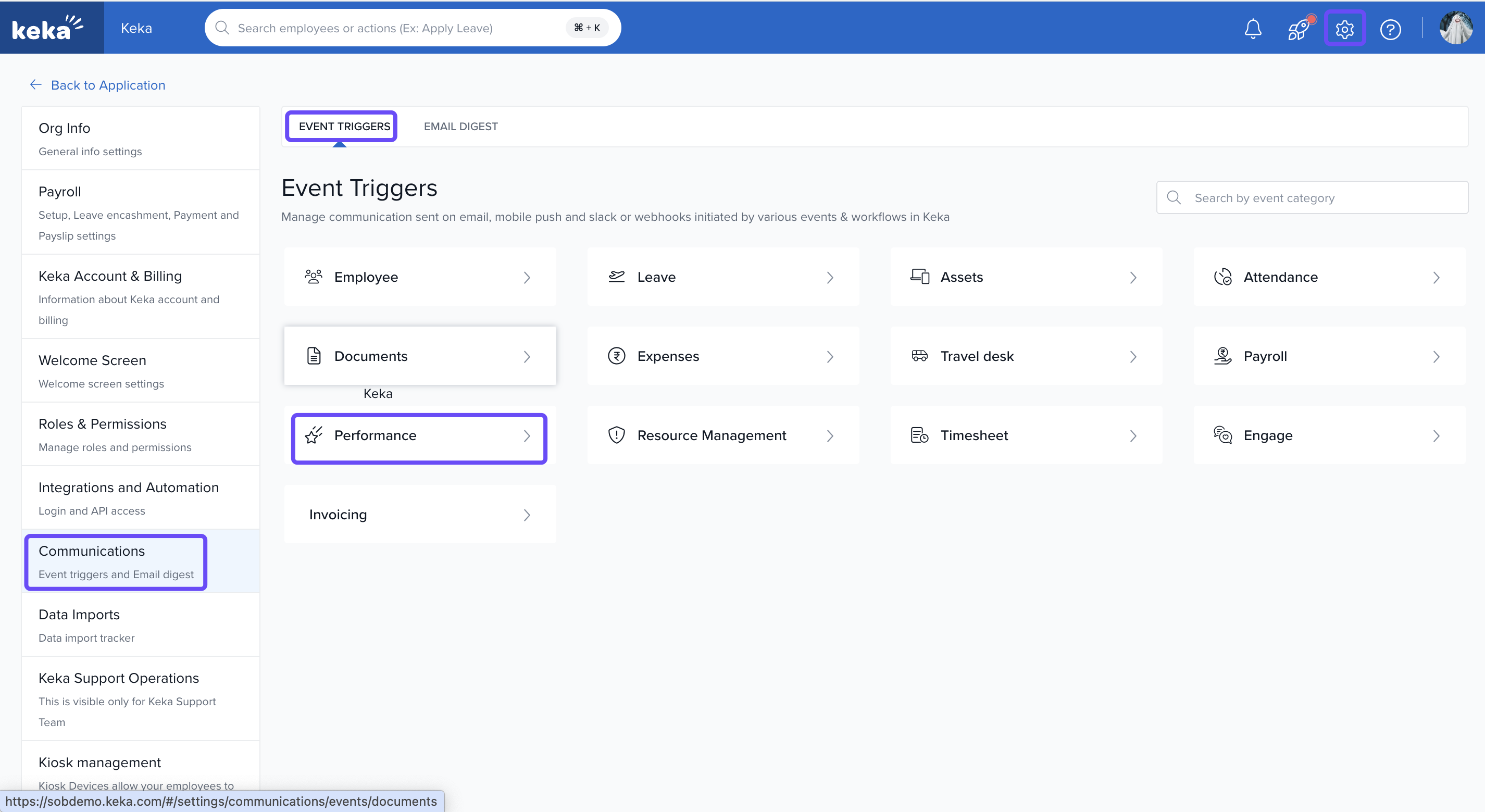
In this section, you’ll find triggers related to review meetings and review forms.
Selecting a Trigger
-
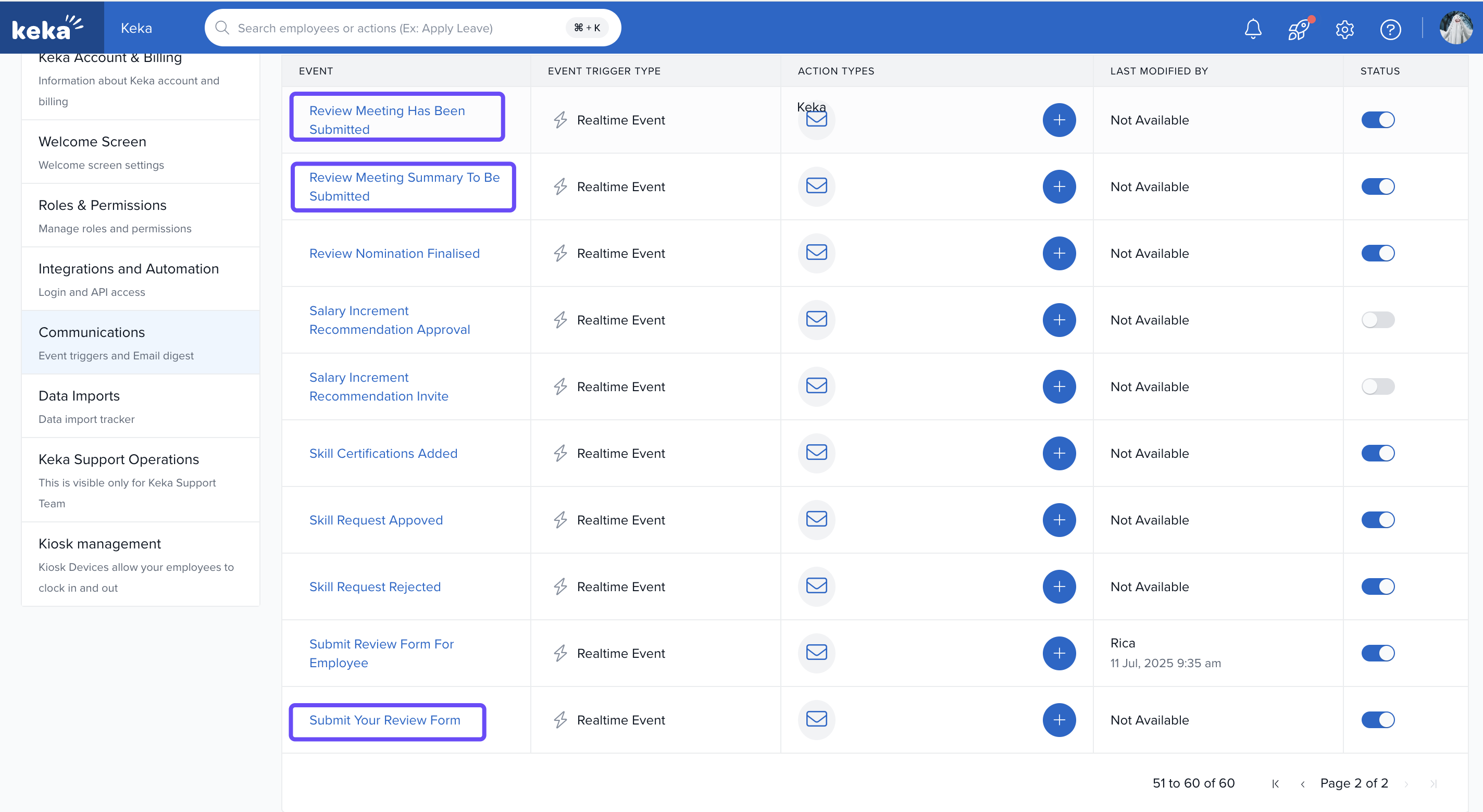
Identify the trigger you want to configure:
Review Meeting has been Submitted
Review Meeting Summary to be Submitted
Submit Your Review Form
-
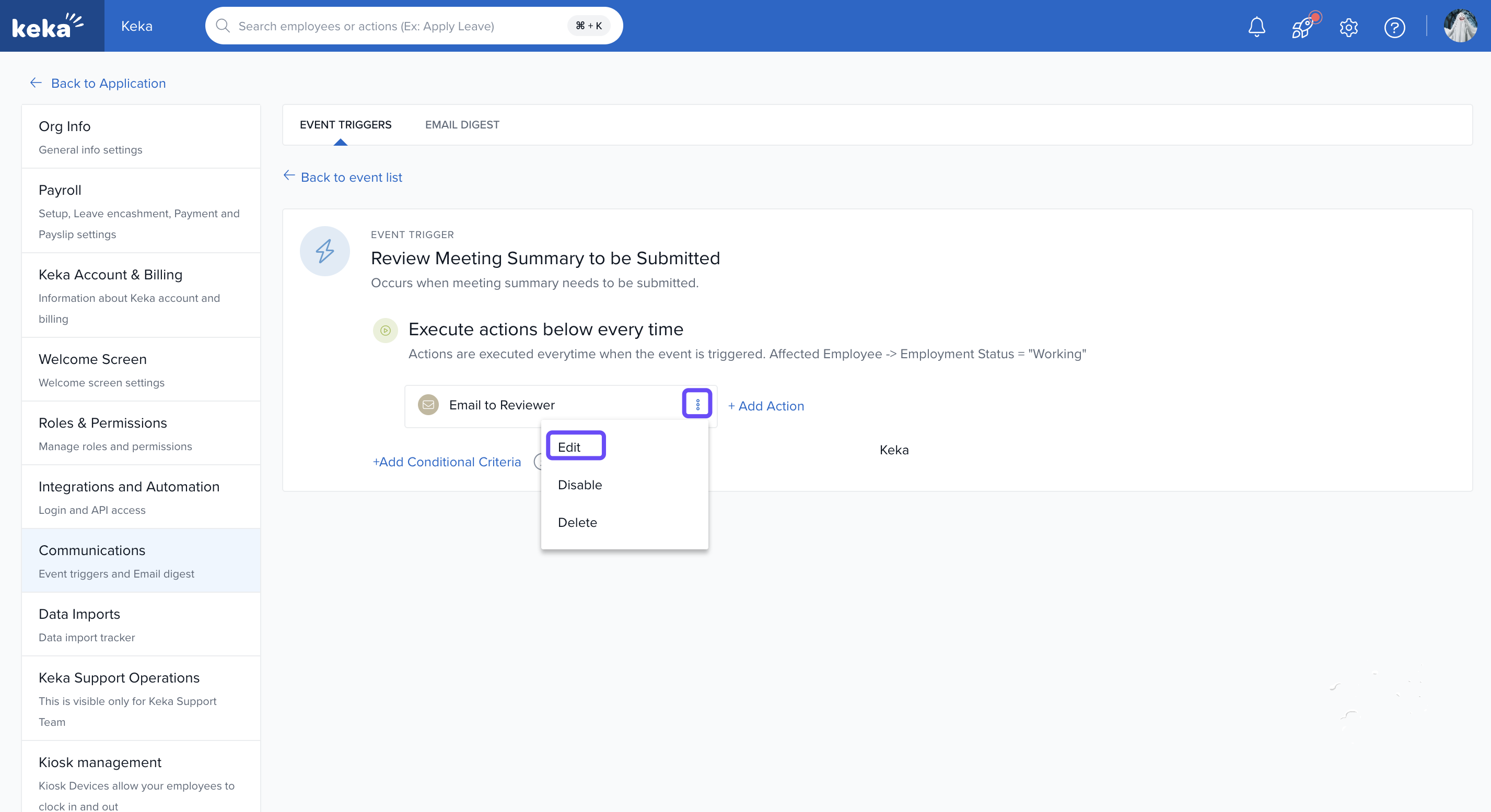
Open any of the event trigger by clicking on it. Next, click the three dots next to the trigger and select Edit.
Configuring Recipients
Decide who receives the email.
-
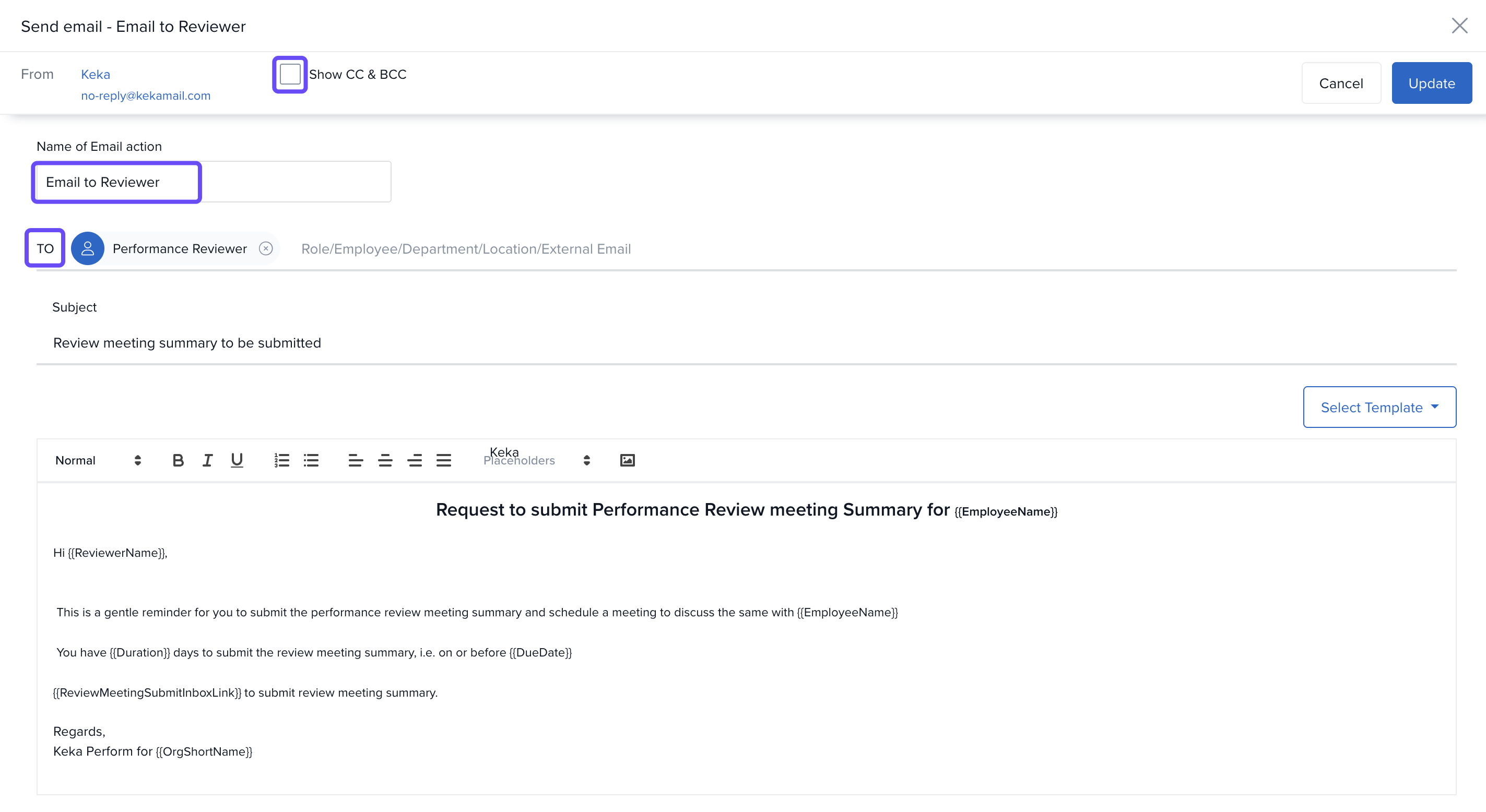
In the Edit email window, go to the To section, choose recipients:
The employee filling out the review form
The person who initiated the review
Specific people or departments
Optionally include or hide CC/BCC.
-
Enter the Name of the Email action.
Composing Email
Type the Subject of the email.
Write the body, using placeholders (e.g., employee name or ID) for personalisation.
Select a template if you want to use a pre-existing option.
-
Finally, click on Update option.
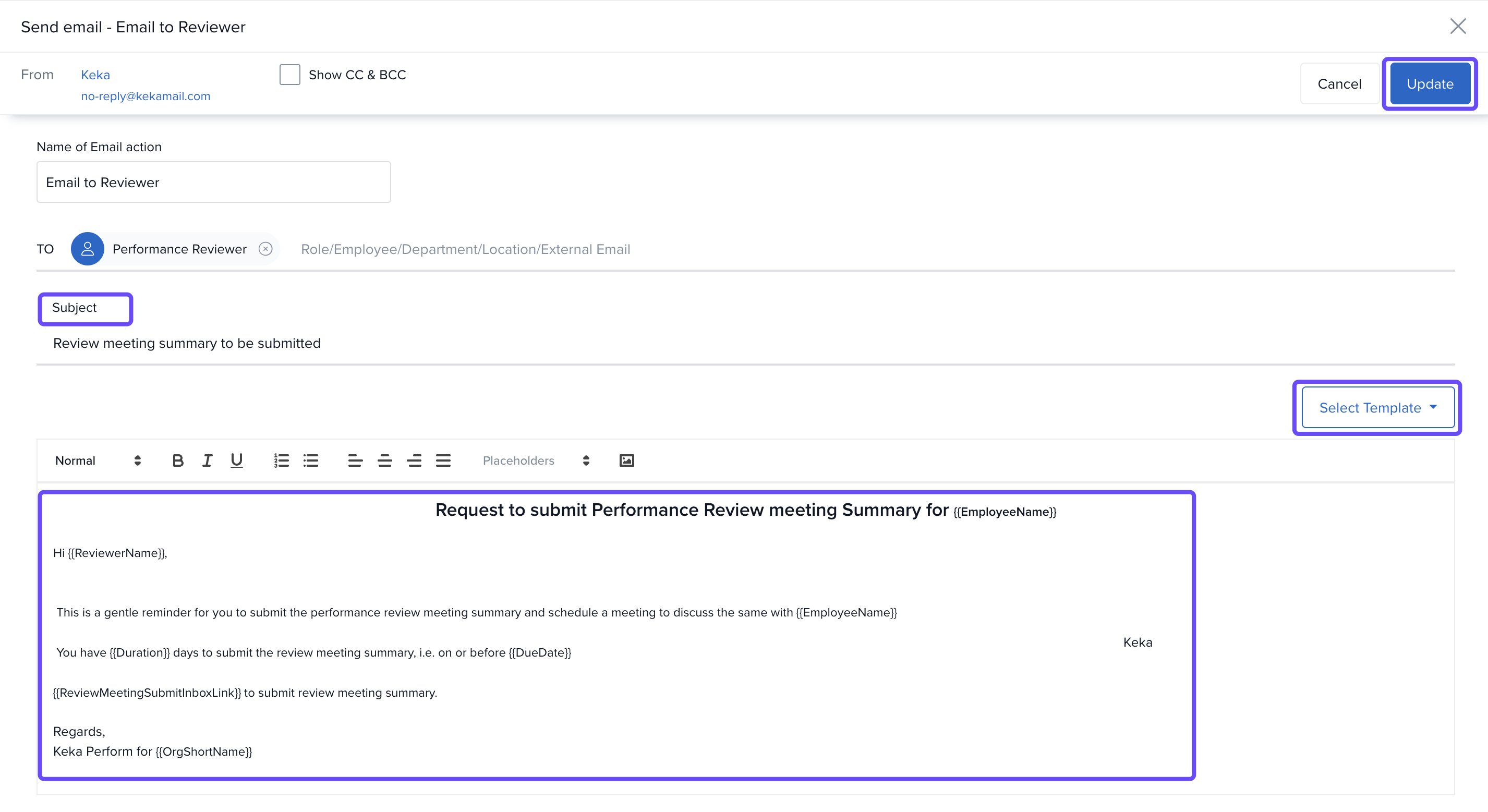
5. Use placeholders (like employee name, reviewer, etc.) to make the email more personal and clear.
6. Carefully plan your conditional criteria so that emails don’t get sent to wrong people or at wrong stages.
7. The three triggers correspond to different parts of the review flow (submission of meeting, summary, and review form). Make sure you understand which stage each trigger applies to.
Adding Conditional Criteria (Optional)
Filter email recipients based on specific conditions.
-
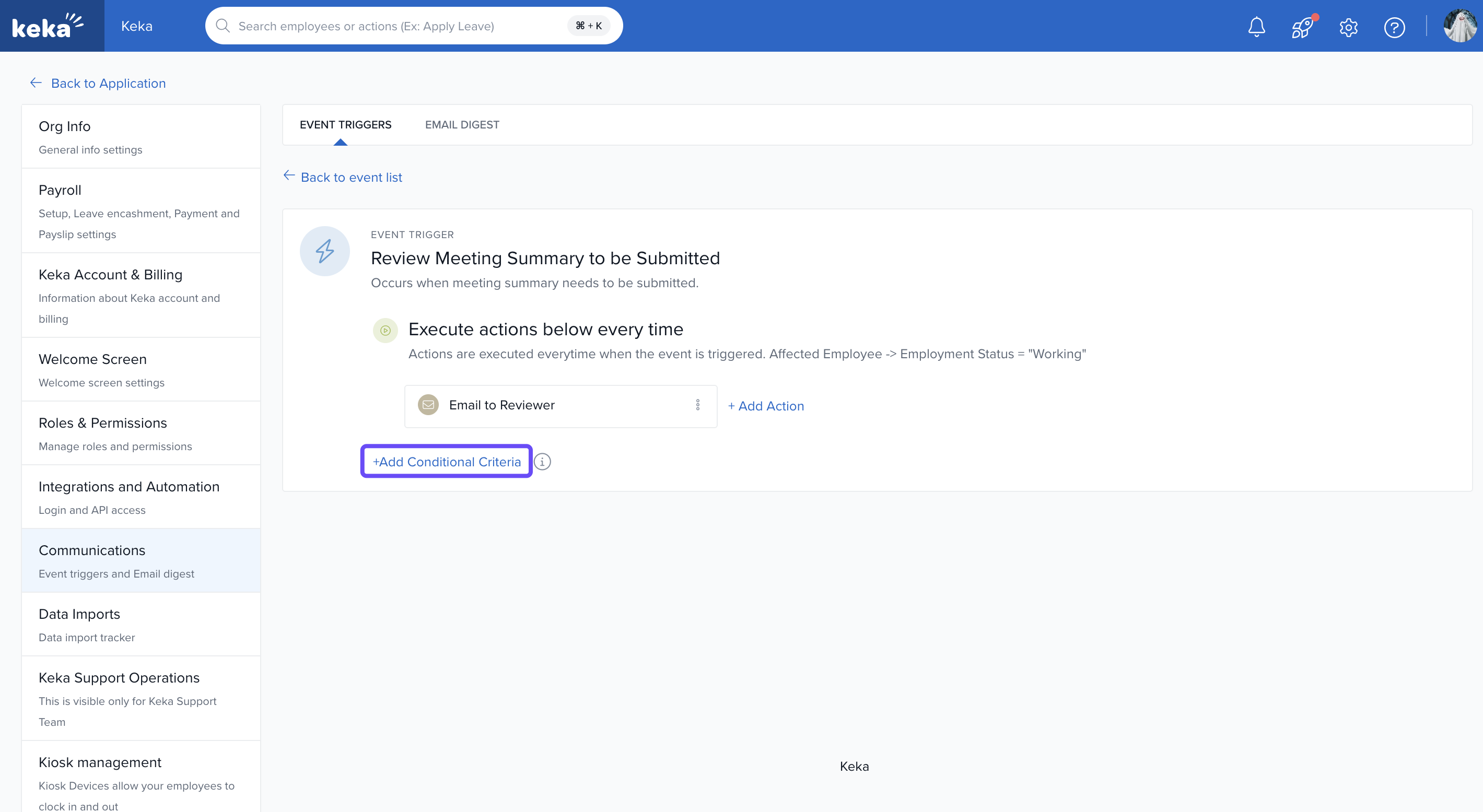
Click +Add Conditional Criteria.
-
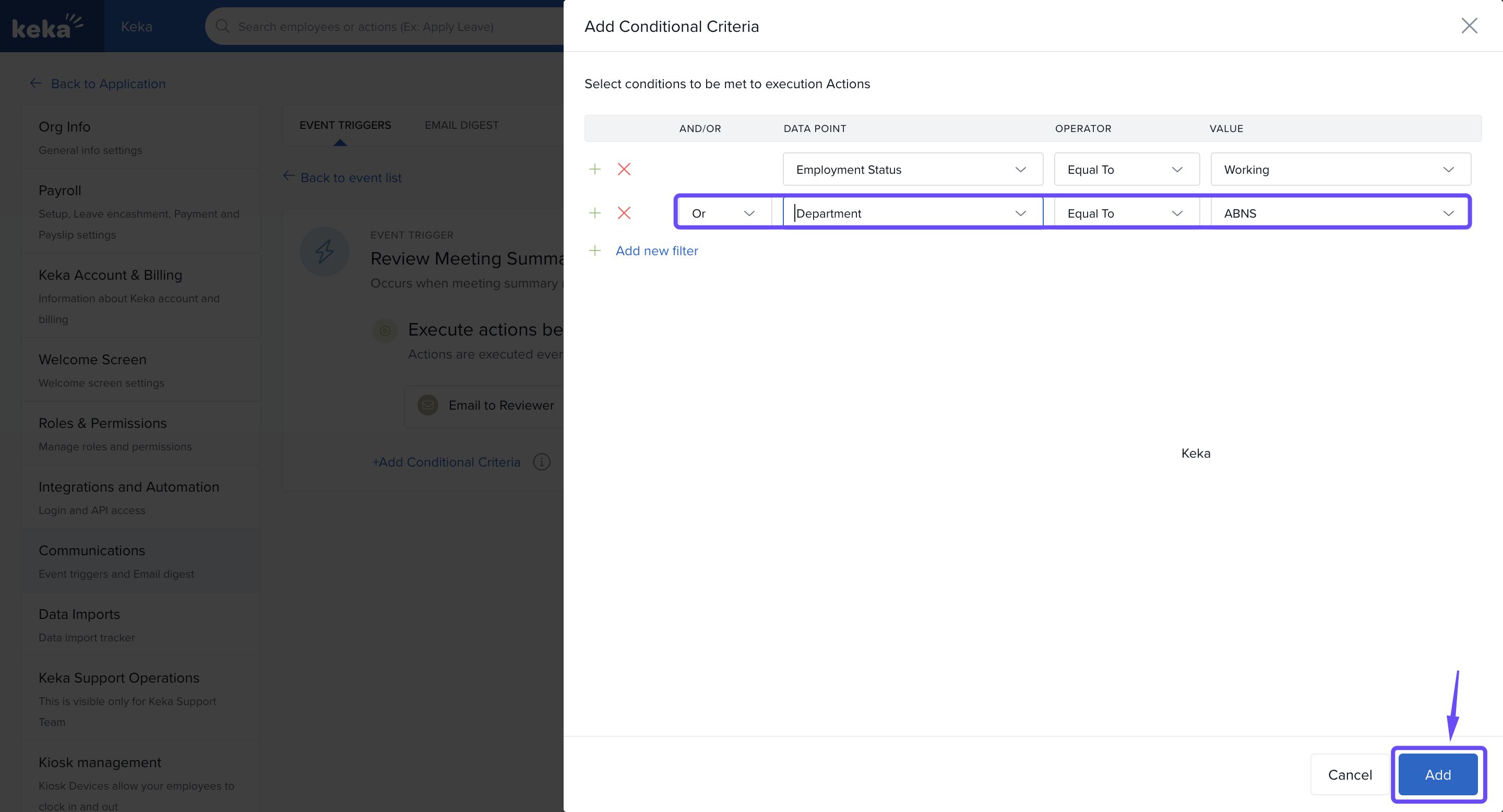
Select data points like Employment Status or Department.
For example, Employment Status = Working or Department = ABNS.
-
Click Add to apply your filter settings.
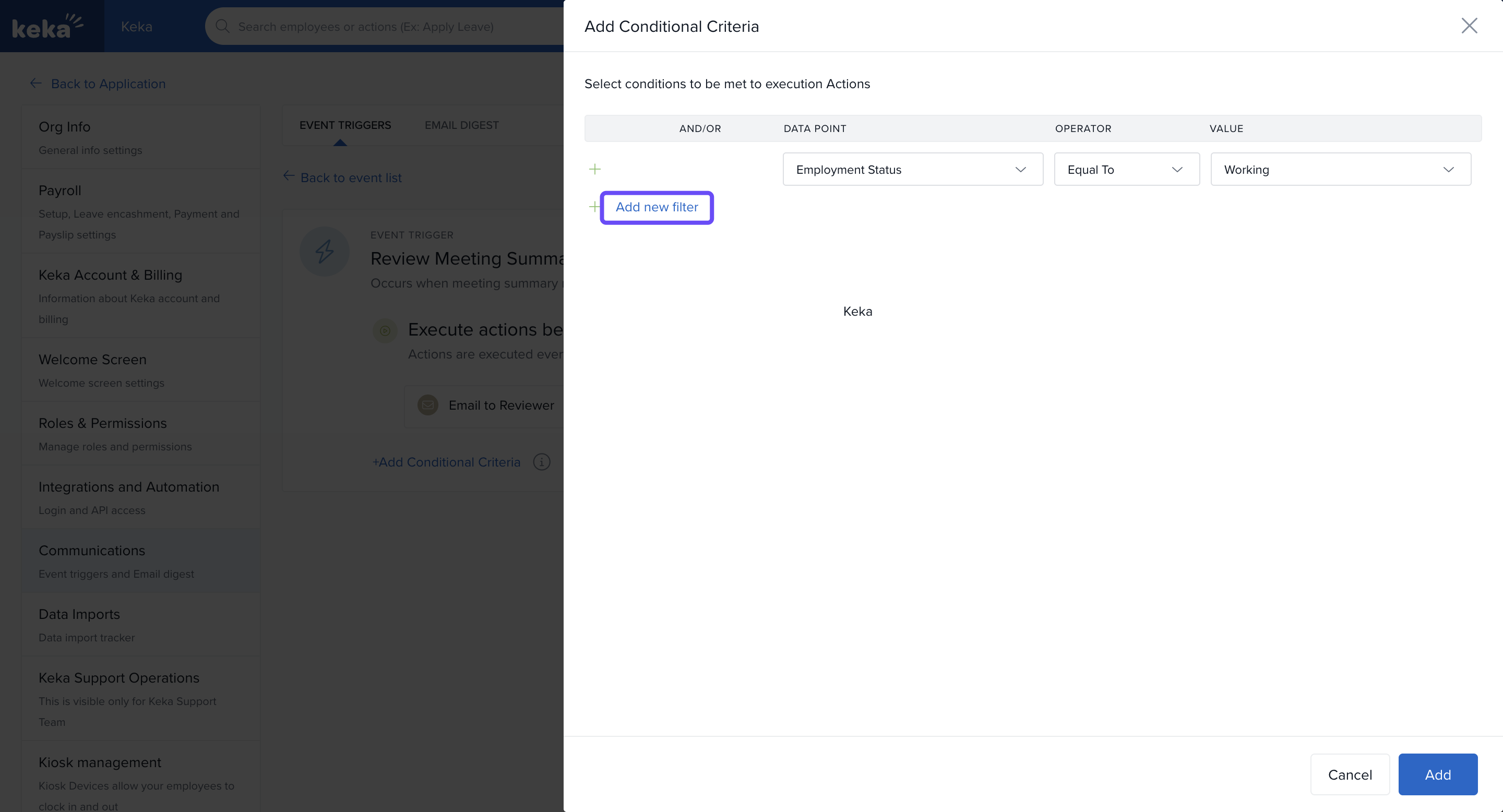
- You can click on Add filter to add more filters.
Options & Variants
Multiple recipients: Depending on the trigger, you can direct emails to different roles (reviewer, reviewee, process owner) or particular departments.
Templates: Using saved templates helps ensure consistency.
Conditional logic: Use filters if you need emails only for certain employees, teams, or criteria.
Next Steps
Go to Global Settings → Communications → Event Triggers to manage all email notifications across modules.
Review how to set up and configure Review Forms as part of your performance cycles.
Comments
0 comments
Please sign in to leave a comment.