Overview
The Performance Bands report in Keka helps managers and HR teams see how employees are distributed across rating bands during a review cycle. This makes it easier to evaluate performance, plan rewards, and track improvement opportunities.
In this article, you’ll learn how to:
Access the Assignment of Performance Bands to Employees in a Review Cycle report
Apply filters for review cycles and groups
View and analyse the data
Export the report for sharing or record-keeping
Accessing the Performance Reports
Log in to Keka.
In the left sidebar, click Performance.
Go to Reports, then select Review Reports.
-
Find and open Assignment of Performance Bands to Employees in a Review Cycle.
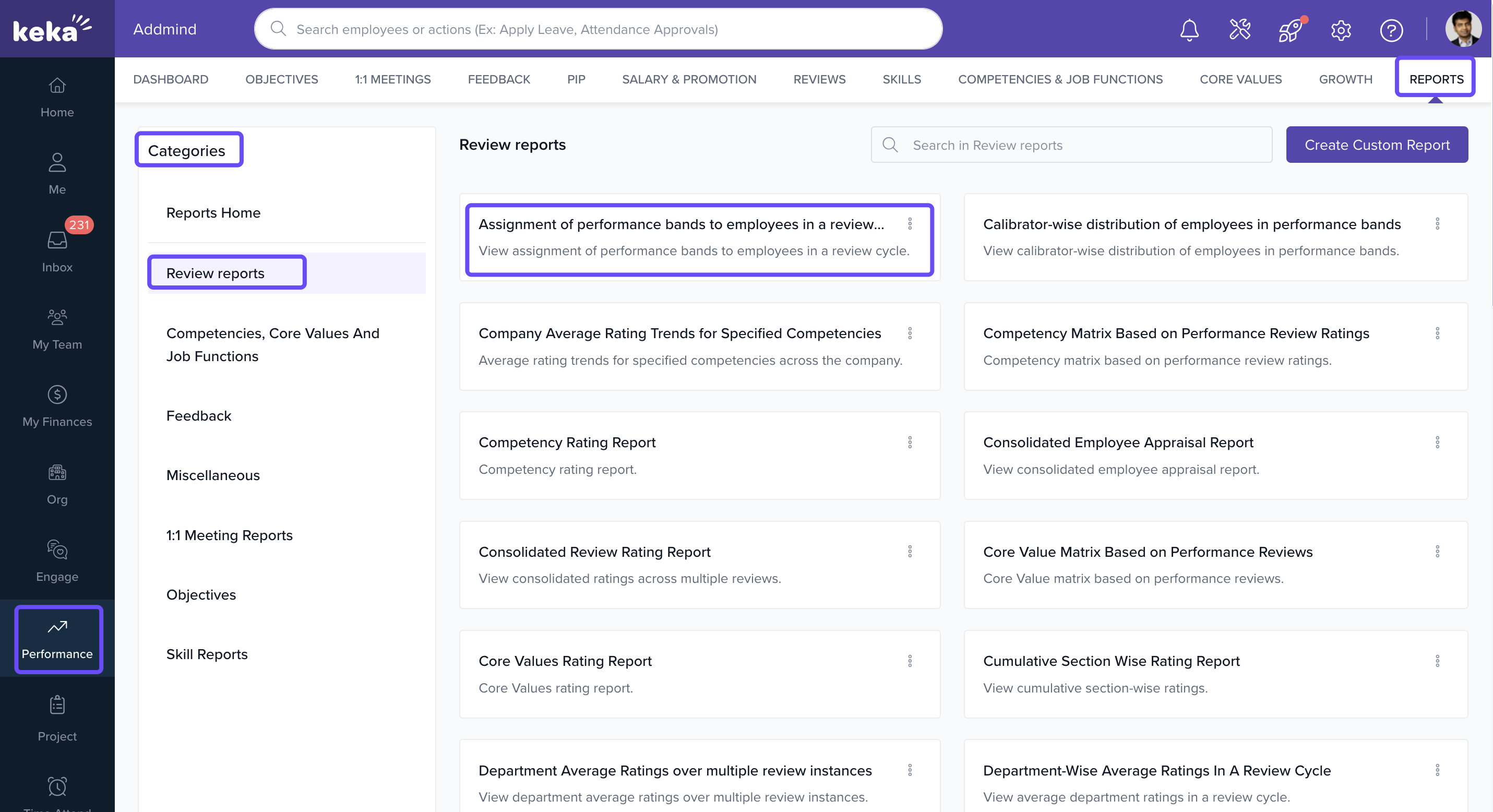
This report shows how employees are spread across different performance bands within the chosen review cycle.
Filtering the Report
-
When the report window opens, set filters using the dropdown menu:
Review Cycle (e.g., Cal check)
Review Instance (e.g., November 2024)
Review Group (e.g., All Employees)
-
Click Run to generate the report.
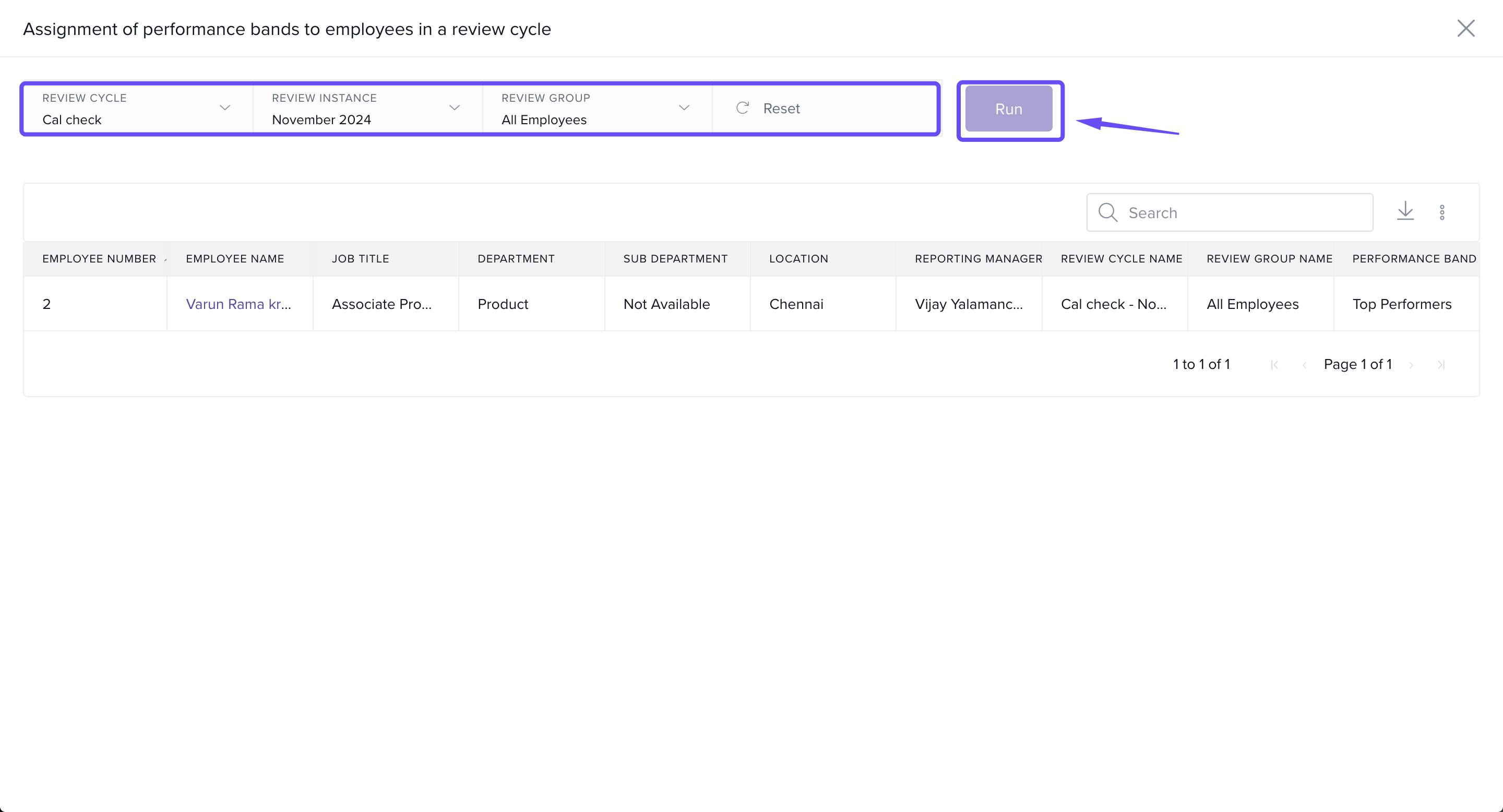
Filtering helps you focus on the performance data that matters for your selected cycle or employee group.
Viewing and Analysing the Report
The report displays a table with employee details, including:
| Field | Description |
|---|---|
| Employee Number | Unique employee ID |
| Employee Name | Full name |
| Job Title | Current designation |
| Department and Location | Department and work location |
| Reporting Manager | Assigned manager |
| Review Cycle Name | Name of the selected review cycle |
| Performance Band | Rating band assigned |
This breakdown makes it easy to compare employees and analyze performance distribution.
Exporting the Report
-
Click the Download icon near the table.
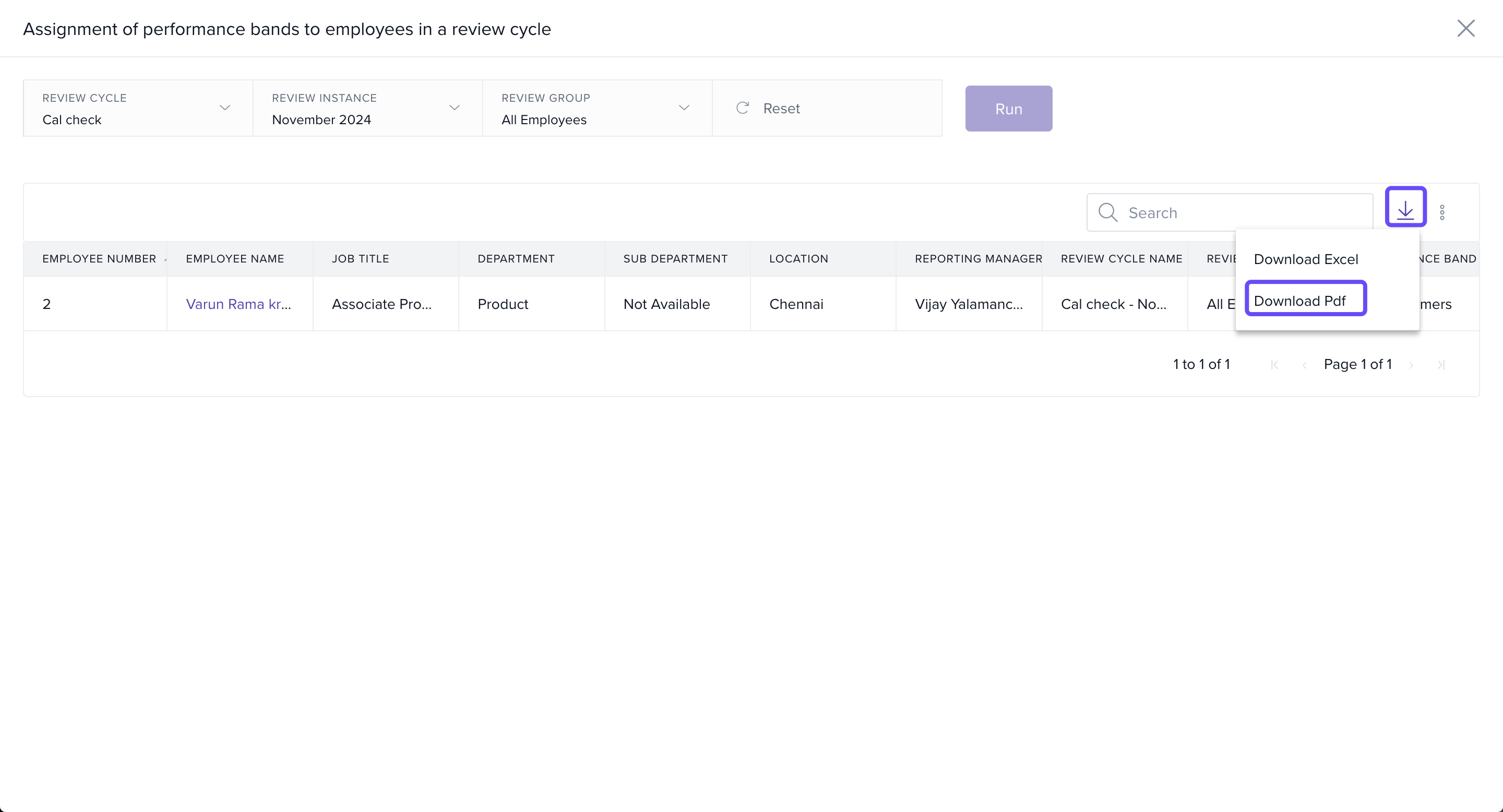
Choose a format (for example, PDF).
-
Save the file to your device.
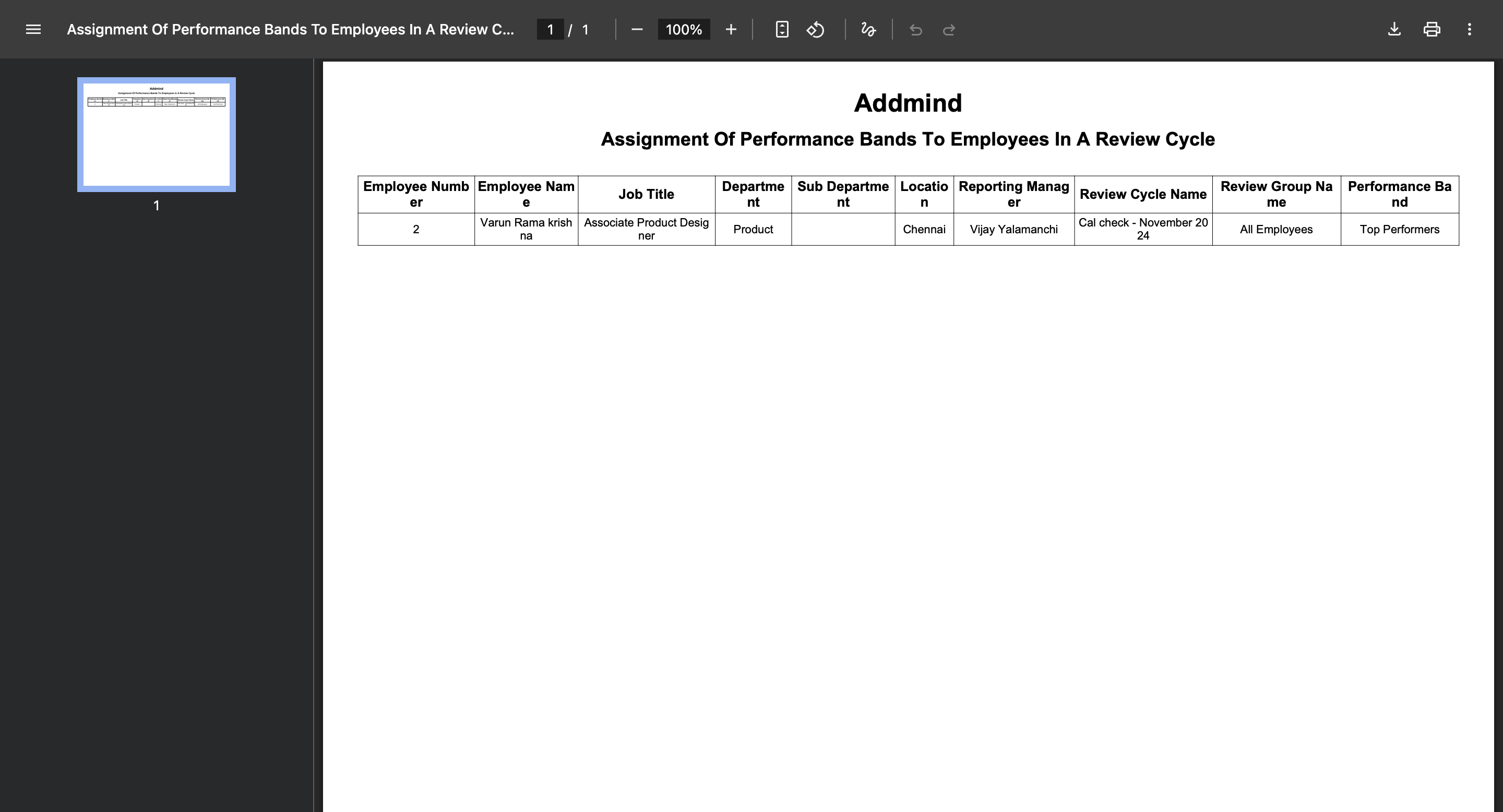
The exported file contains all employee details in a structured format, ready for sharing with leadership or storing for future reference.
Examples & Use Cases
Here are some practical ways HR teams and managers can use the Performance Bands report:
Performance Reviews: Compare distribution across bands to identify high performers and employees needing support.
Rewards and Recognition: Use the data to decide bonus allocations, spot awards, or promotions.
Workforce Planning: Understand department-level performance trends to plan training or restructuring.
Leadership Reporting: Share a clean, exported report with executives for transparency and informed decision-making.
Compliance and Fairness: Ensure performance evaluations are applied consistently across groups.
Notes & Tips
Tip: Export the report in PDF to preserve formatting when sharing with stakeholders.
Important: Double-check your filters before exporting to ensure the report includes the correct review cycle and employee group.
Next Steps
Learn how to set up a review cycle in Keka.
Reach out to your HR admin or Keka Support if you cannot access the Review Reports section.
Comments
0 comments
Please sign in to leave a comment.