The video will be updated shortly—meanwhile, explore the article for the latest updates on enhanced calibration filters and the new Pre vs Post Bell Curve comparison.
Overview
Calibration helps ensure performance ratings are fair, consistent, and aligned across teams.
Keka’s Post Review Analysis offers two visual tools—Bell Curve and 9-Box Grid—that help HR and leaders compare ratings against company-wide benchmarks.
With recent updates, you can now use advanced filters and view a side-by-side comparison of Pre- and Post-Calibration Bell Curves. These enhancements make it easier to spot rating trends, reduce bias, and drive more balanced performance decisions.
Enabling Calibration for a Review Cycle
To begin:
Go to Performance > Reviews.
Open the review cycle and select Post Review Analysis.
Click Calibration Settings to enable calibration tools.
Enabling this gives you access to the calibration dashboard, filters, bell curve comparison views, and editing controls.
New & Improved Calibration Filters
Keka now provides robust filters to refine which employees appear in the calibration interface:
Departments
Calibration Status
Job Title
-
Calibrators
You can:
Apply multiple filters at once using AND logic.
See badge counts for active filters.
Click Clear All to reset.
-
Search directly by employee name.
These filters work instantly and can be combined to focus on specific employee groups or segments.
Filters stay active until you exit the calibration modal. Bell Curve Analysis with Pre vs Post Comparison
See How Ratings Stack Up: Bell Curve View
Keka’s enhanced Bell Curve now displays three curves for easy comparison:
Ideal Curve – Your organisation’s benchmark distribution
-
Pre-Calibration Curve – Ratings before adjustments
-
Post-Calibration Curve – Ratings after calibration edits
Hover over each segment to view:
Number of employees
Percentage in each band
How distributions shifted after calibration
The Bell Curve chart displays three curves: Ideal Curve (black) for benchmark distribution, Pre-Calibration Curve (green) showing original ratings, and Post-Calibration Curve (purple) reflecting adjusted ratings after calibration.
Comparing them helps spot rating inflation or compression—and pinpoints teams that may need attention.
Filter by Team or Manager
Use filters to break down the Bell Curve by:
Department
Business Unit
-
Manager
This lets you analyse rating trends across different segments and calibrate more effectively.
Why It Matters: Seeing the before/after curves helps HR understand if calibration moved ratings toward the expected performance distribution.
Using the 9‑Box Grid for Talent Insights
Grid Visualisation
Keka's 9-box tool categorises employees into nine performance-potential combinations, aiding in talent planning and succession.
Performance & Potential Axis
- X-axis: Performance (low to high)
- Y-axis: Potential (low to high)
- Each box represents a category like “High Performer – High Potential” or “Low Performer – High Potential”
Percentage & Count Metrics
Each of the nine boxes shows:
Percentage of employees in the category
-
Exact headcount
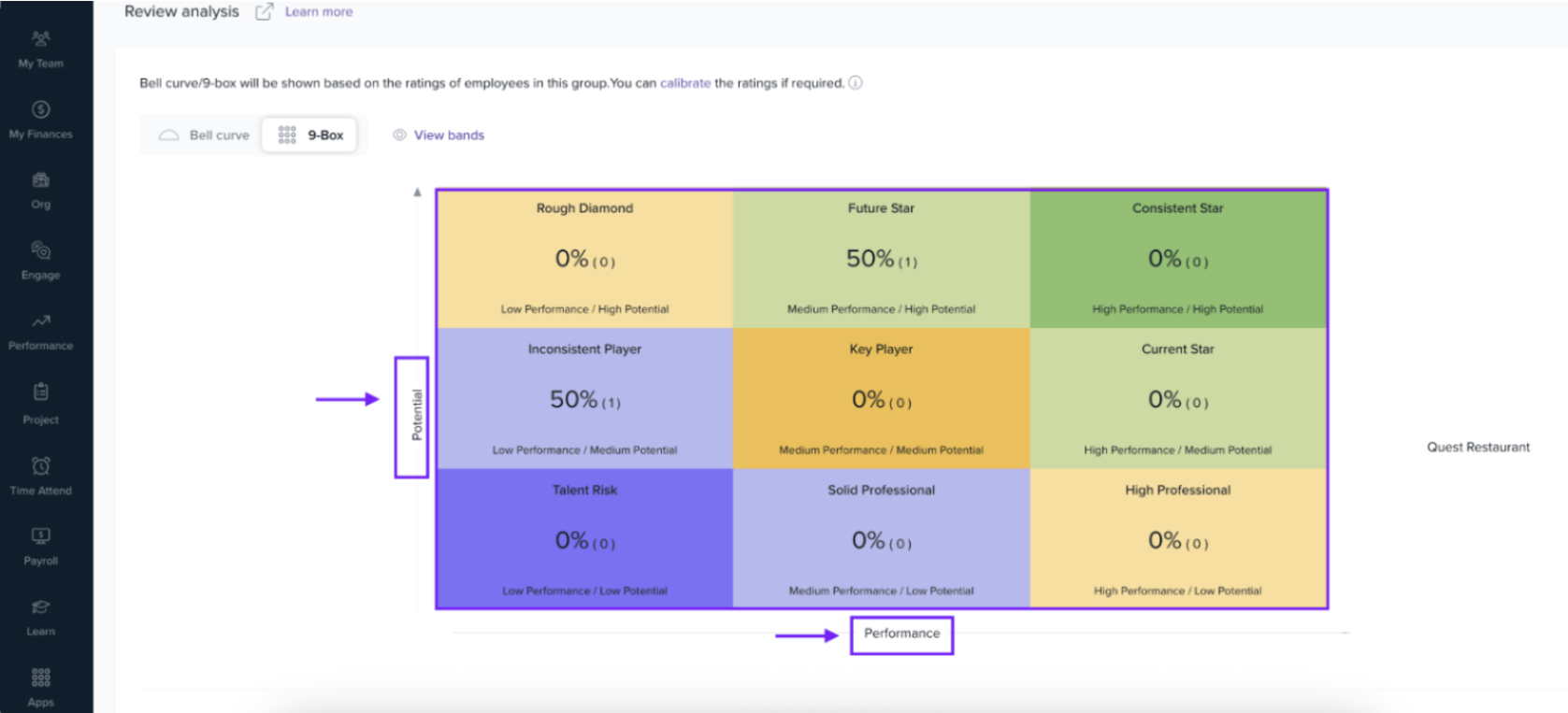
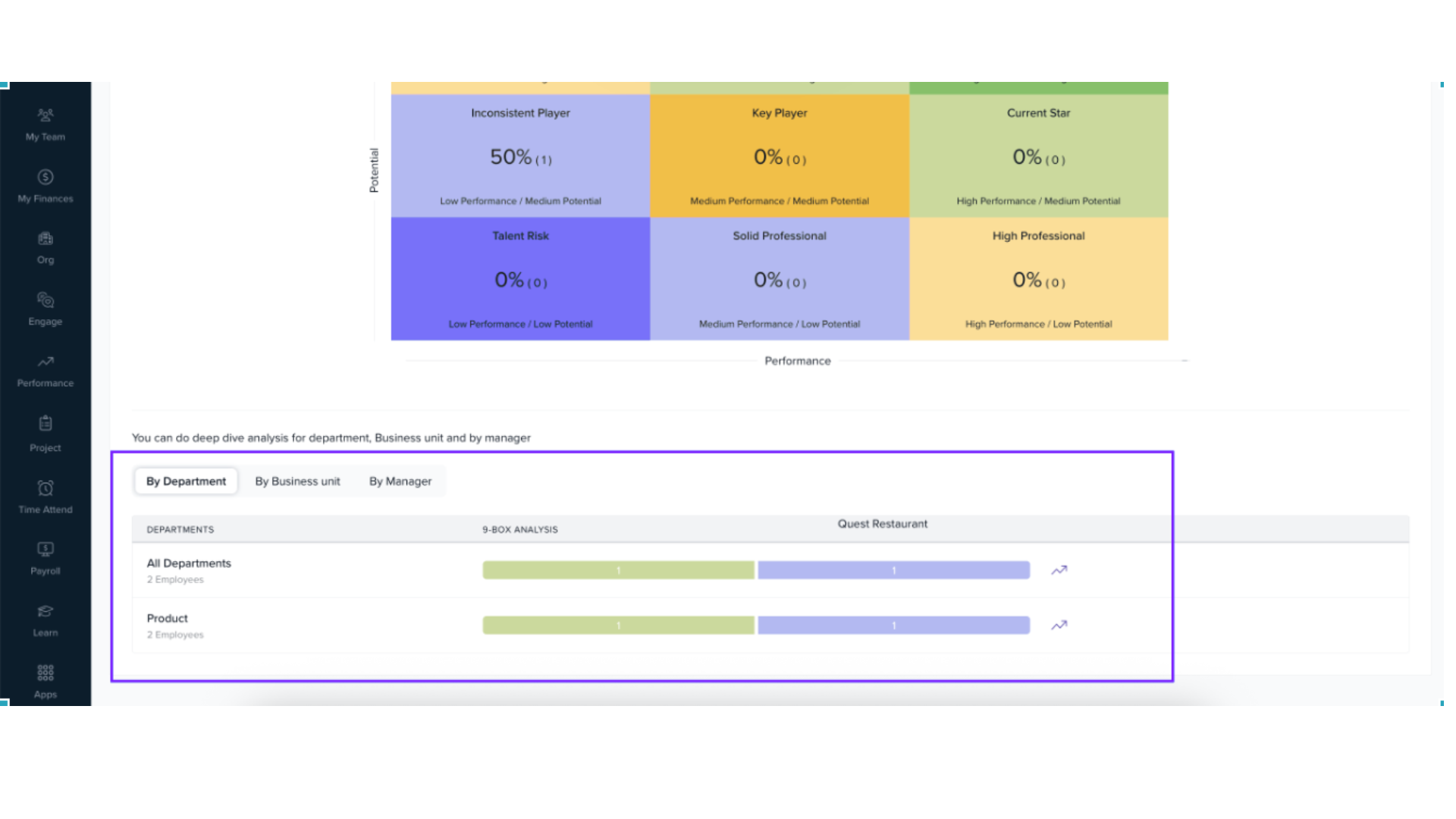
This view supports talent planning, succession discussions, and identification of growth opportunities.
Accessing the Calibration Dashboard
Navigate to the Calibration tab within Post Review Analysis.
Choose a grouping (e.g., by department or manager).
-
Click Calibrate next to the group you want to review.
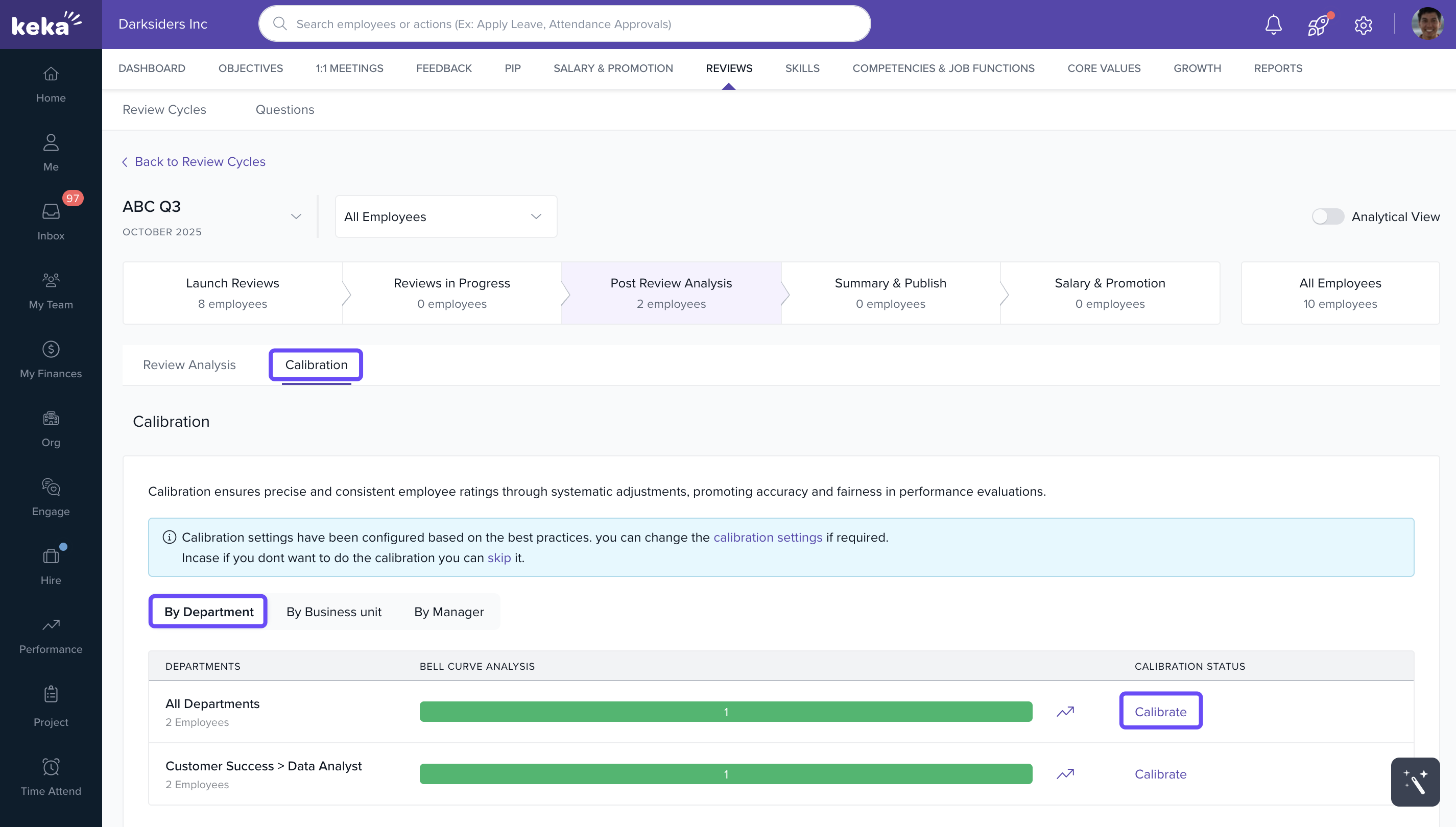
After which you'll be directed to a dashboard listing all employees eligible for calibration. View a list of employees eligible for rating calibration.
-
You can quickly invite calibrators who will ensure that the ratings are fair and consistent.
This opens the calibration modal showing all eligible employees and lets you invite calibrators to review ratings.
Assigning Calibrators
Admins can assign one or more Calibrators such as:
Department Heads
L2 Managers
-
HR Leads
These calibrators validate ratings and ensure consistency across teams. Assignments can be updated at any time before final calibration.
Calibration Actions & Editing Ratings
Within the calibration modal you can:
Use filters to narrow the list
- Click on Calibrate option to adjust an individual’s score.
- Use the Invite Calibrator option in the three-dot menu or under the Calibrators tab to add or reassign calibration roles.
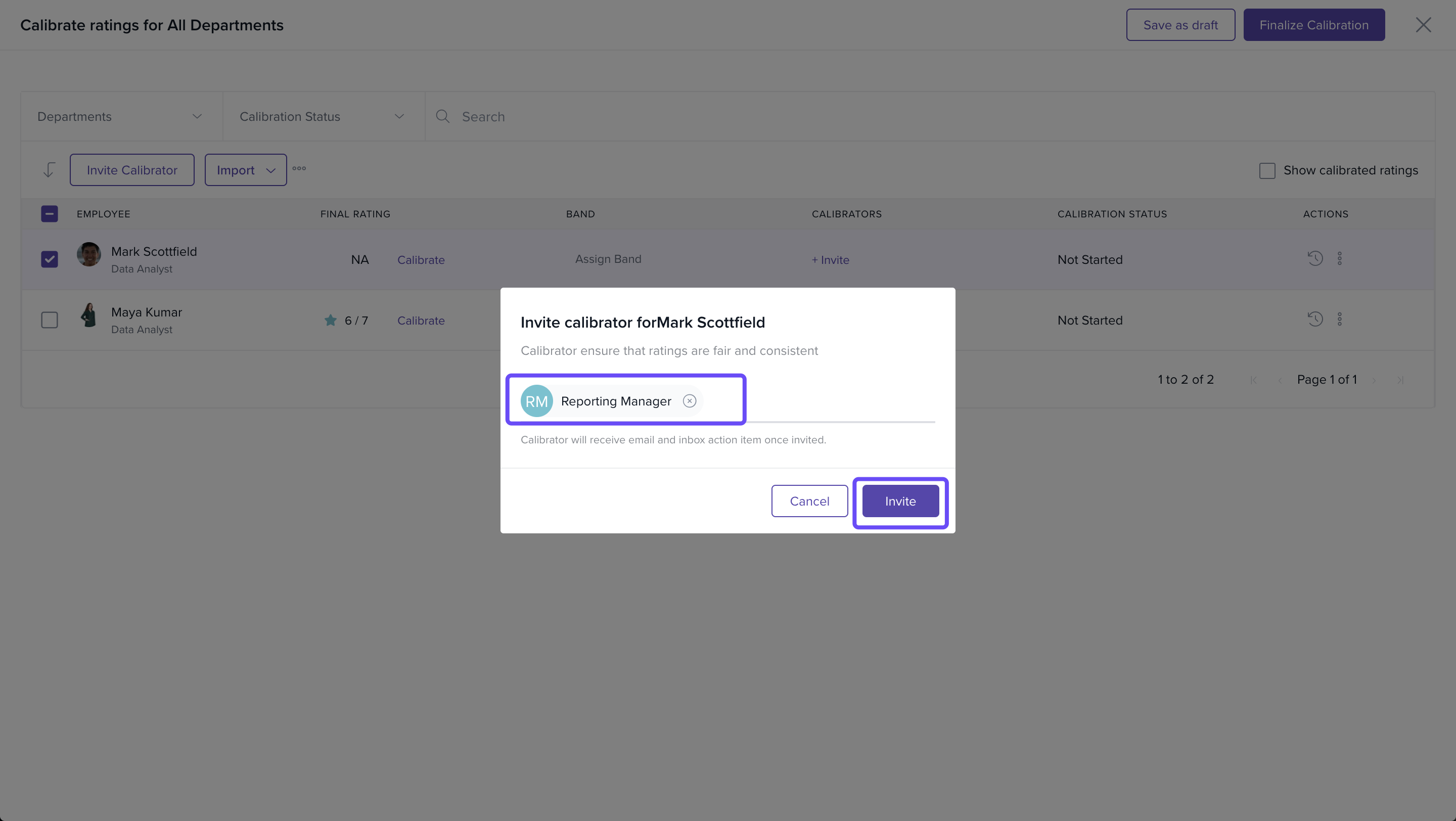
- Override the initial review rating by selecting a new score.
- Add a reason for the change to maintain a record of decisions.
- Actions can be done one-by-one or in batch for selected employees.
Ratings are auto‑mapped to performance bands based on thresholds. ou can also select multiple employees and adjust ratings in bulk. Finalising the Calibration
Once all changes are complete:
-
Click Finalise Calibration.
Review the summary of edits and calibrator contributions.
-
Confirm to lock the ratings.
Finalising is irreversible. Be sure all edits are accurate before confirmation. After calibration:
Explore the 9‑Box Grid for talent insights
Include calibrated data in performance summary reports
Use results to support succession planning or promotions
Notes & Best Practices
Tip: Use calibration results to support compensation planning and promotion discussions.
Important: Calibrators can only adjust ratings within configured performance bands.
Note: All calibration changes are logged and auditable for future reference.
FAQs
Can I calibrate ratings for only some employees?
Yes. With filters, you can focus on select groups and skip calibration for others.Are original ratings preserved?
Yes. Both original and calibrated ratings are stored for audit and comparison purposes.Can multiple calibrators review the same group?
Yes. You can assign multiple calibrators to encourage consensus and balanced review.Do filters stay applied after closing the modal?
No. Filters reset when you exit the calibration session.
Comments
0 comments
Please sign in to leave a comment.