Introduction
With Keka’s Google Sheets integration, you can auto-calculate the progress of your goals directly from spreadsheet data. Whether you're tracking KPIs, metrics, or project completion percentages, this integration ensures real-time updates and reduces manual effort.
This article walks you through how to:
Set up Google Sheets integration.
Link goals and key results to sheet data.
Sync progress and handle sync errors.
Enabling Google Sheets Integration
This step must be completed by a Global Admin.
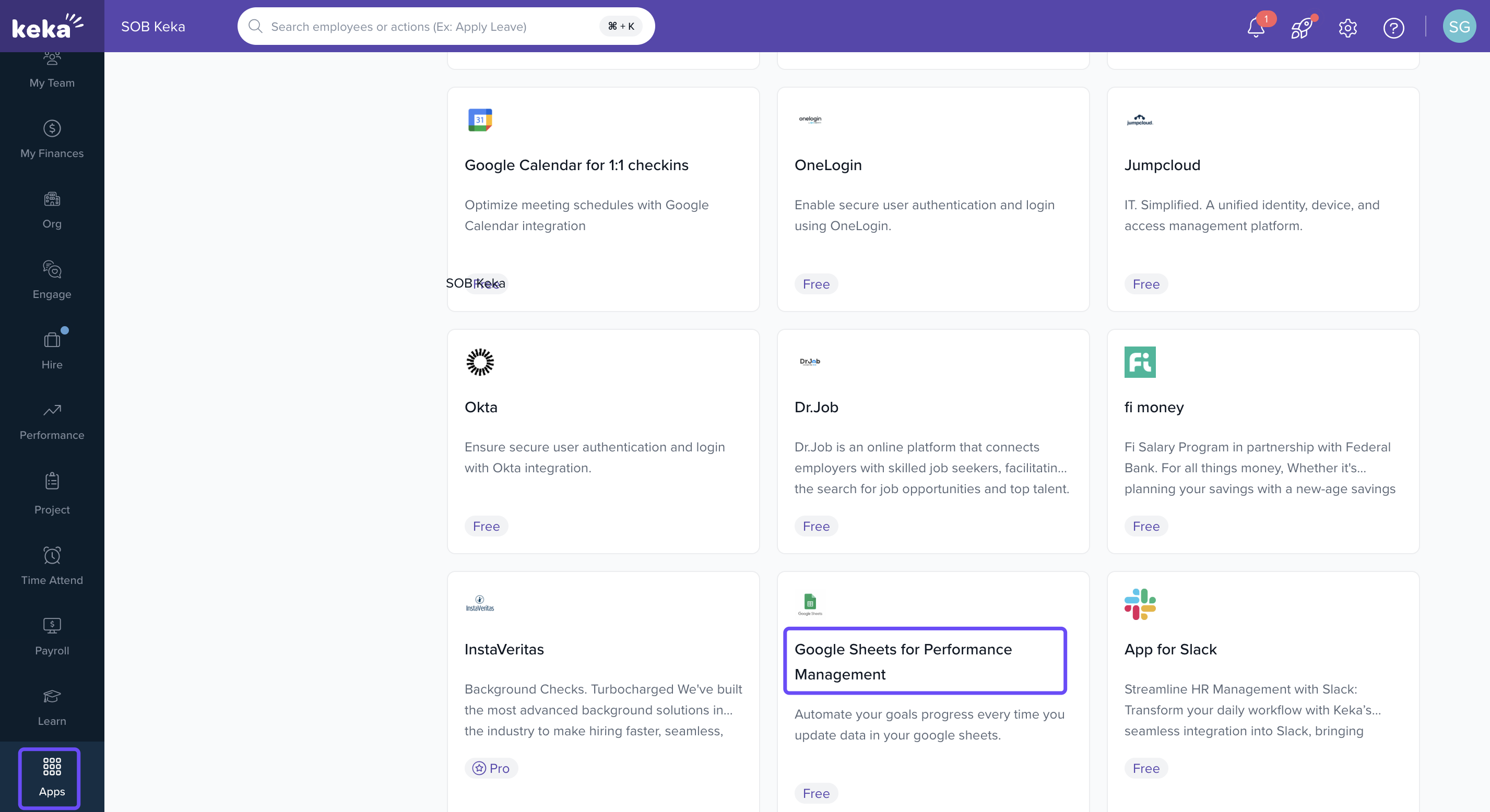
Go to the Apps section in your Keka dashboard.
-
Under Performance Management, find Google Sheets.
-
Click Install.
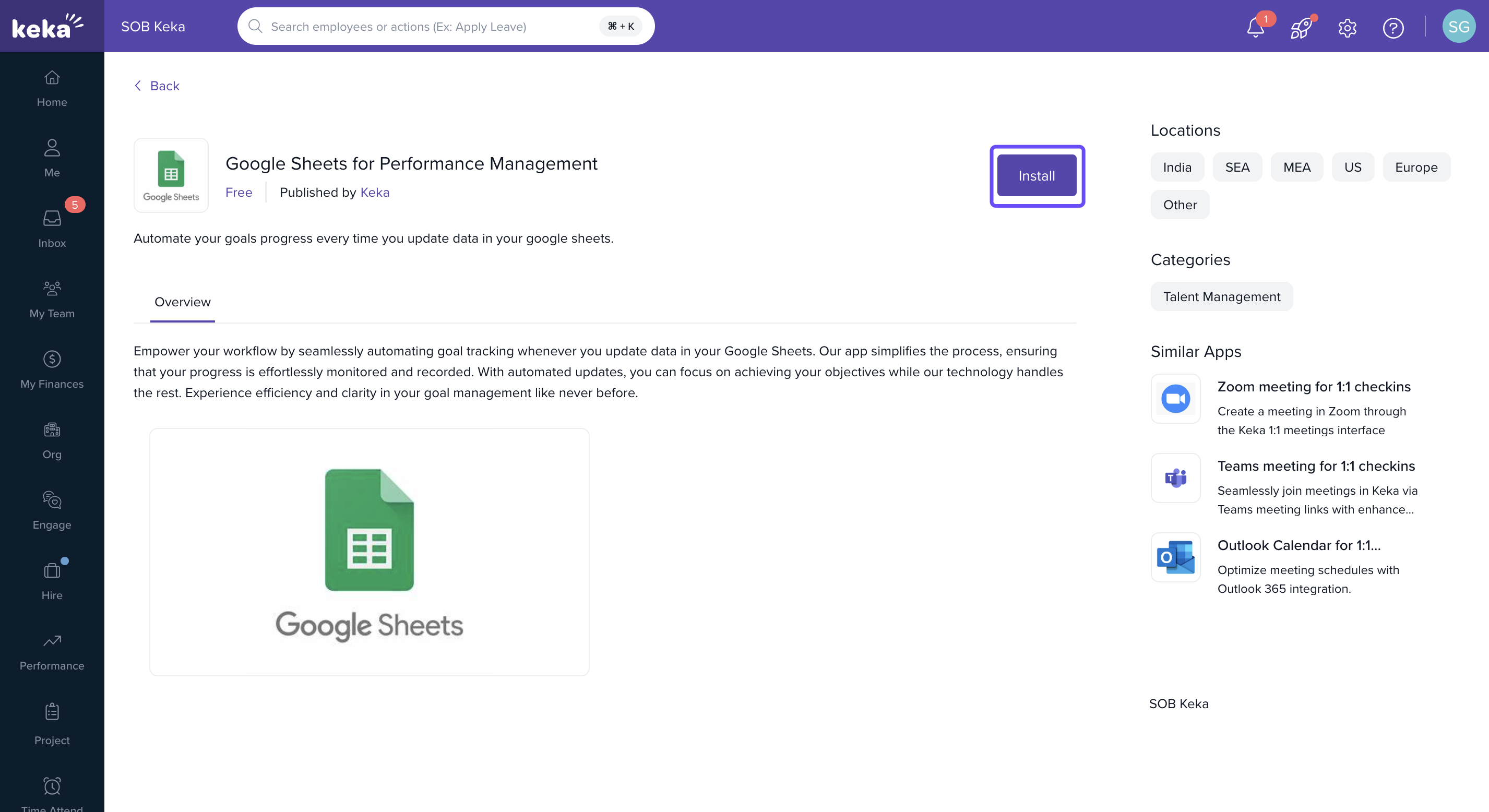
This enables the integration for all users in your organisation.
Connecting Your Google Sheets Account
Each user must connect their own Google account.
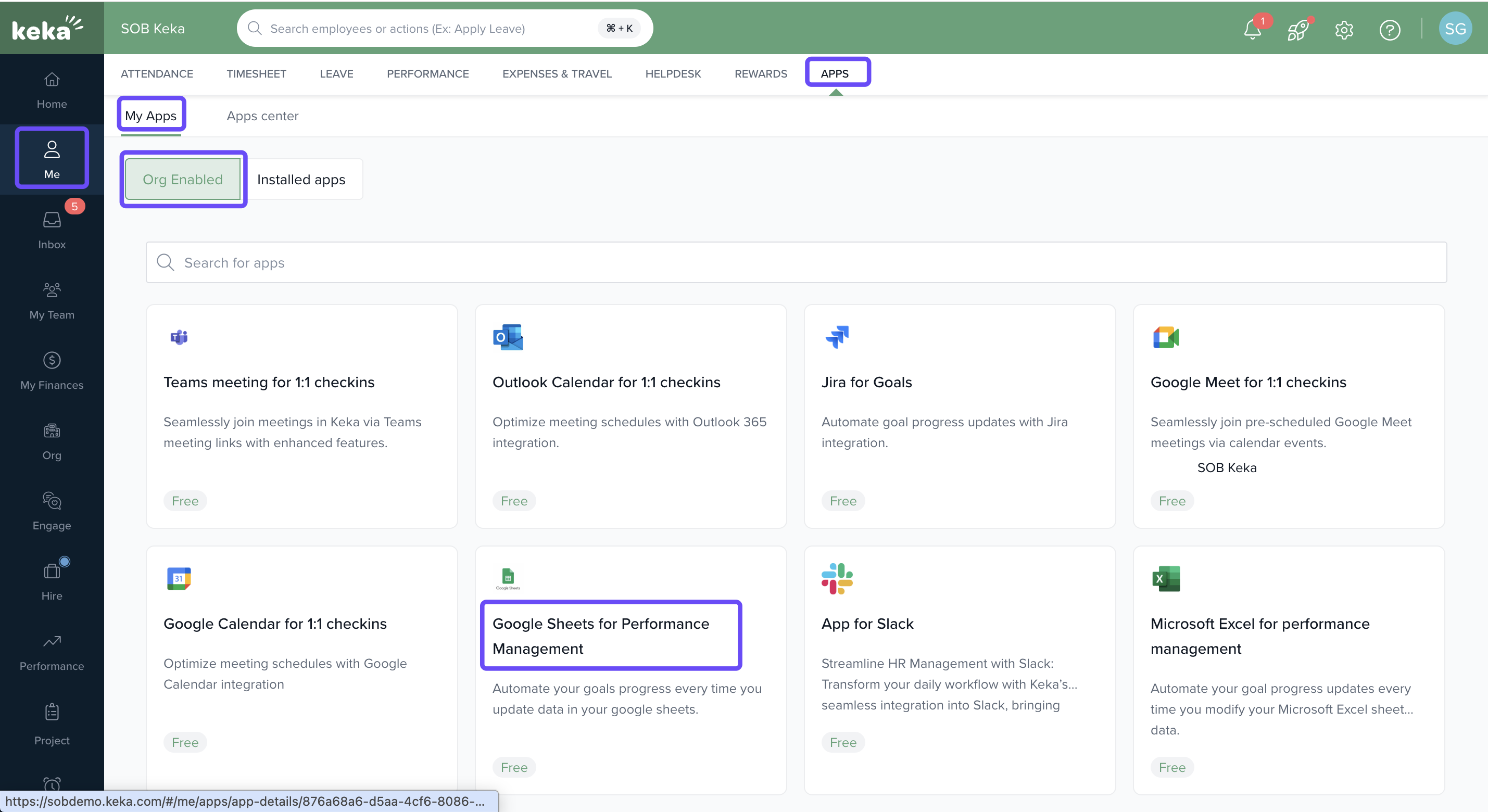
Go to Me > Apps.
-
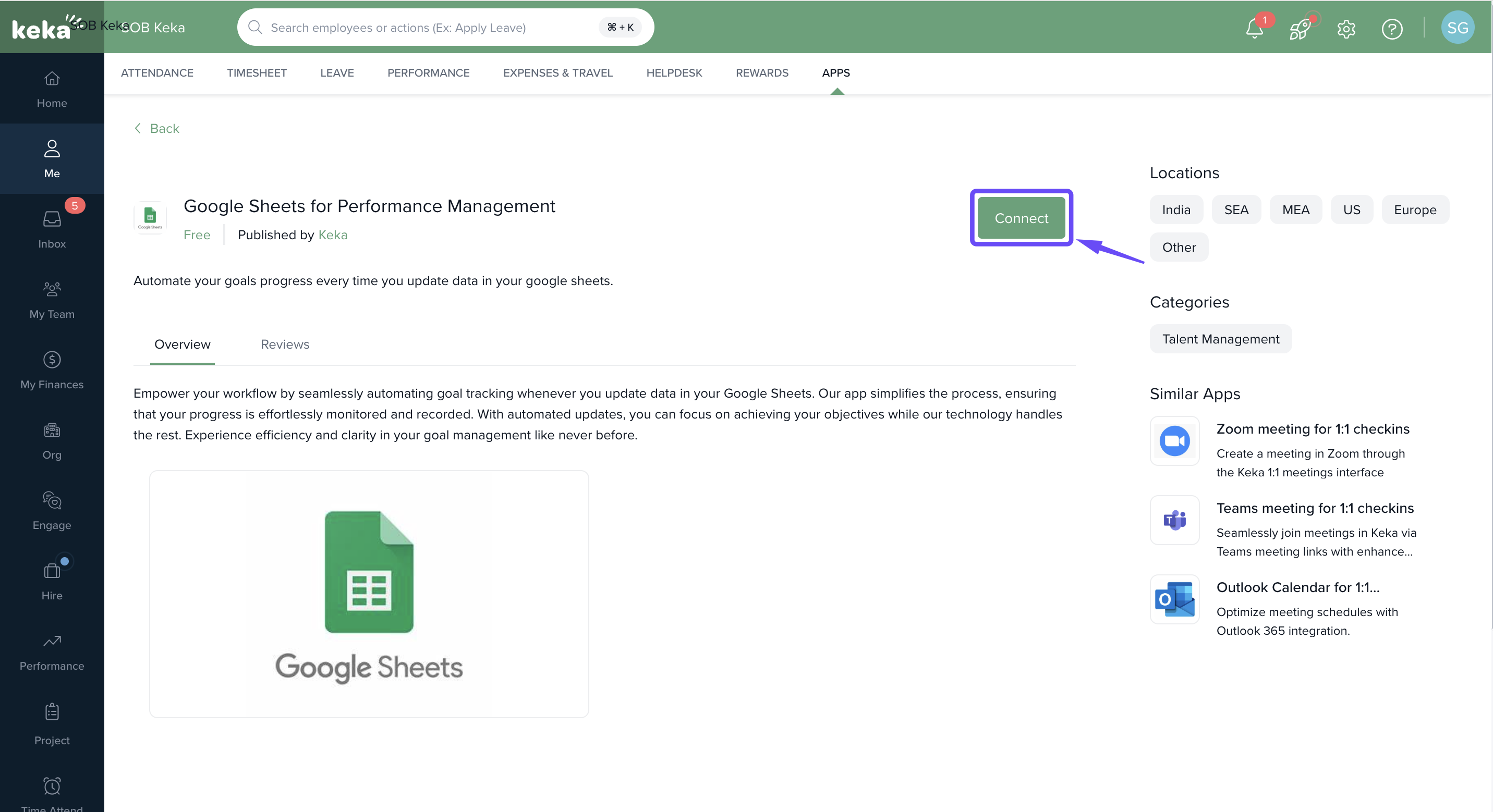
Click Connect next to Google Sheets.
-
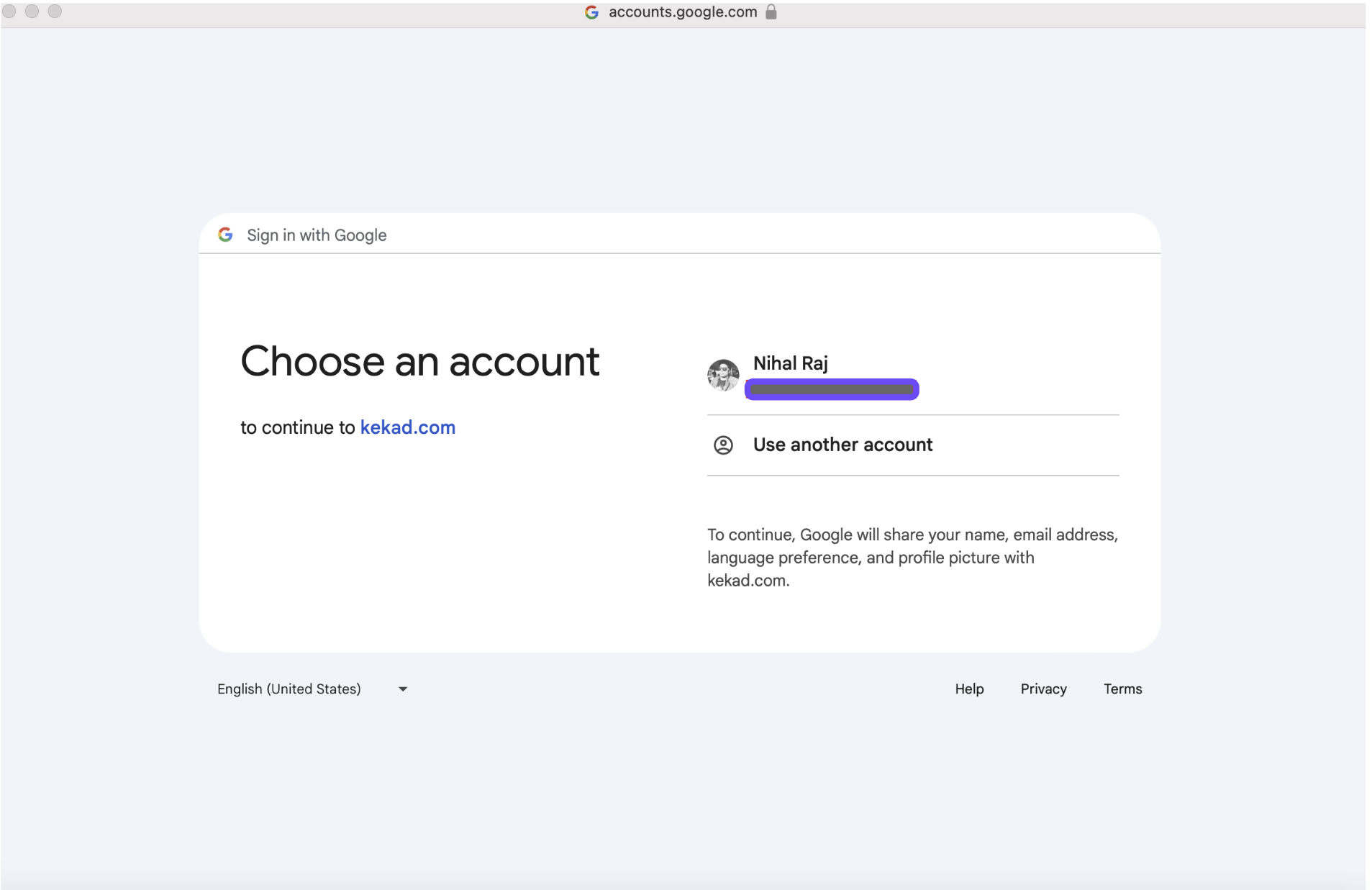
A pop-up will appear. Sign in with your Google account and authorise access.
-
Once connected, your spreadsheets will be available for goal linking.
Creating a Goal with Google Sheets Integration
You can create a goal as a Performance Admin or as an employee.
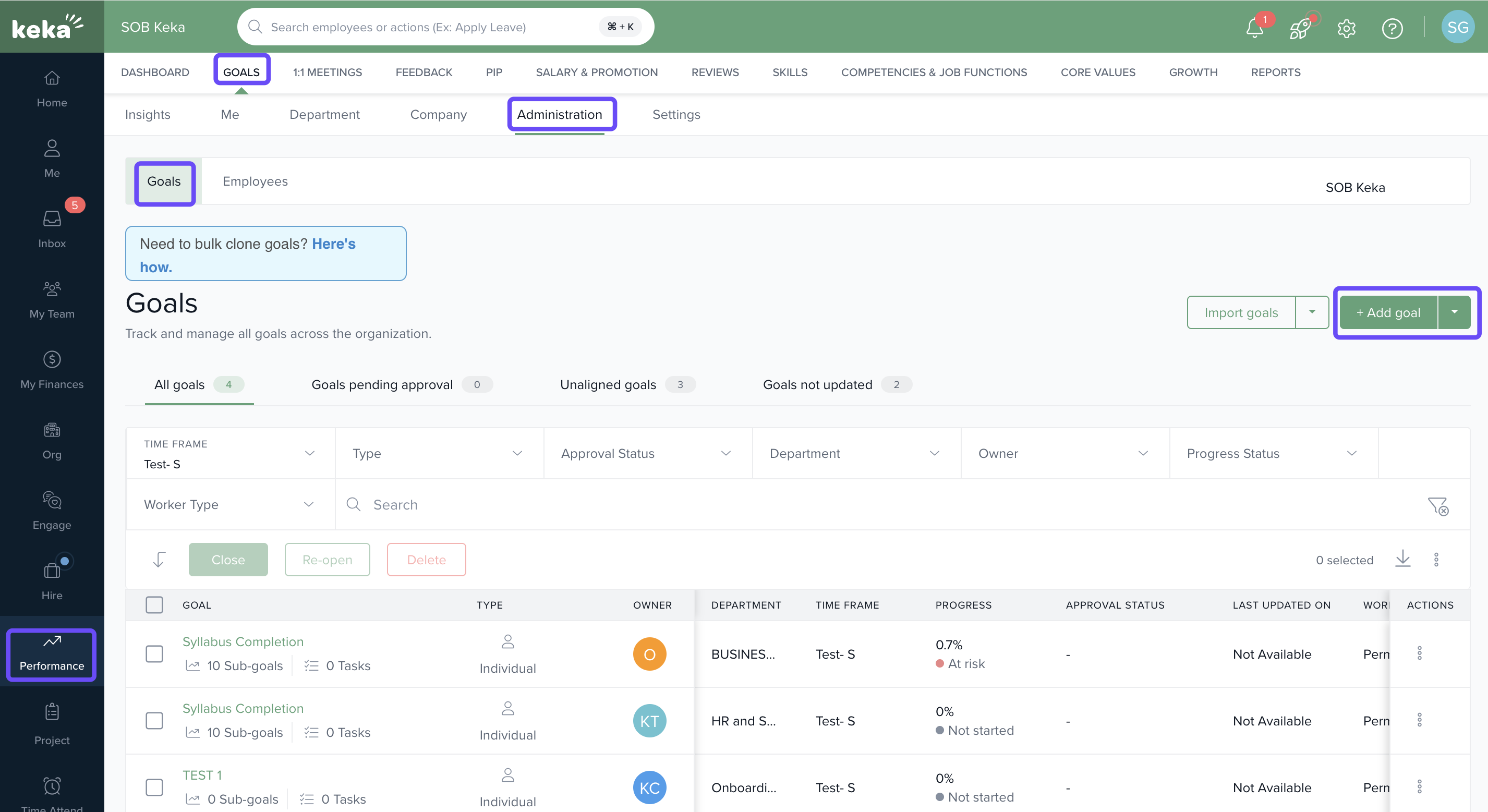
- Go to the Performance section, select Goals, and then click Administration.
- Click Add Goals.
-
Fill in the details:
Field Description Objective Name The title of your goal Objective Type Choose from Individual, Team, or Company Description (Optional) Add goal context Time Frame Set the goal duration Who can see? Choose visibility (Managers or Everyone) - Check Automatically calculate from a data source.
- From the dropdown, select Google Sheets.
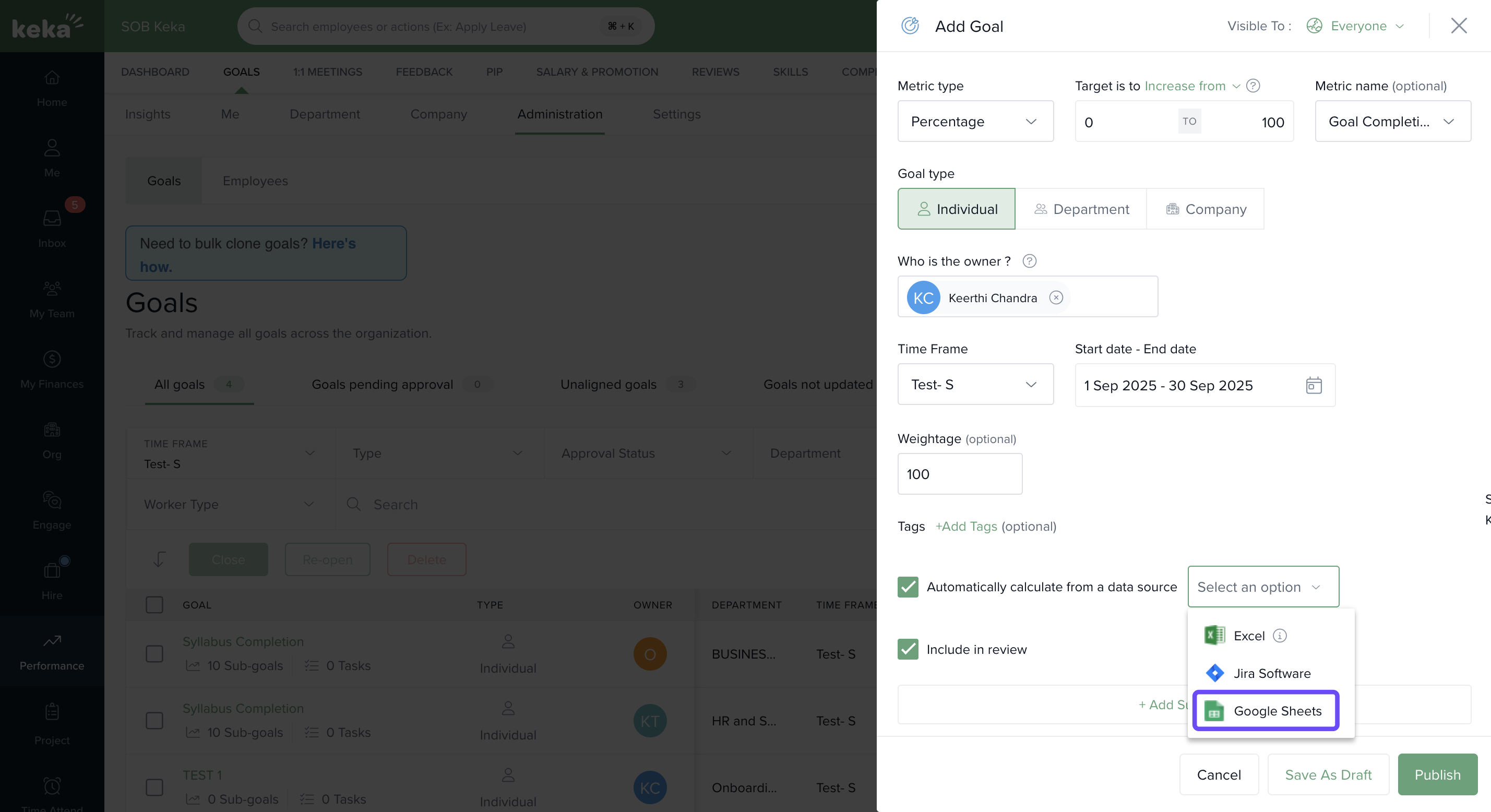
A new window will open:
Sign in with your Google account (if prompted).
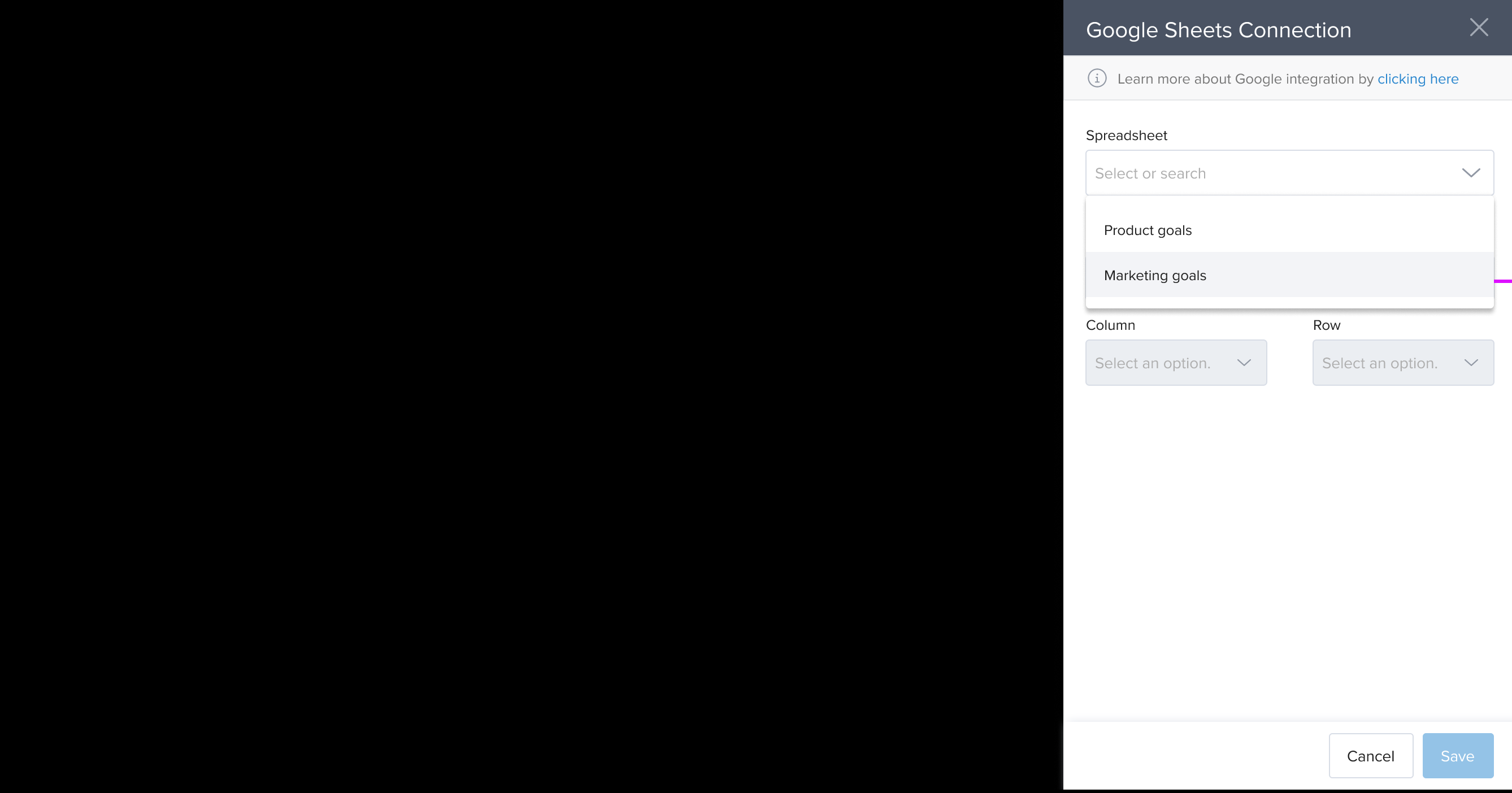
Choose the spreadsheet from your Drive.
-
Select the sheet, column, and row where the progress value resides.
-
Click Save. Your goal is now connected to Google Sheets.
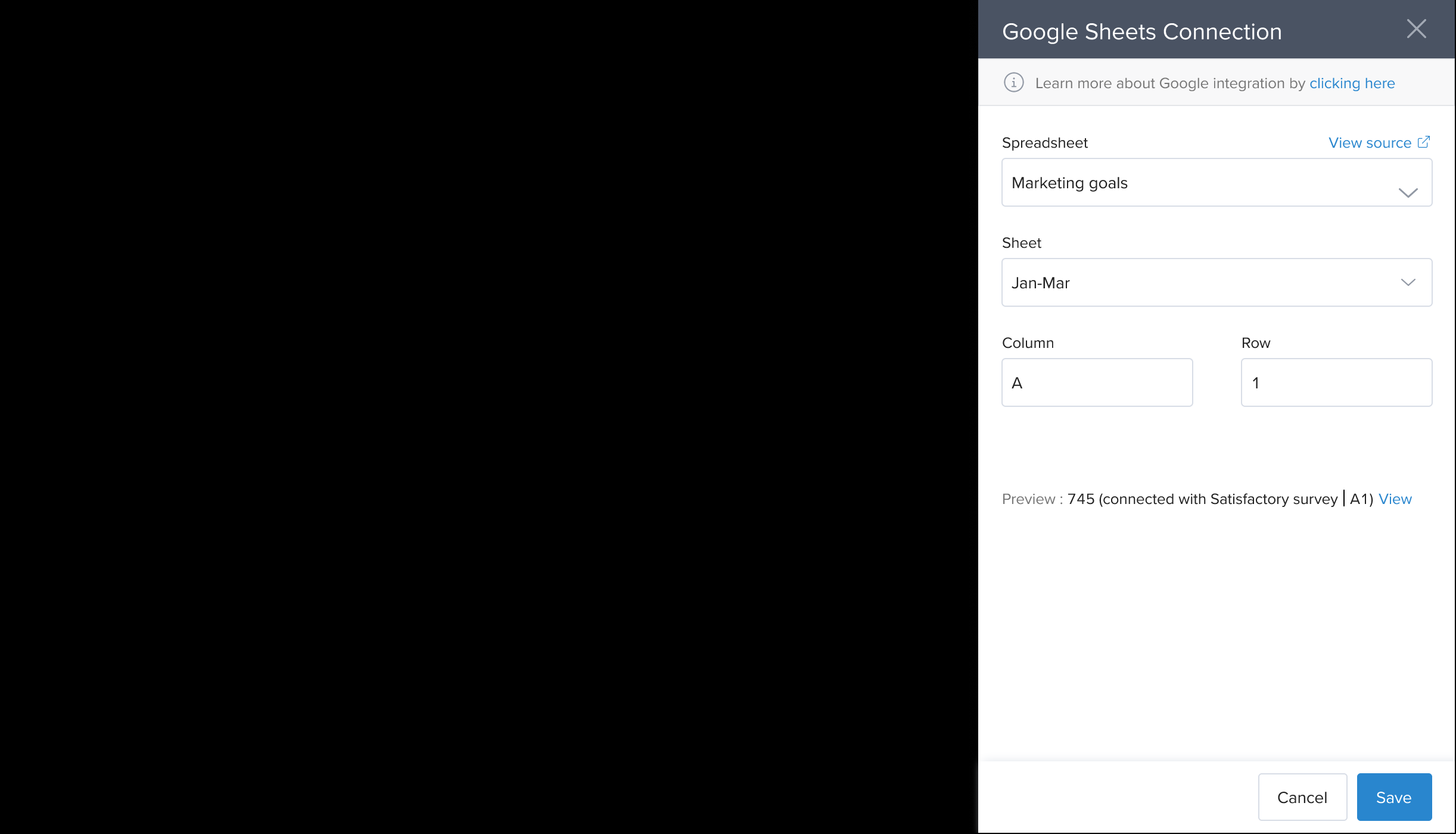
- The selected cell must contain a numerical value. If not, an error will appear.
- Goals using Google Sheets cannot use the "Completed/Not Completed" progress type.
Adding Key Results or Sub-Goals
You can follow the same steps to connect Google Sheets to key results:
Open the goal.
Click Add Key Result.
-
Use the same spreadsheet setup as above—select a sheet, column, and row.
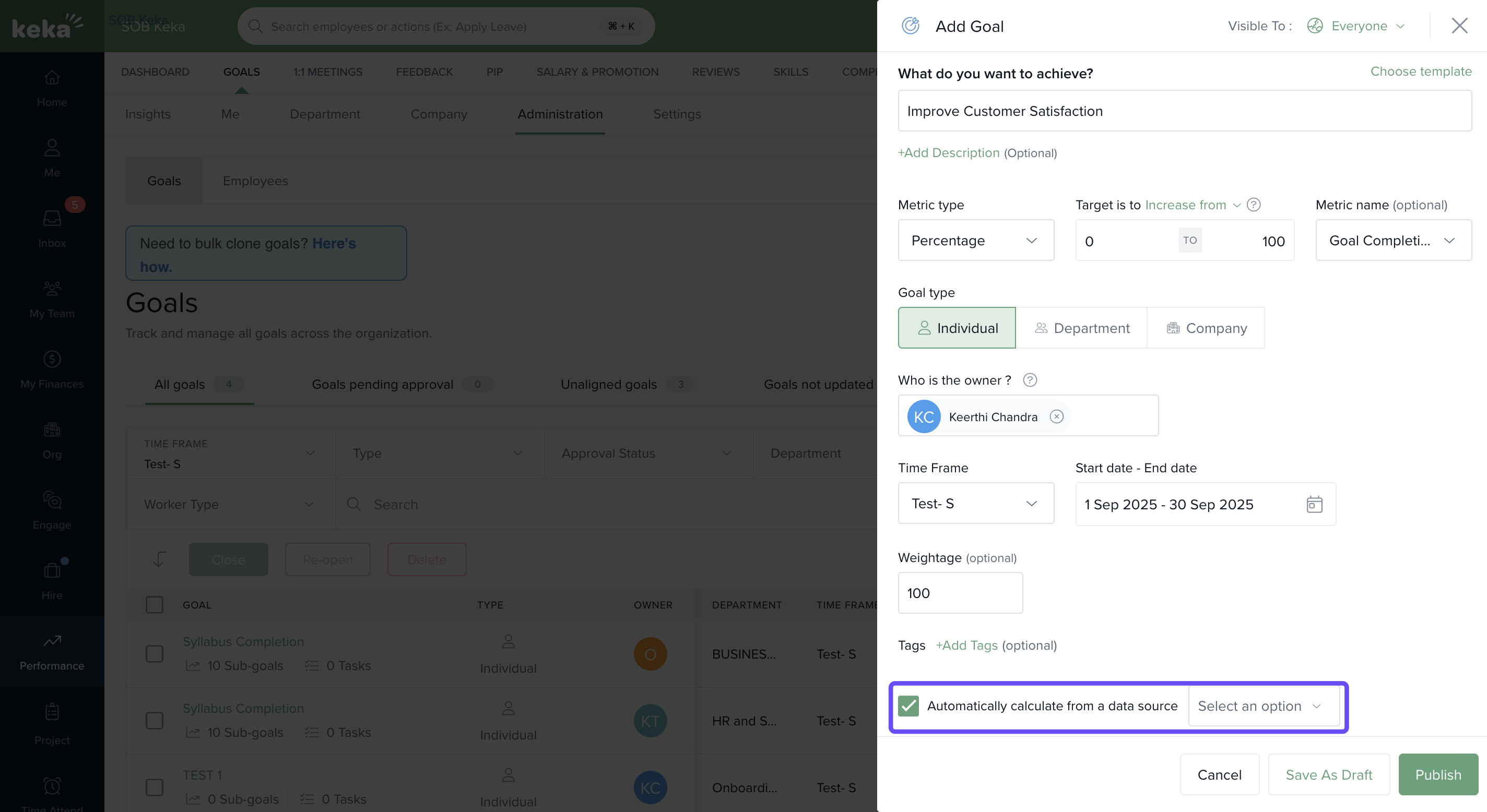
This allows detailed tracking across multiple metrics.
Syncing Goal Progress
Once your goal is linked:
- A Google Sheets icon appears next to it.
-
Click the sync icon to sync the latest value.
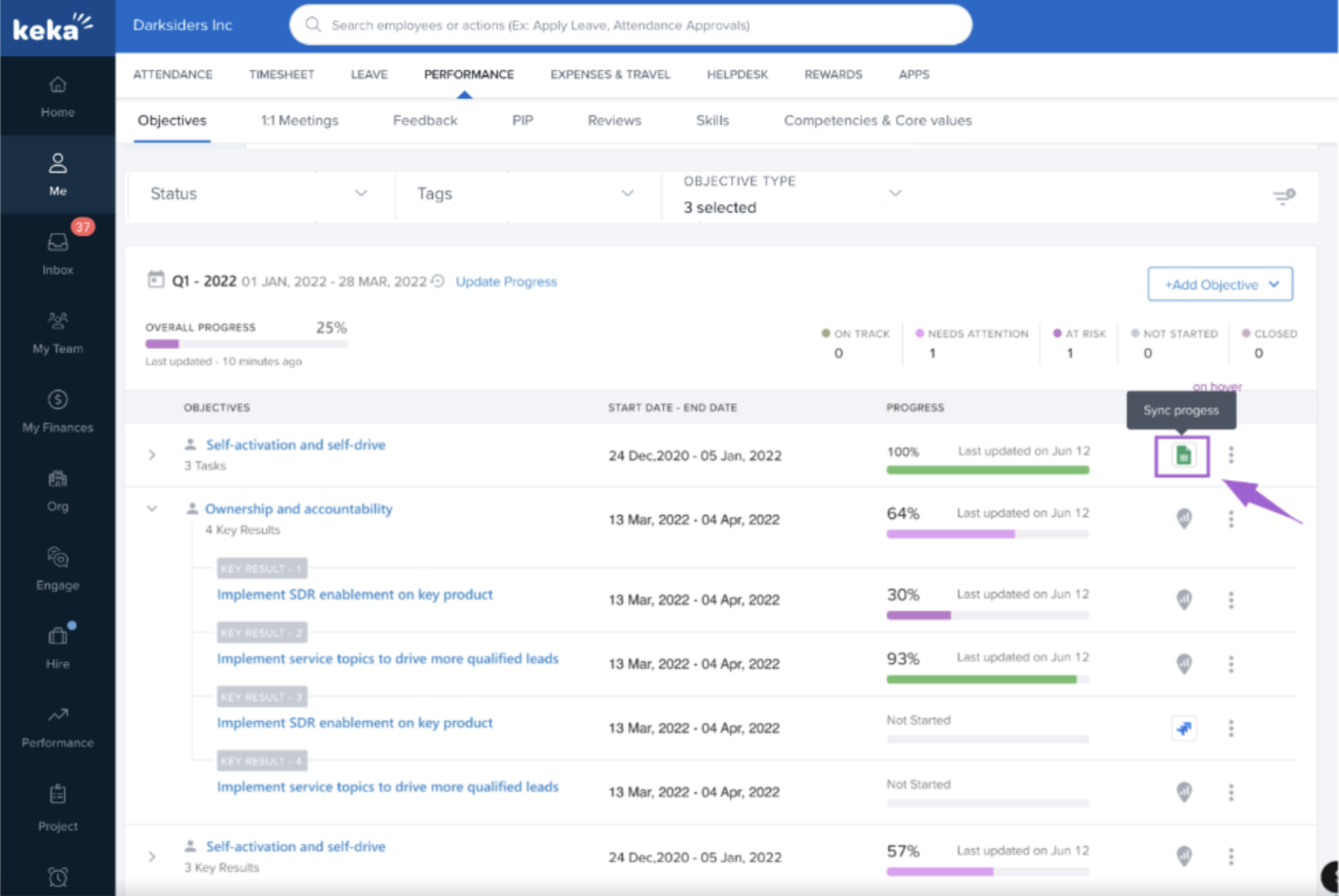
- After syncing, the progress bar updates automatically.
-
A success message confirms the update.
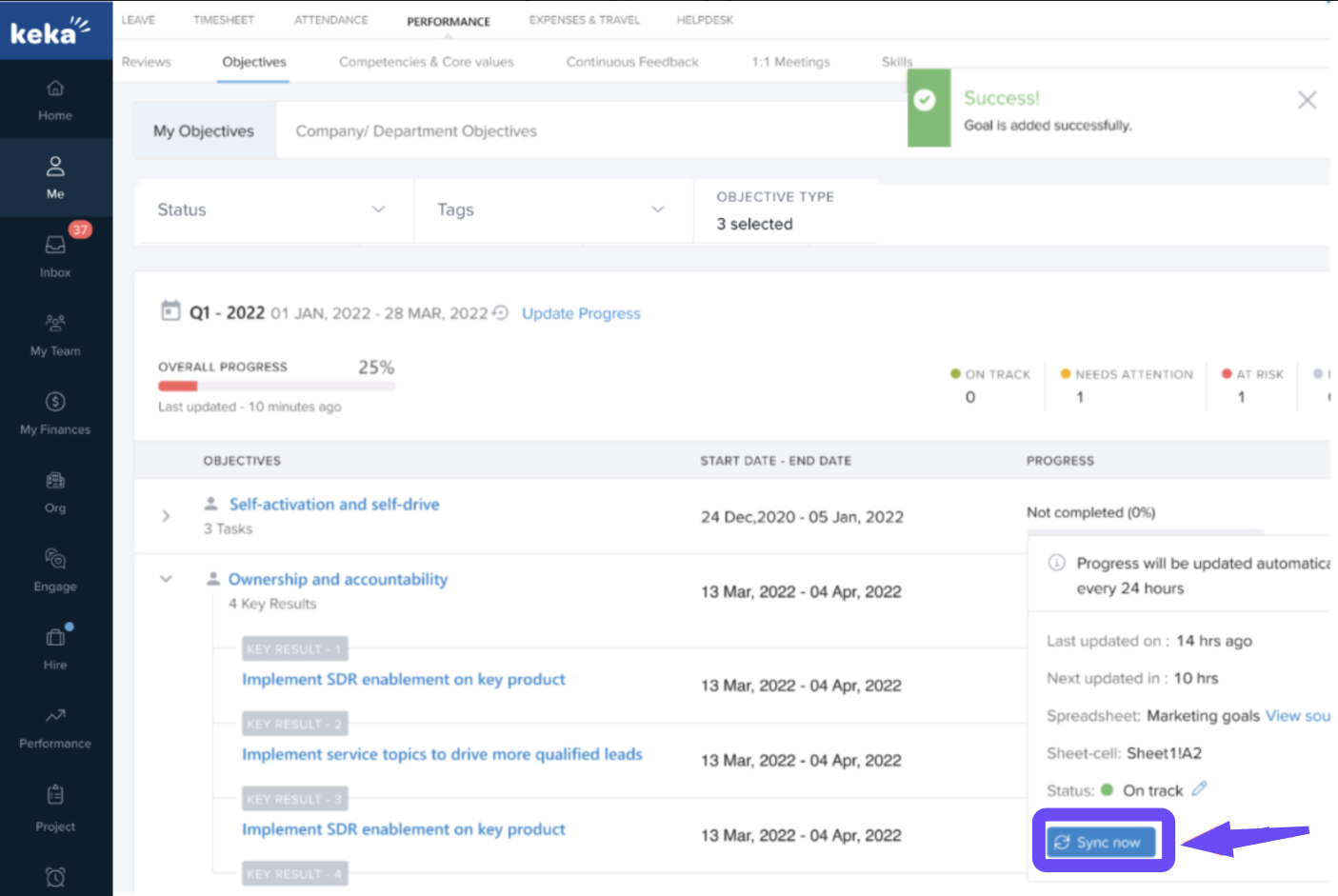
This ensures your performance data is always current.
Handling Sync Failures
If something goes wrong during sync, you’ll see an error message.
| Scenario | What Happens | Fix |
|---|---|---|
| Spreadsheet is deleted | Error message shown, sync button disabled | Reconnect with a valid sheet |
| Cell is not a number | Error shown, sync button disabled | Update the cell with a numeric value |
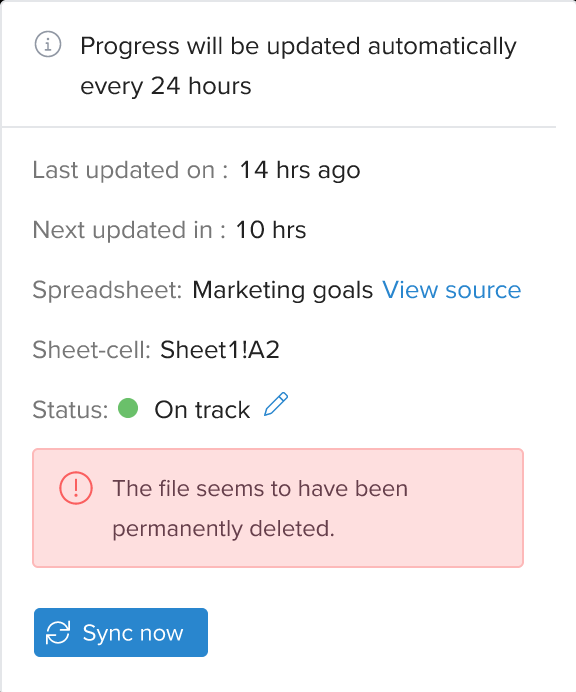
- On syncing a pop up overlay opens, in case of an error where file has been deleted the following error message is shown in the pop up and sync button is disabled.
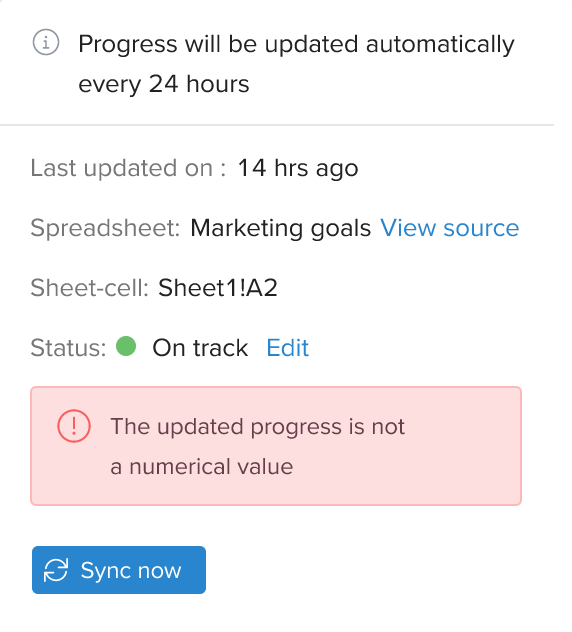
- On syncing a pop up overlay opens, in case of an error where the updated progress is not a numerical value the following error message is shown in the pop up and sync button is disabled.
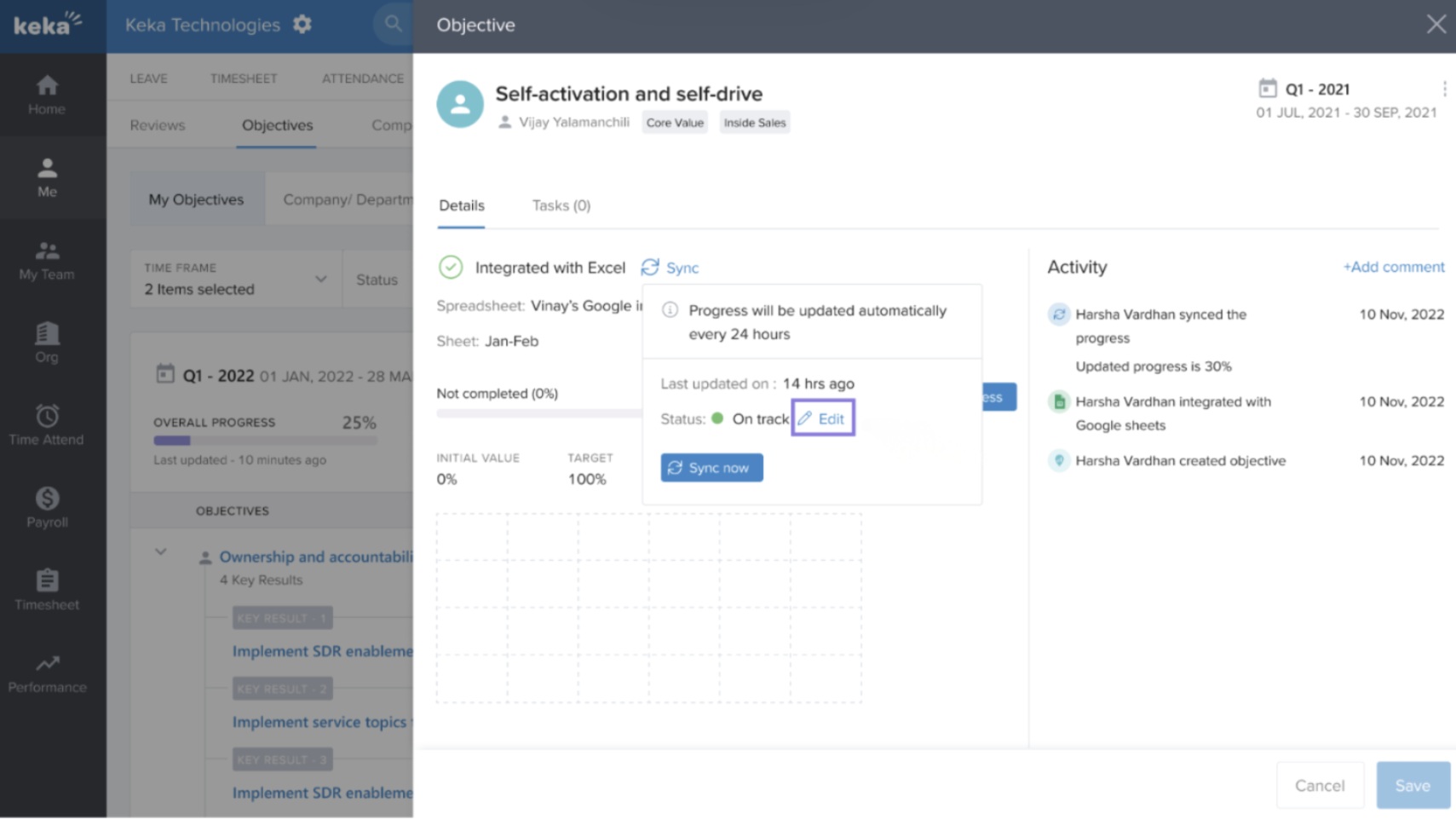
- In case the sync fails, you can manually update the progress.
- All manual updates are logged in the Objective Activity Log for transparency.
- In case of Google sheets, you can’t use progress Completed/Not completed type.
Next Steps
By integrating Google Sheets with Keka’s Performance Module, you streamline how progress is tracked and reported. Whether you’re managing OKRs or individual goals, this integration saves time and ensures accurate, up-to-date performance data.
Comments
0 comments
Please sign in to leave a comment.