What Is the Asset Request Feature in Keka?
The Asset Request feature allows employees to:
Request new assets (e.g., laptop, monitor).
Request replacement assets for items already assigned.
Admins can configure approval workflows, ensuring requests are reviewed and approved before fulfillment.
Why To Use Asset Request Feature?
Using Asset Requests in Keka ensures:
Transparency – Clear visibility into requested, approved, and assigned assets.
Streamlined workflow – Automated request → approval → assignment process.
Accountability – Employees and managers track requests and decisions in one place.
Enabling Asset Request Settings
Go to Org > Assets > Settings > Asset Request Settings.
Click on the option to Enable Asset Request Feature.
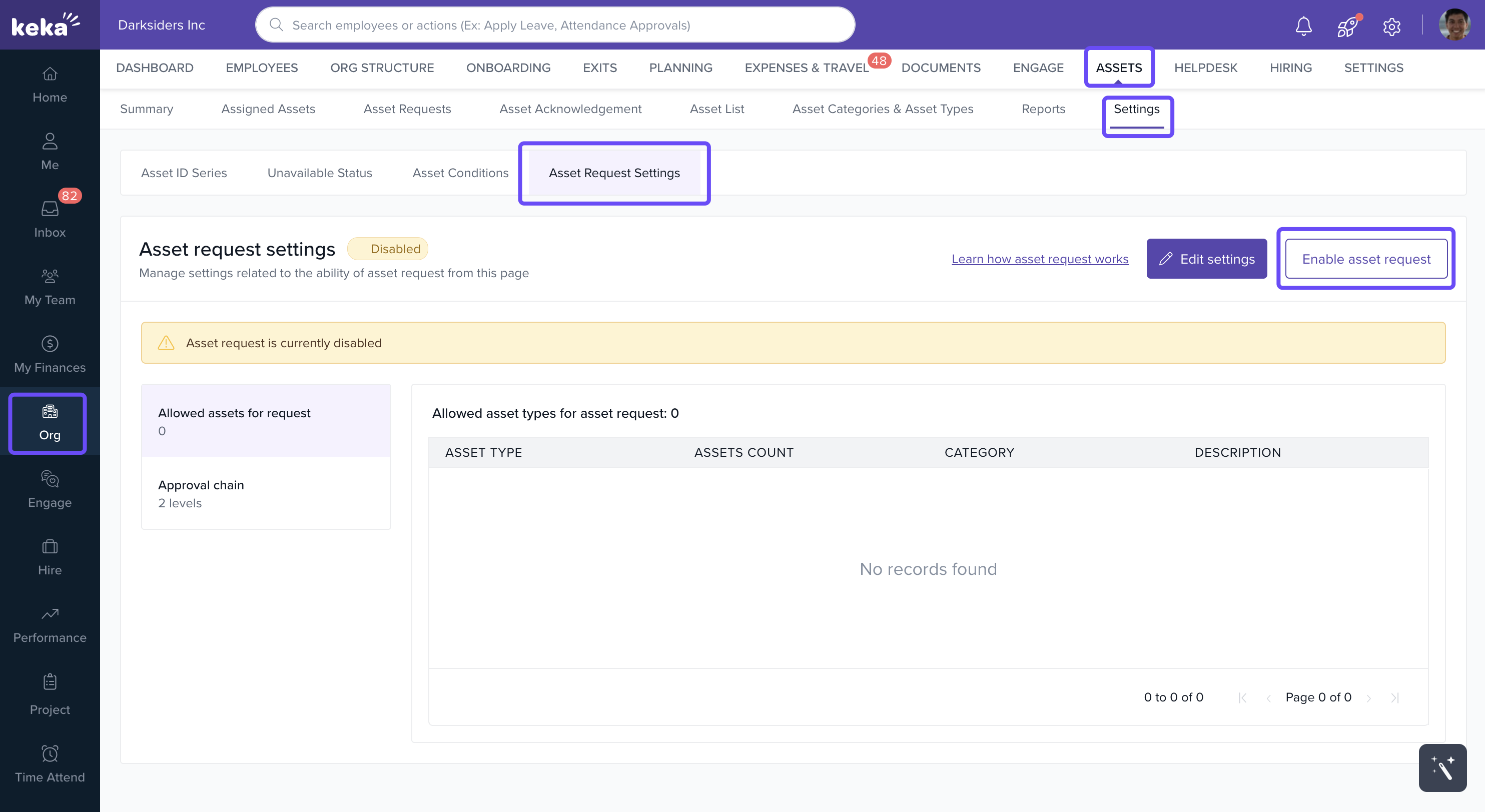
Configuring Asset Request Settings
If setting up for the first time, click Configure.
If already configured, click Edit Settings.
Step 1: Select Requestable Assets
Check the boxes for asset types employees are allowed to request.
Click Continue.
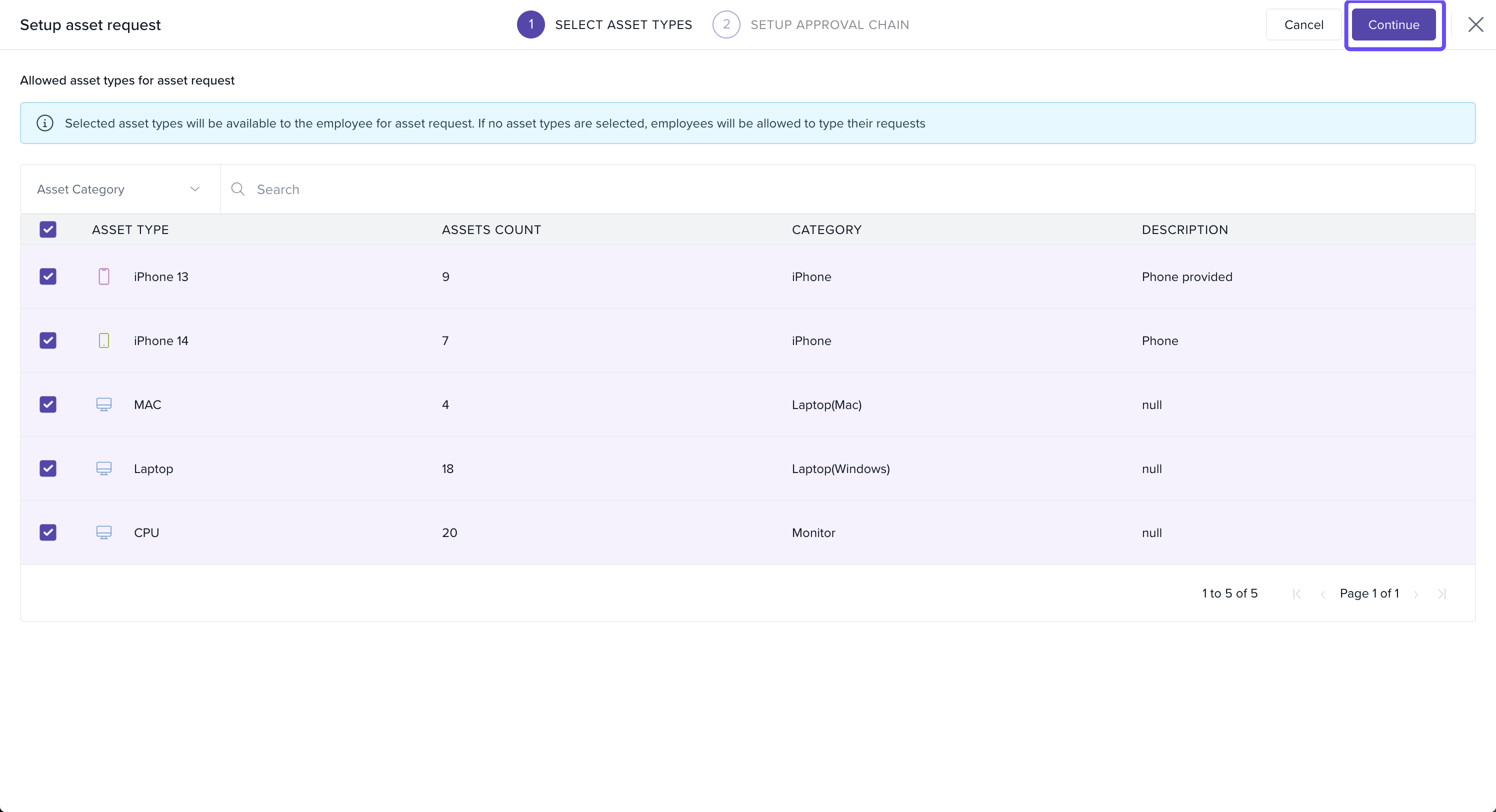
Step 2: Define Approval Workflow
Assign approvers by employee name or role.
Customize approval levels with + Add New Level.
-
Optional settings:
Auto-Approval – Automatically approve if no action is taken within X days.
-
Notify All Previous Approvers – Enabled by default; can be disabled.
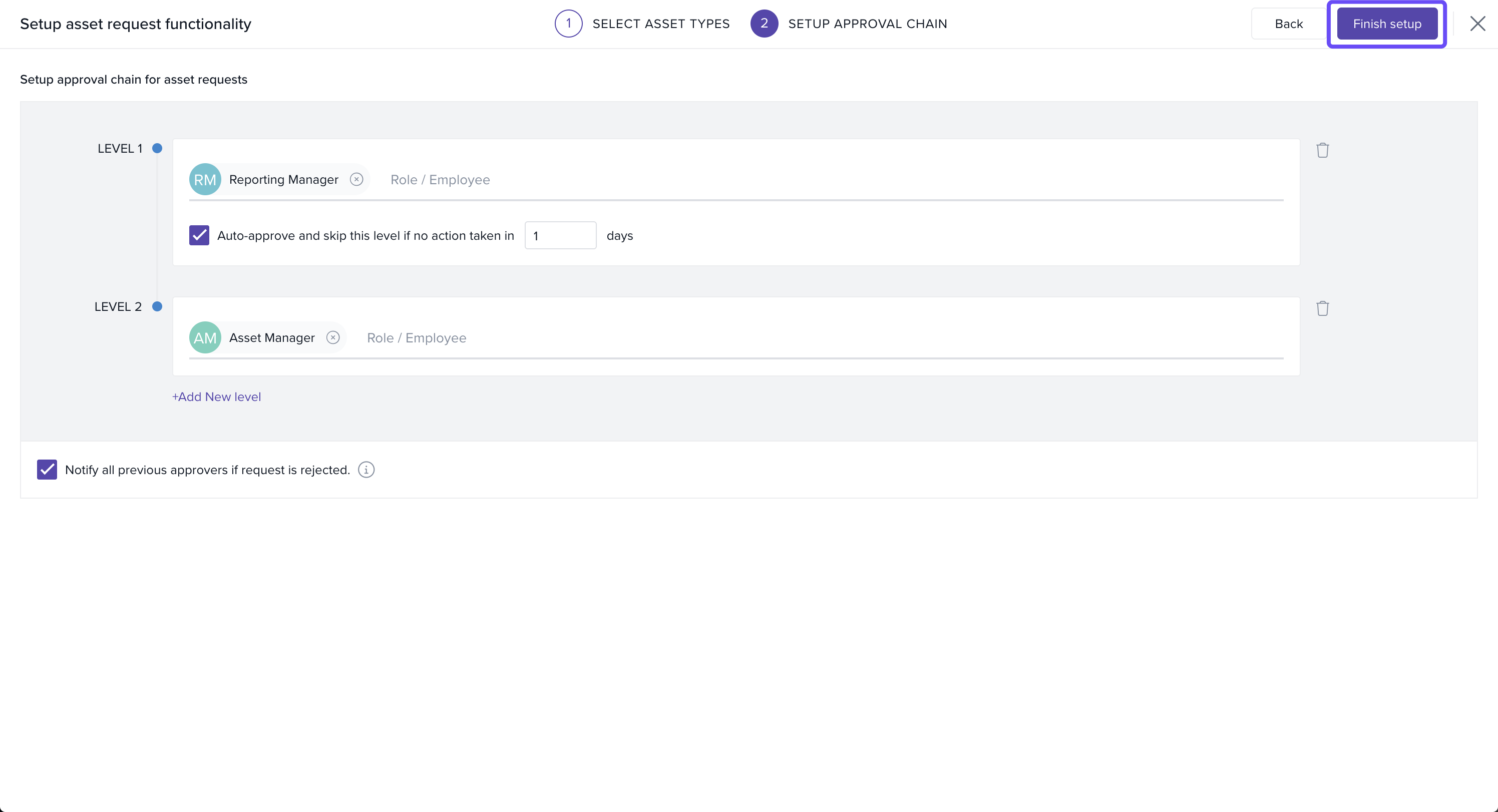
Click Finish Setup to save.
Raising an Asset Request For New Assets
-
Employees go to Profile > Assets > Asset Requests.
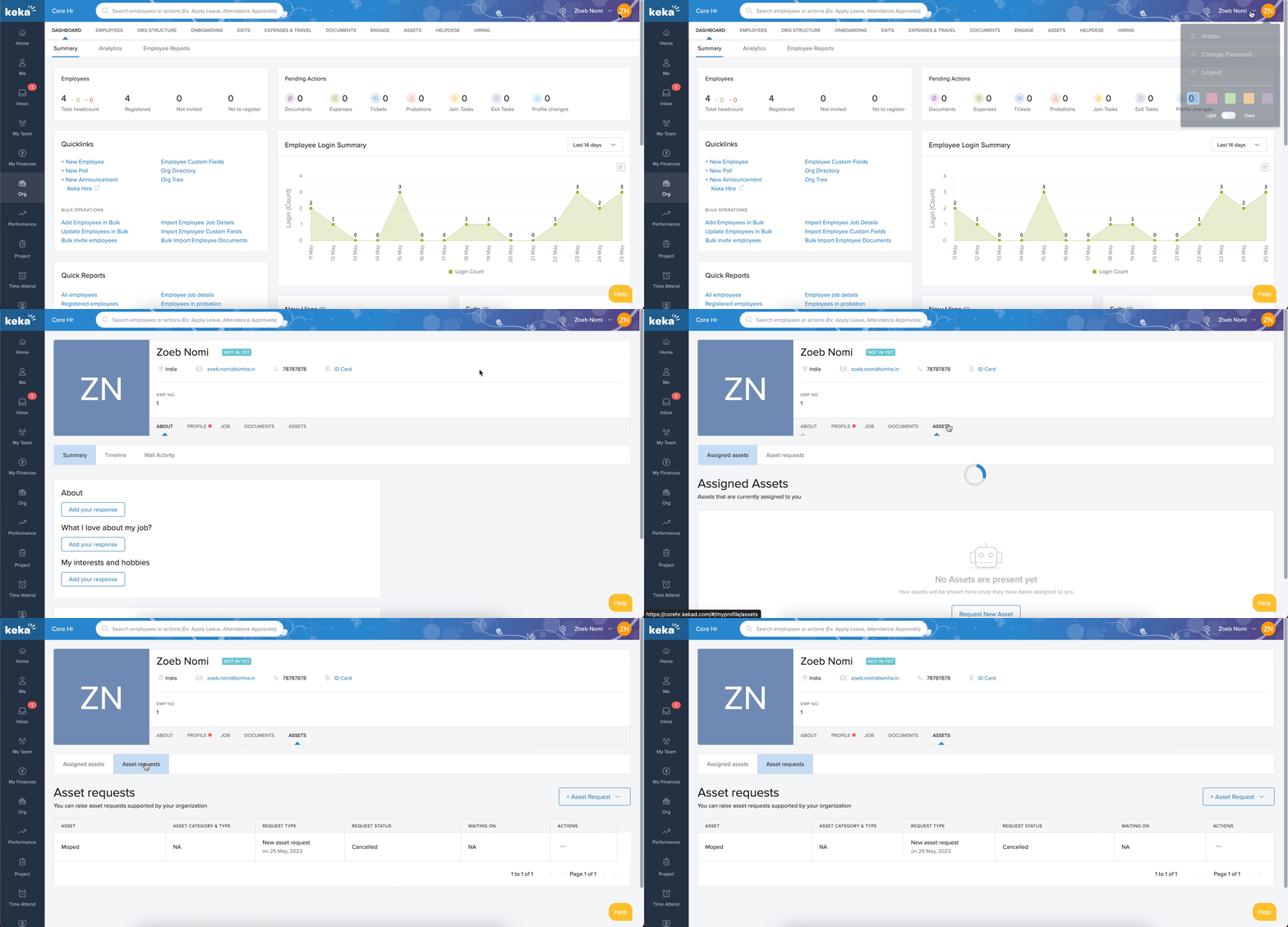
-
Click + Asset Request > New Request.
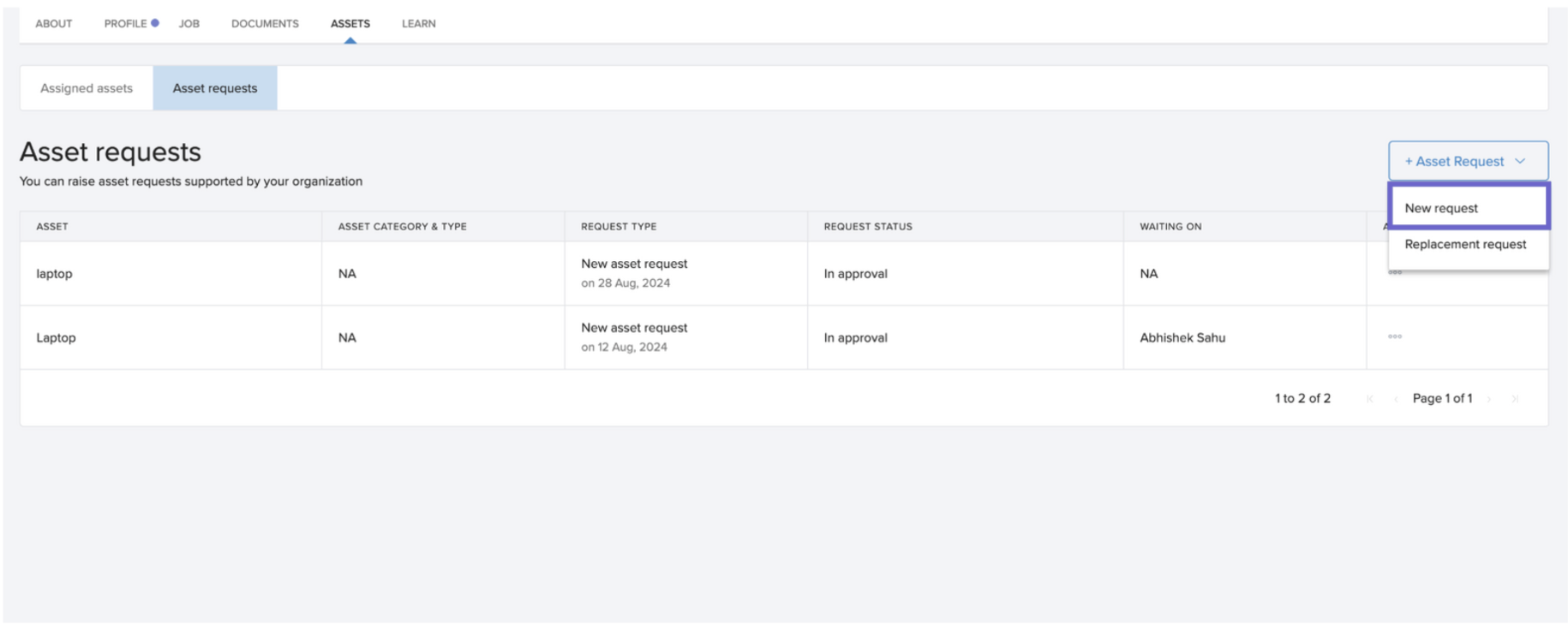
Select the required asset from the predefined list.
Add a comment with justification.
-
Click Submit.
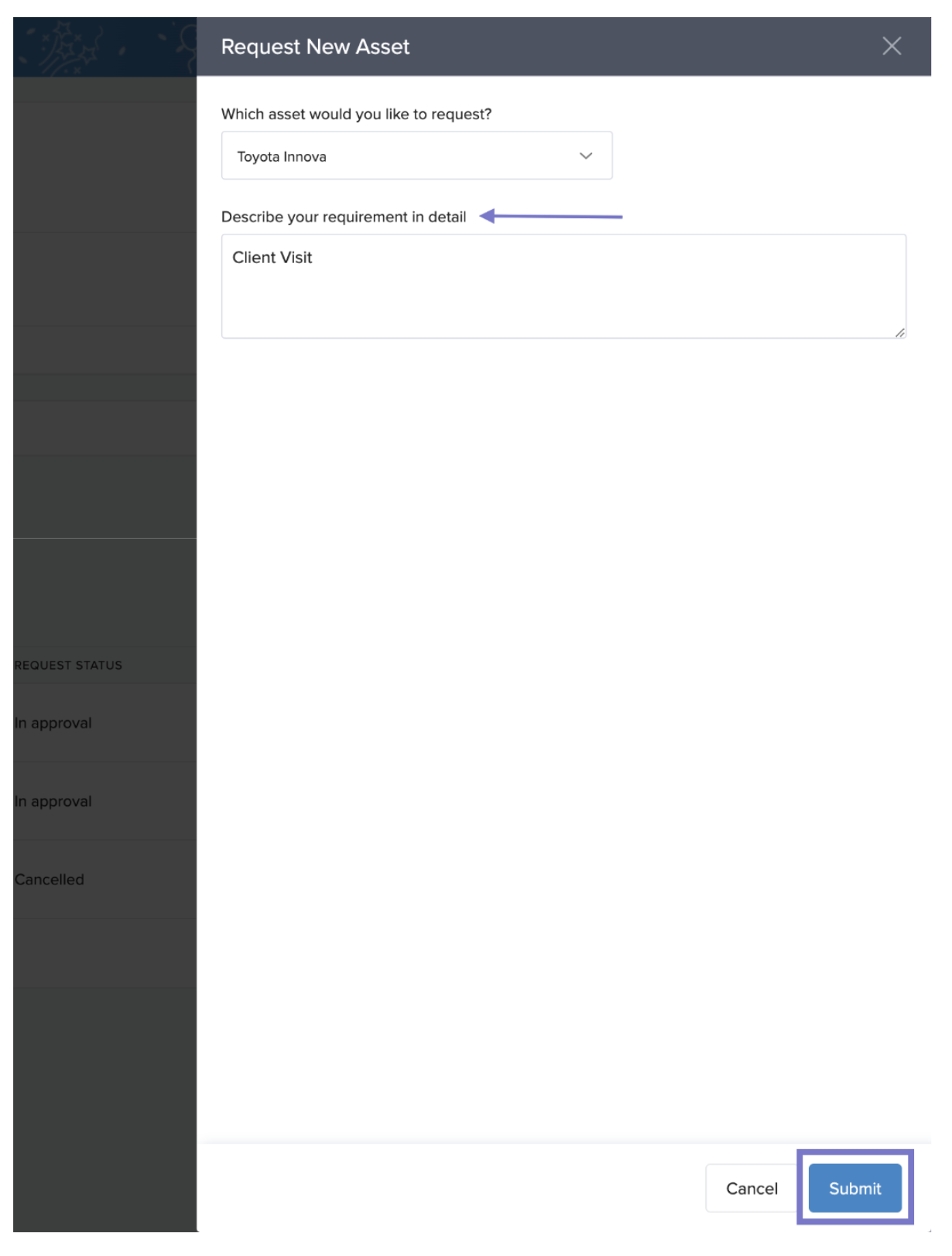
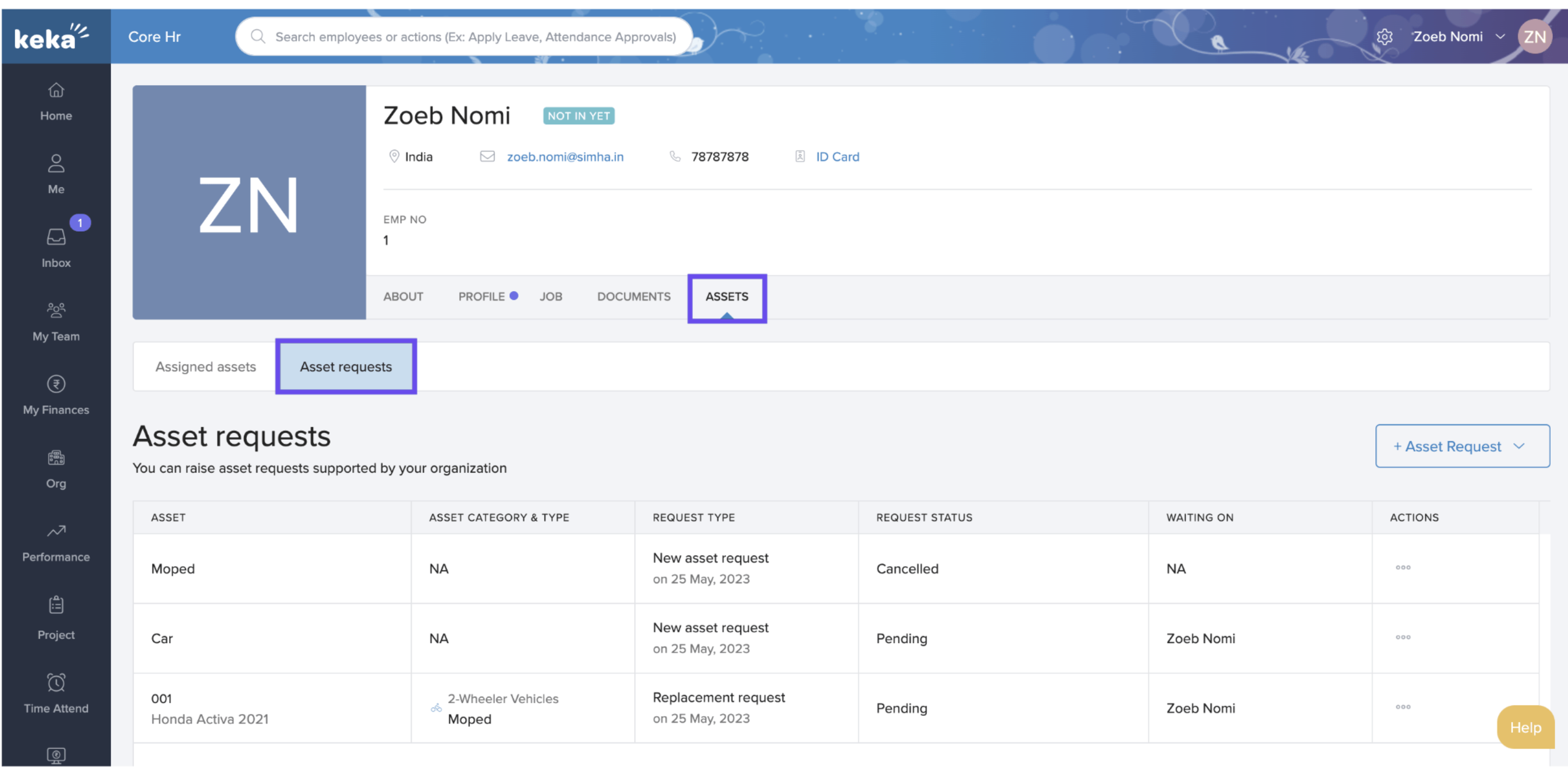
Employees can track request status under Asset Requests with details like:
Asset name
Category & Type
Request status
Waiting on
Actions (View, Edit, Withdraw)
Raising Asset Replacement Request
Go to Profile > Assets > Asset Requests.
-
Click + Asset Request > Replacement Request.
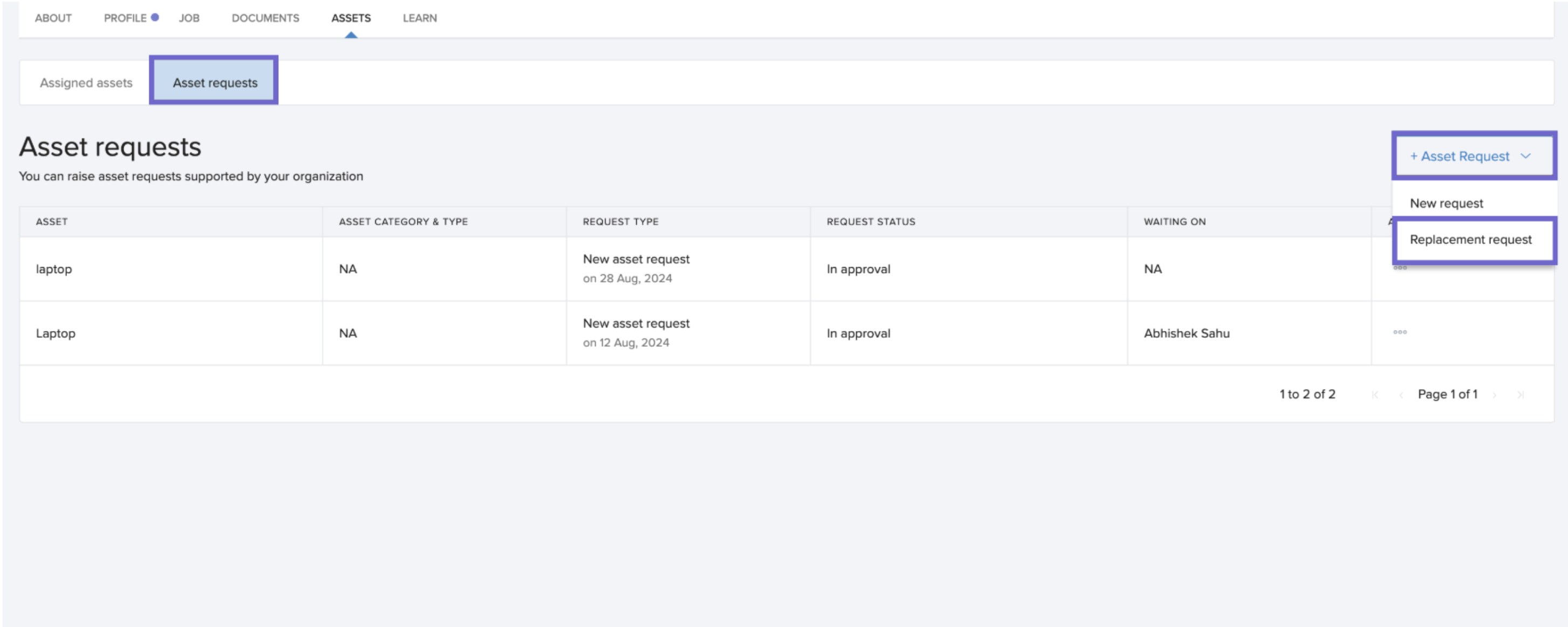
From the dropdown, choose the asset to replace.
-
Provide:
Description of issue
-
Asset image (optional)
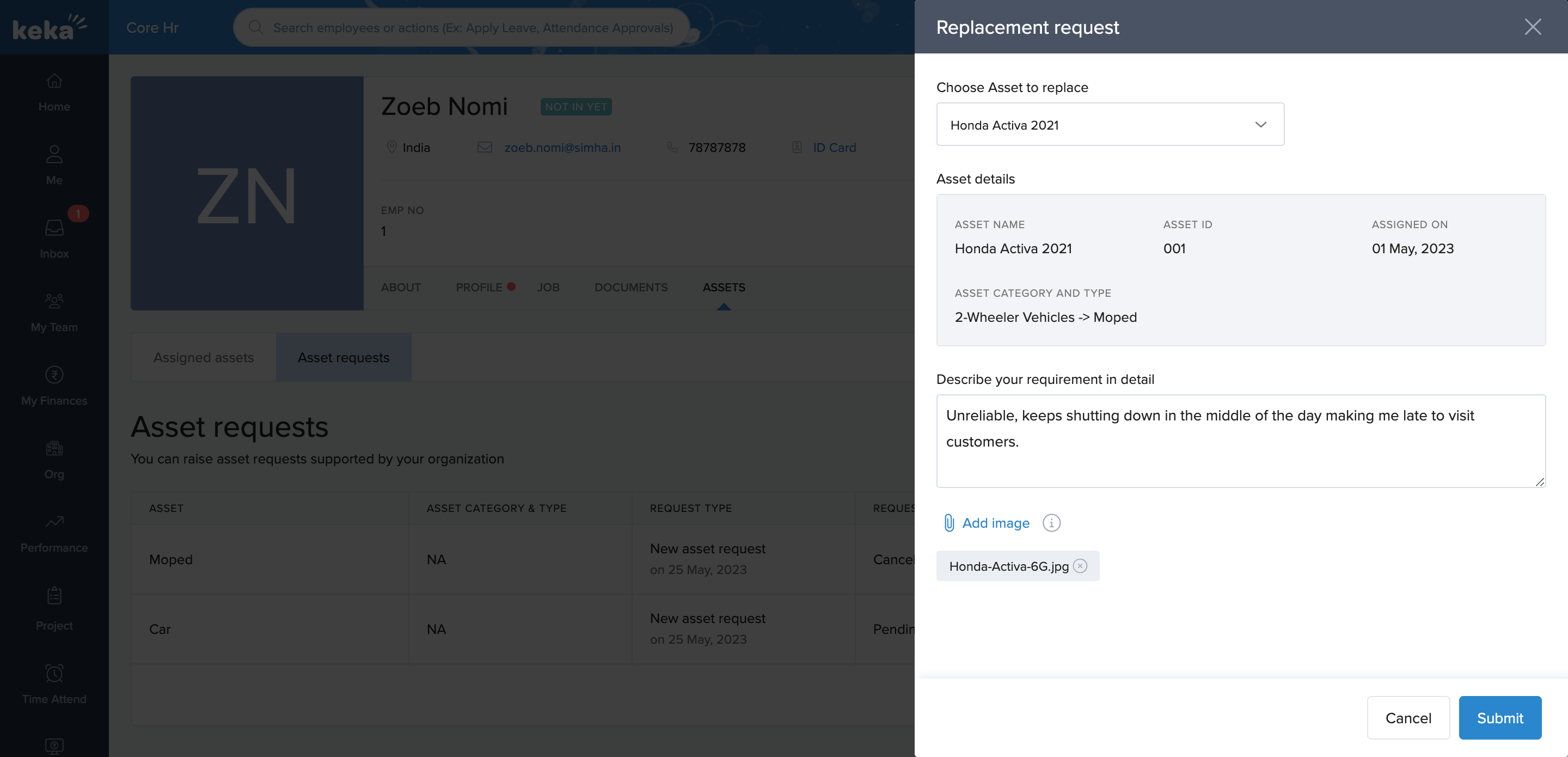
Click Submit.
Employees will see asset details including:
Asset Name
Asset ID
Assigned On date
Asset Category & Type
Tracking & Managing New and Replacement Asset Requests
For Employees
Track request status under Profile > Assets > Asset Requests.
See whether requests are pending, approved, rejected, or assigned.
For Admins
Option 1: From Asset Requests Page
Go to Org > Assets > Asset Requests.
-
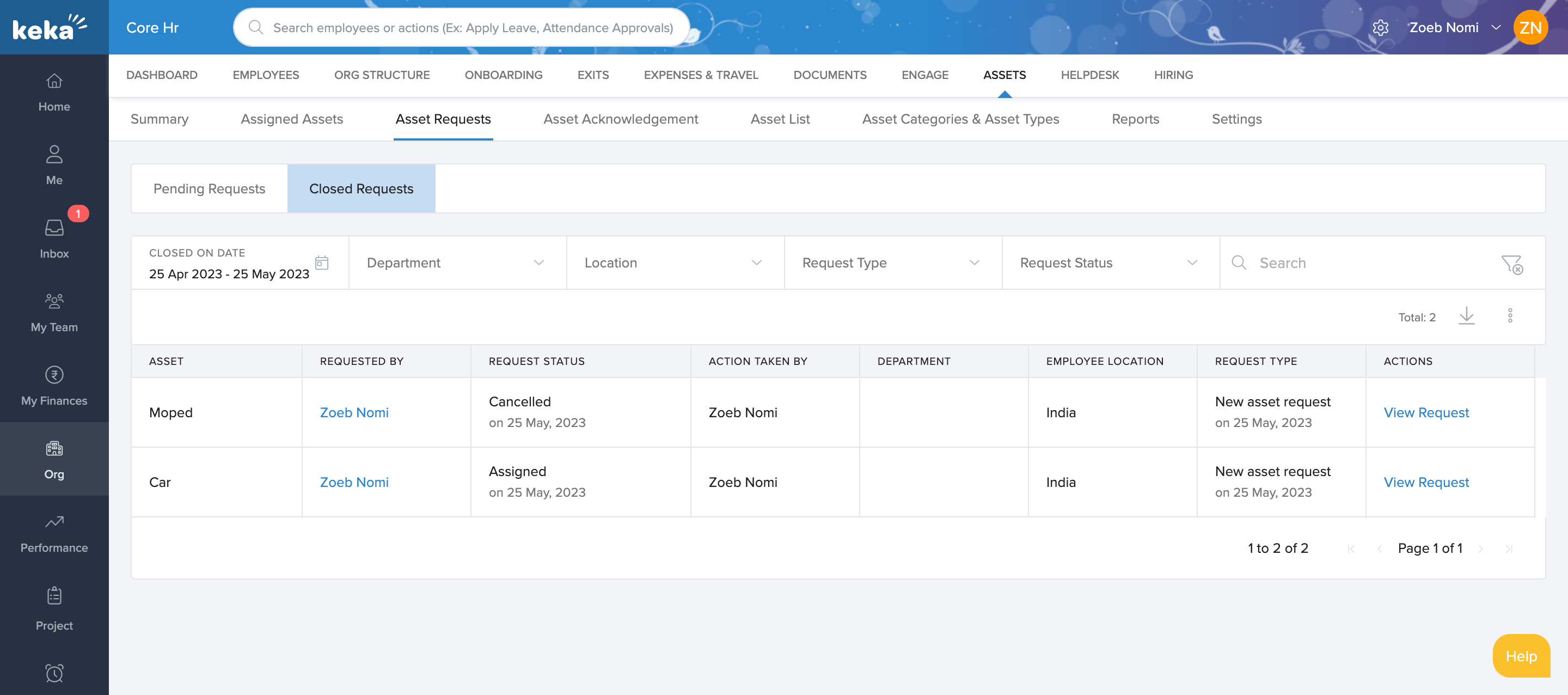
View Pending or Closed Requests.
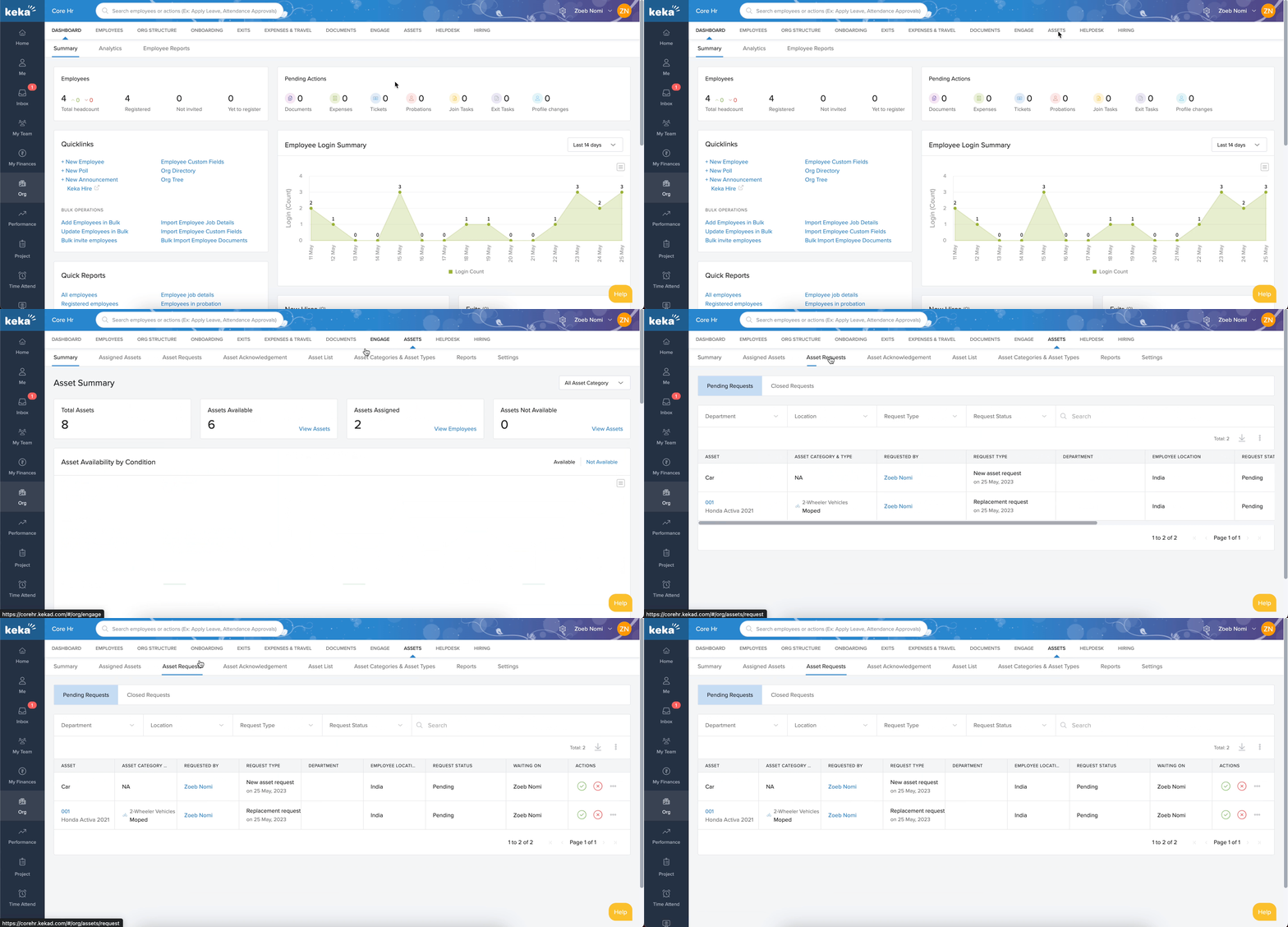
Pending requests table includes:
Asset
Category
Requested by
Request type
Department
Employee location
Request status
Waiting on
Actions: Approve/Reject, View Request
Admins can also:
Add comments via View Request.
Provide a reason when rejecting.
Assign assets directly from Assign Asset after approval.
Closed requests include approved, rejected, or fulfilled ones.
Option 2: Inbox
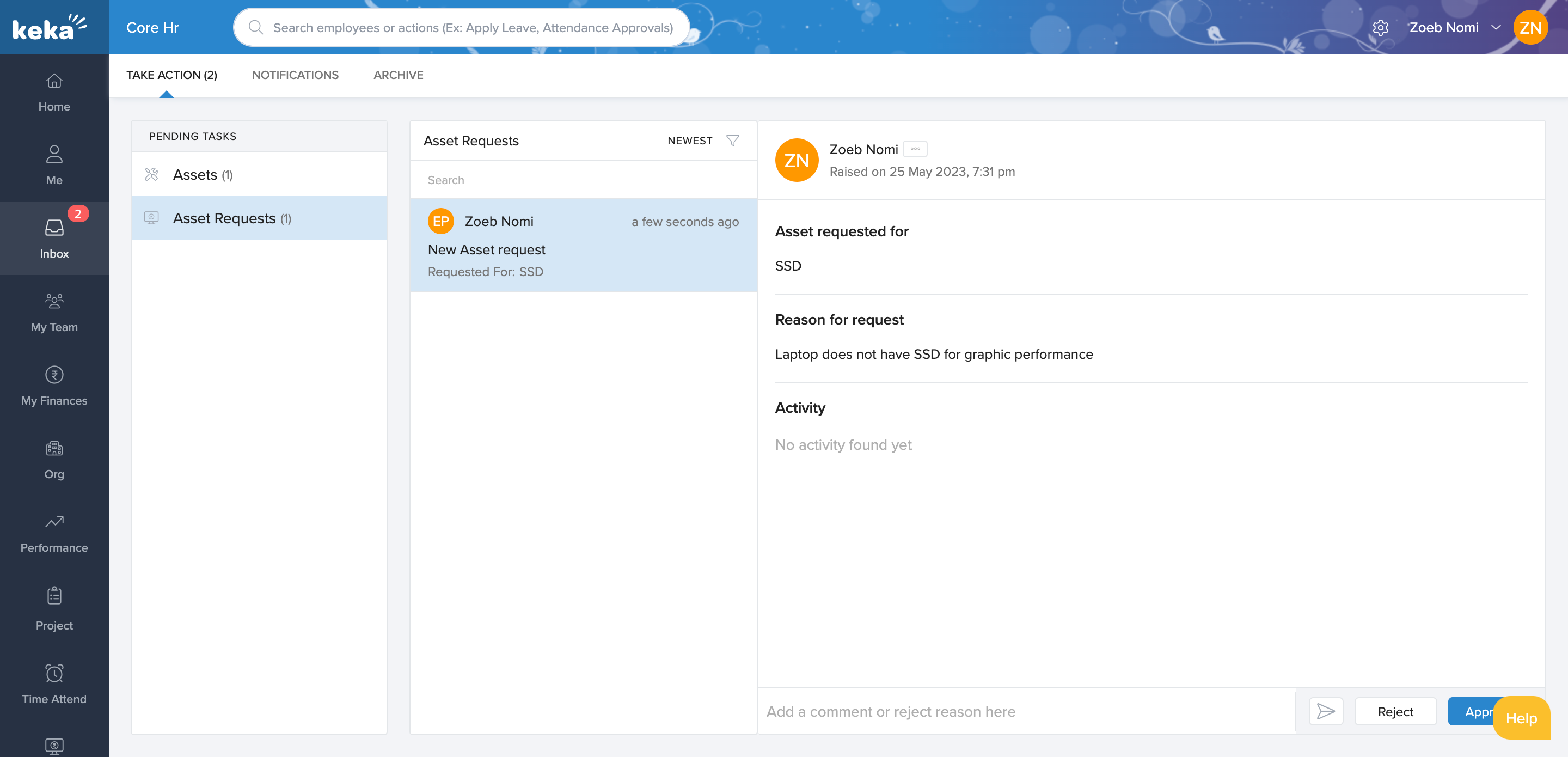
Approvers see requests in their Inbox > Asset Requests.
-
Request details include:
Employee name
Date/time of request
Asset requested
Reason for request
Activity history
Approve/Reject directly from inbox.
Once resolved, requests move to the Archived section.
With Asset Requests in Keka, employees can easily raise new or replacement requests, while admins can efficiently track, approve, and assign resources—ensuring smooth and transparent asset allocation.
Comments
0 comments
Please sign in to leave a comment.