What are asset categories and asset types?
An asset category is a group of similar assets.
An asset type is a specific item within that category.
Example:
Category: Computer Peripherals
Types: Mouse, External Hard Disk, External Keyboard
Why are asset categories and types important?
Organizing assets into categories and types allows you to:
Track assets more efficiently in Keka.
Understand ownership, condition, and location of assets.
Simplify maintenance, repair, and replacement decisions.
Adding asset category & asset type
Navigate to Org > Assets > Asset Categories & Asset Types to get started. You can:
Add a single asset category, or
Bulk import categories and types.
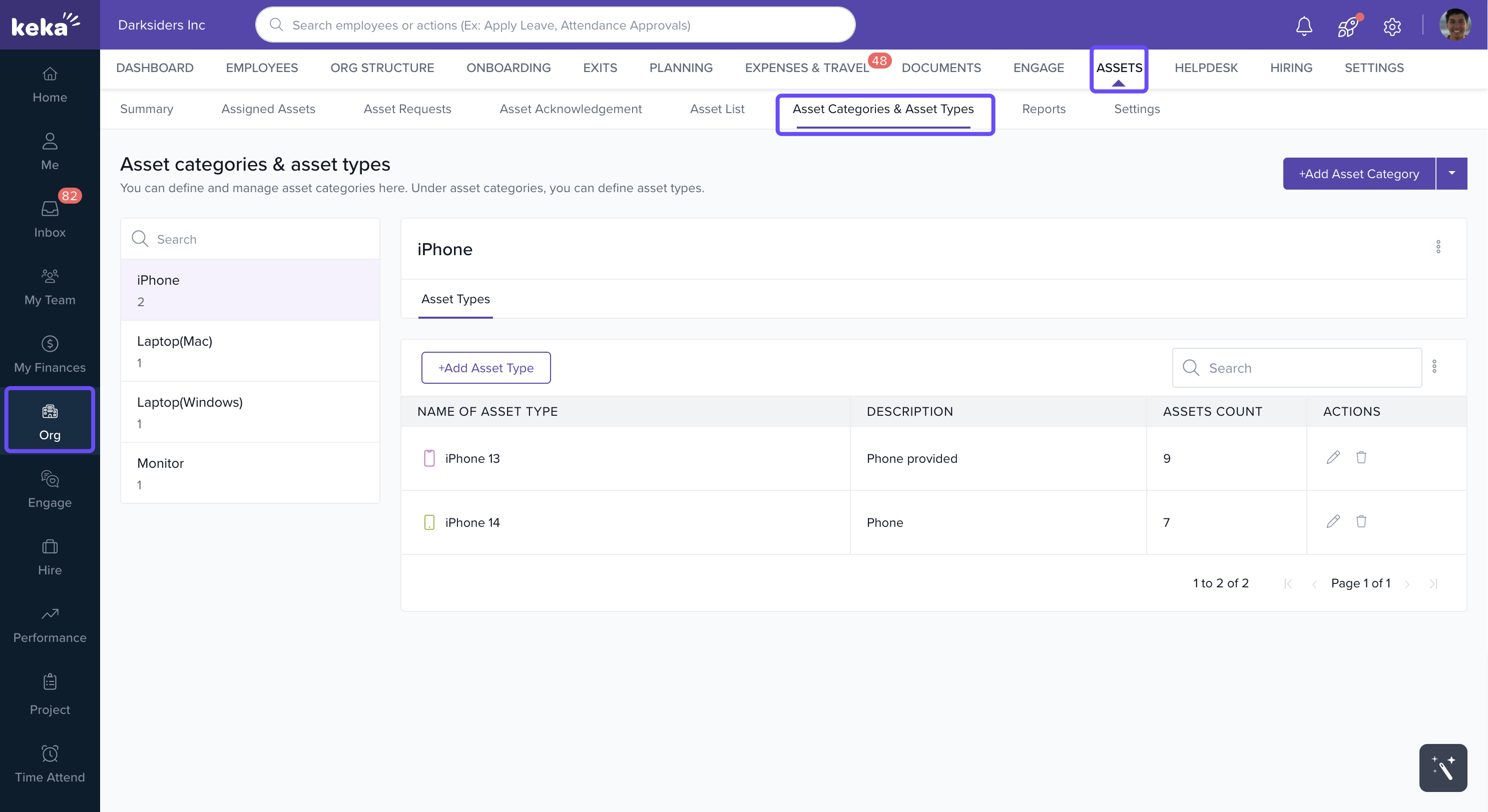
Add single asset category
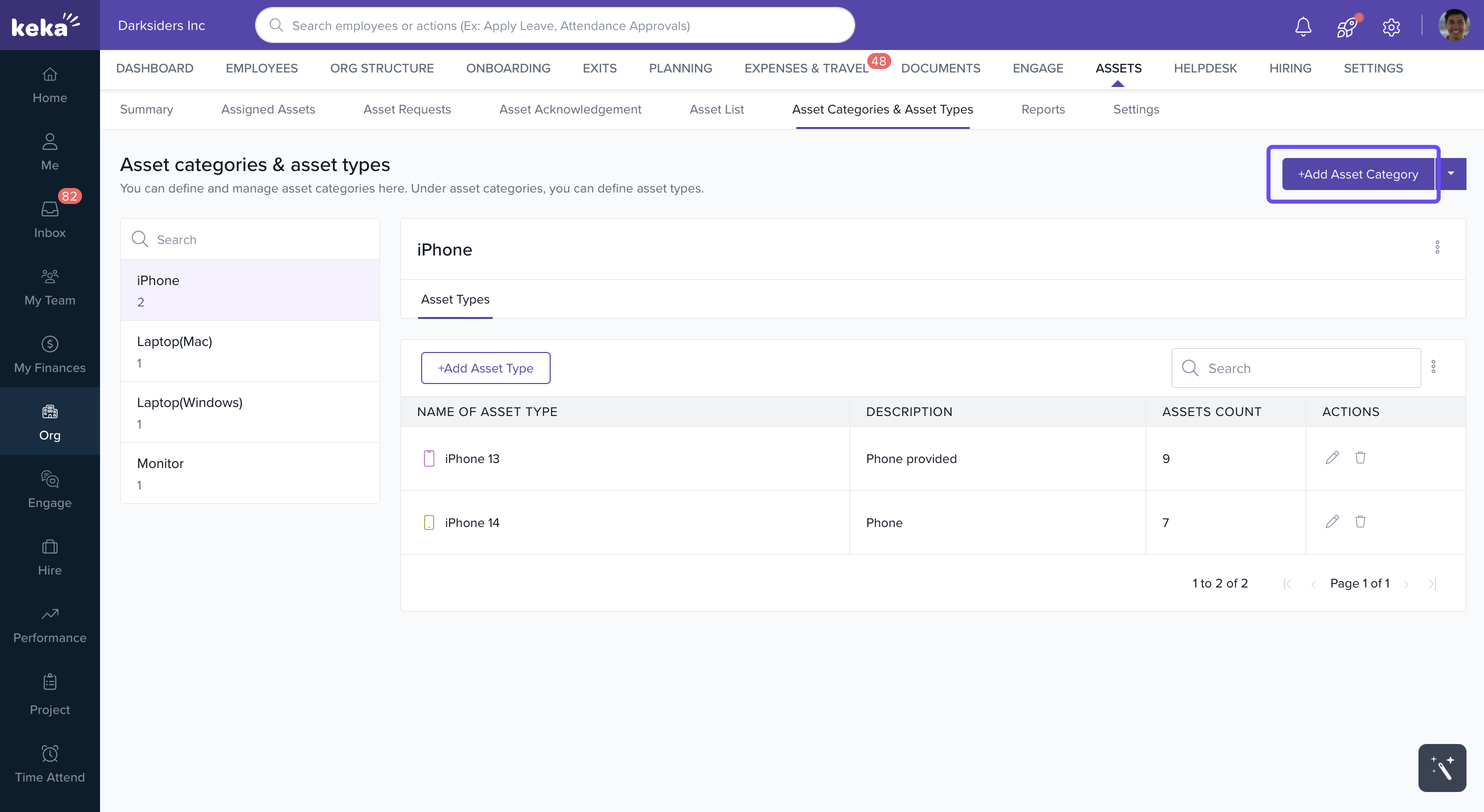
Click + Add Asset Category.
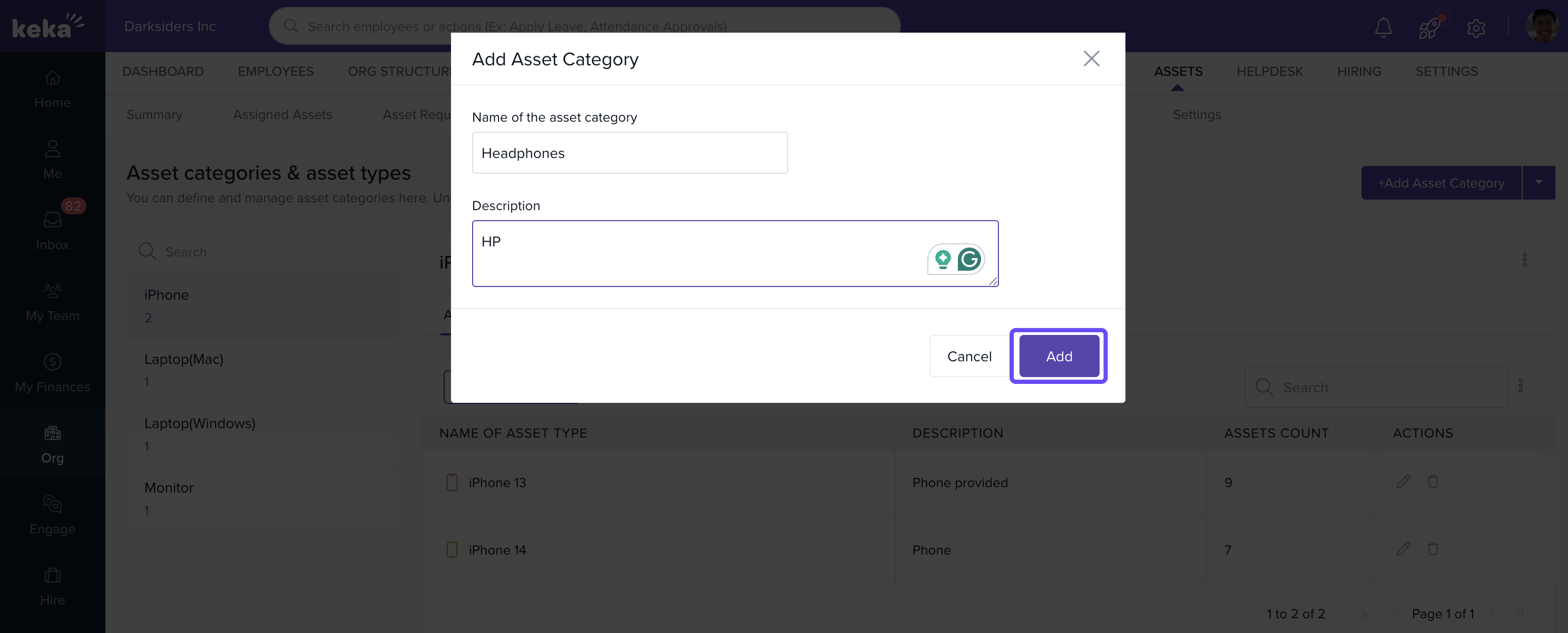
Enter a name and description.
Click Add to save.
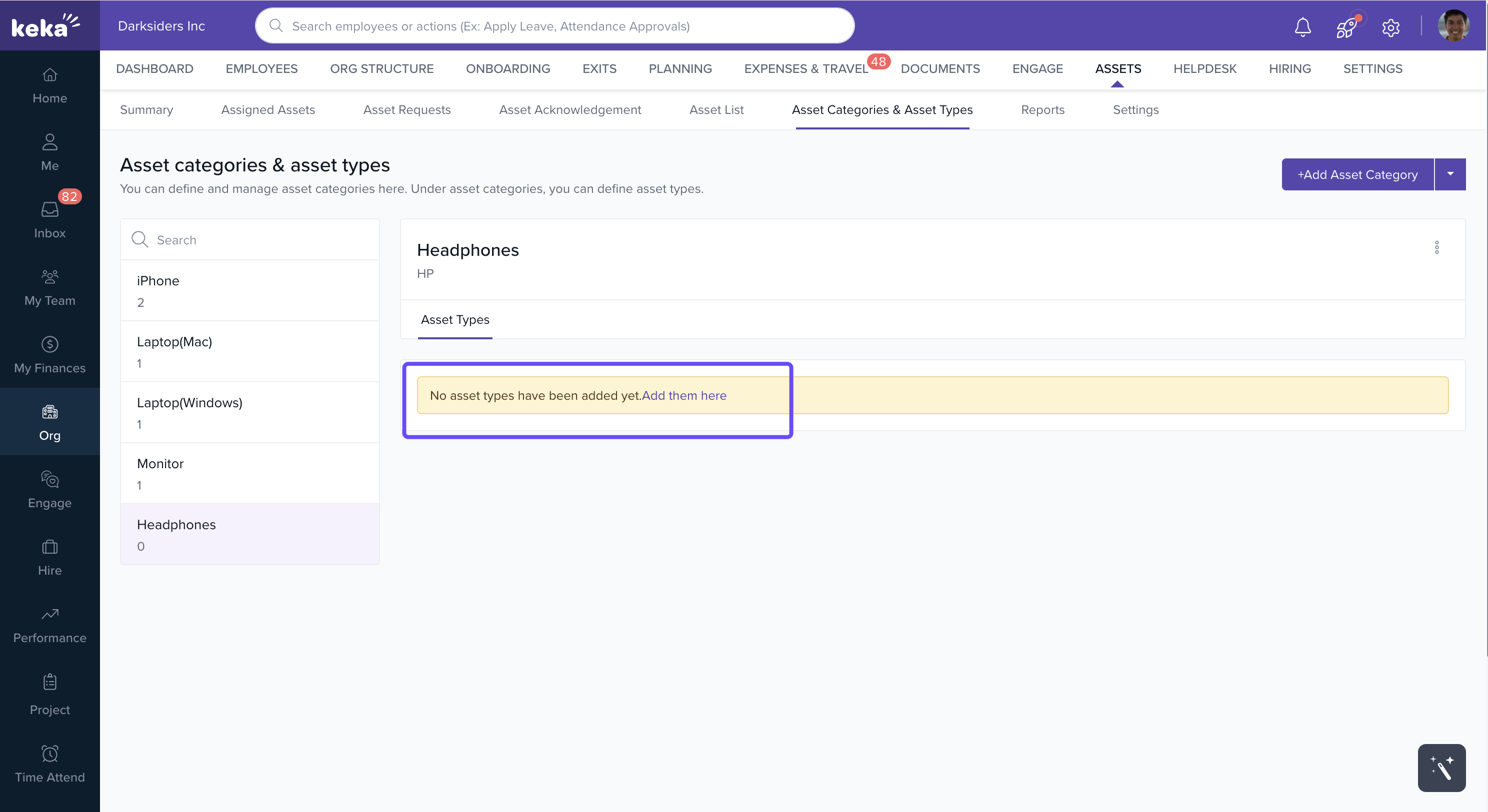
After adding a category, click Add them here to create asset types.
When adding an asset type, enter:
Name of the type
Icon
Description (optional)
Custom attributes (optional)
Standard asset attributes
Standard attributes appear for all asset types by default. These are the various parameters that can accurately define an asset and also help in keeping track of the state of the asset and the condition of the asset.
List of standard attributes -
1. Asset ID
2. Asset Name
3. Description
4. Location
5. Purchased on
6. State of the asset
7. Condition of the asset
Custom asset attributes
Custom attributes are useful to specify information that may be only applicable to a single asset.
For example - Storage capacity & applicable devices for SSD
Click + Add Attribute to configure.
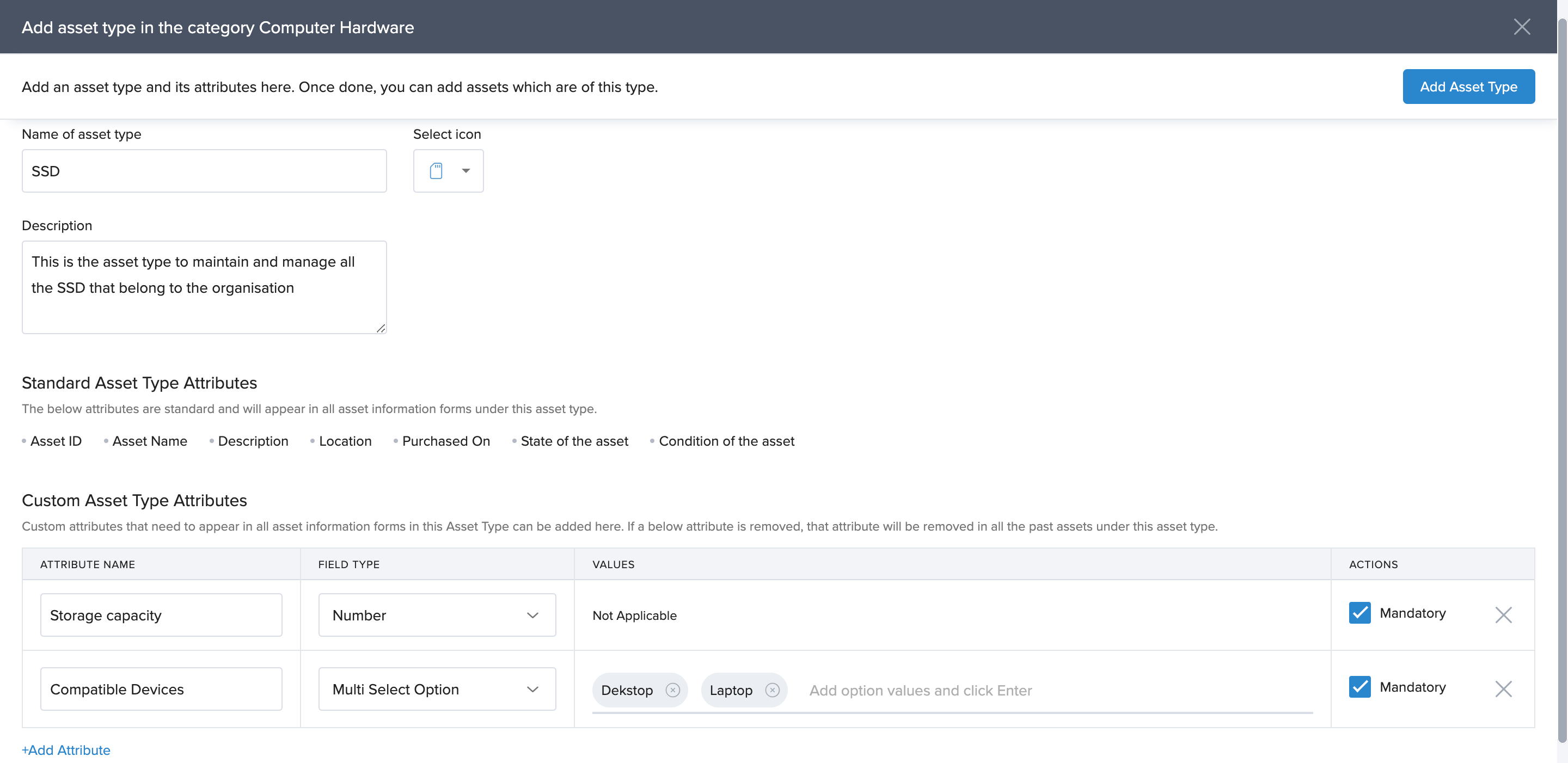
You can configure 6 different types of fields as a custom attribute
1. Text box
2. Text area
3. Single select option
4. Date
5. Number
6. Multi-select option
Additional options:
Mark an attribute as Mandatory.
Remove an attribute using the Cross icon.
For single/multi-select fields, add values in the Value column (press Enter to add each option).
After configuration, click Add Asset Type to save.
Adding asset categories in bulk
You can bulk upload categories and types in two ways:
Method 1: From Org
Go to Org > Assets > Asset Categories & Asset Types.
Click the dropdown next to + Add Asset Category.
Select Use Bulk Import.
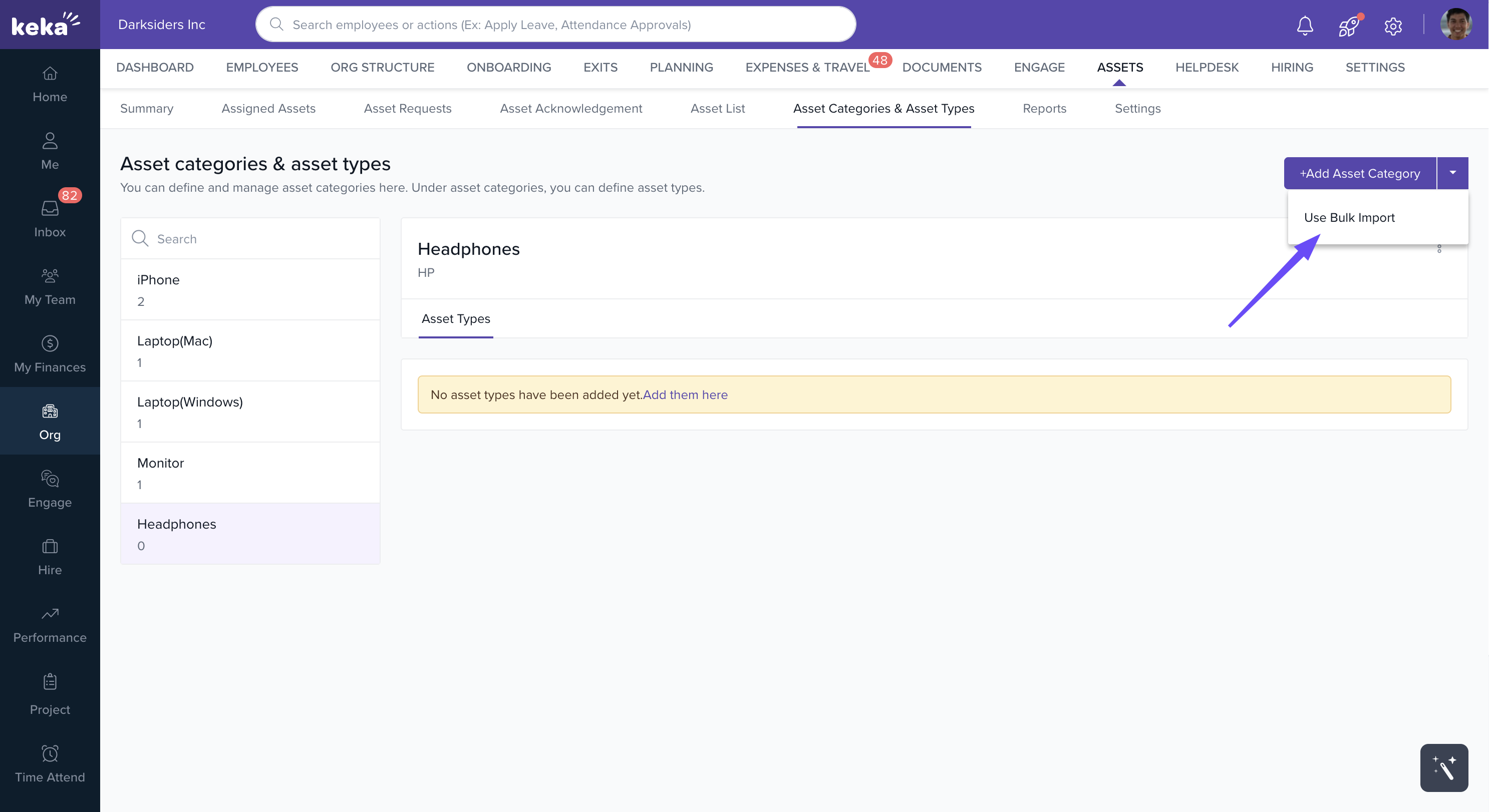
On clicking on bulk import you can view the instructions to bulk upload asset categories and asset types.
Method 2: From Global Settings
Go to Settings > Data Imports.
Select Bulk Add Asset Categories and Asset Types.
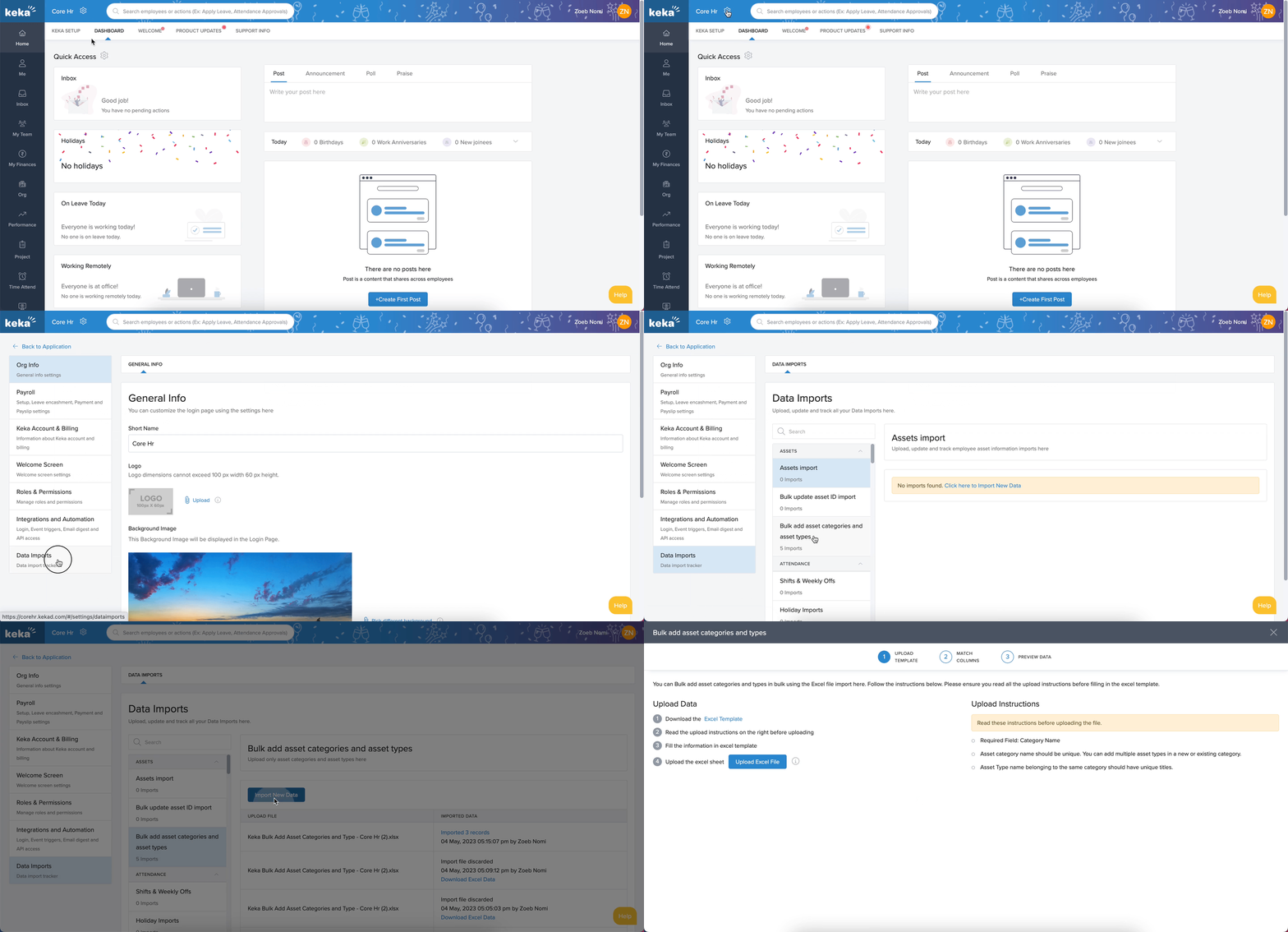
Both methods of navigation will take you to the Bulk Add Asset Categories and Types screen.
Download the Excel Template.
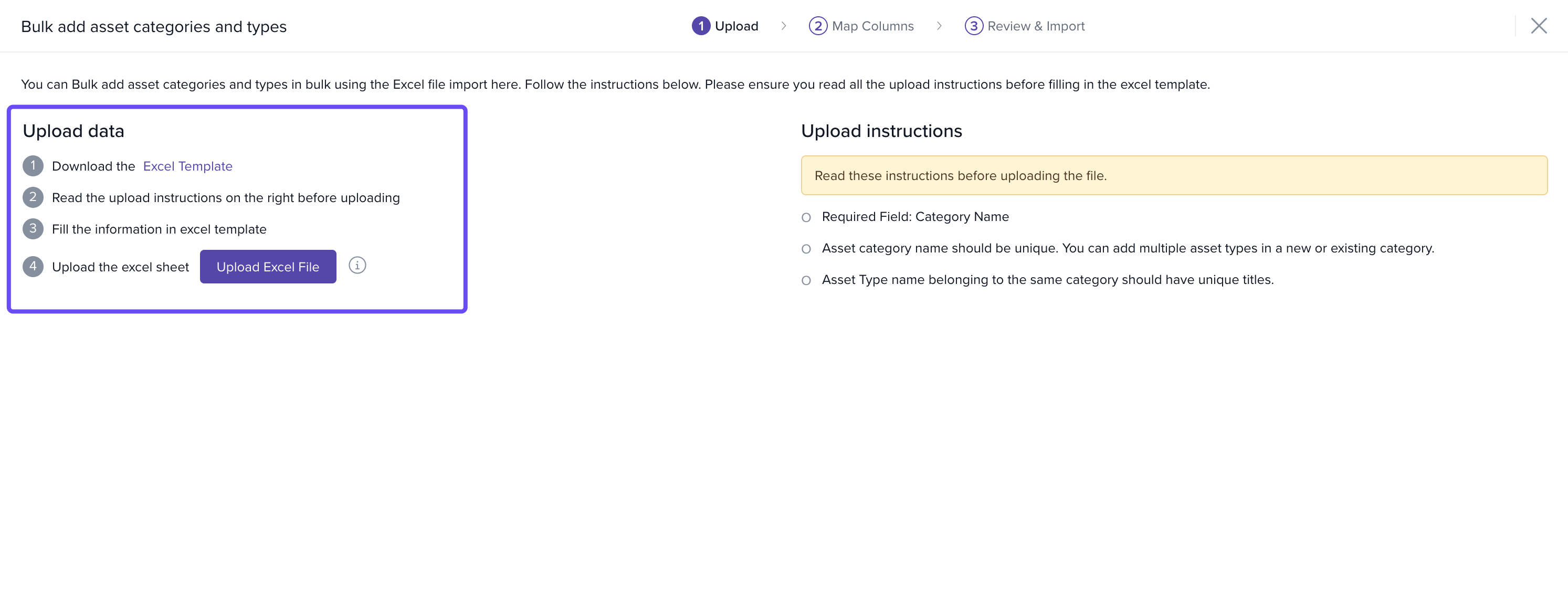
Fill in the details for categories and types.
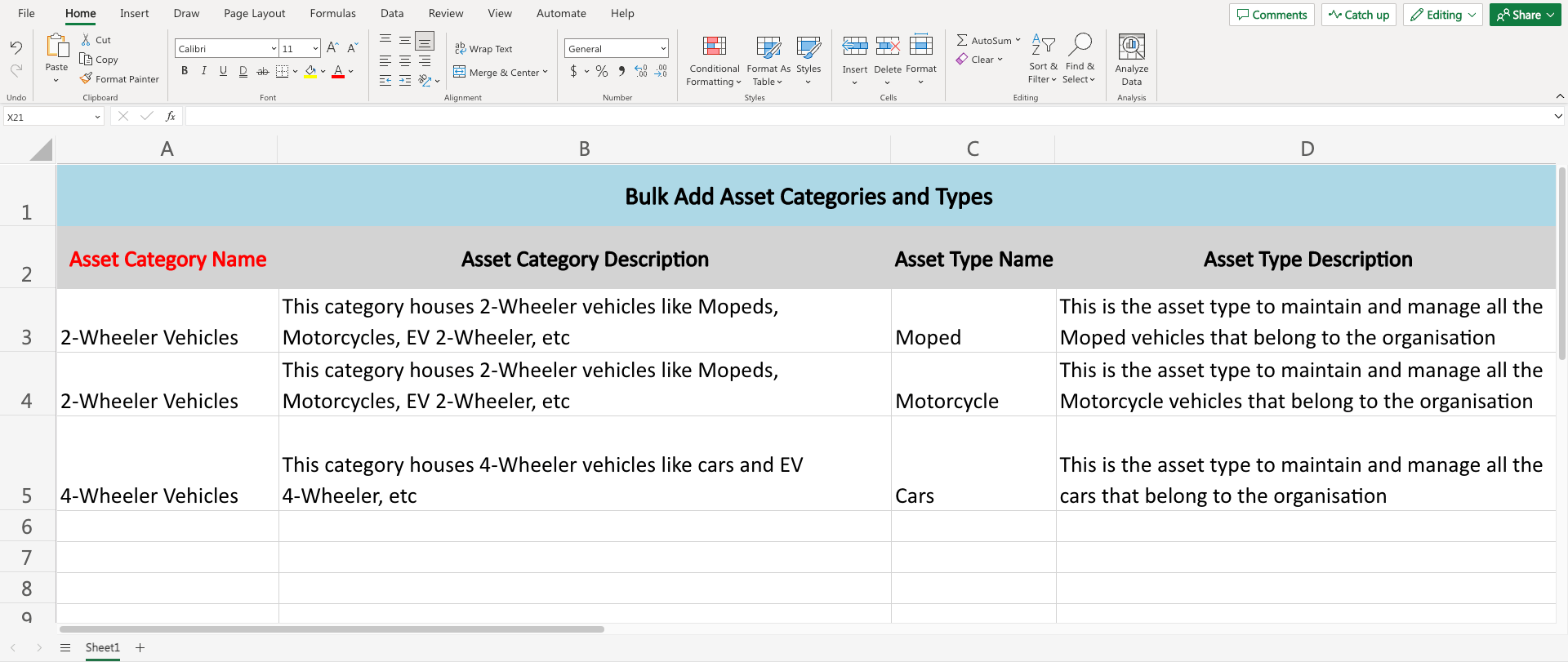
Click Upload Excel File to import.
Verify auto-mapped fields and adjust if needed.
Click Continue to preview data.
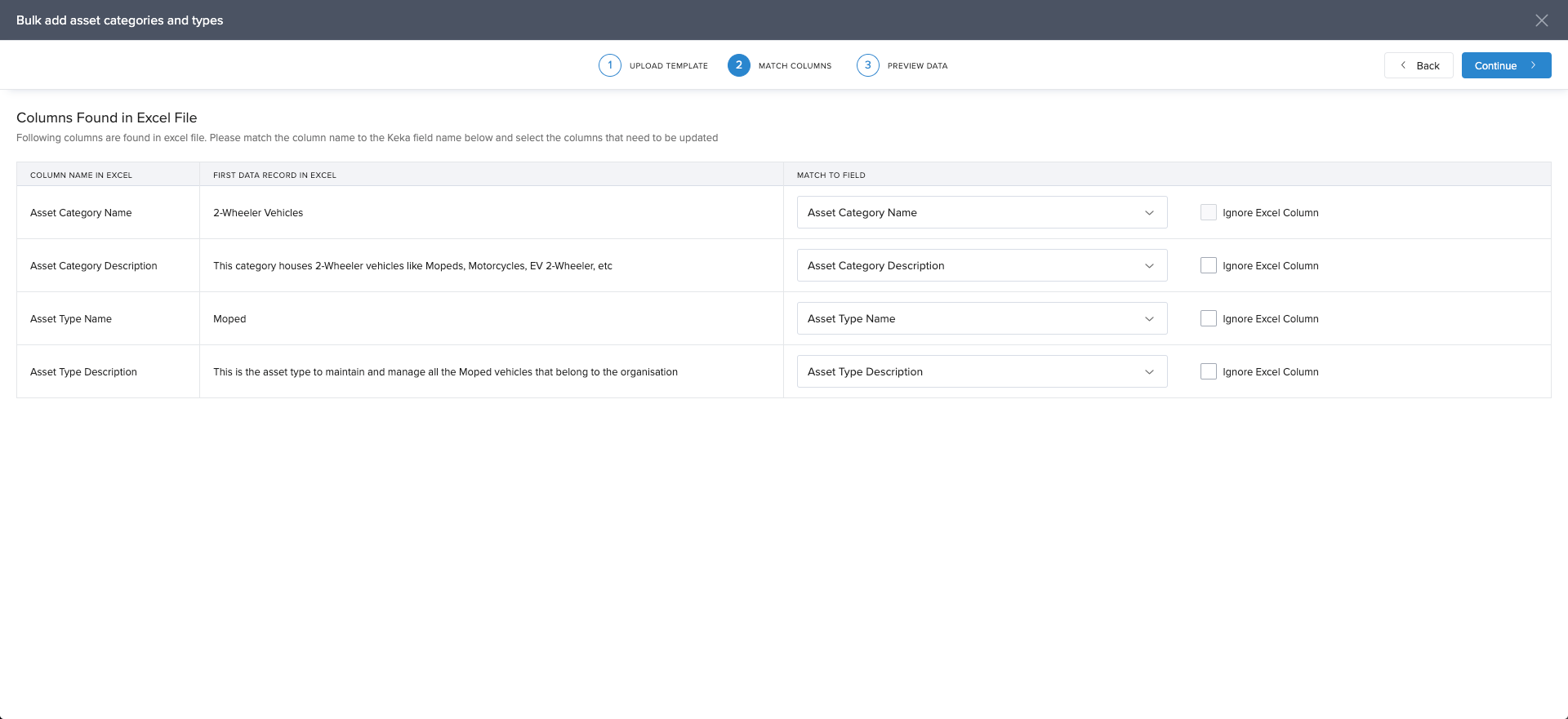
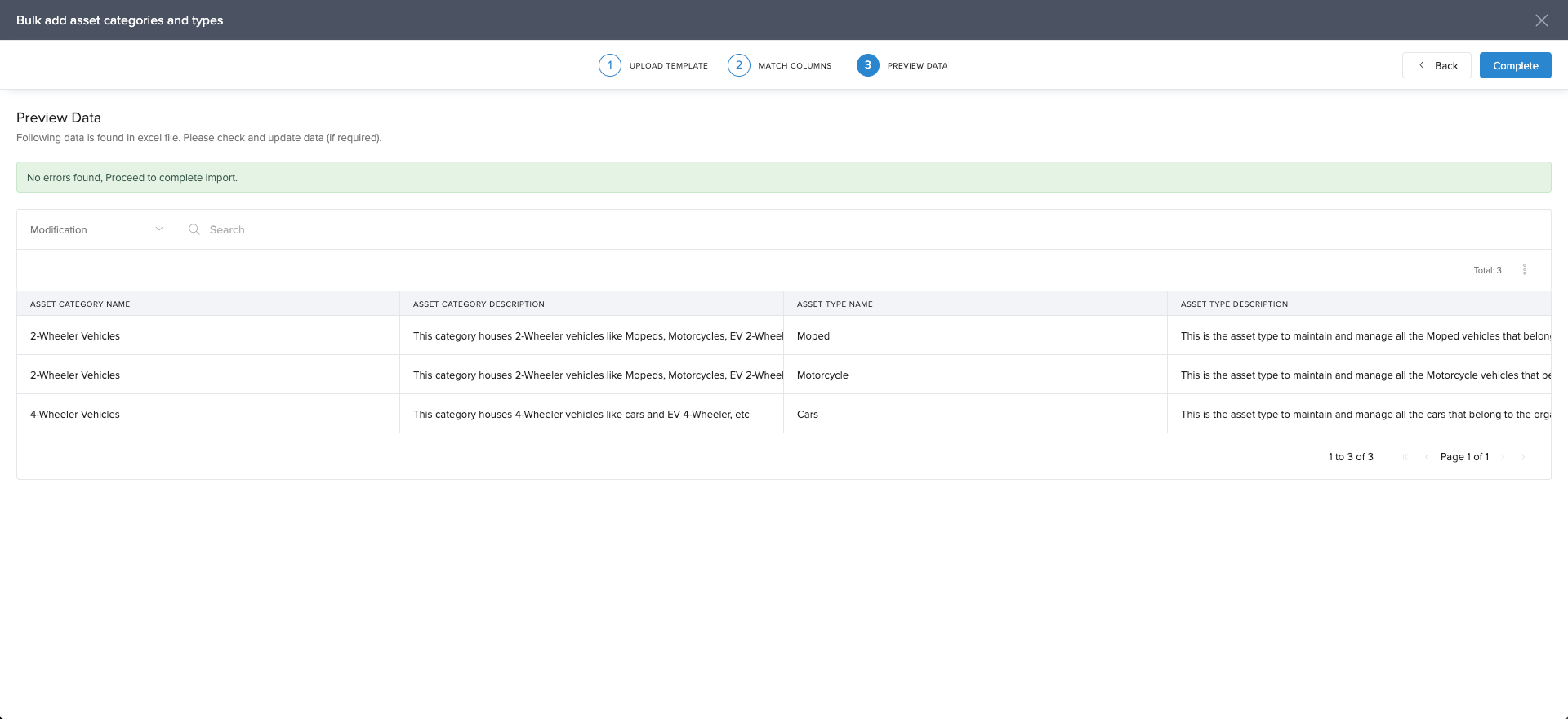
Fix any errors and re-upload, if necessary.
Click Continue again to add data to Keka.
Notes:
You can upload just categories, or both categories and types.
Asset Category Name is mandatory.
Custom attributes cannot be uploaded in bulk.
Adding custom attributes to asset types that have been uploaded in bulk
Go to Org > Assets > Asset Categories & Asset Types.
Find the Category and locate the Asset Type.
Under Actions, click the Pencil icon to edit.
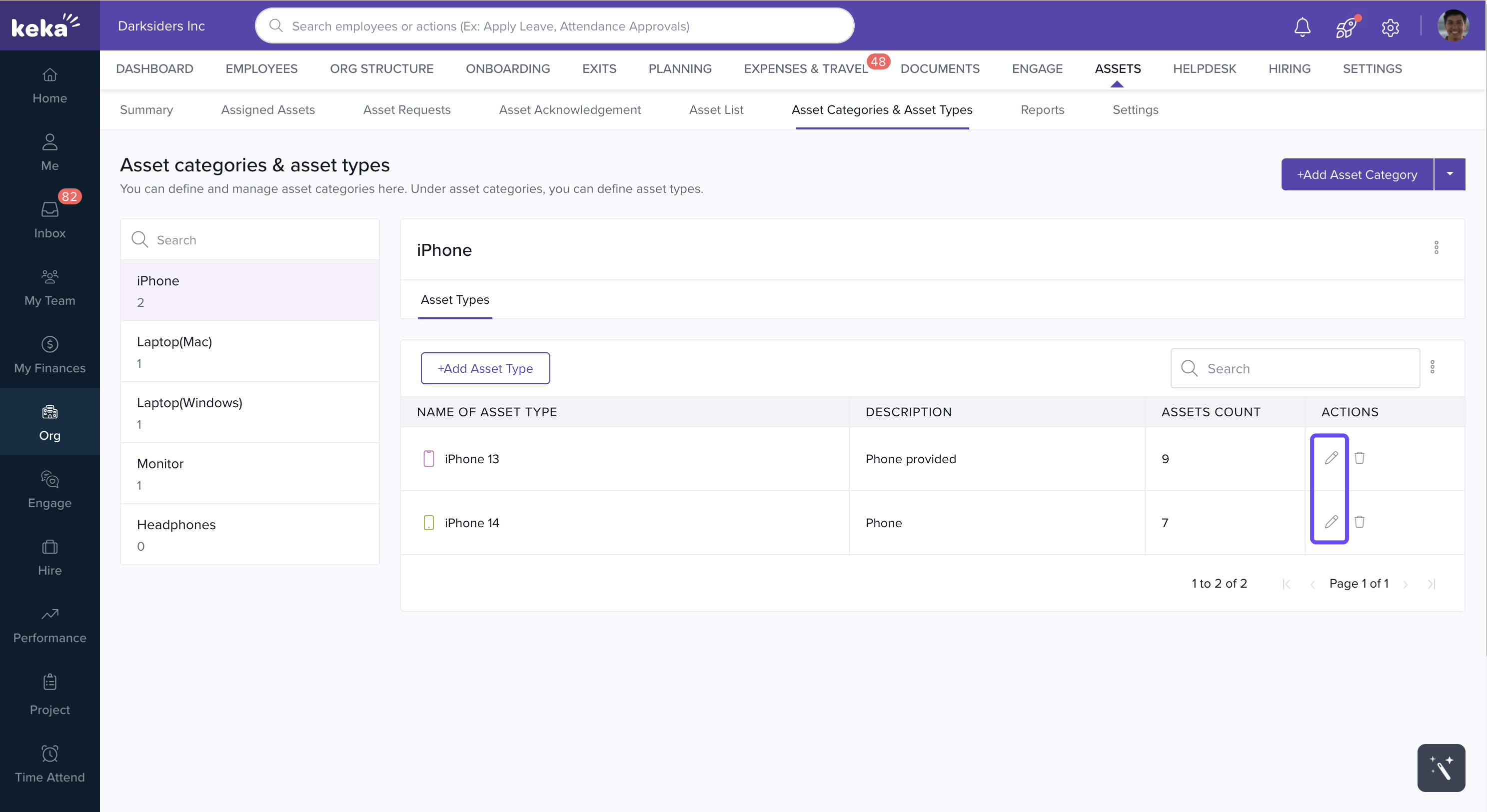
In the Edit Asset Type screen, click + Add Attribute.
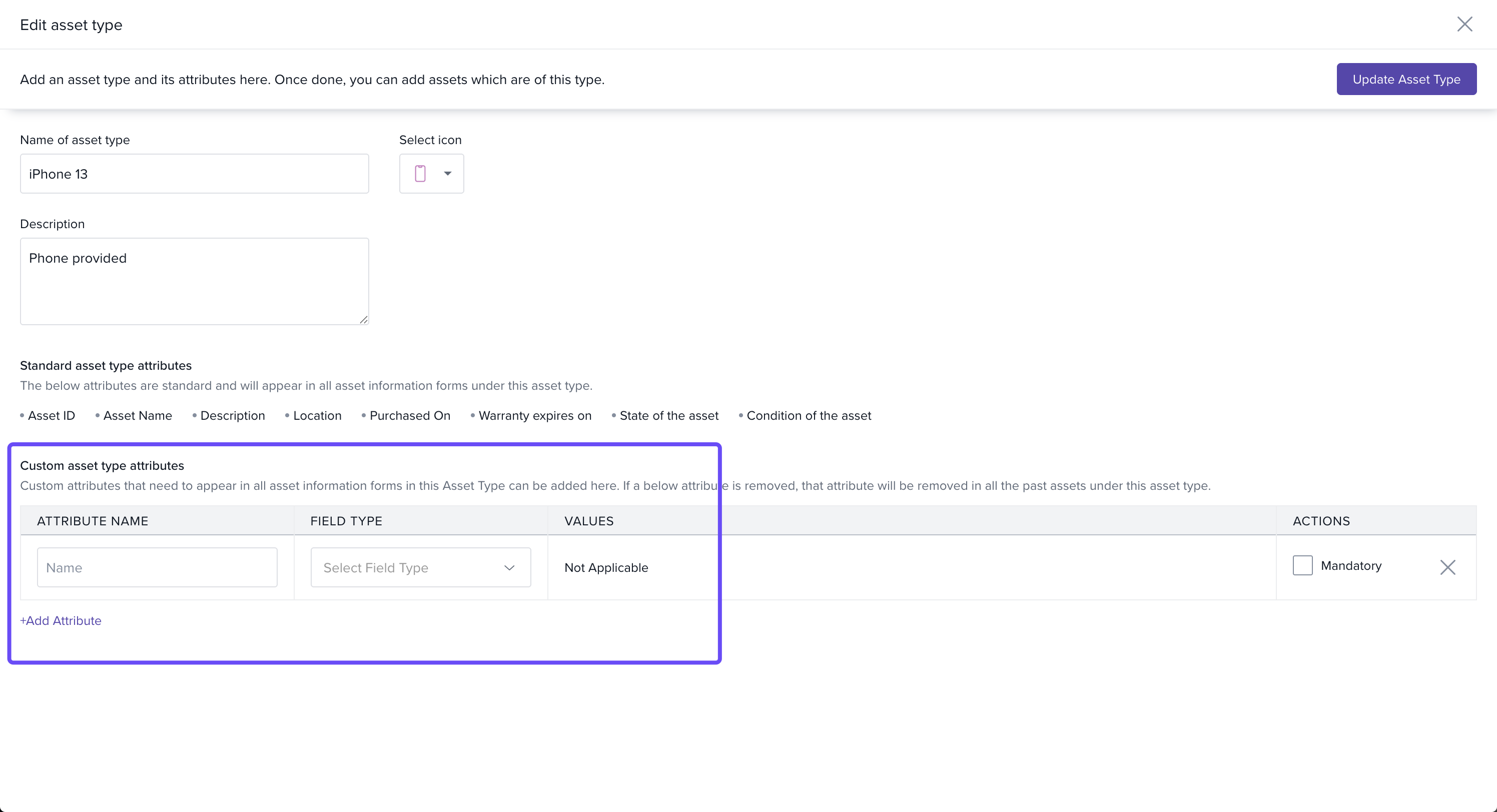
Add the required custom attributes and save.
By setting up Asset Categories & Asset Types in Keka, you can:
Keep assets organized
Track conditions and locations
Customize details with attributes
Import multiple categories and types efficiently
This ensures a structured and accurate asset management process in Keka.
Comments
0 comments
Please sign in to leave a comment.