Introduction
This guide helps finance teams and administrators manage employee expense claims efficiently and accurately. Keka’s three-tabbed interface ensures proper oversight—from approval through payment to historical tracking—offering clarity and control at every stage.
TABLE OF CONTENTS
How Expense Tracking Works
The Expenses section of the Keka HR portal includes three key tabs:
| Tab | Purpose |
|---|---|
| Pending Approvals | For reviewing expense claims awaiting manager/admin action. |
| Pending Payments | For expense claims approved but yet to be paid. |
| Past Expenses | For reviewing all settled or paid claims and managing historical data. |
Approving or Rejecting Expense Claims
Accessing the Tab
-
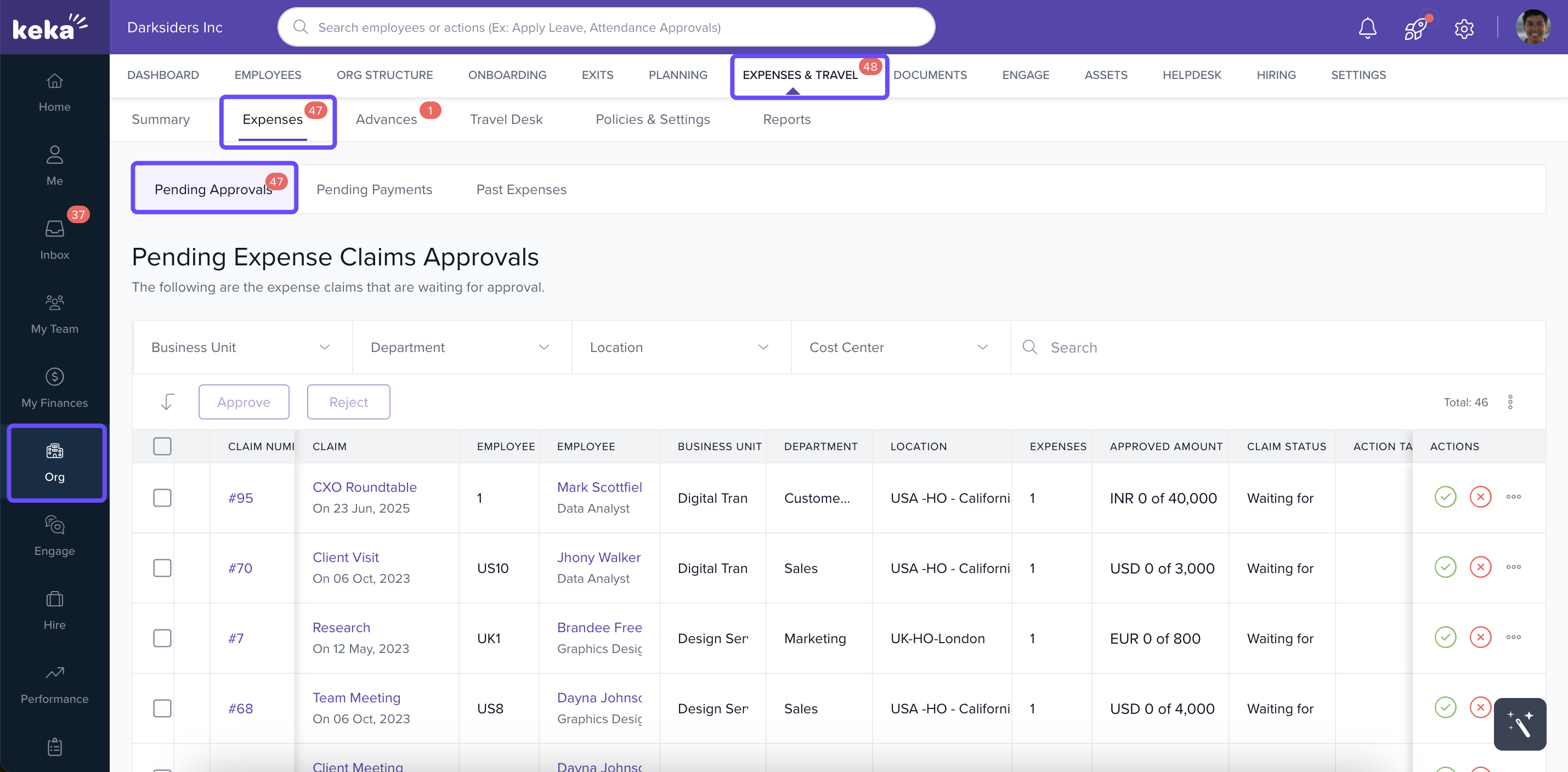
Go to Org in left navigation.
-
Click Expenses & Travel and then Expenses.
Reviewing Claims
-
Use filters and search to locate specific claims.
-
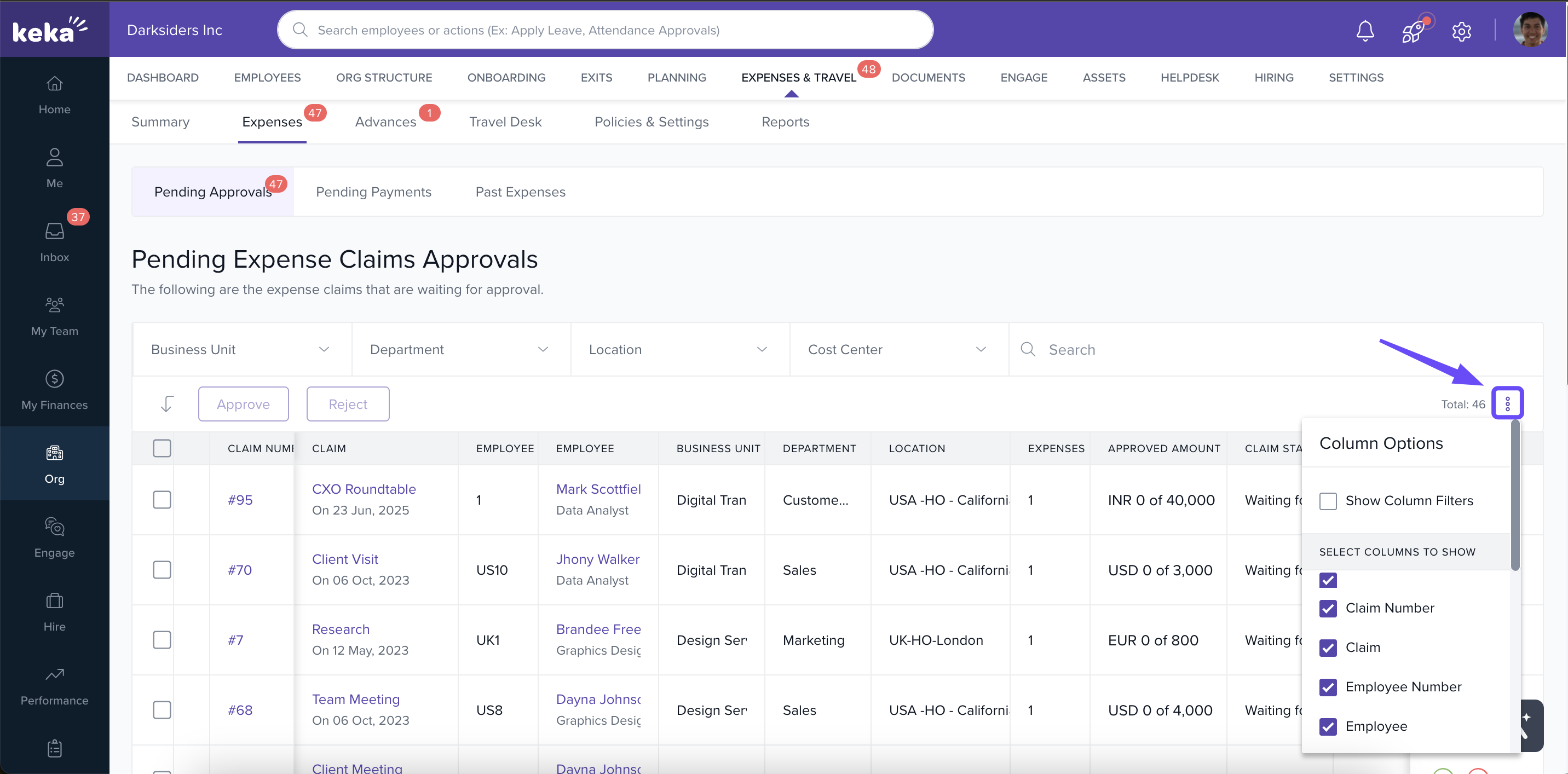
Click the three dots next to a claim to access actions or sort columns.
Editing Claims
-
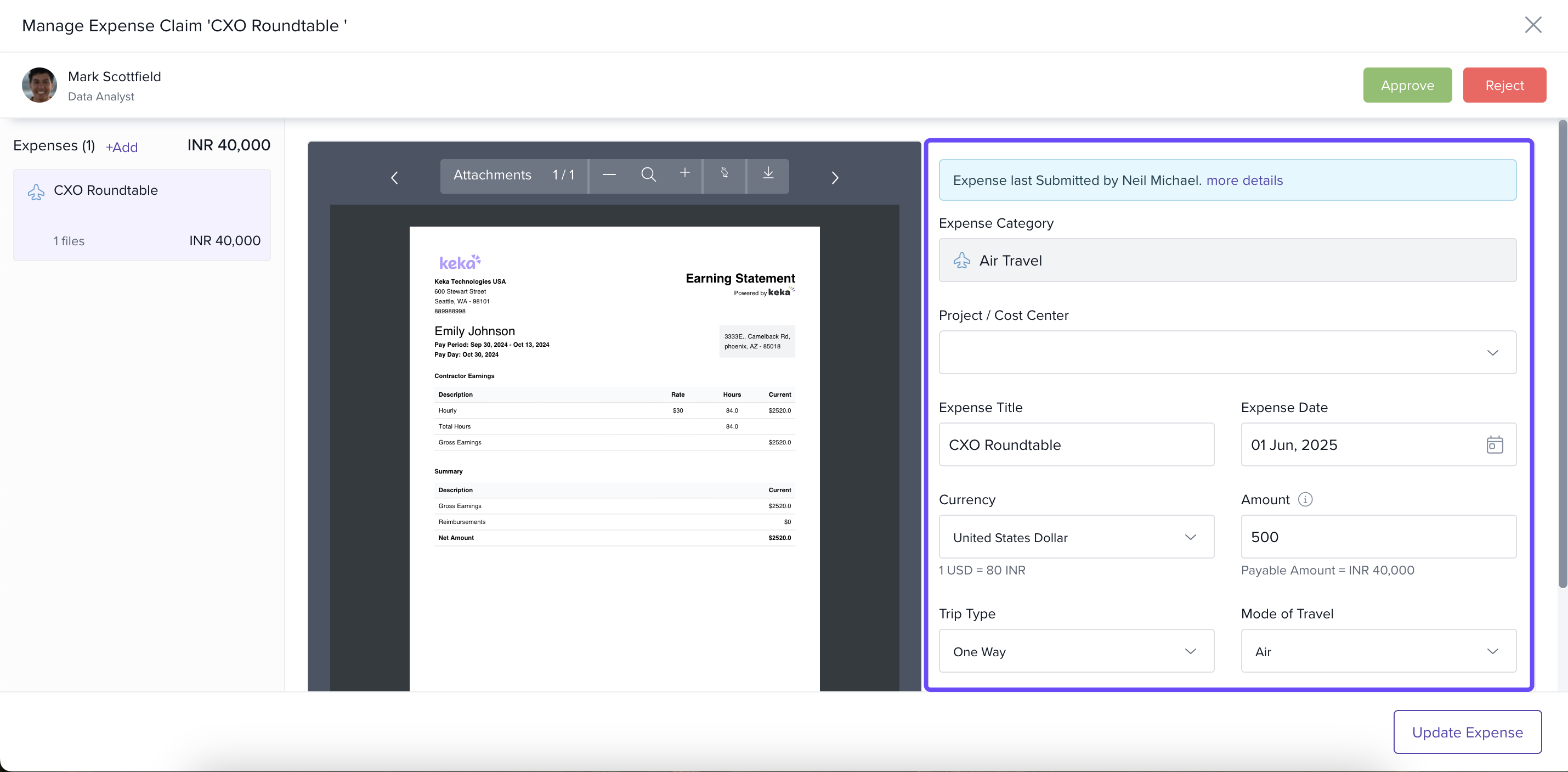
Click a claim to open the Manage Expense Claim screen for full details.
-
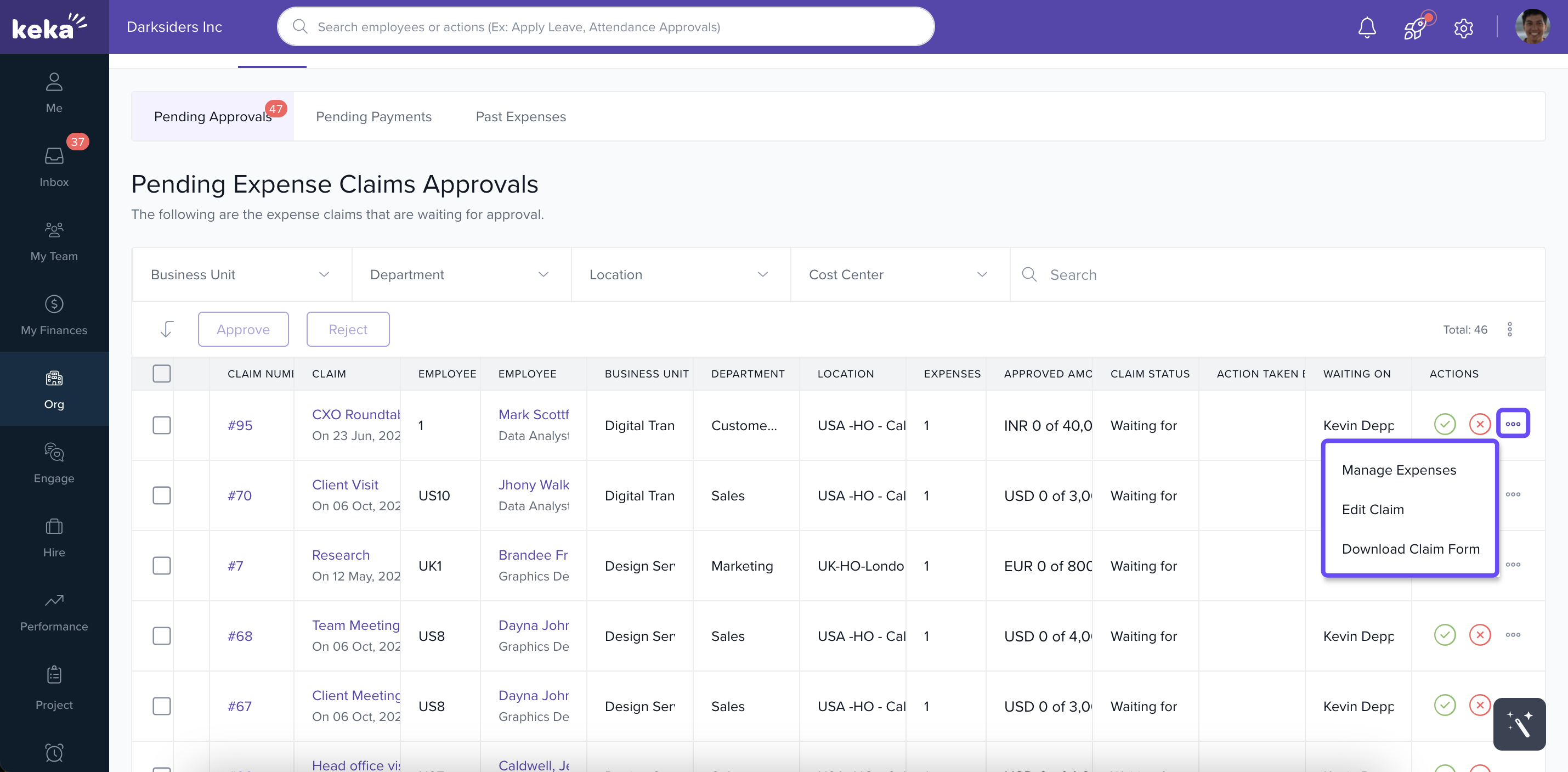
Or, select Manage Expenses from the action menu and choose Edit Claim to modify titles or details.
Approving or Rejecting (Single or Bulk)
-
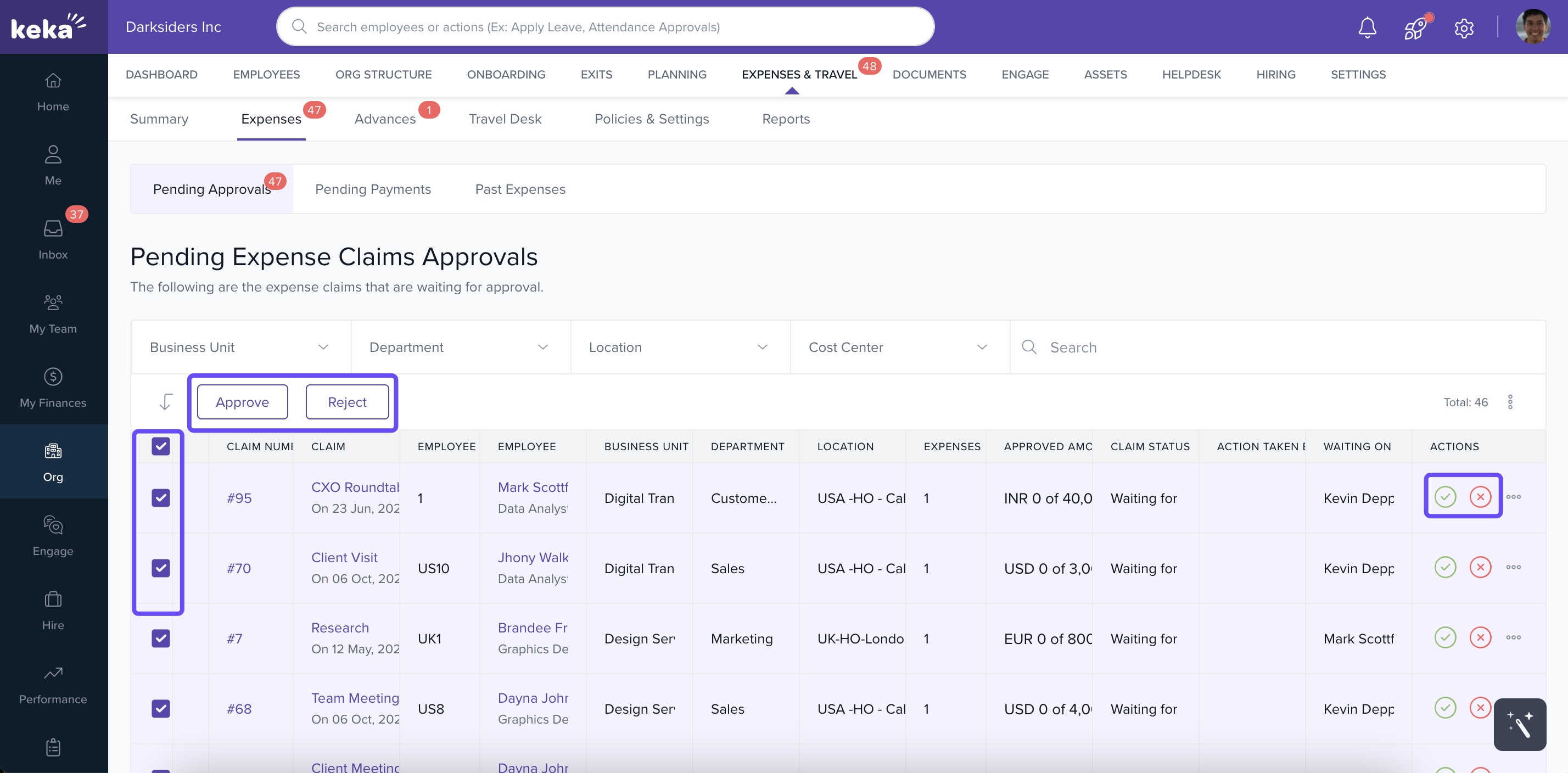
Approve or reject individual claims with action icons.
-
For bulk actions, select multiple requests and approve or reject together.
-
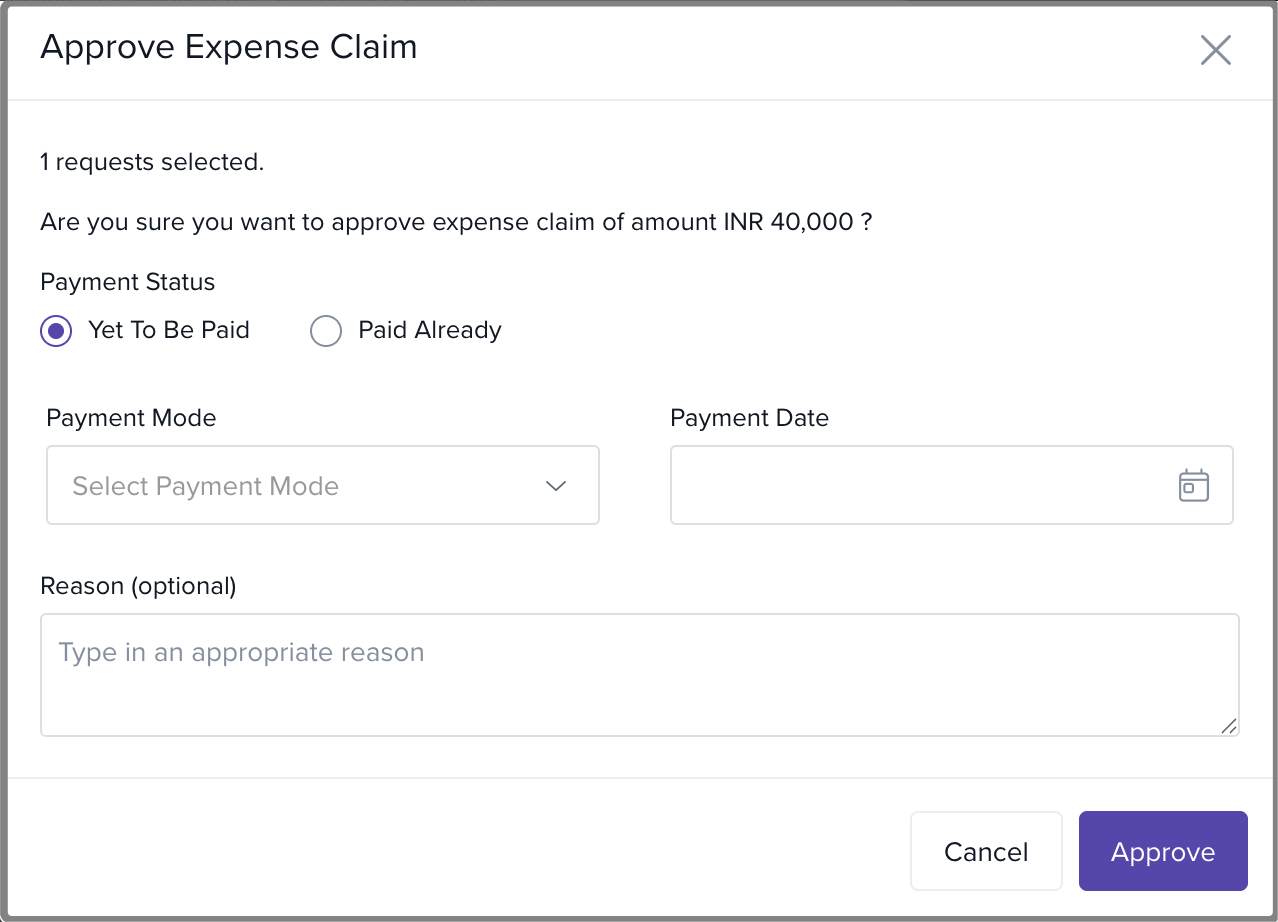
Choosing Approve opens a pop-up—select within payroll (automated with salary) or outside payroll (choose payment date manually).
-
Reject requires providing a brief reason.
Handling Pending Advance Settlements
-
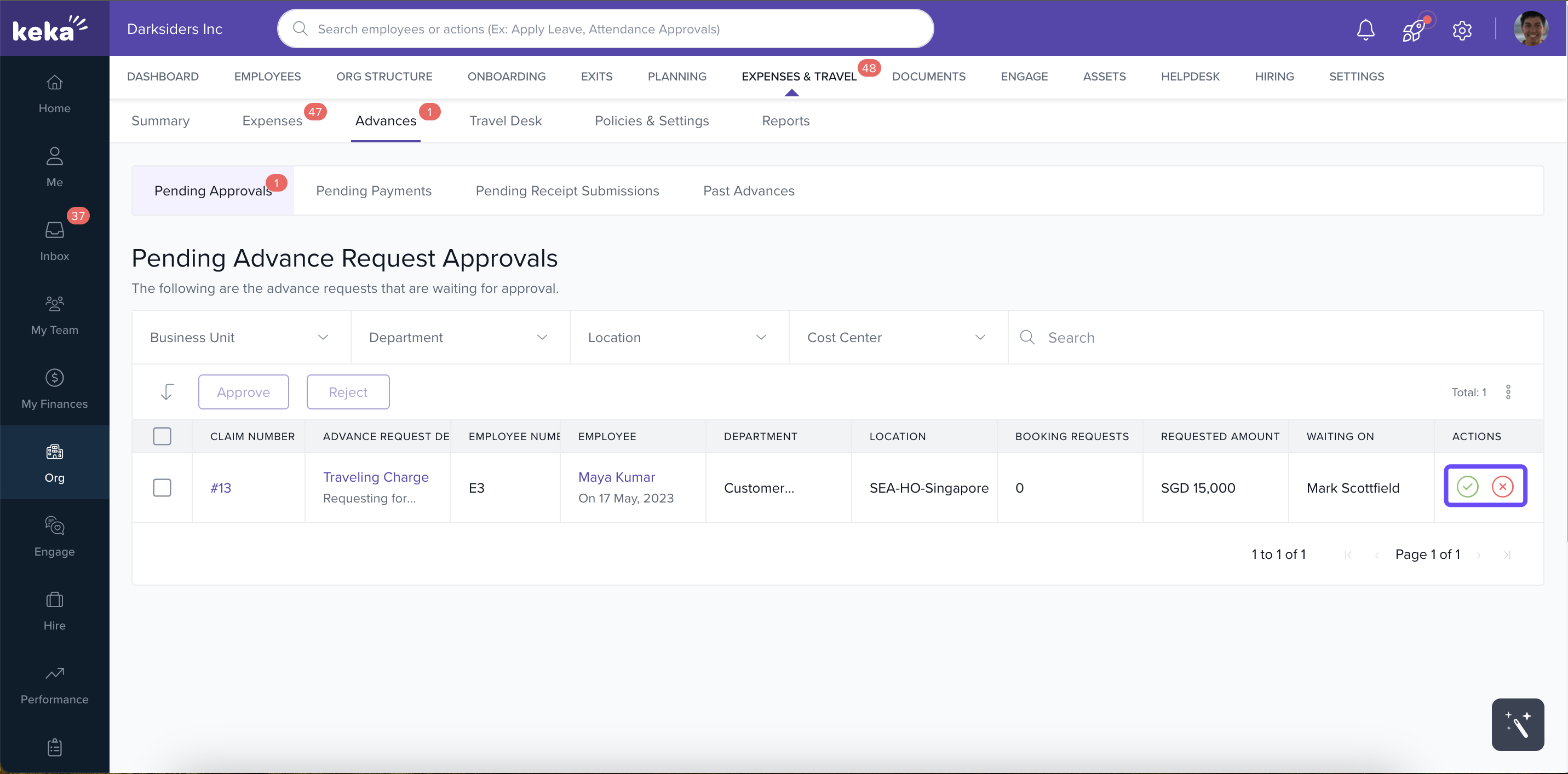
Advance requests may show a remaining balance (e.g., Rs. 20,000 advance vs. Rs. 17,000 actual expense = Rs. 3,000 remaining).
-
Approve, reject, or manage receipts through the action menu.
Managing Pending Payments
These are claims approved but awaiting payout.
Change Pay Cycle
-
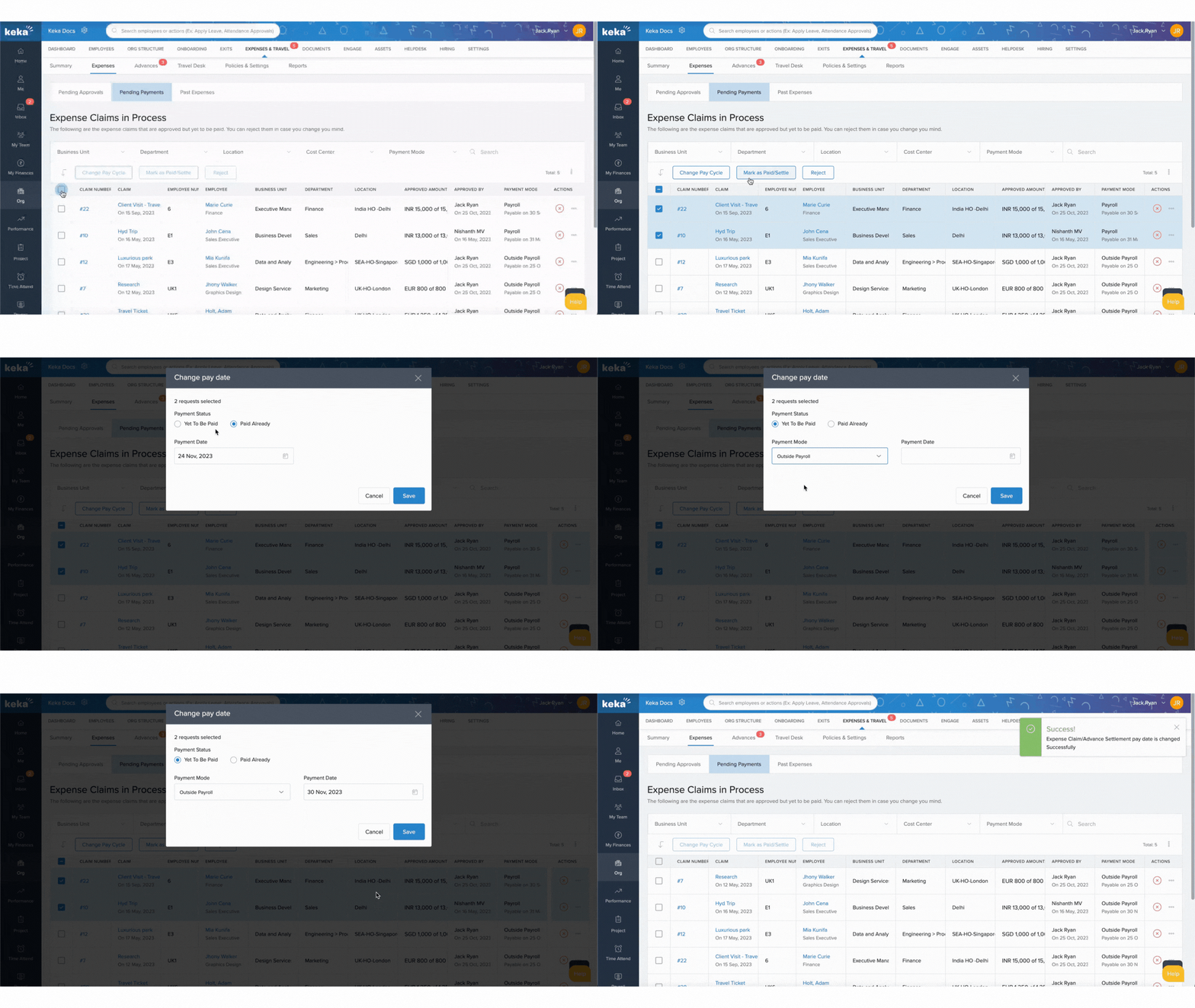
Select one or multiple claims.
-
Click Change Pay Cycle, choose a new payment mode and date, then Update.
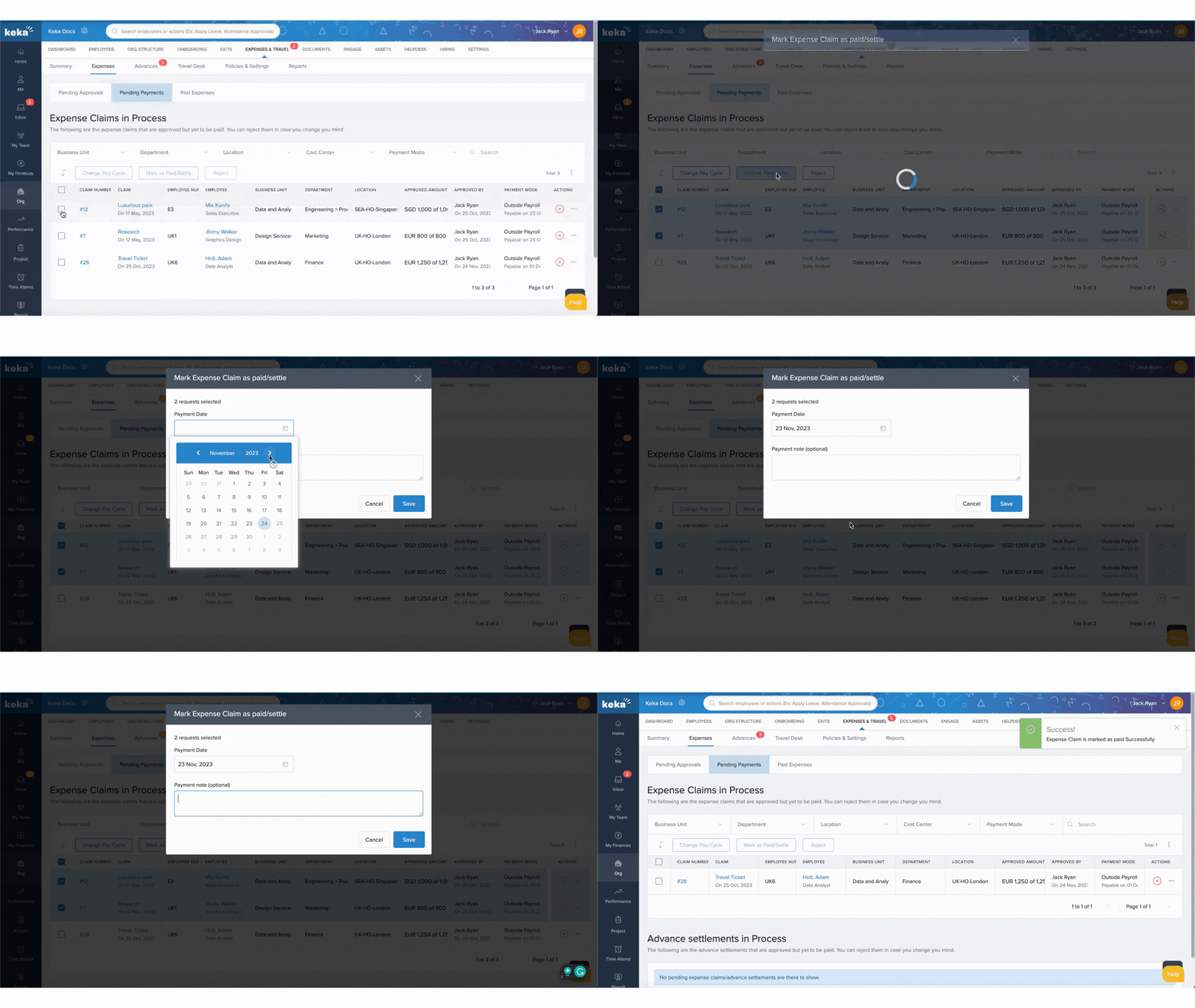
Update Payment Status
-
Select claims and click Mark as Paid/Settle.
-
Enter the actual payment date and Save.
-
If needed, use Reject within this stage to reverse approval.
Action Menu Options
-
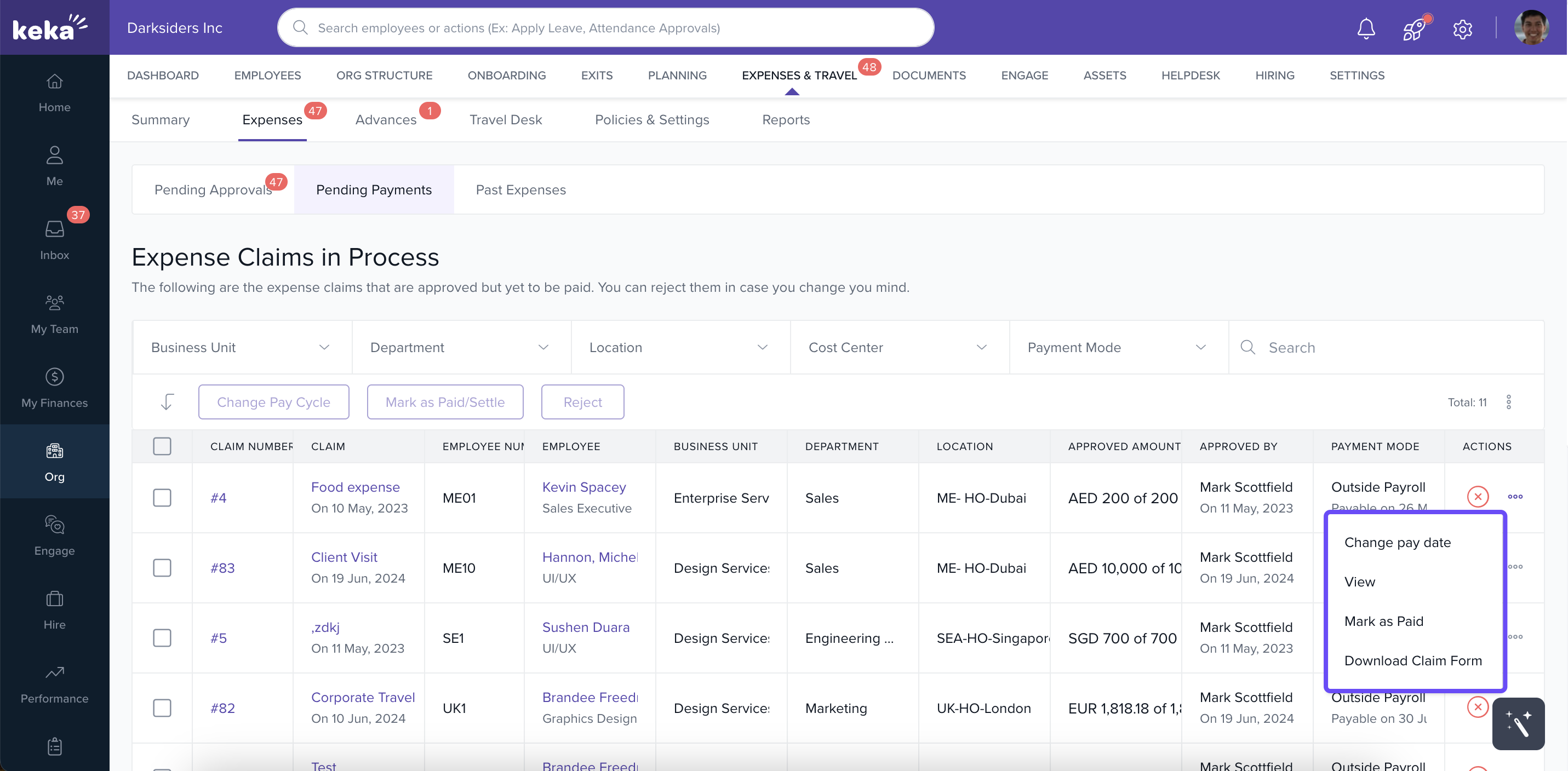
Click the three dots next to a claim for quick options like Change Pay Date, View, Mark as Paid or Download the form.
Managing Past Expenses
All settled or paid claims appear here.
-
Use search and filters to locate past claims.
-
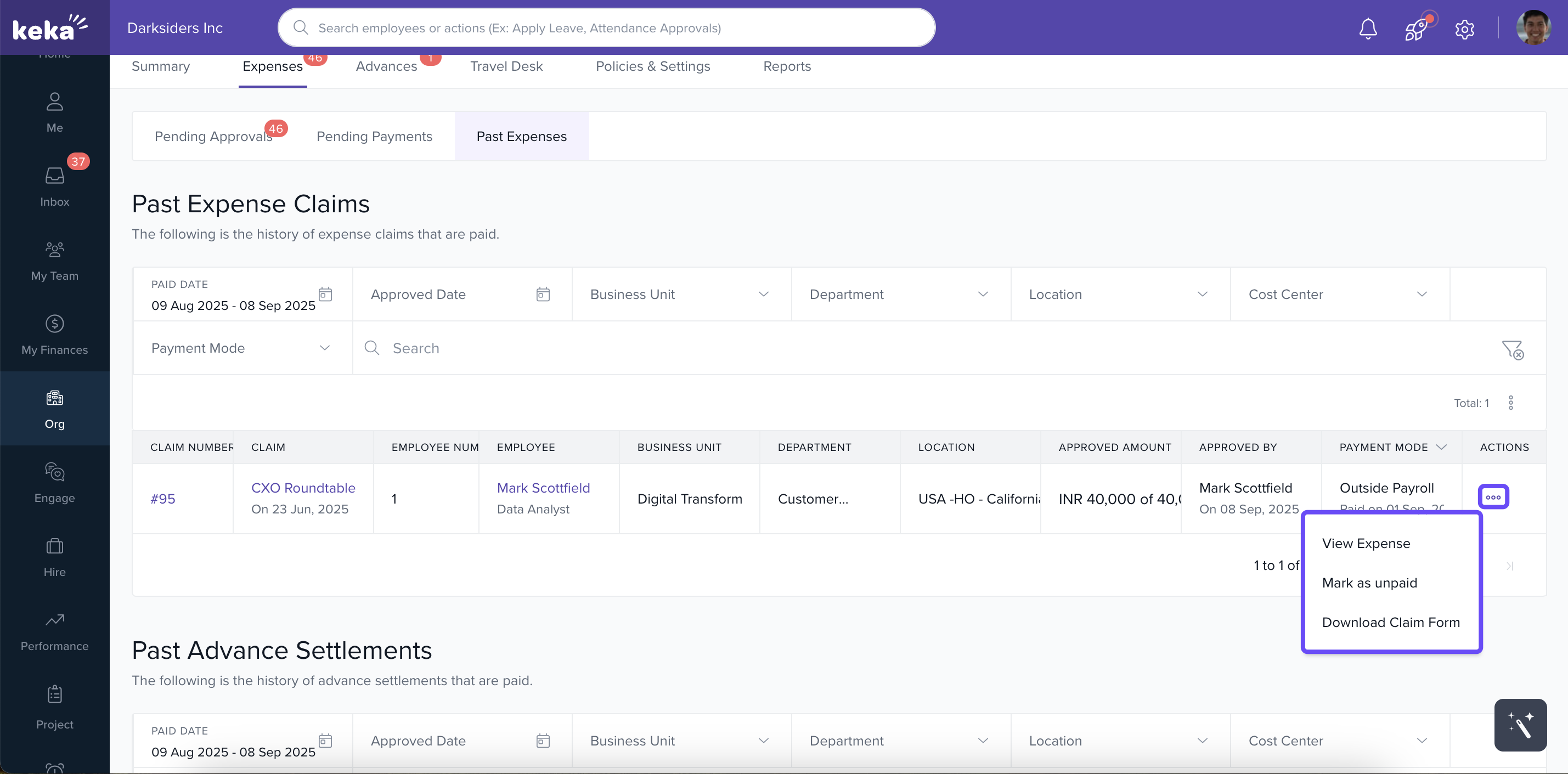
Click the three dots to mark a settled claim as Unpaid, returning it to Pending Payments.
-
Select any claim to View detailed information.
- Select Download claim form to download the form
Comments
0 comments
Please sign in to leave a comment.