Introduction
Keka’s Currency Conversion feature lets you handle multi-currency transactions with accuracy. Whether reimbursing international expenses or managing global timesheets, this tool ensures you apply the correct conversion rates—manually or automatically.
1. Access the Currency Conversions Tab
-
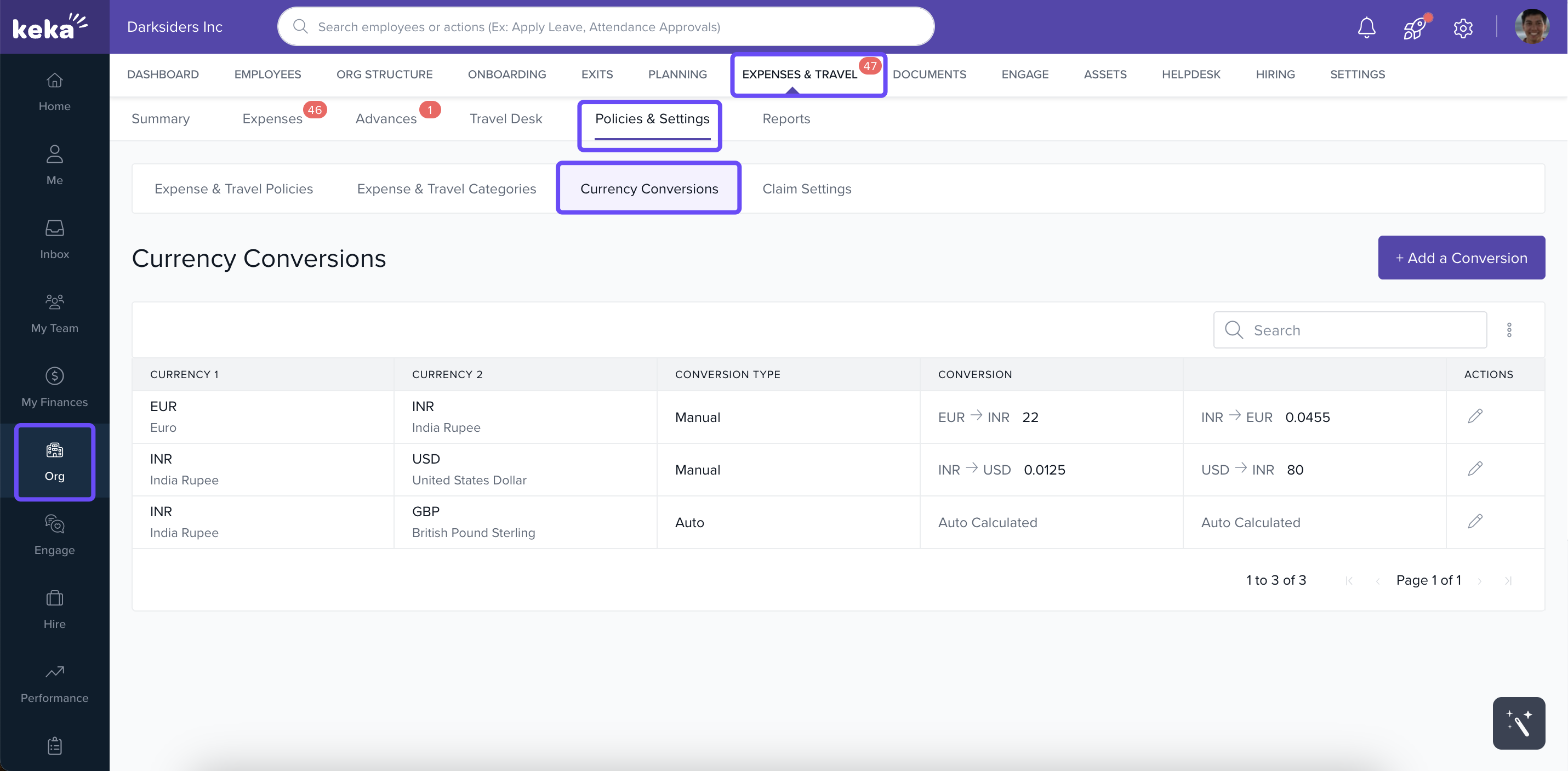
From the left menu, go to Org.
-
Click Expenses & Travel, then Policies & Settings.
-
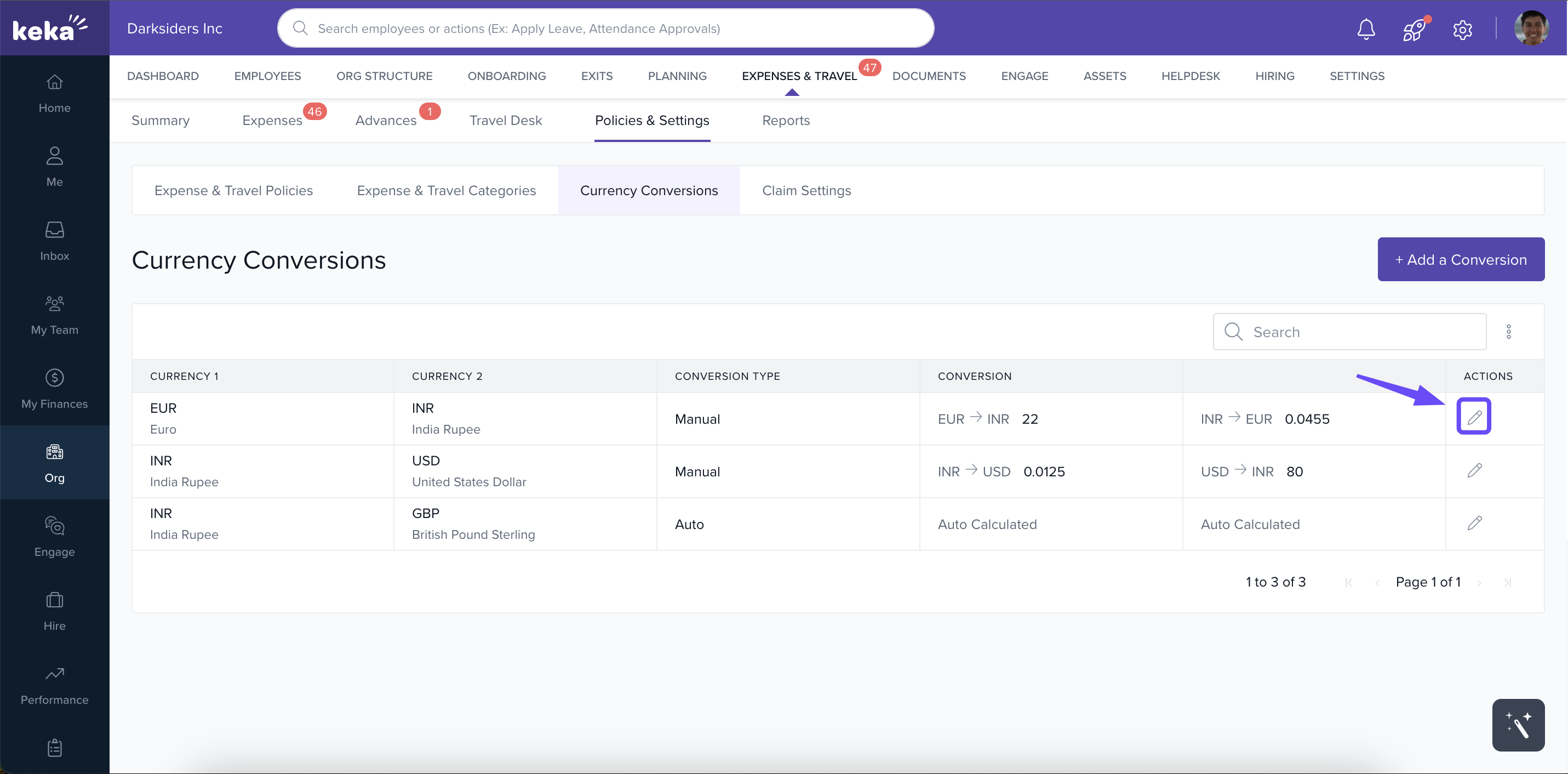
Select the Currency Conversions tab.
2. Add a Currency Conversion
-
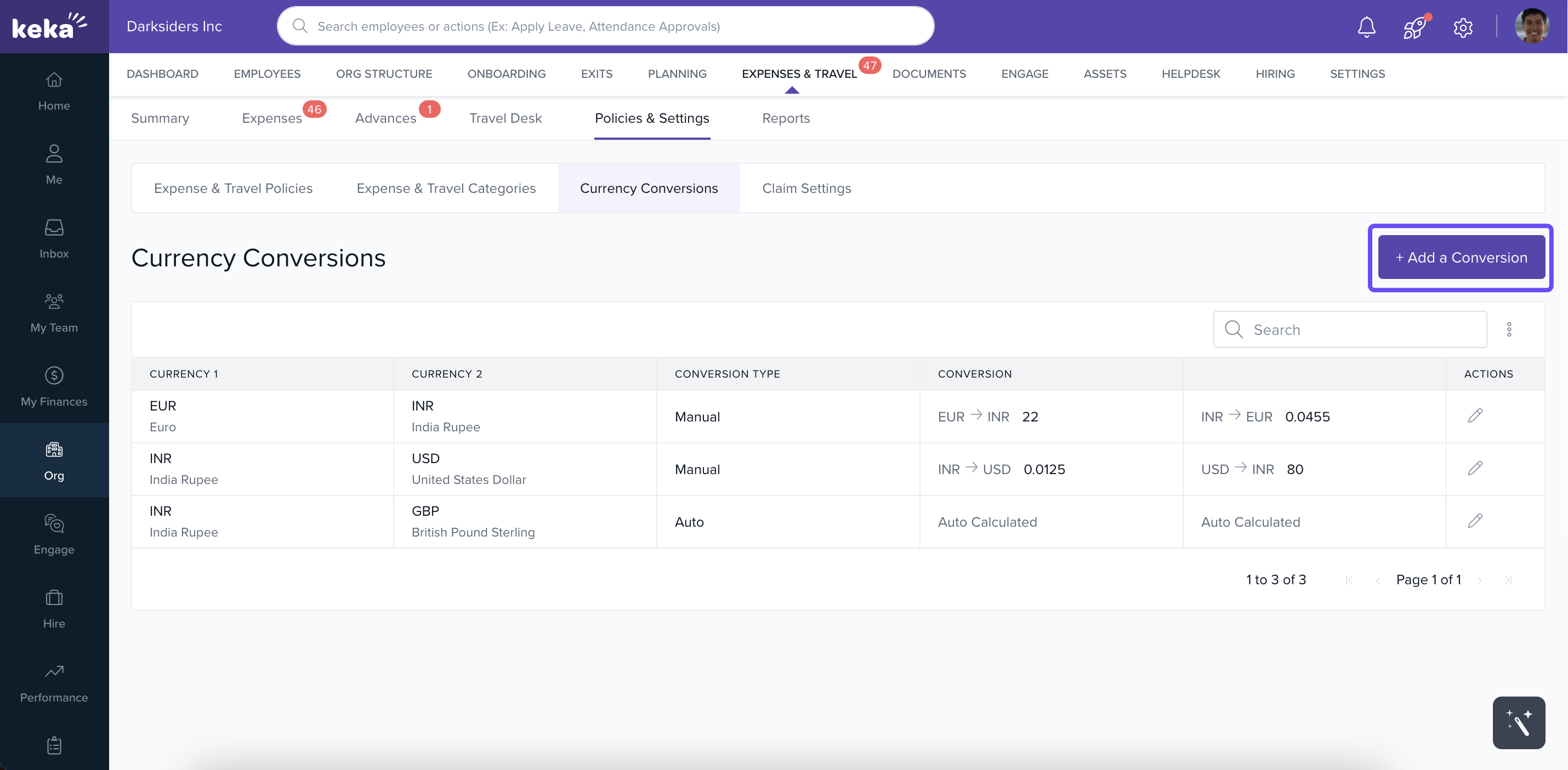
Click Add a Conversion.
-
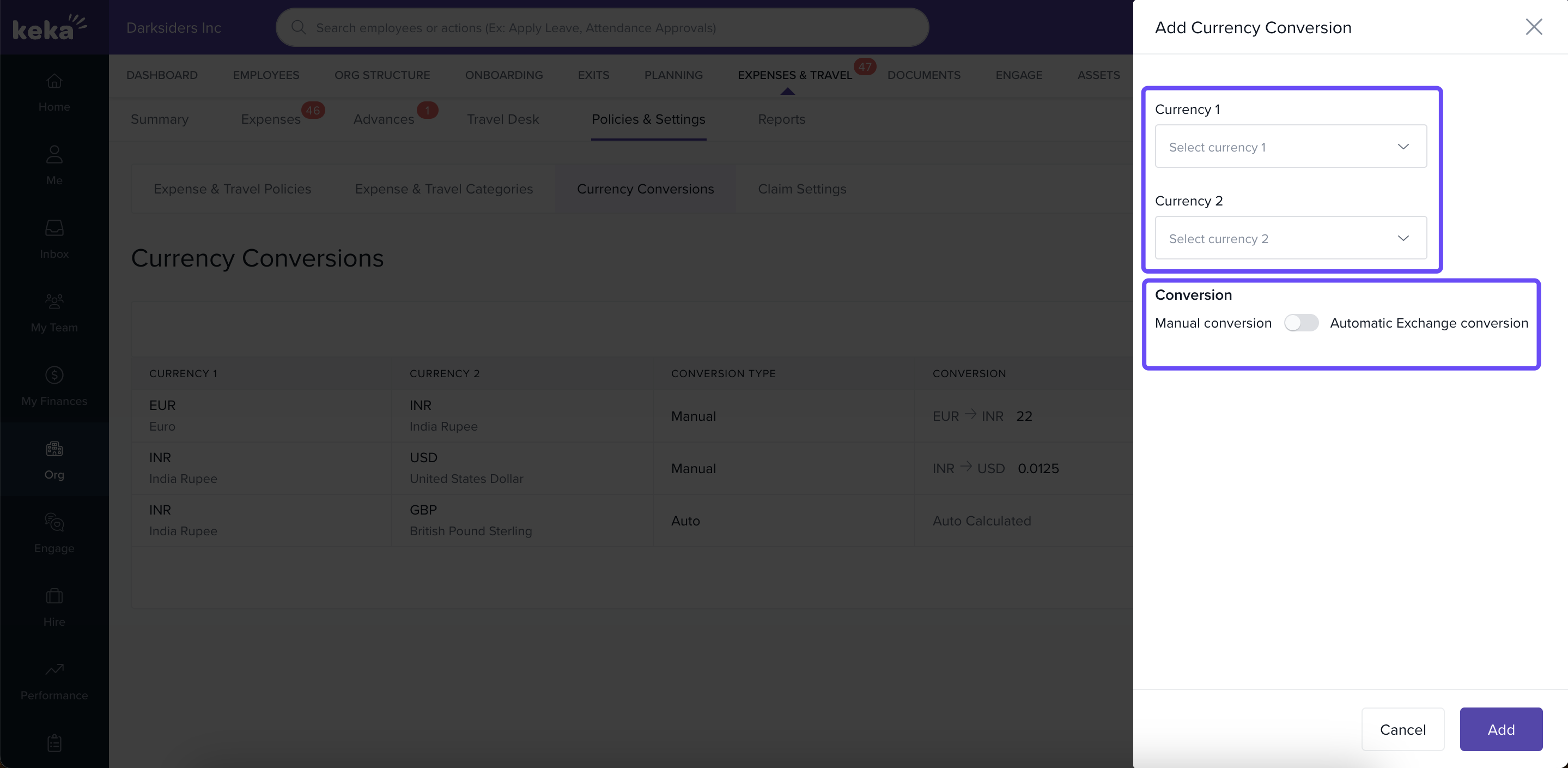
In the Add Currency Conversion screen:
-
Select Currency 1 (base currency) and Currency 2 (target currency).
-
Choose a Conversion Type:
-
Manual: Enter a fixed conversion rate yourself.
-
Automatic: Keka uses the current international exchange rate at the time of expense creation.
-
- Click Add to save.
-
3. Manage Existing Conversions
-
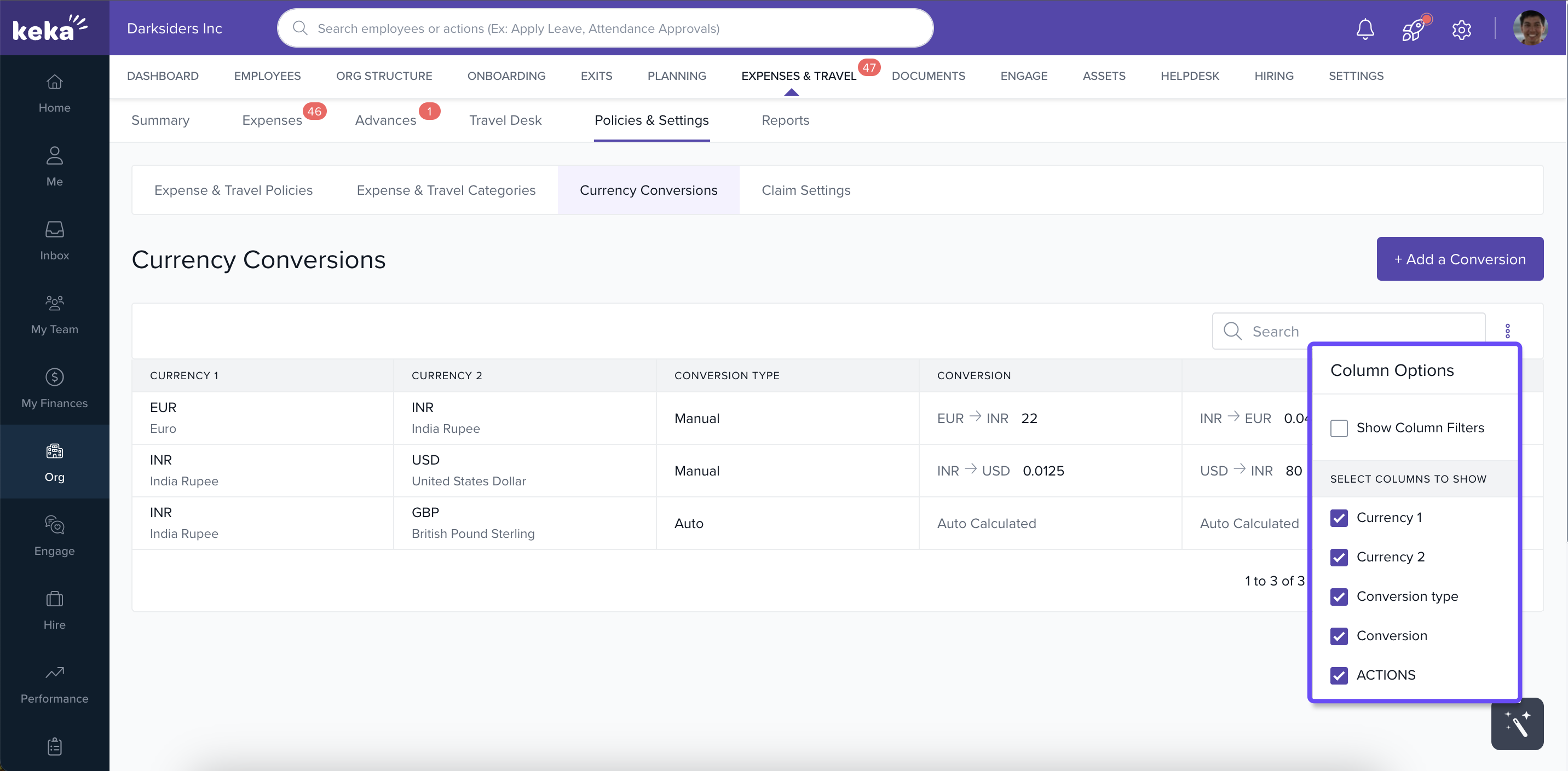
Use the three-dot menu to customize visible columns.
-
Click the edit (pencil) icon to modify conversion details.
-
You can switch between Manual and Automatic Exchange Conversion while editing.
Expense amount will be converted based on the international exchange rate at the time of adding expense.
Thank you for choosing Keka.
Comments
0 comments
Please sign in to leave a comment.