Overview
In this guide, you will learn:
- How to create a Custom Report in Keka PSA
- How to choose report types, add fields, apply filters, and group data
- How to save and manage custom reports for future use.
Who Can Do This?
- HR/Admins
- Project Managers
- Other users with access to the Analytics module
Pre-requisites
- Must have the necessary permissions to access Analytics in Keka PSA
- Basic understanding of the data you wish to analyse (e.g., project costs, allocations)
Step-by-Step Instructions
Access the Custom Report Section
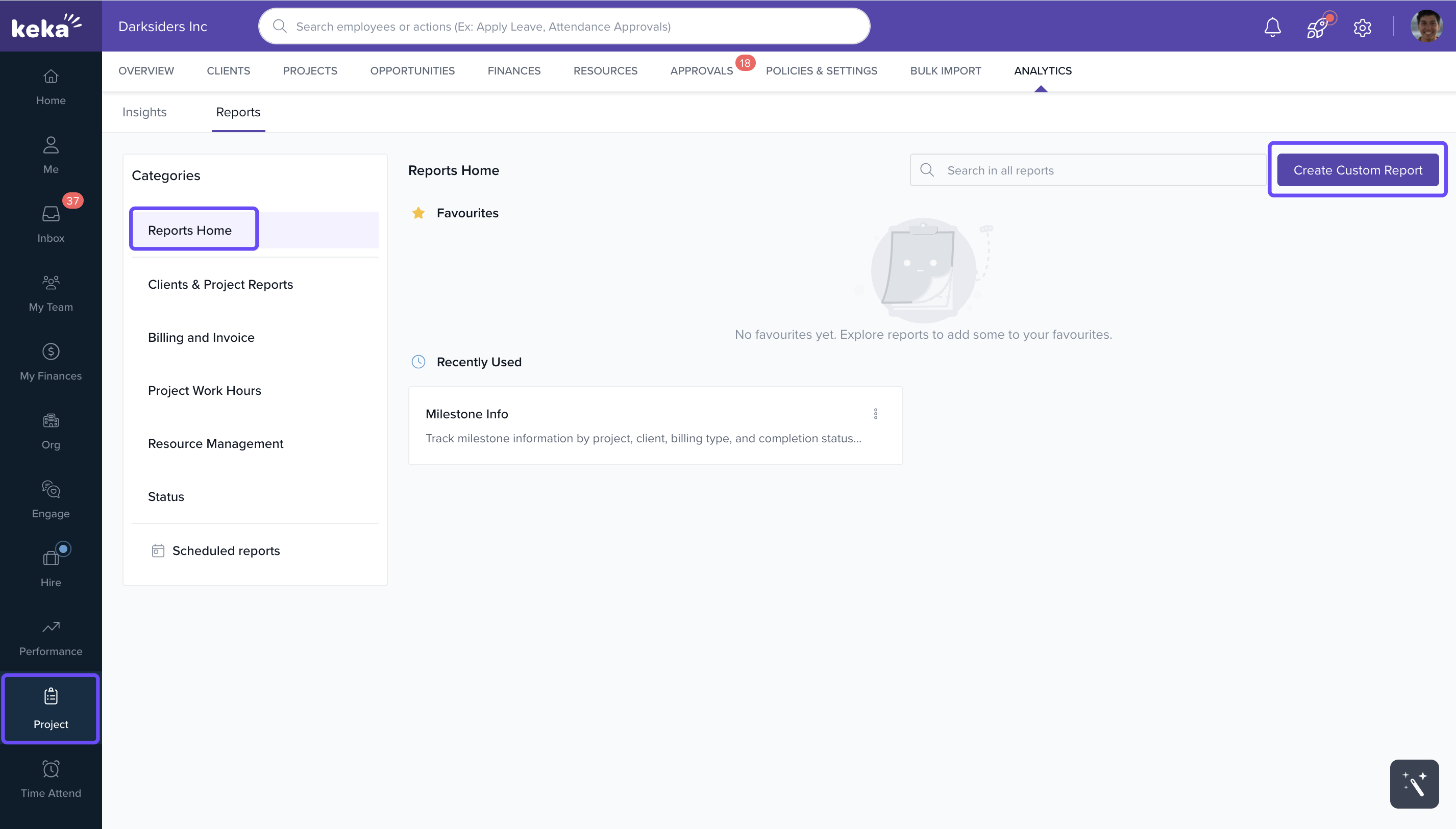
- Go to Project from the left navigation panel.
- Click on Analytics at the top.
- Navigate to the Reports tab.
- Click on Create Custom Report.
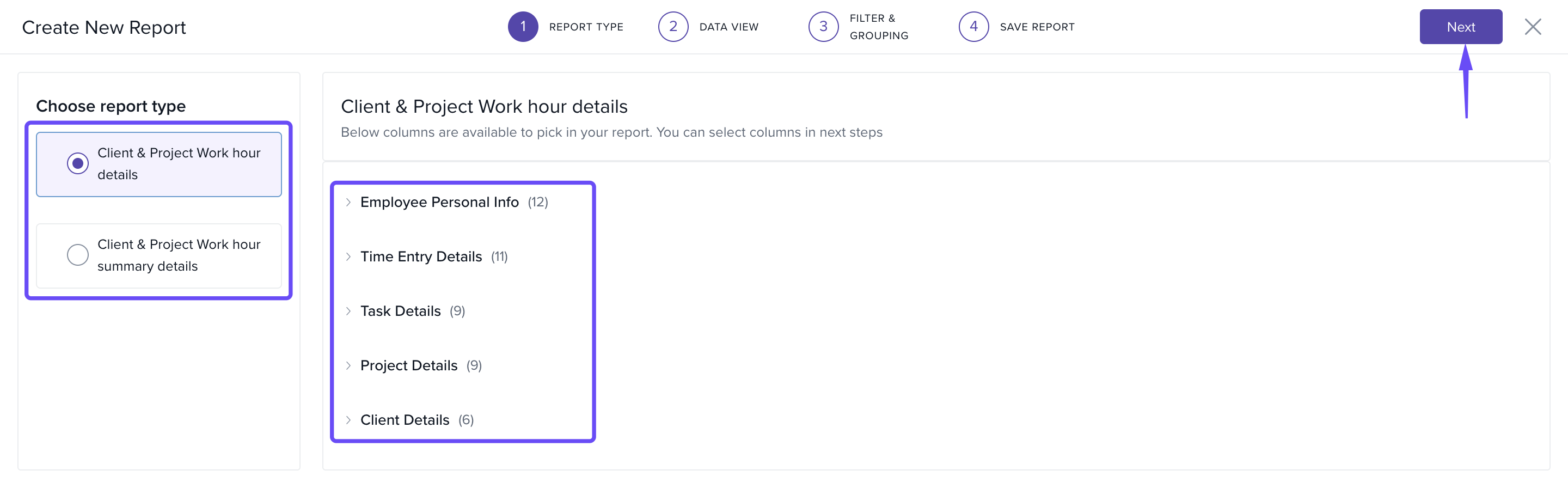
Select Report Type and Data Fields
- On the left panel, select the report type (e.g., Projects, Timesheets, Allocations).
- The available fields will populate on the right.
- Click Next to proceed.
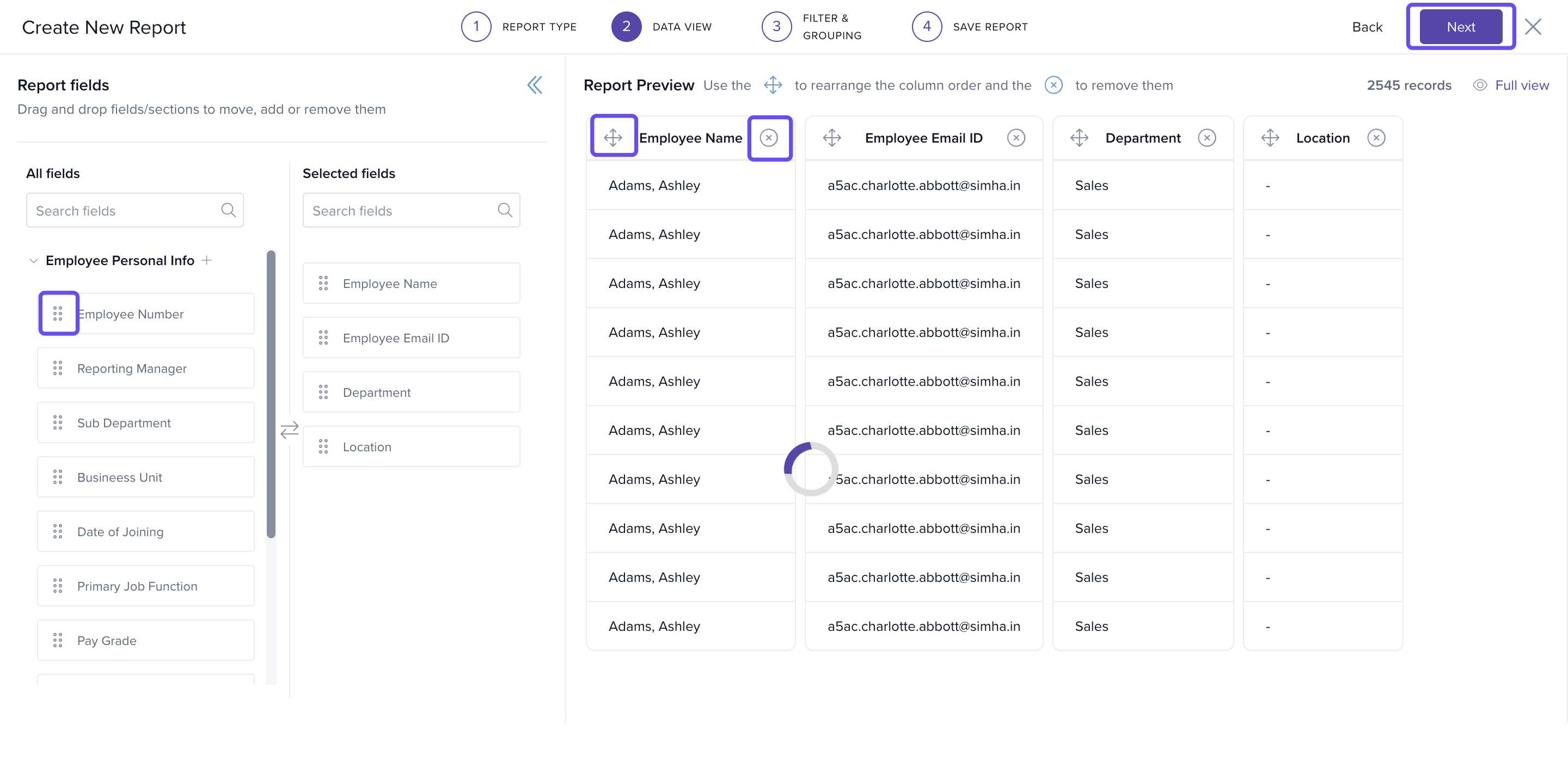
Customize Data View
- Drag fields from Available Fields to Selected Fields.
- Use the move icon to reorder the fields.
- Click the remove icon to delete unnecessary fields.
-
Preview the report structure, then click Next.
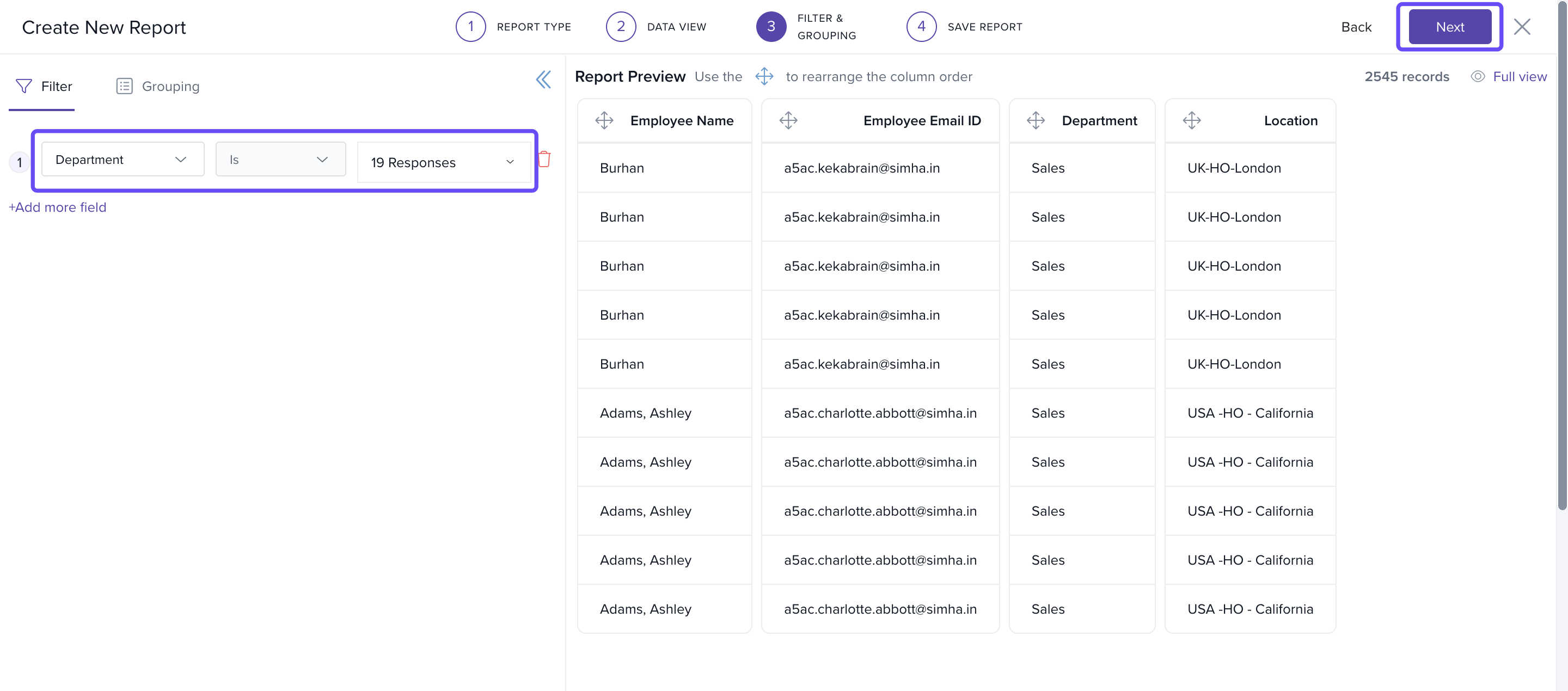
Apply Filters and Grouping
- Click +Add field under the Filter section.
- Add one or more filters to refine your dataset.
- In the Grouping section, choose columns to categorize your report output.
- Click Next to proceed.
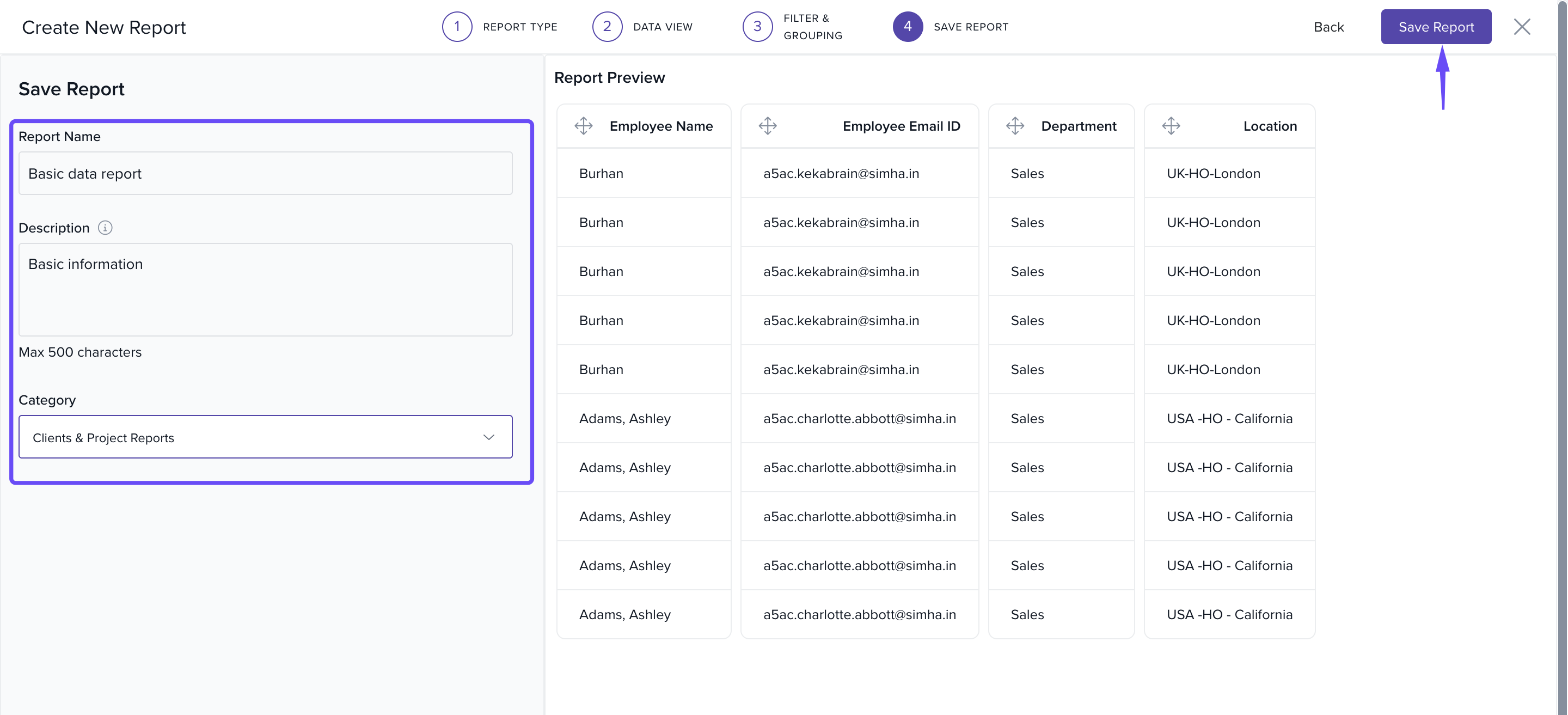
Save the Custom Report
- Enter a name in the Report Name field.
- Add a brief Description to define the report's purpose.
- Choose a Category from the dropdown list.
- Click Save Report to complete the process.
How It Connects with Other Modules
- Projects: Track cost, billing, timelines, and allocation per project.
- Timesheets: Analyze hours logged against project budgets and schedules.
- Resources: Measure allocation, availability, and productivity.
FAQs
-
Q: Can I edit a saved custom report?
A: Yes. Navigate to Reports → select the report → click Edit. -
Q: Can I download the custom report?
A: Yes, reports can be downloaded in standard formats like Excel or PDF. -
Q: Are custom reports shareable?
A: Reports can be shared with others based on access permissions. -
Q: Can I schedule a custom report to run periodically?
A: Currently, scheduling isn’t supported. You need to manually run the report.
Troubleshooting
-
Fields not showing in Available Fields?
- Ensure you’ve selected the correct report type.
- Confirm that data exists for that field in the system.
-
Report not saving?
- Make sure all mandatory fields (Name, Category) are filled.
- Check for internet connectivity issues.
Comments
0 comments
Please sign in to leave a comment.