Overview
In this guide, you will learn:
- How to track target vs. actual billable utilization in Keka PSA
- How to set target billable utilization for resources
- How to access and interpret the Target Billable Utilization Report
Who Can Do This?
- PSA Admins
- Project Managers
- Finance Analysts
Pre-requisites
- Users must have access to the PSA module.
- Target billable utilization should be set by an admin for the report to reflect data.
Access the Target Billable Utilization Report
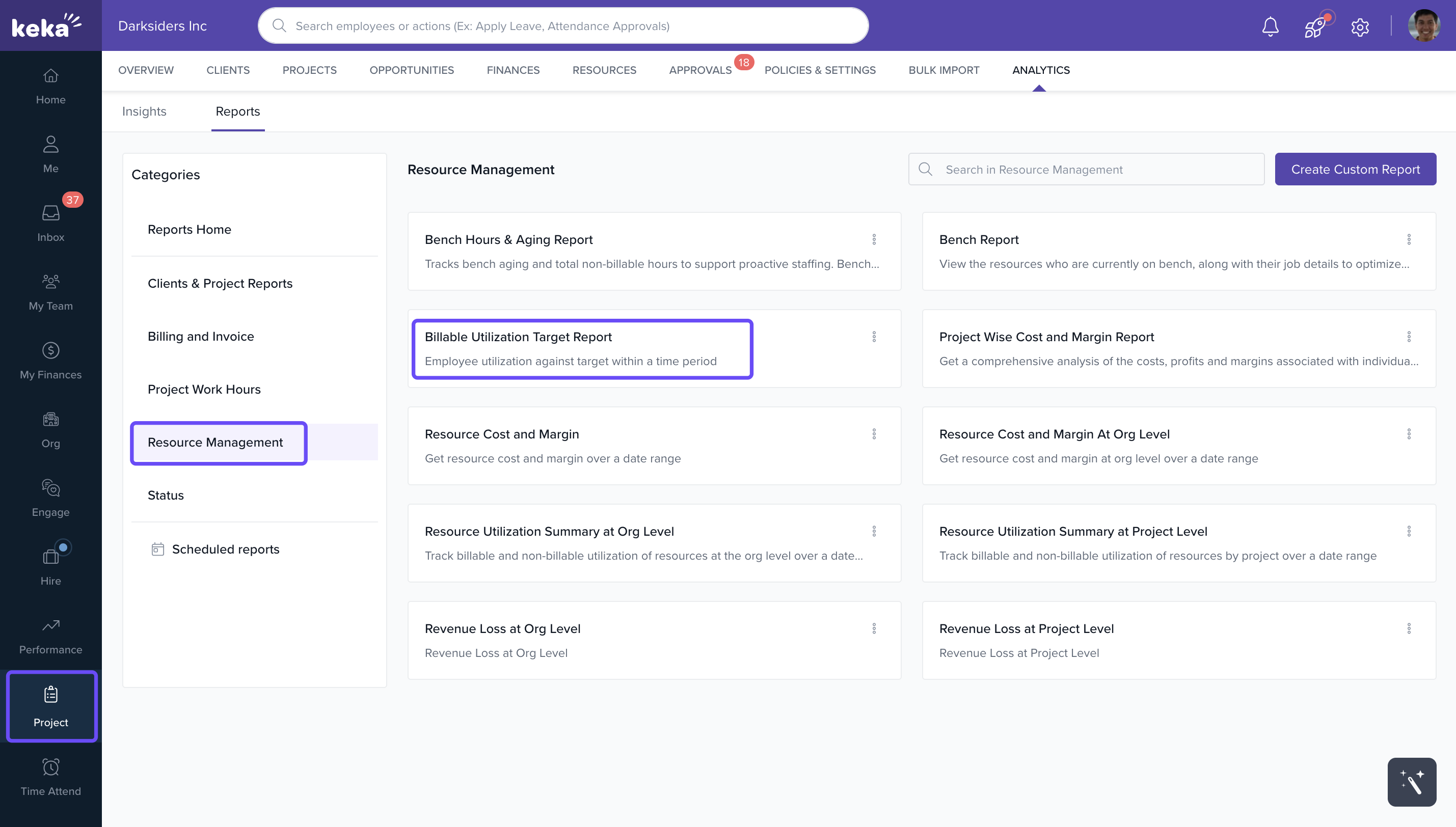
- From the left navigation bar, click Projects.
- Go to the Analytics section.
- Click on the Reports tab.
- Scroll to Resource Management.
- Select Target Billable Utilization Report.
Understand Key Metrics in the Report
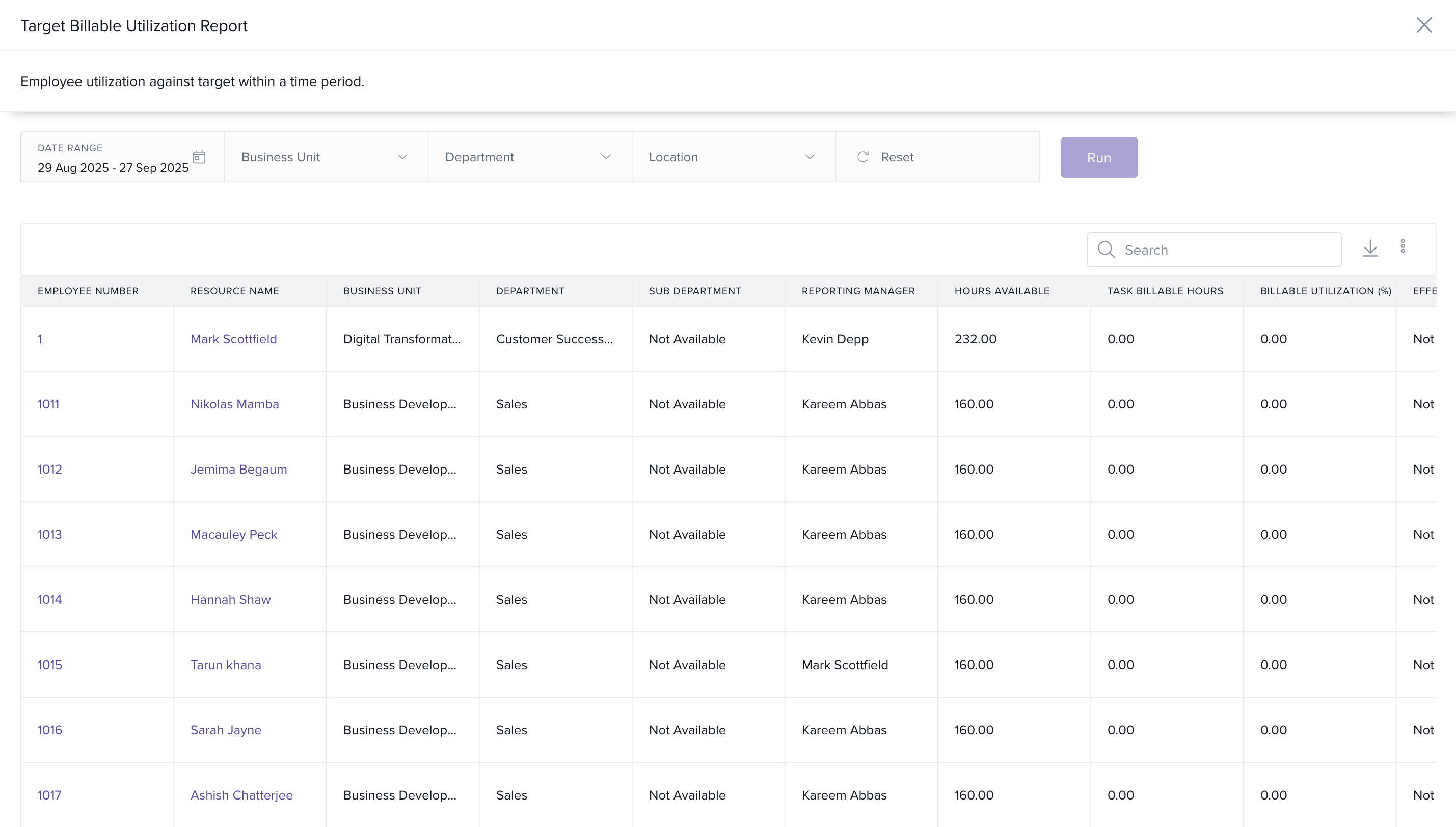
- Hours Available – Total working hours available for the resource during a given period.
- Billable Hours – Number of hours actually billed to projects.
- Billable Utilization % – (Billable Hours ÷ Available Hours) × 100.
-
Target Billable Utilization % – The predefined goal set by the admin.
Setting Target Billable Utilization
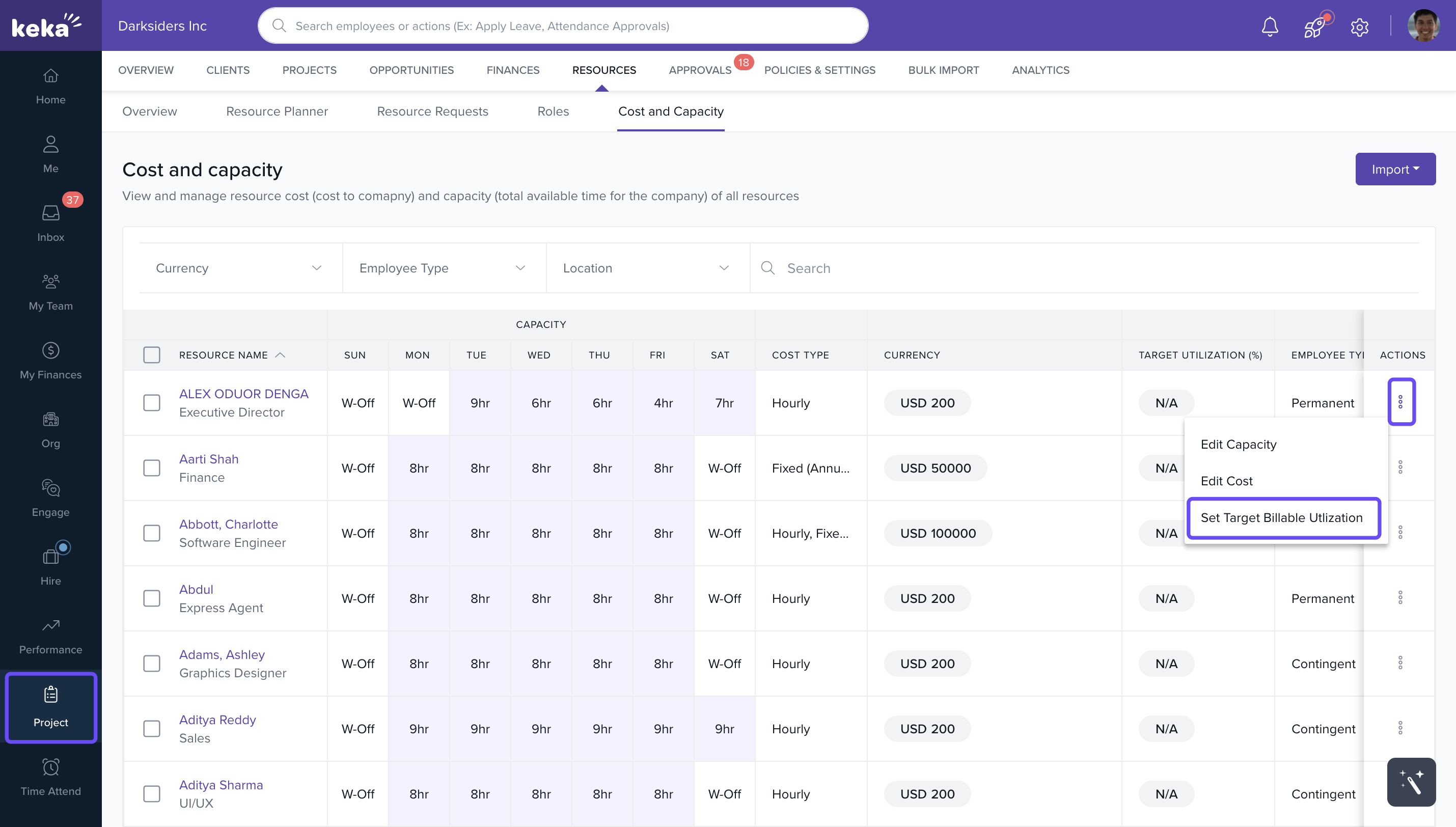
- Navigate to Projects > Resources > Cost & Capacity.
- Click the three-dot icon under Actions.
- Select Set Target Billable Utilization.
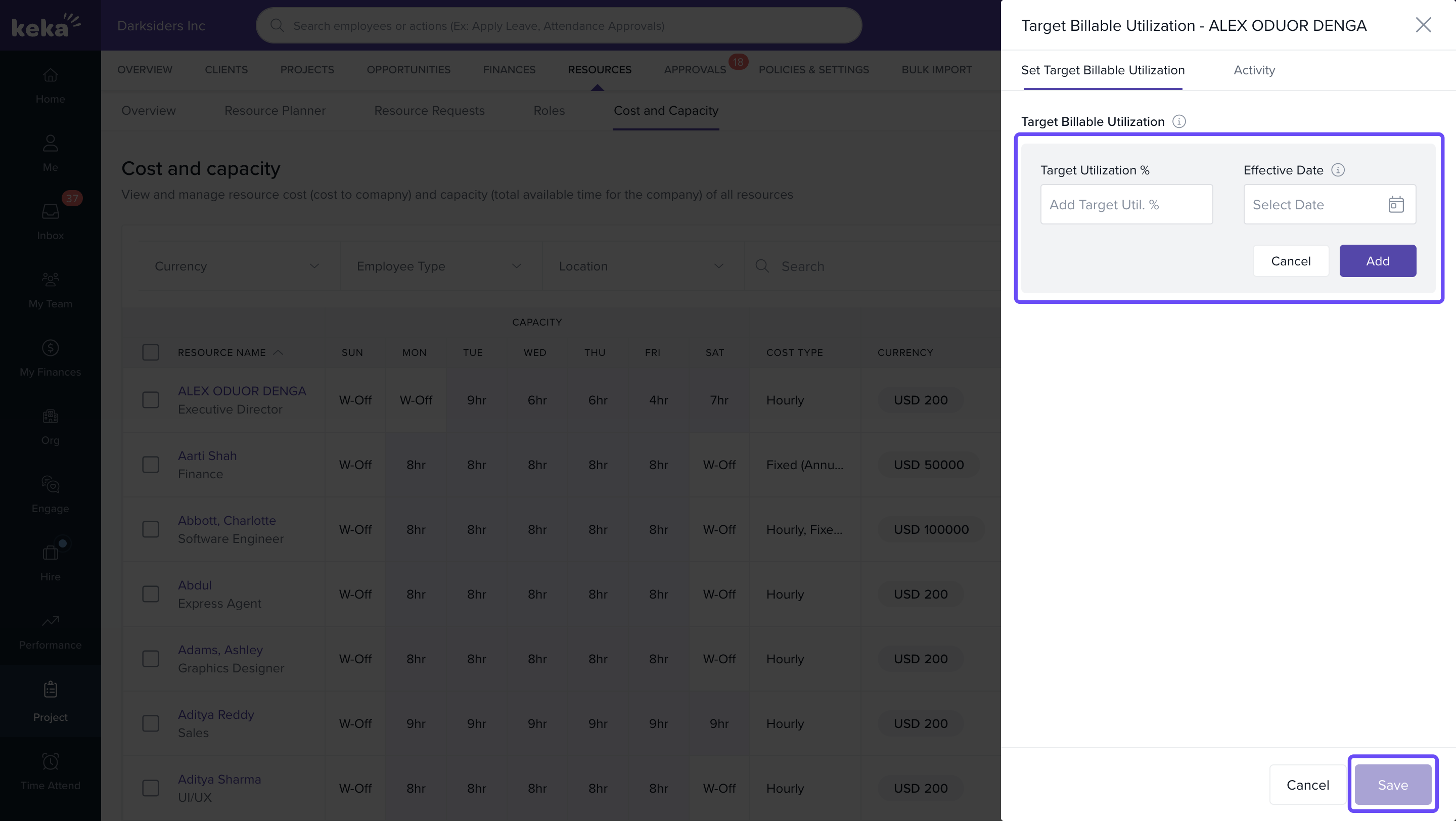
- In the pop-up, enter the target percentage and the applicable date range.
- Click Save to apply the configuration.
View Utilization (For Resources)
- Navigate to Me > Timesheets.
- Review your actual billable utilization %.
Note: Resources can only see actual utilization; targets set by admins are not visible to them.
How It Connects with Other Modules
- Timesheets: Pulls billable hours logged from submitted timesheets.
- Projects: Aligns utilization targets with project assignments and hours.
- Resources: Uses availability settings from Cost & Capacity.
FAQs
-
Q: Can a resource view their target billable utilization?
A: No. Only actual utilization is visible to the resource. -
Q: Can different targets be set for different months?
A: Yes. Admins can configure targets for multiple time periods. -
Q: What happens if no target is set?
A: The report will show actual utilization but won’t display a target comparison.
Troubleshooting
-
No data in the report?
- Check if the resource has logged billable hours.
- Ensure target utilization has been set.
-
Wrong utilization percentage?
- Validate the availability hours and timesheet entries.
Comments
0 comments
Please sign in to leave a comment.