Overview
In this guide, you will learn:
- How to access and view the Milestone Info Report
- How to filter milestone data by client, project, and date range
- How this report supports invoicing and tracking of project progress
Who Can Do This?
- PSA Admins
- Finance Managers
- Project Managers with access to Reports in Keka PSA
Pre-requisites
- Project milestones must be configured under billing settings
- Invoicing must be enabled for milestone-based billing
Step-by-Step Instructions
Navigate to the Report
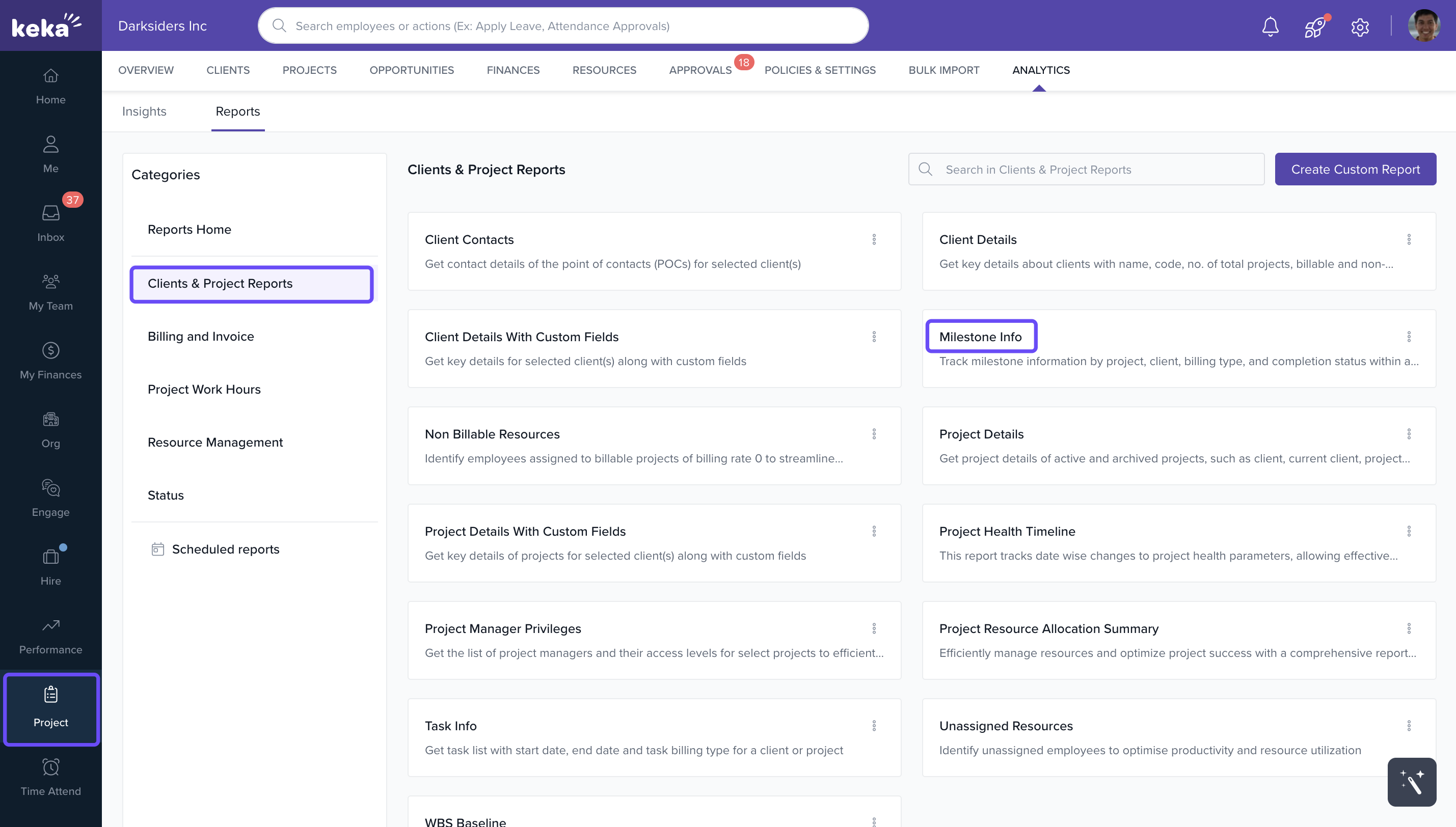
- Go to the Projects section in the left navigation pane.
- Click on Analytics and then select Reports.
- Under the Client & Project Reports category, click on Milestone Info.
Apply Filters
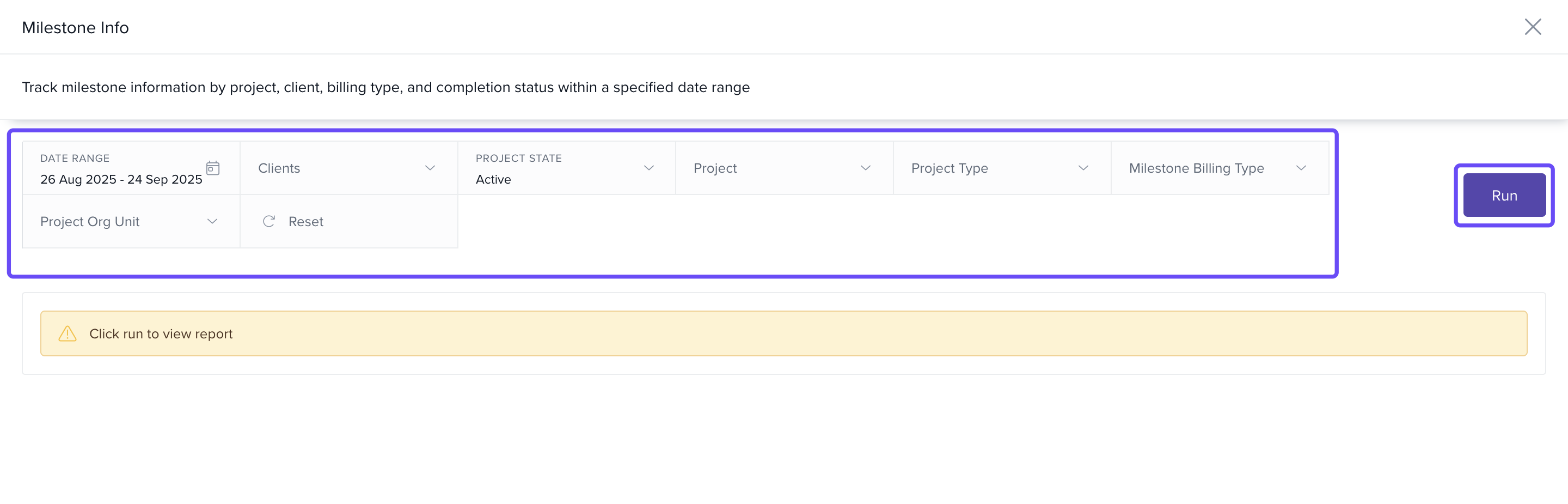
- Select the desired Date Range to fetch milestones within a specific timeframe.
- Choose the relevant Clients and Projects to narrow down the report view.
- Click Run.
View Milestone Info Report
- Review milestones along with project name, client, milestone name, start and end dates, estimated billing amount, and status.
- Use this consolidated view for tracking milestone completion and scheduling invoices accordingly.
How It Connects with Other Modules
- Projects: Pulls milestone names, dates, and associated project info.
- Invoicing: Aligns estimated milestone billing with actual invoices generated.
- Clients: Enables filtering and grouping milestones based on client accounts.
FAQs
-
Q: Can I export the Milestone Info Report?
A: Yes, you can export the report in Excel format for further analysis. -
Q: Why are some milestones missing?
A: Ensure the correct project and date filters are applied, and that the milestone is configured with billing details. -
Q: Can I edit milestone details from this report?
A: No, this is a view-only report. Edits must be made in the billing configuration of the respective project.
Troubleshooting
-
Milestones not showing?
- Confirm the billing type is milestone-based for the selected project.
- Ensure milestones fall within the selected date range.
-
Billing amount incorrect?
- Review milestone setup under the project’s billing configuration to verify estimates.
For a more in-depth understanding of Keka reports, click here Reports in Keka PSA
Comments
0 comments
Please sign in to leave a comment.