Overview
In this guide, you will learn:
- What WBS Baseline Reports are in Keka PSA
- Why they are important for tracking and managing project progress
- How to access and create baseline reports
- Who can use this feature and what’s coming next
Who Can Do This?
- Project Managers
- Admins with access to Projects and Reports
Pre-requisites
- The project must be in "Active Projects"
- You must have permission to access the Reports section and create baselines
Step-by-Step Instructions
Access WBS Baseline Reports
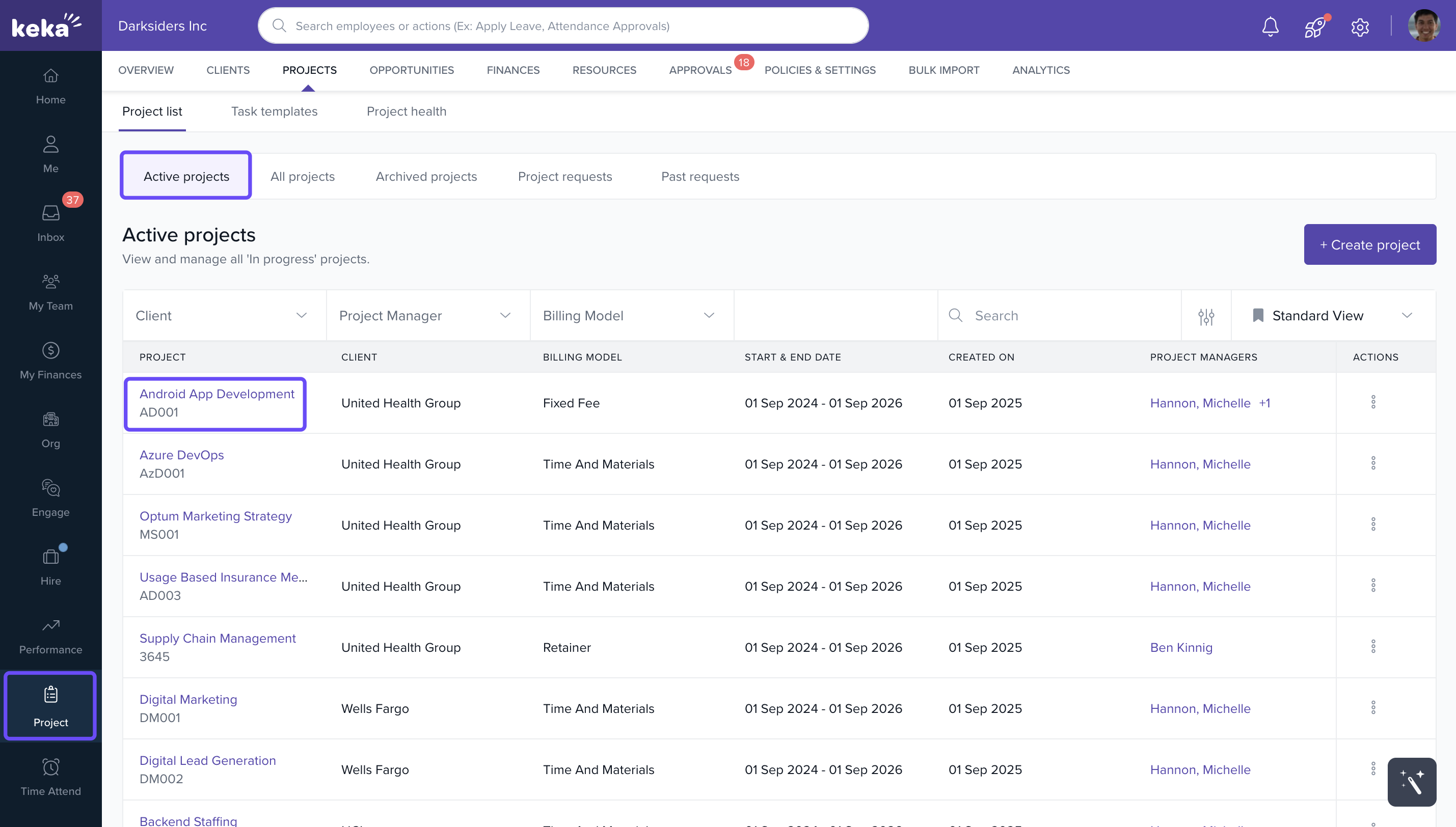
- From the left navigation bar, click Project.
- Go to the Project tab and select Active Projects.
- Click on a specific project to view its details.
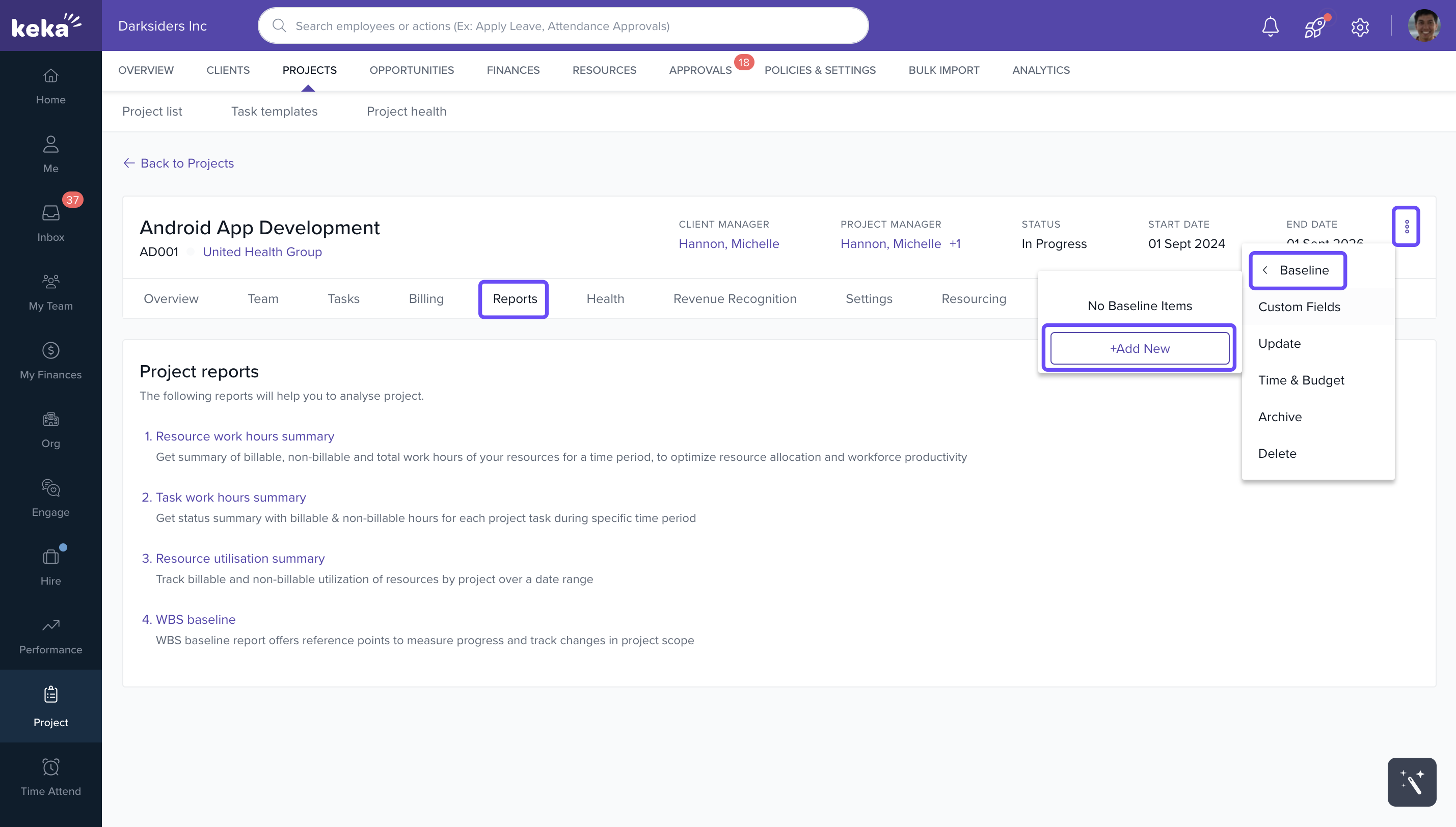
- Navigate to the Reports section of the selected project.
- Click the three dots in the top-right corner of the screen.
- Choose Add New to create a baseline.
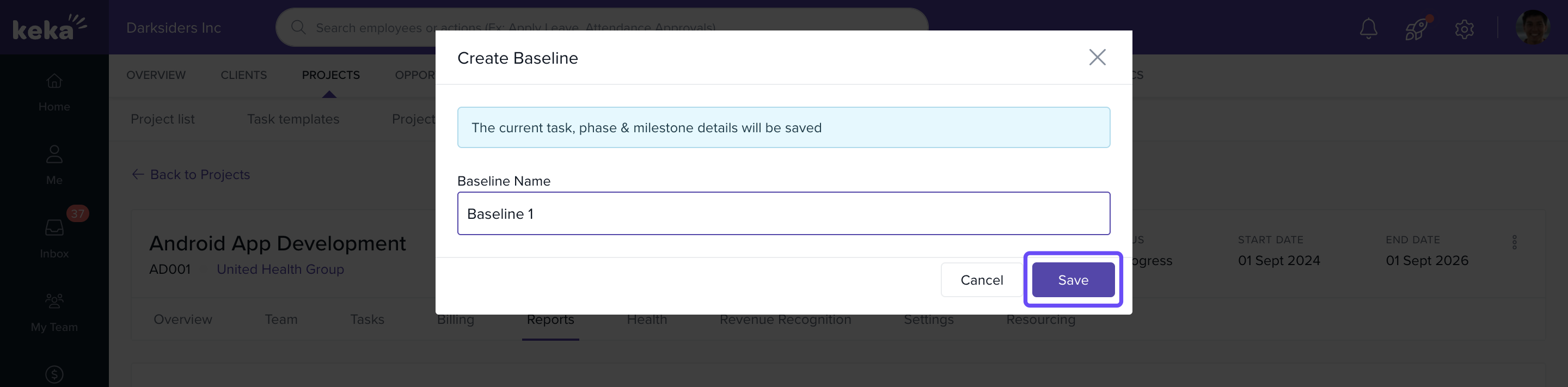
- Assign a name and click Save.
Run the Baseline Report
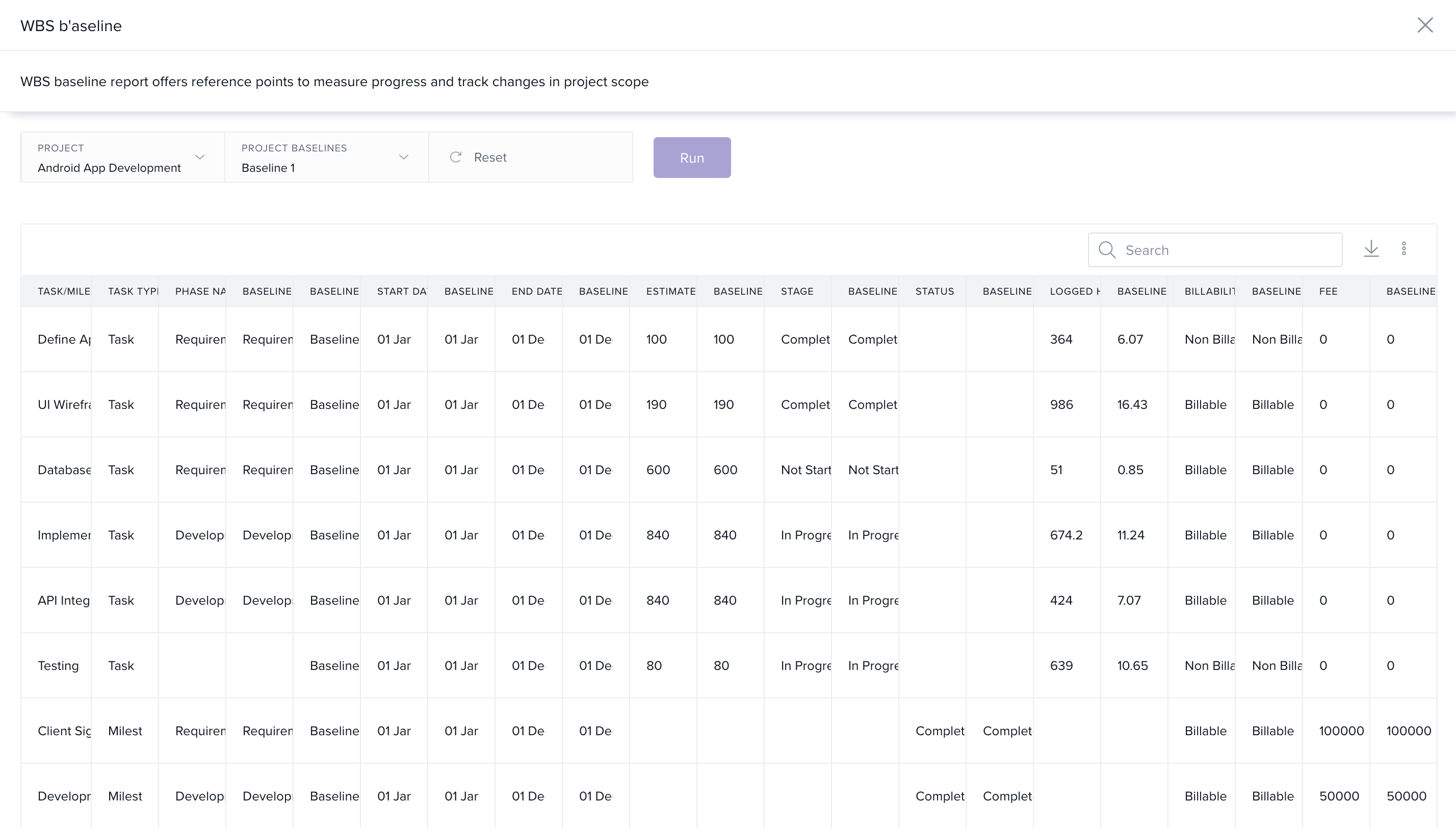
- Return to the Reports section.
- Open WBS Baseline Reports.
- View the current project metrics vs. the original baseline.
- Analyse scope, task timelines, and milestone variances.
How It Connects with Other Modules
- Projects: Tracks planned vs actual timelines and scope at the project level
- Reports: Allows exporting of baseline comparisons for stakeholder review
- Resource Mgmt: (Planned) Resource allocation baseline reports to be added by end of the quarter
FAQs
-
Q: What is captured in a WBS Baseline Report?
A: Original task schedules, milestones, and scope. -
Q: Can I create multiple baselines for the same project?
A: Yes, you can create and name different baselines as needed. -
Q: Is this feature available on all plans?
A: No, it is available only for users on the 3rd Plan of Keka PSA. -
Q: Will resource allocation baselines be supported?
A: Yes, this feature will be launched by the end of the quarter.
Troubleshooting
-
Baseline report not visible?
- Make sure the project is marked as Active.
- Verify your access level includes report creation.
-
Unable to create a baseline?
- Check if you’ve selected a valid project.
- Ensure required fields like name are filled in before saving.
For further information on Keka reports on tracking resource utilization and to explore additional features, please click here. Tracking Resource Utilization with Keka PSA's Target Billable Utilization Report
Comments
0 comments
Please sign in to leave a comment.