Introduction
Keka’s 1:1 Meetings module is more than a scheduling tool—it’s a performance-driving system designed to help admins, managers, and employees stay aligned. With features like Action Items, Agenda Templates, and Meeting Logs, you can structure meaningful conversations, maintain accountability, and gain visibility into manager-employee interactions across the organisation.
This article covers how admins can use these features to improve transparency and outcomes at scale.
Overview of the 1:1 Meetings Module
The module includes six core tabs:
- Summary – Overview of meeting coverage and completion
- My Meetings – Meetings the logged-in user is a part of
- Team Meetings – View and schedule for direct reports
- Action Items – Track follow-ups and assigned tasks
- Agenda Templates – Create and manage structured meeting formats
- Meeting Logs – Review past 1:1s for any team, timeframe, or status
This guide focuses on the last three: Action Items, Agenda Templates, and Meeting Logs.
Using the Action Items Tab
The Action Items tab provides a centralised view of tasks discussed during 1:1 meetings. It helps different roles monitor ownership, deadlines, and progress.
Role-Based Views:
- Employees: View their personal action items and due dates
- Managers: Track tasks assigned to their team members, tied to specific meetings
-
Admins: Get a global overview, including overdue tasks, making it easier to identify and escalate blockers.
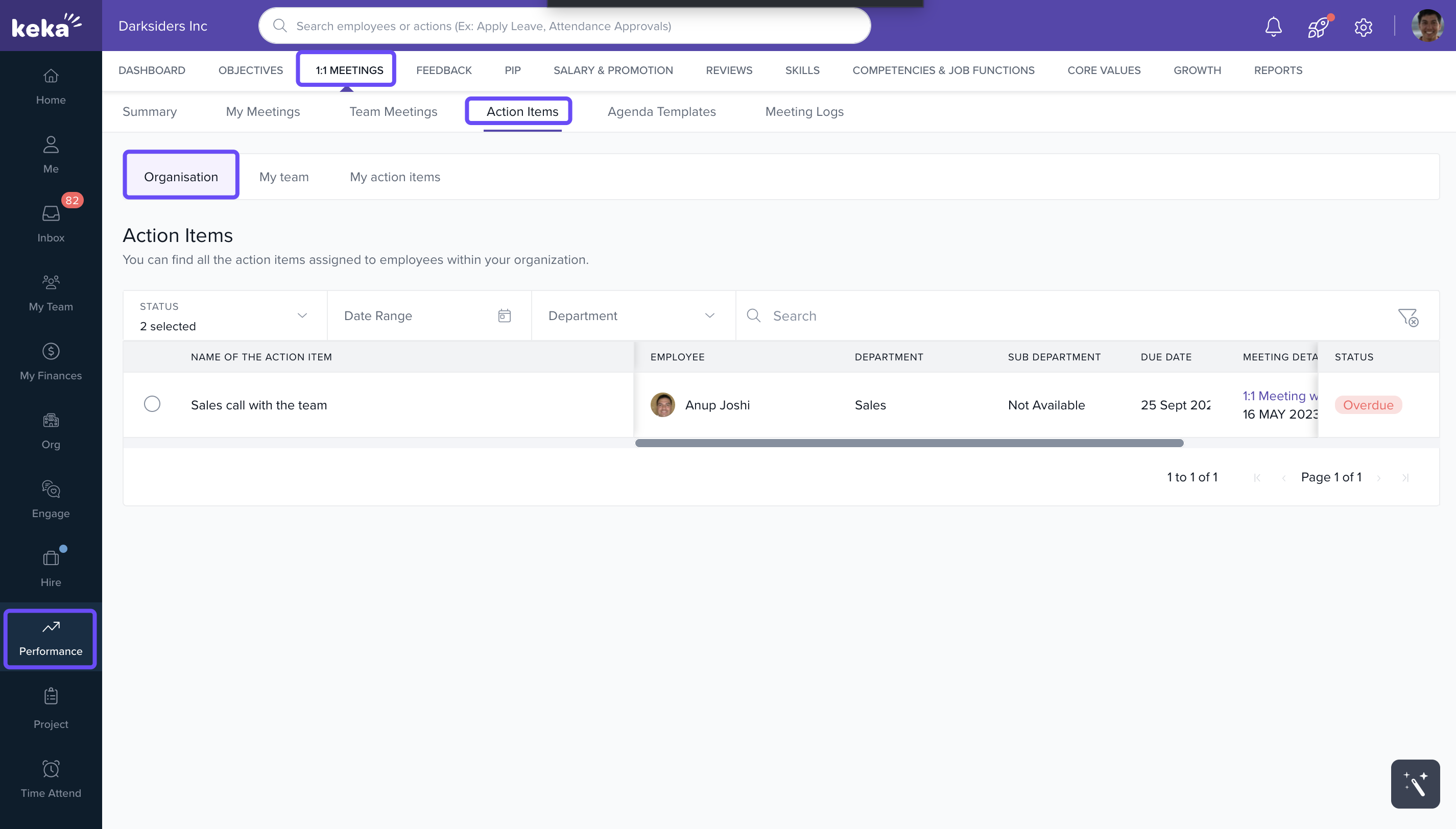
Use filters to narrow the view by department, status (open, overdue, closed), or assignee.
Managing Agenda Templates
Standardising agendas improves the quality and consistency of meetings. The Agenda Templates tab lets admins and managers create reusable formats tailored to different discussion types (e.g., performance reviews, growth plans).
To access and edit templates:
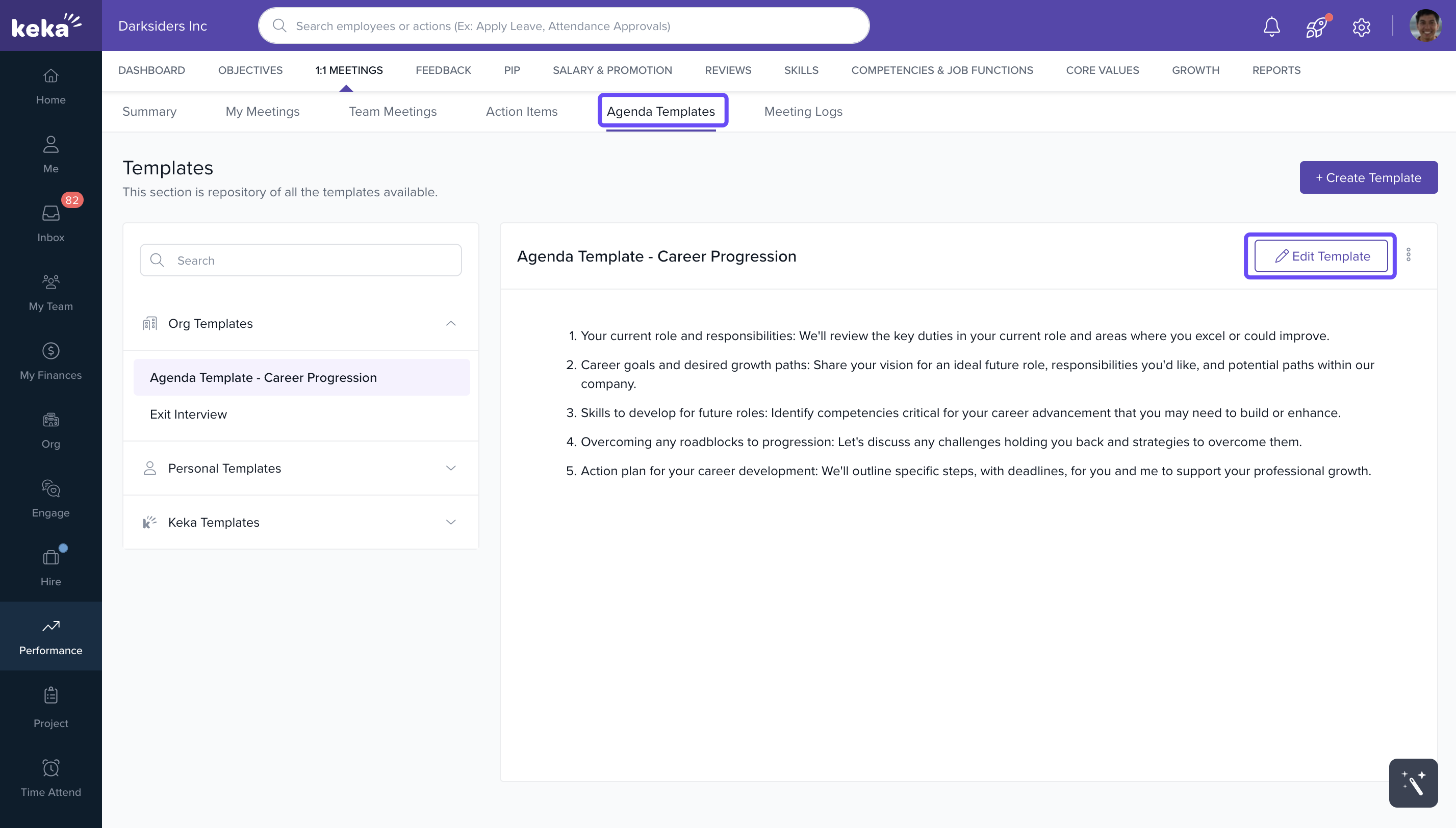
- Go to Performance and click on 1:1 Meetings. Under 1: 1 Meetings, select Agenda Templates.
-
Click on an existing template and select Edit Template.
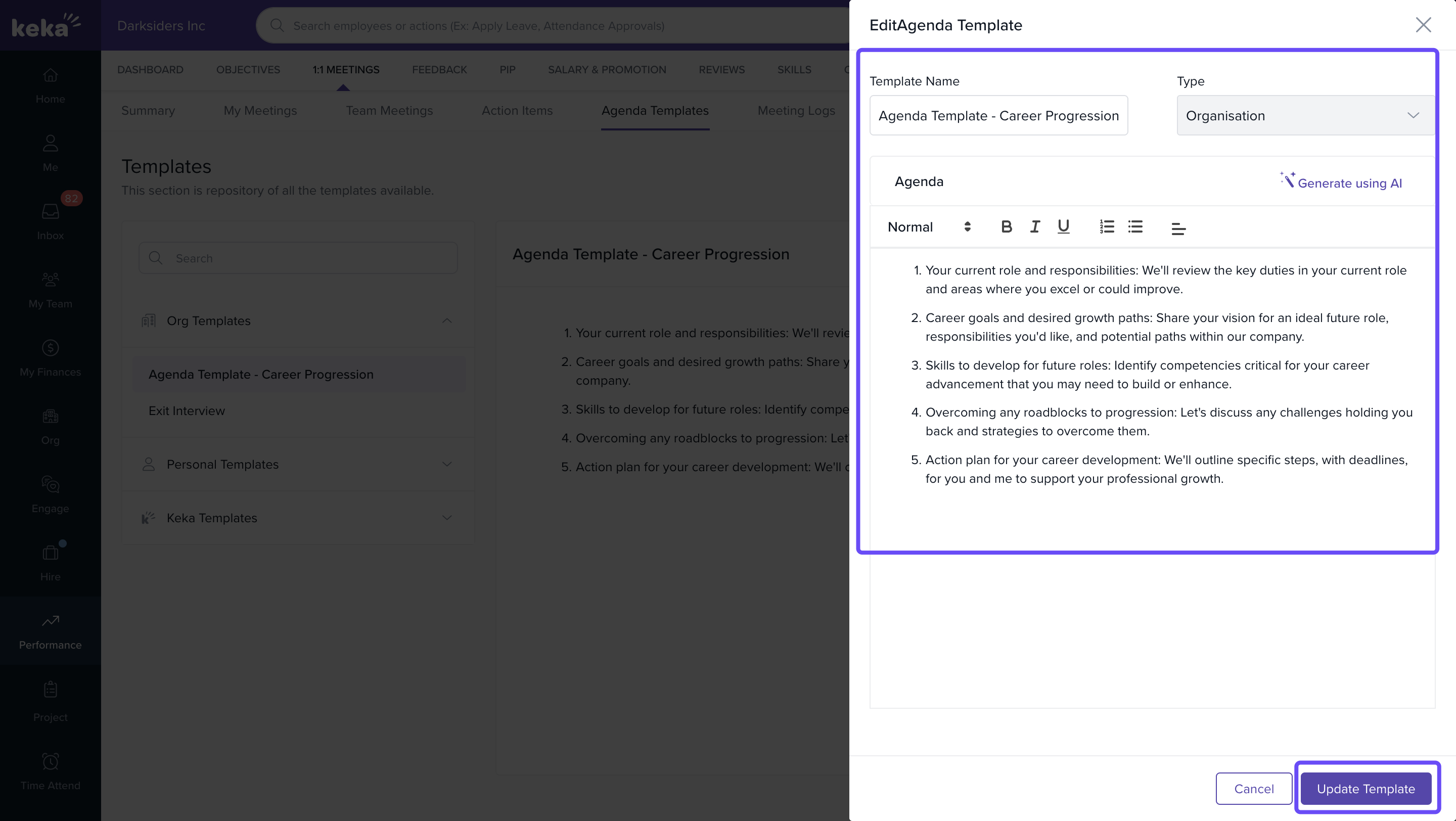
- Modify fields such as:
- Template Name
- Template Type (e.g., Review, Coaching, Career Planning)
- Agenda Items
-
Click Update Template to save changes.
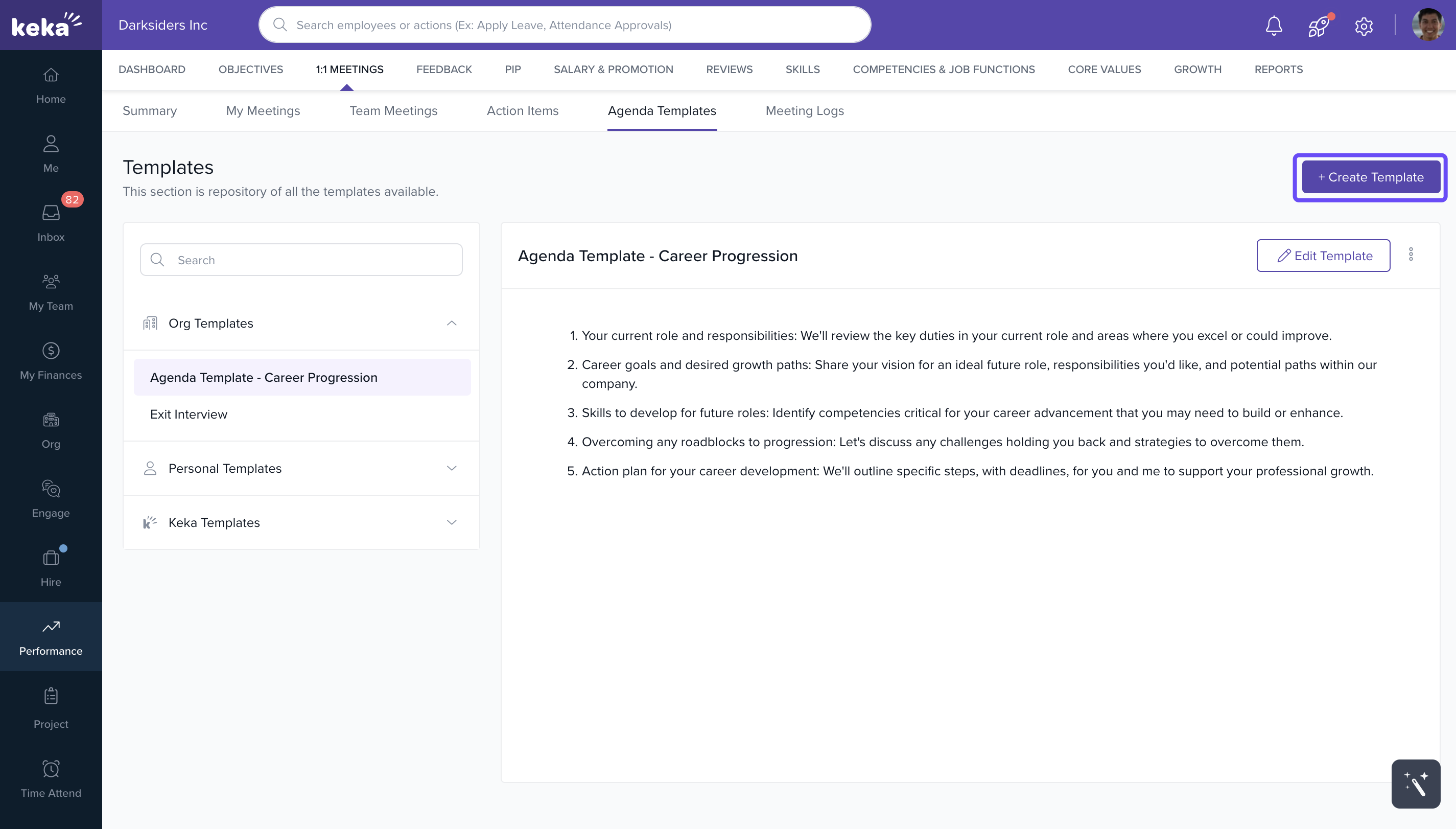
To create a new template:
-
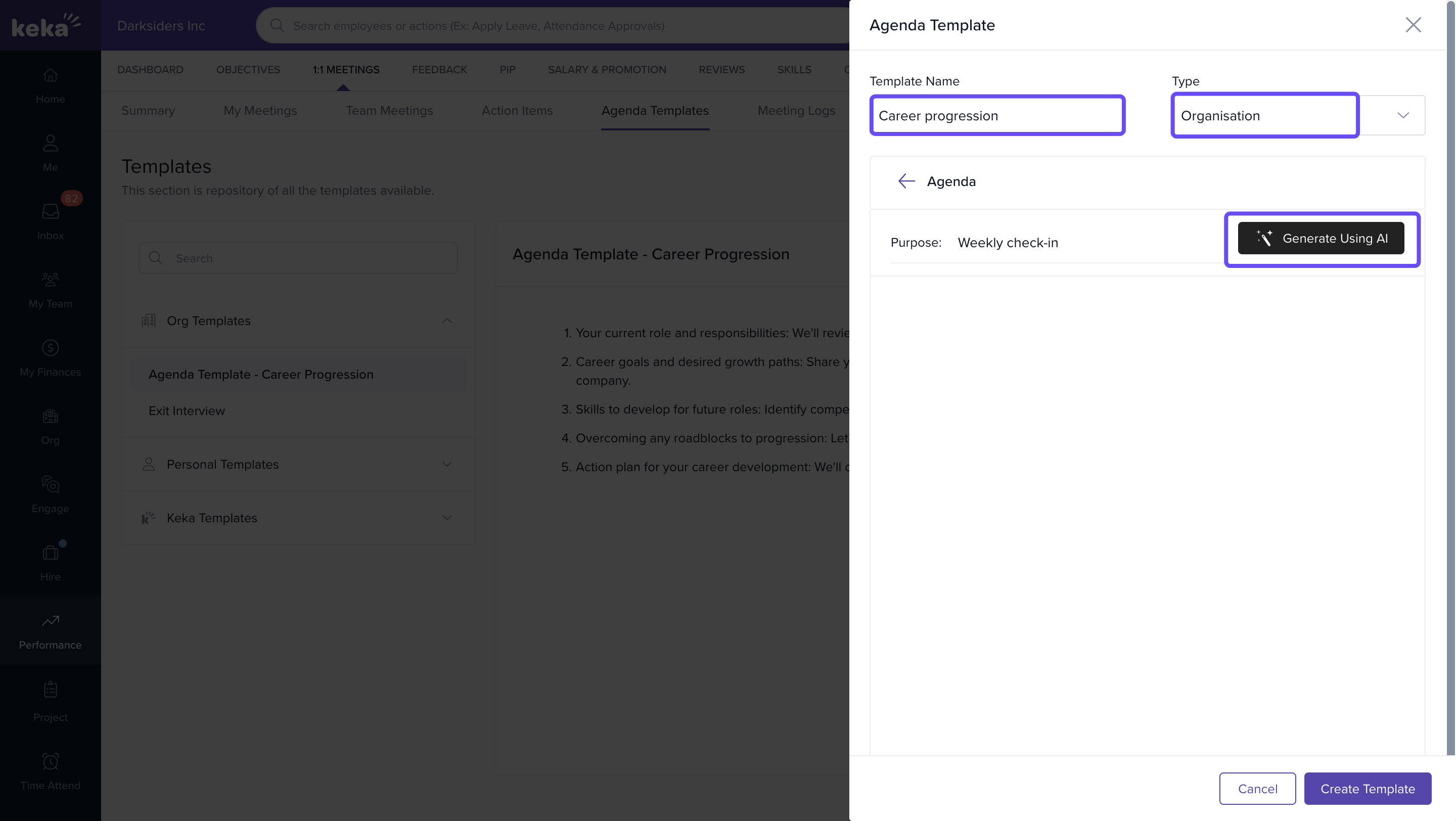
Click Create Template.
-
Add a name, select type, and define agenda items. You can also click Generate Using AI to automatically create agenda items for your discussion.
-
Click Create Template to make it available during meeting scheduling.
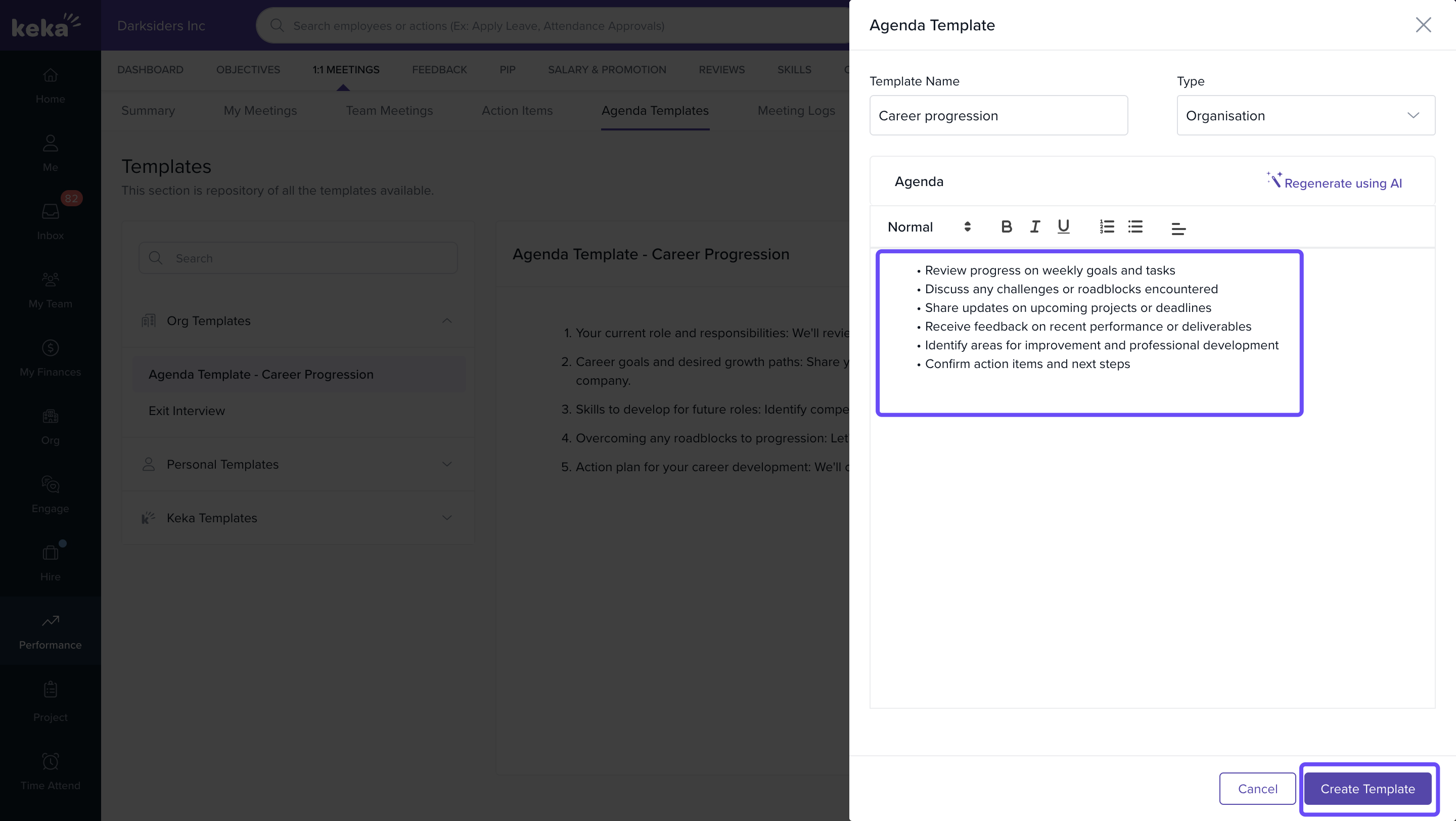
Templates created here will be available for selection when scheduling or editing any 1:1 meeting.
Accessing and Filtering Meeting Logs
The Meeting Logs tab offers a historical view of all past 1:1 meetings conducted in the organizsation.
To use Meeting Logs:
- Go to Performance and click on 1:1 Meetings Meeting Logs.
- Use filters such as:
- Date Range
- Department
- Meeting Status (Completed, Pending)
Each log entry includes:
- Meeting title and participants.
- Agenda discussed.
- Action items created.
- Meeting summary and comments (if added).
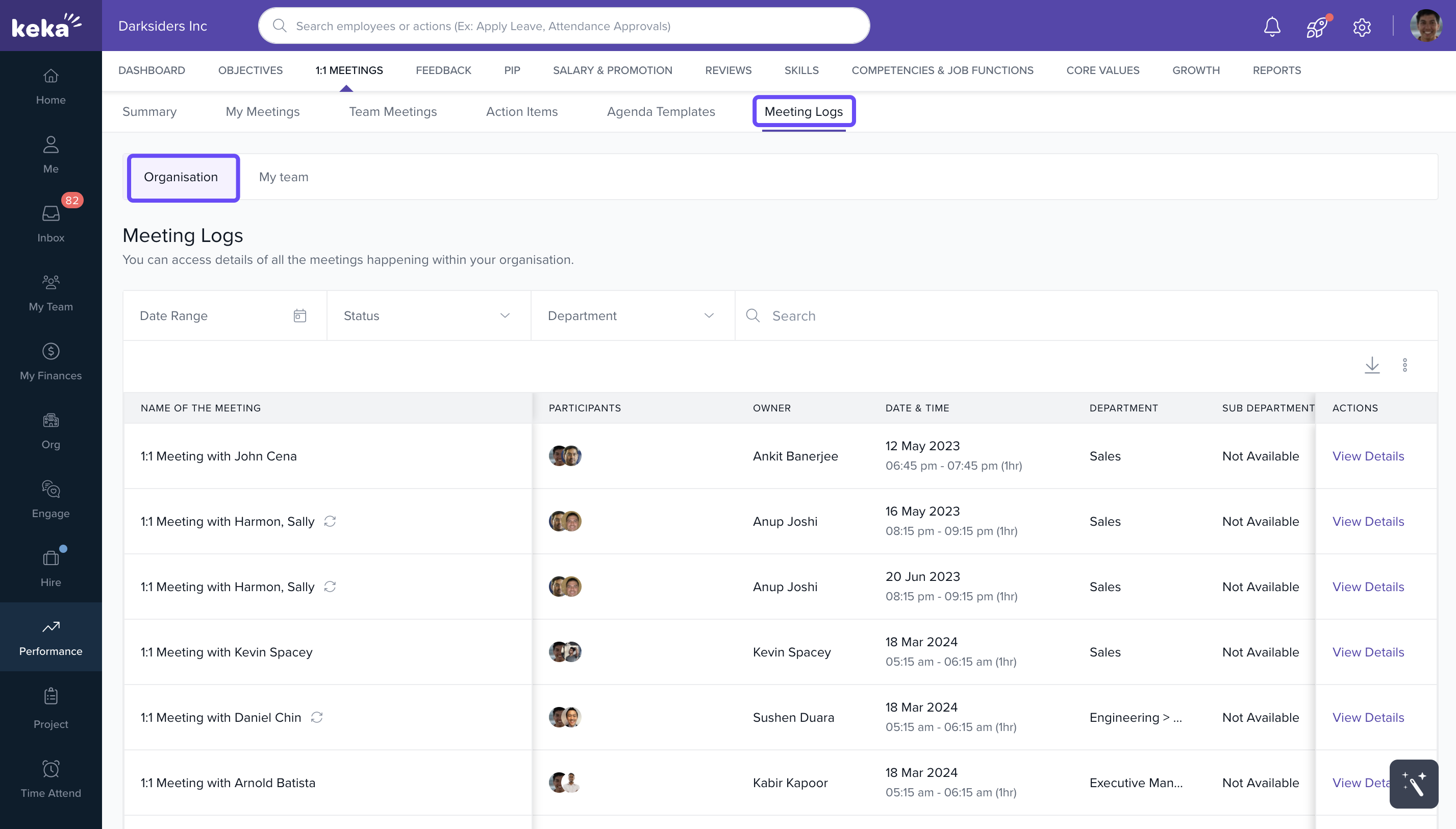
This data is useful for performance audits, review cycles, and ongoing tracking of engagement across teams.
Notes & Tips
- Tip: Encourage managers to use predefined agenda templates to reduce prep time and focus meetings on outcomes.
- Note: Overdue action items in the Action Items tab are color-coded for quick identification.
- Important: Meeting logs are only visible to users with appropriate access permissions (admins, direct managers, etc.).
FAQs
-
Can admins see all action items across the organisation?
Yes, admins have full visibility into all meeting-related action items via the Action Items tab. -
Are agenda templates shared across the organisation?
Yes, templates can be set as global or personal. Admin-created templates are available to all users during scheduling. -
Can logs be exported?
Currently, meeting logs as excel files. For structured exports, use the Performance Reports section.
Comments
0 comments
Please sign in to leave a comment.