Overview
Google Meet integration in Keka allows employees to schedule 1:1 meetings with auto-generated video call links. This makes virtual conversations more seamless, whether you're discussing performance, goals, or feedback.
Admins enable the integration, and employees can then link their Google accounts to use Google Meet directly within the 1:1 Meetings module.
Enabling Google Meet in Keka
To begin using Google Meet within 1:1 Meetings:
- Go to Apps and click on Google Meet for 1:1 checkins.
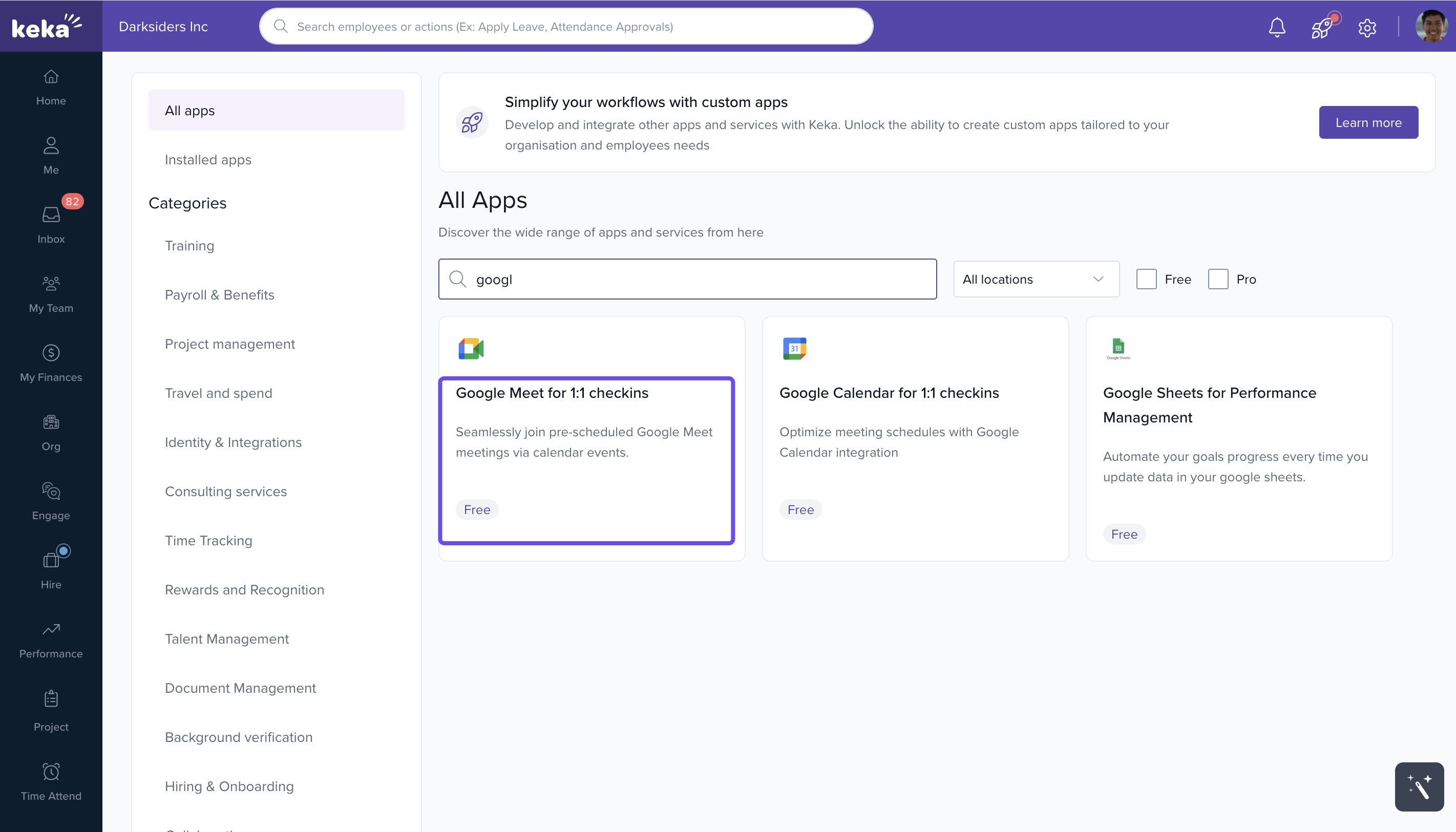
- The Global Admin must install and authorise the Google Meet app
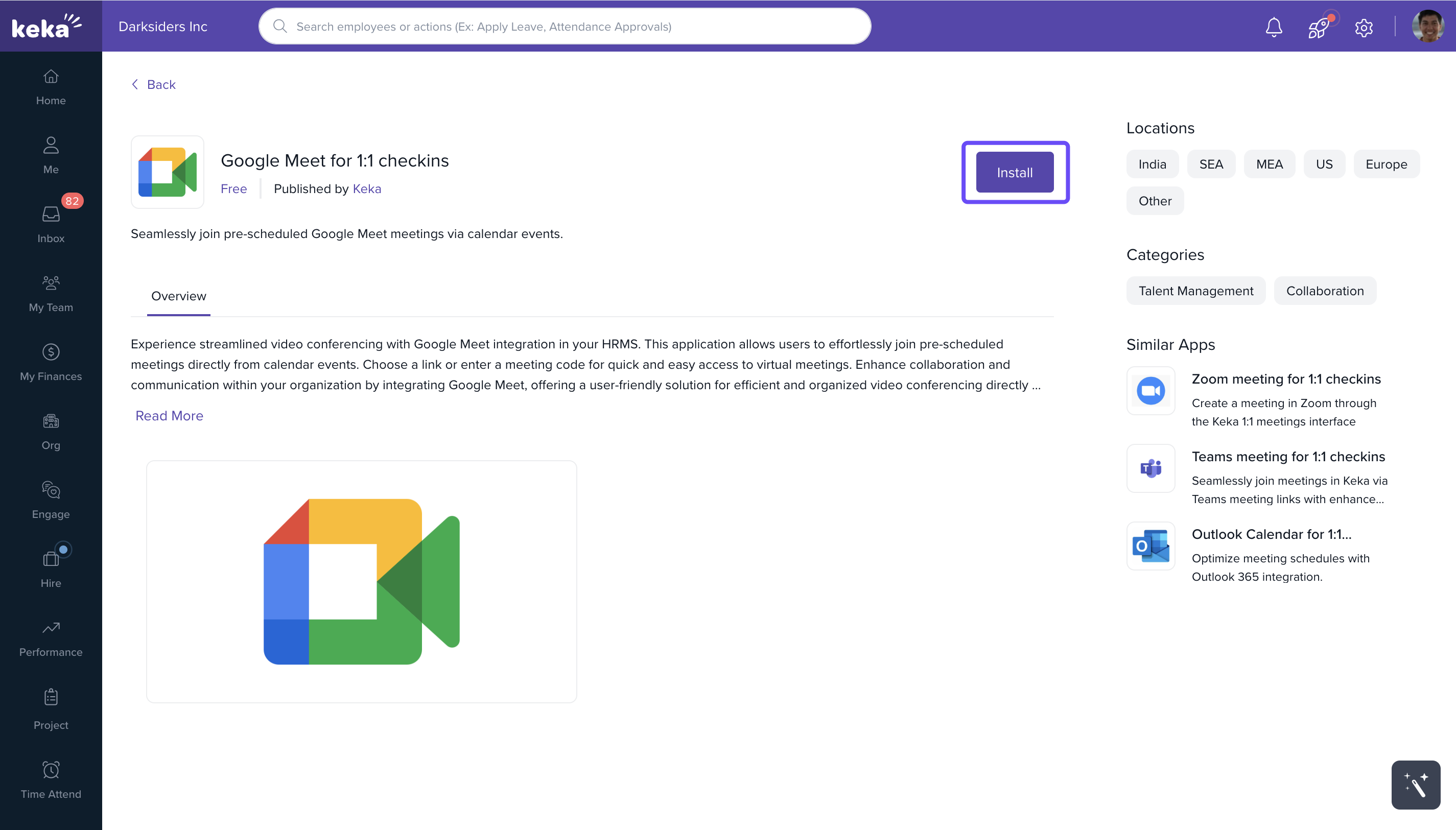
- Once installed, it becomes available to all employees
Only one-time setup is needed at the admin level.
Connecting Google Meet to Employee Accounts
After the app is installed:
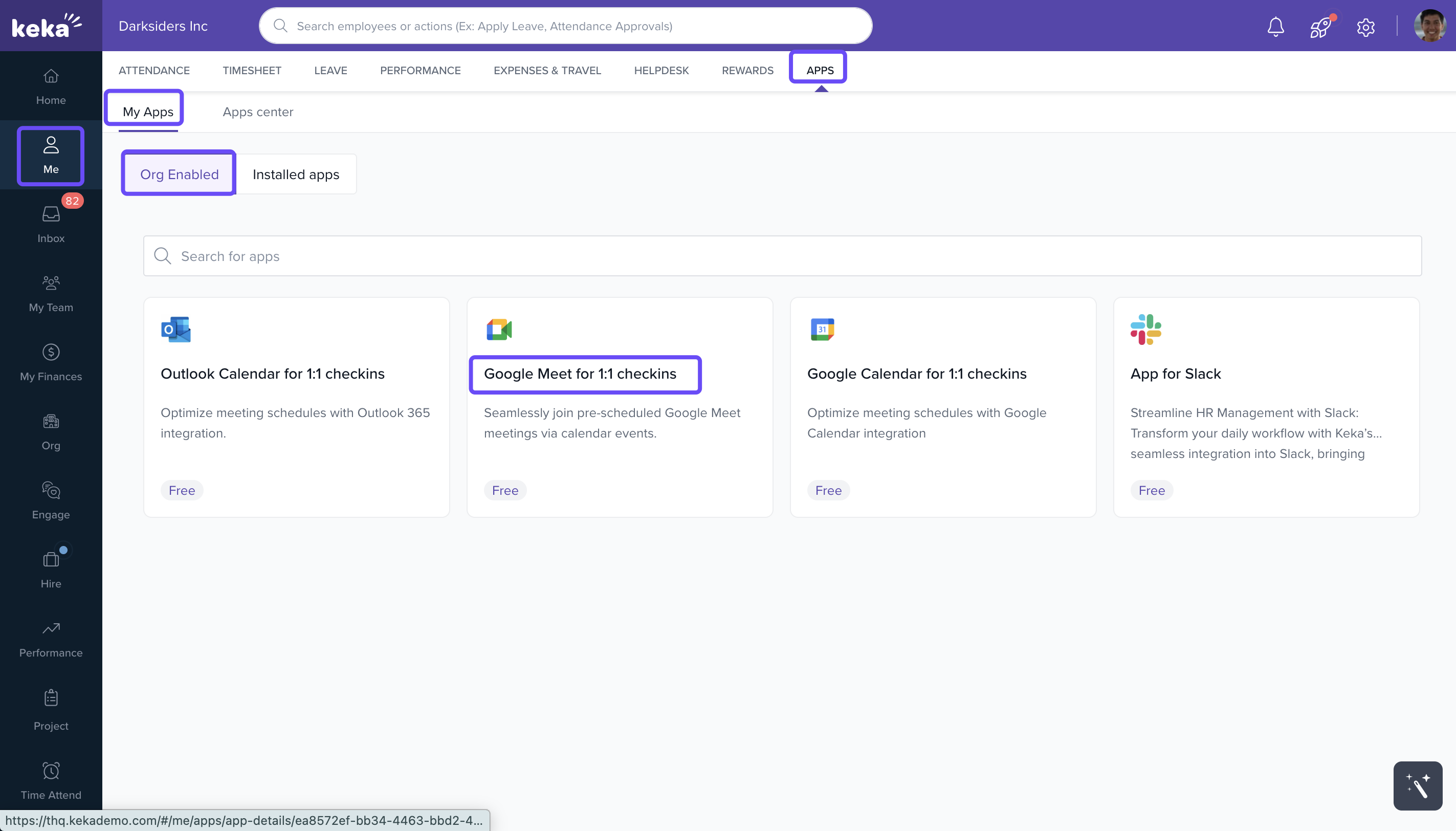
- Each employee must go to Me and click on Apps.
- Under Apps, navigate to the My Apps section and select the Org Enabled tab.
- Locate Google Meet in the list.
- Click Connect.
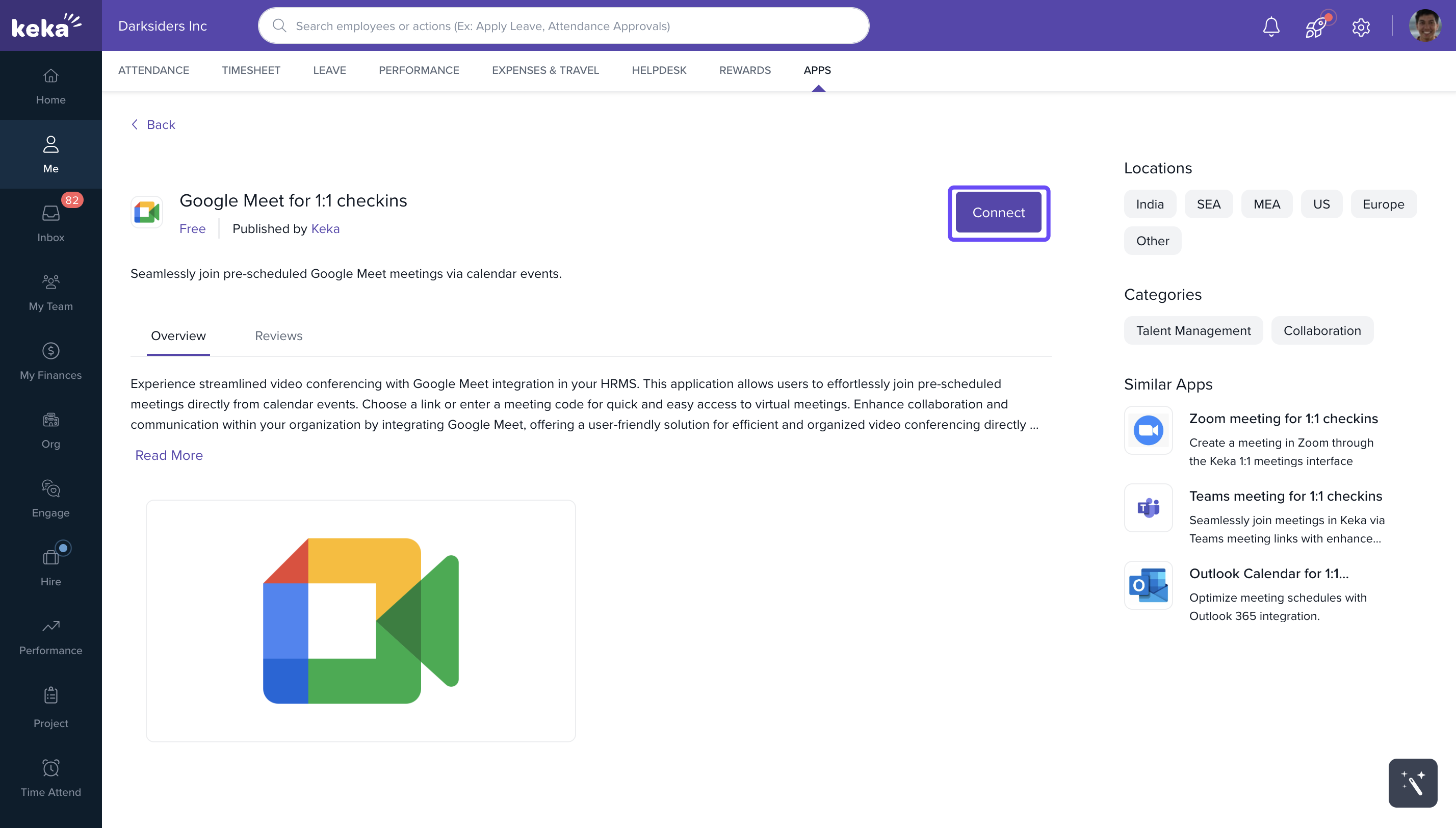
- Sign in using your Google account.
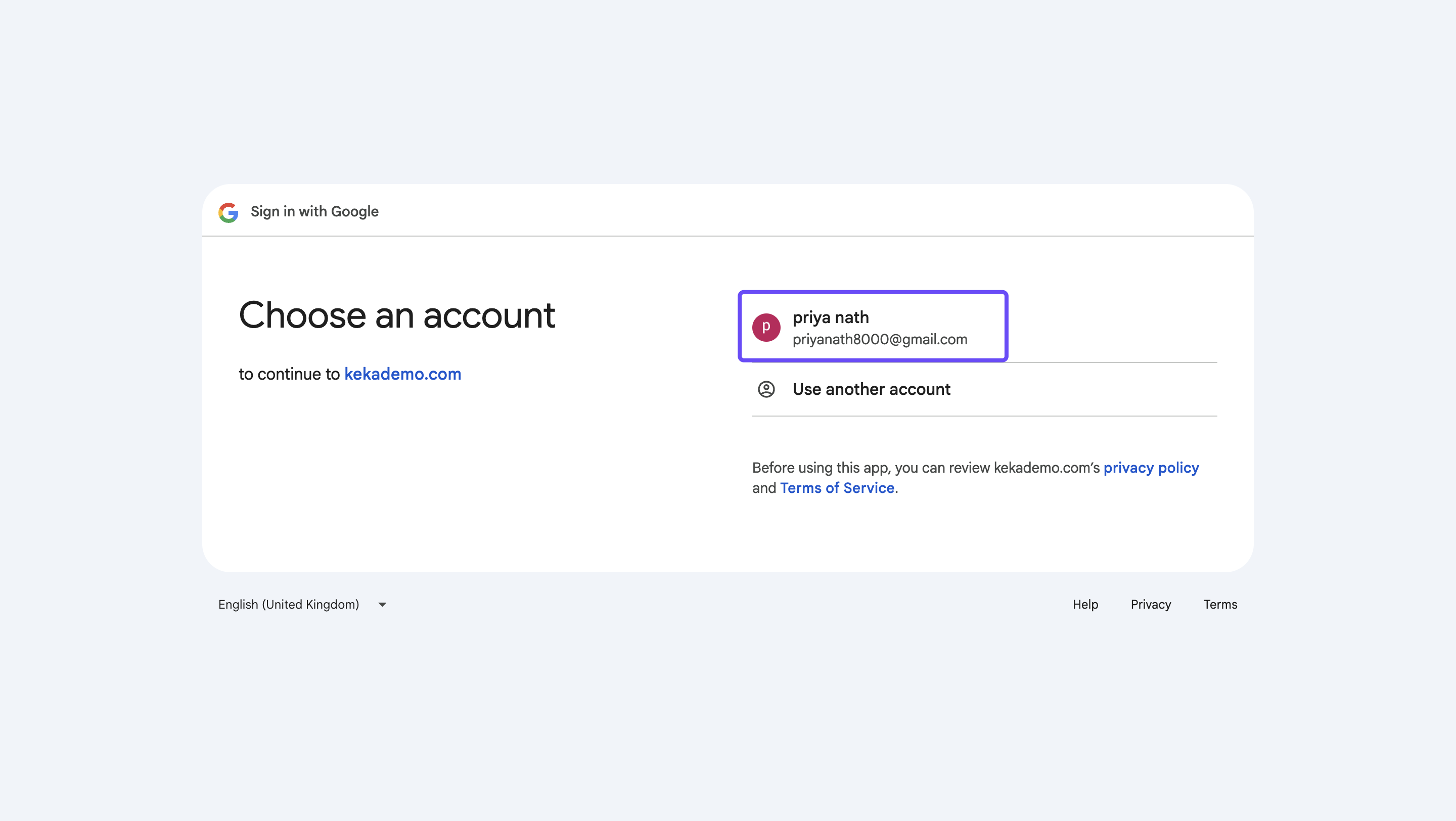
Once connected, Google Meet becomes available as a scheduling option in 1:1 meetings.
Scheduling a 1:1 Meeting via Google Meet
To schedule a meeting using Google Meet:
- Go to Me and click on Performance. Under Performance, select 1:1 Meetings.
- Click Schedule Meeting.
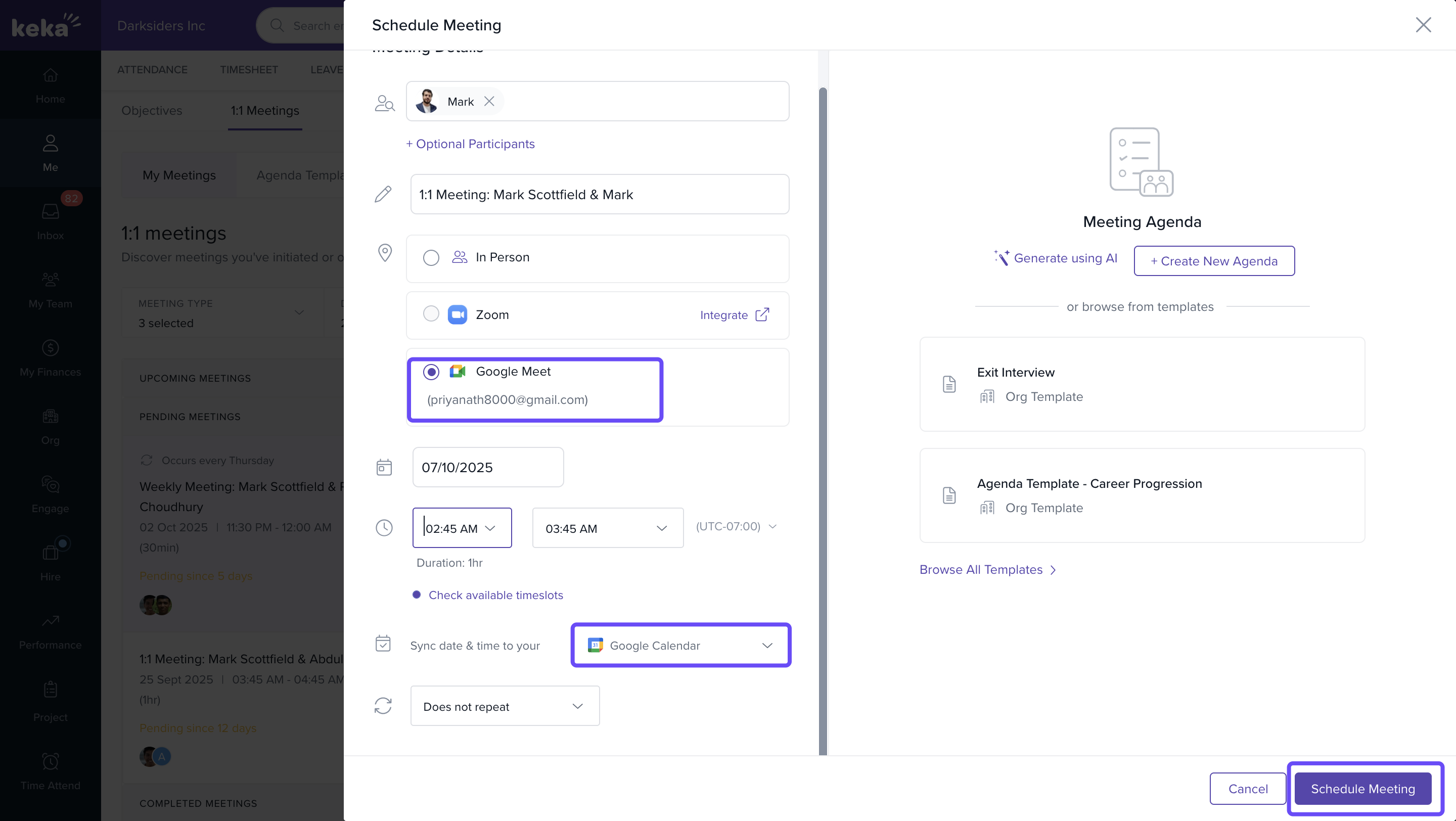
- Fill in meeting details: participants, date, time, and agenda.
- Under Meeting Platform, select Google Meet.
- Choose either Google Calendar or Outlook Calendar and authorize the connection.
- Click Schedule.
Joining the Meeting
After scheduling:
- A Google Meet link is auto-generated and added to the meeting invite.
- The meeting appears on the Google Calendar of all participants.
- In Keka, the meeting link is visible in the meeting details.
- Simply click the link to join the call at the scheduled time.
Notes & Tips
- Tip: Use calendar sync to avoid double-booking or time conflicts.
- Important: Only admins can install the Google Meet app. Employees must individually connect their Google accounts.
- Note: The integration only works with Google Workspace or Gmail accounts that allow third-party app access.
FAQs
-
Can I use Google Meet without admin setup?
No, the Global Admin must install the Google Meet app before employees can connect. -
Will the meeting show in my calendar?
Yes, once scheduled, the meeting is added to your Google Calendar automatically. -
Can I edit the Google Meet link?
No, the link is system-generated for each meeting. You can reschedule to get a new link.
Next Steps
- Learn how to Integrate Zoom with 1:1 Meetings.
- Explore Outlook Calendar Integration.
- Visit the Utilising 1:1 meetings to monitor and enhance employee performance.
Comments
0 comments
Please sign in to leave a comment.