Overview
Keka’s integration with Google Calendar helps streamline scheduling for 1:1 meetings by automatically syncing participant calendars. This integration eliminates double-booking, improves visibility into availability, and ensures virtual meetings are added directly to Google Calendar.
Managers and employees can instantly view open time slots and schedule performance conversations with minimal back-and-forth.
Enabling Google Calendar Integration
The integration must first be enabled by the Global Admin.
To enable:
-
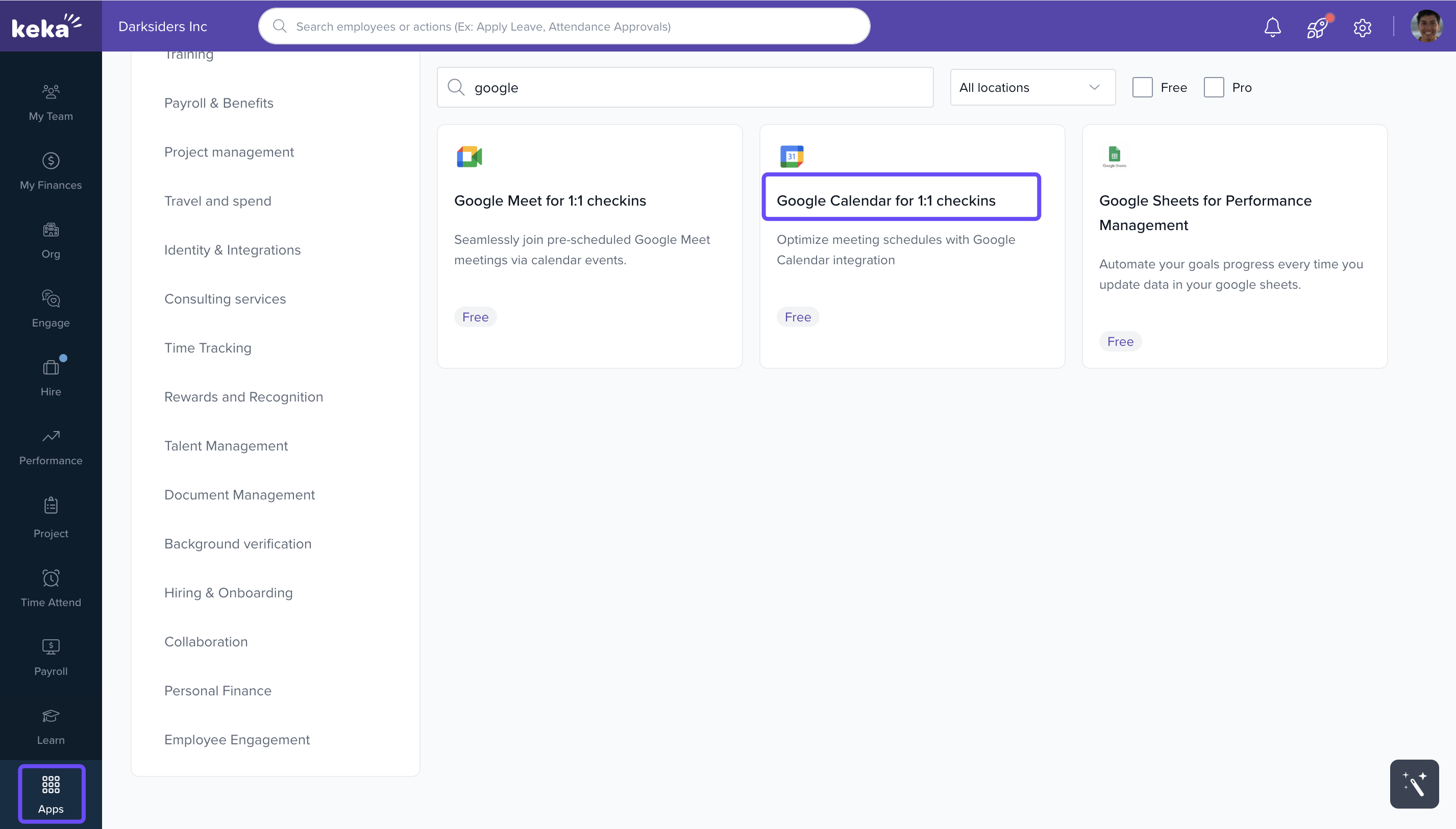
Navigate to Apps and click on Google Calendar.
-
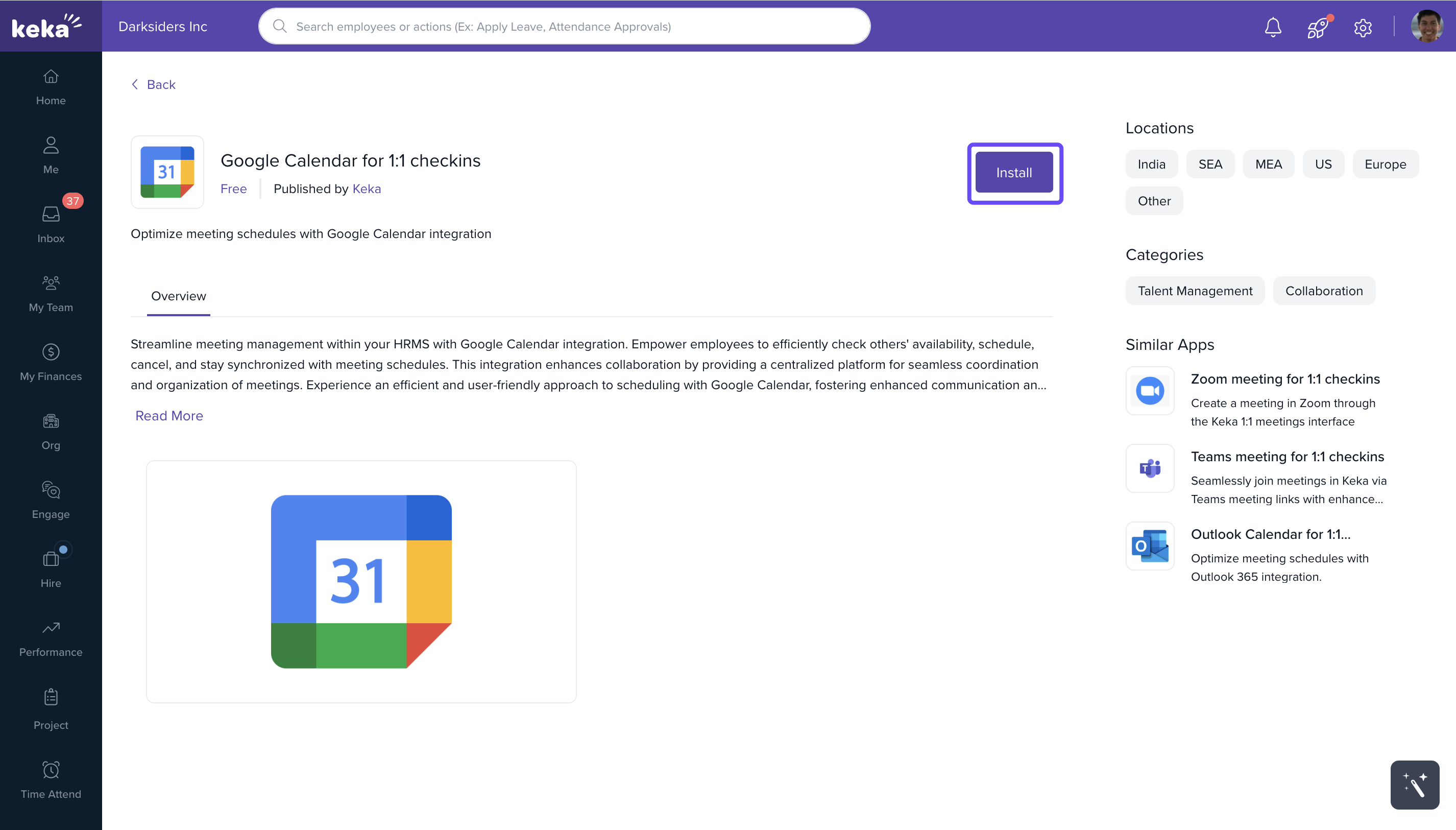
Install the integration for your organisation.
-
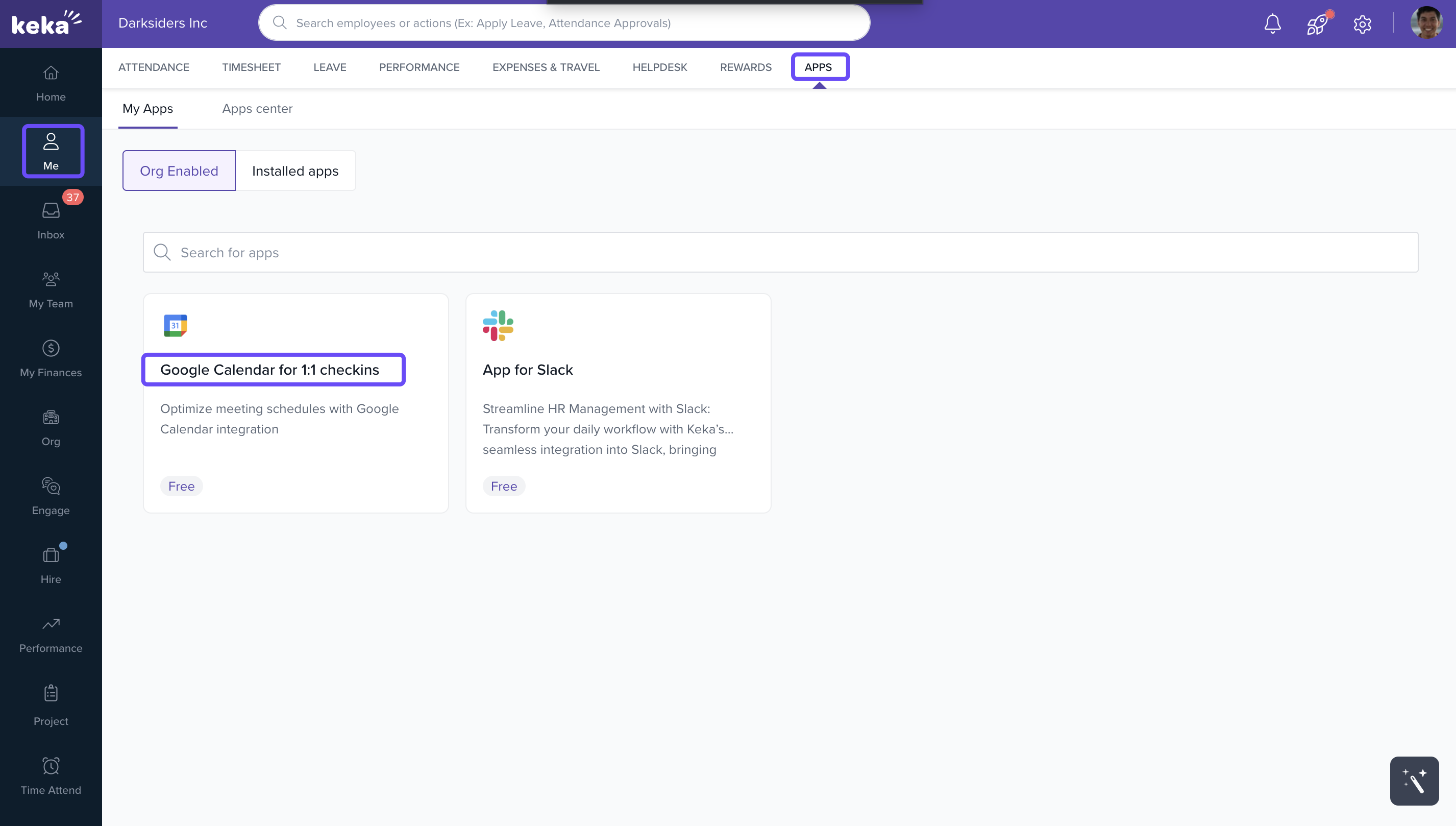
After installation, the app will be accessible to all employees under the Me section—simply click on Apps to find it.
This one-time setup allows Google Calendar syncing across the company.
Connecting Google Calendar to Employee Accounts
Each user must connect their own Google account to activate calendar sync.
Steps to connect:
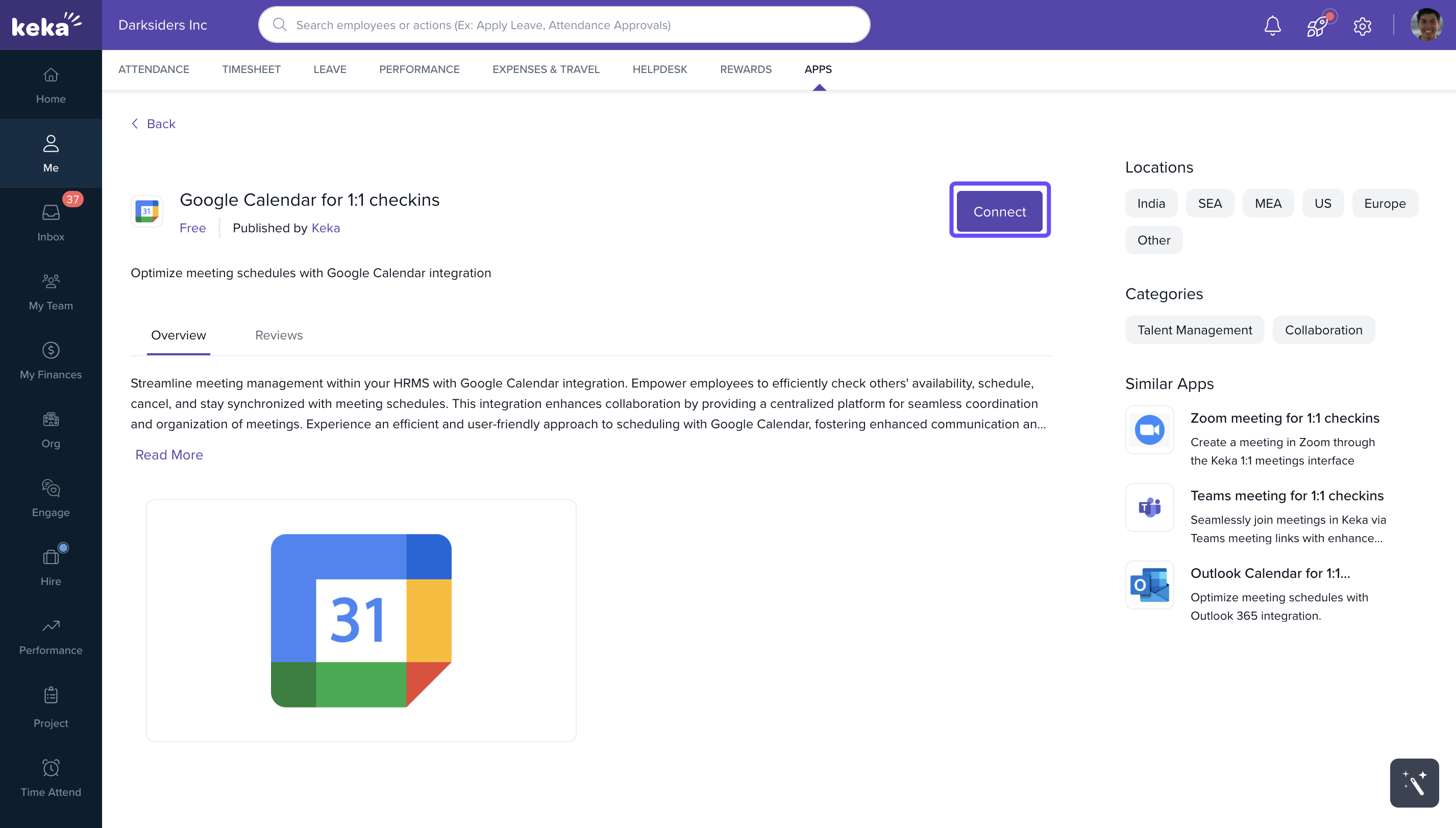
Go to Me and click on Apps.
-
Locate the Google Calendar for 1:1 checkins.
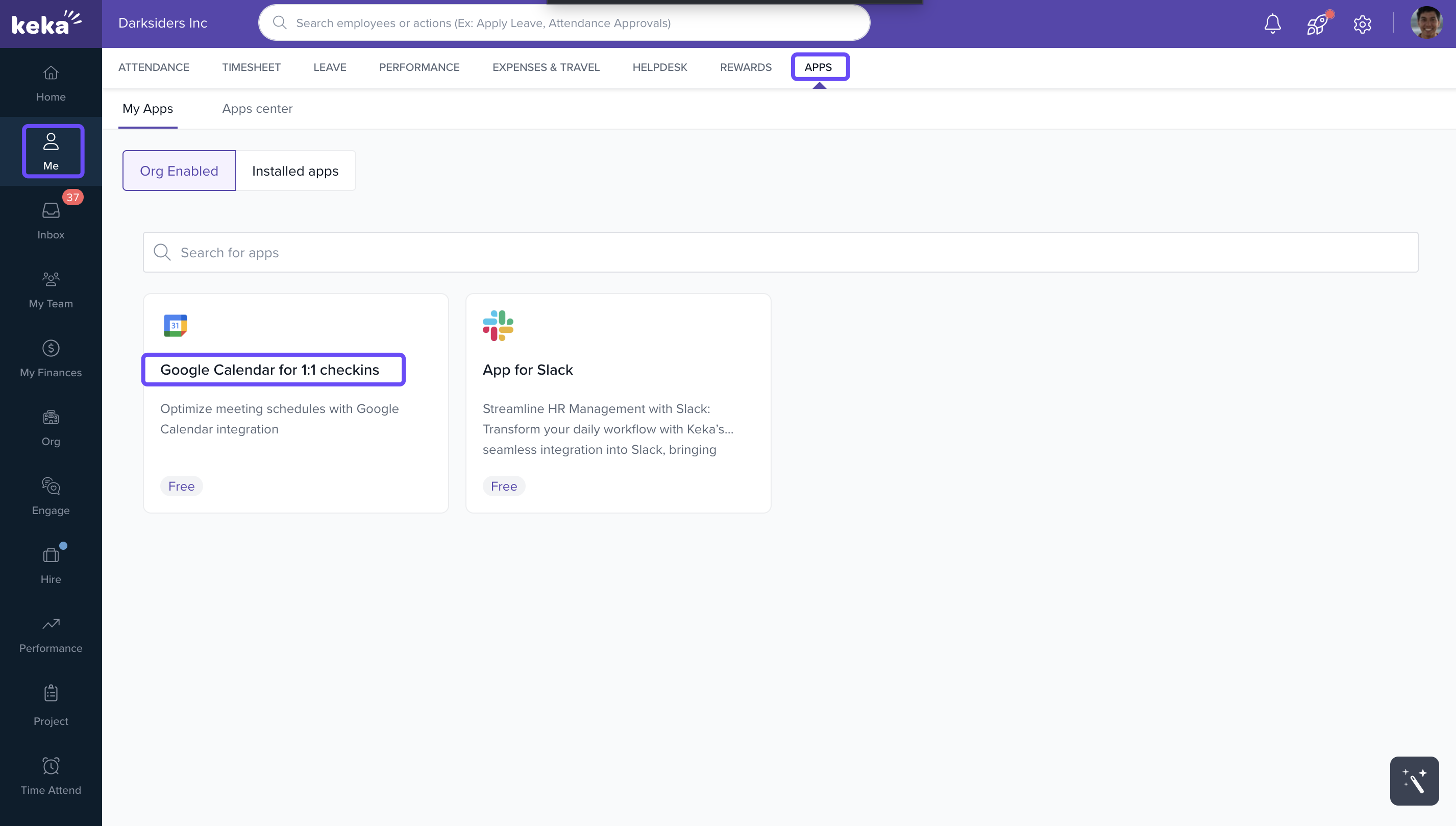
Click Connect.
-
Sign in using your Google account and authorise the sync.
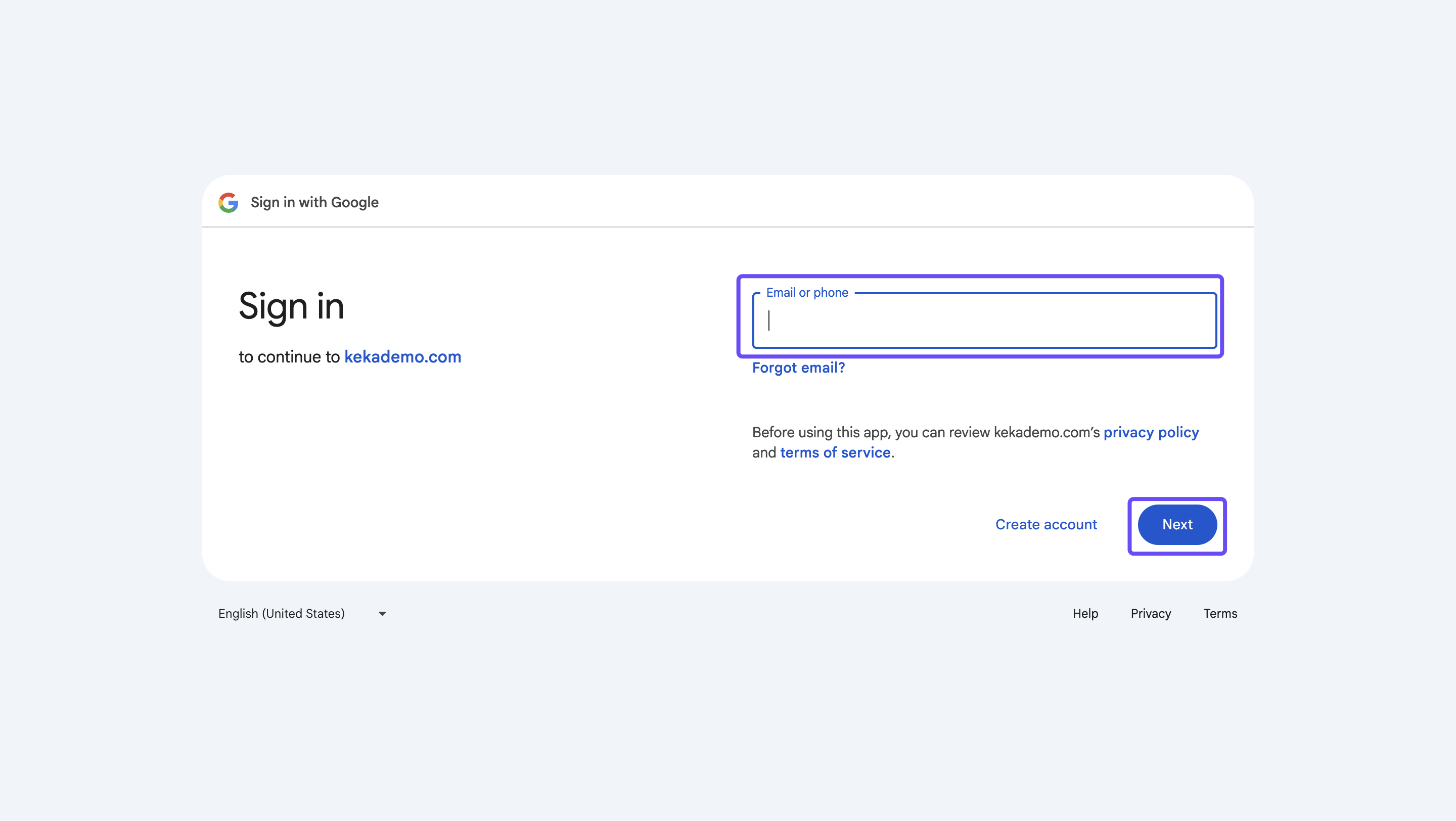
Once connected, you’ll be able to view participant availability while scheduling a 1:1.
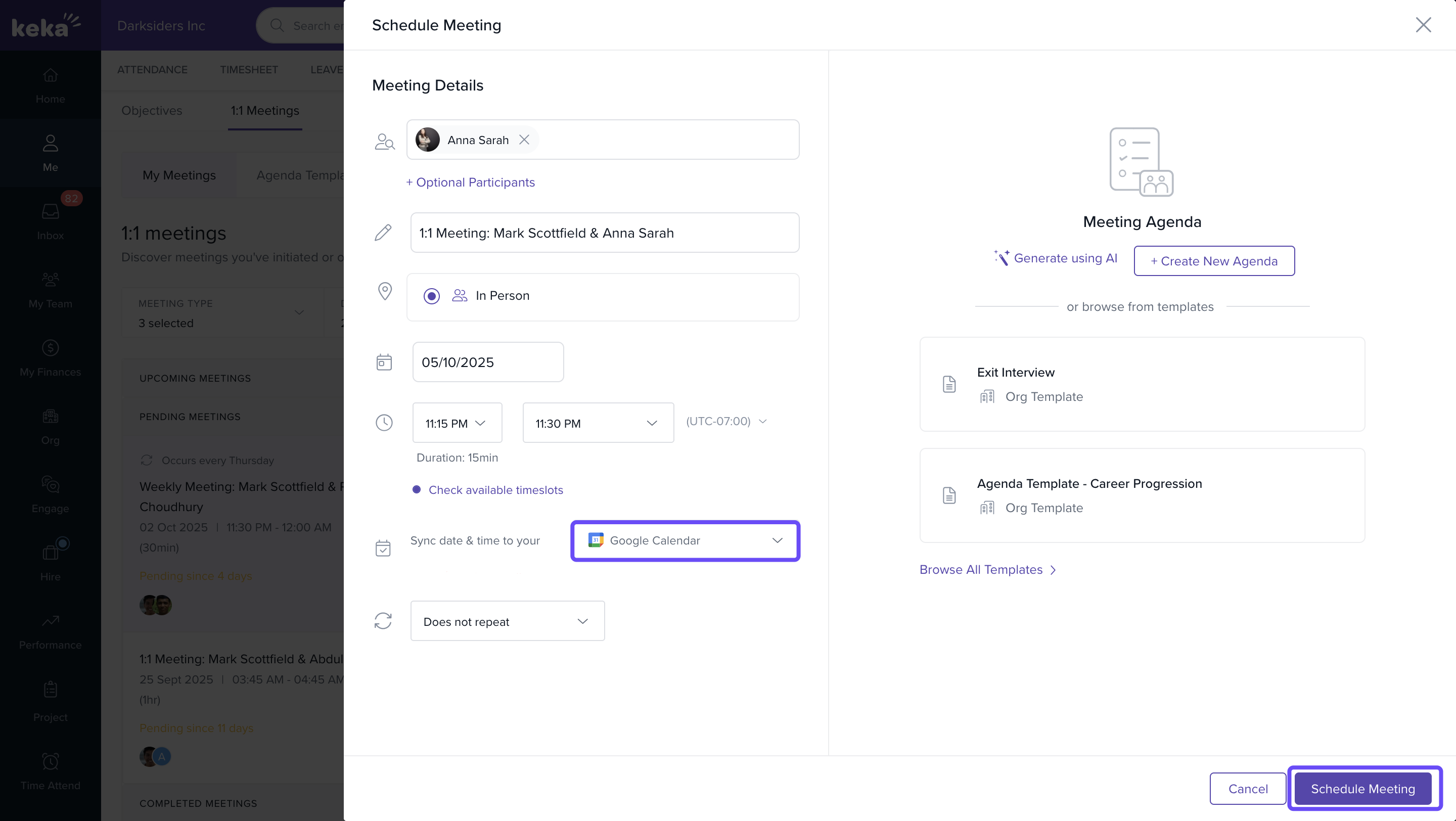
Scheduling a 1:1 Meeting with Google Calendar
To schedule a synced 1:1:
-
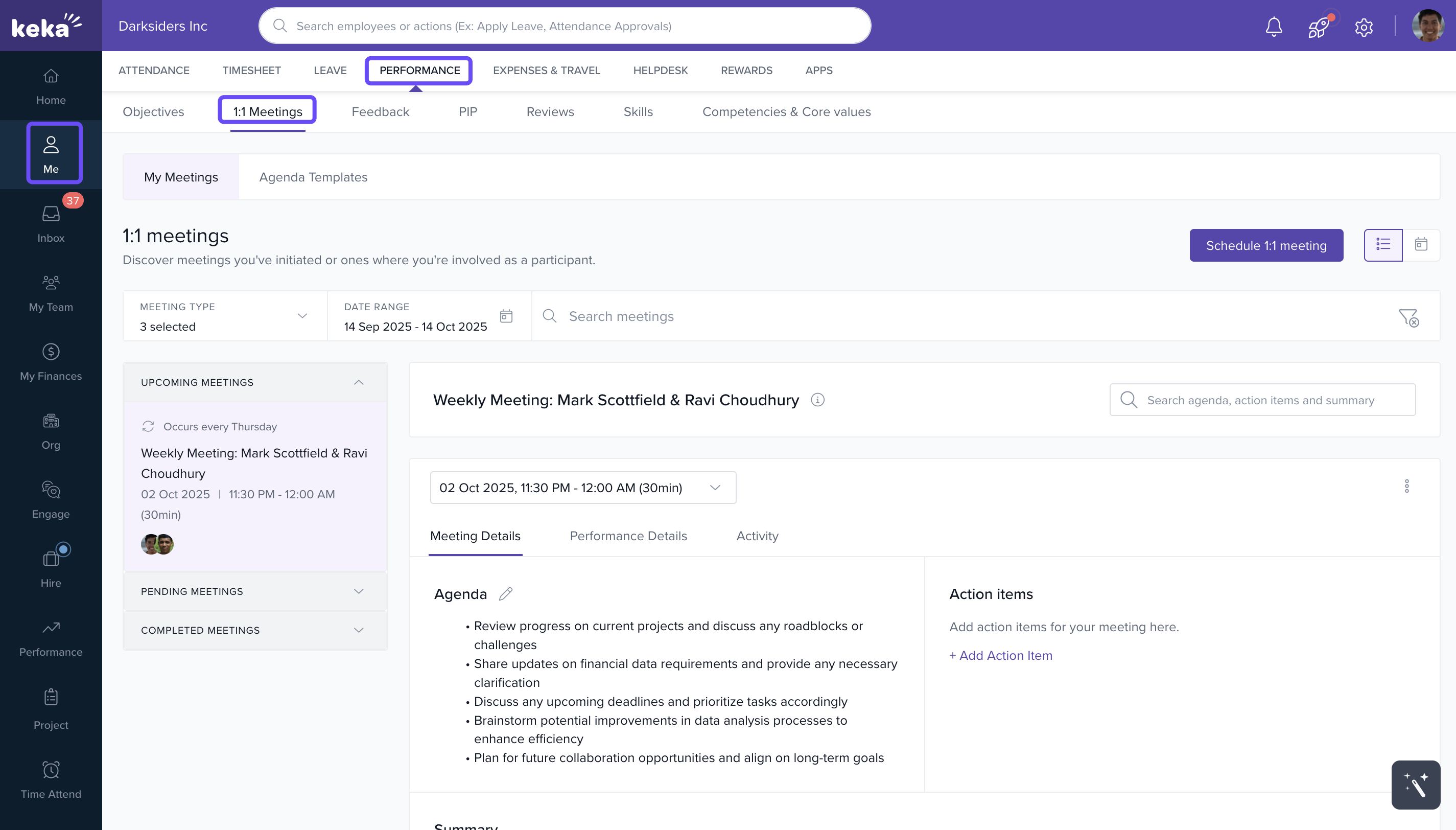
Navigate to Me and click on Performance. Under Performance, select 1:1 Meetings.
-
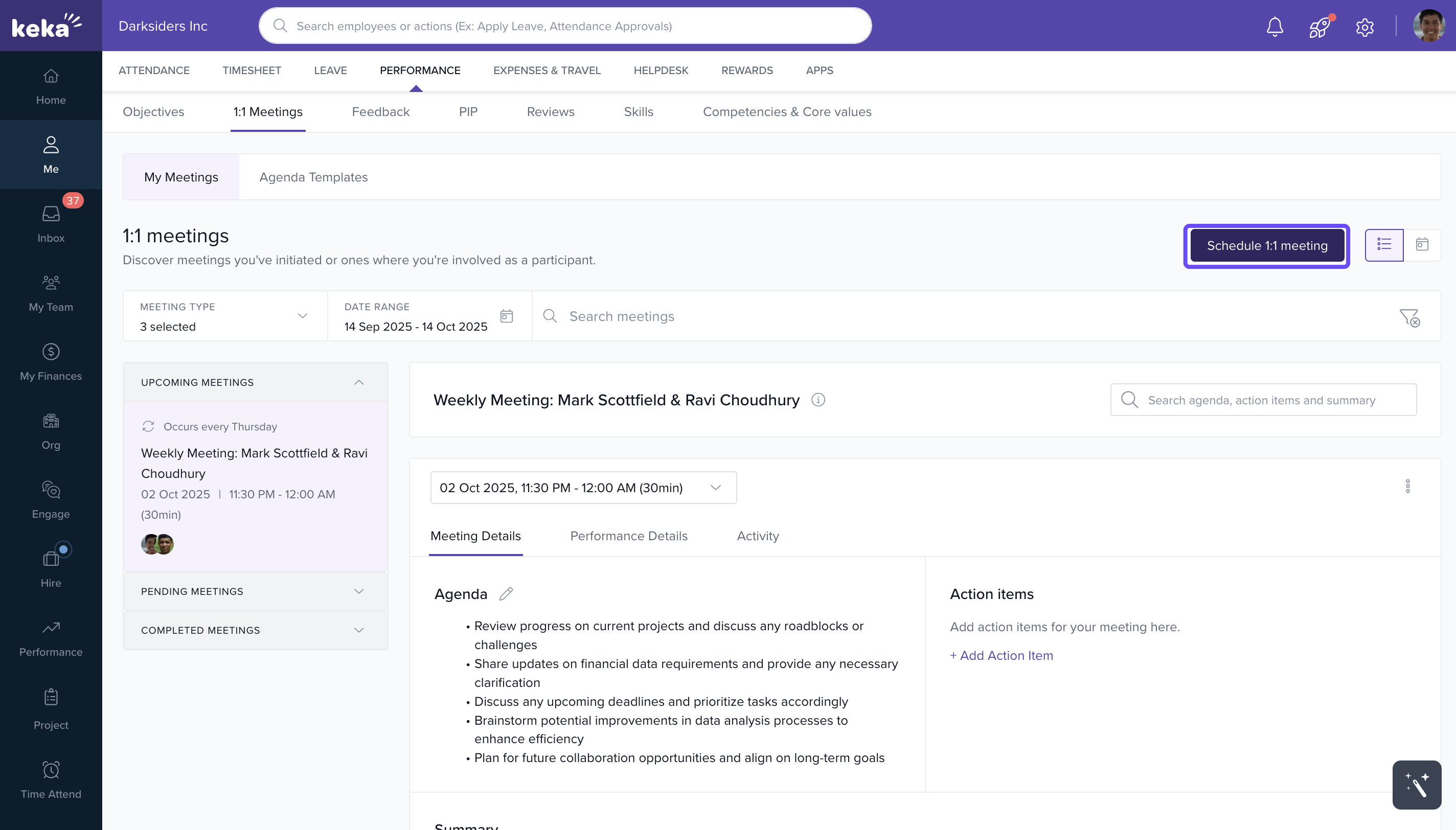
Click Schedule Meeting.
-
Fill in the meeting details:
Title
Participants
Date, Start Time, End Time
Frequency (one-time or recurring)
Click Check Available Timeslots to view participant availability.
-
Select a time and click Schedule.
Calendar Sync and Event Creation
When a meeting is scheduled:
An event is automatically created in each participant’s Google Calendar
-
The invite includes:
Meeting title
Date and time
Virtual meeting link (if Google Meet is selected)
Participants receive calendar notifications as usual
This helps ensure every 1:1 is properly recorded, acknowledged, and attended.
Notes & Tips
Tip: Encourage employees to keep their Google Calendar updated for more accurate scheduling suggestions.
Important: Admins must install the Google Calendar app before employees can connect their accounts.
Note: You can integrate both Google Calendar and Google Meet for full virtual meeting automation.
FAQs
Do I need to authorise my Google account every time?
No. Authorisation is a one-time setup unless disconnected manually.Can I use Google Meet without Google Calendar integration?
Yes, but calendar sync won’t occur automatically without Google Calendar integration.Will the meeting appear on all participants’ calendars?
Yes, once scheduled, all invitees receive a calendar event automatically.
Comments
0 comments
Please sign in to leave a comment.