Introduction
1:1 meetings in Keka are designed to build stronger manager-employee relationships while fostering continuous performance improvement. These meetings provide a structured way to discuss goals, review progress, address blockers, and align expectations.
With Keka’s 1:1 Meetings module, you can track meeting frequency, assess engagement levels across departments, and ensure every employee has regular touch points with their manager.
Tracking 1:1 Meetings Across the Organisation
To view organisation-wide meeting data:
- Navigate to Performance and click on 1:1 Meetings.
- And then click on Summary tab.
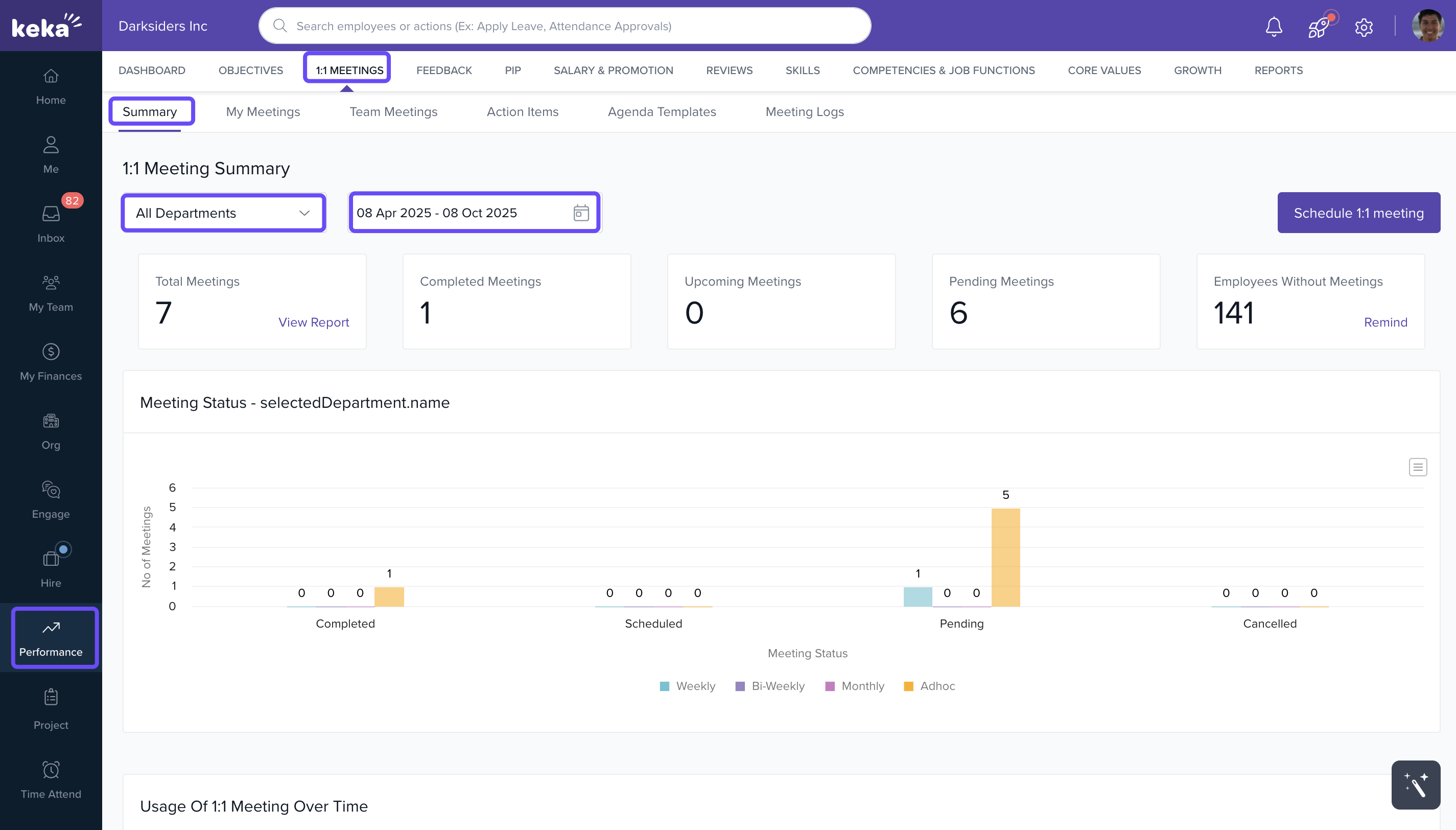
- Use filters to select specific departments and a timeframe.
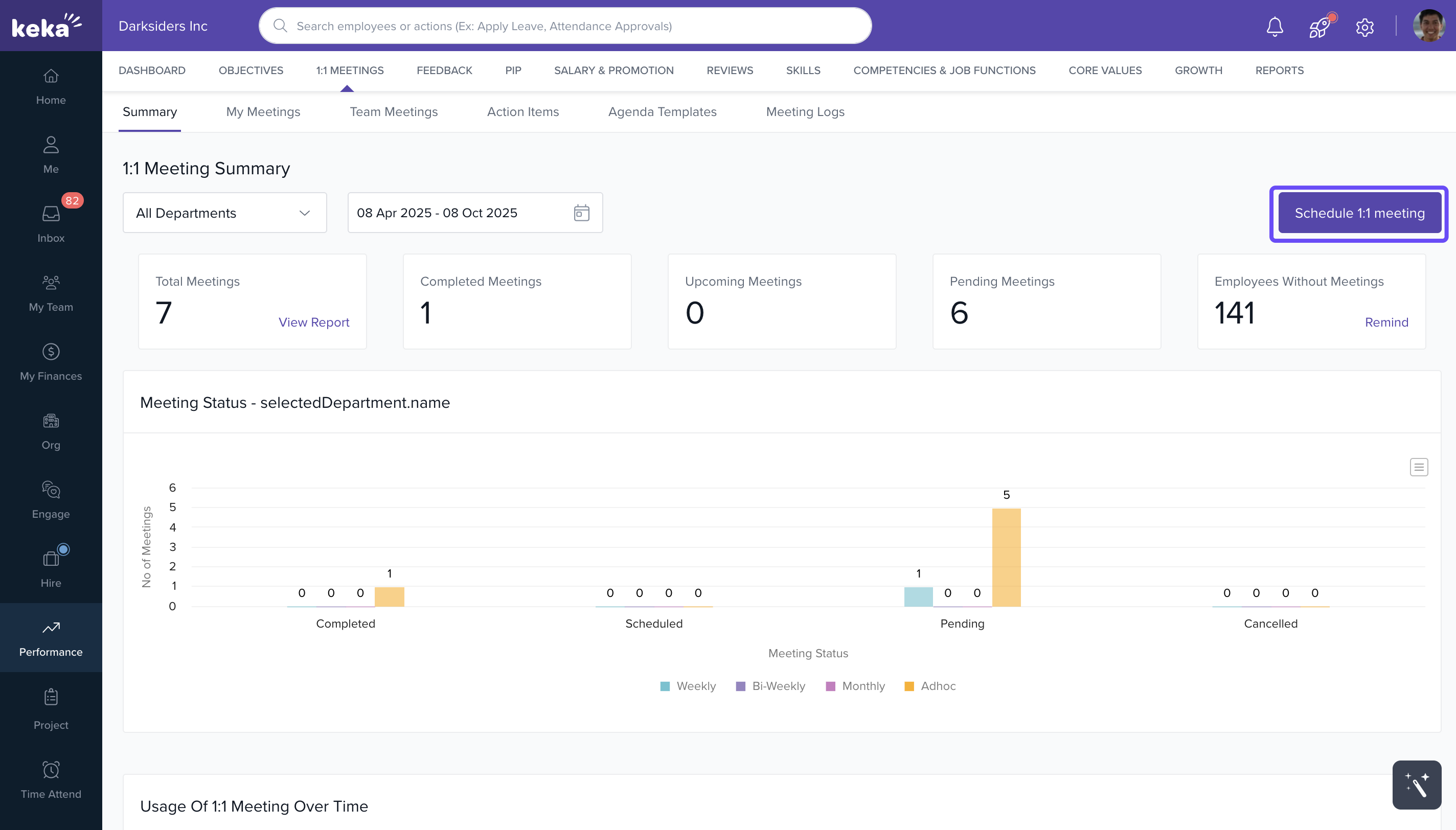
- The dashboard shows:
- Total scheduled meetings
- Completed meetings
- Pending / Upcoming meetings
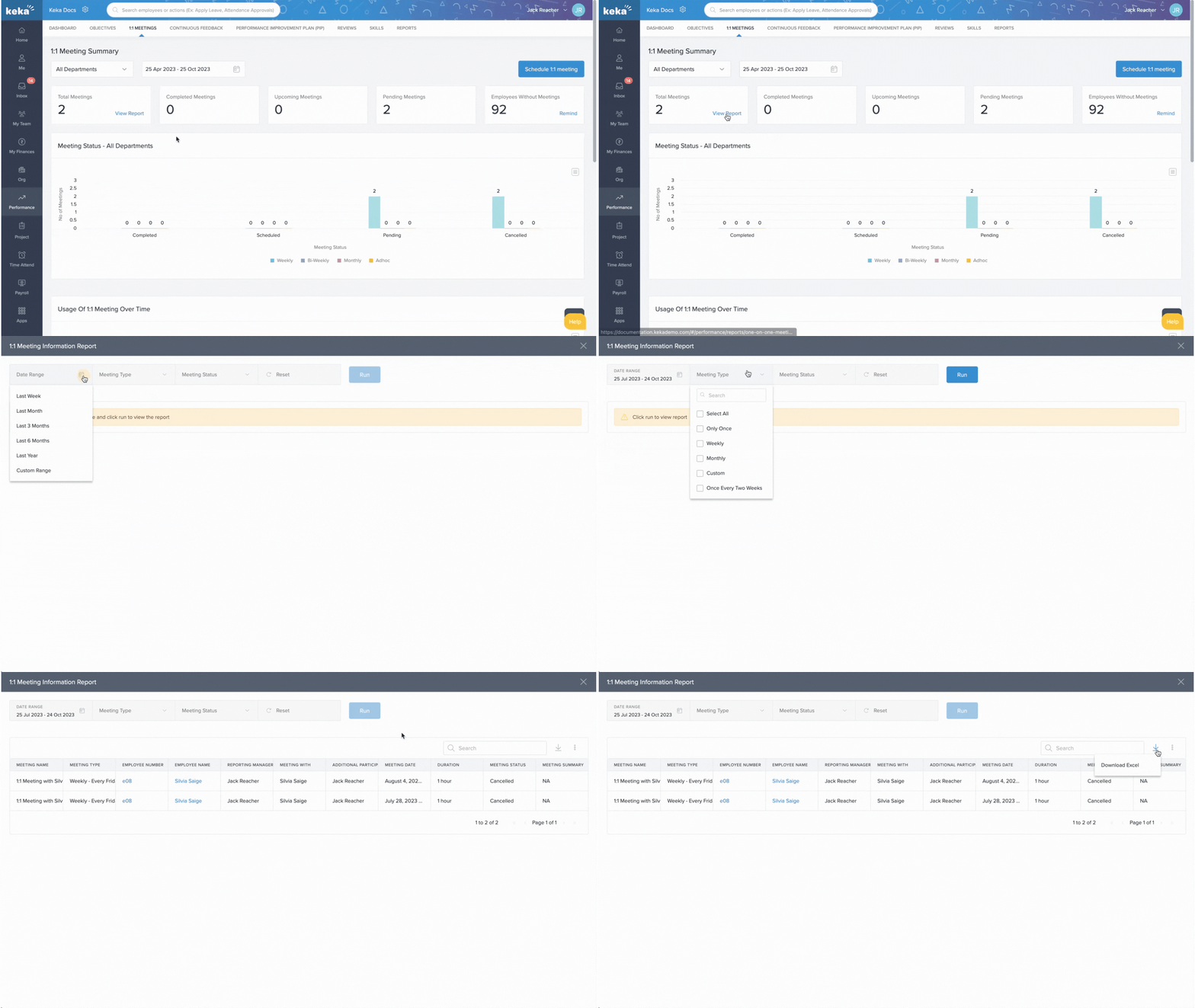
- Click View Report under the “Completed Meetings” section to view detailed summaries for any time range (e.g., last 30 days).
- You can prompt managers to schedule pending 1:1s for their teams.
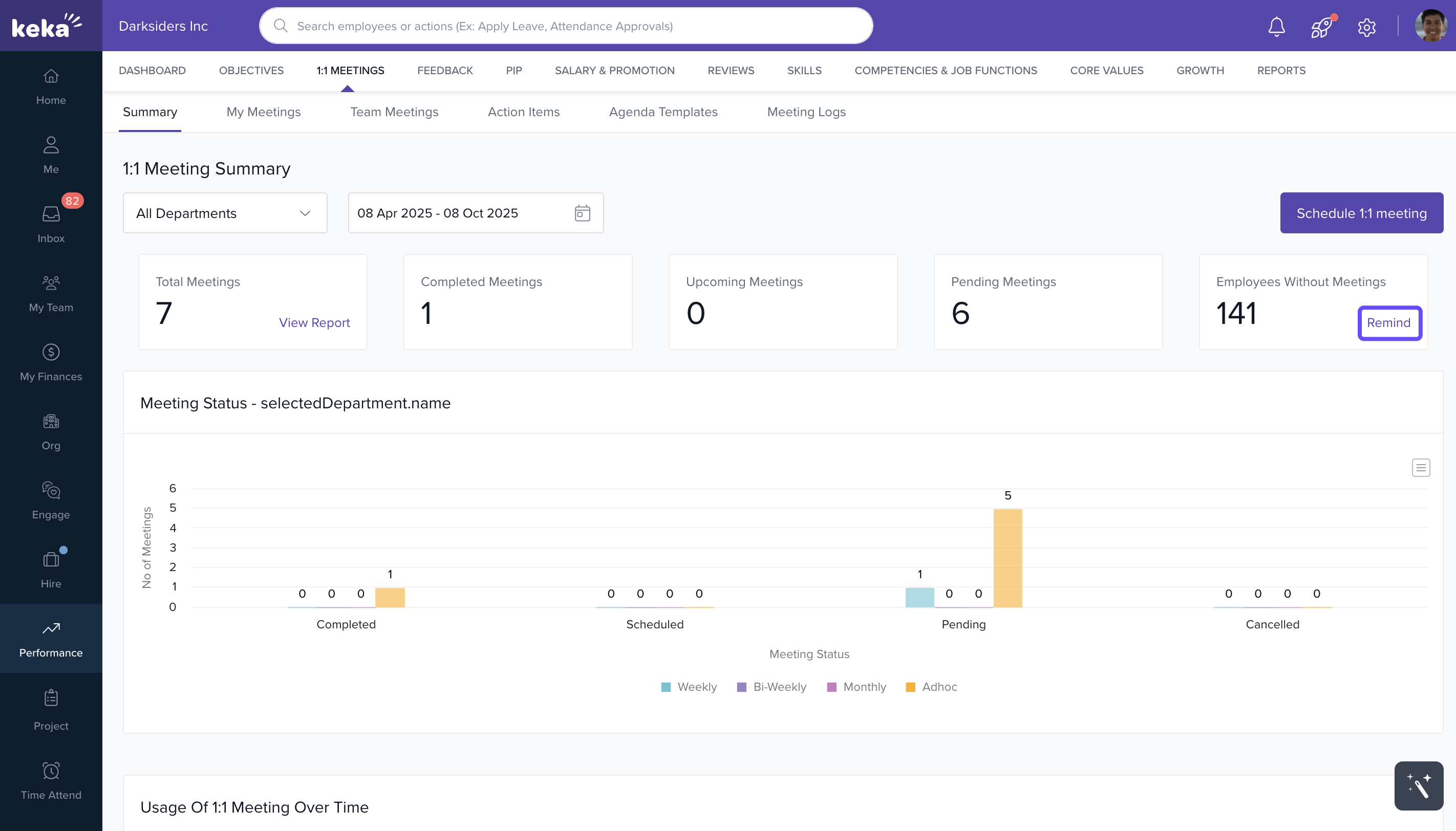
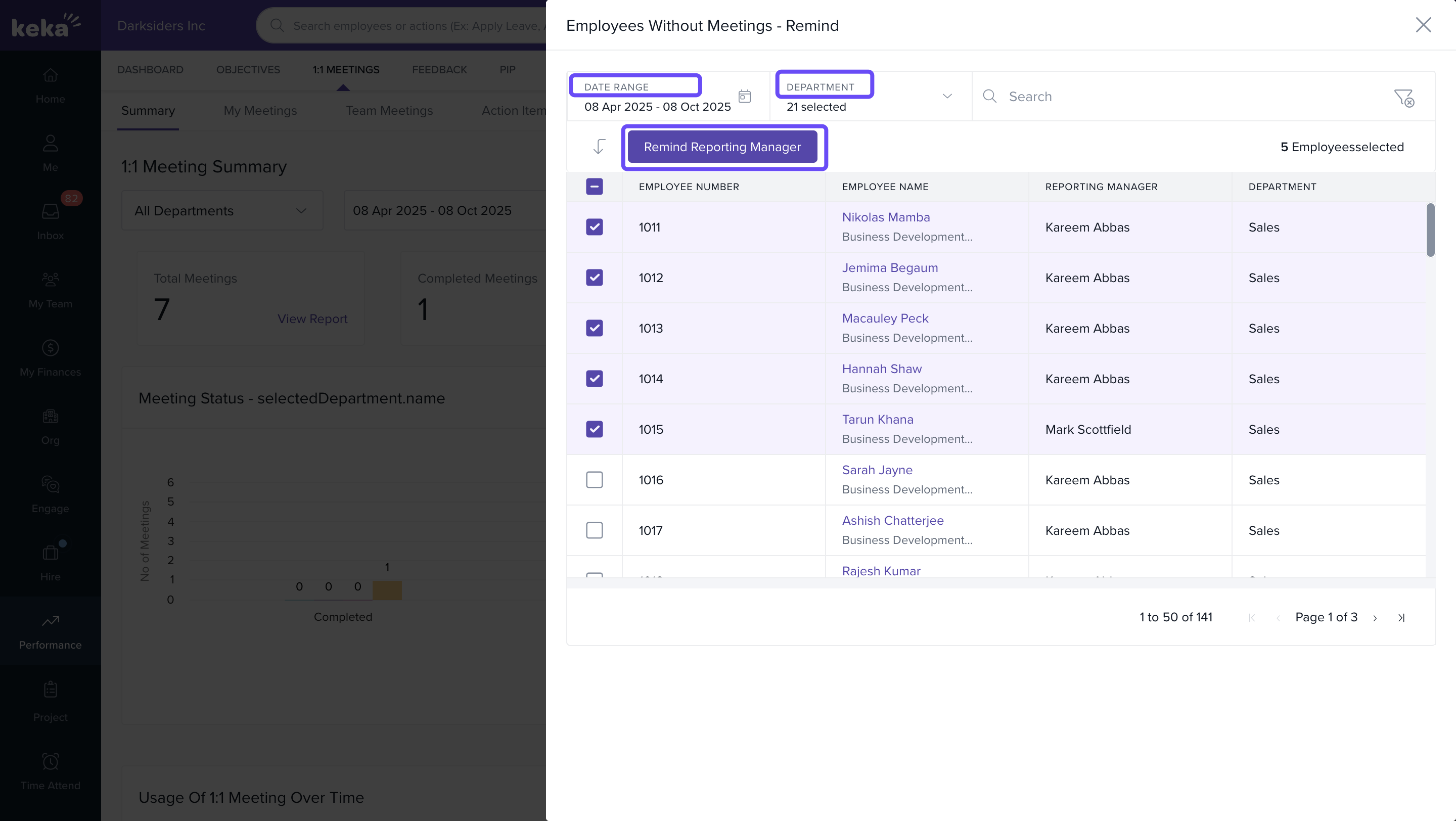
- Use the Remind Managers option to send nudges to individuals or entire departments.
-
You can send reminders to entire departments simultaneously.
Scheduling a 1:1 Meeting
While many 1:1s are initiated during performance reviews, you can schedule ad-hoc meetings with any employee.
To schedule a 1:1 meeting:
- Go to Performance and click on 1:1 Meetings.
- Click Schedule 1:1 Meeting.
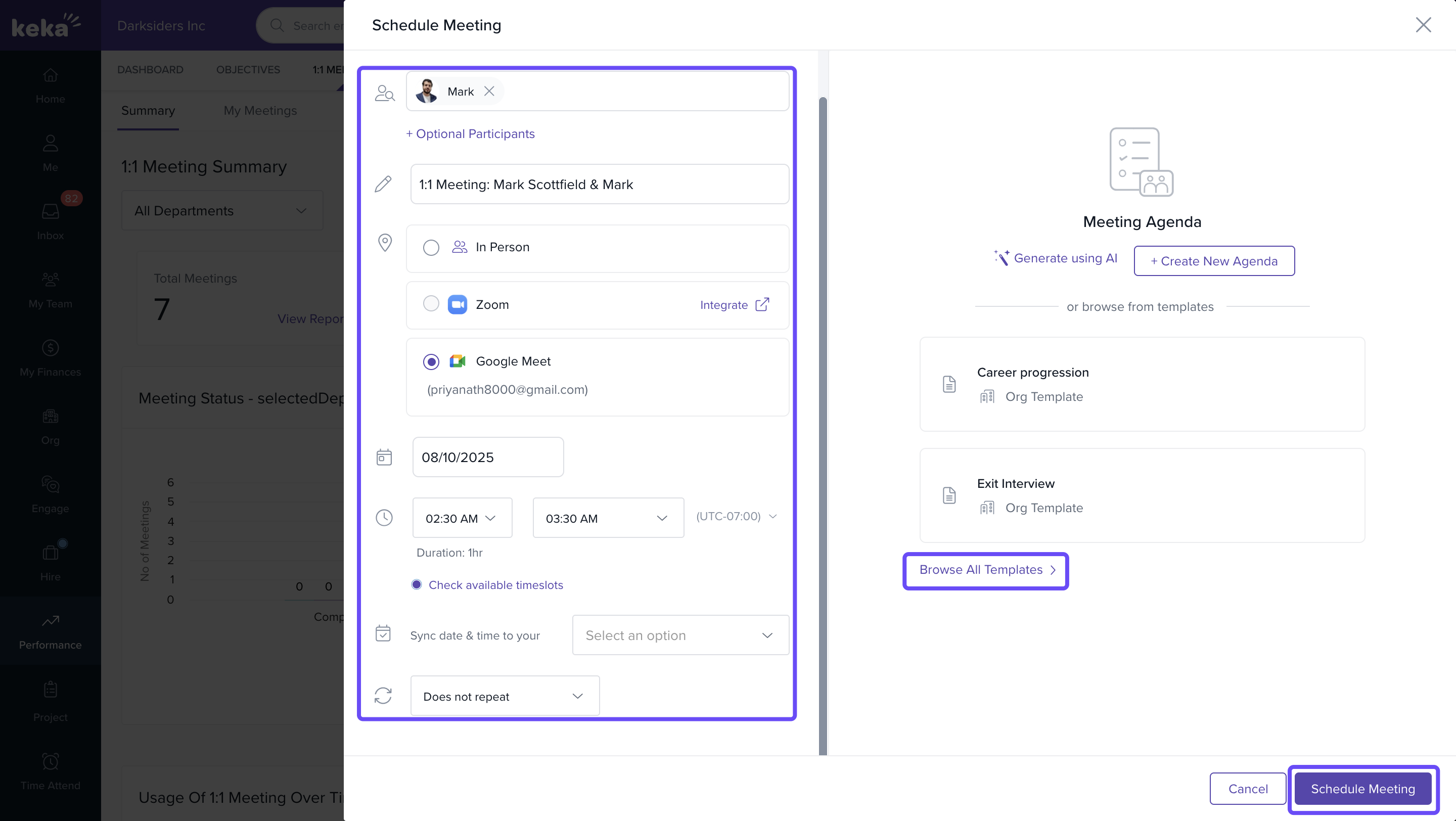
- In the scheduling window:
- Select the employee(s) for the meeting
- Add optional attendees
- Choose the meeting platform: Zoom, Microsoft Teams, or Google Meet
- Set the meeting title, date, start and end time
- Define frequency (one-time or recurring)
- Click Check Available Time slots to auto-match availability across calendars.
- Add agenda points using:
- Browse All Templates for prebuilt structures.
- Create New Agenda to define your own topics.
- Once all details are filled, click Schedule.
Monitoring Usage Trends and Departmental Coverage
The module includes visual charts to help you track usage patterns:
-
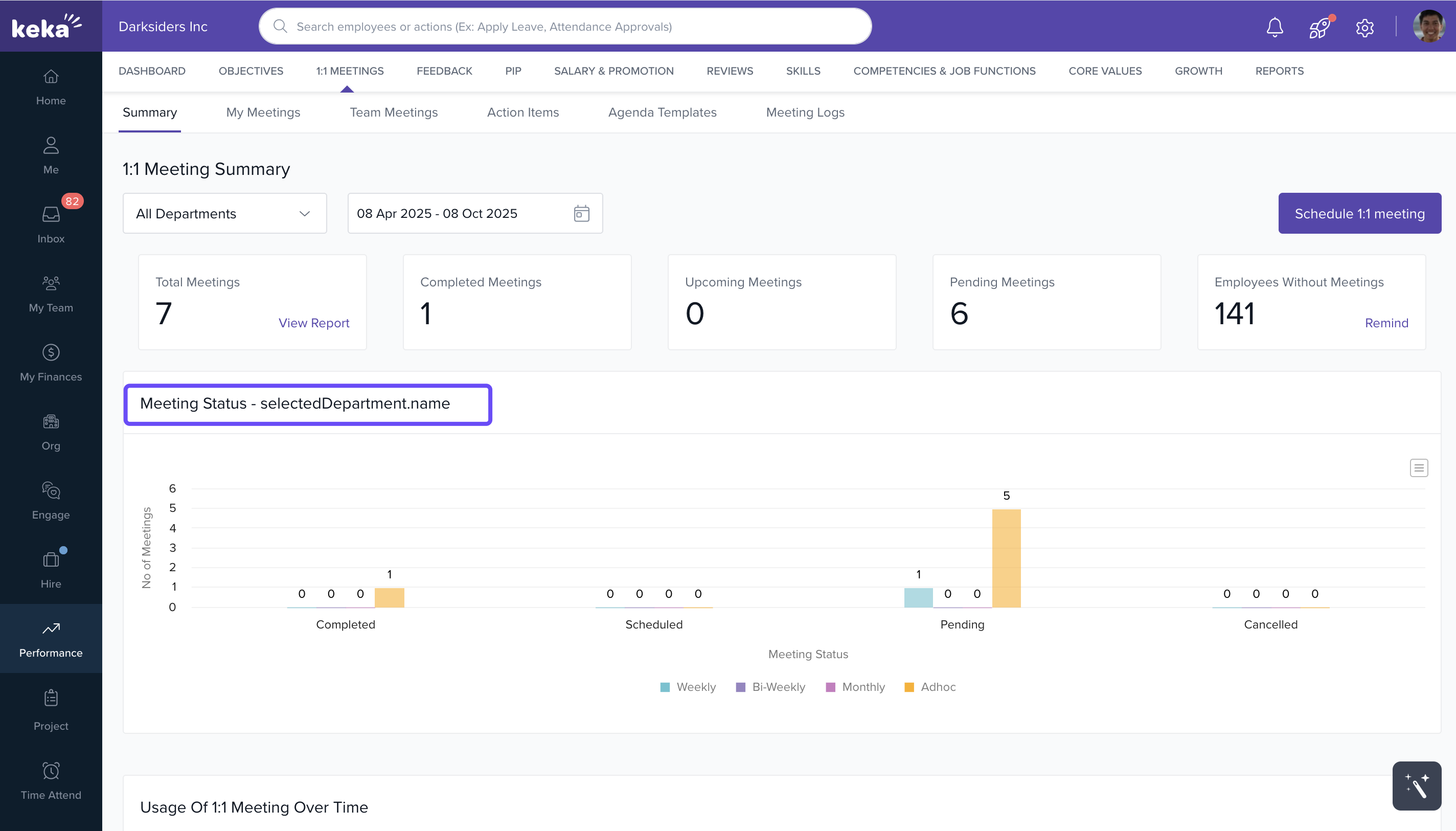
Meeting Summary Chart: Shows number of meetings scheduled, completed, and pending across all departments.
-
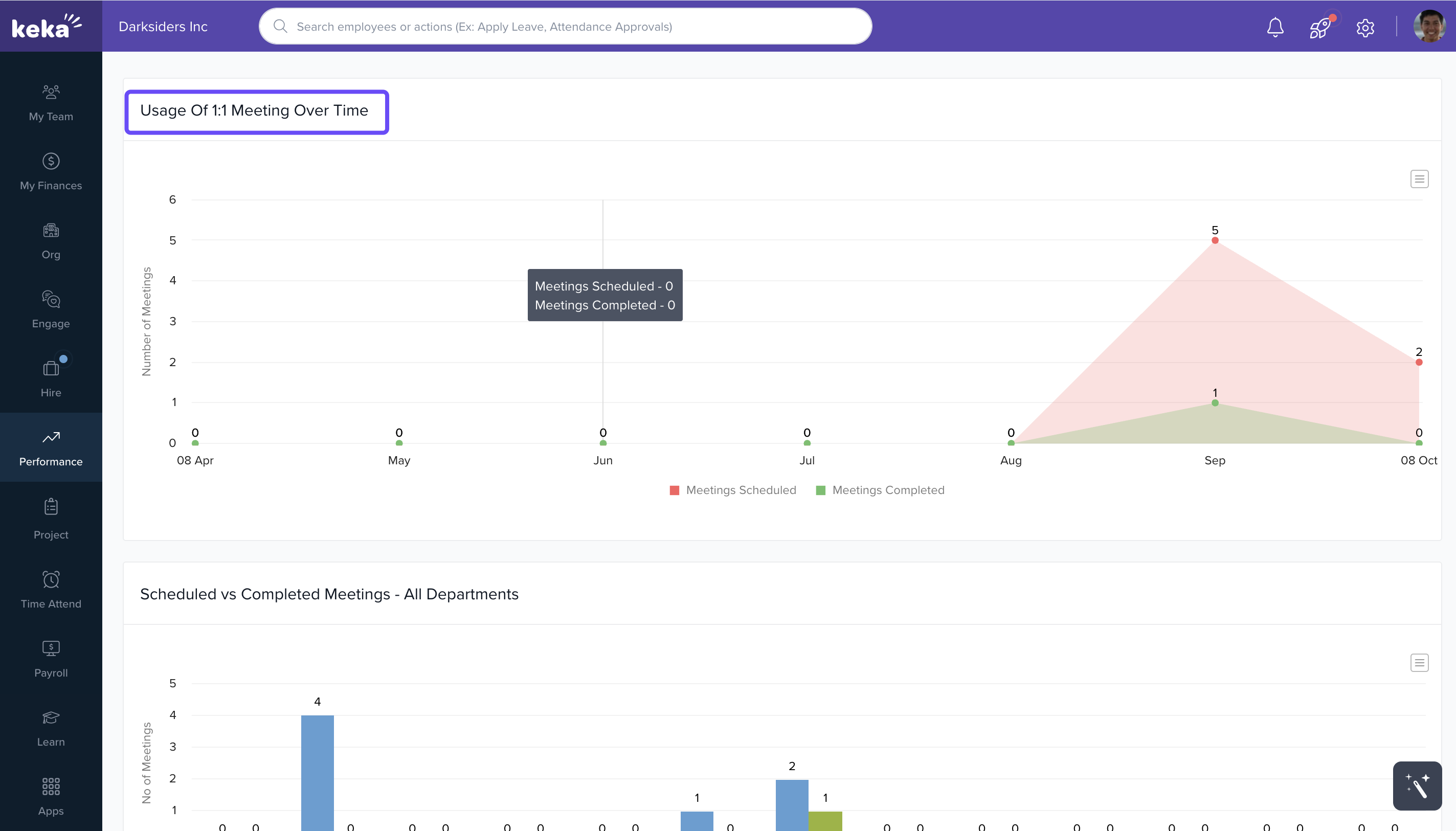
Usage Over Time Graph: Displays how 1:1 meetings trend over the selected timeframe (e.g., per week or month).
-
Scheduled vs Completed by Department: Compares scheduled vs. completed meetings across departments, highlighting gaps or strong engagement.
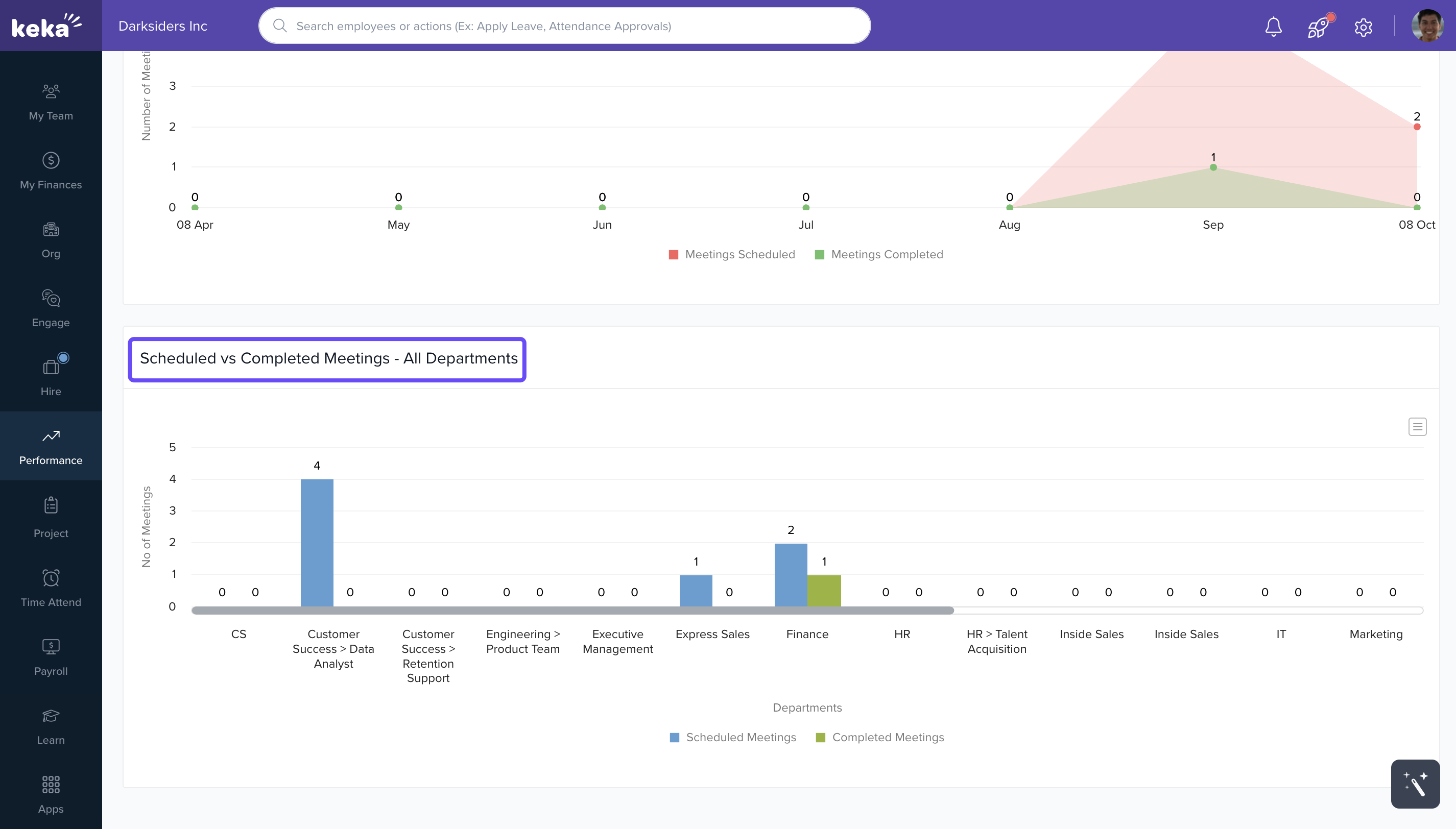
All graphs can be downloaded as images for presentations or internal reporting.
All graphs can be exported as image or PDF files for presentations or internal reports.
Customising and Using Meeting Templates
Meeting agendas can be standardised for recurring check-ins or customised per role.
To use or modify a template:
- During scheduling, click Browse All Templates
- Select a template and click Use Template.
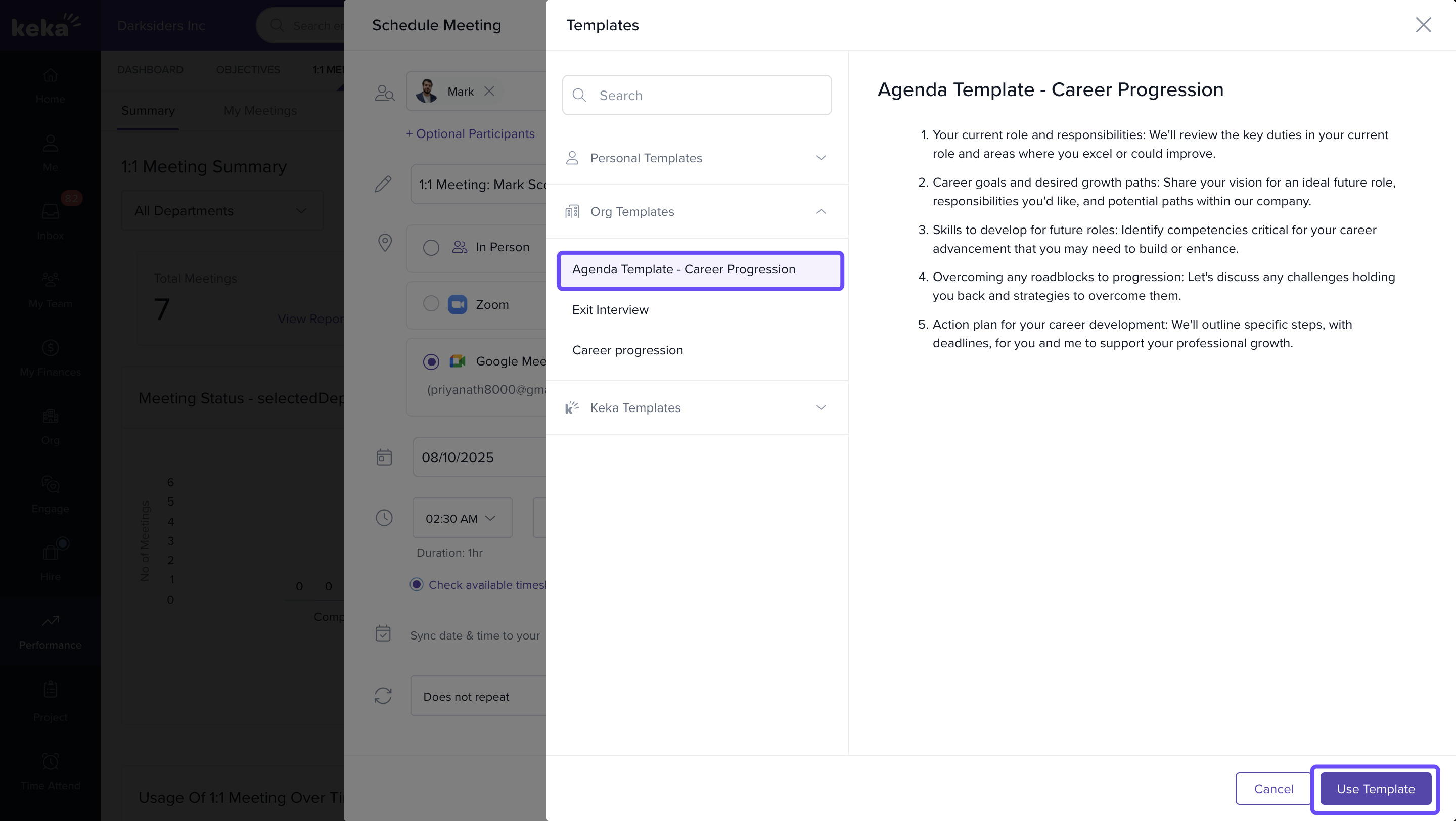
- And modify agenda items or sequence as needed
- Click Schedule Meeting with that template, your version will be saved under Personal Templates for easy access.
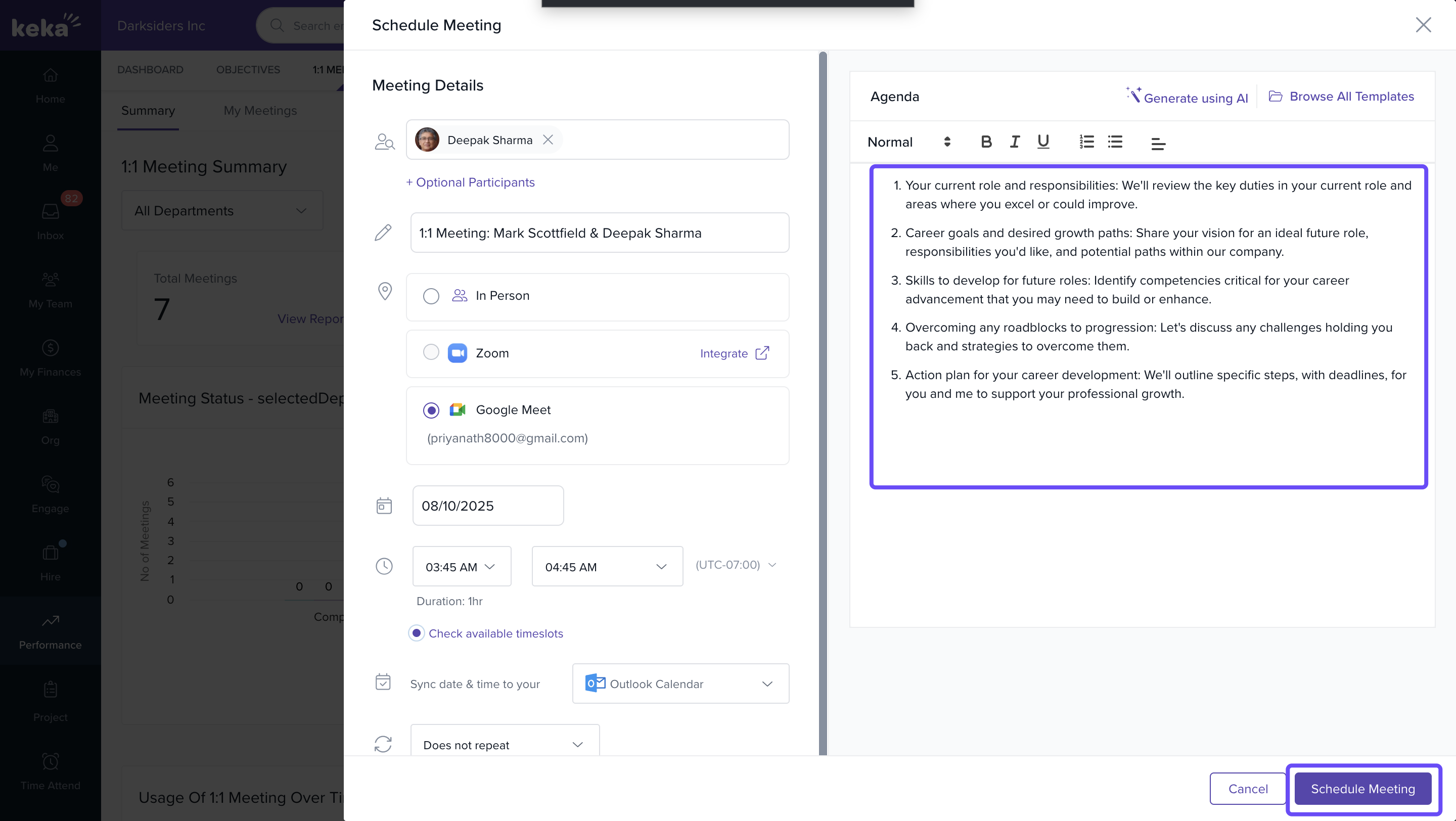
You can reuse these customised templates for future 1:1s, ensuring consistency in conversations.
Notes & Tips
- Tip: Use the Check Available Time slots tool to avoid rescheduling due to calendar conflicts.
- Note: Regular meetings with consistent agenda templates ensure conversations stay focused and actionable.
- Important: Managers can be reminded automatically if meetings haven’t been scheduled for their team members within the defined window.
FAQs
-
Can I schedule a 1:1 with someone outside my reporting line?
Yes, you can initiate meetings with any employee across the organisation. -
Will employees receive reminders before a 1:1?
Yes, participants are notified ahead of time through calendar events and reminders. -
Can I edit a scheduled meeting?
To edit a scheduled meeting, click the three-dot icon next to the meeting under the My Meetings tab and select Edit meeting details. From here, you can modify the time, agenda, or participants as needed.
Next Steps
- Learn more about Agenda Templates and Meeting Logs.
- Explore Zoom Calendar Integrations for 1:1 Meetings.
Comments
0 comments
Please sign in to leave a comment.