Overview
Keka’s Zoom integration makes it easy to schedule and join 1:1 meetings virtually, right from the Performance module. With automatic calendar blocking now supported, meetings are added to calendars instantly, minimising scheduling conflicts and enhancing team coordination.
Whether you're working remotely or collaborating across time zones, Zoom + Keka ensures every meeting is accounted for.
Enabling Zoom Integration (Admin)
To enable Zoom across your organisation:
- Go to Apps and click on Zoom Meeting for 1:1 checkins.
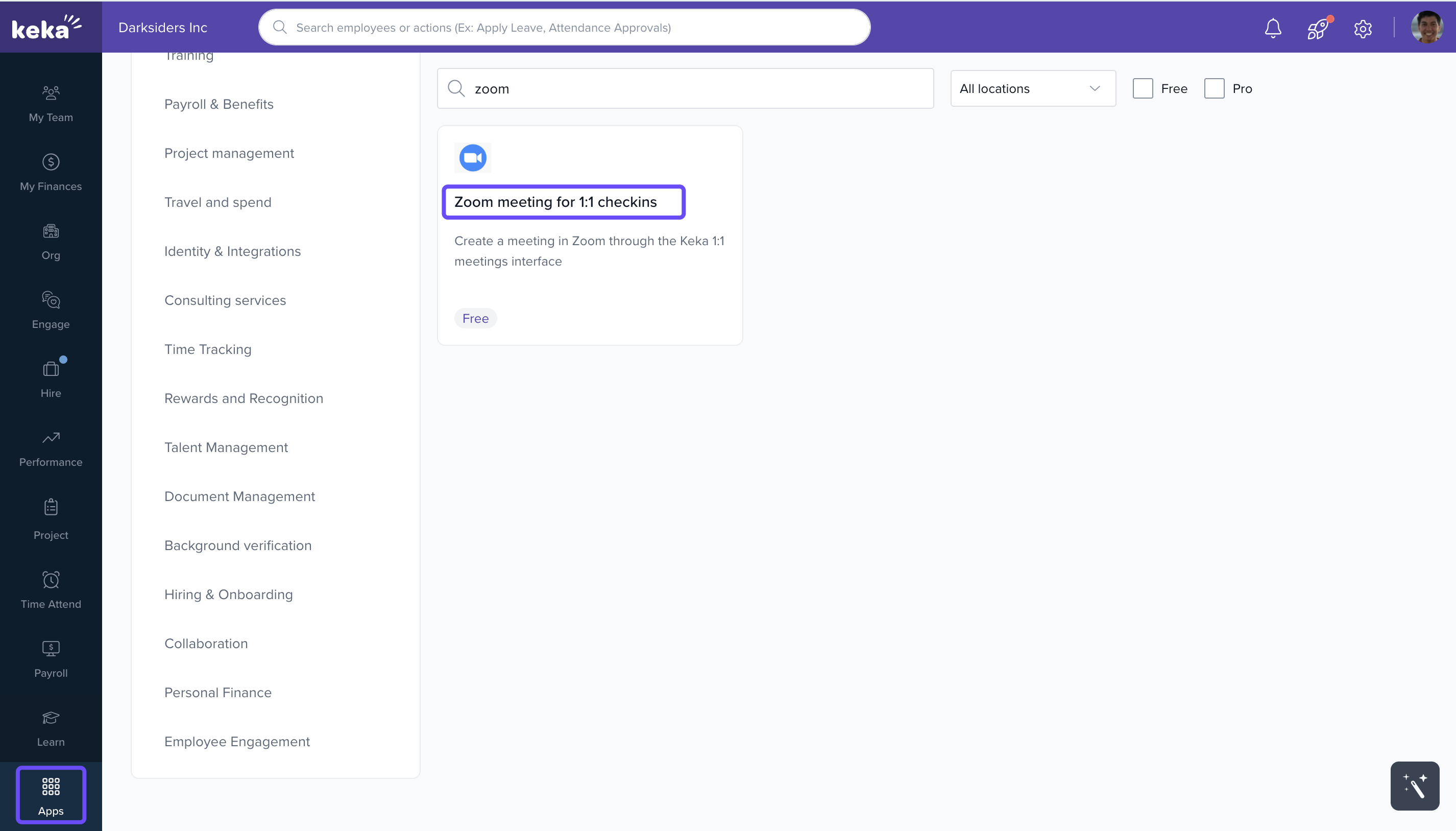
- The Global Admin must install the Zoom app.
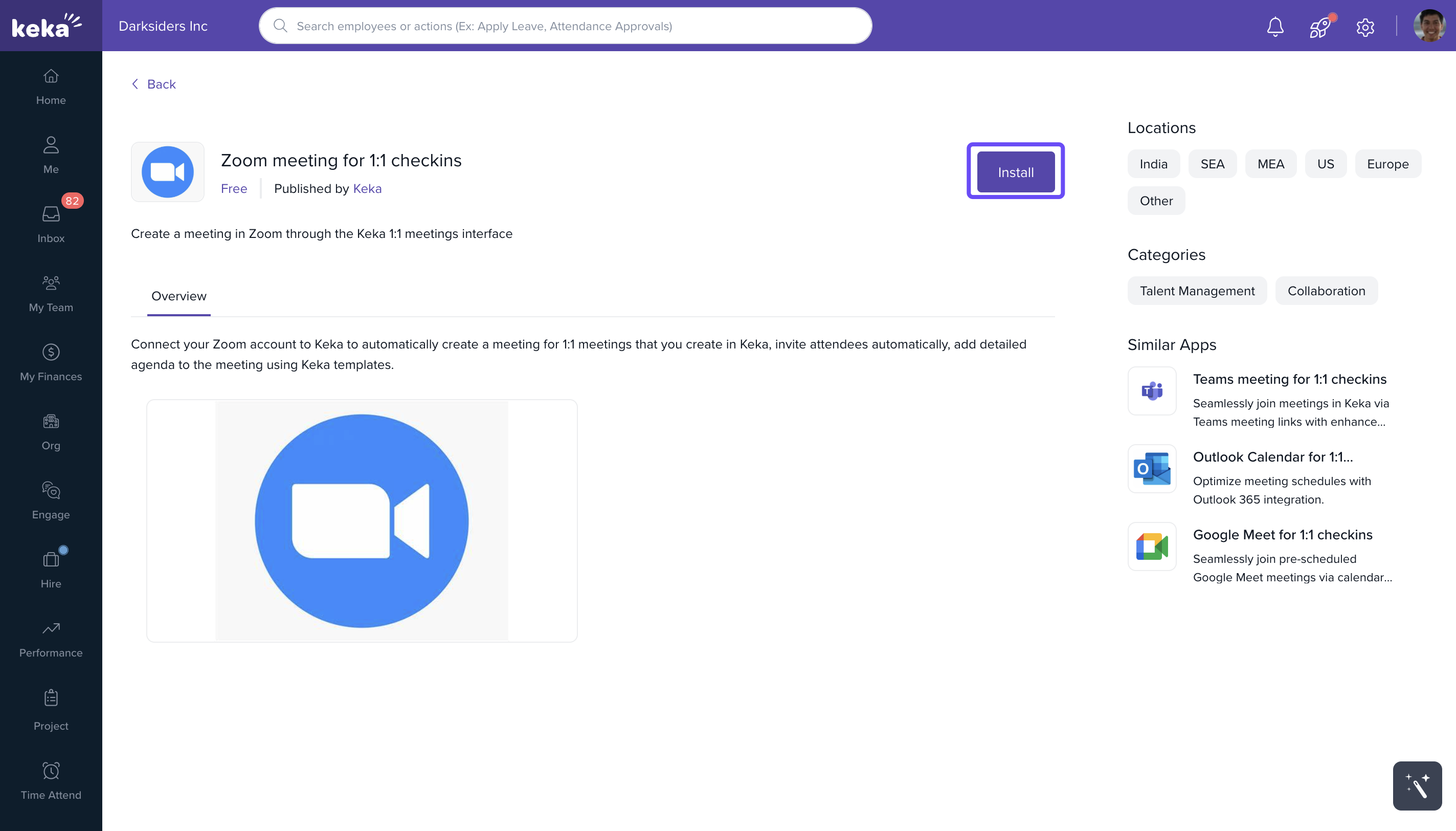
- After installation, Zoom appears for all users in Apps section under the Me tab.
This step enables organisation-wide access to Zoom scheduling within Keka.
Connecting Zoom for Individual Users
Each user must connect their Zoom account to start scheduling meetings.
Steps:
- In the Me section, select Apps. Then click on My Apps and choose Org Enabled. Select Zoom Meeting for 1:1 checkins.
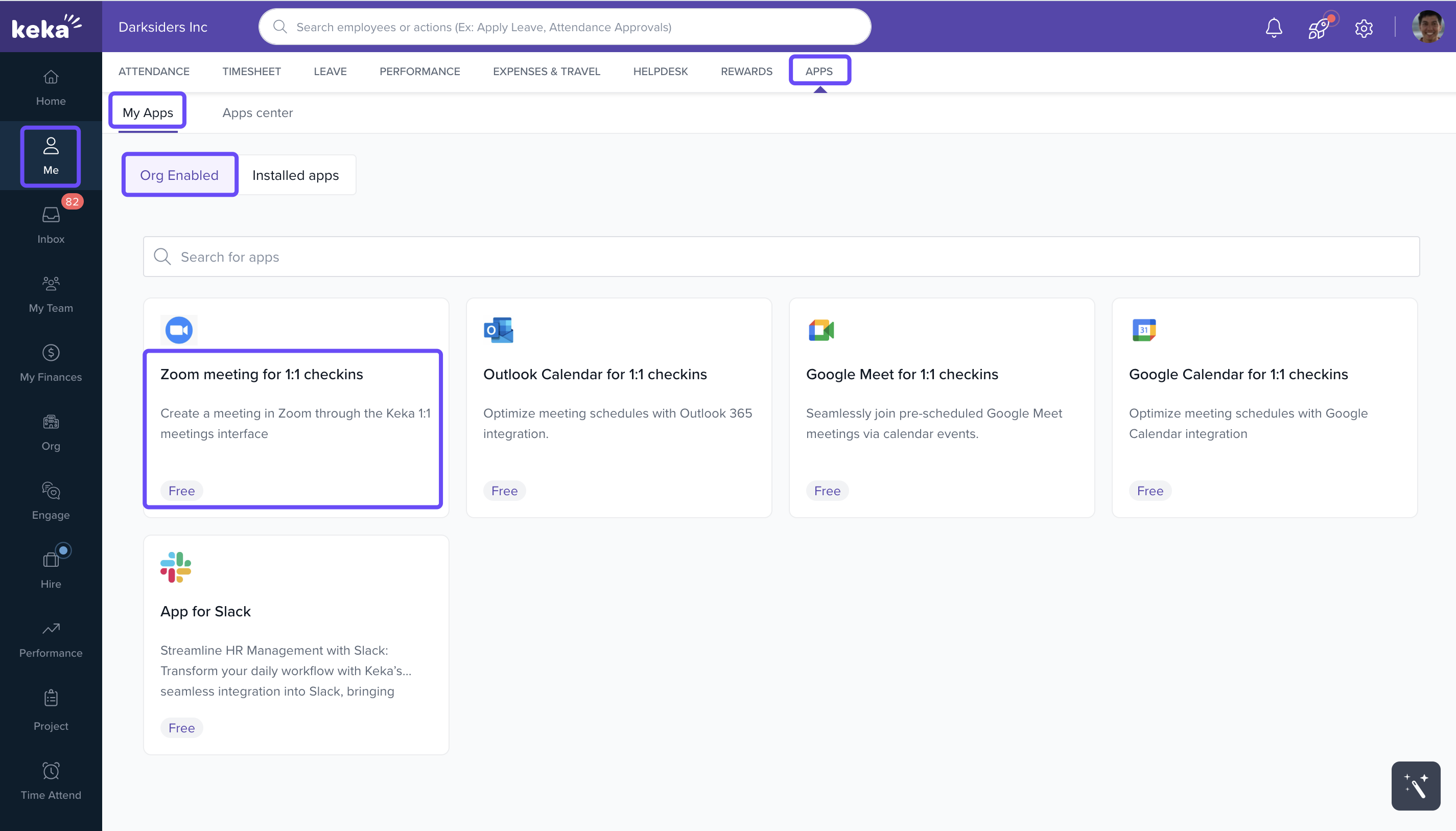
- Under the Zoom tile, click Connect.
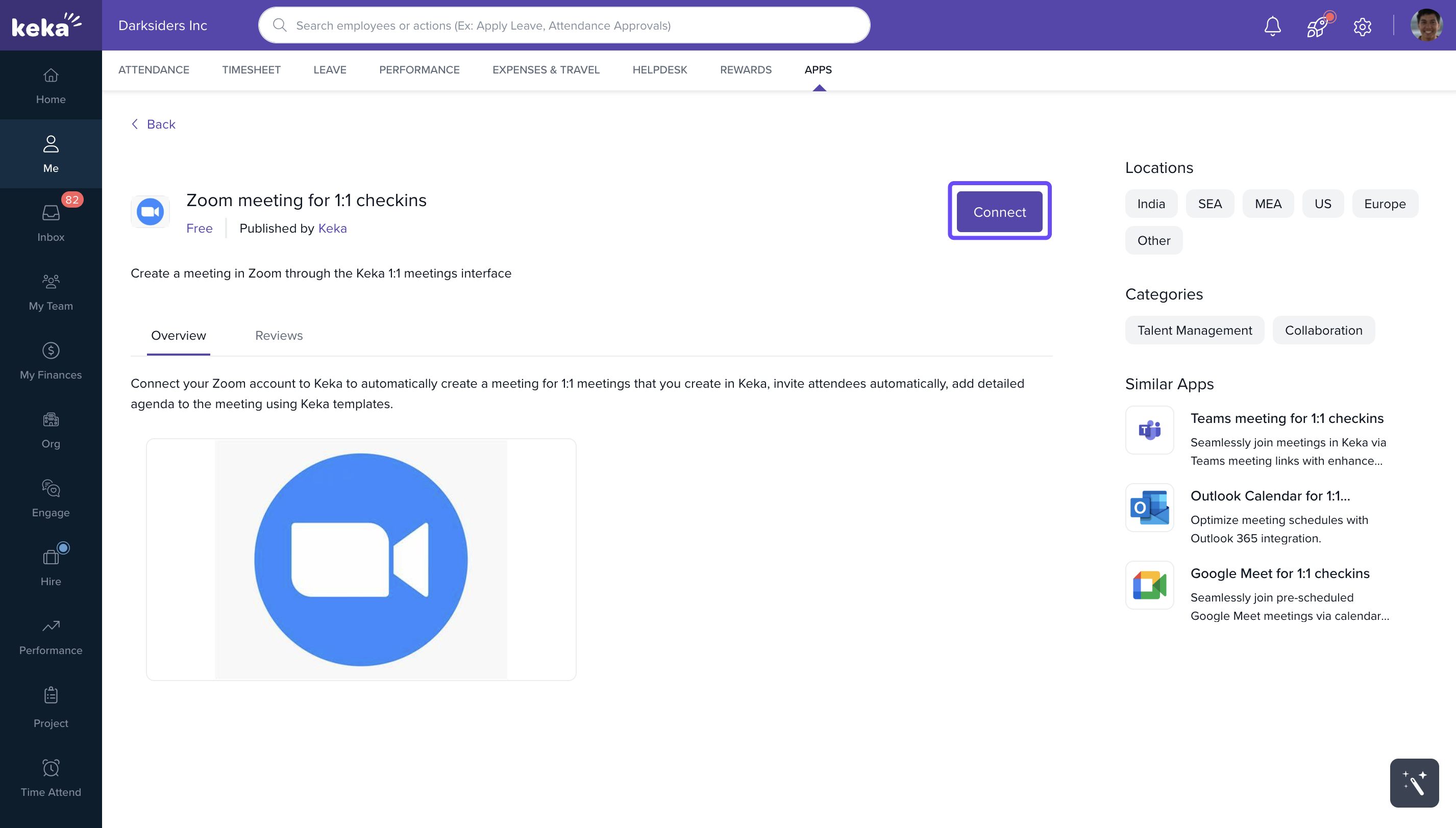
- A Zoom login pop-up will appear.
- Log in and authorise Keka to access your Zoom account.
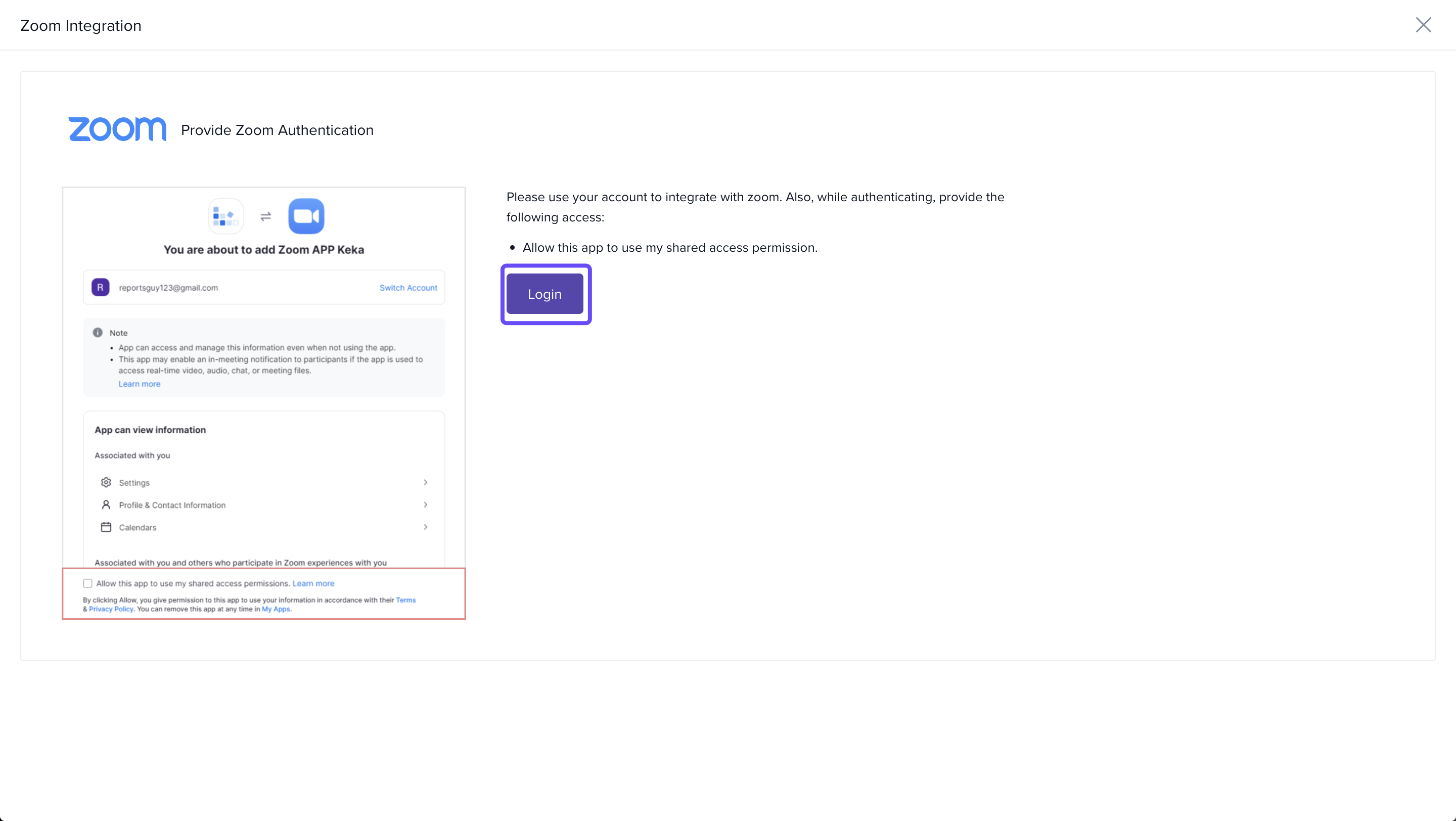
- Zoom will be now linked to your Keka profile.
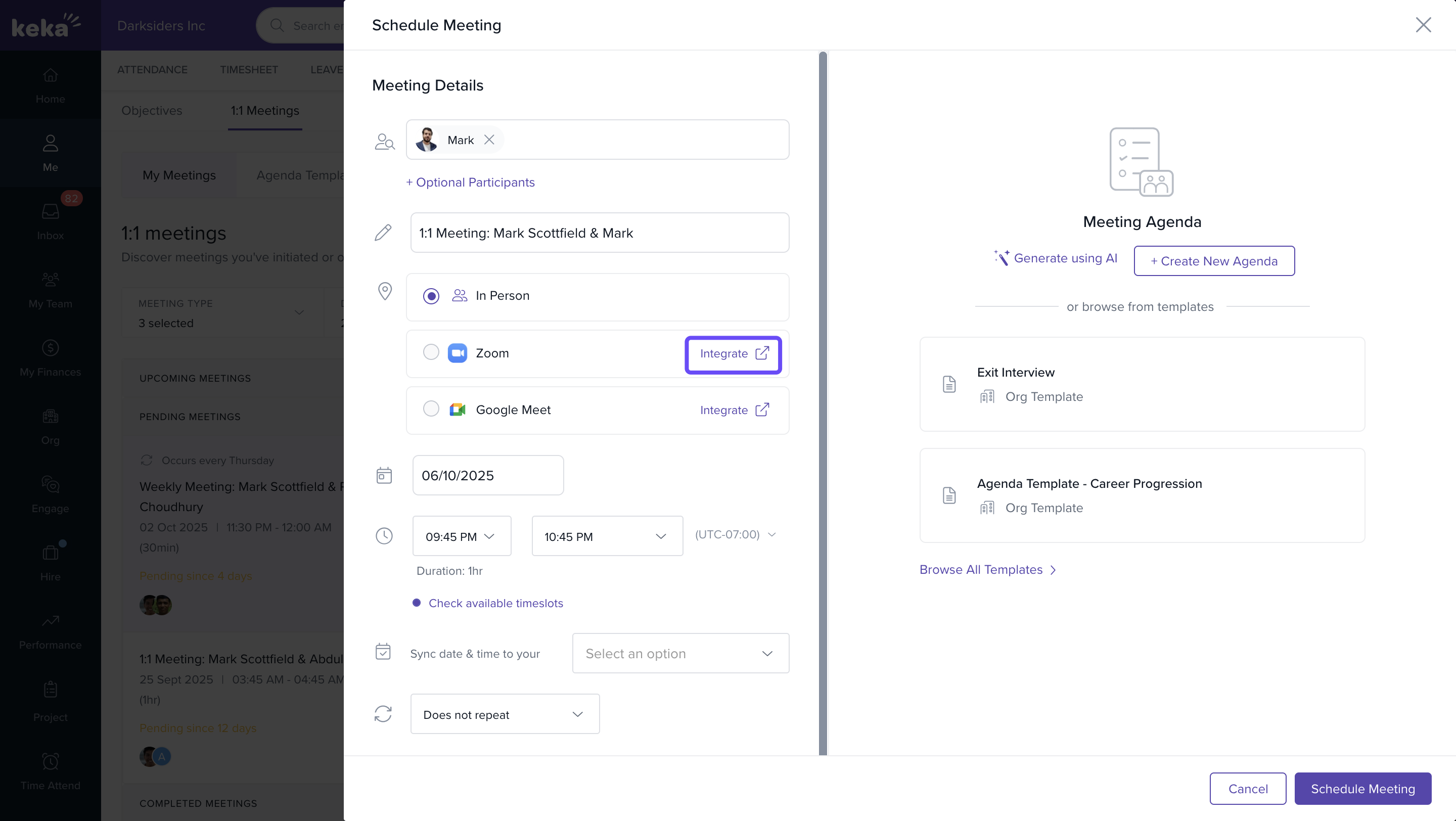
Users can also connect Zoom during the meeting scheduling flow in the 1:1 Meetings module.
Scheduling Zoom Meetings with Calendar Sync
Keka now supports full calendar integration for Zoom—eliminating the risk of overlapping meetings.
To schedule a synced Zoom meeting:
- Go to Performance and click on 1:1 Meetings.
- Click Schedule Meeting.
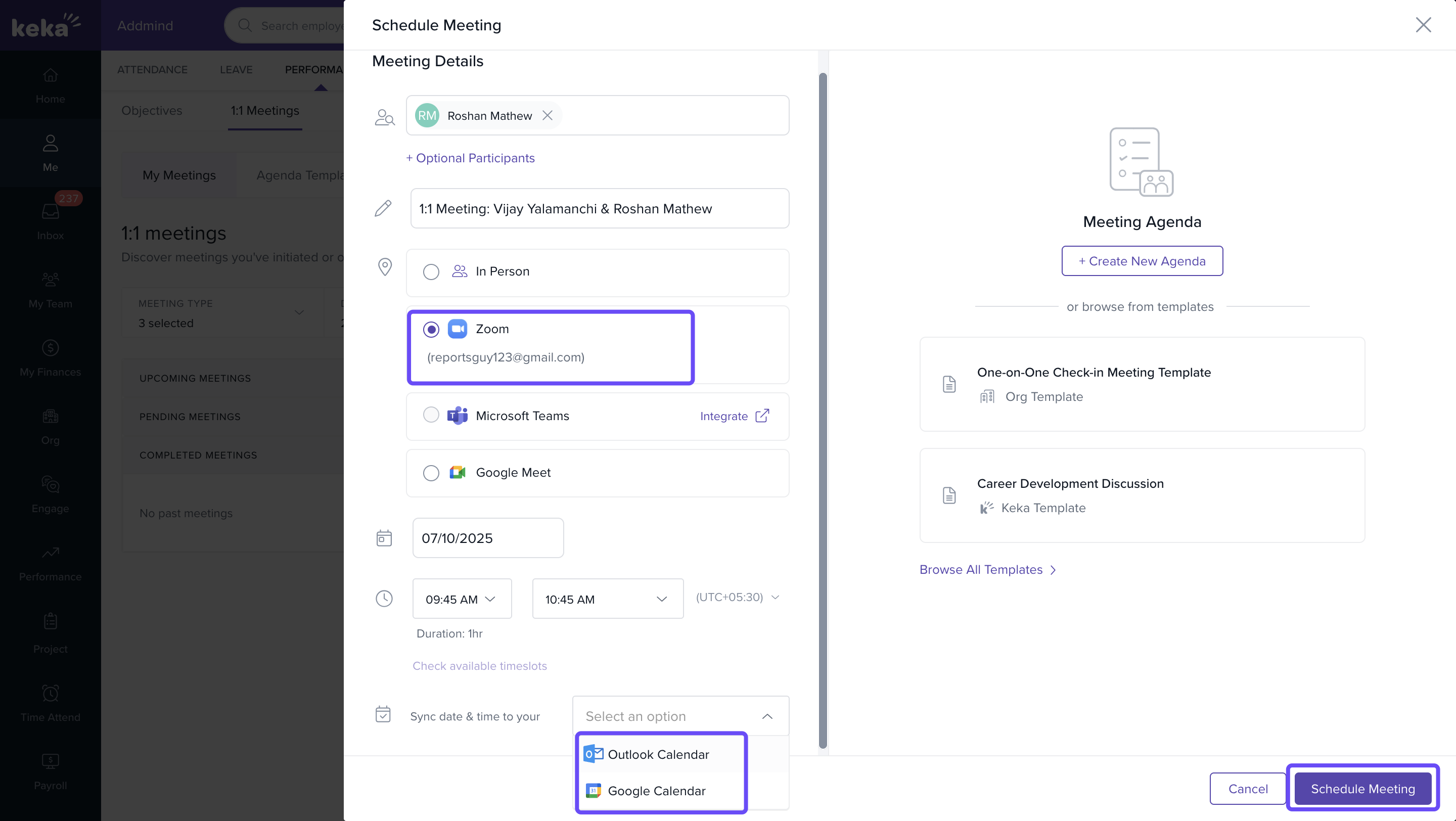
- Choose Zoom as the meeting platform.
- Select your preferred date and time (e.g., 28th April 2025, 09:45 AM – 10:45 AM).
- Click Sync date & time to your calendar.
- Choose either Google Calendar or Outlook Calendar and authorize the connection.
- Click Schedule Meeting.
Once scheduled:
- The Zoom link is automatically generated
- A calendar invite is sent to all participants
- The meeting is blocked in the host and attendees’ calendars
No need to manually copy Zoom links or create separate calendar events.
Notes & Tips
- Tip: Always authorise your preferred calendar (Google or Outlook) to activate auto-blocking.
- Important: Each user needs to connect their Zoom account once. The setup persists until manually disconnected.
FAQs
-
Does Keka now block calendar slots for Zoom meetings?
Yes. Once Zoom is integrated and synced with your calendar, Keka blocks time slots automatically. -
Can I connect Zoom without admin approval?
No. The admin must first install the Zoom app in the organisation’s Keka account. -
Will the Zoom link appear in the calendar invite?
Yes. The invite sent via Google or Outlook will include the Zoom meeting link and details.
Next Steps
- Learn how to Integrate Google Meet with Keka.
- Explore Outlook Calendar Integration.
- Visit the Utilising 1:1 meetings to monitor and enhance employee performance.
Comments
0 comments
Please sign in to leave a comment.