Overview
Outlook Calendar integration with Keka’s 1:1 Meetings helps users schedule performance conversations without time conflicts. The integration checks participants’ availability and auto-suggests optimal meeting slots, simplifying the entire scheduling process.
With this setup, scheduled meetings are automatically added to the participants' Outlook calendars, making it easier to stay organised and on time.
Enabling Outlook Calendar Integration
To activate Outlook Calendar for 1:1 Meetings:
-
Go to Apps and search for Outlook Calendar.
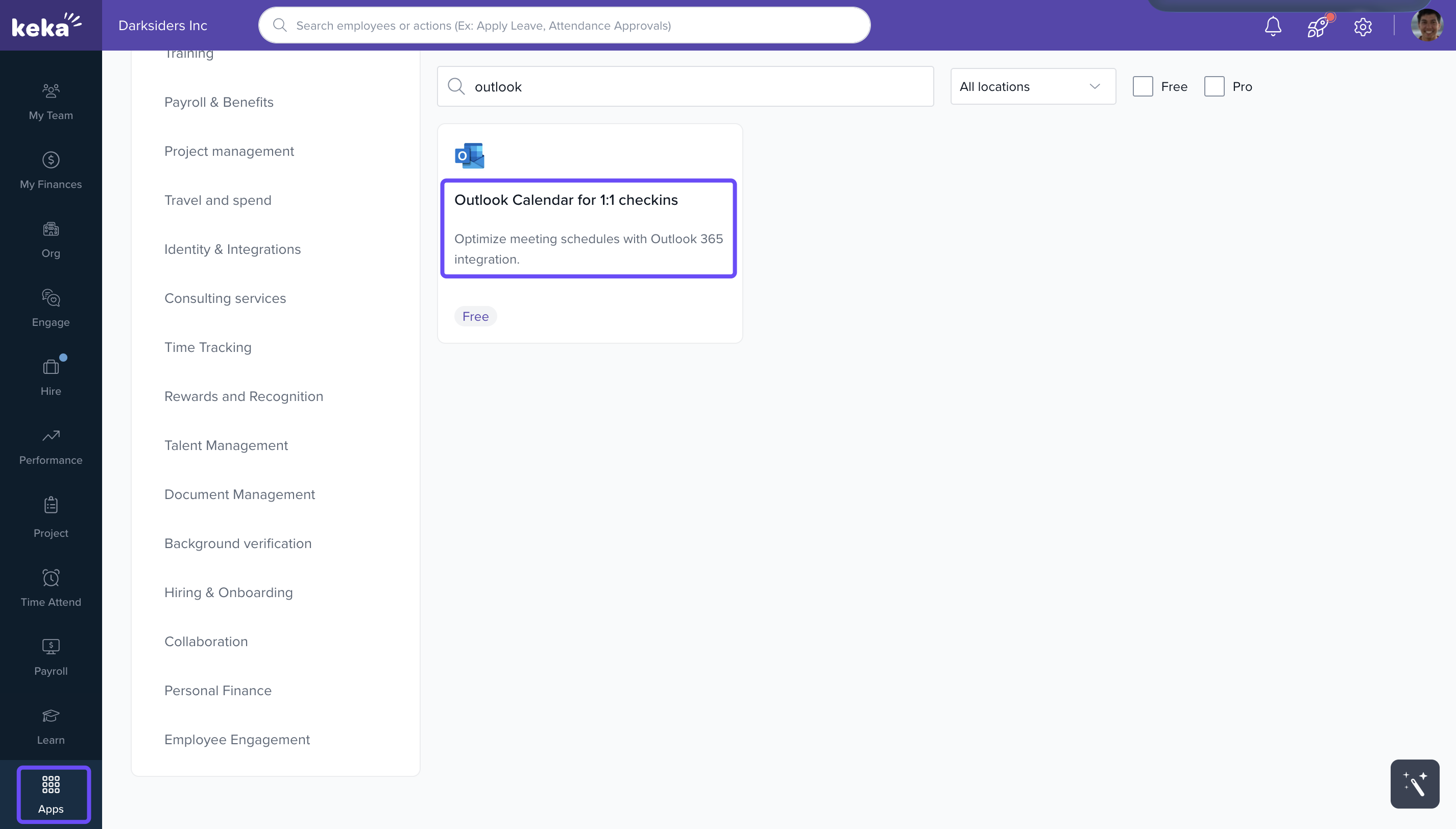
-
The Global Admin must install the app.
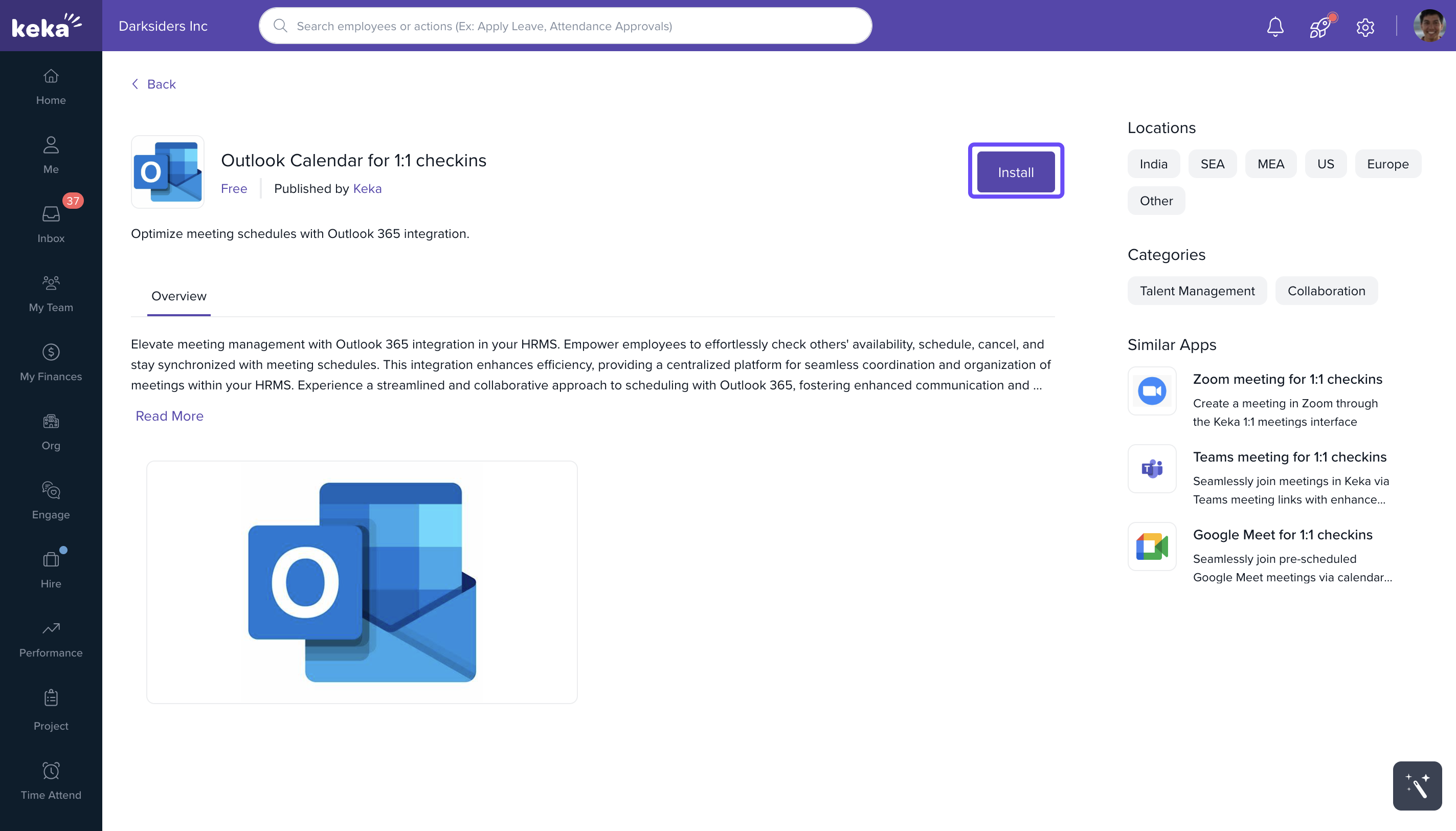
Once installed, all employees gain access to the integration
This is a one-time setup required at the admin level.
Connecting Outlook to Employee Accounts
After the admin installs the app:
Employees go to Me and click on Apps.
-
Find Outlook Calendar for 1:1 checkins.
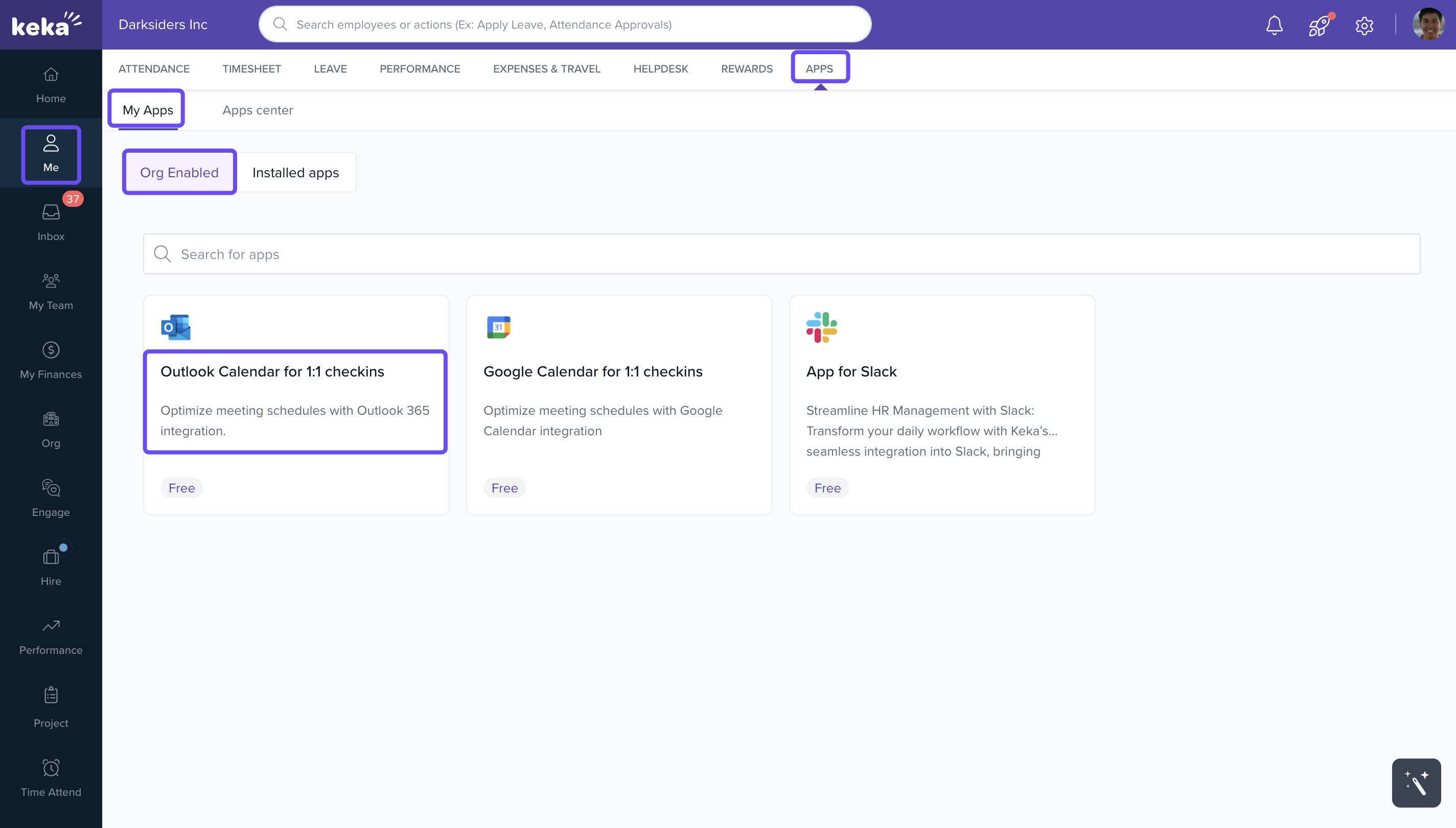
-
Click Connect.
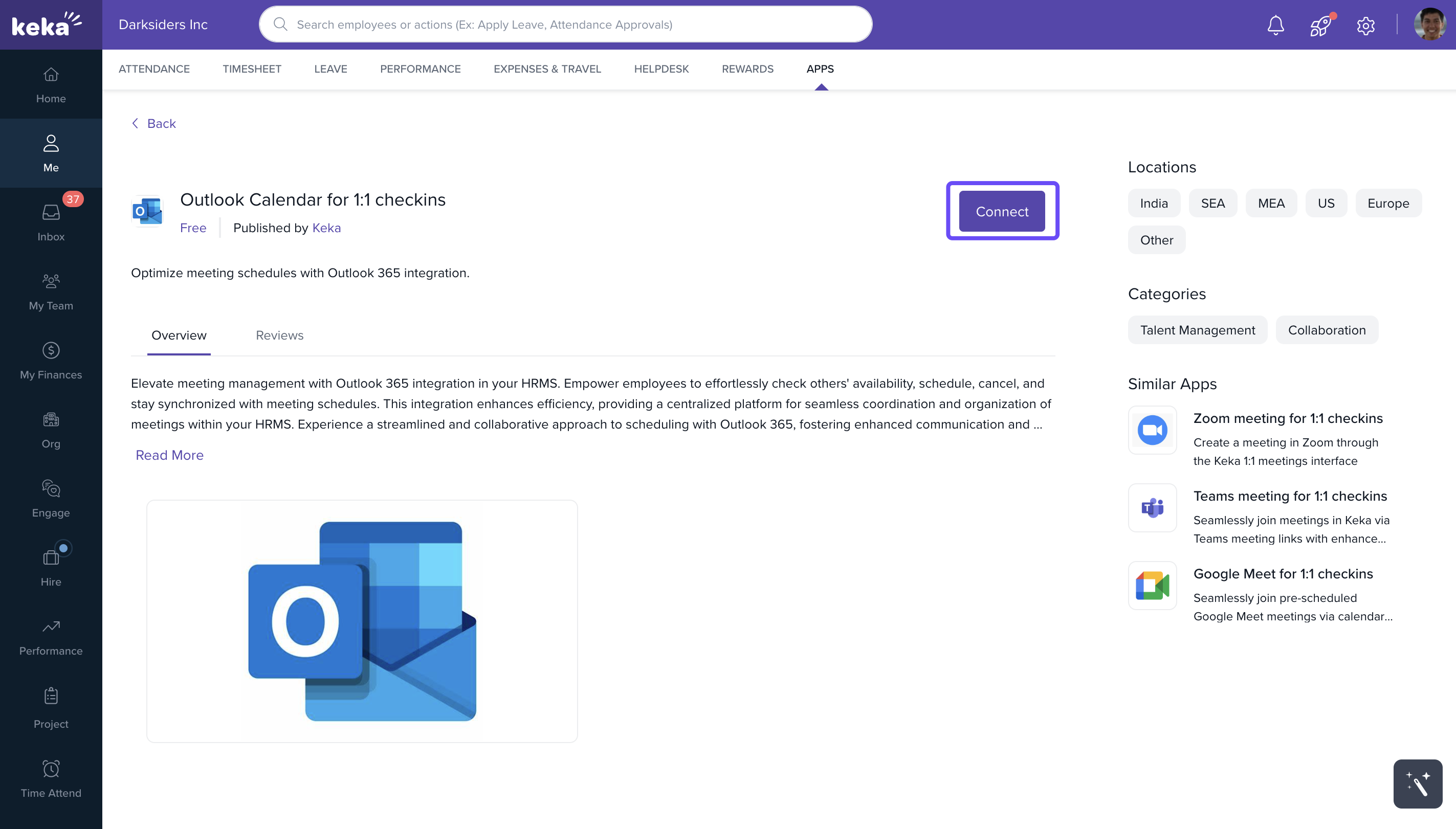
-
Sign in using a valid Microsoft account.
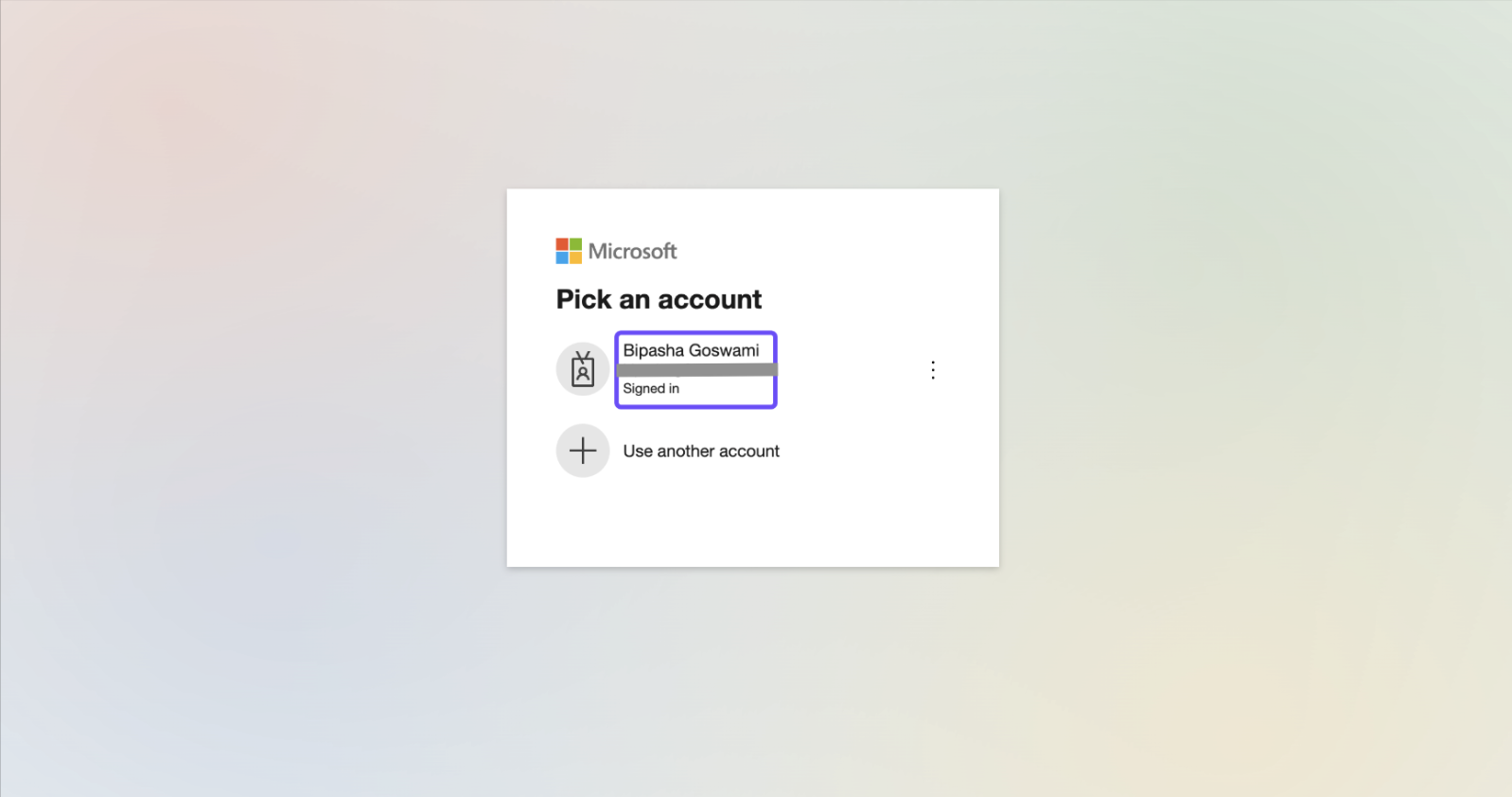
Once connected, Outlook becomes available as a calendar option during meeting scheduling.
Scheduling a 1:1 Meeting via Outlook Calendar
To schedule a meeting:
Navigate to Me and click on Performance. Under Performance, select 1:1 Meetings.
-
Click Schedule Meeting.
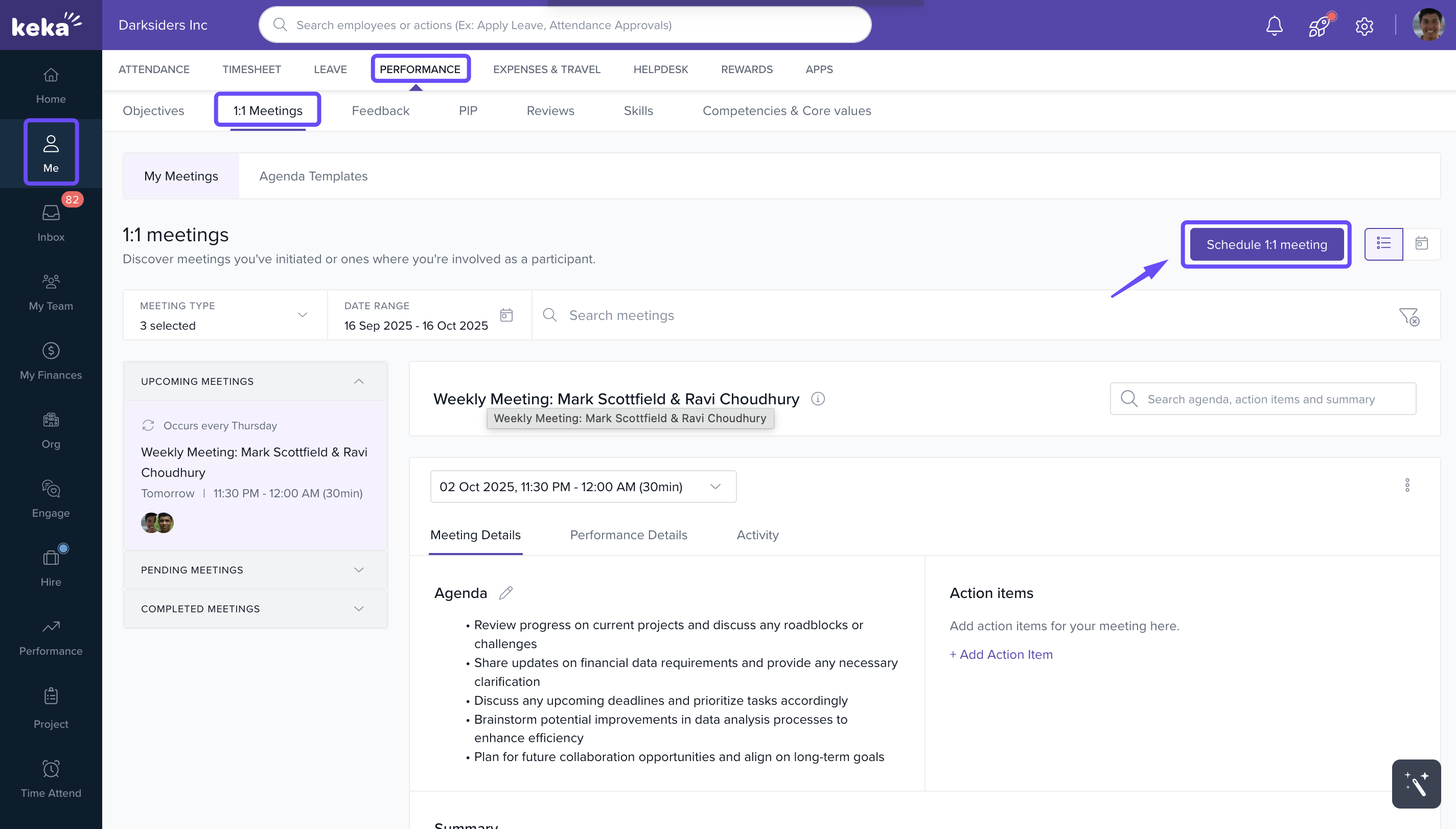
Fill out participant, time, and agenda details.
Keka will show tentative available time slots based on Outlook Calendar availability.
Choose the most suitable slot.
-
Click Schedule Meeting.
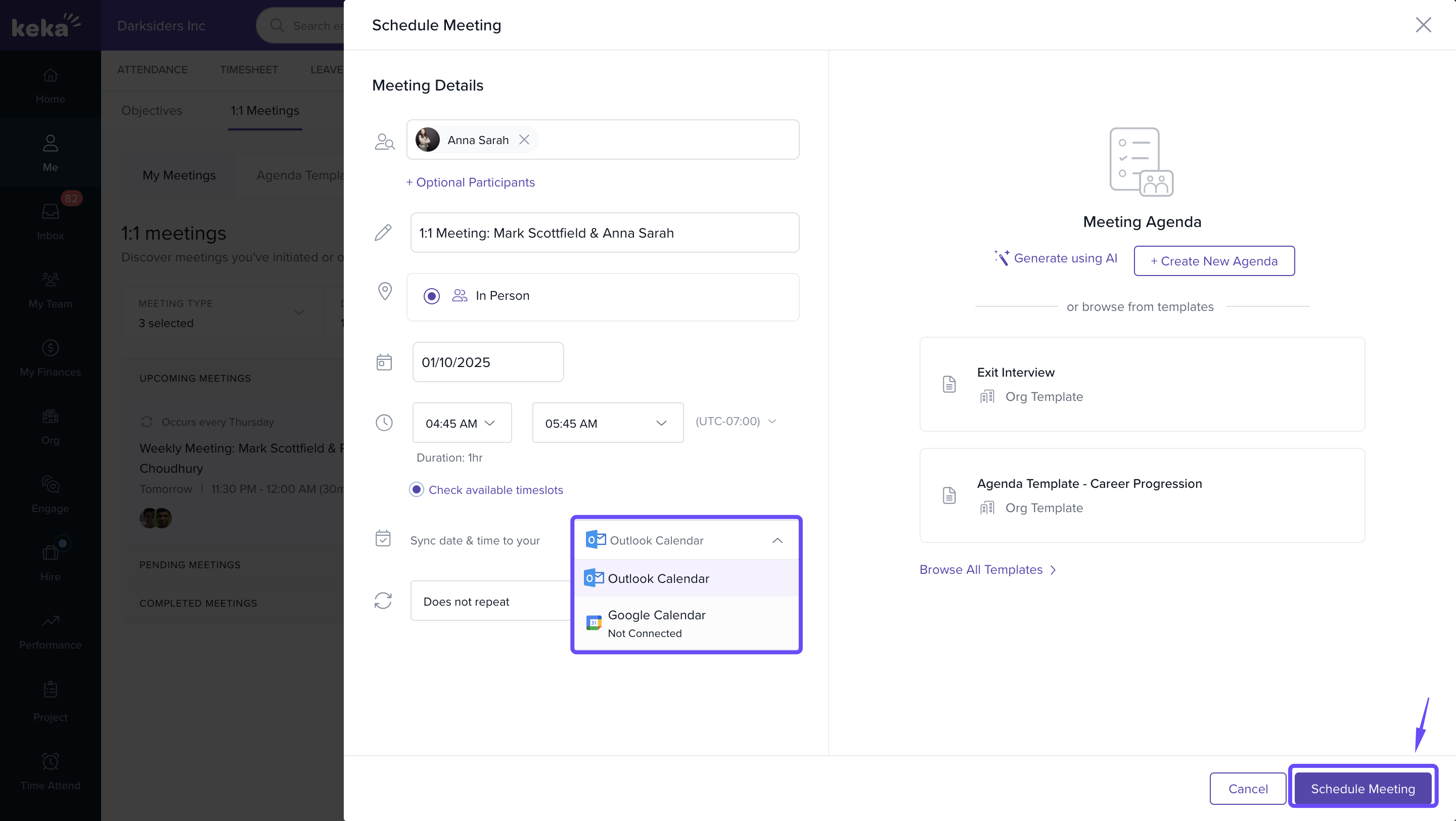
Auto-Suggested Time Slots
When Outlook Calendar is connected:
Keka fetches availability from each participant's Outlook Calendar.
It displays suggested time slots where all are available.
Selecting a slot automatically creates an event in Outlook for all attendees.
This prevents double-booking and enhances scheduling accuracy.
Notes & Tips
Important: Only the Global Admin can install the Outlook Calendar app in Keka.
Tip: Encourage employees to keep their Outlook calendars up to date for better availability suggestions.
Note: Users must individually connect their Microsoft accounts after admin setup is complete.
FAQs
Will meetings appear in my Outlook Calendar?
Yes, once scheduled, events are automatically synced with your Outlook Calendar.Can I see participant availability before scheduling?
Yes, Keka shows available slots by pulling data from Outlook for all connected participants.Do I need to connect Outlook every time?
No, connection is a one-time setup unless revoked manually or access is changed.
Comments
0 comments
Please sign in to leave a comment.