Introduction
In Keka Hire, you can configure custom fields for both candidates and jobs to collect exactly the data your team needs.
Candidate fields appear when applicants apply for jobs on your careers page.
Job fields show up when creating job postings or requisitions.
By default, Keka Hire provides a number of system-defined fields. However, you can also add new fields or edit existing ones to suit your organization’s needs.
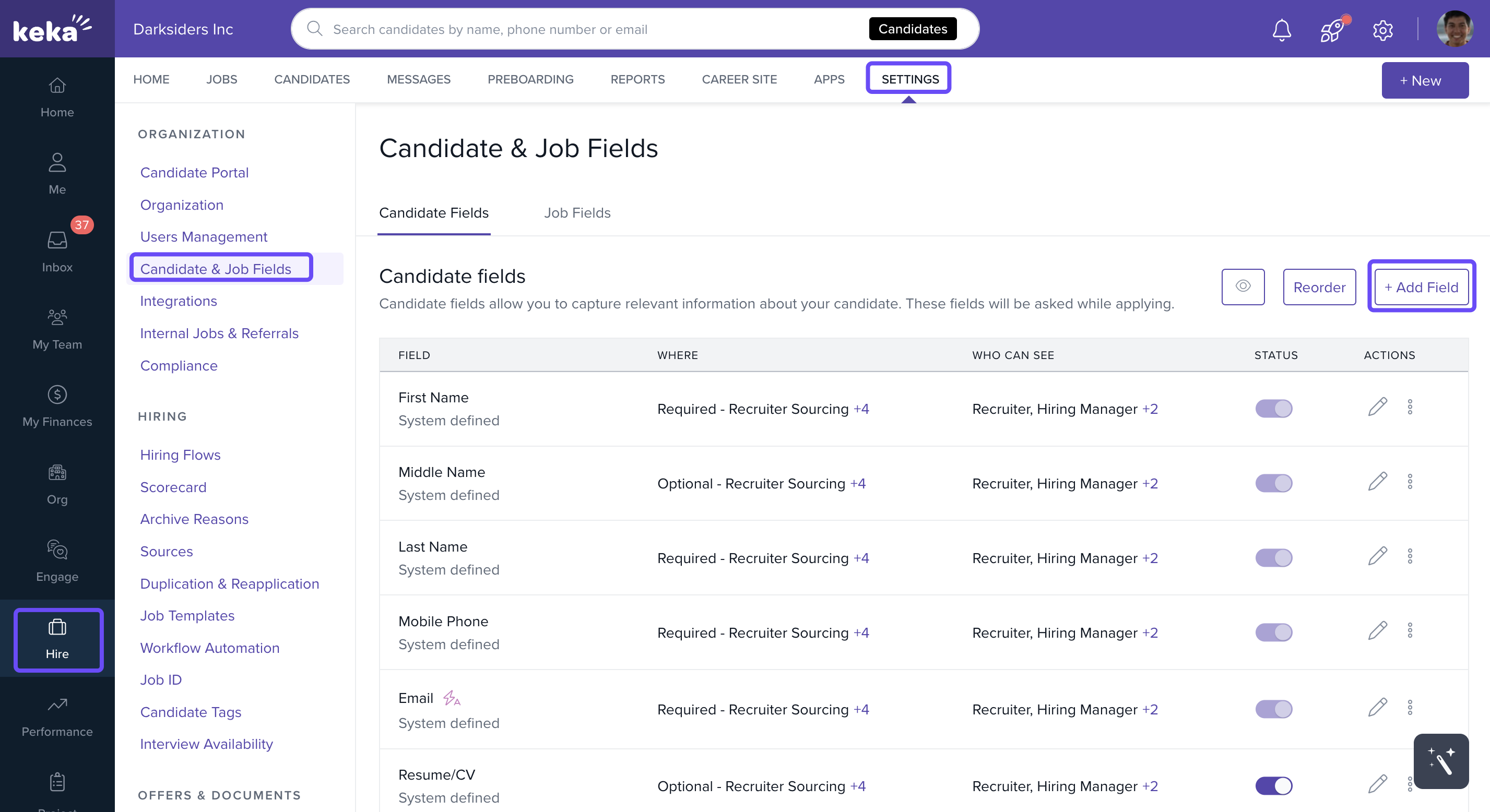
Navigate to the Candidate & Job Fields Settings
Go to Hire → Settings → Candidates & Job Fields under the Organization section.
You’ll land on the Candidate Fields tab by default.
Add a New Candidate Field
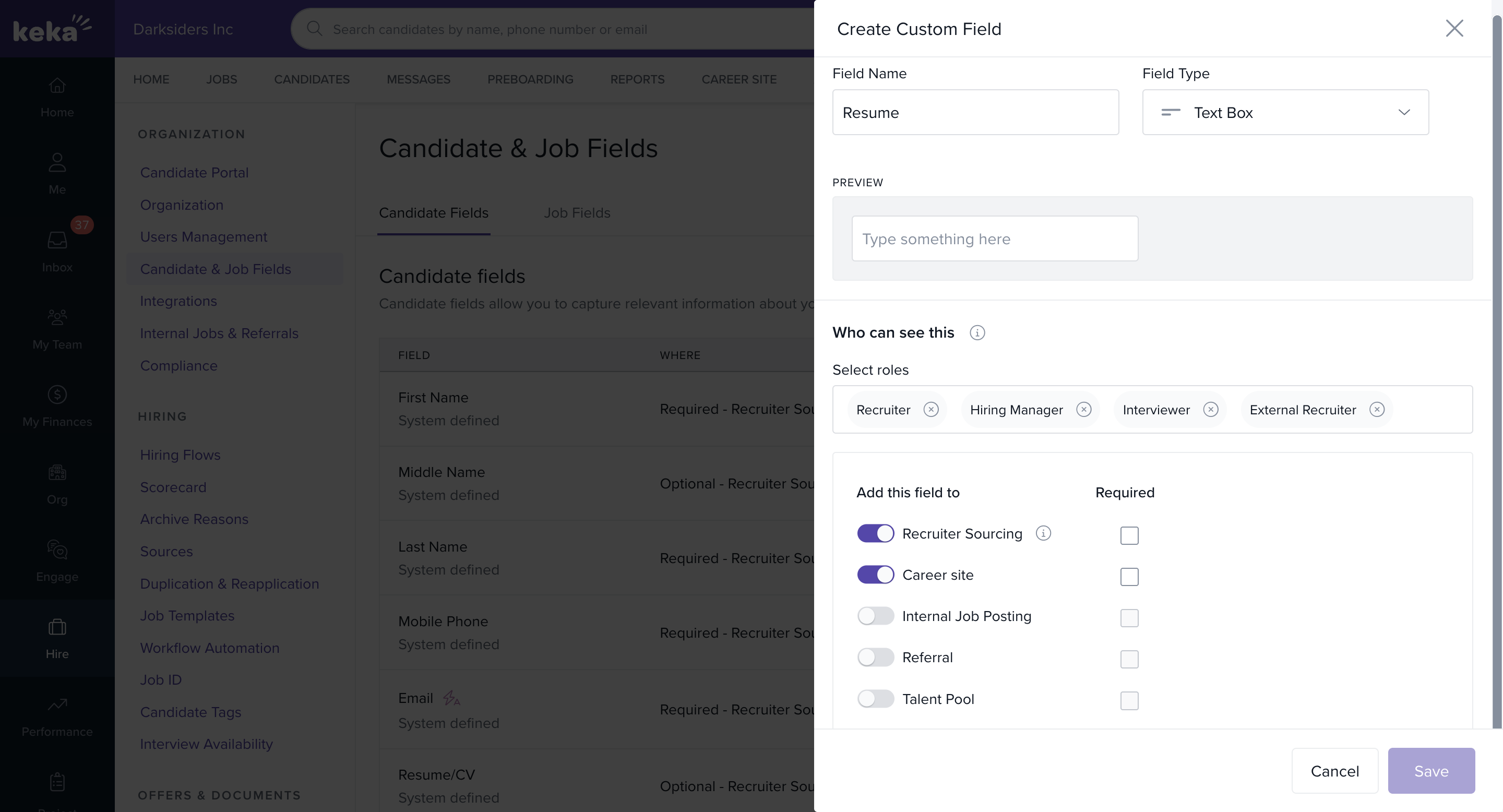
Click +Add Field.
In the overlay window:
Enter the Field Name.
Choose a Field Type (e.g., text, number, multiple choice, etc.).
Use the Preview section to see how the field will look.
Under Who can see this, choose which job roles can view the field.
Check applicable boxes to decide where this field should be used:
Recruiter Sourcing
Career Site
Internal Job Posting
Referral
Talent Pool
Click Save to create the field.
Edit or Delete Existing Fields
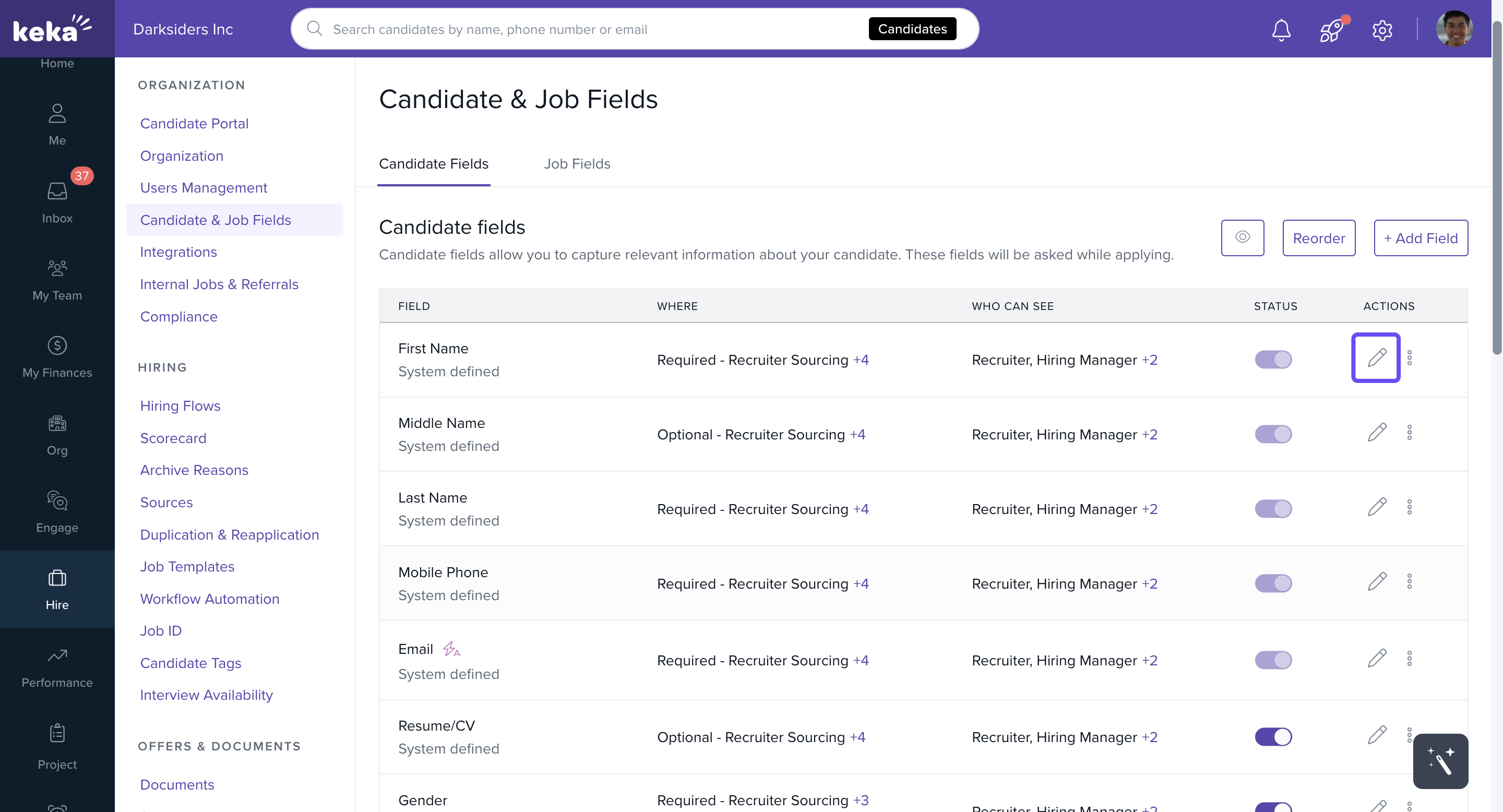
To Edit:
Click the pencil icon next to the field you want to change.
Make your edits in the overlay window.
Click Update to save the changes.
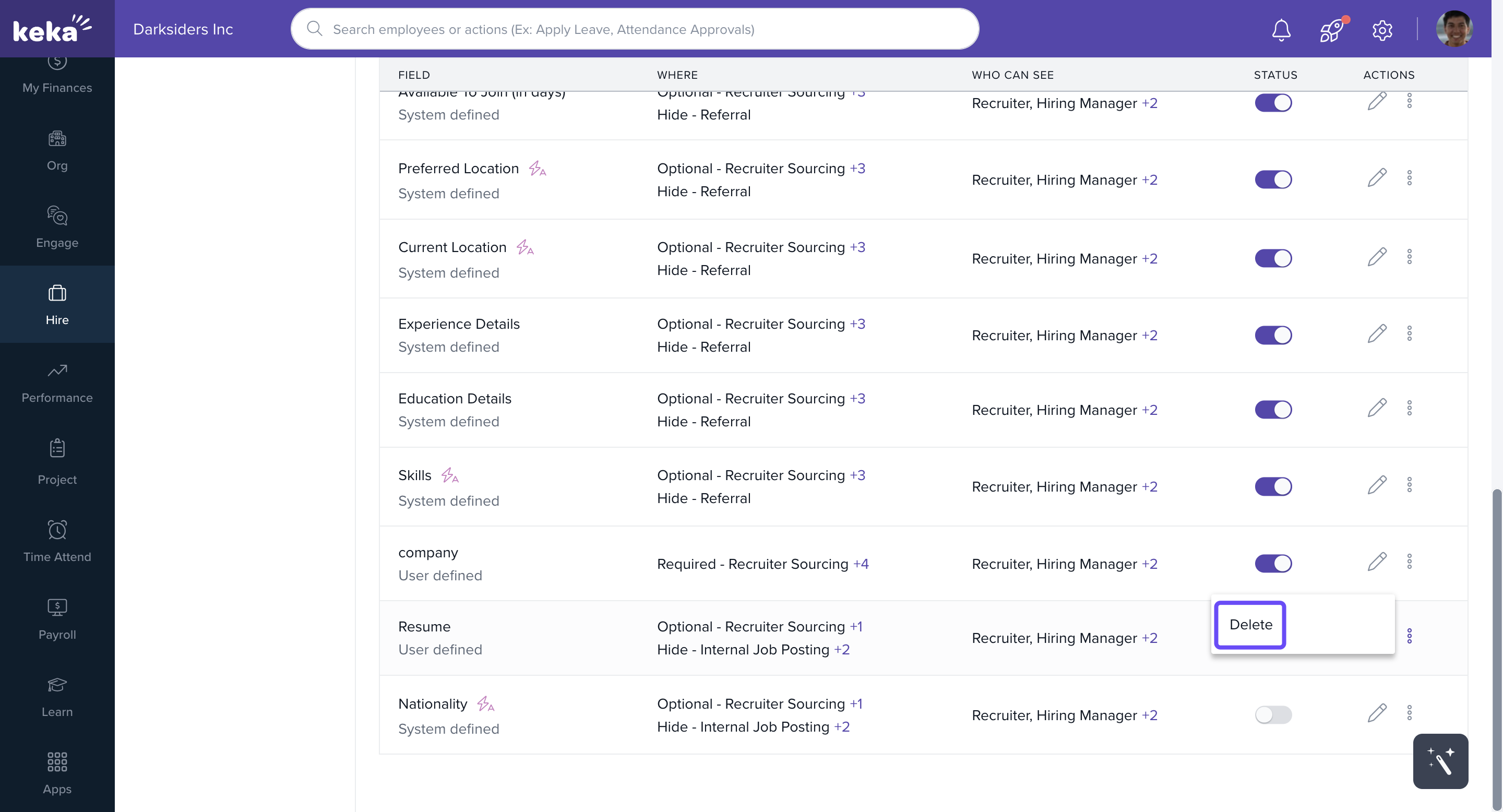
To Delete:
Click the three-dot menu next to the field.
Select Delete.
Confirm your choice in the pop-up.
Note: System-defined fields cannot be deleted, but you can disable them if they’re not needed.
Use visibility controls to ensure only relevant team members see sensitive or role-specific fields, and—importantly—carefully select where each field appears to streamline your hiring workflows and data collection.
Need help with custom fields or unsure which ones to add? Reach out to our product experts for assistance.
Comments
0 comments
Please sign in to leave a comment.