Introduction
Keka Hire lets individual users connect their Google Meet and Google Calendar accounts directly from their profile. This gives recruiters and interviewers better control when scheduling and conducting interviews—without needing G Suite admin access.
Anyone with scheduling permissions, like admins, recruiters, or interview panelists, can enable this integration.
Set Up
To set up Google Meet and Calendar integration for your profile:
Log in to the Keka Portal as a Global Admin or Super Recruiter.
Go to Hire > Apps.
Under Integrations, turn on Google Calendar and Google Meet.
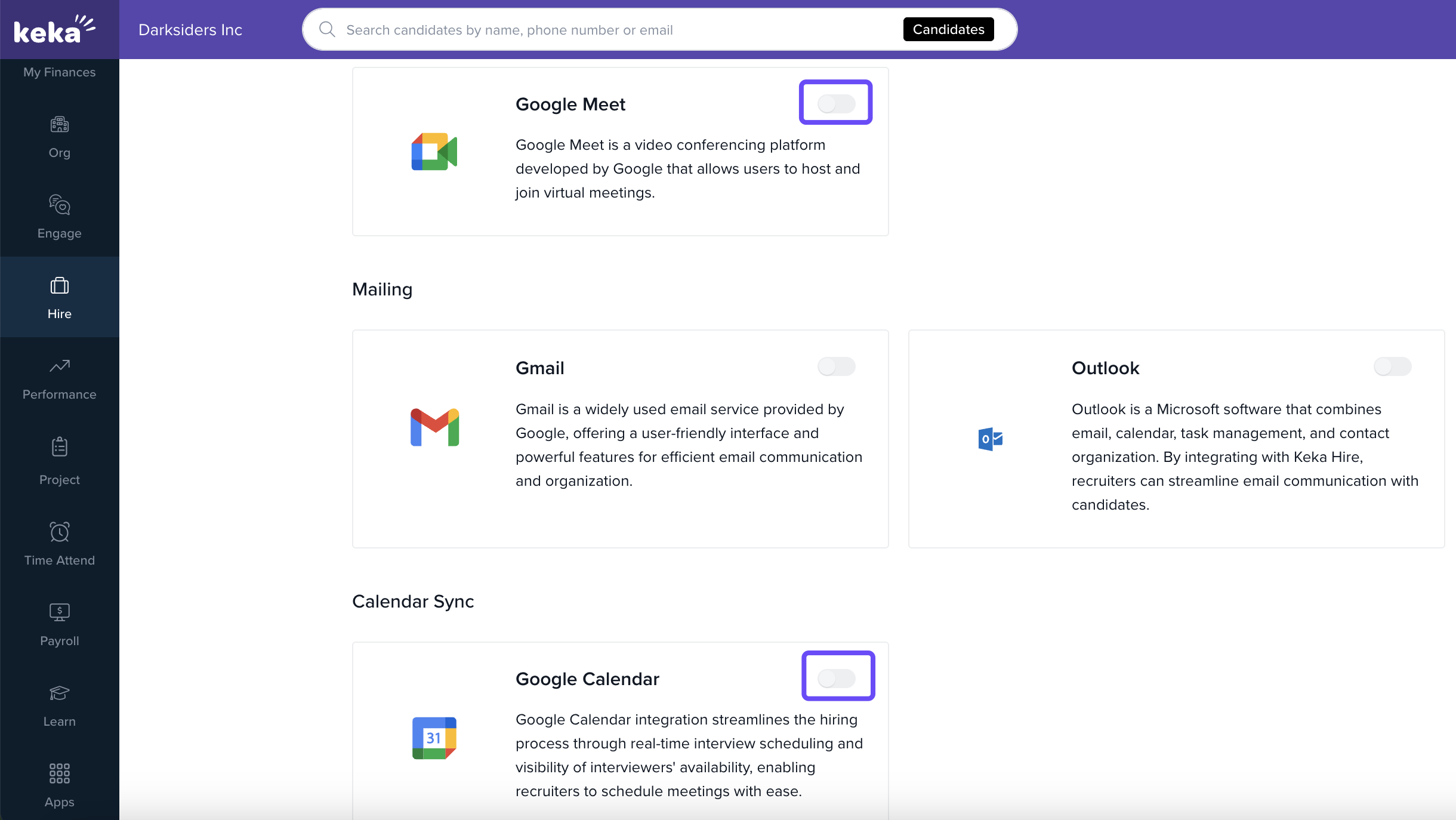
Once the integration is enabled at the system level:
Any user with scheduling privileges can go to their Profile.
Click on the Integrations tab.
Enable Google Calendar and follow the prompts.
Repeat the process to enable Google Meet.
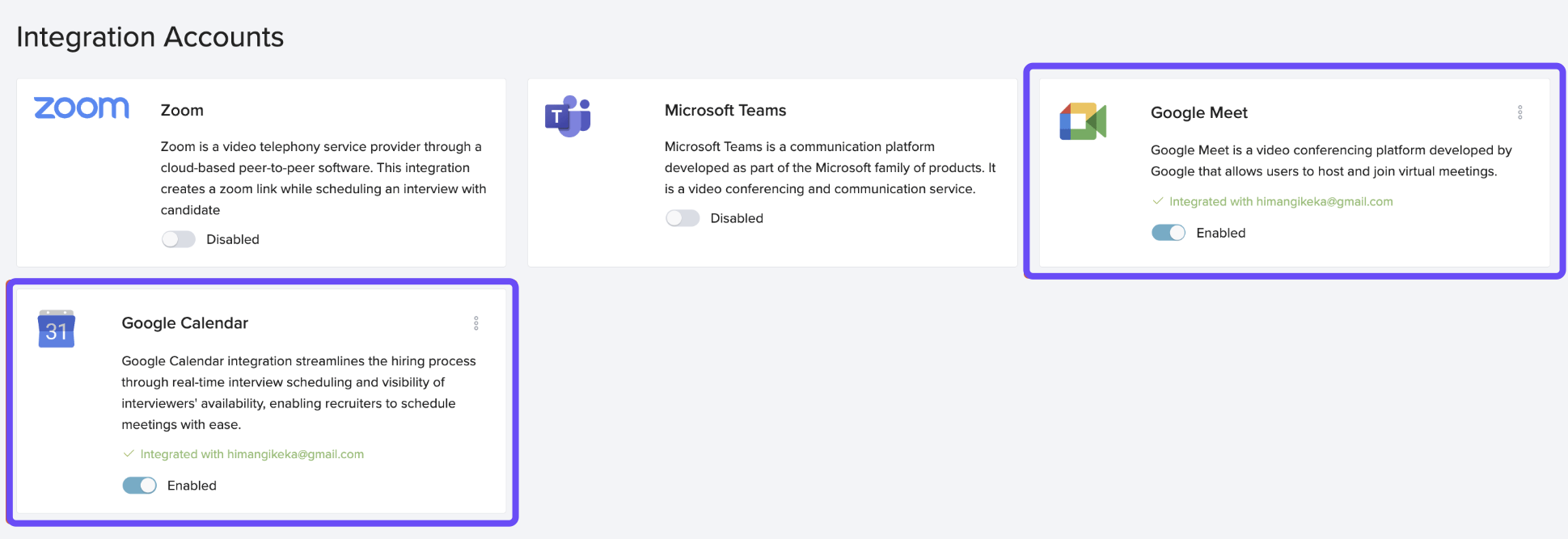
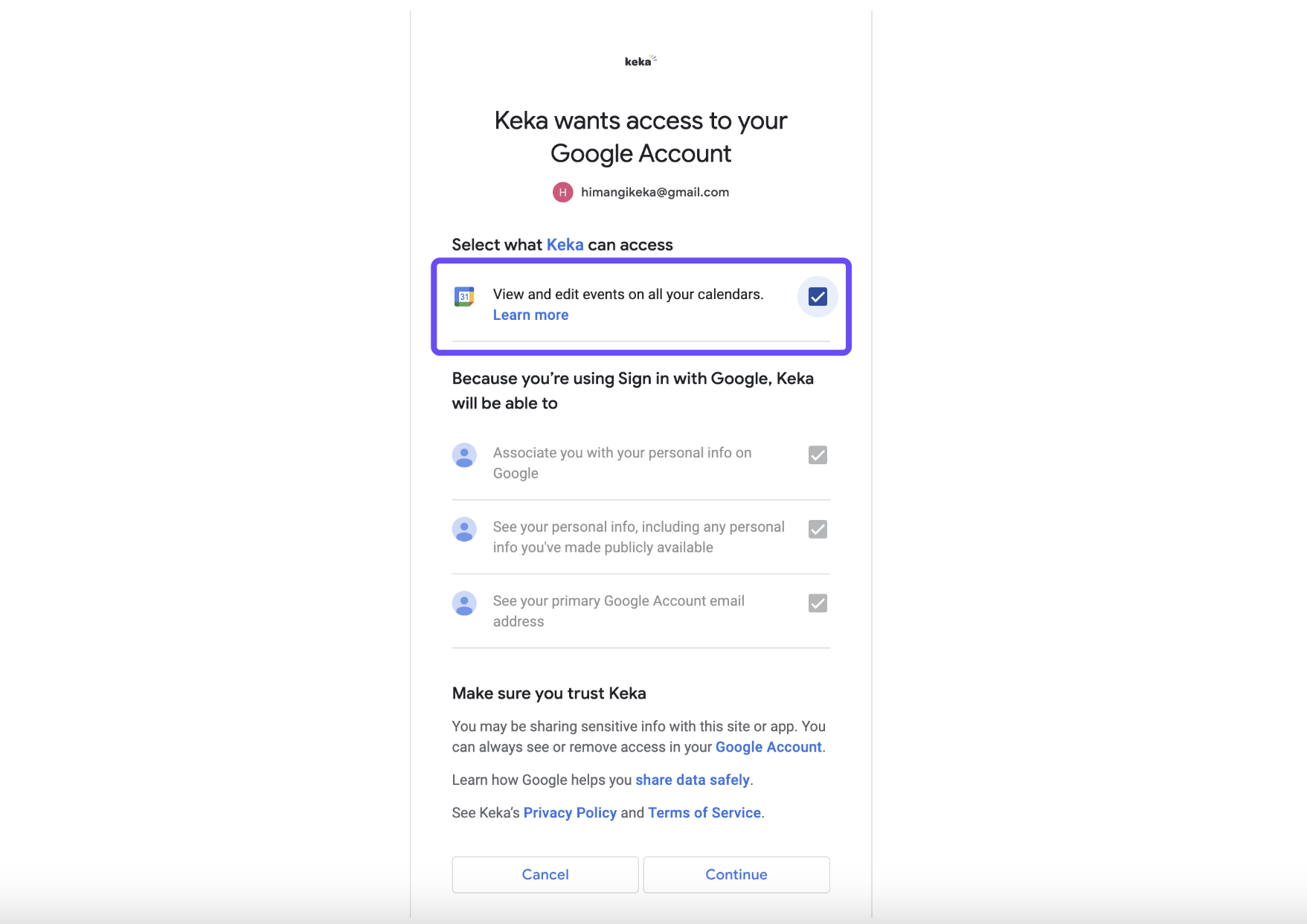
Grant all necessary permissions during setup to allow calendar blocking and interview scheduling.
Options & Variants
Only users with scheduling rights will see the option to integrate.
Integration is done per profile, so each user controls their own Google account connection.
G Suite admin rights are not required for this integration.
Notes, Tips, Important, Warnings
Note: Users don’t need G Suite admin access to connect their Google Calendar or Meet. Any Gmail account can be linked at the profile level.
Important: Make sure to allow all required permissions during setup. Without them, Keka won't be able to schedule interviews or block your calendar.
Tip: Users can disable or remove the integration from their profile anytime. Once disabled, they won’t be able to use Google Meet for online interviews.
Examples & Use Cases
A recruiter enables Google Meet and Calendar from their profile and schedules interviews directly within Keka. Their personal calendar is automatically updated, and Meet links are added to invites.
An interviewer removes the integration and can no longer schedule or join interviews via Google Meet through Keka.
Comments
0 comments
Please sign in to leave a comment.