Introduction
The auto-shift assignment feature in Keka HRMS lets you automatically assign employee shifts based on their first punch of the day.
This reduces manual scheduling, prevents errors, and ensures smooth workforce management.
This article is for Global Admins, HR teams, and Reporting Managers (if permission is granted).
By the end, you’ll know how to set up auto-shift assignments, configure rules, and manage edge cases.
Why Use Auto-Shift Assignments?
If your company operates in multiple shifts (e.g., morning, afternoon, evening), assigning shifts manually can be time-consuming and error-prone.
With auto-shift assignment:
Employees who punch in between 7:30 am – 10:30 am are assigned to the Morning Shift.
Employees who punch in between 10:30 am – 4:30 pm are assigned to the Afternoon Shift.
Employees who punch in between 4:30 pm – 7:30 pm are assigned to the Evening Shift.
Each shift also has a maximum allowed working window (including overtime). If someone punches in outside defined hours, they won’t be mapped to any shift.
Example Table:
| First Punch-in Range | Assigned Shift | Maximum Work Duration (incl. OT) |
|---|---|---|
| 7:30 am – 10:30 am | 9:30 am – 5:30 pm (Morning) | 7:30 am – 7:30 pm (12 hrs) |
| 10:30 am – 4:30 pm | 12:30 pm – 8:30 pm (Afternoon) | 10:30 am – 10:30 pm (12 hrs) |
| 4:30 pm – 7:30 pm | 7:30 pm – 1:30 am (Evening) | 4:30 pm – 4:30 am (12 hrs) |
What Is an Auto-Shift Assignment?
Auto-shift assignment automatically maps an employee to a pre-defined shift based on their first punch of the day.
This eliminates manual shift allocation and ensures consistency across your workforce.
Steps to Set Up Auto-Shift Assignment
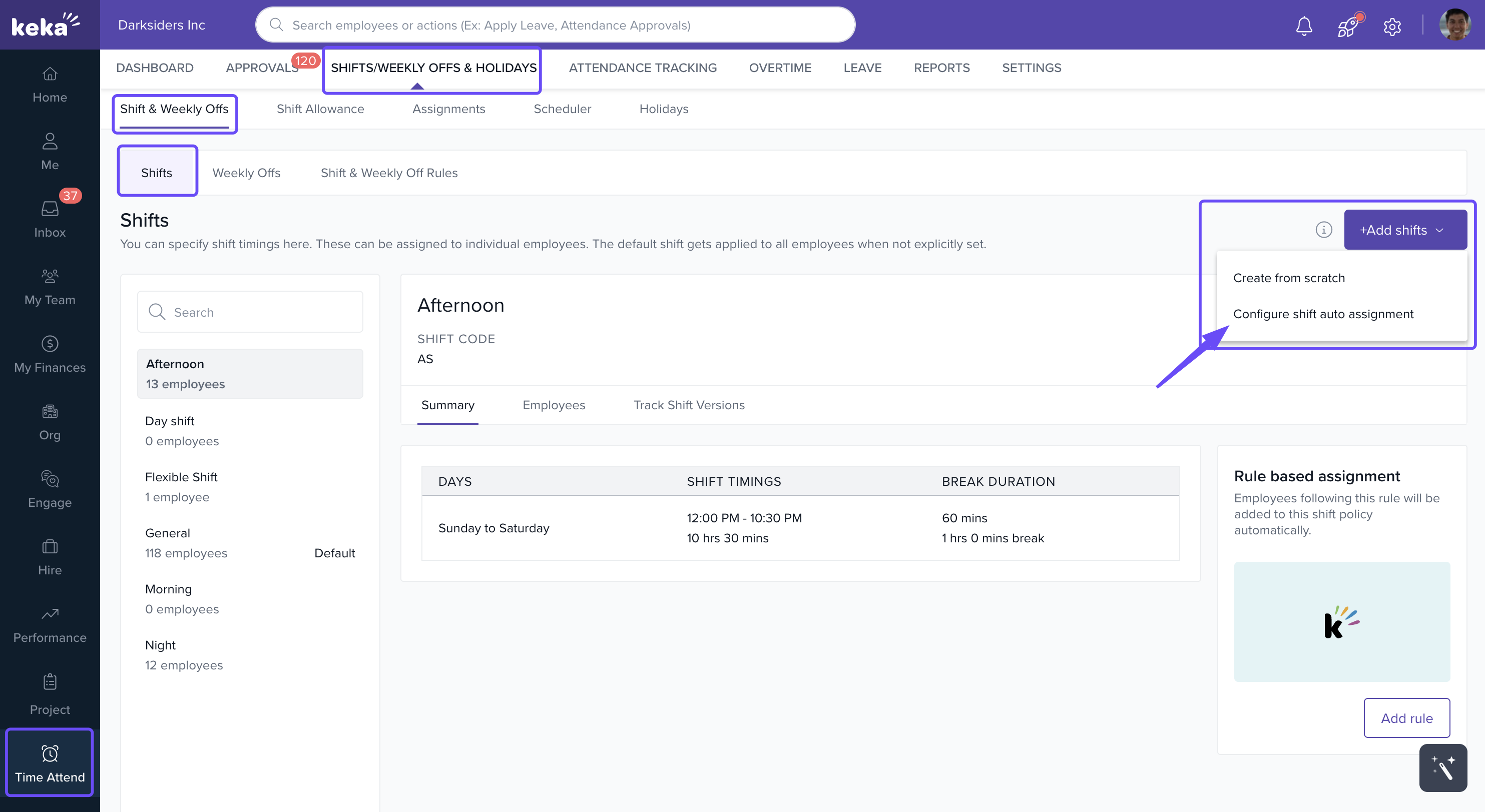
Go to the Time Attend tab.
From the top menu, select Shifts Weekly Off & Holidays.
Open the Shifts & Weekly Offs sub-tab.
Click into the Shifts section.
-
Select + Add shifts → choose Configure shift auto-assignment.
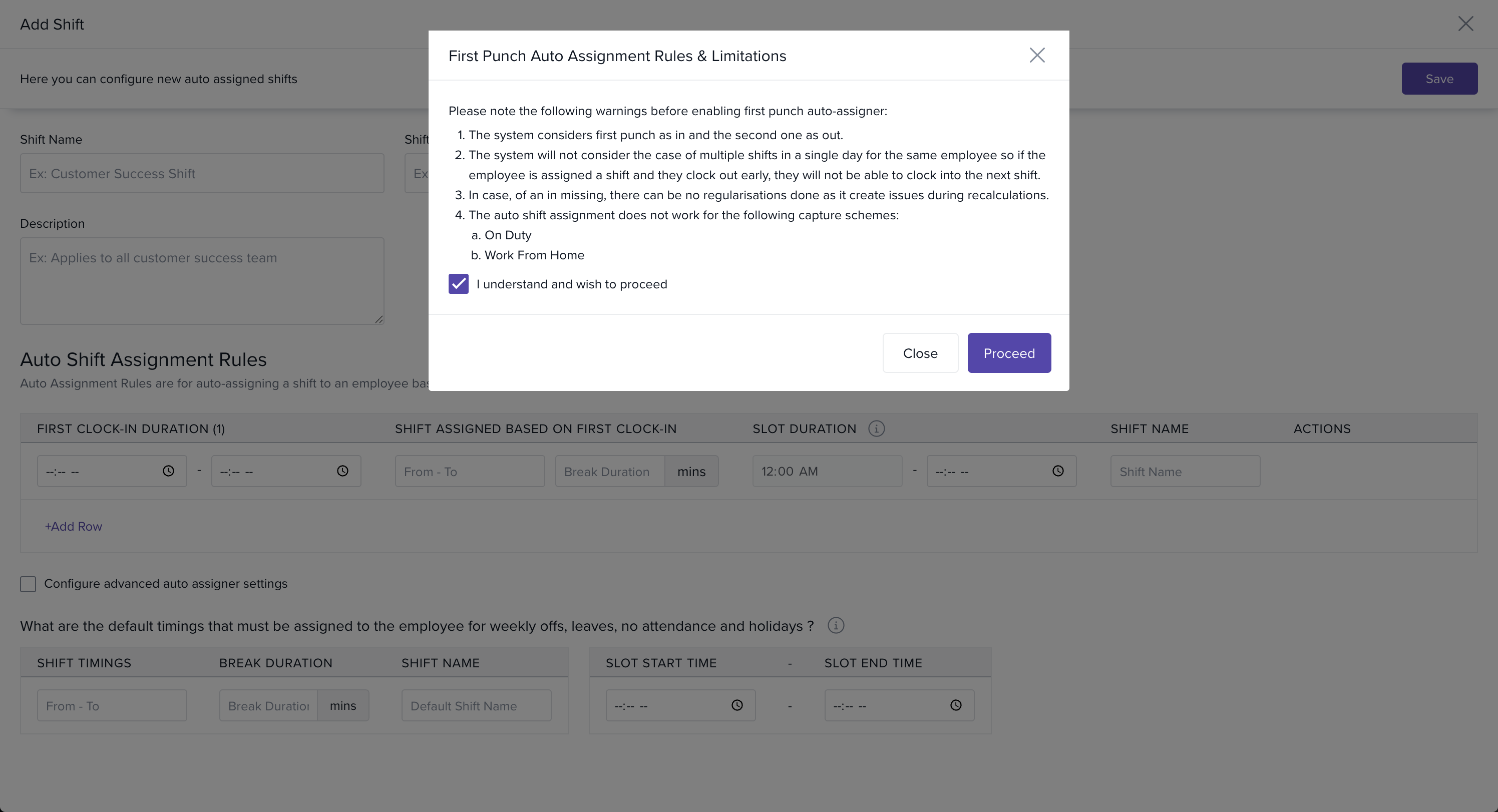
Important Warnings Before Enabling
-
The system assumes:
First punch = clock-in
Second punch = clock-out
Employees cannot work in multiple shifts on the same day if they clock out early.
Missed clock-ins cannot be regularized (it causes recalculation issues).
Auto-shift assignment does not work with On Duty or Work From Home schemes.
Check I understand and wish to proceed, then click Proceed.
Configuring Shift Rules
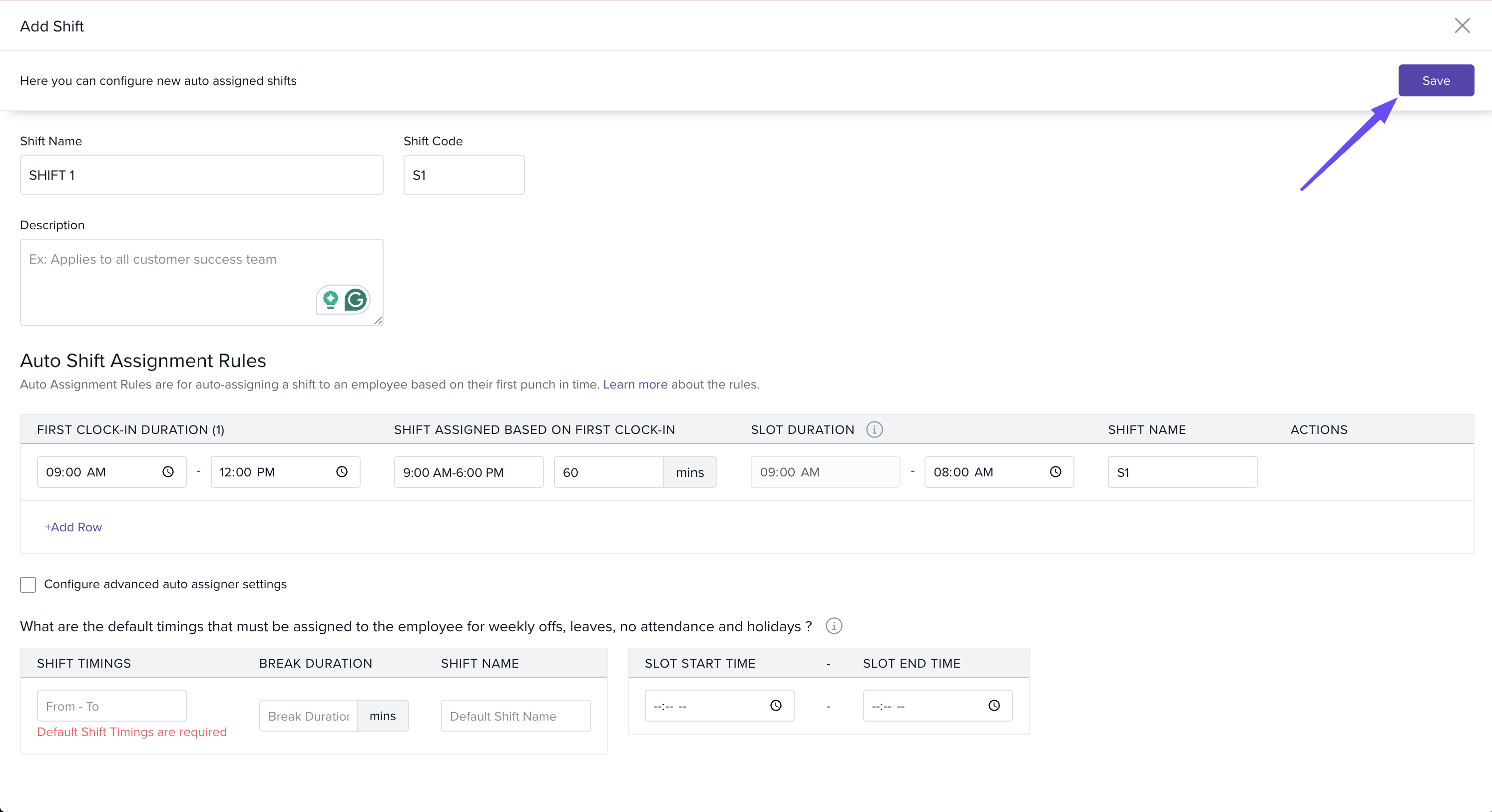
Enter Shift Name, Shift Code, and an optional Description.
-
Under Auto-Shift Assignment Rules, set:
Time range for first punch-in
Corresponding shift timings
Break duration
Define a Maximum Slot Duration to auto clock-out employees who exceed limits.
-
To handle different clock-in times, click + Add Row and repeat the setup.
-
Continue until all ranges together cover 24 hours.
-
Default Shift
You can configure a default shift that applies when:
Employees don’t clock in (prevents LOP on weekly offs/holidays).
Missed punch-ins occur.
Notes & Warnings
-
Warning: If total clock-in ranges cover less than 24 hours, there will be gaps.
Employees punching in during a gap get assigned to the last shift.
To prevent this, define ranges for the entire 24 hours.
You can Proceed anyway if you don’t need full coverage.
The system marks this setup with an Auto Assigner label.
Only one Auto Assigner shift can exist in your account.
Comments
0 comments
Please sign in to leave a comment.