Introduction
Keka’s Scheduler add-on helps organizations manage employee shifts more effectively. It ensures shifts are covered, workloads are balanced, and scheduling runs smoothly.
The Scheduler includes two tools:
Shift Board – Assign employees to existing shifts and manage staffing coverage.
Shift Rotation – Automatically rotate employees across multiple shifts on a weekly or custom schedule.
This guide explains how to configure and use both.
Access the Scheduler
Go to Time & Attendance → Shifts/Weekly Offs & Holidays → Scheduler.
Create a Shift Board
In the Shift Board section, click +Add Shift Board.
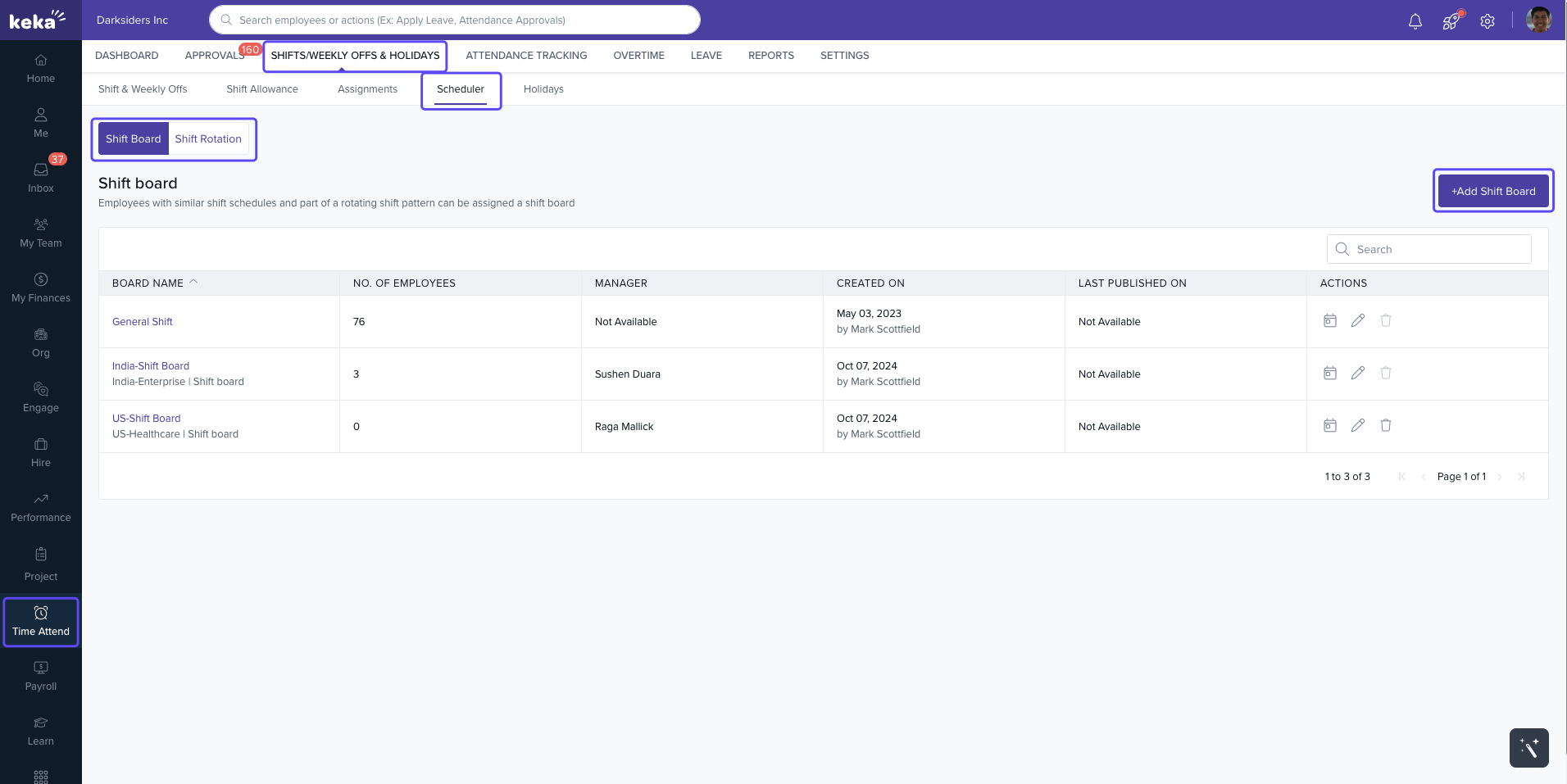
Enter the Name and Description.
Configure board rules:
Restrict board managers to predefined shifts or weekly offs.
Limit managers to employees in their Business Unit, Location, or Department.
Assign specific Board Managers.
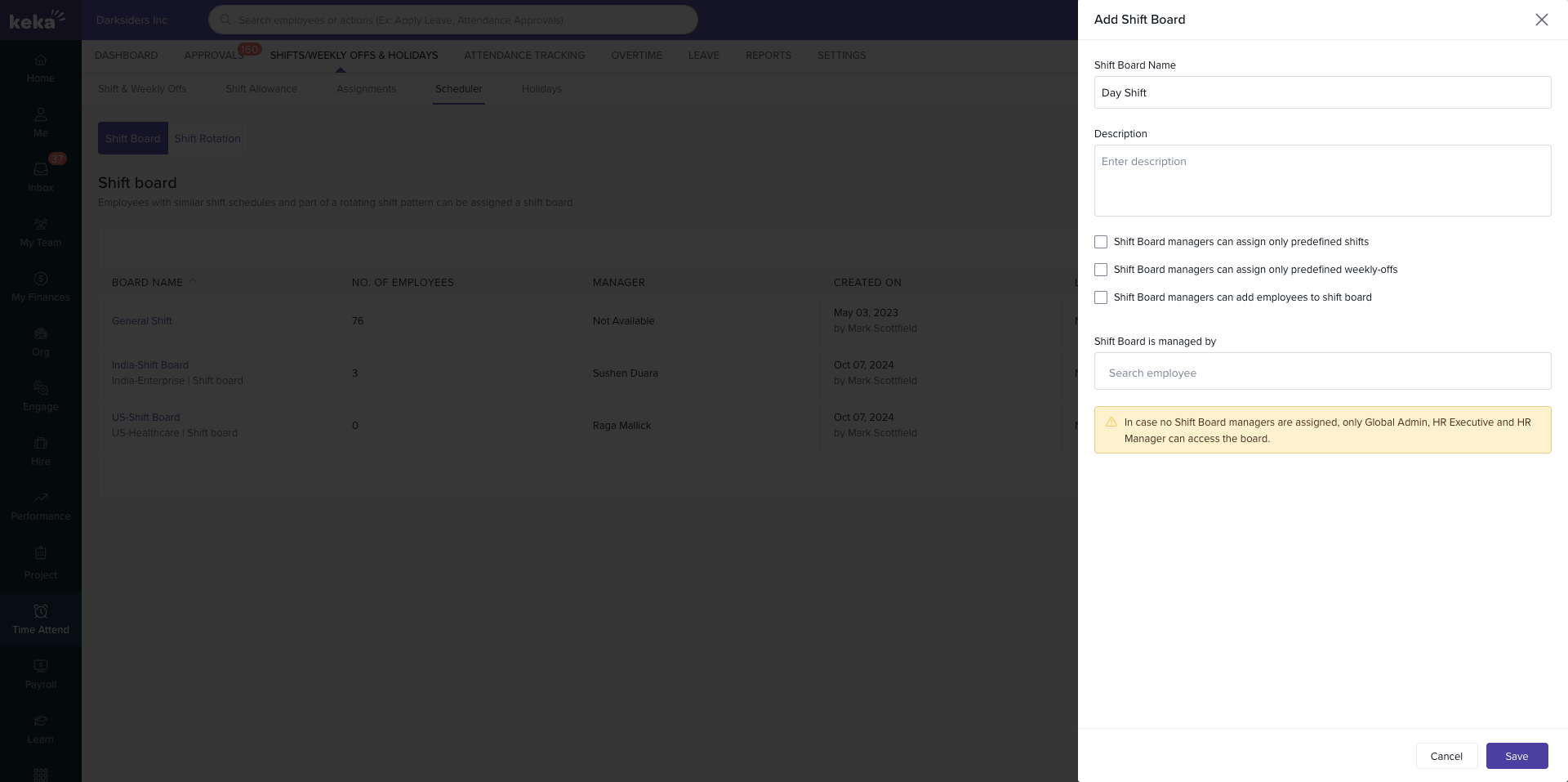
Click Save.
Your new shift board will appear in the list.
Assign Employees
Open the board → click +Add Employees.
Filter by Department, Location, Business Unit, Shift, or Weekly Off.
Select employees → click Add Employees.
.gif)
Employees will now be visible on the board with their assigned shifts.
Update Assignments
To update a shift or weekly off for a specific employee, click the three-dot menu → Update Shift or Update Weekly Off.
Enter details and add a note.
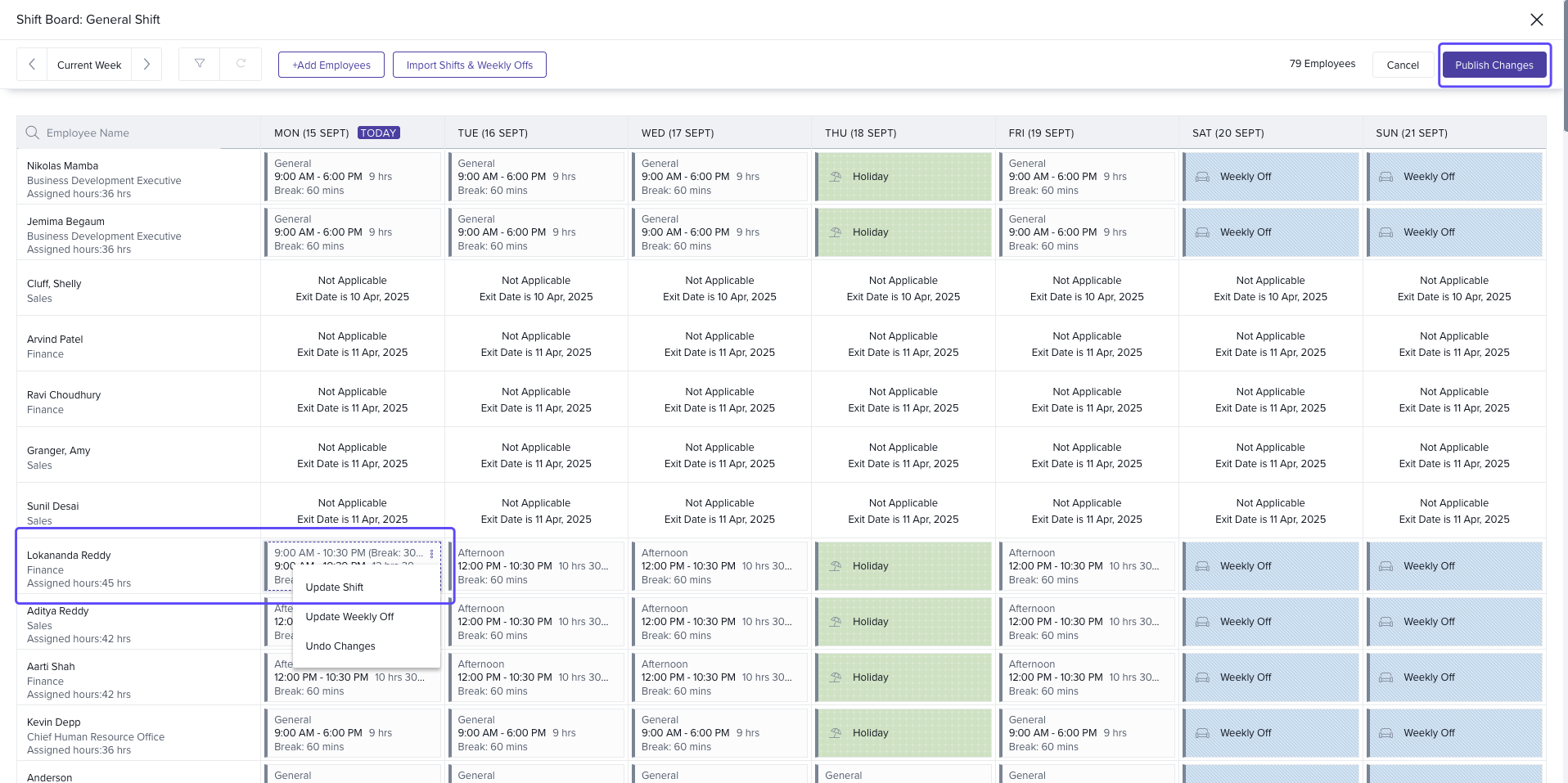
Click Publish Changes.
Bulk Updates with Excel
Click Import Shifts & Weekly Offs.
Download the template with current assignments.
Update assignments using predefined codes:
WO = Full Day Weekly Off
WOF = First Half Weekly Off
WOS = Second Half Weekly Off
Save and upload the file.
Click Publish Changes to apply.
Create a Shift Rotation
In the Shift Rotation section, click +Add Shift Rotation.
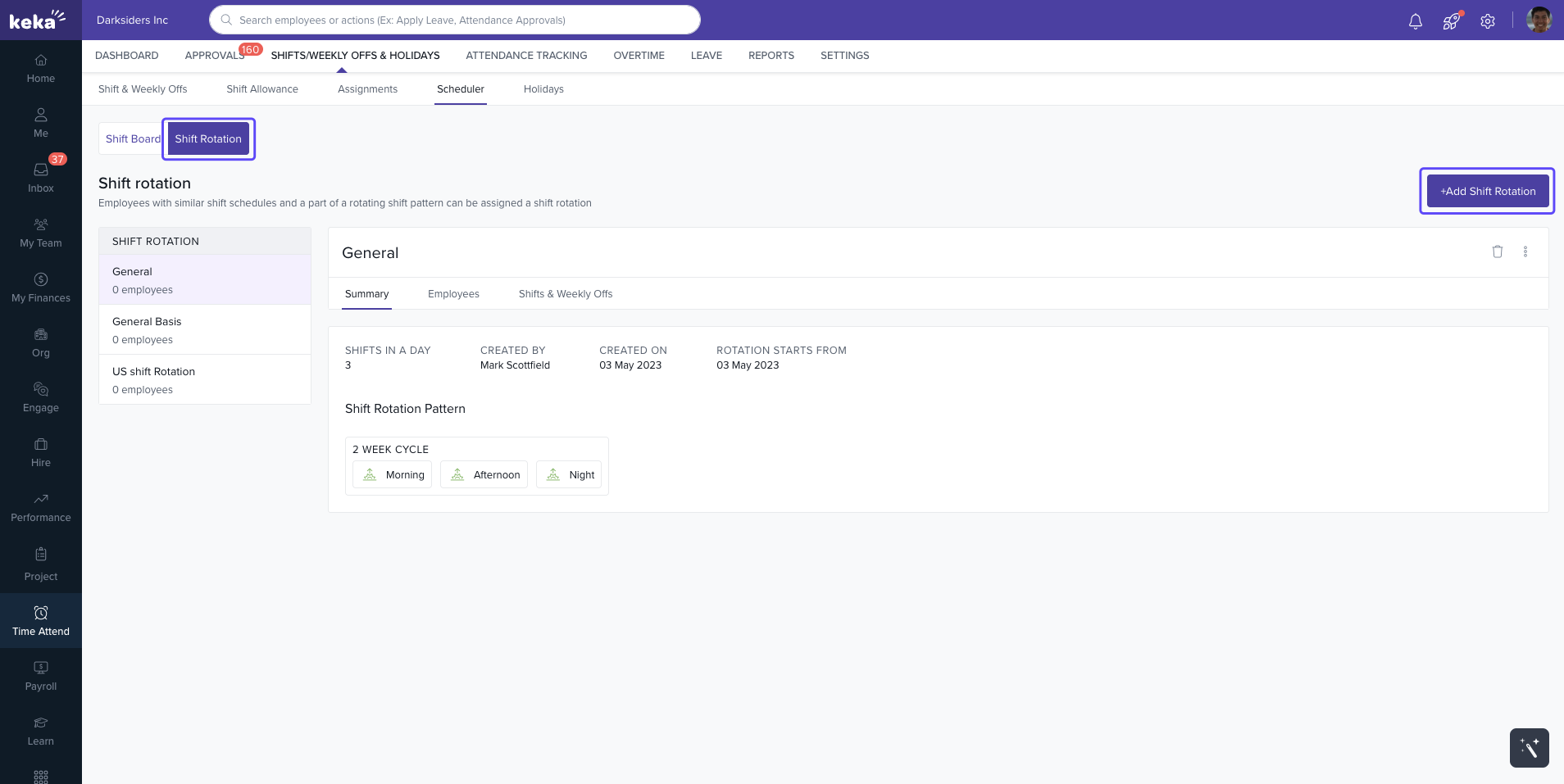
Enter the Name and Description.
Add the number of shifts in the rotation → set Name and Icon for each.
Assign Weekly Offs and Shift Timings for each shift.
Click Continue.
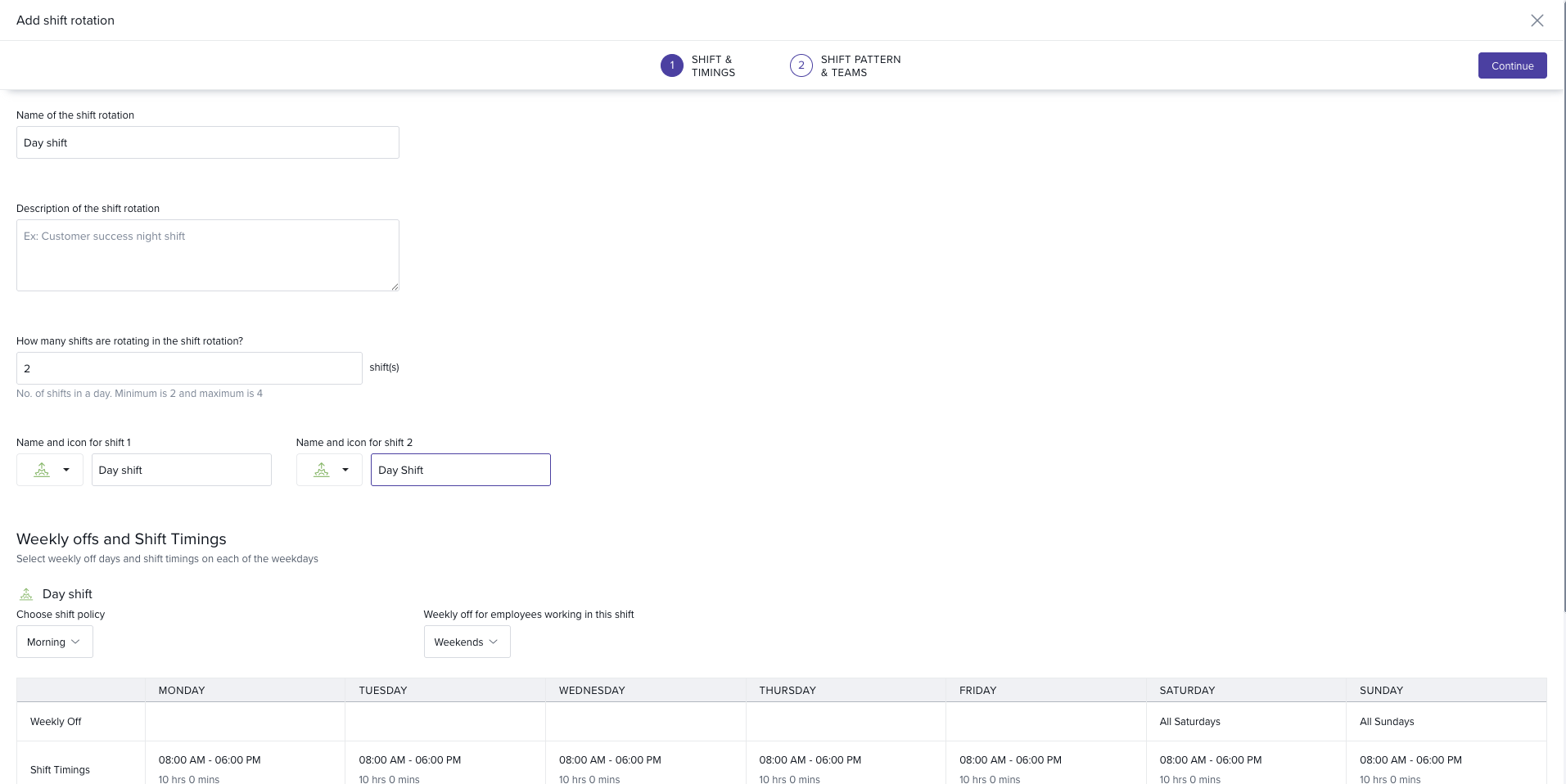
Configure Shift Pattern & Teams
Set “For how many weeks does each shift last?”
Select the rotation start date.
Review the sample rotation pattern.
Update team names and descriptions if needed.
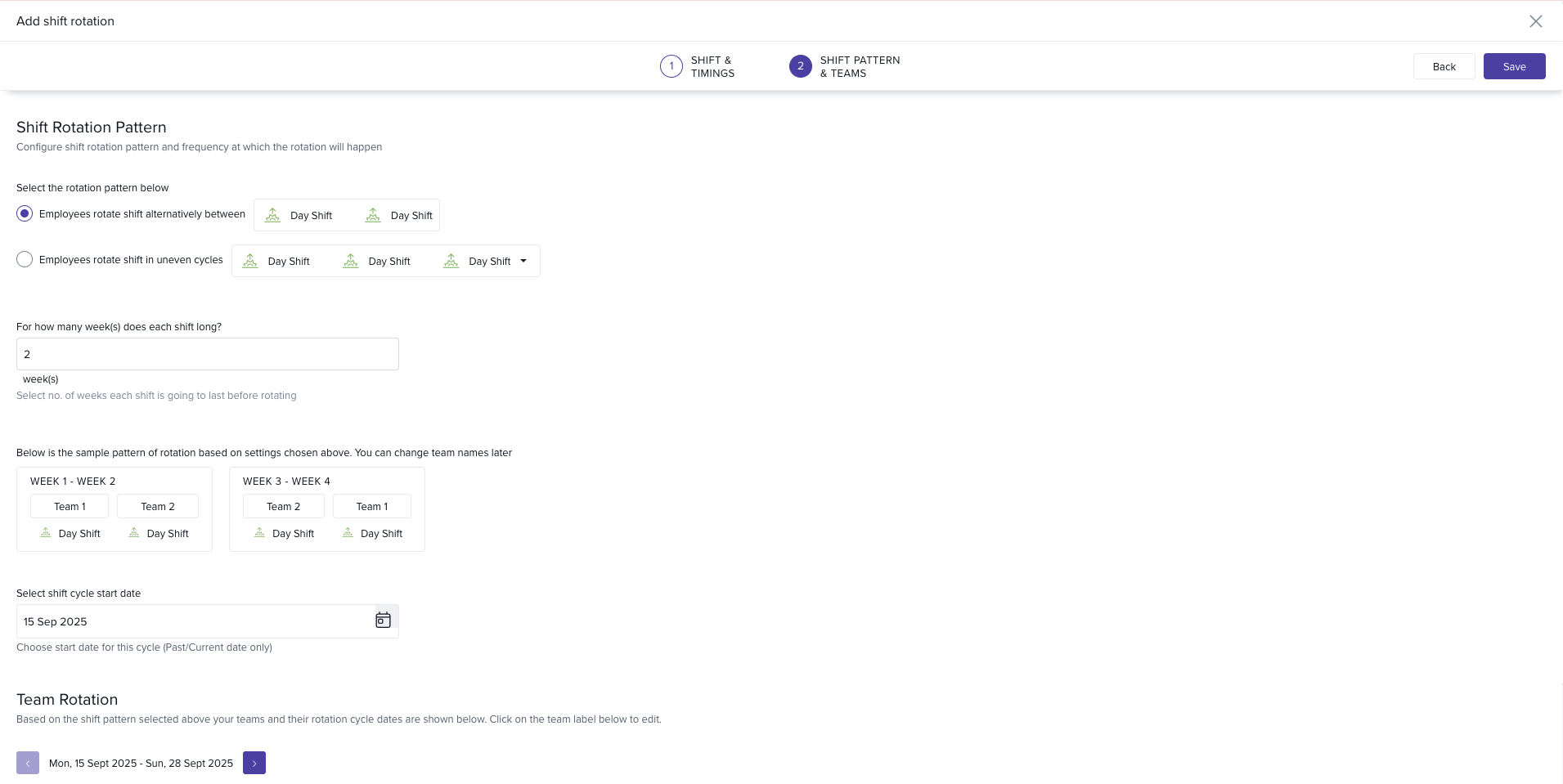
Click Save to finalize.
Assign Employees to Rotation
Go to the Employees section.
Click Manage Employee Allocation.
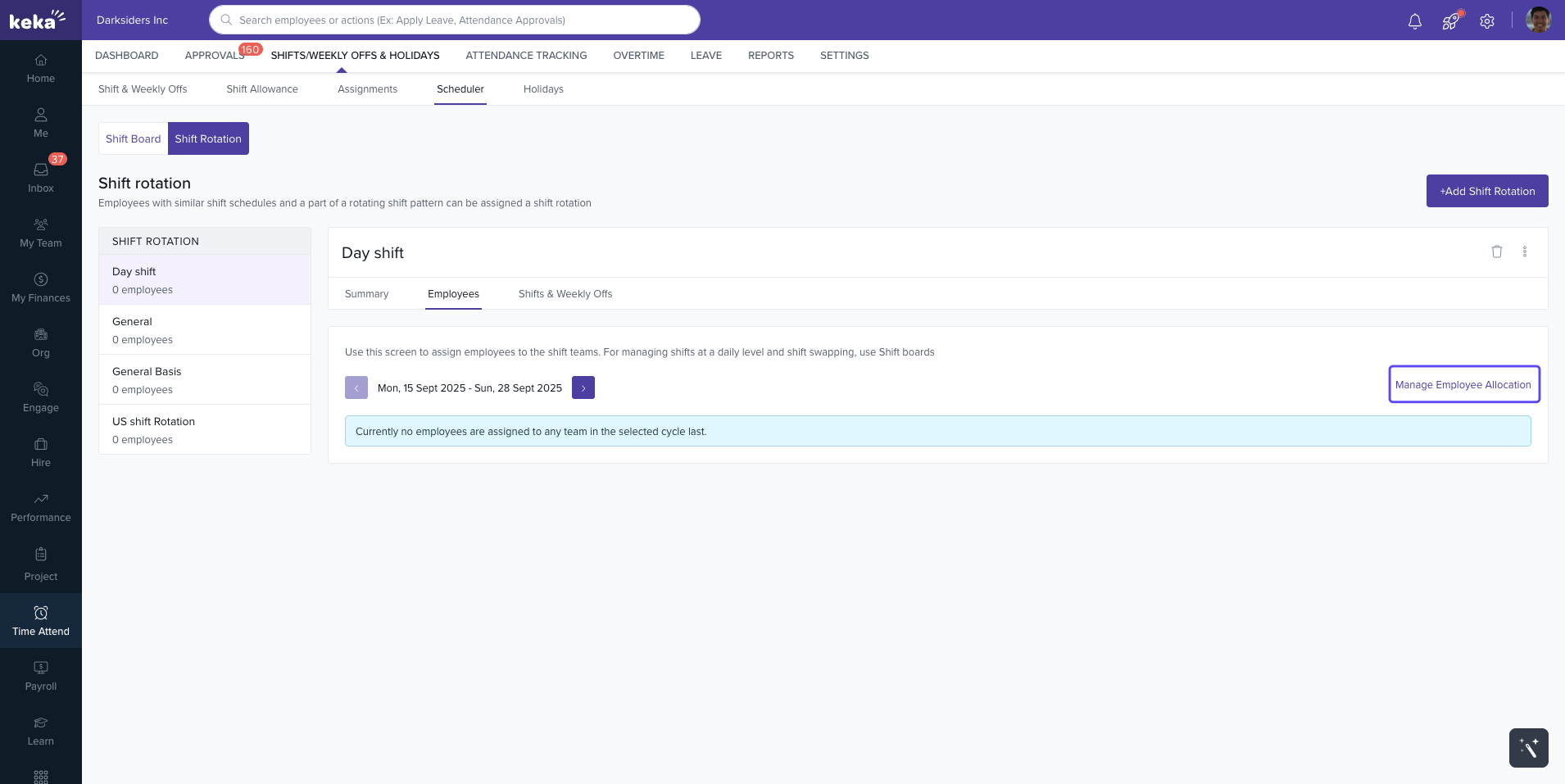
Choose:
Move employees within the rotation
Move employees from another rotation
Pick employees not yet assigned to a rotation
Select the Effective Date.
Filter and select employees → click Move n employees.
Click Save.
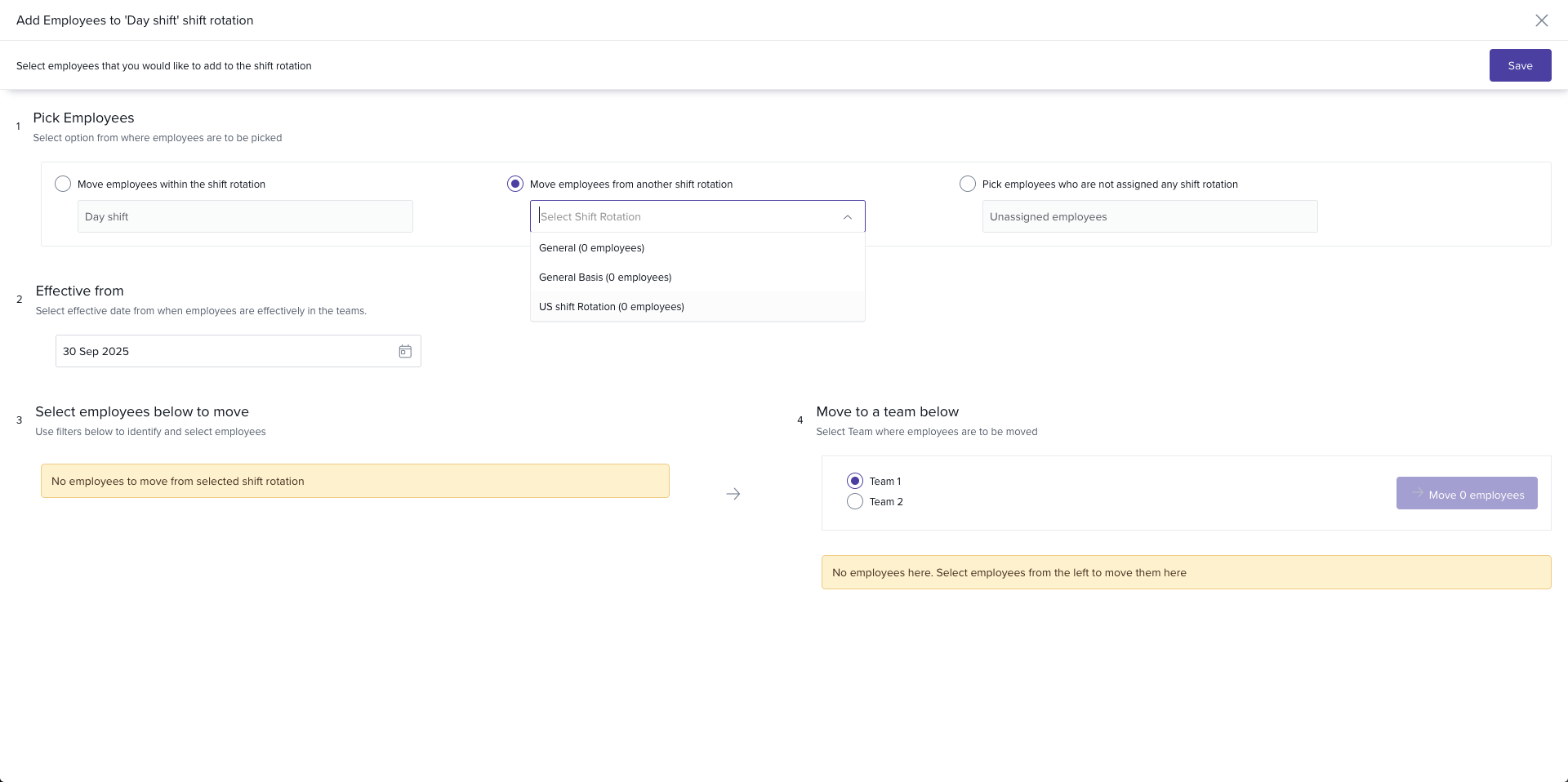
Employees will now follow the rotation schedule starting from the effective date.
Next Steps
With Shift Boards and Shift Rotations, Keka’s Scheduler gives you powerful tools to manage workforce schedules and ensure fair coverage.
Comments
0 comments
Please sign in to leave a comment.