Introduction
Shift allowance policies in Keka HRMS let you compensate employees for working during specific shifts—such as night shifts or peak-hour slots. You can define custom rates, automate calculations, and integrate them into payroll.
This guide walks you through how to:
Set up shift allowance codes
Create and manage shift allowance policies
Use formulas to define allowance amounts
Edit existing policies safely
Scope: This feature is available under the Time Attend module in Keka.
Configuration
1. Create Shift Allowance Codes
- Go to Time Attend in the left navigation panel.
- Click on Shifts/Weekly Offs & Holidays.
- Select Shift Allowance.
- Go to the Shift Allowance Code tab.
- Click + Add Shift Allowance Code.
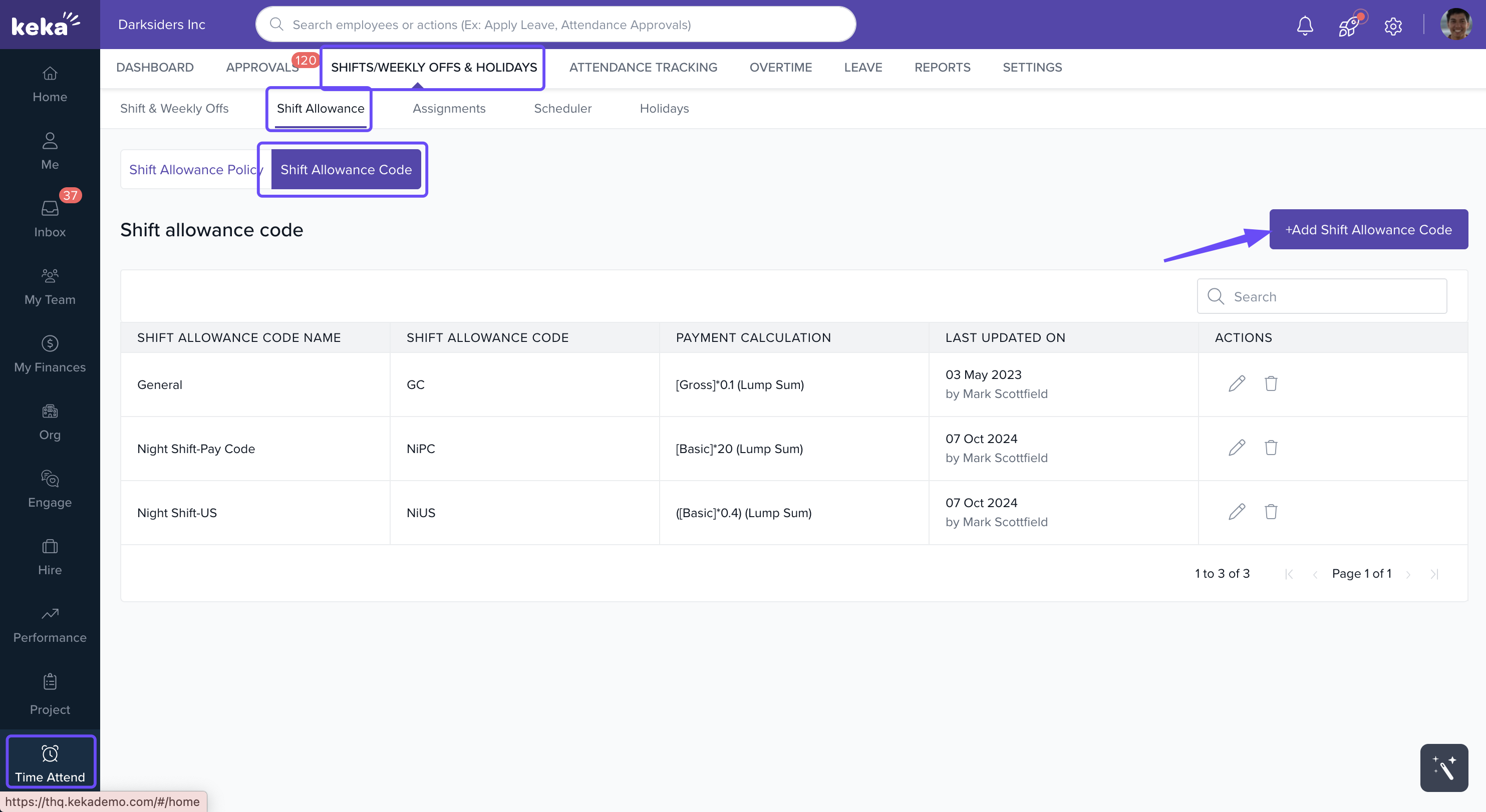
Before you define policies, you must create shift allowance codes. These codes determine how much compensation an employee receives for a specific shift.
In the form that appears:
Name: Give the code a descriptive name.
Description (optional): Add details for internal clarity.
Pay Code: This code links to the calculation used in allowance policies.
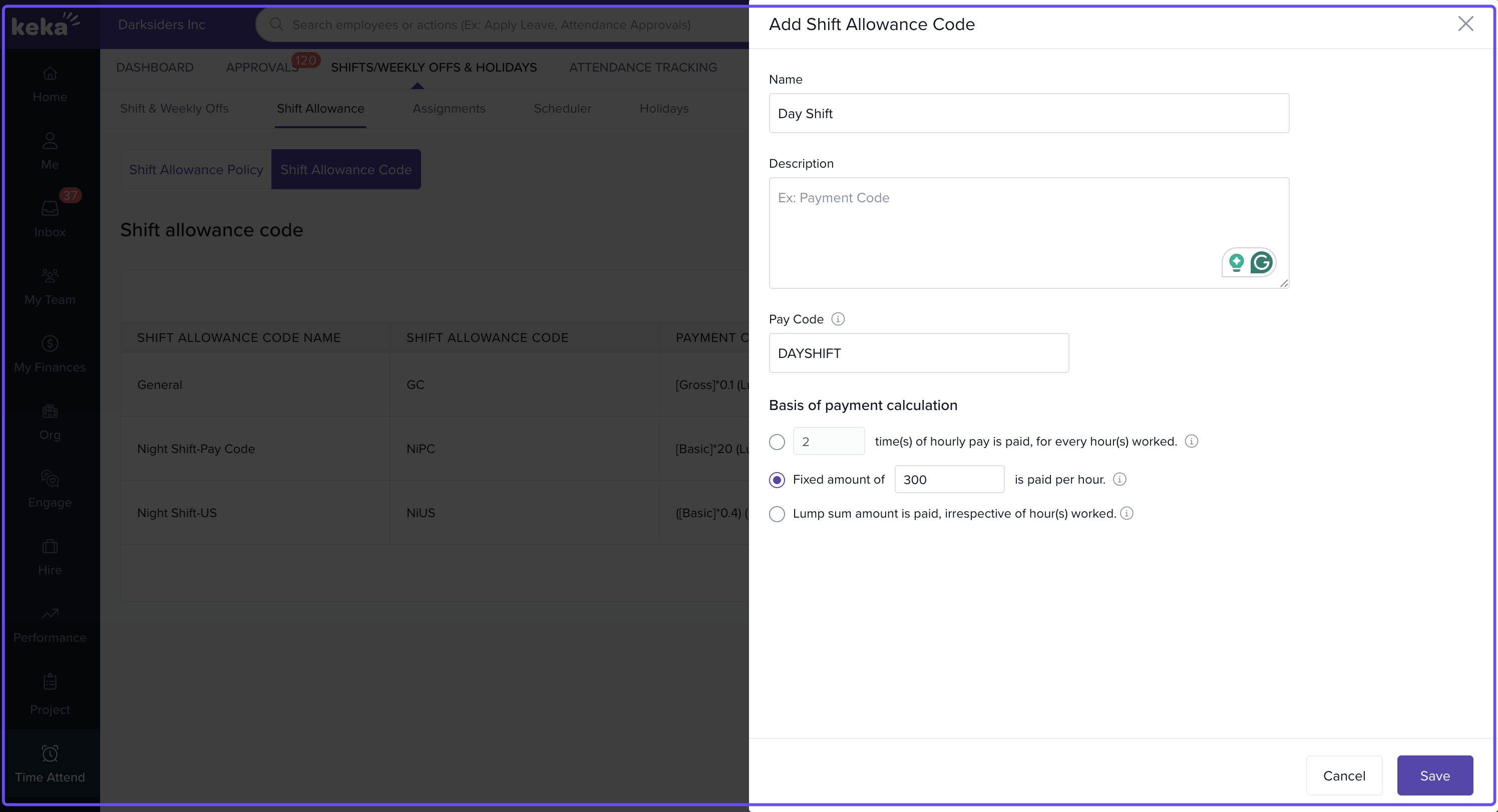
Define the calculation formula
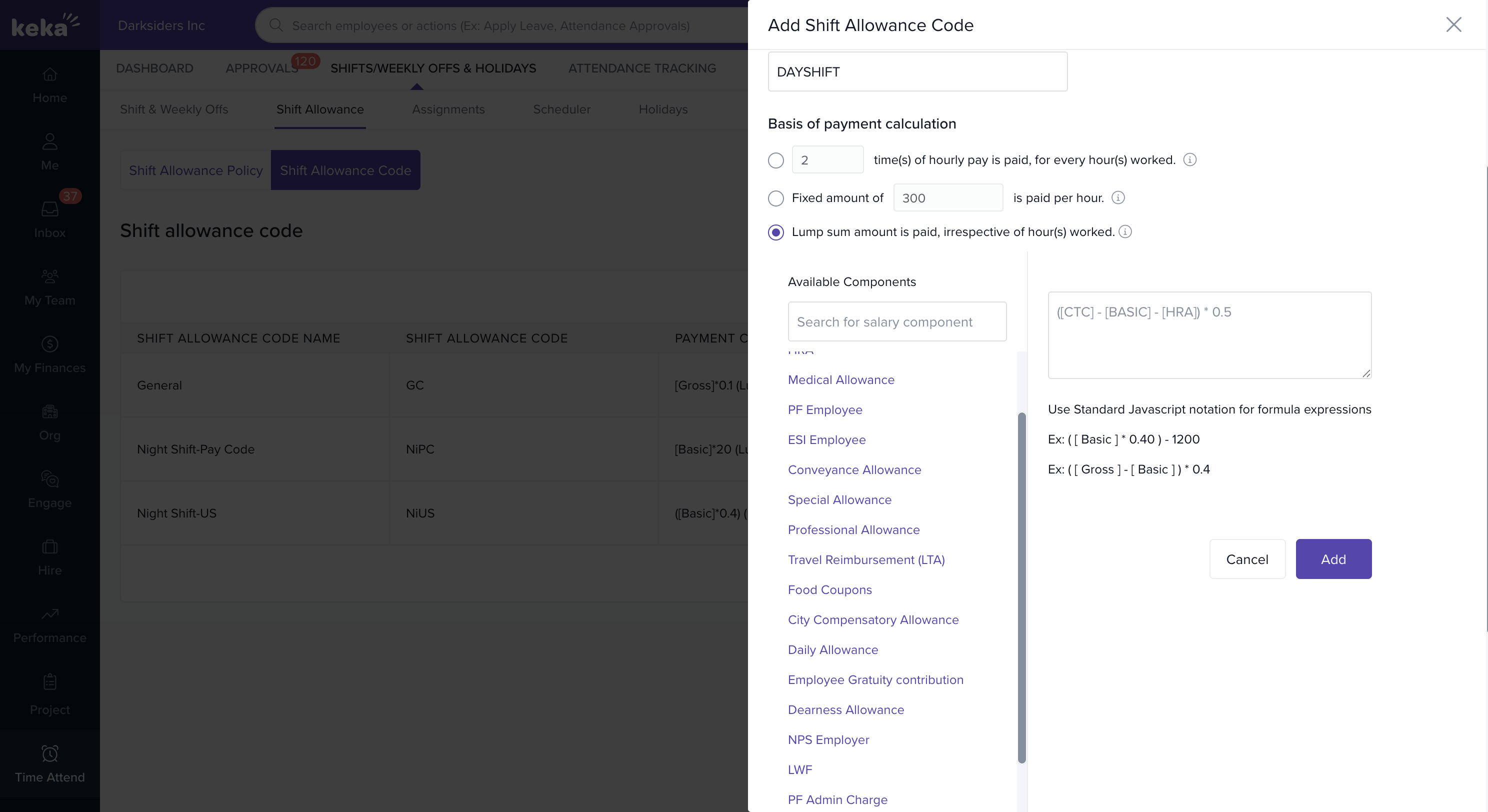
You’ll need to input a formula that determines the shift allowance. This can include salary components such as [CTC], [Basic], etc.
Choose a salary component from the dropdown to insert it automatically.
Use standard JavaScript syntax:
Use
*for multiplication and/for division.Wrap component names in square brackets:
[ComponentName].Enclose expressions in parentheses as needed.
Follow the BODMAS rule for operation order: Brackets, Orders, Division, Multiplication, Addition, Subtraction.
Click Add to save the code. You can create multiple codes based on your company’s shift types.
Important: The shift allowance pay code configuration differs based on the payroll country.
- For Global Payroll, Keka supports multiple methods to define a shift allowance pay code.
- For India Payroll, only one method of defining the shift allowance pay code is currently supported.
Ensure you select the appropriate configuration based on your payroll setup.
2. Create a Shift Allowance Policy
Once your codes are ready, create a policy to apply them.
Go to the Shift Allowance Policy tab.
Click + Add Shift Allowance Policy.
You can start from scratch or use a predefined template.
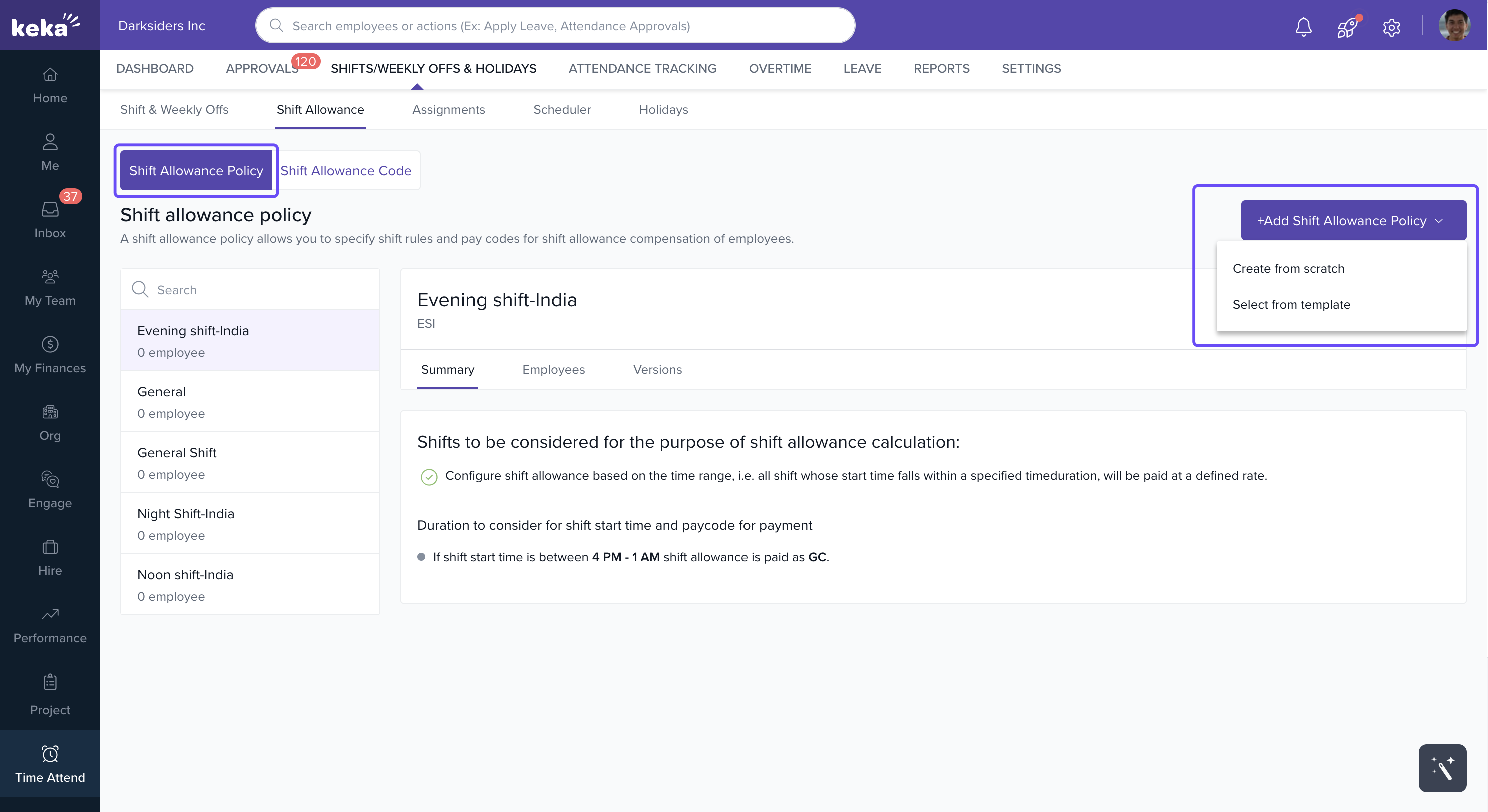
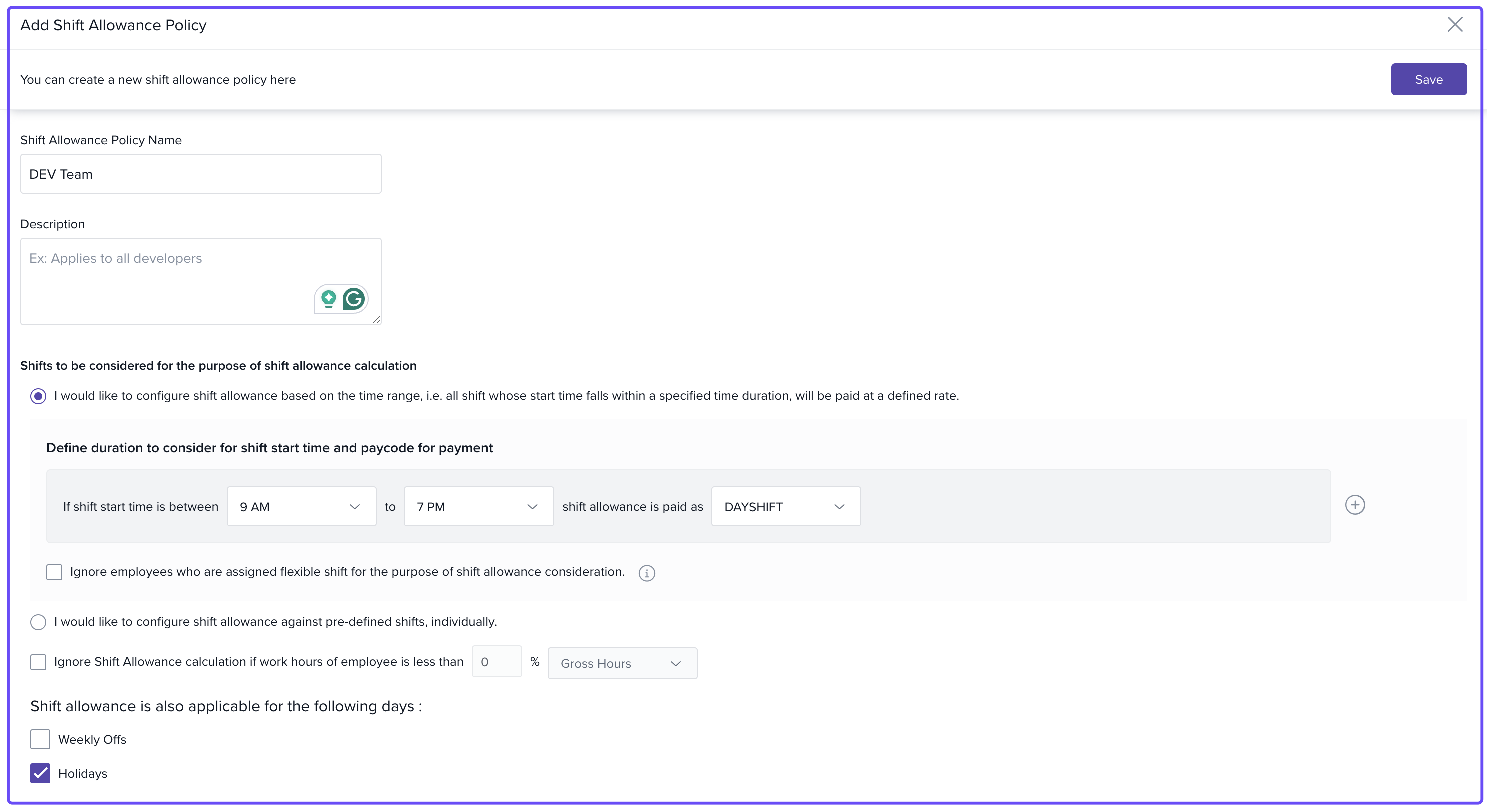
In the policy form:
Name: Enter a name for the policy.
Description (optional)
Application Criteria:
By clock-in time: Applies allowance based on when the employee clocks in.
By shift: Applies allowance to employees assigned to a specific shift.
Additional settings (for clock-in based policies)
Exclude flexible shift employees: Check this box to skip allowance for employees with flexible schedules.
Restrict allowance if shift hours are not completed: Enable this to only grant allowance if required hours are met.
Click Save to activate the policy.
3. Edit or Manage Existing Policies
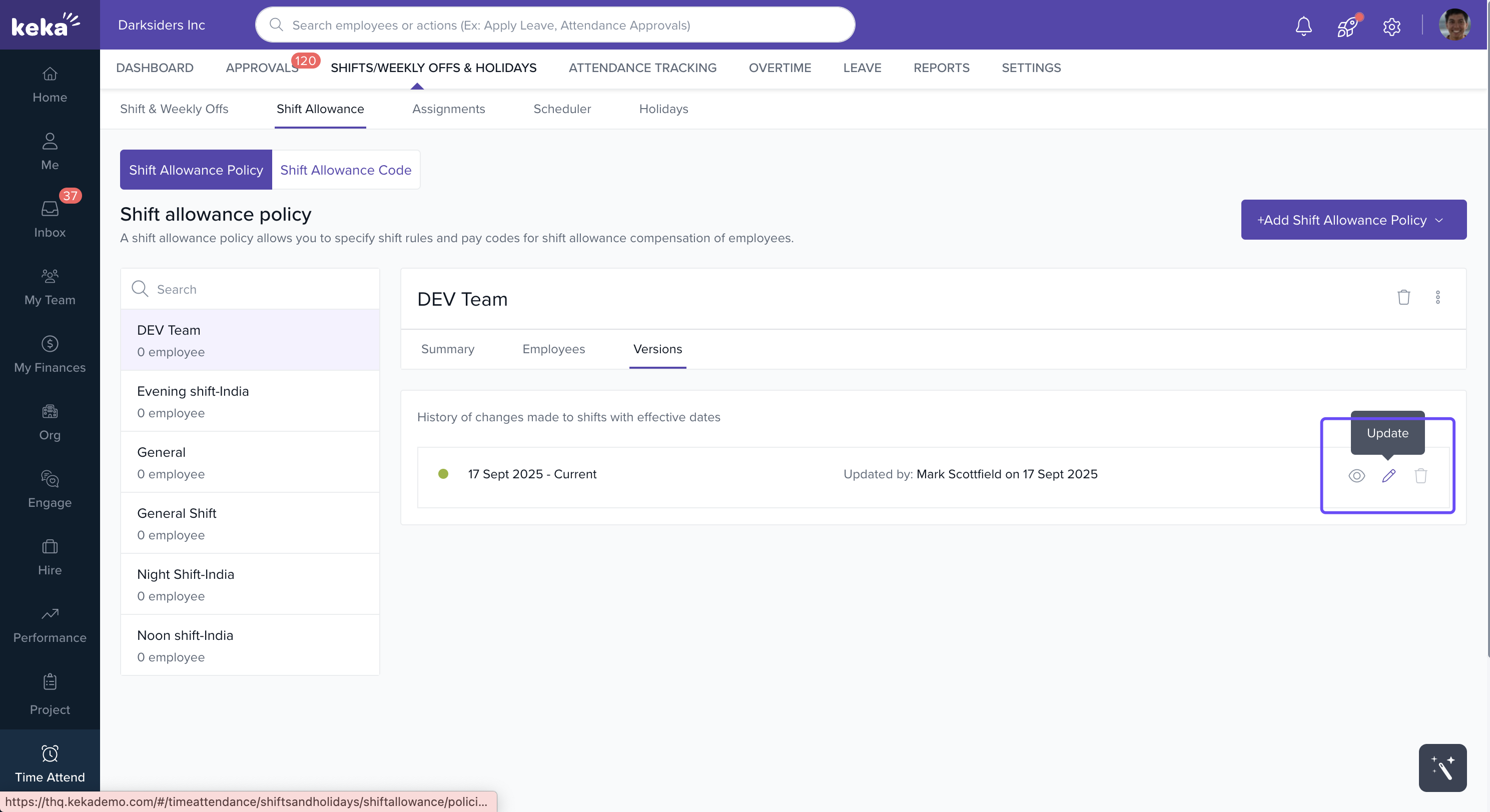
Go to the Shift Allowance Policy tab.
Locate the policy you want to change.
Click on Version next to the policy.
Choose View, Edit, or Delete.
Important: You can’t delete a policy that has a past effective date. Editing such policies creates a new version instead.
Options & Variants
Policy Type Variants
Clock-in based policy:
Best for roles where exact login time impacts shift.
Optional restrictions for flexible shifts and incomplete hours.
Shift-based policy:
Applies uniformly to predefined shifts.
Ideal for scheduled or roster-based roles.
Notes, Tips, and Warnings
Tip: Use square brackets for component names (e.g.,
[CTC]) and standard JS operators like*,/,+,-.
Important: Follow the BODMAS order for formulas to ensure correct calculations.
Warning: Policies with past effective dates cannot be deleted. Edits will create a new version automatically.
Examples & Use Cases
Night Shift Allowance: Add extra compensation for shifts starting after 10 PM.
Weekend Shift Bonus: Apply a bonus for employees working on Saturday or Sunday shifts.
Peak Hour Support: Compensate customer support teams working high-traffic hours.
Troubleshooting
| Symptom | Cause | Fix |
|---|---|---|
| Shift allowance not calculated | Formula syntax error | Check for correct use of brackets and operators |
| Employees not receiving allowance | Shift hours not met or flexible shift excluded | Review policy settings and employee shift assignments |
| Cannot delete old policy | Past effective date | Edit the policy to create a new version instead |
Comments
0 comments
Please sign in to leave a comment.