Introduction
Keka makes shift management simple with customizable schedules, pre-made templates, and a smart auto-assigner. Admins can easily create, edit, and assign shifts to keep workforce scheduling efficient and compliant.
This guide walks you through creating shifts from scratch, editing them, and using the auto-assignment feature.
Create a Shift from Scratch
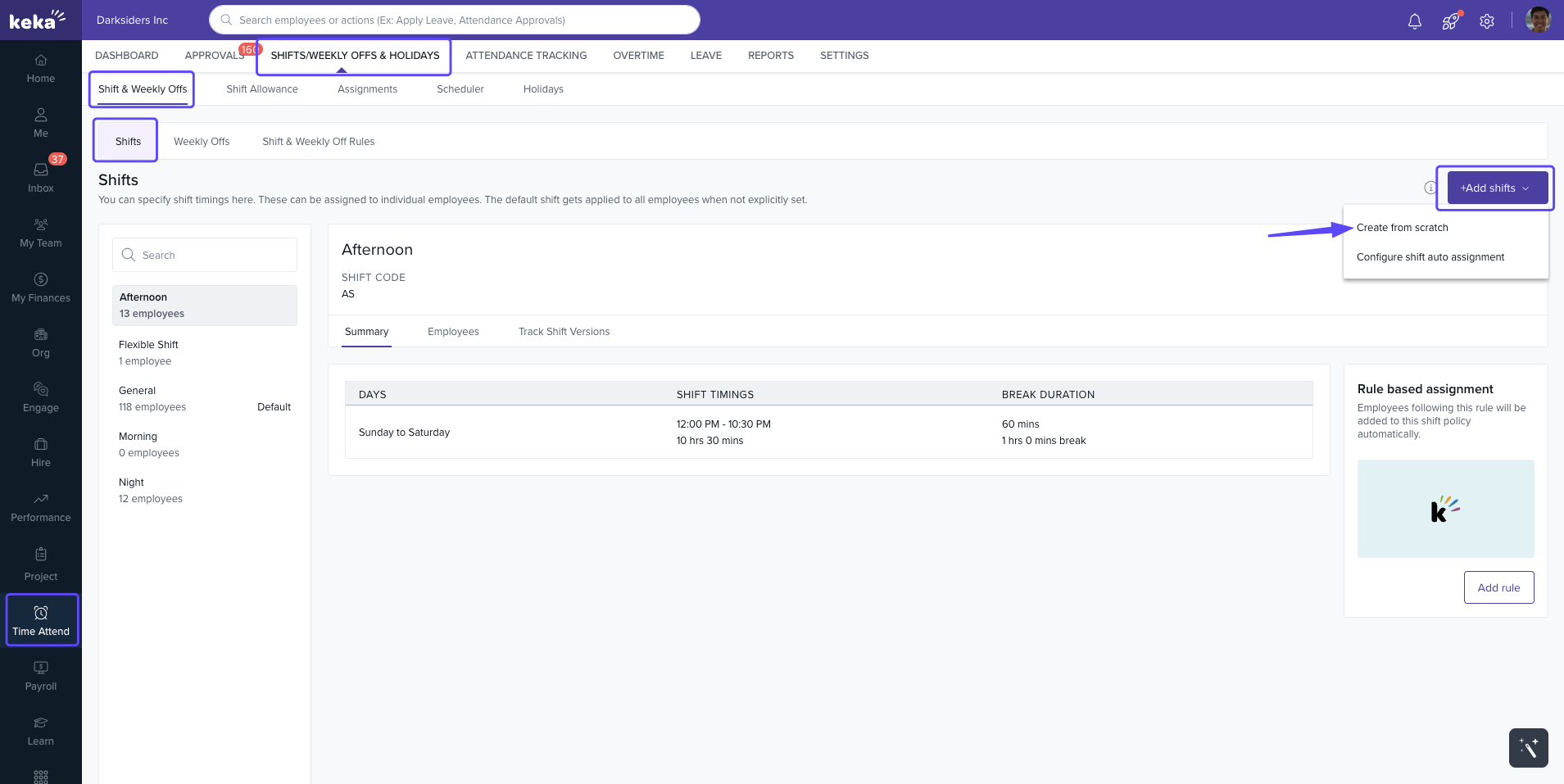
Go to Time & Attendance → Shifts/Weekly Offs & Holidays → Shifts & Weekly Offs.
You’ll see all configured shifts. To create a new one, click +Add Shifts.
-
Choose Create from scratch.
-
In the Add Shift window:
Enter Shift Name, Shift Code, and Description.
Select Fixed shift timings or Flexible work hours.
Set timings for each day of the week.
Define break duration.
-
Use the ⊕ button to add multiple instances if needed.
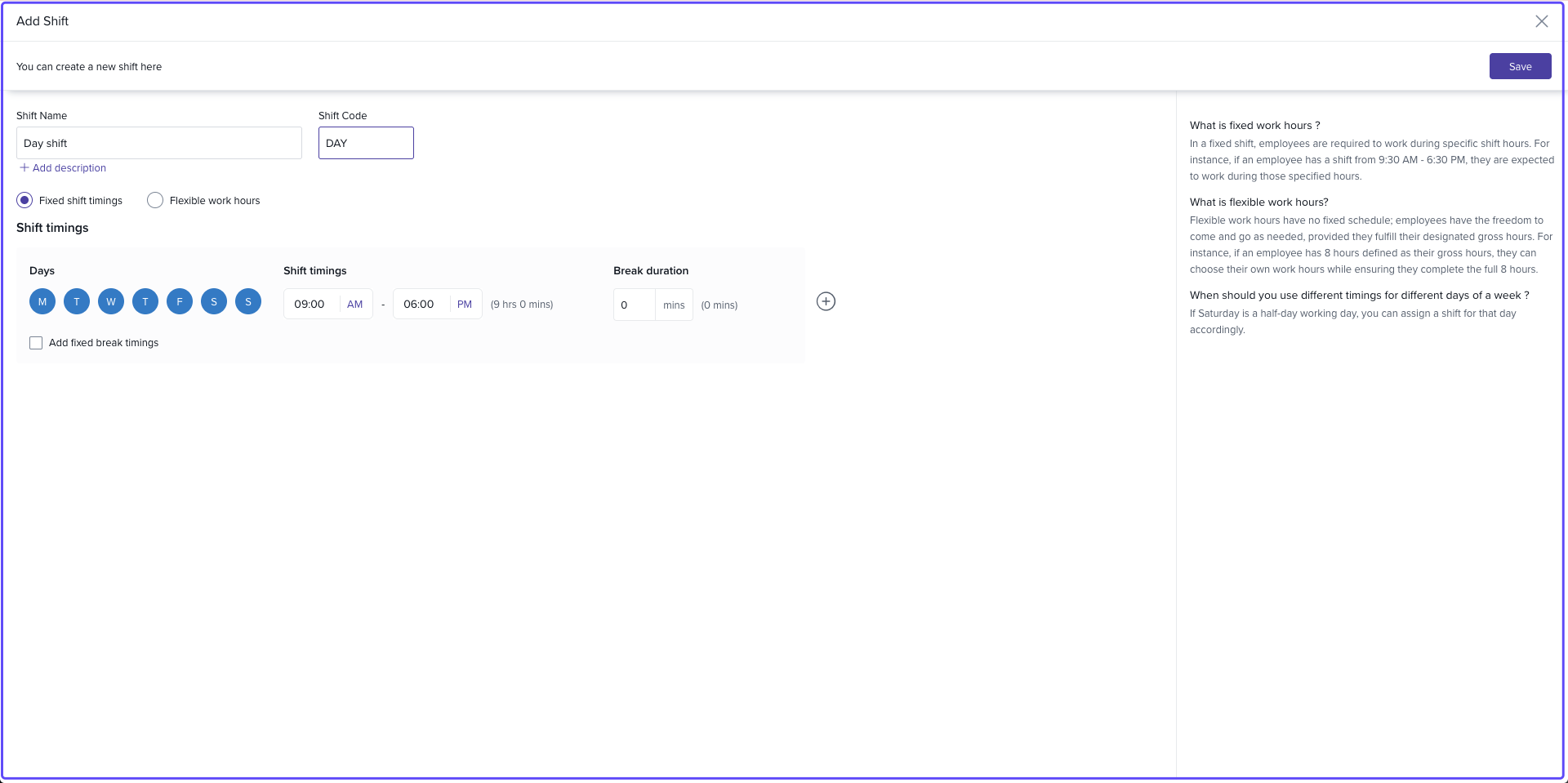
Click Save to create the shift.
Note: The Shift Code is used internally by the system to identify the shift.
Edit Existing Shifts
To update or remove a shift:
Select the shift.
Click Track Shift Versions.
Choose View, Update, or Delete.
-
If editing, make changes and click Update.
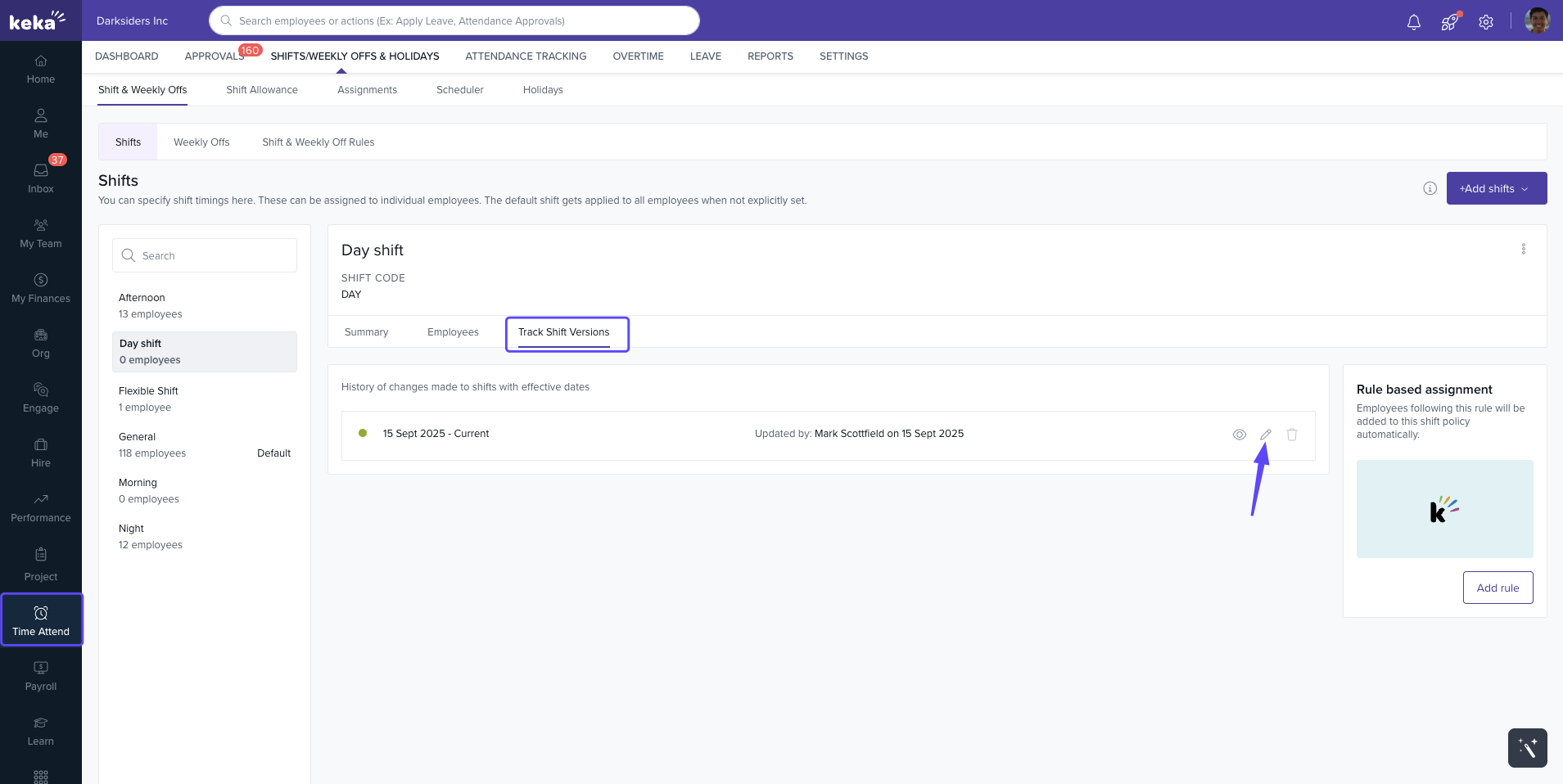
Important: A shift version cannot be deleted if it was previously assigned to employees.
Configure Shift Auto Assignment
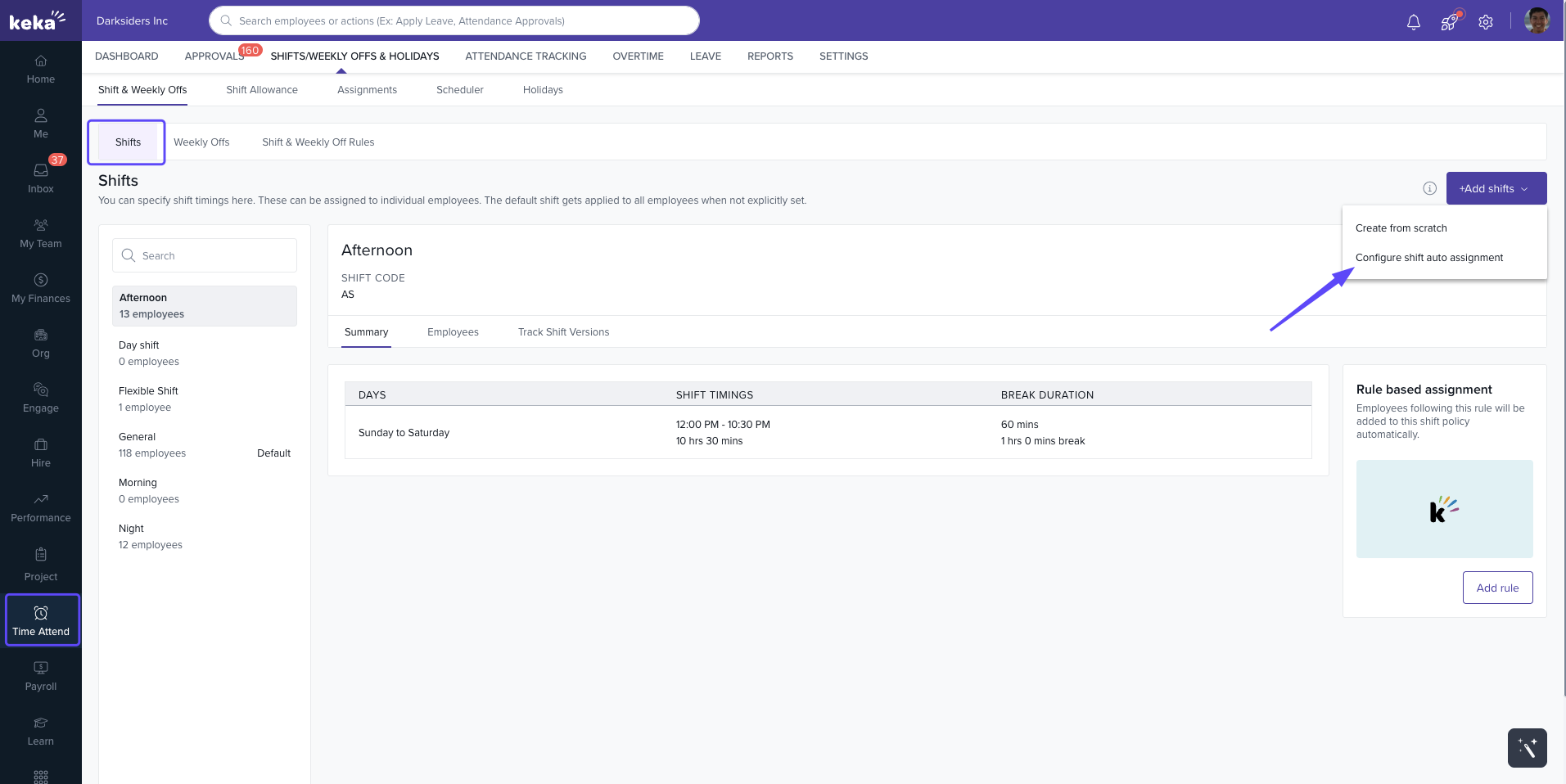
The auto-assigner automatically assigns shifts based on employees’ first punch-in time.
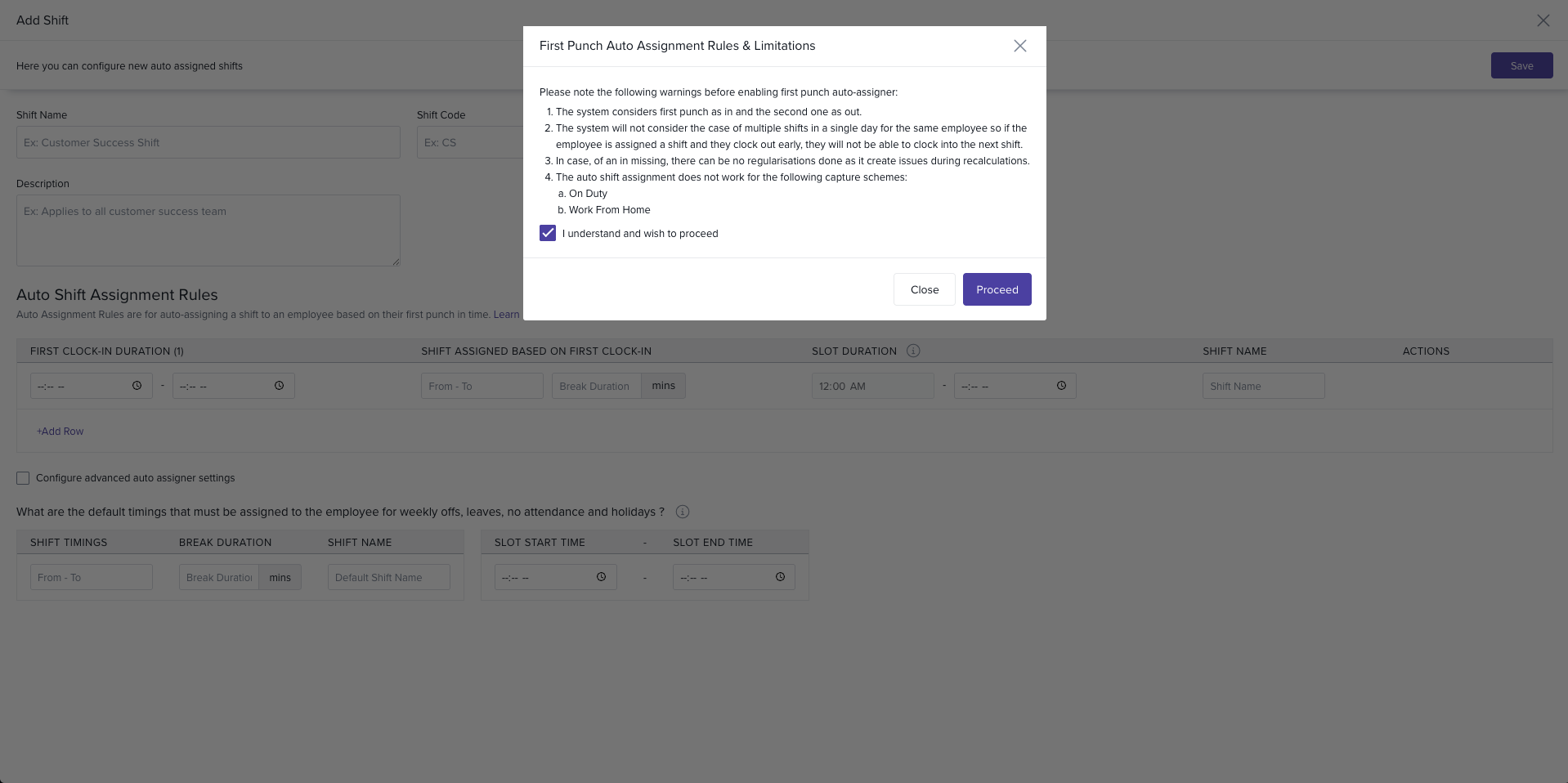
Warnings Before Enabling
The first punch is considered clock-in, the second is clock-out.
Employees with multiple shifts per day cannot clock into the next shift if they clock out early.
Missed punch-ins cannot be regularised.
Not compatible with On Duty or Work From Home capture schemes.
Navigation
Choose Configure auto shift assignment from the +Add Shifts dropdown
- Acknowledge the warning and click Proceed.
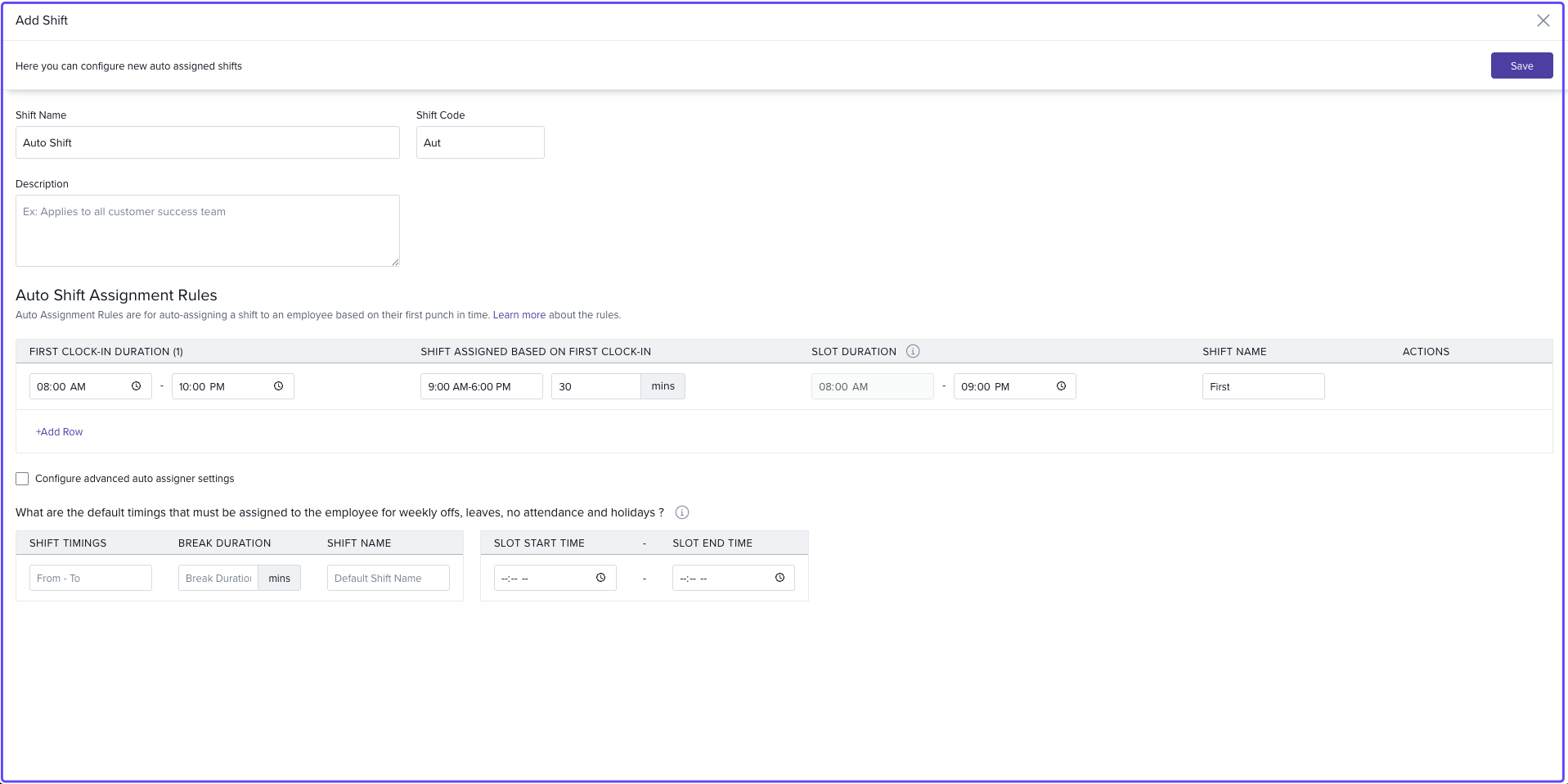
Enter Shift Name, Shift Code, and Description.
-
Under Auto Shift Assignment Rules:
Define a time range for first clock-in.
Enter the corresponding shift timing and break duration.
Optionally, set a Maximum Slot Duration (system auto-clocks out employees after this time).
-
To add more shifts, click +Add Row and repeat for other time ranges.
Continue until the total covers 24 hours.
Configure a default shift to cover weekly offs, holidays, and missed clock-ins.
Click Save.
If your total clock-in ranges don’t add up to 24 hours, the system warns of a gap. Employees clocking in during a gap will be assigned to the last shift. To avoid this, add rows covering the full 24-hour cycle.
Only one Auto Assigner shift can exist at a time.
Next Steps
By combining fixed shifts with auto-assignment rules, Keka helps you streamline attendance tracking and manage workforce schedules efficiently.
Comments
0 comments
Please sign in to leave a comment.