Introduction
Once you have created shift schedules, weekly off policies, shift allowance policies, and rules in Keka HRMS, the next step is to assign them to employees.
This article walks you through assigning shifts and weekly offs for individuals, multiple employees, and in bulk. You’ll also learn how to assign shift allowances and apply shift/weekly off rules.
Configuration
Assigning Shifts and Weekly Offs
Go to Time Attend in the left panel.
- Open the Assignments tab.
-
Navigate to Shift/Weekly Offs & Holidays.
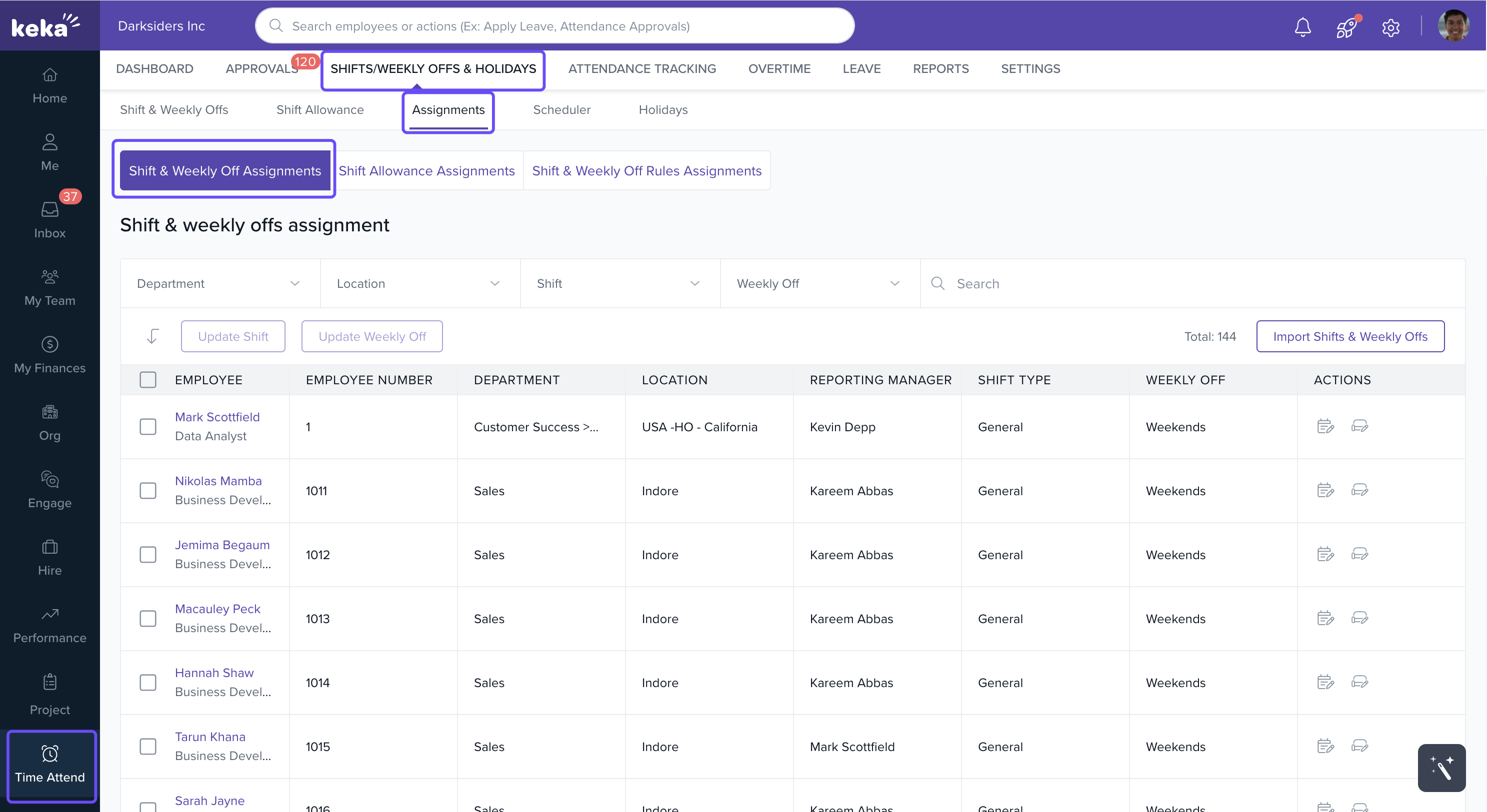
Here, you can assign policies to:
A single employee
Multiple employees at once
Employees in bulk using Excel
For an Individual or Multiple Employees
Search for the employee(s) in the list.
-
Under the Actions column, click Update Shift or Update Weekly Off.
-
For multiple employees, select them and then click Update Shift or Update Weekly Off.
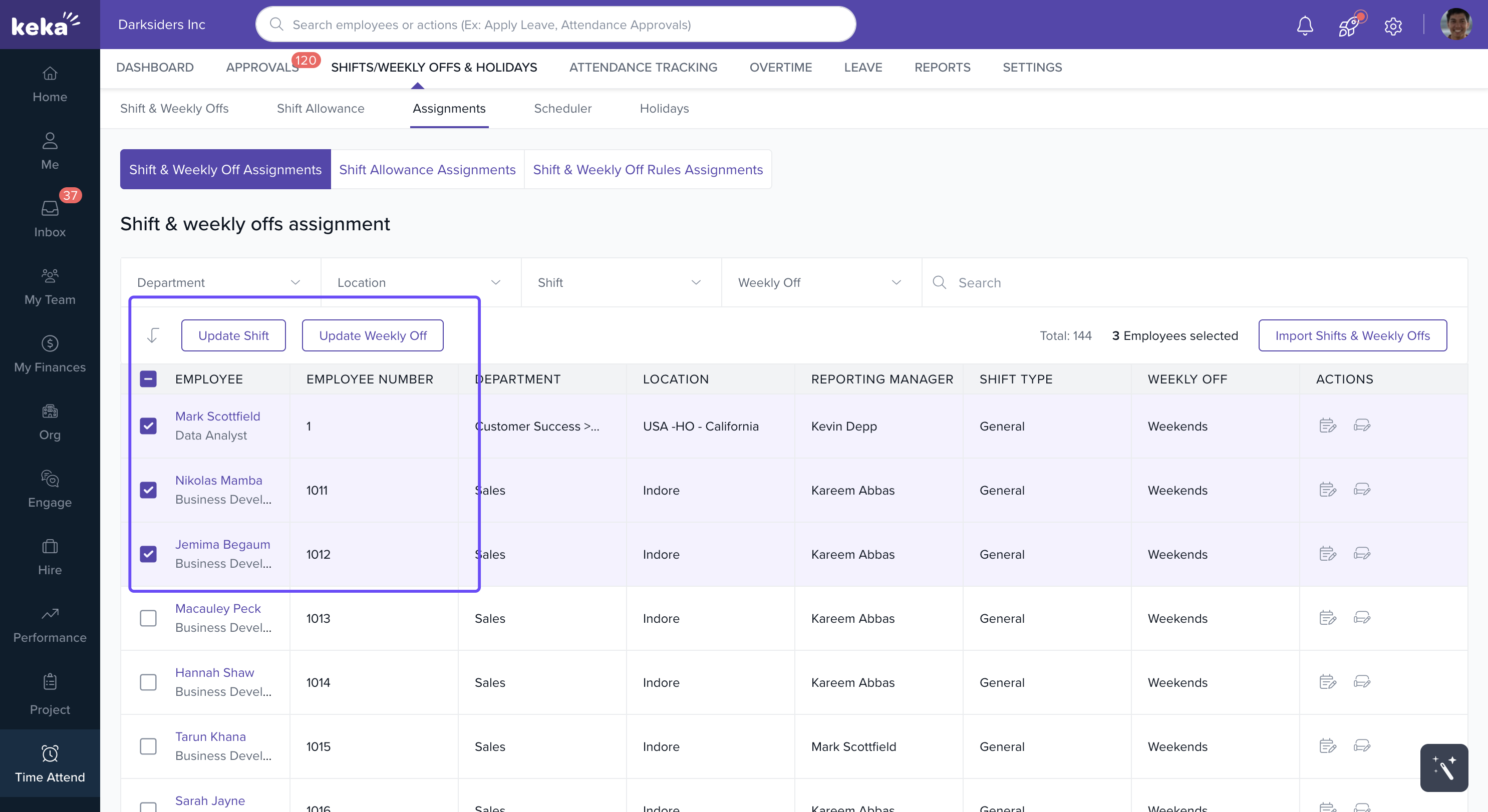
-
-
In the pop-up:
Enter the effective date range
Select the type of shift or weekly off
Optionally, mark This shift doesn’t have an end date yet to make it permanent
-
Click Update Shift/Weekly Off.
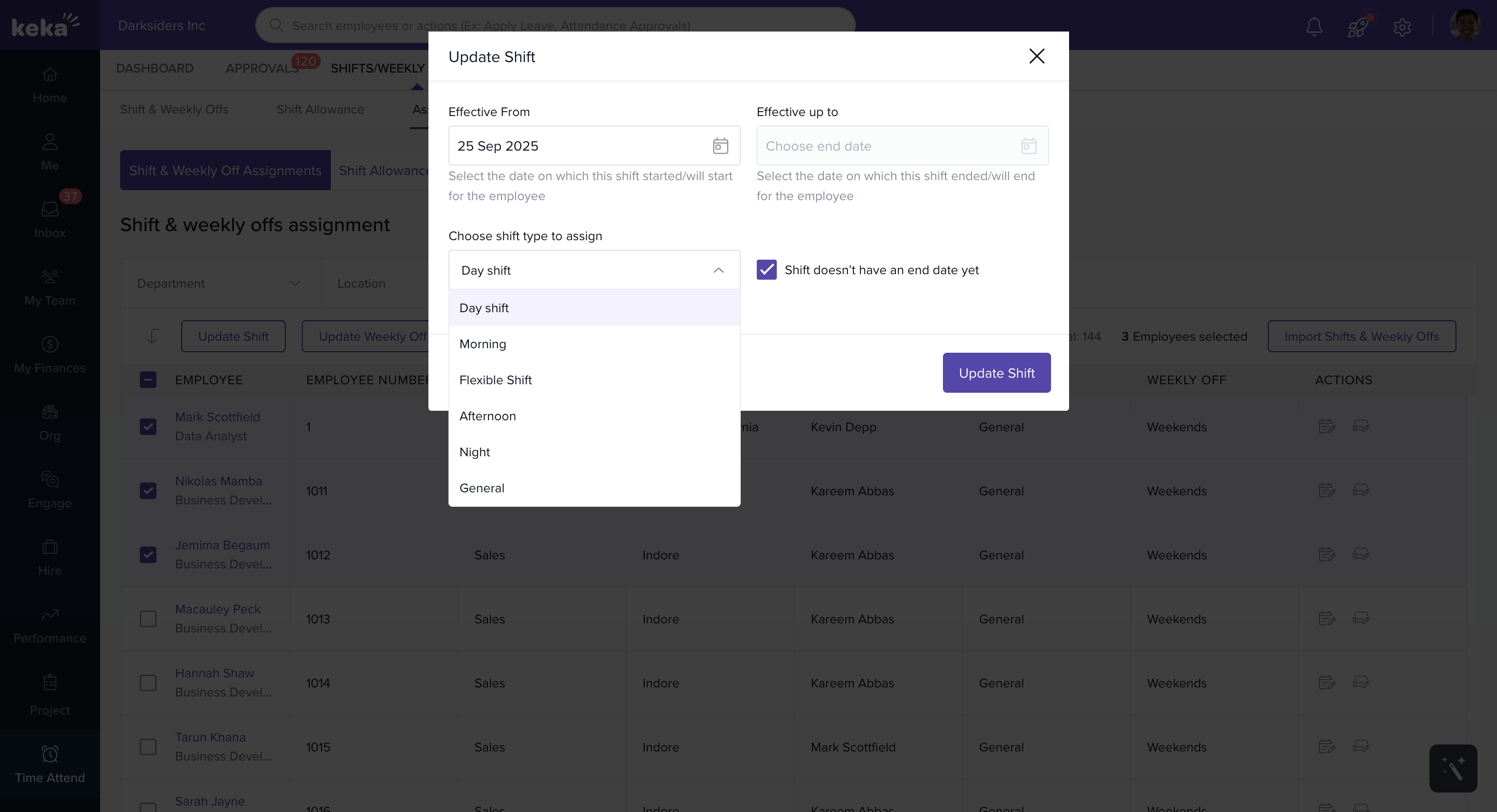
Important: Any attendance adjustments already made for this duration will be deleted.
Bulk Assignment (Rotational Shifts)
-
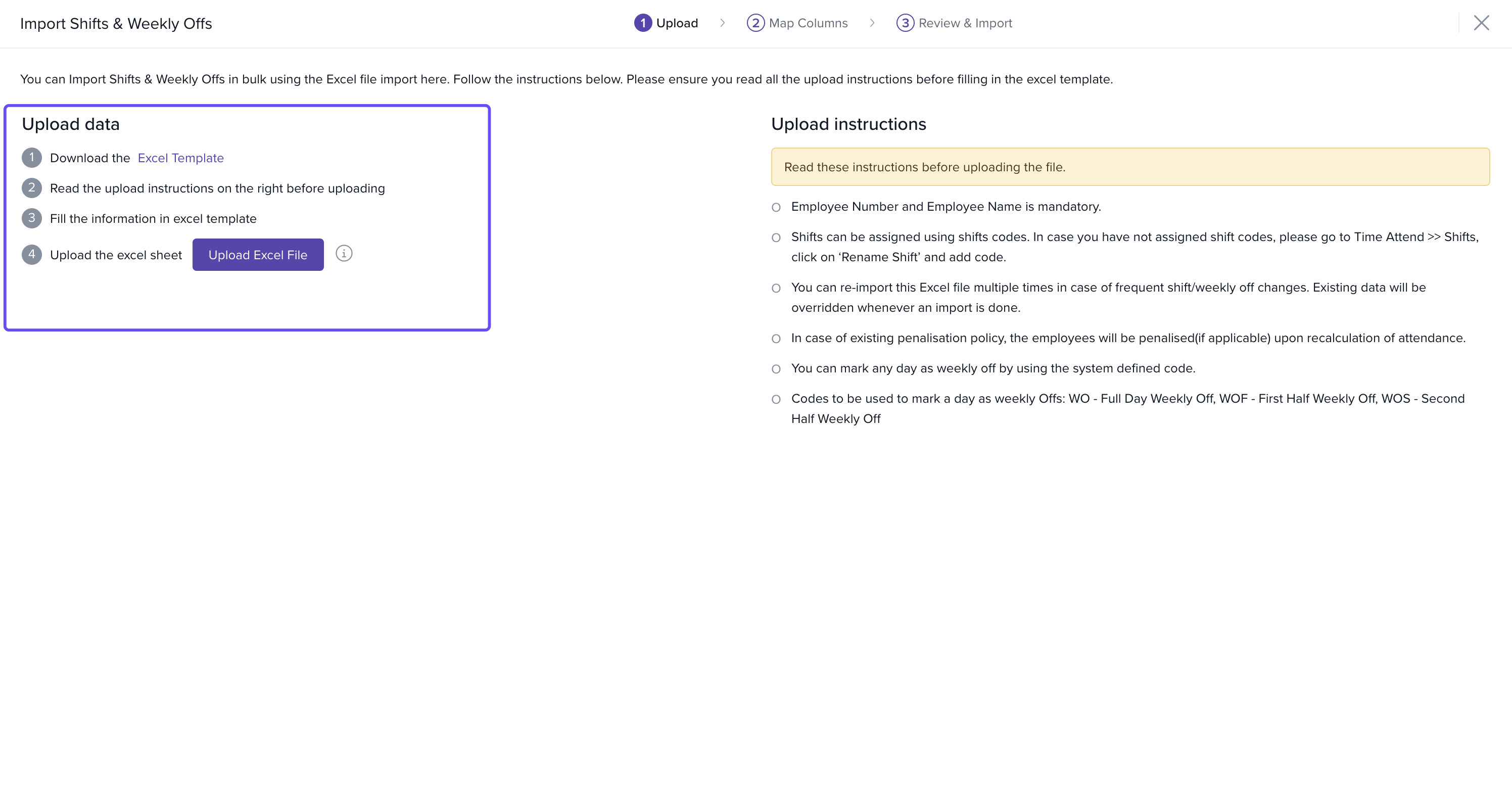
Go to Assignments → Import Shifts & Weekly Offs.
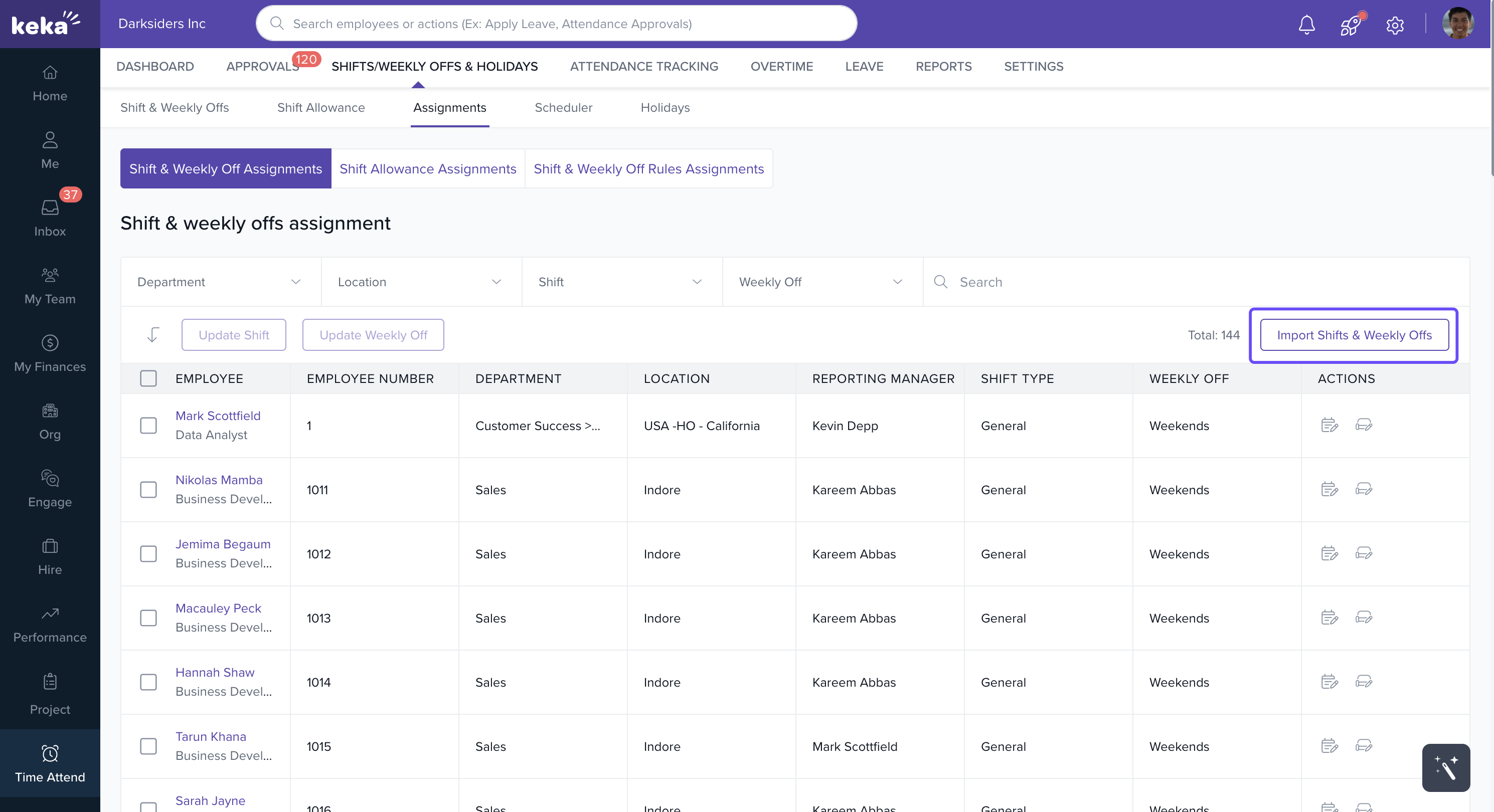
-
Download the Excel template.
-
The file contains employee details and next month’s assignment fields.
-
-
Fill in the sheet by assigning shift or weekly off codes from the dropdown.
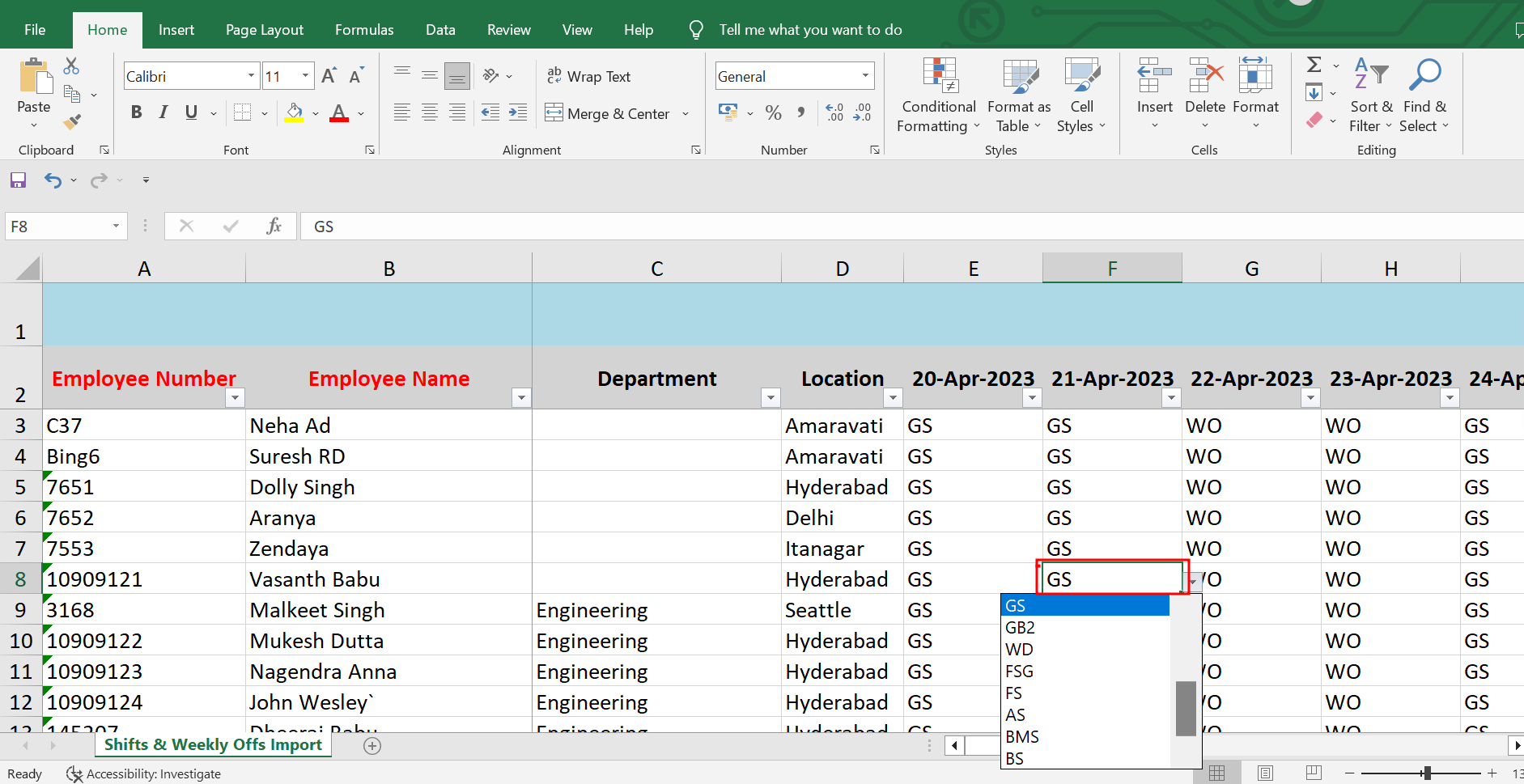
Save the file and upload it back to Keka using Upload Excel File.
Assigning Shift Allowance Policy
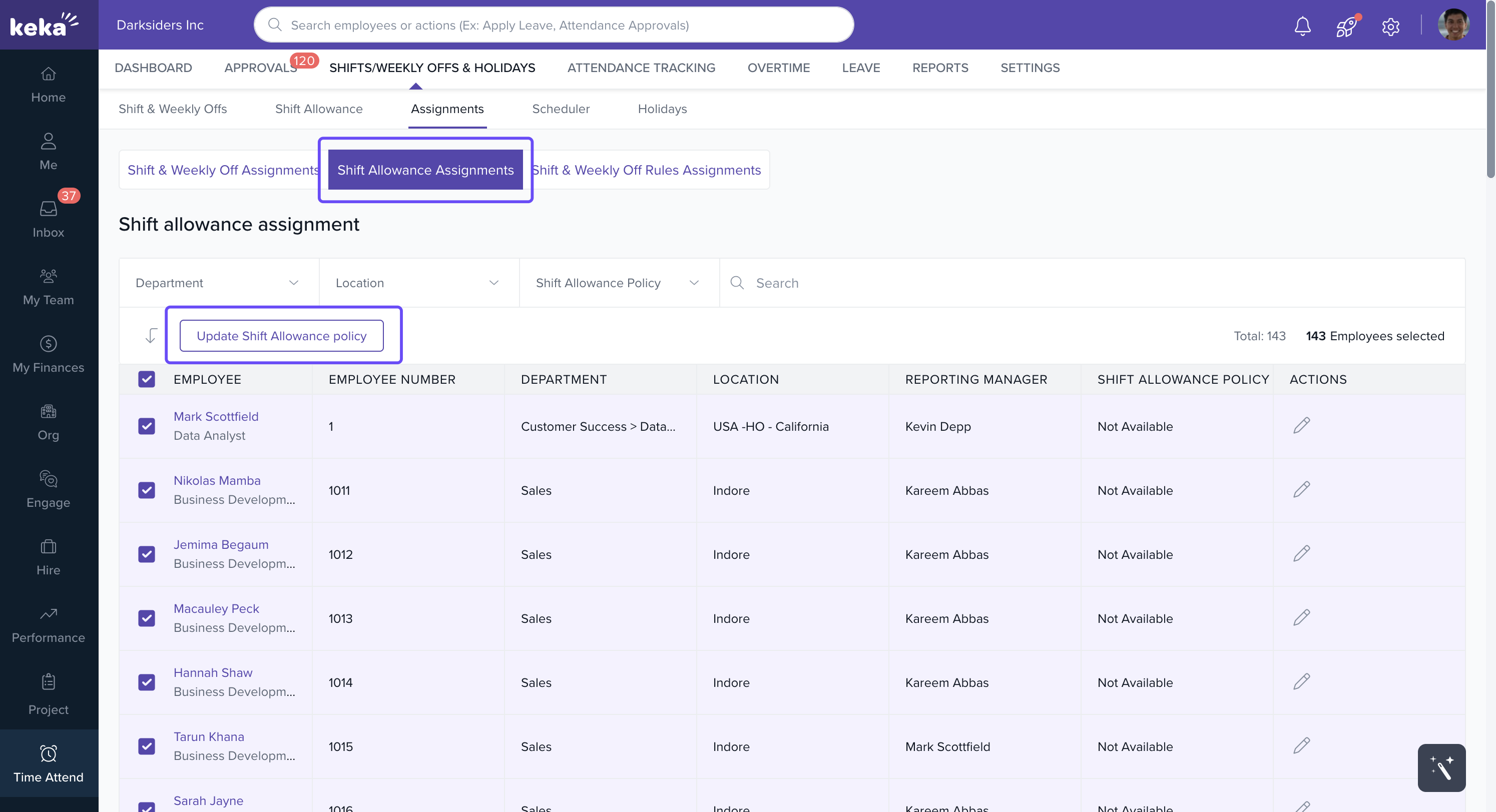
Navigate to Time Attend → Shift/Weekly Offs & Holidays → Assignments → Shift Allowance Assignments.
-
Assign to:
A single employee can click the Update icon under Actions.
-
Multiple employees by selecting them and clicking Update Shift Allowance Policy.
-
In the pop-up:
Enter the effective date range
Select the allowance policy
Optionally, mark This shift doesn’t have an end date yet
-
To remove an existing policy, choose Employees are no longer part of any Shift Allowance Policy.
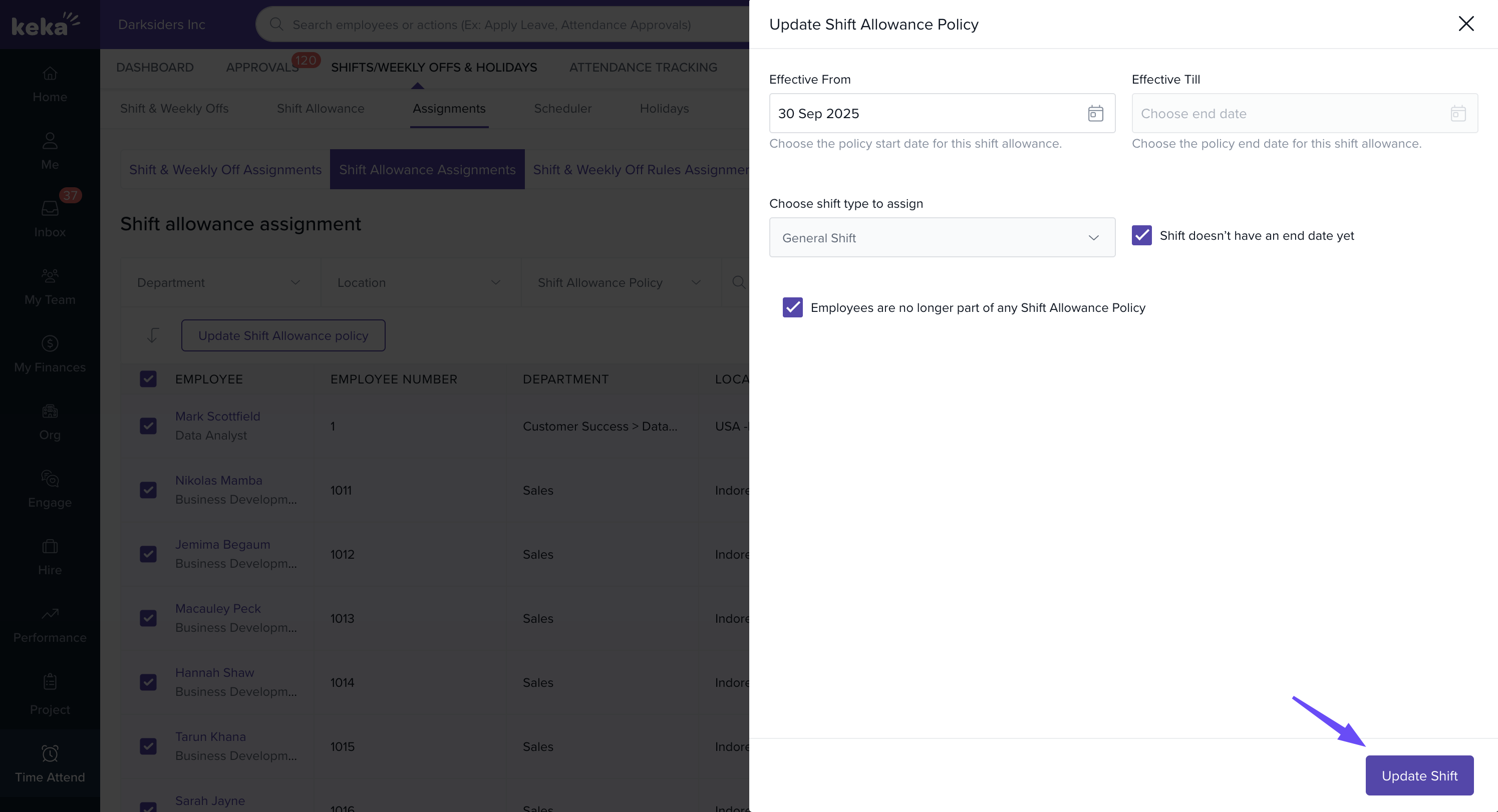
Click Update Shift.
Assigning Shift & Weekly Off Rules
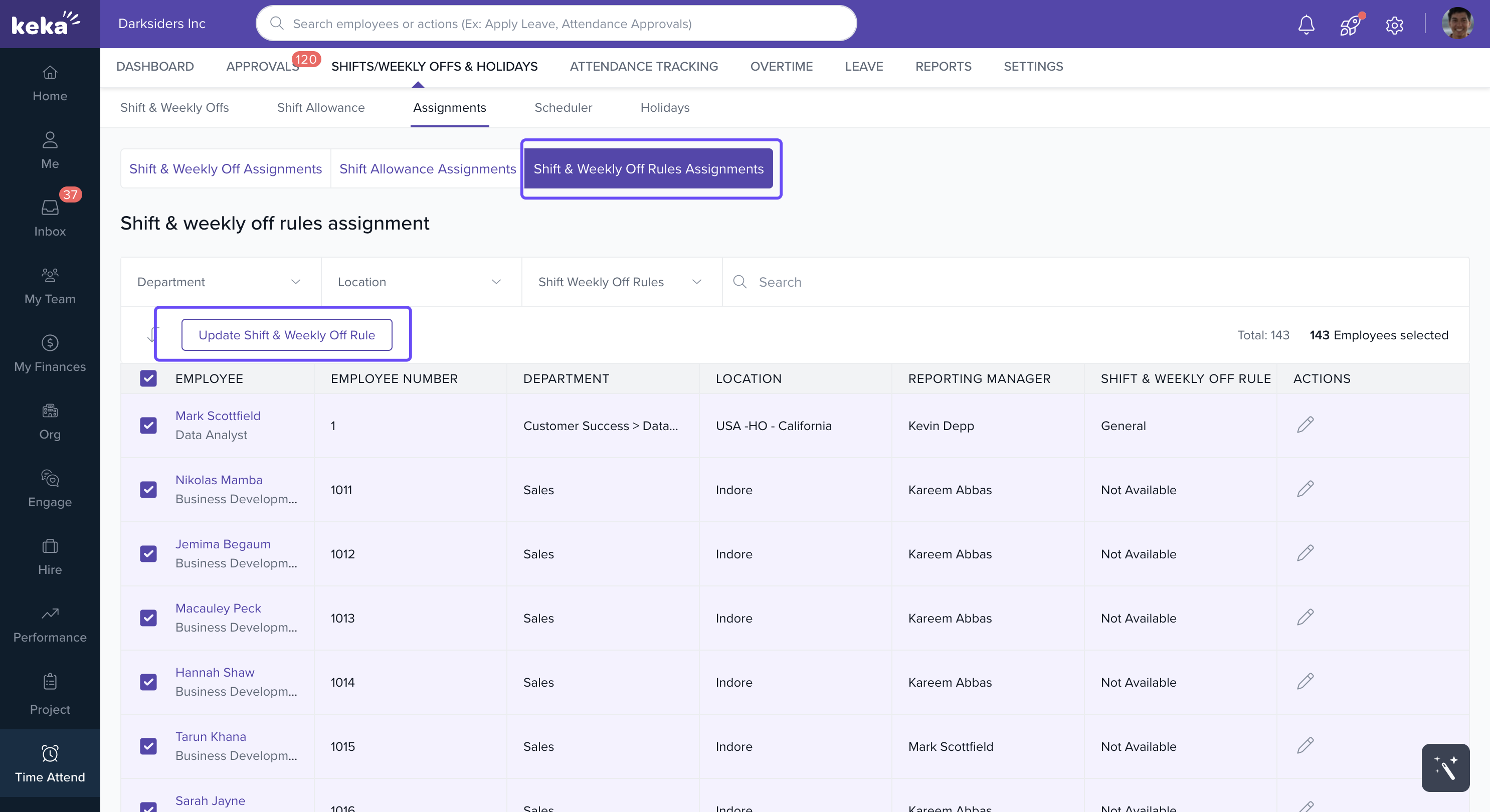
Navigate to Time Attend → Shift/Weekly Offs & Holidays → Assignments → Shift & Weekly Off Rules Assignments.
-
Assign to:
A single employee using the Update icon.
-
Multiple employees using the Update Shift Allowance Policy button.
-
In the pop-up:
Select a pre-defined Shift & Weekly Off Rule
-
Add a Note if required
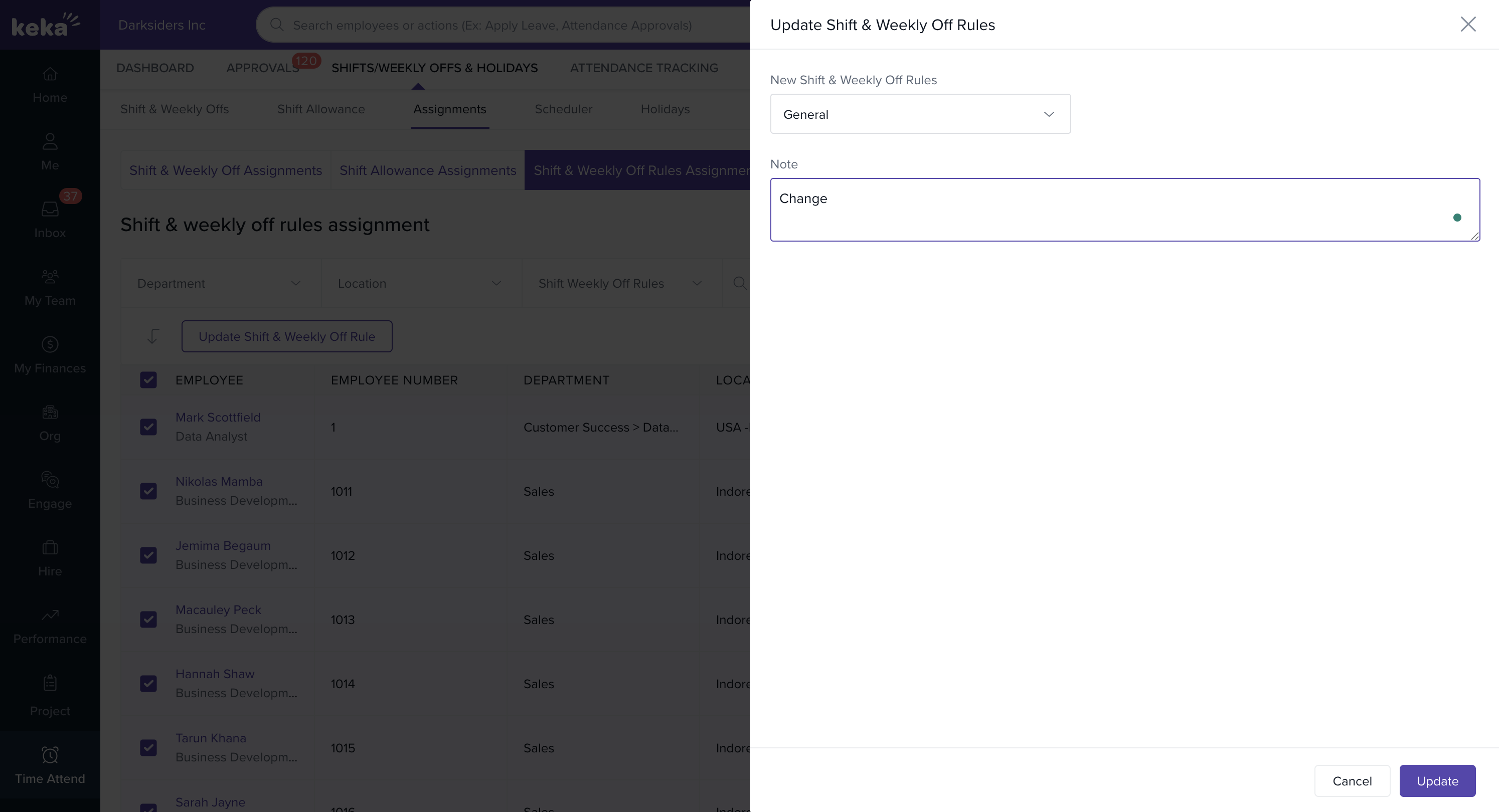
Click Update.
Notes & Warnings
Attendance adjustments for the updated duration will be deleted once the new assignment is applied.
For bulk imports, only valid shift codes from the dropdown can be used in the Excel sheet.
Comments
0 comments
Please sign in to leave a comment.